A demo account is the cheapest education in forex. You get a fully functional MT4 connected to live broker spreads — but with virtual money. You can lose $10,000 in a morning and learn ten lessons in the process, all without risking a real cent.
This guide walks you through opening a free MT4 demo account in under five minutes, including the choices that matter most when picking a broker for practice.
Prerequisites
Before you start:
- A working email address (broker sends credentials there).
- About 5 minutes.
- MetaTrader 4 already installed — or you can install it after registration. See How to Install MetaTrader 4 Platform if you don’t have MT4 yet.
You do not need:
- A credit card.
- ID verification (most demo accounts skip KYC).
- Any deposit — virtual balance is funded automatically.
How to Open an MT4 Demo Account: 5-Step Guide
Step 1 — Choose a Broker That Offers an MT4 Demo
Almost every retail forex broker offers a free MT4 demo. The differences that actually matter for practice trading:
| Criterion | Why it matters | Good benchmark |
|---|---|---|
| Demo lifetime | Some brokers expire demos after 30 days; others run indefinitely | 90+ days, ideally unlimited |
| Demo spreads | Practice with realistic spreads, not artificially tight ones | Match live ECN spreads |
| Demo balance flexibility | Choose your own starting balance to match real trading plans | Pick from $100 – $1,000,000 |
| EA / scripting allowed on demo | Test EAs before risking live money | Always allow on demo |
| Server uptime | Demos sometimes share unreliable servers | Should match live server uptime |
Brokers that consistently get demo right: IC Markets, Pepperstone, OANDA, XM, FBS, FXCM, Tickmill, Admirals. Pick whichever you’d consider for live trading later — using the same broker’s demo means zero retraining when you switch to live.
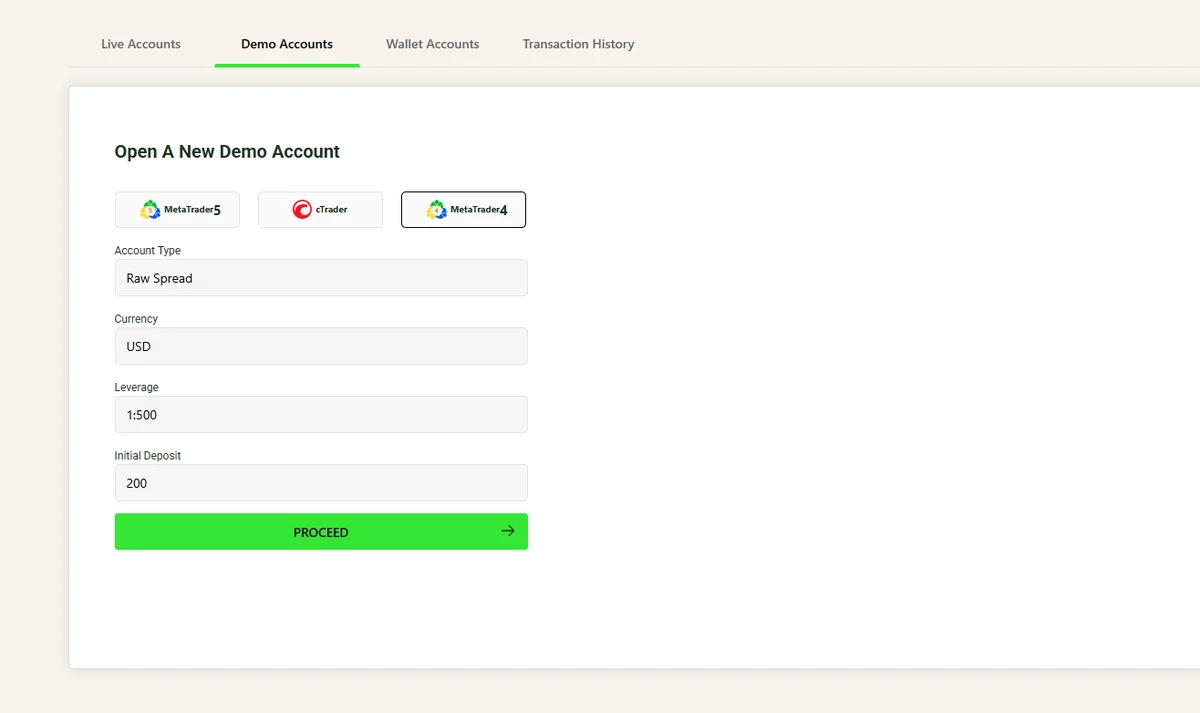
Step 2 — Register the Demo Account on the Broker Website
Go to your chosen broker’s website and look for the Demo Account or Open Demo button — usually in the top-right header or under the “Accounts” menu.
Click it, and you’ll see a registration form. Typical fields:
- Full name — first and last name
- Email address — credentials delivered here
- Phone number — optional with most brokers
- Country of residence — affects which entity (regulator) handles your account
- Trading experience — beginner / intermediate / advanced (purely informational)
- Account type — Standard / ECN / RAW (pick what you’d use live)
- Account currency — USD, EUR, GBP, JPY (USD is most common)
- Leverage — usually 1:30 (EU/UK retail) up to 1:500 (offshore)
- Initial deposit — virtual amount, often pick from $1,000 / $10,000 / $50,000 / $100,000
Submit the form. Most brokers approve demo accounts automatically and instantly — no human review.
Tip: Pick a virtual deposit close to what you actually plan to fund live with. A $100,000 demo balance breeds bad habits — you’ll take 5x position sizes you’d never take on a real $1,000 account. Match the demo to reality.
 —
—
Step 3 — Receive Your Demo Credentials
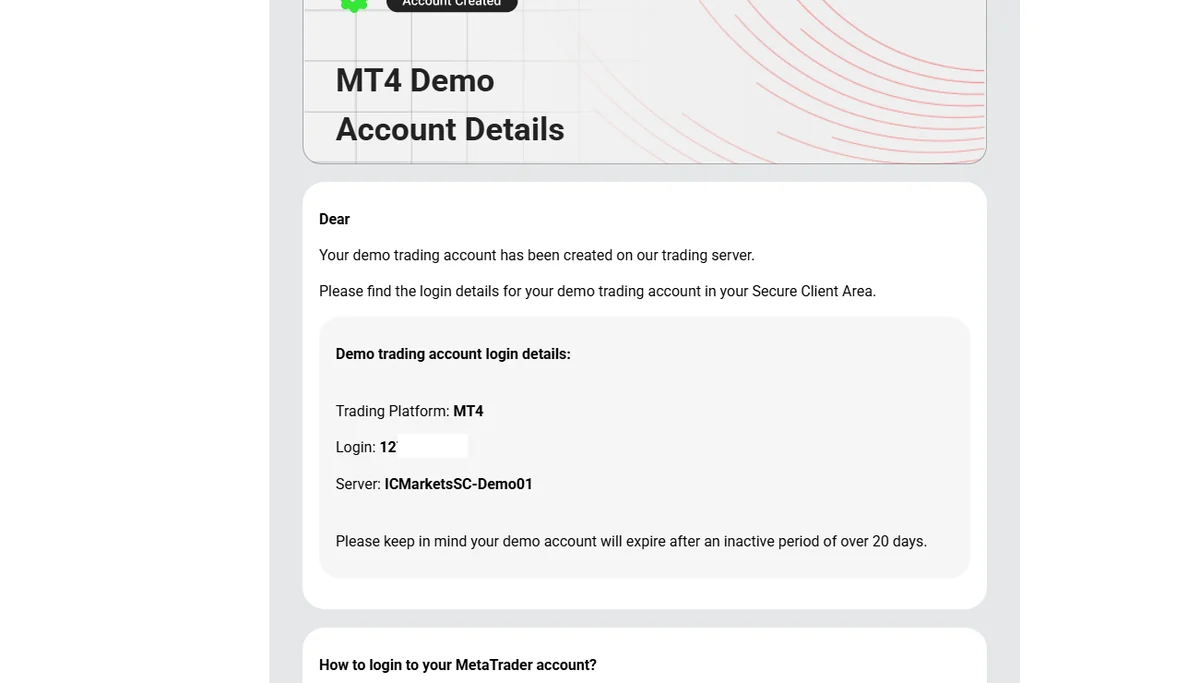
Within seconds of submitting the form, you’ll get an email with:
- Account number (login) — typically a 6–8 digit number
- Trading password (main password) — used to place orders
- Investor password (read-only) — share with viewers without giving order rights
- Server name — exactly which broker server to connect to (e.g.
IC-Markets-Demo01)
Save this email. Brokers expire demo accounts and reissue different credentials when you re-register, so keeping a record helps if you need to recover access later.
 —
—
Step 4 — Log In to MT4 With the Demo Credentials
Open MetaTrader 4. If you’ve never opened it before, on first launch it shows a “Choose Server” screen — see How to Install MetaTrader 4 Platform for the install walkthrough.
If MT4 is already open, go to File > Login to Trade Account in the top menu. Fill in:
- Login — account number from the email
- Password — trading password from the email
- Server — pick the demo server from the dropdown (matches the email)
Click Login. Within 3-5 seconds, you’ll see:
- Green ping bars in the bottom-right corner — live data flowing
- Account number, balance, and “Demo” tag in the title bar
- Bid/ask prices ticking in Market Watch
If login fails, check the server name carefully — demo accounts cannot connect to live servers.
Step 5 — Verify the Demo Balance and Start Practising
Open the Trade tab at the bottom of MT4 (or press Ctrl+T). You’ll see:
- Balance: the starting virtual deposit you chose at registration
- Equity: balance + floating P&L of any open positions
- Free margin: equity minus used margin
Open any chart (e.g., EUR/USD H1) and place a small test trade — a 0.01 lot buy for example. Confirm the position appears in the Trade tab and the floating P&L updates as price ticks.
You’re done. The demo account is fully functional — same execution mechanics, same spreads, same indicators, same EA capability. The only difference is the money is virtual.
Alternative: Open Demo Directly From MT4
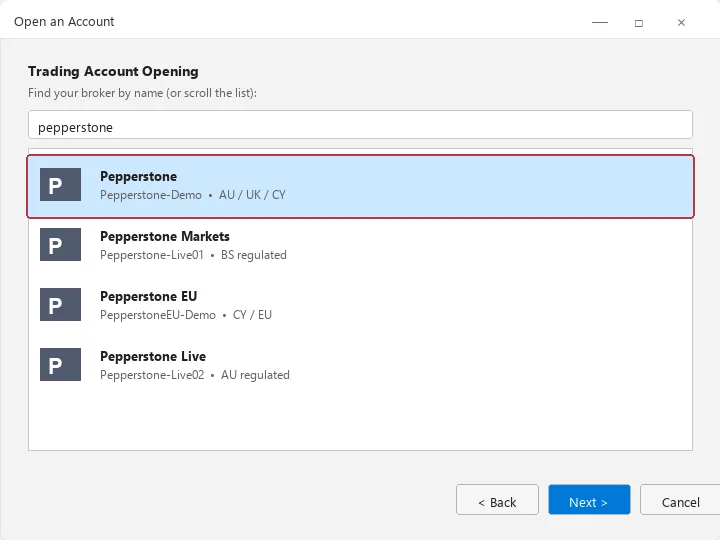
If you skipped the broker website and went straight into MT4, you can open a demo from inside the platform:
- In MT4, click File > Open an Account.
- Pick your broker from the list (or click Scan to refresh).
- Click Next.
- Fill in the registration form (same fields as the website method).
- Click Next. Credentials are auto-filled into the next dialog and MT4 logs you in immediately.
This method skips the email step entirely — credentials show on screen and MT4 saves them. Faster, but you don’t get the email backup, so write the account number down somewhere safe.
 —
—
Pro Tips for Effective Demo Trading
- Treat virtual money like real money. A demo only teaches you something useful if you respect position sizing and stop losses. Random over-leveraged trades teach nothing.
- Match your demo balance to your real plan. If you’ll fund live with $1,000, demo with $1,000 — not $100,000. Position sizing habits carry over.
- Practise the same strategy you’d run live. Demo isn’t for “let me try every indicator on the menu” — it’s for grinding repetitions of the one strategy you intend to trade.
- Track every demo trade. Use a journal (Edgewonk, Tradervue, or even a Google Sheet). The win rate and risk-reward profile from 50+ demo trades tells you whether the strategy is profitable.
- Demo for 50–100 trades minimum before going live. Three weeks of consistent demo profitability is a much better signal than three lucky days.
- Test your EAs on demo before live. Even backtested EAs can behave differently in real-time conditions. Run the EA on demo for 2-4 weeks before risking real capital.
Frequently Asked Questions
Is an MT4 demo account really free?
Yes. Every reputable broker offers free, unlimited (or near-unlimited) MT4 demo accounts. There are no hidden fees, no credit card requirement, no minimum deposit. Brokers offer demos because converting demo users to live accounts is their primary acquisition channel.
How long does an MT4 demo account last?
Depends on the broker. The shortest is around 14 days; many run 30 days; some (IC Markets, Pepperstone, OANDA) offer effectively unlimited demos that auto-renew if you log in regularly. Always check the demo expiry policy before committing.
Do demo accounts have the same spreads as live?
Most major brokers match demo spreads to live ECN/Standard spreads. A few brokers serve artificially tight demo spreads to make practice trading look easier than it actually is — that’s a red flag. If you suspect this, compare the live and demo bid/ask on the same symbol at the same time.
Can I run Expert Advisors (EAs) on a demo account?
Yes. Demo accounts have full EA support — same as live accounts. This makes demos ideal for forward-testing EAs before deploying real capital.
Can I open multiple demo accounts at the same broker?
Usually yes — brokers allow 3-5 simultaneous demos per email address. This is useful for testing multiple strategies in parallel without the risk of cross-contamination.
What happens when my demo balance runs out?
If you blow up the demo balance, most brokers offer a reset function in their client portal — restoring the original virtual balance. Some brokers require you to register a new demo account.
Is there an MT5 demo account?
Yes. The process is identical — most brokers offer both MT4 and MT5 demos. See MT4 vs MT5 Comparison to decide which platform demo to focus on.
Related Tutorials
- How to Install MetaTrader 4 Platform – Set up MT4 before opening a demo
- How to Place a Trade on MT4 – Now that you have a demo, here’s how to use it
- How to Install Custom Indicators on MT4 – Add free indicators to your demo for practice
- MT4 Strategy Tester Guide – Backtest EAs on demo data before going live
