A BUY or SELL at every range filter flip, with the stop and three targets already drawn
Voidbreak Buy Sell Pro prints one BUY or SELL label on your TradingView chart each time a range filter flips its regime on a closed bar, and draws the entry, a stop loss and three take profit levels for that signal.
- BUY and SELL decided on the closed bar, one label per regime flip of the range filter
- Entry, stop and TP1, TP2, TP3 at 1R, 2R and 3.5R drawn 40 bars ahead
- Default stop is the tighter of 1.5 x ATR(14) and a recent swing plus 0.25 ATR
- Seven alertcondition alerts plus alert() messages with entry, stop, targets and score
- The full Pine Script source code. Paste it into the Pine Editor, save, and add “Voidbreak Buy Sell Pro [AlgoFXStore]” to your chart.
- A 5-page PDF guide with installation, every setting and how to read the chart. One-time €47.
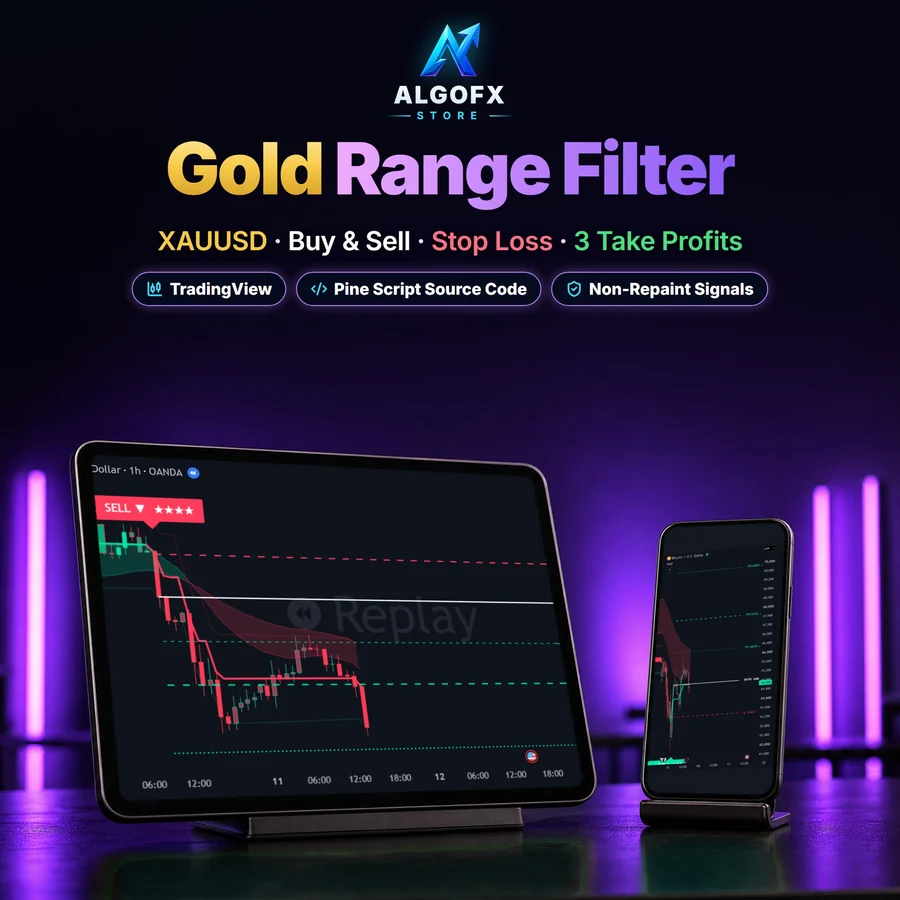
See Voidbreak Buy Sell Pro on a real chart
Press play; use the full-screen button to see every detail.
Most buy and sell indicators show the arrow and leave the risk to you
A signal arrow answers only half the question. Before you can act you still need a stop that makes sense for the market, a target or two, and the distance so you know how large the position may be. On a fast chart, working that out by hand takes longer than the move you wanted to catch, and the stop ends up wherever it felt right.
The other half of the problem is noise. A plain moving average cross or a band touch flips on every wiggle. A range filter is calmer: its line holds still while price moves inside a smoothed range and only steps when price travels further than that range. But a filter line on its own still does not tell you where the stop goes.
Voidbreak Buy Sell Pro joins the two. Each regime flip of the range filter becomes a BUY or SELL label on the closed bar, and at that moment the entry, the stop and three targets are drawn and priced, so you can measure the risk before deciding.
What Voidbreak Buy Sell Pro draws, and what each mark means
Read from the shipped TradingView edition.
| What you see | What it means |
|---|---|
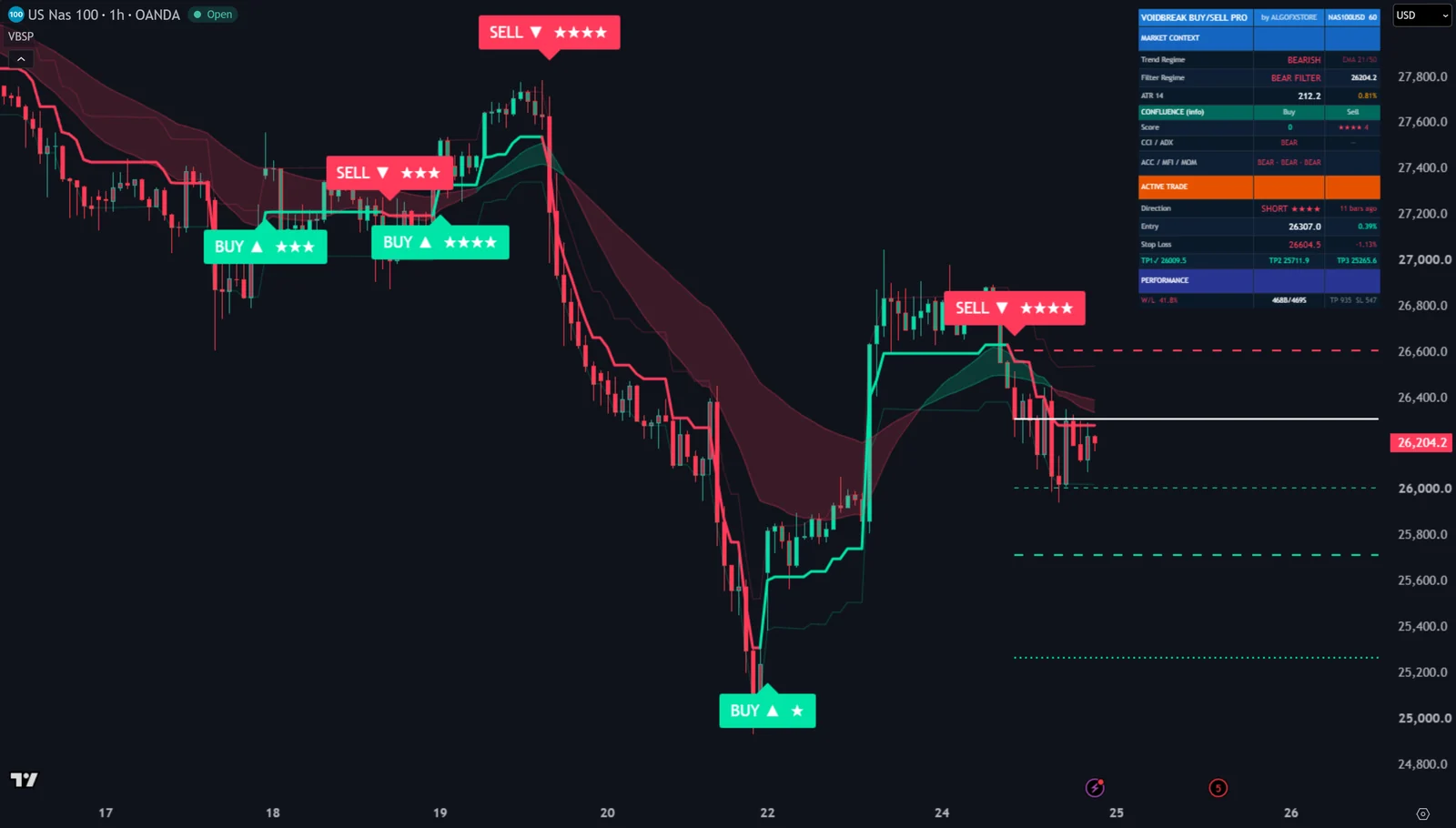
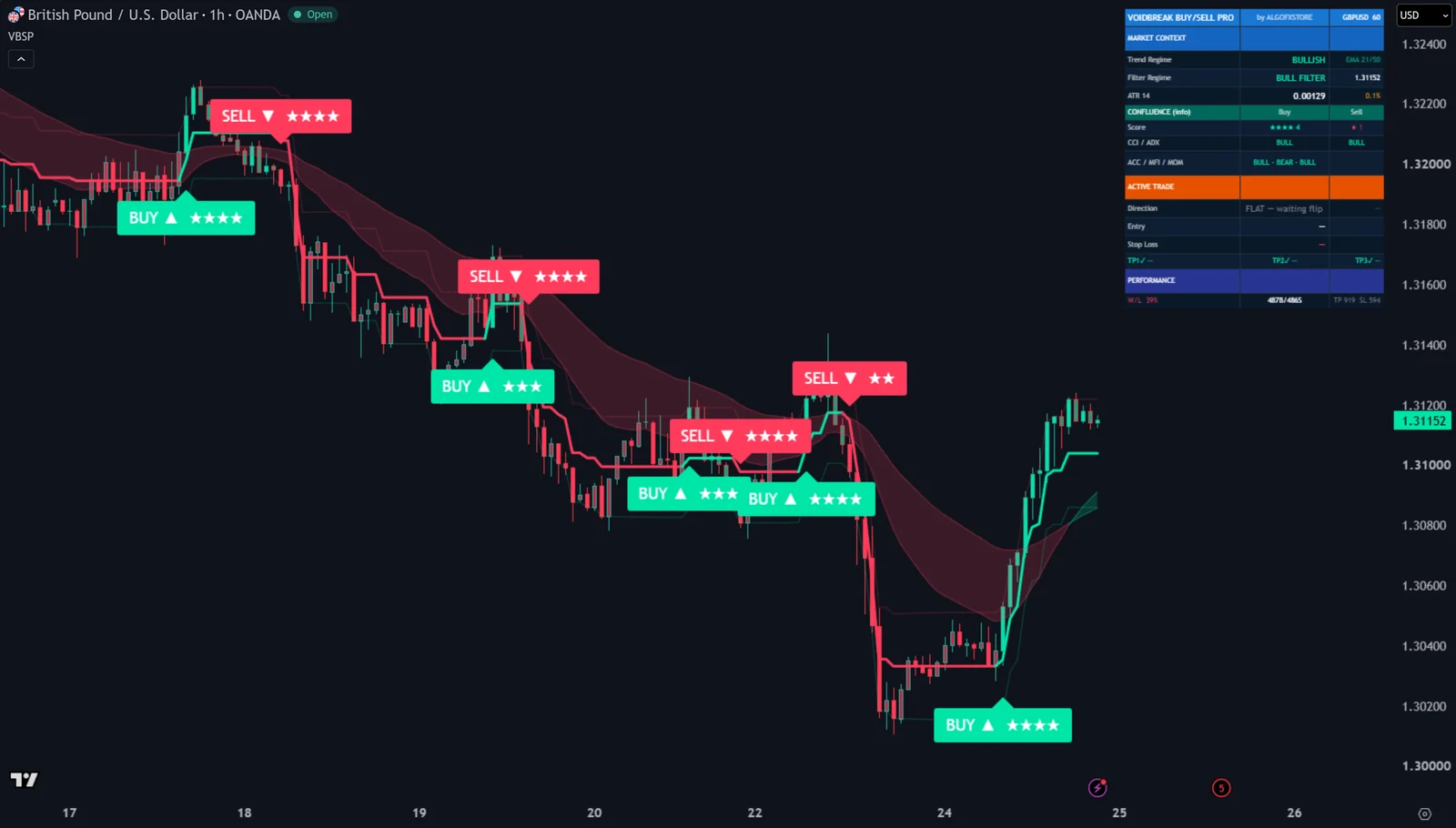
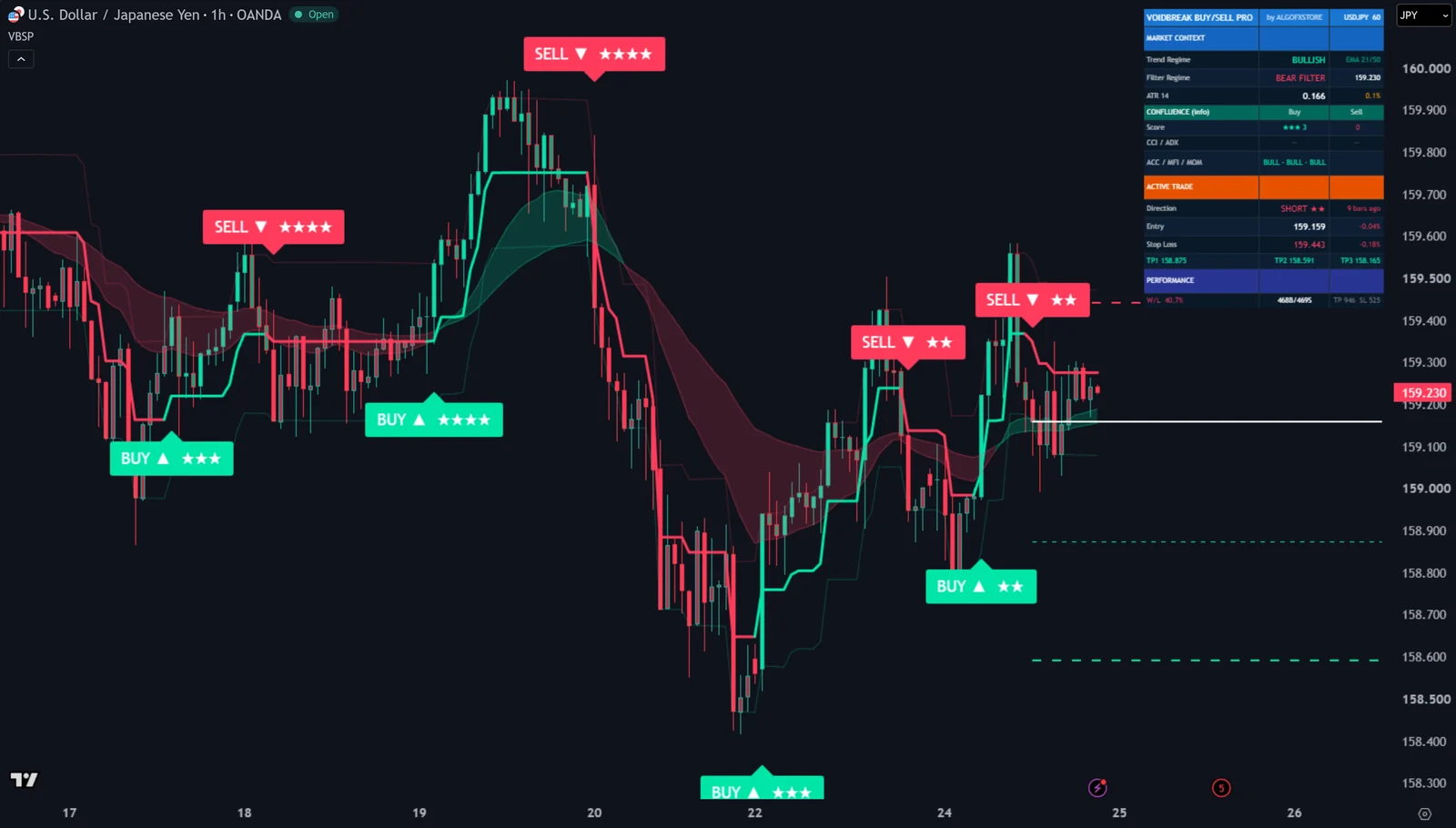
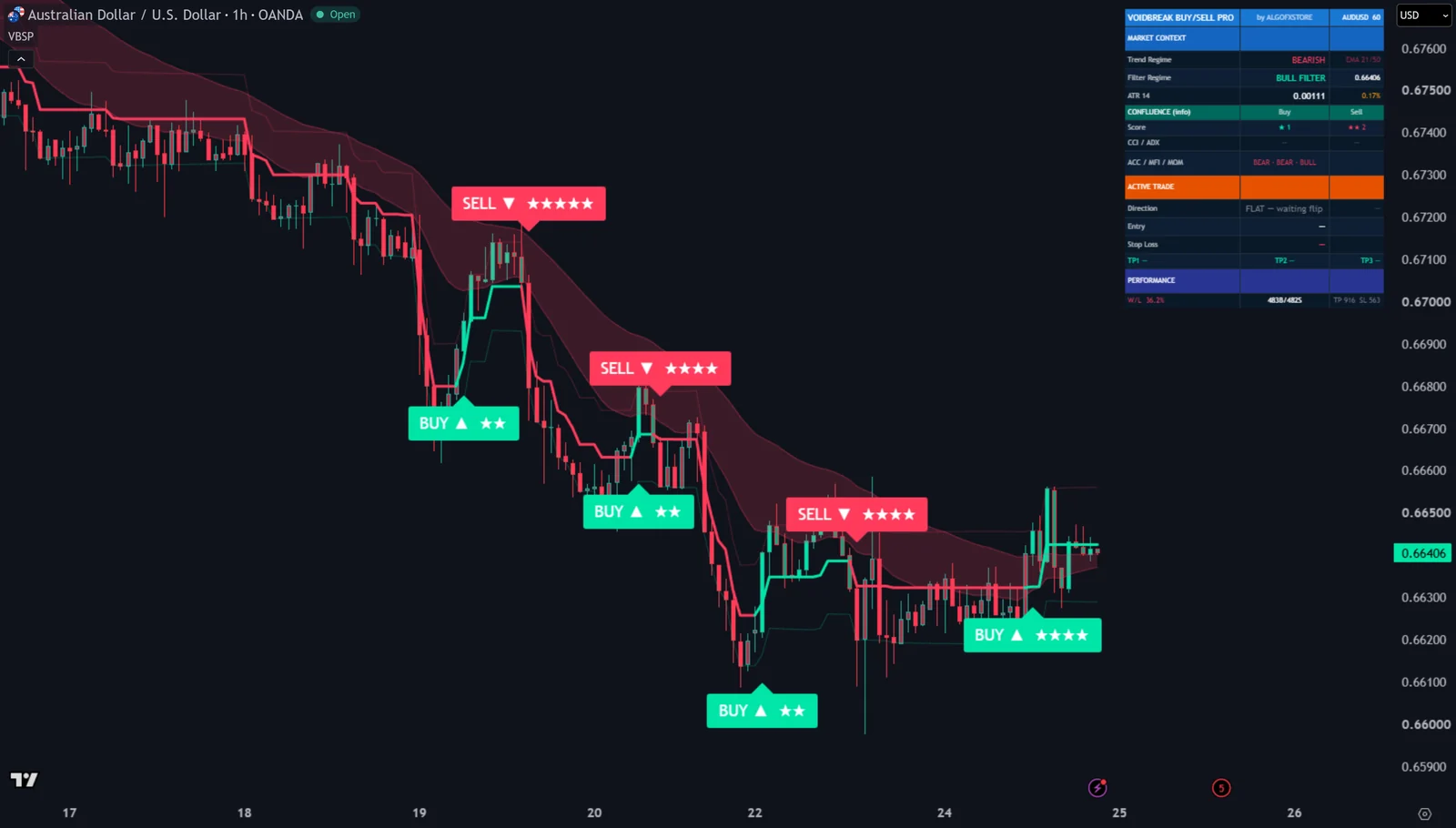
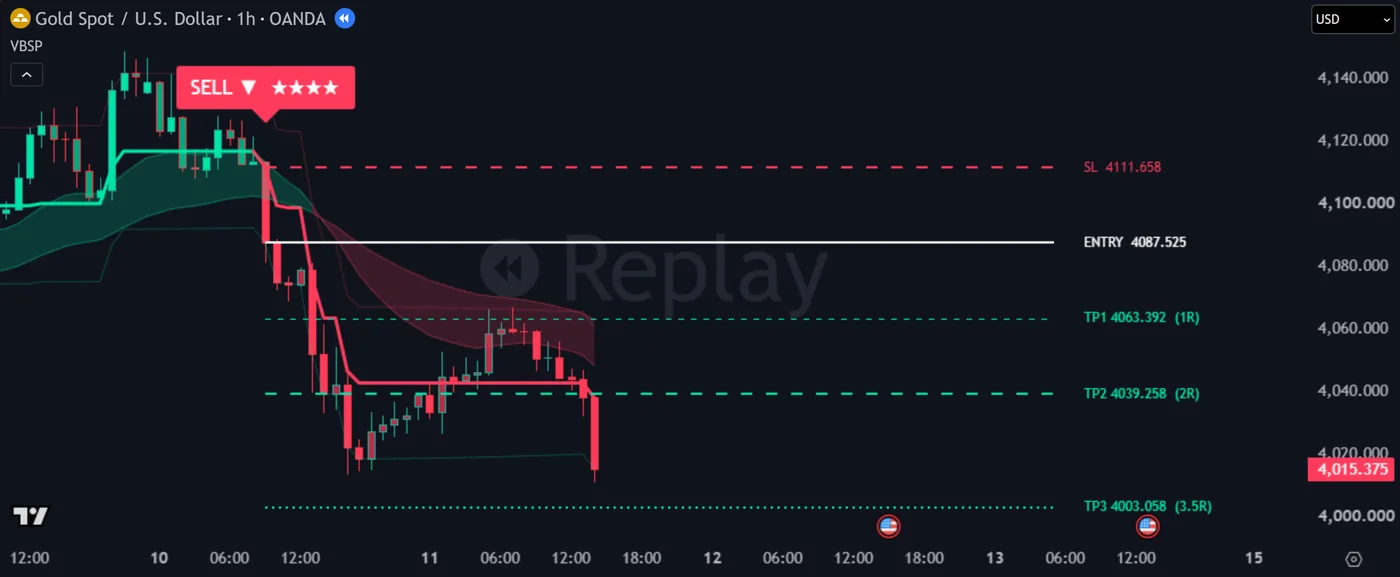
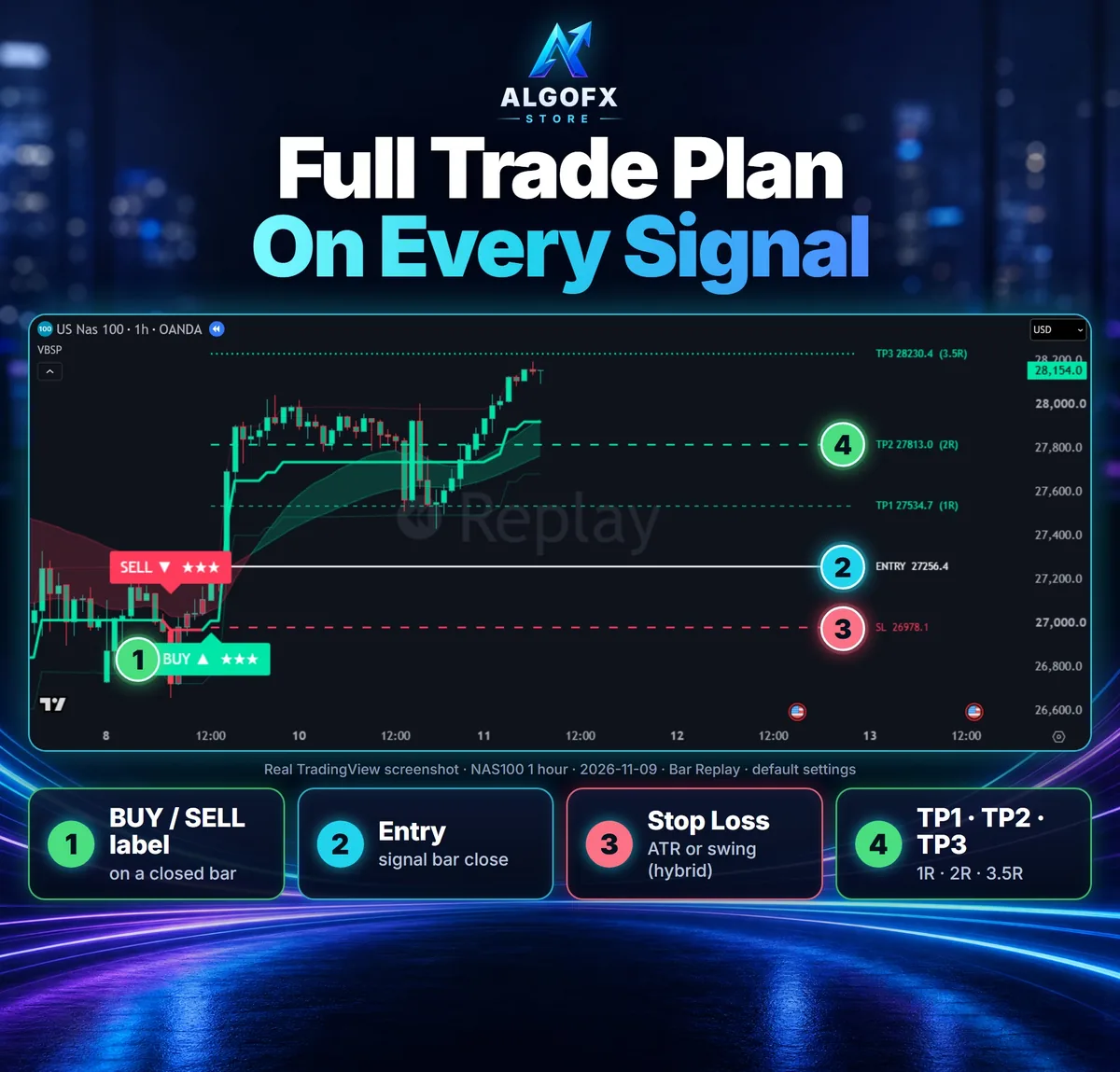
| "BUY up (3 stars) " / "SELL down (2 stars) " label | A new signal on a closed bar: the range filter regime flipped. Stars = how many of the 5 confluence readings agree (information only). |
| White line, "ENTRY <price>" | Entry: the close of the signal bar. |
| Red dashed line, "SL <price>" | Stop loss (hybrid ATR / swing stop by default). |
| Green lines, "TP1 <price> (1R)", "TP2 <price> (2R)", "TP3 <price> (3.5R)" | Take profit levels at 1, 2 and 3.5 times the risk. |
| Thick green / red filter line with faint bands | The range filter and its upper / lower band; colour = filter direction. |
| Green / red cloud | EMA 21 / 50 trend bias (display only). |
| Coloured candles | Bars tinted by the filter direction. |
| Dashboard "TP1 tick " / lines disappear | A target was reached; the lines are removed when TP3, the stop or an opposite signal ends the trade. |
How Voidbreak Buy Sell Pro decides what to draw
This is the logic of the shipped Pine Script v6 code. It reads only the chart's own symbol and timeframe: no request for other timeframes or symbols.
- 1
The range filter
A smoothed range is built from how far the source, the close by default, moves bar to bar: an EMA over the Sampling Period (50) of that move, smoothed again over a longer window and multiplied by Range Sensitivity (2.5). The filter line only moves when price travels further than that range from it; otherwise it holds its level. The bands are the filter plus and minus the range.
- 2
Regime flips become signals
A sticky regime holds bullish while price stays above the filter as it rises, and bearish below it as it falls. A flip from bearish to bullish on a closed bar prints BUY under the bar; a flip from bullish to bearish prints SELL above it. An open trade is closed by the opposite flip first, so every confirmed flip prints exactly one label.
- 3
The stop is chosen by mode
In the default Hybrid Swing+ATR mode the stop is the tighter of two levels: the entry minus 1.5 x ATR(14) for a BUY, or a recent swing low minus 0.25 ATR. The swing lookback is 10 bars, scaled down below 1 hour when Auto-Scale is on. Pure ATR and Recent Swing use one rule each. The risk is never smaller than ten ticks.
- 4
Three targets from the risk
The entry is the close of the signal bar, drawn as a white line. TP1, TP2 and TP3 sit at 1, 2 and 3.5 times the entry-to-stop distance, drawn in the bullish colour, and the stop as a dashed line in the bearish colour. Each line carries its price, and the lines are extended 40 bars to the right on every closed bar while the trade is open.
- 5
How each trade ends
One trade is tracked at a time. TP1 and TP2 are milestones and leave it open; TP3 closes it; a touch of the stop closes it; an opposite flip on a closed bar closes it at that close and starts the new trade on the same bar. When a trade ends, its level lines and labels are removed, so the chart only shows the current trade's levels.
- 6
Stars add context, not filters
Five readings are checked: CCI 20 bias, ADX/DMI trend strength, Accumulation/Distribution against its 21-bar average, MFI 14 and a 28-bar linear regression of 21-bar momentum. Each one that agrees adds a star to the label. The stars never gate, delay or filter a signal, and each reading can be switched off.
Voidbreak Buy Sell Pro on 12 different markets
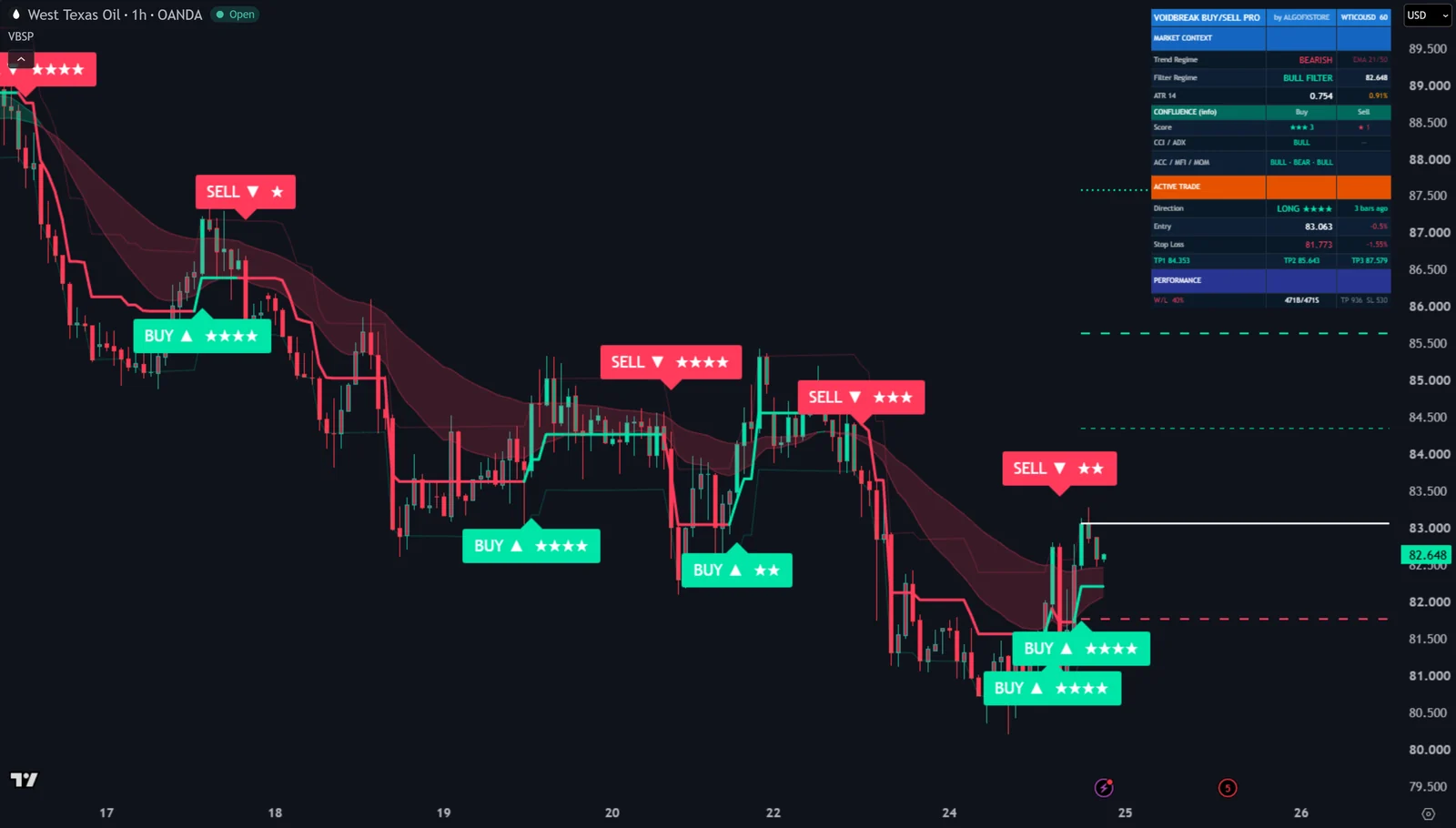
Every chart below is a screenshot of TradingView itself with the shipped Voidbreak Buy Sell Pro [AlgoFXStore] attached at its default settings. Forex, metals, indices, energy and crypto, so you can see how it reads each kind of market. They show what the indicator draws; they are not trading results. Tap or click any chart to open it full size.
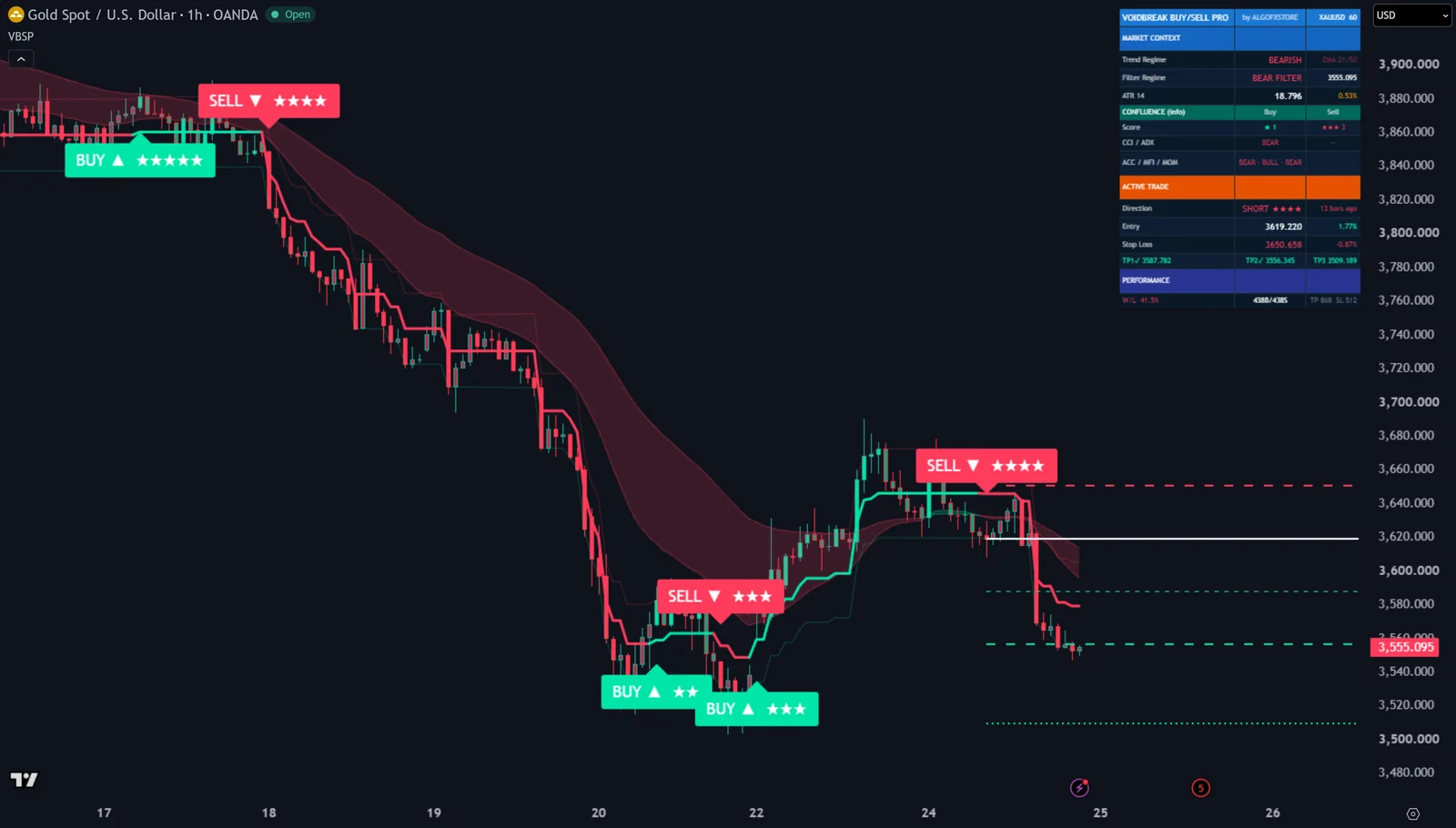
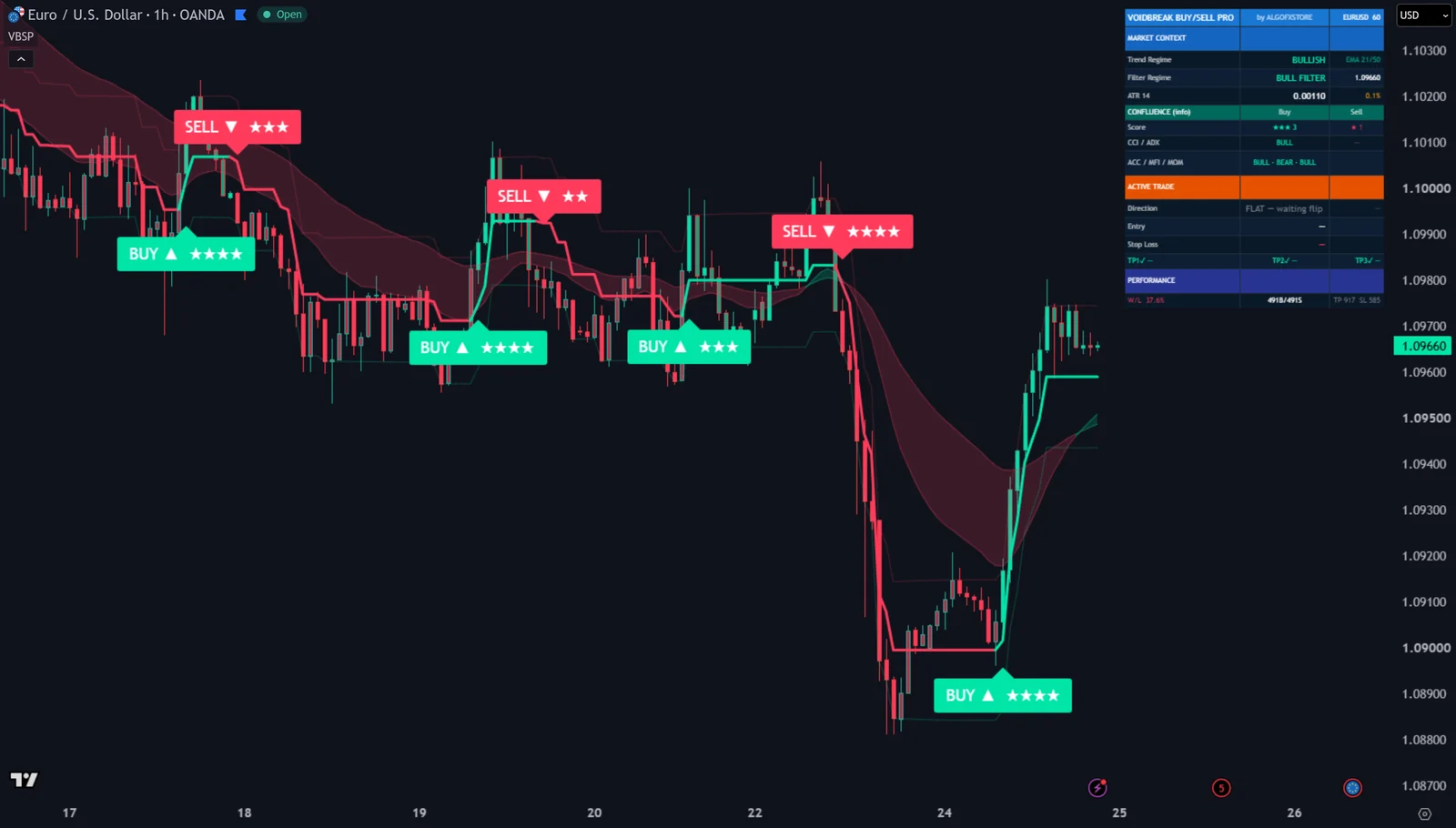
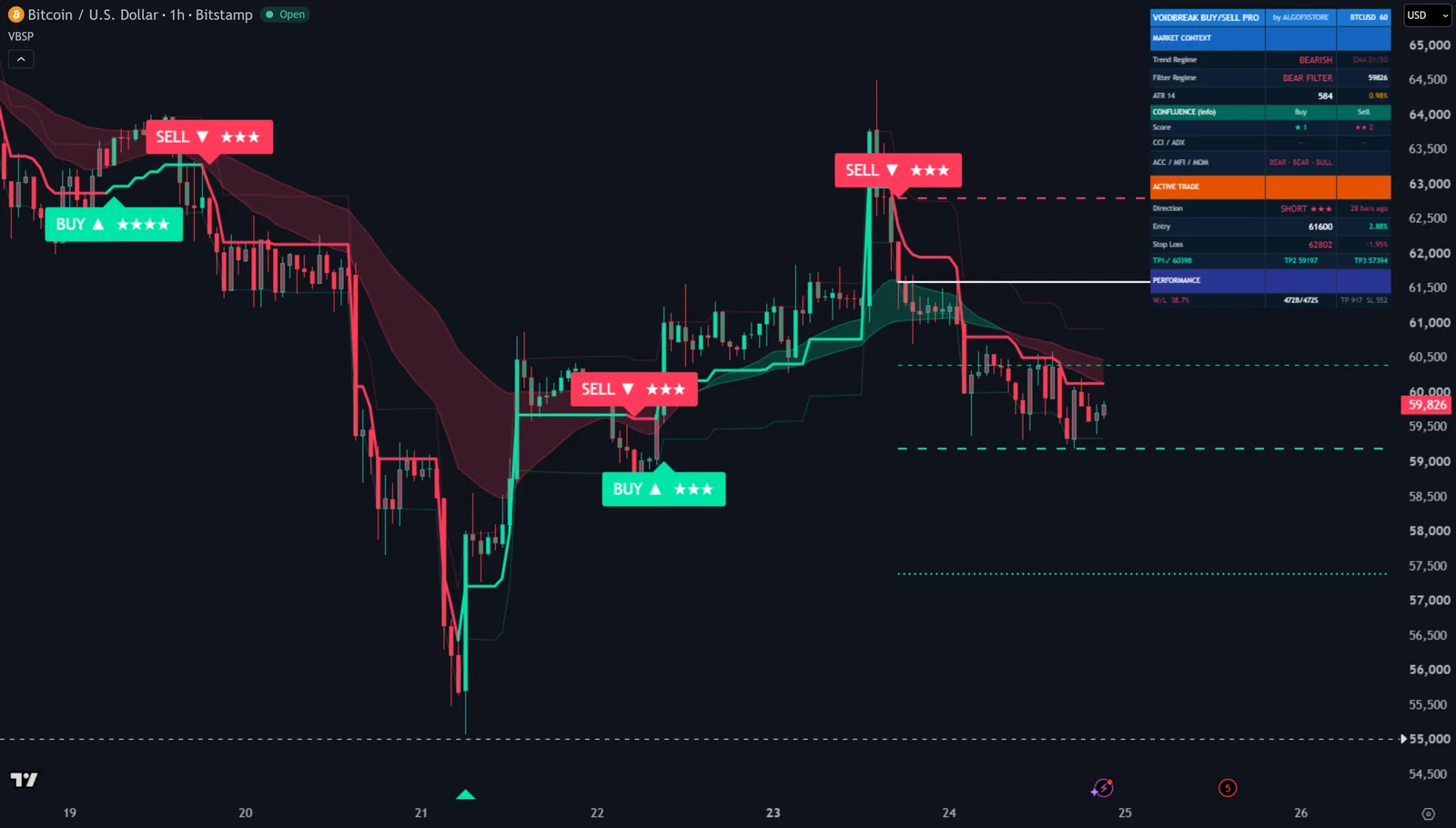
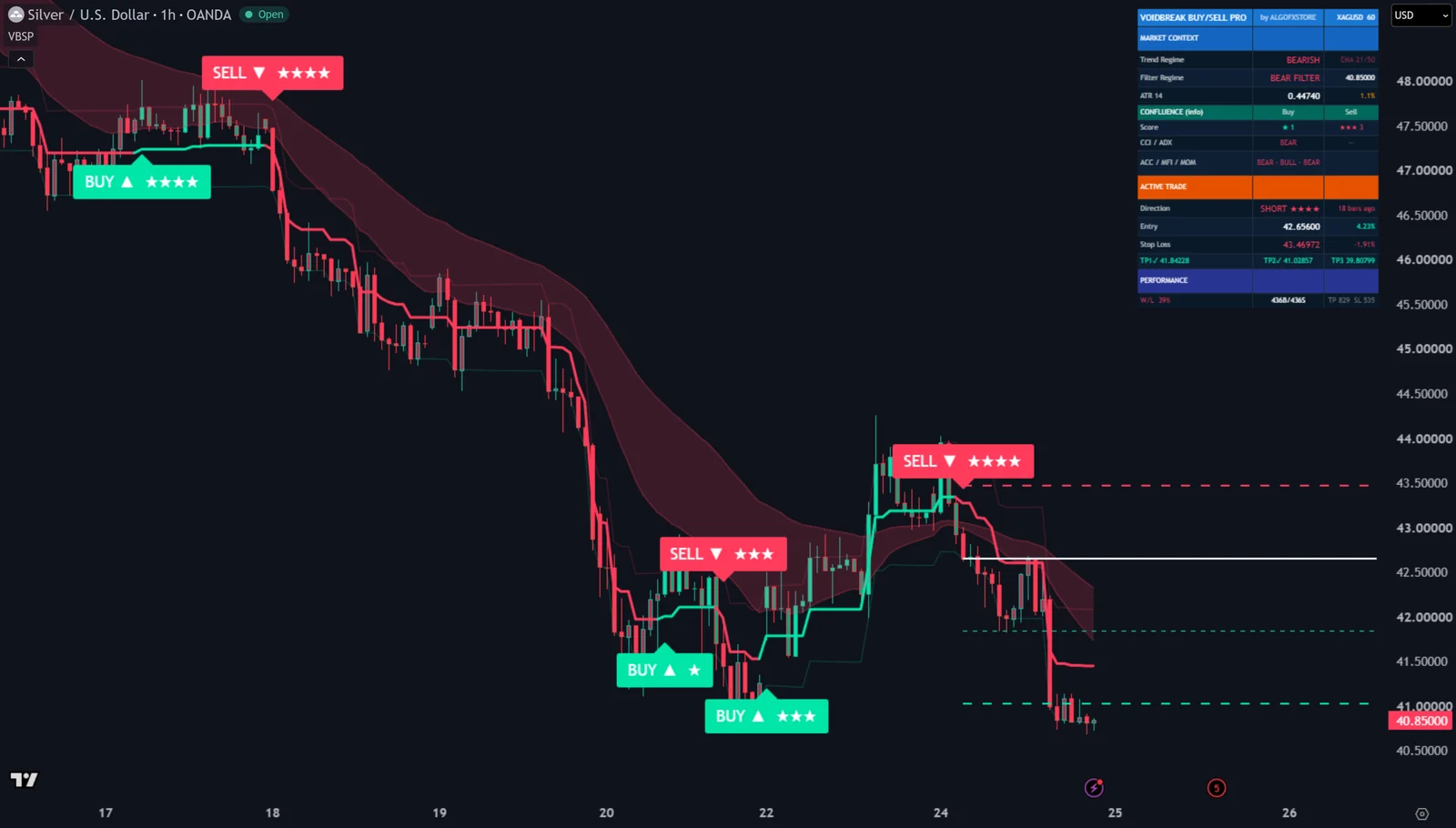
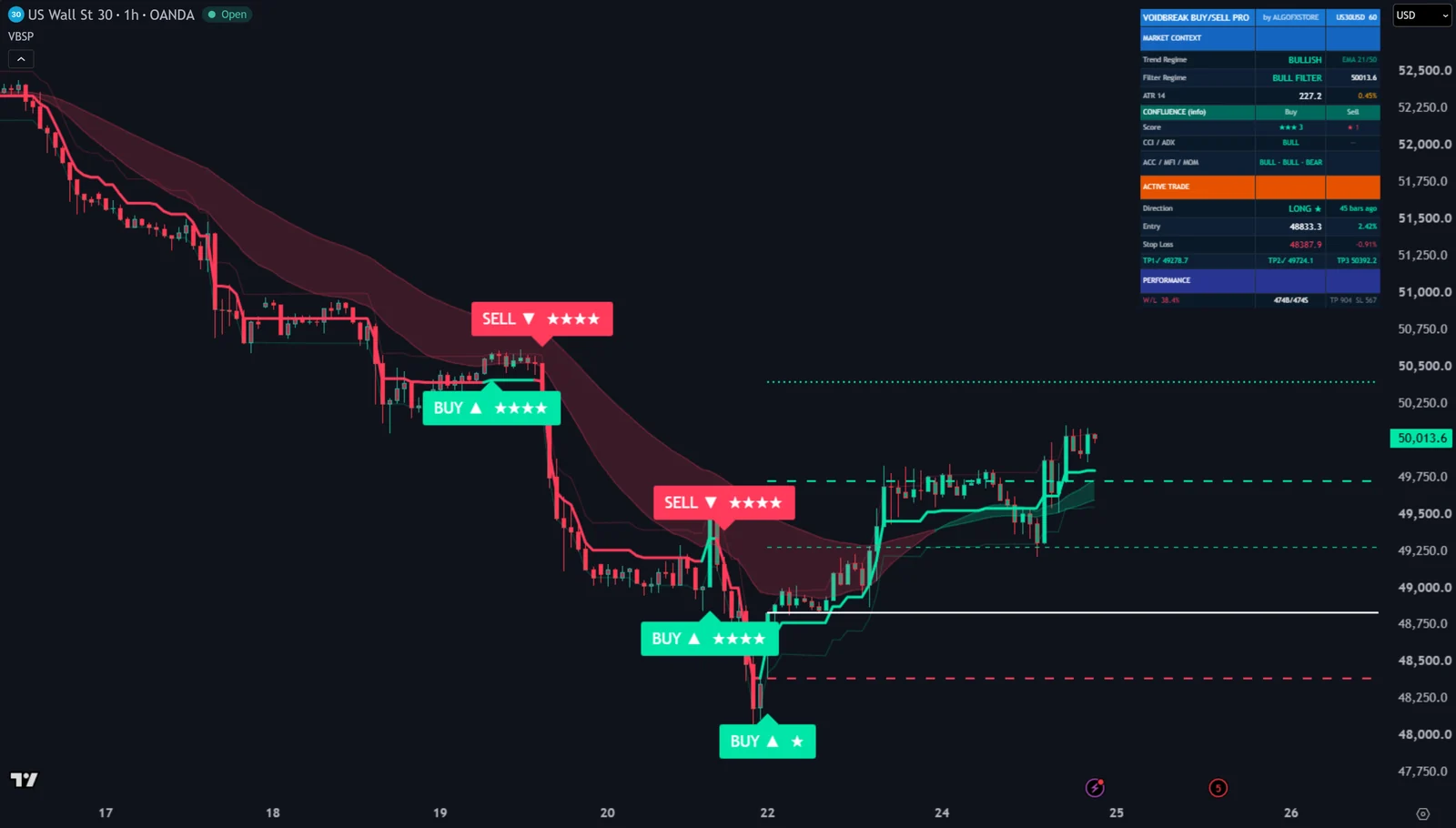
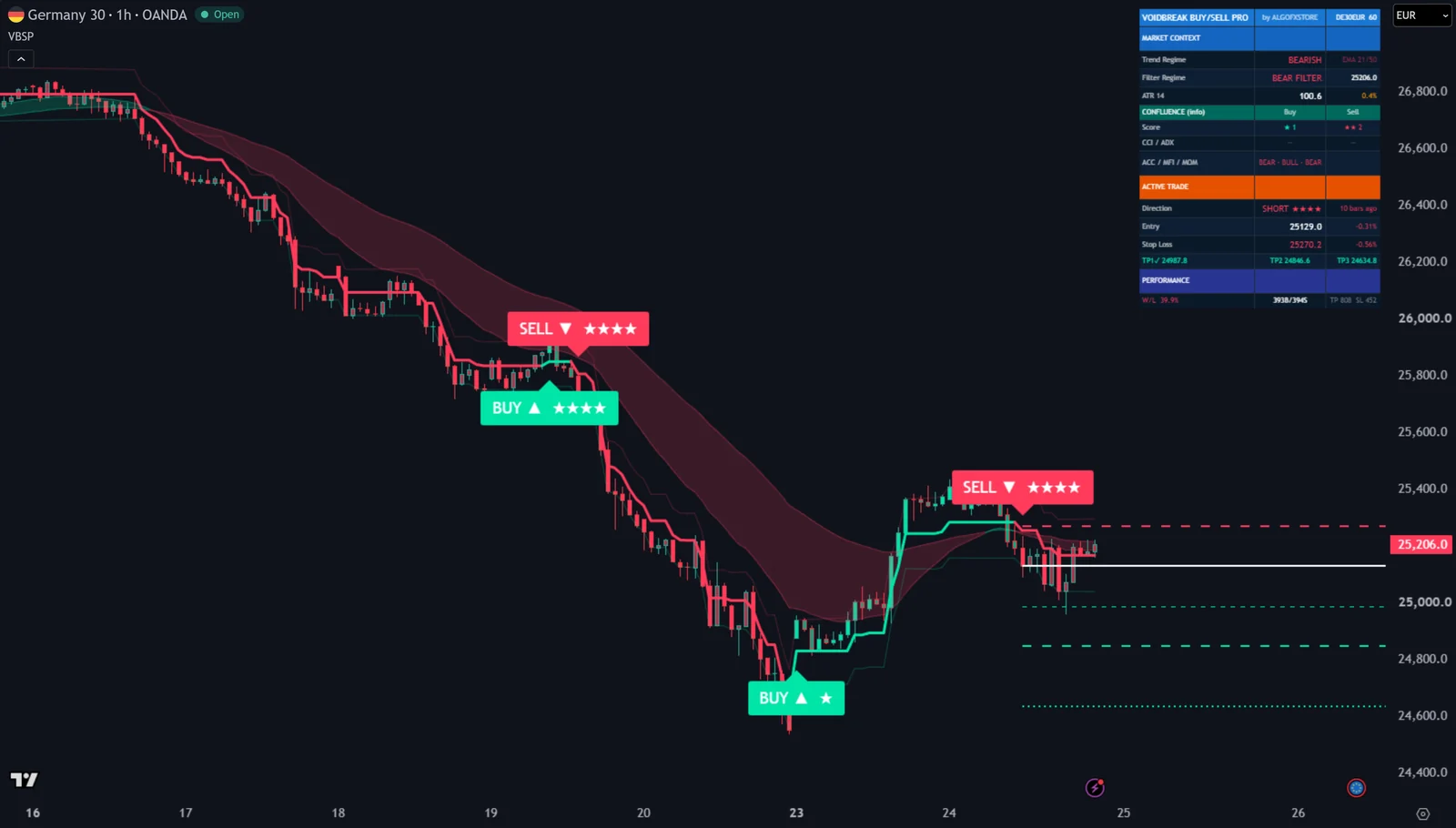
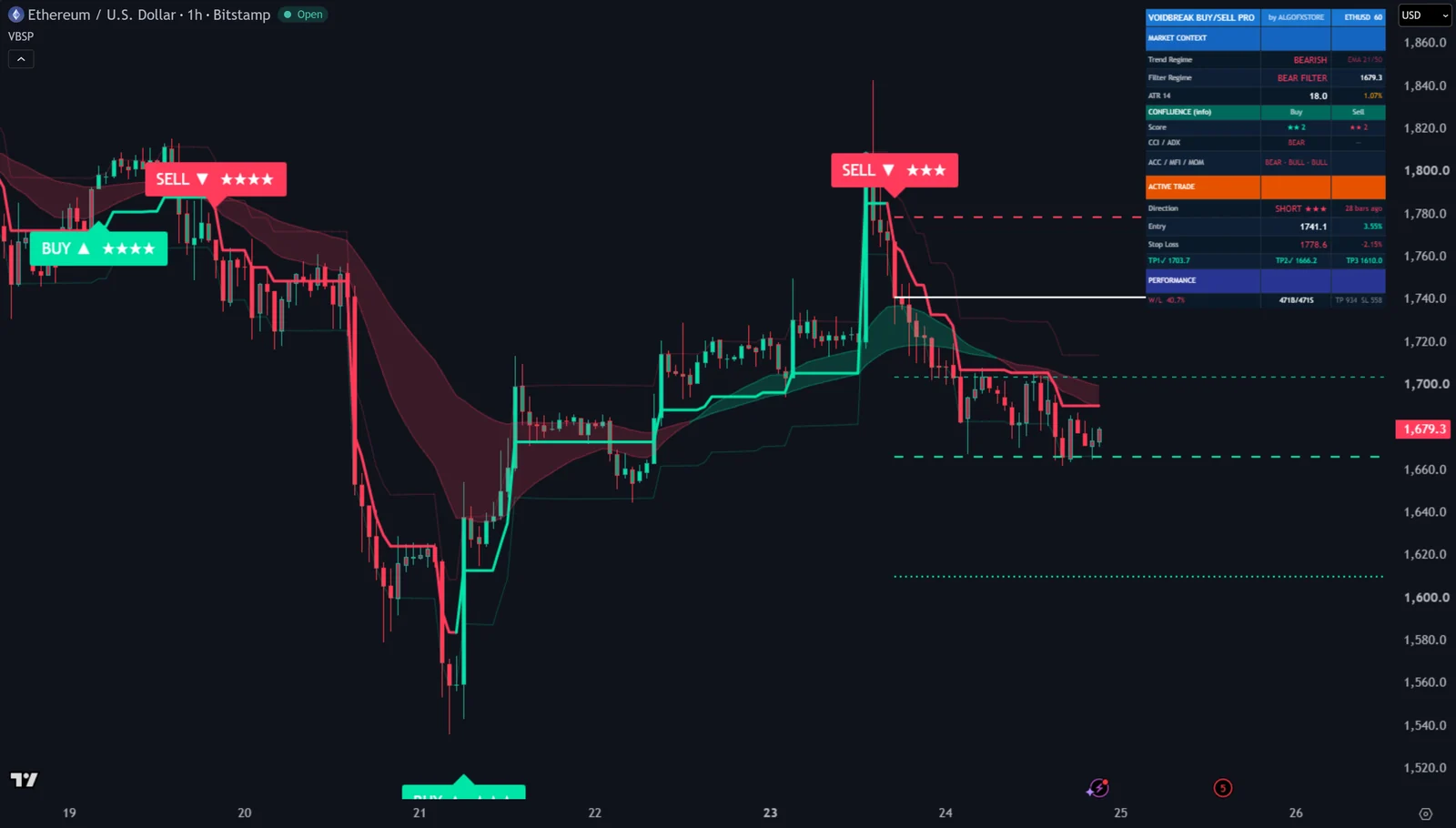
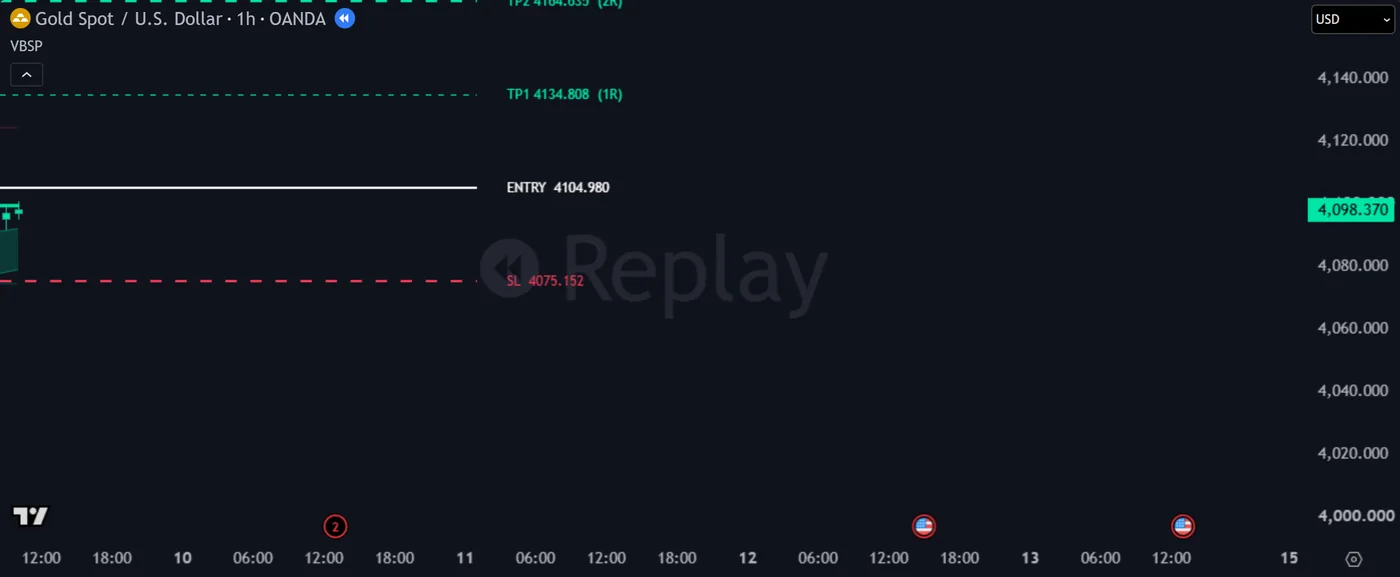
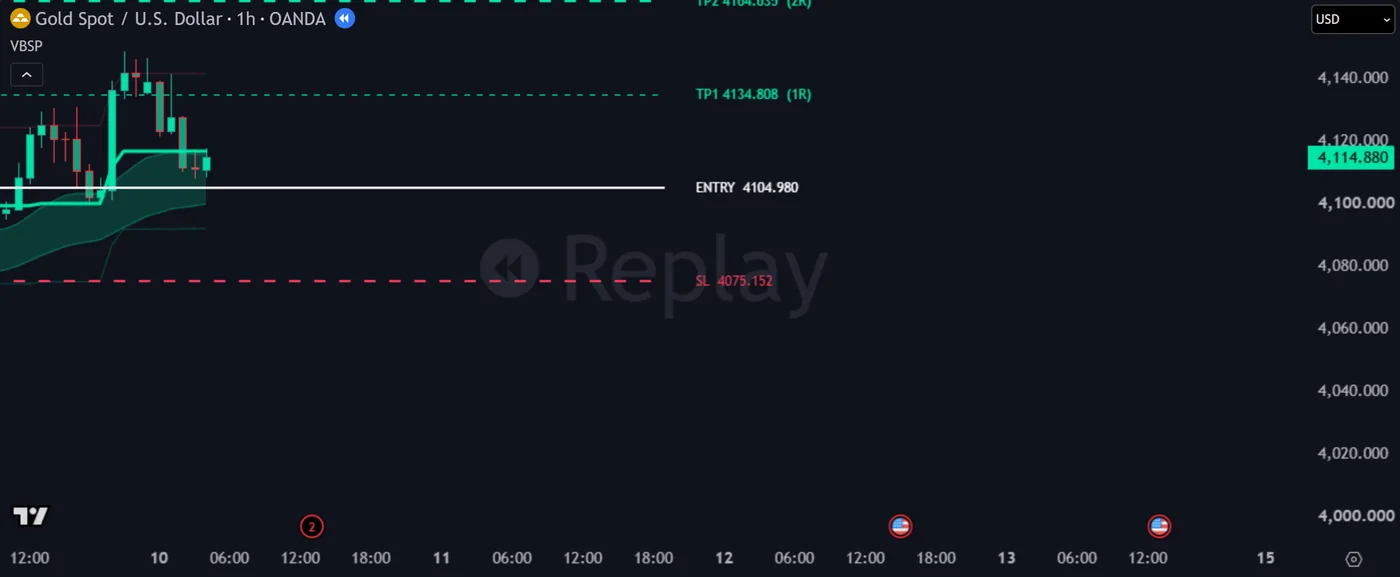
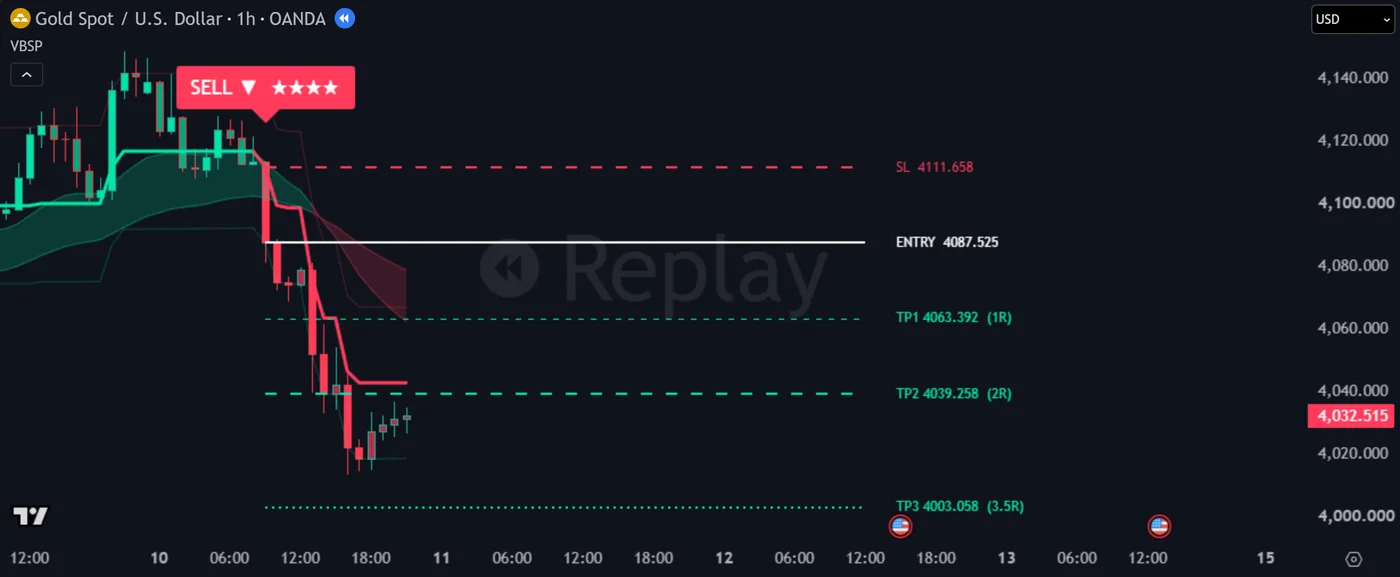
Voidbreak Buy Sell Pro on a real TradingView chart, frame by frame
Frames of a screen recording of the shipped indicator at its default settings, as the chart updates. Nothing is edited into the chart.
How to use it, step by step
Every flip is a signal and the next flip closes the trade, so following every label keeps you in the market all the time. These steps are about choosing which labels to take.
- 1
Check the trend regime first
Look at MARKET CONTEXT on the dashboard. Trend Regime reads BULLISH, BEARISH or NEUTRAL from the EMA 21/50 cloud, and Filter Regime shows the range filter's side. A BUY with Trend Regime BULLISH agrees with the larger direction; a BUY with BEARISH or NEUTRAL is a flip against or without it. Decide in advance whether you only take labels in the trend direction.
- 2
Read the stars and the stop
More stars on the label mean more of the five readings agreed on that bar, but a label with none is still a signal. Then read the stop distance on the dashboard, in price and in percent. Size the position so the stop is a loss you accept; if the distance is too large for your plan, skip the label.
- 3
Place orders on your own terms
The levels are calculated prices and are not rounded to the tick size. When you place a real order, put the stop just beyond the dashed stop line and the targets at or just inside each target line. The indicator places no orders; it only shows where the plan's levels are.
- 4
Decide what happens at TP1
TP1 at 1R and TP2 at 2R are milestones: the indicator keeps the trade open with the original stop. TP3 at 3.5R closes it. Decide beforehand whether you take part of the position at TP1, move your own stop or hold for TP3. The dashboard ticks each target when reached, and the TP alerts tell you when it happens.
- 5
Know which labels to skip
Skip labels outside the hours you trade, labels against the Trend Regime if that is your rule, and labels whose stop is wider than your normal risk. In tight sideways markets the filter can flip back and forth; a higher Range Sensitivity or Sampling Period gives fewer, larger flips. Compare the same stretch of history before and after a change.
The dashboard, row by row
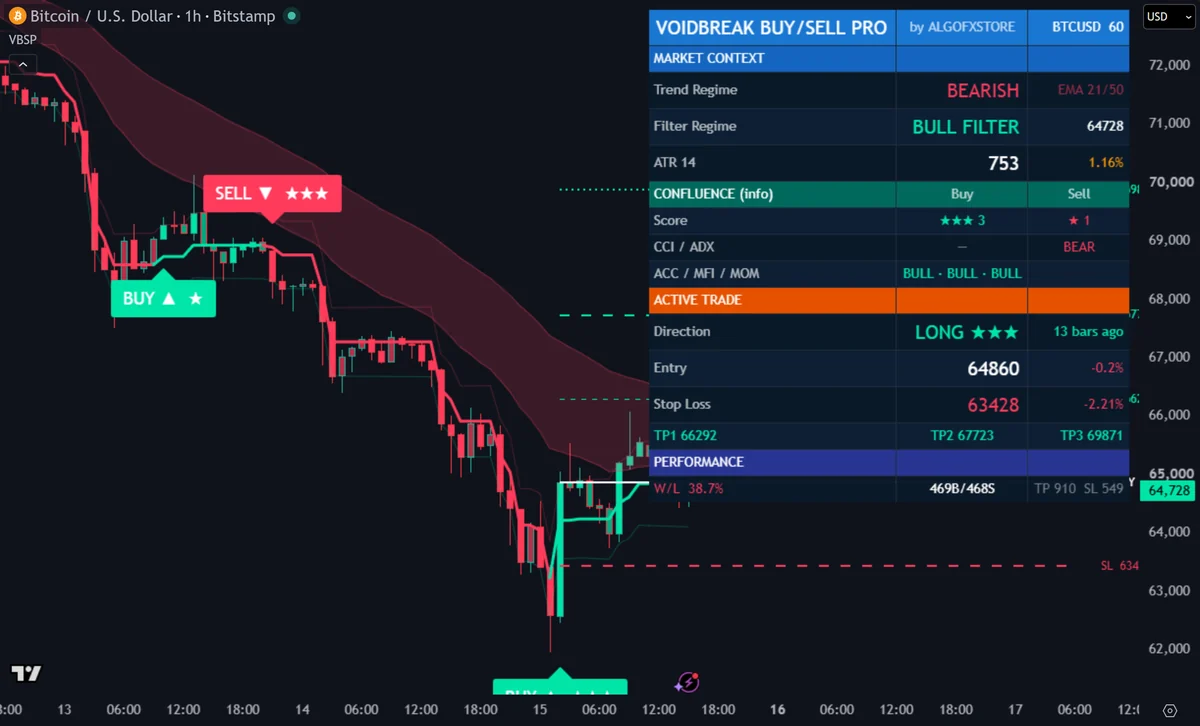
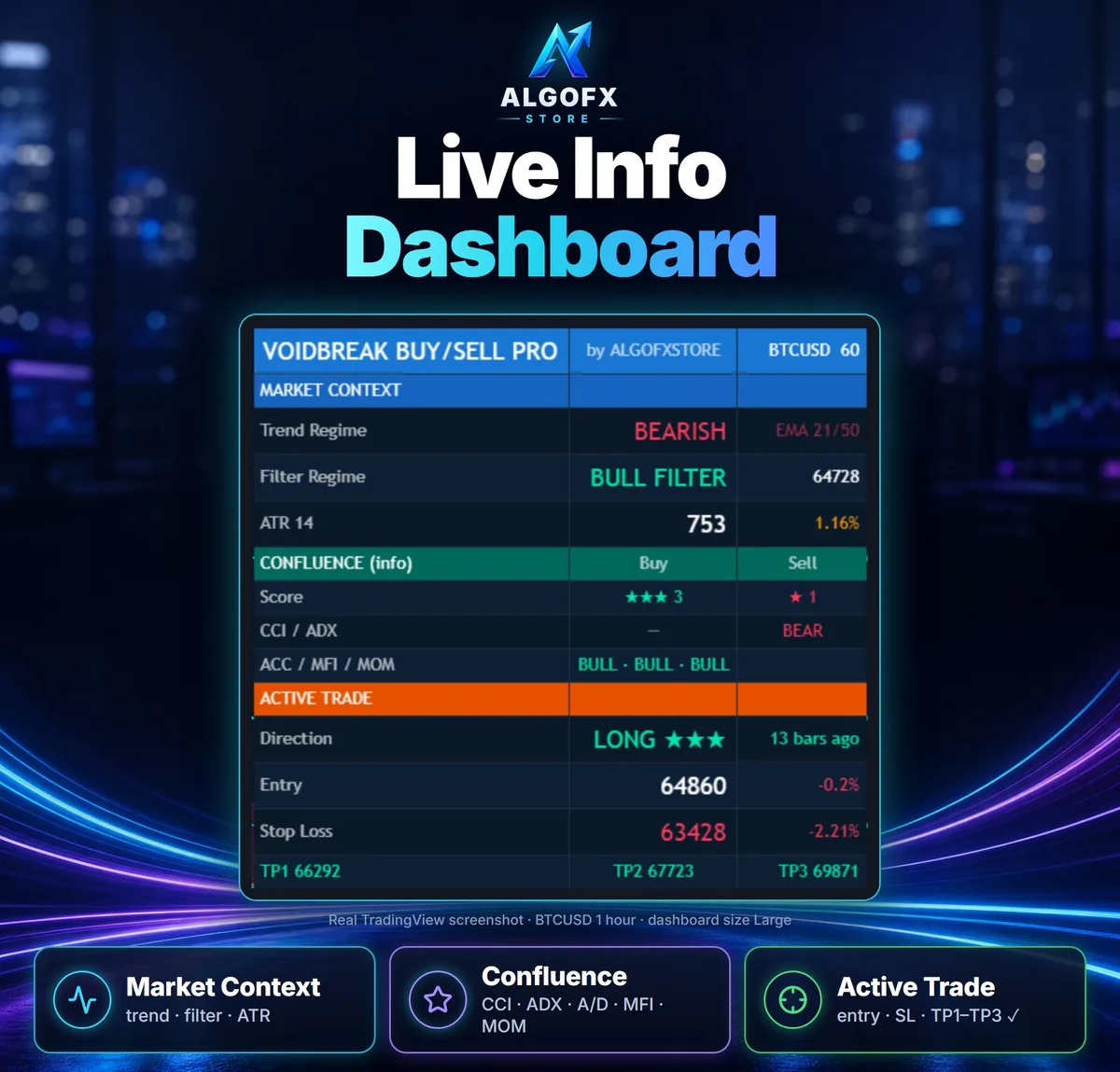
- VOIDBREAK BUY/SELL PRO | by ALGOFXSTORE | <TICKER> <TF>
- MARKET CONTEXT
- Trend Regime | BULLISH / BEARISH / NEUTRAL | EMA 21/50
- Filter Regime | BULL FILTER / BEAR FILTER / - | <close>
- ATR 14 | <atr> | <atr %>
- CONFLUENCE (info) | Buy | Sell
- Score | (3 stars) 3 | (2 stars) 2
- CCI / ADX | BULL/BEAR / - | BULL/BEAR /
- ACC / MFI / MOM | BULL · BEAR · BULL
- ACTIVE TRADE
- Direction | LONG / SHORT / FLAT: waiting flip (+ stars) | <n> bars ago
- Entry | <entry price> | <live % gain/loss of the open trade>
- Stop Loss | <SL price> | -<x.xx>%
- TP1[ tick ] <price> | TP2[ tick ] <price> | TP3[ tick ] <price>
- PERFORMANCE
Everything Voidbreak Buy Sell Pro does for you
Signals fixed on the closed bar
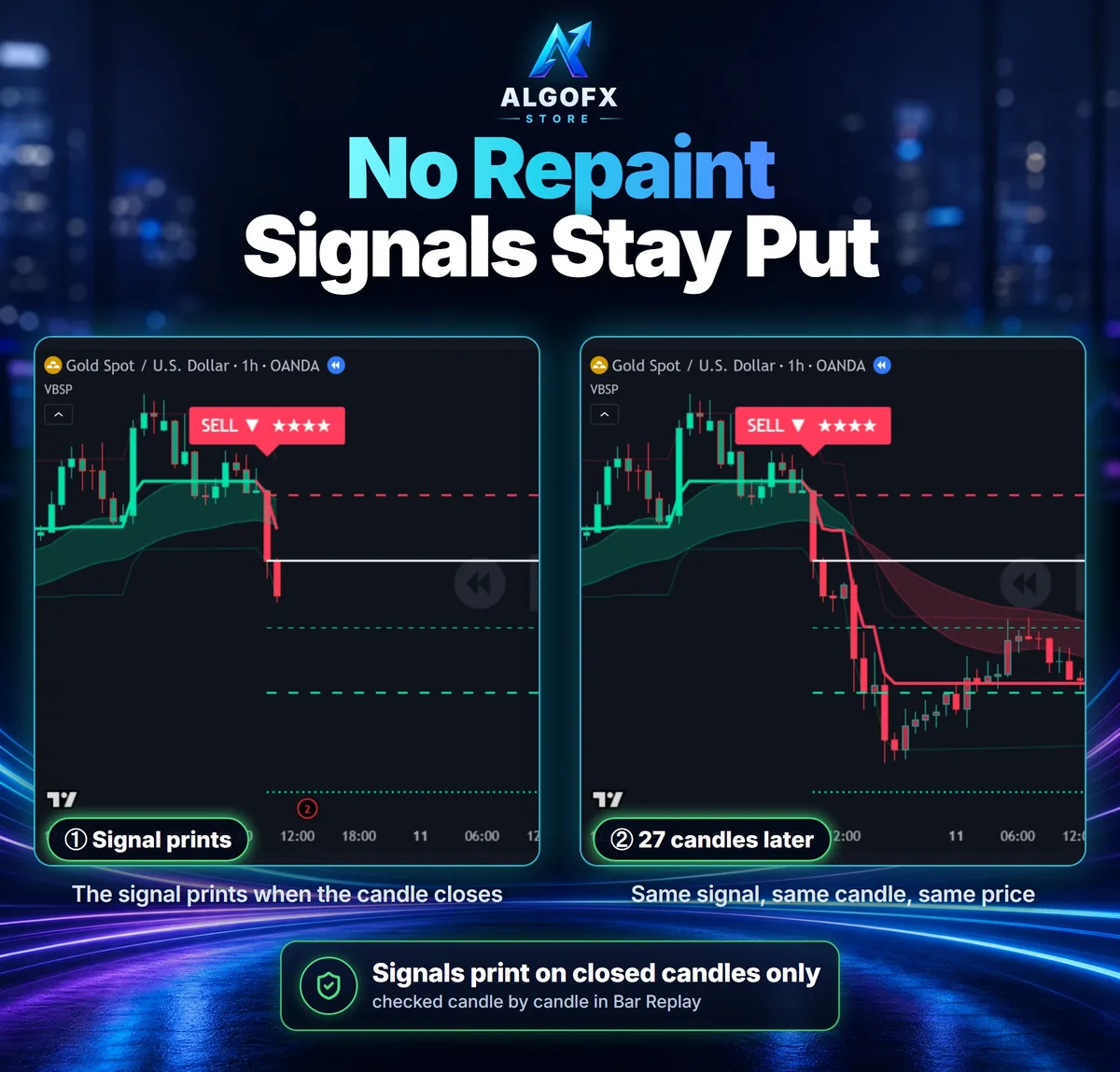
A BUY or SELL only appears when its bar has closed; the entry gate requires a confirmed bar. Once printed, the label stays where it is.
A full plan on every signal
White ENTRY line at the signal close, dashed SL, and TP1, TP2 and TP3 at 1R, 2R and 3.5R, each with its price, extended 40 bars to the right while the trade runs.
Three stop modes
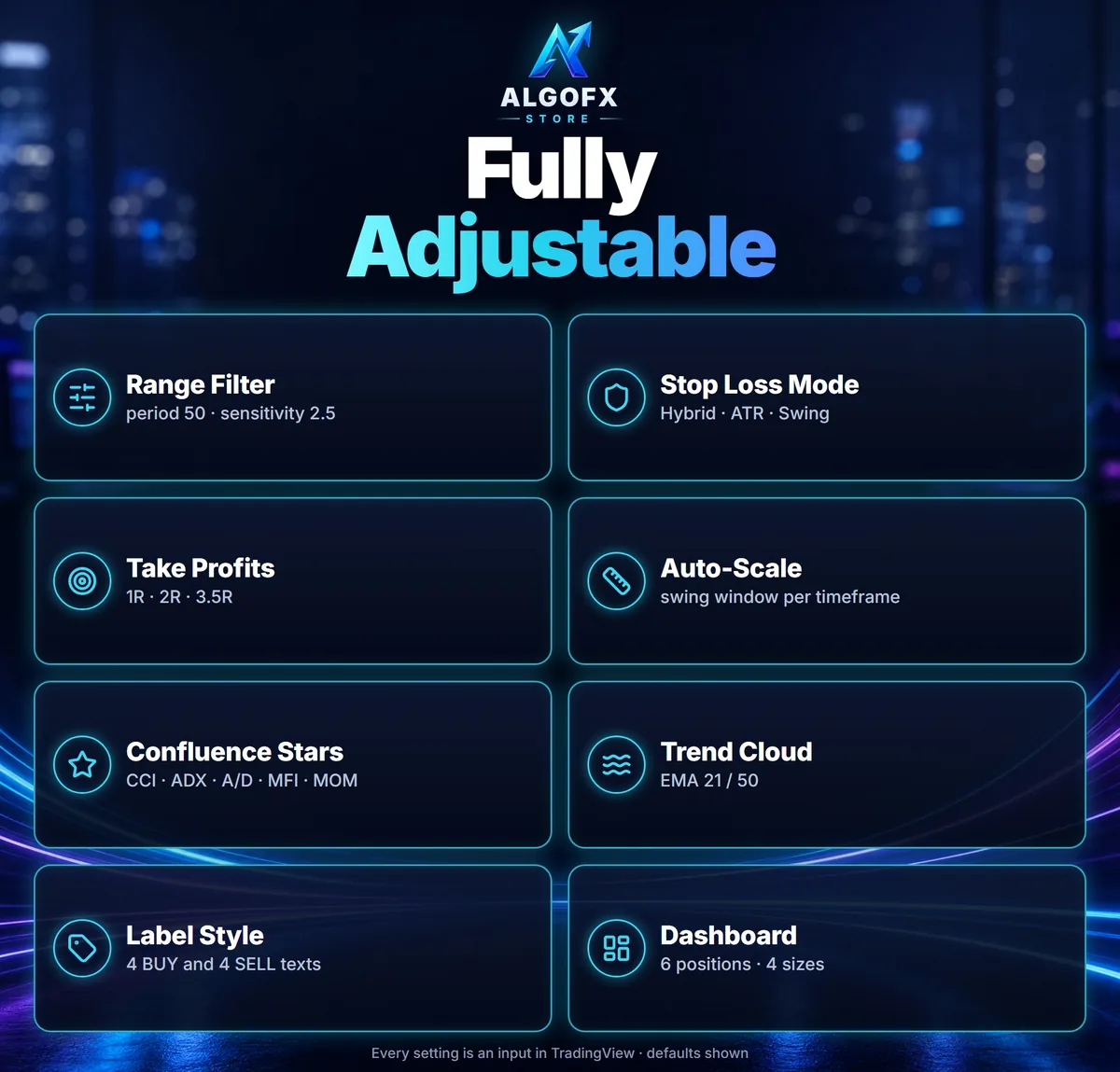
Hybrid Swing+ATR takes the tighter of the ATR stop and the swing stop, Pure ATR uses 1.5 x ATR(14) only, Recent Swing the swing plus 0.25 ATR. The swing window scales with the timeframe when Auto-Scale is on.
Range filter with visible bands
The filter line and its bands are drawn in the bullish or bearish colour, and the candles are coloured by the filter's direction, so you see the regime and how far price must travel to flip it.
Confluence stars on the label
Up to five stars from CCI, ADX/DMI, Accumulation/Distribution, Money Flow Index and a momentum regression, shown on the label and on the dashboard. Information only: they never hold back a signal.
Dashboard you can place and size
Market context, confluence and the active trade in one panel, in six positions (top, middle or bottom, left or right) and four sizes from Tiny to Large, or switched off.
Alerts for every event
Seven alertcondition alerts: BUY, SELL, Any Signal, TP1, TP2, TP3 and SL hit. With the master switch on, alert() messages carry the entry, stop, three targets and the score, once per bar close.
Your label style
BUY and SELL label text can be arrows, coloured dots, plain words or LONG and SHORT. Bullish and Bearish colours, filter line, bands, bar colouring and the EMA cloud are all switchable.
Voidbreak Buy Sell Pro, feature by feature
Each picture is built from real platform screenshots of the shipped indicator at its default settings, labelled so you can see what every part does. Tap any picture to open it full size.


How traders put it to work
Forex majors on 15 minutes to 1 hour
On EURUSD or GBPUSD from 15 minutes to 1 hour the defaults apply. The swing window scales to 5 bars on 15 minutes and 10 bars from 1 hour up, so the swing stop follows the latest pullback. Use the Trend Regime row to keep to the EMA 21/50 direction.
Gold intraday
On XAUUSD the ATR stop widens with gold's larger bars, and Hybrid uses the swing stop whenever it is tighter. If you see more flips than you want on 5 or 15 minute charts, raise Range Sensitivity above 2.5 for a wider band and fewer flips.
Crypto and indices
On Bitcoin or index charts the filter adapts to each market's own volatility, because the range is built from the bar-to-bar moves of that symbol. Two of the five stars read volume; on symbols without volume no signal is blocked, since the stars are display only.
Higher timeframes
On 4 hour and daily charts flips are rarer and stops wider. Keep Auto-Scale on so the full 10-bar swing window is used, and consider a smaller TP3 multiple if 3.5R is further than the moves you usually hold for.
Every setting, with its default
The names are the ones in the script's Settings dialog in TradingView (Inputs tab); the defaults are what every chart on this page uses.
| Setting | Default | What it does |
|---|---|---|
| Sampling Period | 50 | Range filter look-back. Higher = smoother filter and fewer regime flips. |
| Range Sensitivity | 2.5 | Width of the range band. Lower = more flips, higher = fewer, larger flips. |
| Stop Loss Mode | Hybrid Swing+ATR | Hybrid (the closer of the ATR and swing stops), Pure ATR, or Recent Swing. |
| SL ATR Length / SL ATR Multiplier | 14 / 1.5 | ATR stop distance from the entry. |
| Swing Lookback Bars / Auto-Scale to Timeframe | 10 / On | Swing window for the swing stop; shrinks on charts below 1 hour. |
| SL Padding (x ATR) | 0.25 | Buffer beyond the swing low / high. |
| TP1 / TP2 / TP3 Risk:Reward | 1.0 / 2.0 / 3.5 | Targets as multiples of the risk. TP3 closes the trade. |
| Level Line Extension (bars) | 40 | How far the Entry / SL / TP lines reach to the right. |
| BUY Label Text / SELL Label Text | BUY up / SELL down | Label style: arrows, emoji, plain, or LONG / SHORT. |
| Dashboard Position / Dashboard Size | Top Right / Small | 6 positions, 4 sizes. |
The alert events, one by one
In TradingView: Create alert, choose “Voidbreak Buy Sell Pro [AlgoFXStore]” as the condition and pick the event. TradingView then notifies you the way you set in that dialog: a pop-up in TradingView, a sound, the TradingView app on your phone or an e-mail.
- VBSP • BUY Signal
- VBSP • SELL Signal
- VBSP • Any Signal
- VBSP • TP1 Hit
- VBSP • TP2 Hit
- VBSP • TP3 Hit
- VBSP • SL Hit
Voidbreak Buy Sell Pro next to the usual options
Where it wins, and where it does not.
| Voidbreak Buy Sell Pro | Typical free range filter indicator | Reading it by hand | |
|---|---|---|---|
| Signals | One BUY or SELL per regime flip, fixed on the closed bar | A coloured line, sometimes arrows | Your judgement of the flip |
| Stop and targets | Entry, stop and TP1, TP2, TP3 drawn and priced on every signal | None | Measured and drawn by you each time |
| Context on the signal | Five confluence stars and an EMA 21/50 trend regime | None | Separate indicators you combine yourself |
| Alerts | Seven conditions plus detailed alert() messages | Rarely | Only if you are watching |
| Signal frequency | Every flip is a signal: you choose which ones to take | Same | As selective as you are |
| Simplicity | 36 inputs and a dashboard to learn | A few inputs | Nothing to install |
| Cost | A one-time purchase | Free | Free |
Honest about who this fits
A good fit if you
- Traders on TradingView who want a clear BUY or SELL and the stop that goes with it, the moment the bar closes.
- Traders who size positions from the stop distance and want that distance drawn on every signal instead of measured by hand.
- Traders who like a calm trend signal: the range filter holds still inside its range and only steps when price leaves it.
- Traders who want extra context, trend regime and confluence stars, without those readings silently blocking signals.
- Traders who want alerts with the full plan in the message, from entry to each target and the stop.
Not for you if you
- Traders who want the indicator to choose for them: every flip is a signal, and taking all of them keeps you in the market all the time.
- Anyone who wants orders placed or stops managed automatically: it draws and alerts, places no orders and never moves the stop.
- Traders who want a history of past trades drawn on the chart: only the current trade's levels are shown.
- Traders who want one line and nothing else: labels, levels, bands, cloud, stars and a dashboard share the chart, though each can be switched off.
The full code, one guide, installed in two minutes
- 1Pine Script source codeVoidbreak_Buy_Sell_Pro_TradingView_Code.txt (45 KB): the full code. Paste it into the Pine Editor and it appears as “Voidbreak Buy Sell Pro [AlgoFXStore]”.
- 5Page PDF guideInstallation, every setting with its default and how to read the chart.
- ✓Every main setting explainedThe table above lists the main settings with the defaults the charts use.
- ✓Alert eventsYou choose which ones are on in the settings.
- 60Day money-back guaranteeIf it is not for you, request a full refund within 60 days through your Digistore24 order e-mail.
Install in five steps
- Download the zip from the page Digistore24 sends you to after checkout and unzip it.
- Open Voidbreak_Buy_Sell_Pro_TradingView_Code.txt in a text editor, select all and copy the whole code.
- In TradingView, open the Pine Editor, paste the code over everything that is there and click Save.
- Click Add to chart: “Voidbreak Buy Sell Pro [AlgoFXStore]” appears on your chart.
- Read the PDF guide; the defaults are the settings shown on this page.

Kestutis Balciunas
AlgoFXStore · chart indicators
Kestutis Balciunas builds and publishes chart indicators under the AlgoFXStore name. Every product page shows what the indicator draws on real charts, and every number on it comes from the shipped build.
The charts on this page were captured in TradingView from the shipped Voidbreak Buy Sell Pro [AlgoFXStore] at its default settings and are shown unedited.
No get-rich claims and no quoted win rates. Every trade is uncertain, and no indicator changes that. If you want to know whether it suits the way you trade before you buy, e-mail [email protected] and you will get a straight answer.
One price, one payment
- The full Pine Script source code of Voidbreak Buy Sell Pro and the 5-page PDF guide
- Delivered as a digital download: one zip with the code file and the PDF guide on your download page
- Return period: 60 days, with a full refund if it is not for you
- Free updates to the current version on the same download page
60-day money-back guarantee. Install it, run it on your own charts and read the guide. If Voidbreak Buy Sell Pro is not for you within 60 days of purchase, request a full refund from Digistore24, no questions asked: use the refund link in your Digistore24 order e-mail or Digistore24's order page digistore24.com/en/cancel-revoke-contract. Digistore24 refunds to your original payment method. It is a digital download: right after checkout you land on your download page, and the link to it is also in your Digistore24 order e-mail.
Also by Kestutis Balciunas: Voidbreak Buy Sell Pro for cTrader and NinjaTrader 8 and MT4 and MT5.
About the signals
Does it repaint?
The BUY and SELL labels do not: a signal needs a confirmed bar and stays once that bar has closed. What follows the forming bar is the trade tracking: a target or stop touched by the live bar's wick shows on the dashboard during the bar and is booked when it closes. The filter line and bands of the forming bar also move until the close.
What do the colours and marks mean?
Green (#00E5A8) is bullish: BUY labels, a rising filter, bullish candles and the target lines. Red (#FF3B5C) is bearish: SELL labels, a falling filter, bearish candles and the stop line. The white line is the entry. The thick line with faint bands is the range filter. The cloud is the EMA 21/50 trend, for display only.
Why did my levels disappear?
The trade ended: at TP3, at its stop, or on an opposite flip, in which case the new trade's levels are drawn on the same bar. The BUY or SELL label stays on the chart. Only the current trade's lines and price labels are kept.
What should I do when the stars and the regime disagree?
If a BUY has few stars and the Trend Regime reads BEARISH, the flip happened against the other readings. The indicator still treats it as a signal. Whether you take it is your rule: one simple rule is to keep to the Trend Regime direction and skip the rest, or wait for the next flip.
Why does the dashboard show a score but no signal?
The score is the standing reading of the five confluence checks on the newest bar. A signal is something else: a regime flip of the range filter on a closed bar. A high score without a flip prints nothing.
Settings and the dashboard
Should I keep the defaults?
Start with them: Sampling Period 50, Range Sensitivity 2.5, Hybrid Swing+ATR with a 1.5 ATR stop and 0.25 ATR swing padding, targets 1, 2 and 3.5R. Range Sensitivity and Sampling Period change the signals. Stop Loss Mode, the ATR and swing settings and the Risk:Reward values change only the levels, never the signals.
What is on the dashboard?
MARKET CONTEXT shows the Trend Regime, the Filter Regime with the latest close and ATR 14 in price and percent. CONFLUENCE shows the standing Buy and Sell stars and each reading. ACTIVE TRADE shows direction, stars and bars since the signal, entry, the stop with its distance in percent and TP1 to TP3 ticked when reached. A PERFORMANCE row counts the trades on the loaded history.
What does the PERFORMANCE row count?
It is a hindsight tally of the trades the indicator tracked on the loaded chart, without commission, slippage or position size. A bar that touches both TP3 and the stop is counted at TP3, and an opposite flip is judged by its close against the entry. It is a record of the chart, not a forecast.
Which timeframes and markets can I use?
Any symbol and any chart timeframe on TradingView: forex, gold, indices, crypto and stocks. The code uses no other timeframe or symbol. The swing window scales down below 1 hour when Auto-Scale is on, from 0.4 of the lookback on 1 minute to the full 10 bars from 1 hour up.
Alerts and running it
Which alerts are there?
Seven alertcondition alerts in Create alert: BUY Signal, SELL Signal, Any Signal, TP1 Hit, TP2 Hit, TP3 Hit and SL Hit. With Enable Master alert() Pushes on, an Any alert() function call alert sends messages for BUY and SELL with the entry, stop, targets and score, and for each target and the stop. There is no alert for the opposite-flip exit: it is the next BUY or SELL.
When do the alert() messages fire?
All of them fire once per bar close. The BUY and SELL message names the symbol and timeframe and lists the entry, the stop, TP1 to TP3 and the confluence score out of five.
Does it need a lot of CPU or a paid plan?
No other data is requested, so it runs on every TradingView plan within that plan's limits on indicators and alerts. The dashboard is drawn on the last bar only. Sending alerts to a webhook URL needs a paid TradingView plan.
Can I combine it with other tools?
Yes. It is a price overlay; switch off the EMA cloud, the bands or bar colouring if another indicator already shows those. The confluence readings are built in, so you do not need separate CCI, ADX or MFI panes to read the stars.
How it works
Will it place trades for me?
No. Voidbreak Buy Sell Pro is an indicator: it draws on the chart and can alert you. It never sends an order.
After you buy
How do I get it after paying?
Digistore24 runs the checkout. Right after payment it takes you to your download page with one zip holding the Pine Script source code file and the PDF guide; the link to that page is also in your Digistore24 order e-mail, so you can download again at any time.
How do I install it?
Open the code file, open the Pine Editor in TradingView, paste the whole code, click Save and then Add to chart: “Voidbreak Buy Sell Pro [AlgoFXStore]” appears on your chart. The guide walks through it step by step.
Who is Digistore24?
Digistore24 is the reseller that sells Voidbreak Buy Sell Pro for Kestutis Balciunas (AlgoFXStore): it runs the checkout, charges your card or PayPal, collects the VAT for your country and delivers the download. Its name is the one on your statement, and its order e-mail holds your download link and the refund link.
What is the refund policy?
A 60-day money-back guarantee, handled by Digistore24. If Voidbreak Buy Sell Pro is not for you within 60 days of purchase, use the refund link in your Digistore24 order e-mail or Digistore24's order page (digistore24.com/en/cancel-revoke-contract) for a full refund, no questions asked. Digistore24 makes the refund to your original payment method.
Do I get the source code?
Yes. You get the full Pine Script source code as a text file for your own use; the licence line at the top of the code does not allow resale, sharing or republishing.
Voidbreak Buy Sell Pro for TradingView.
Put the range filter, the BUY and SELL labels and the full plan on your own TradingView charts and decide which flips are worth your risk. The full code, the guide and every setting explained. Instant download for €47, one payment.
Get instant access