Project the whole pullback trade from the size of the last impulse swing
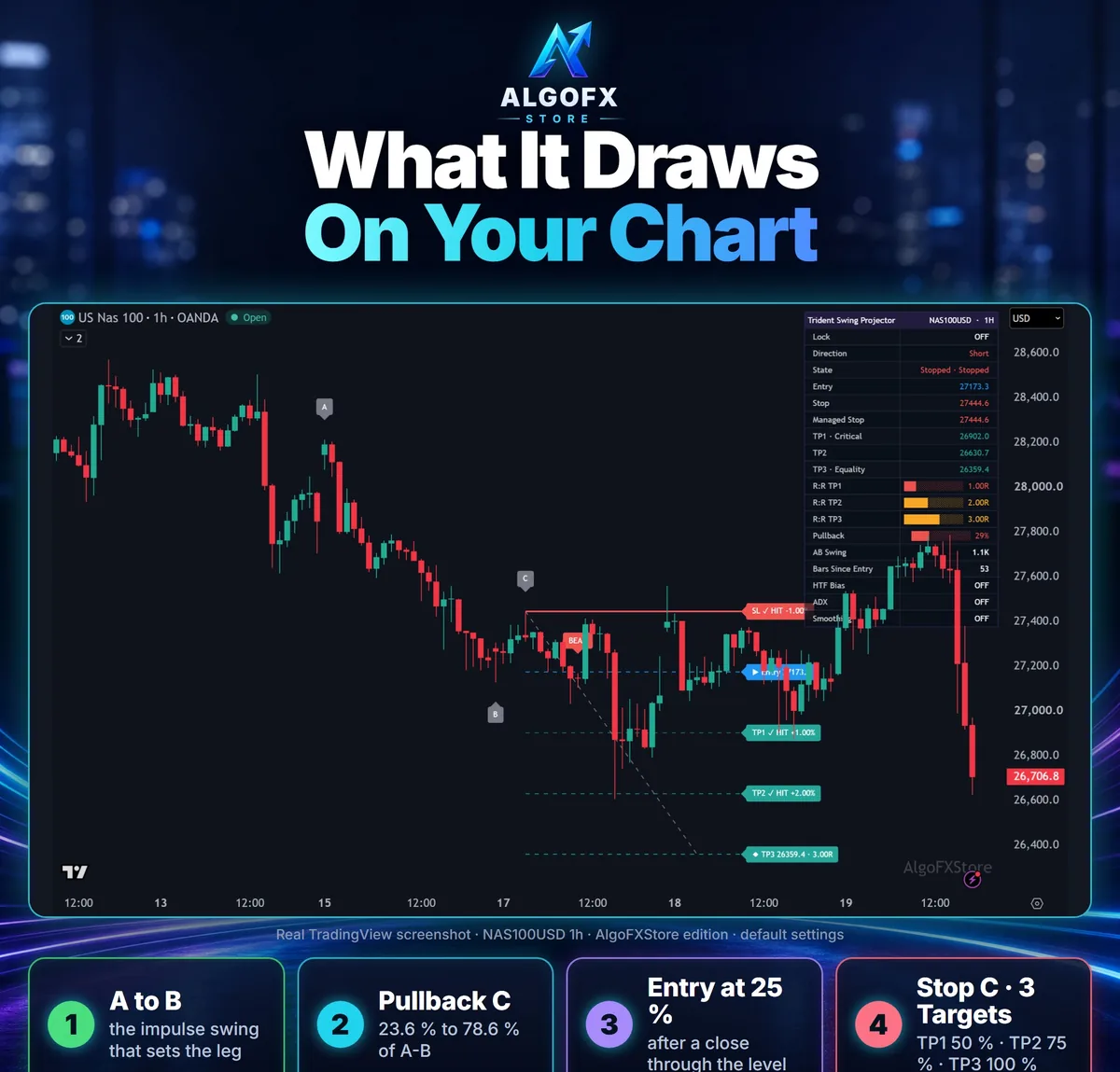
Trident Swing Projector waits for an impulse swing from A to B and a pullback to C on your TradingView chart, then projects the whole trade from the size of that swing: entry at 25 %, stop at C and three targets at 50 %, 75 % and 100 % of the A to B leg.
- A, B and C read from confirmed swing pivots, with the pullback kept between 23.6 % and 78.6 %
- Entry, stop and targets are fixed shares of the A to B leg, so they scale with any market
- With no stop buffer the three targets sit at exactly 1R, 2R and 3R
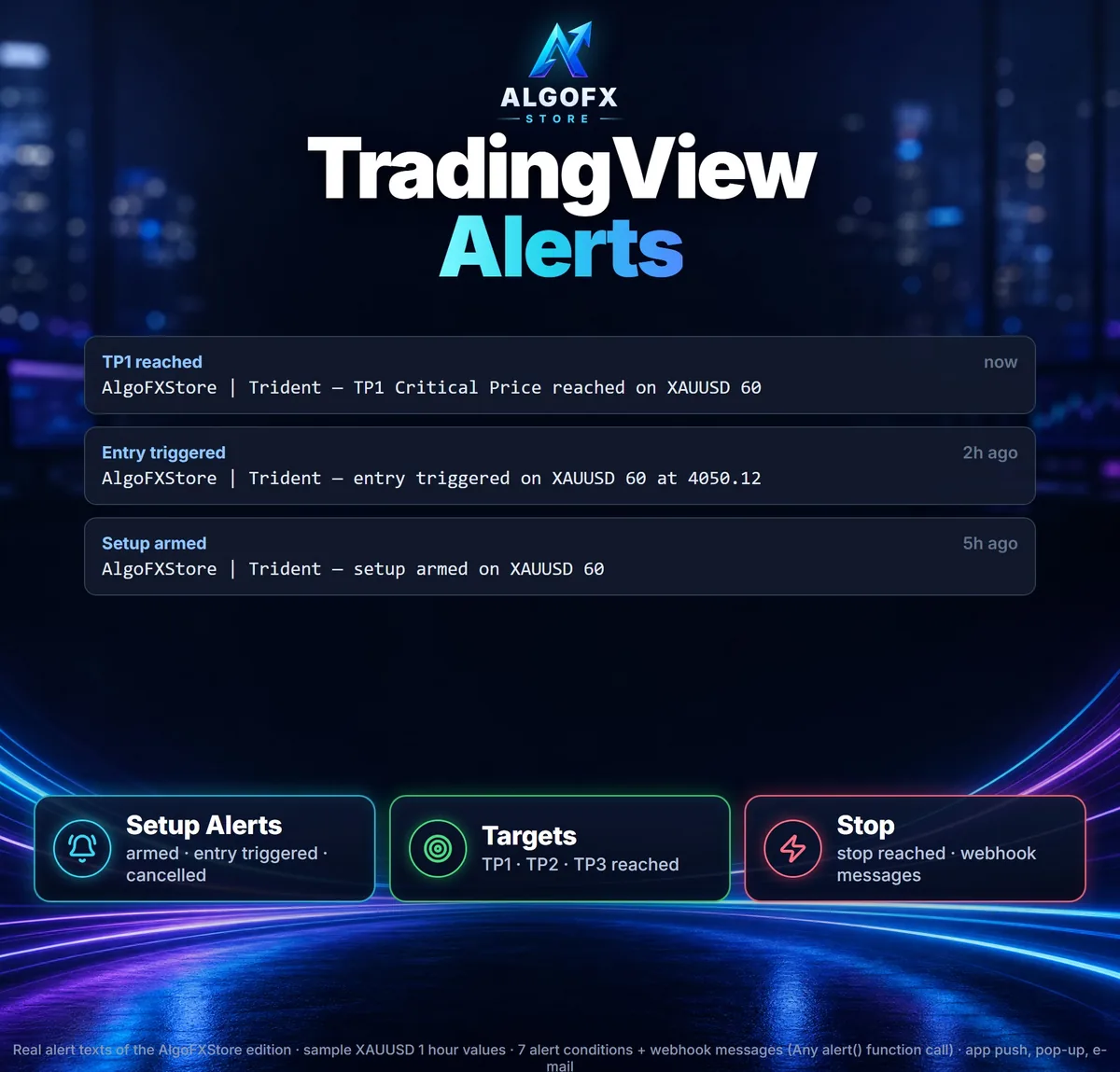
- Seven alertcondition alerts from armed to cancelled, plus structured webhook messages
- The full Pine Script source code. Paste it into the Pine Editor, save, and add “Trident Swing Projector [AlgoFXStore]” to your chart.
- A 14-page PDF manual with installation, every setting and how to read the chart. One-time €47.
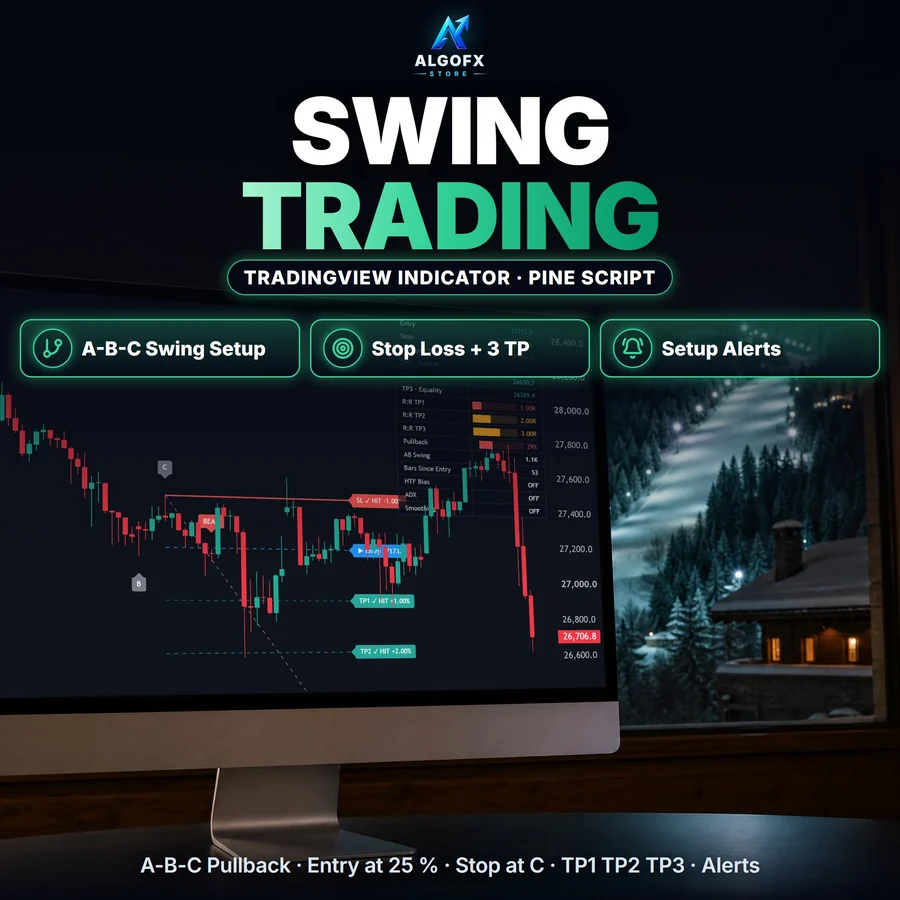
See Trident Swing Projector on a real chart
Press play; use the full-screen button to see every detail.
Buying a pullback is easy to plan and hard to measure on the spot
The idea is well known: after a strong move, wait for a pullback and enter when price turns back in the trend direction. The trouble is measuring it. How deep may the pullback go before the idea is broken? Where exactly is the entry? How far can the next leg reasonably travel? Answered by eye, those three numbers change from one chart to the next.
A projection from the swing itself solves that. If the impulse from A to B was a certain size, the next leg from the pullback low C can be measured in shares of that same size. Drawing it by hand takes a Fibonacci tool, a calculator and discipline on every setup, and it is easy to skip the step that says the pullback went too deep.
Trident Swing Projector does the measuring. It finds A, B and C from confirmed pivots, checks the pullback depth and the trend, and draws the entry, the stop at C and three targets from the A to B leg, then tracks the setup until it is cancelled, stopped or complete.
Everything Trident Swing Projector draws on your chart
Read from the shipped Pine Script code.
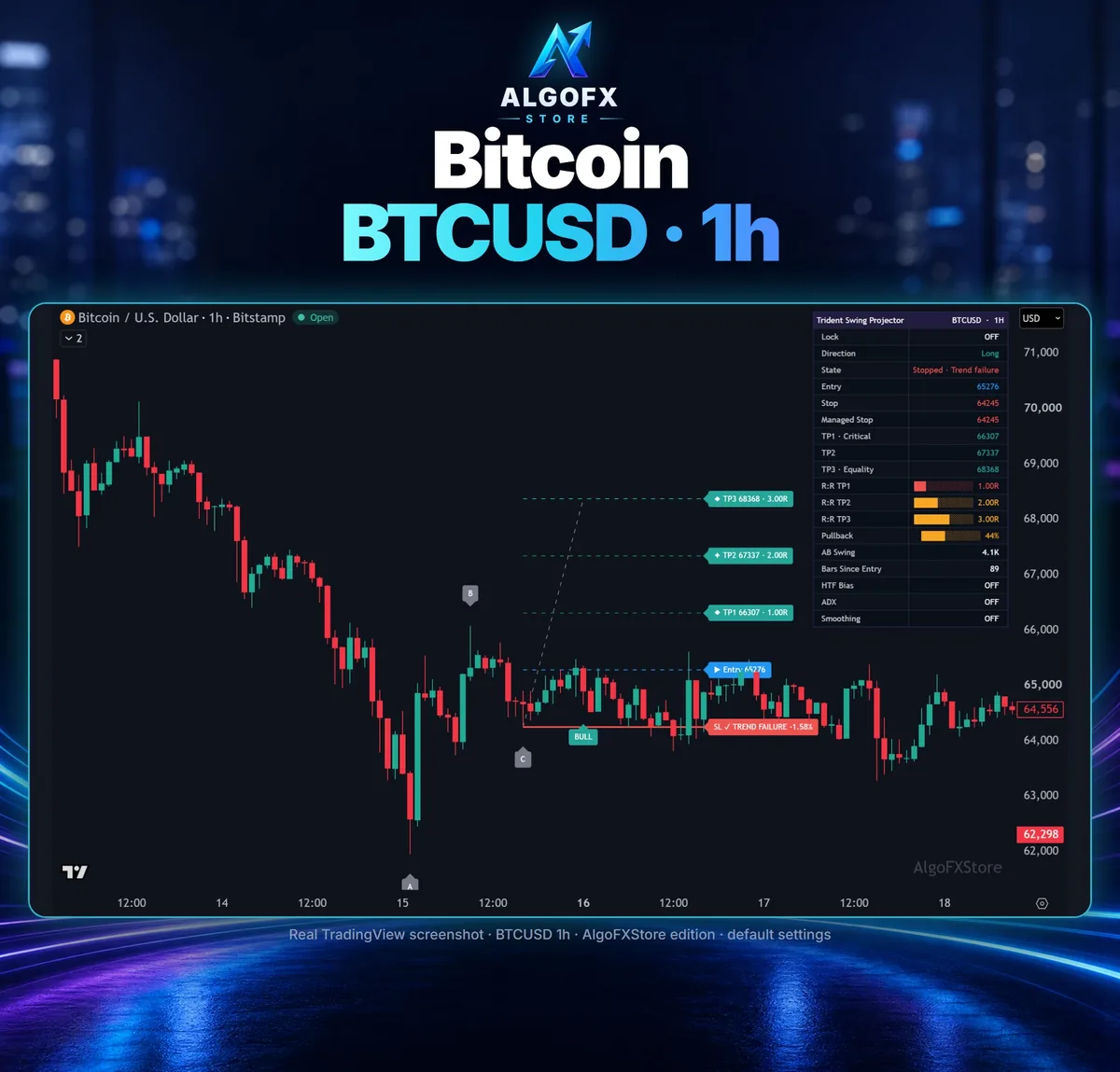
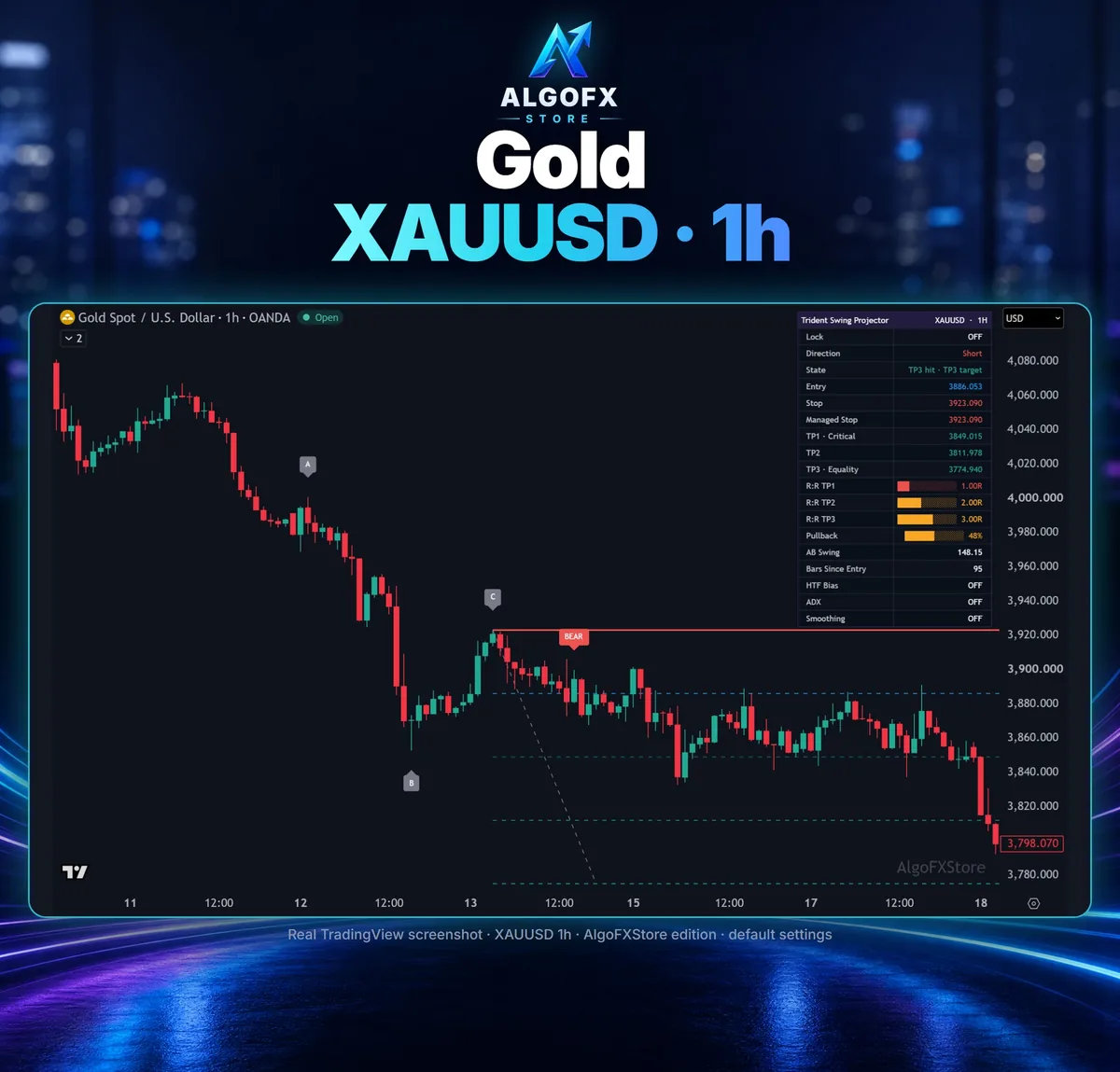
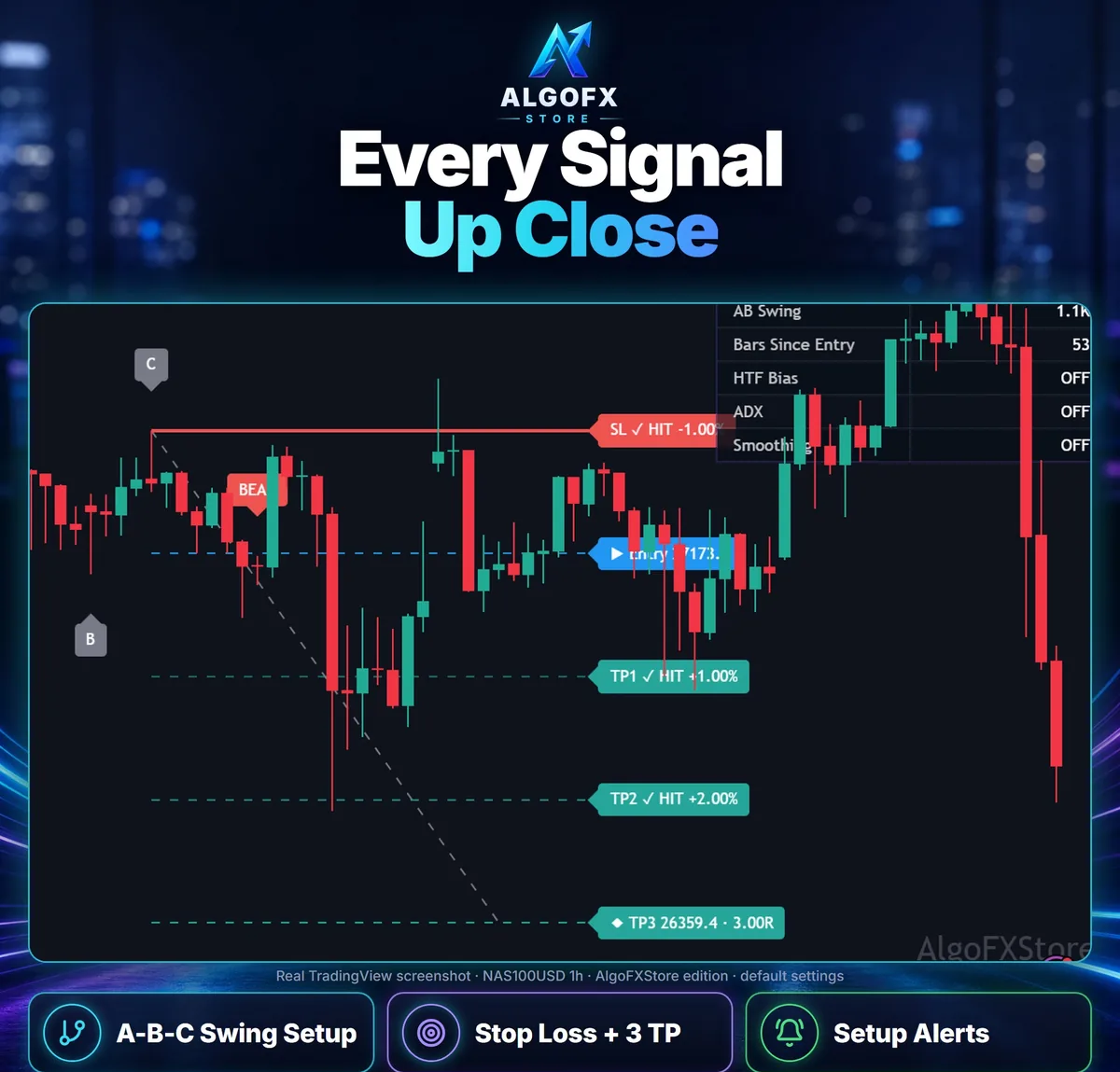
- A · B · C markers: grey labels 'A', 'B', 'C' on the three swing bars of the newest setup, below / above the bar
- Projected leg: dashed grey line from C to TP3 over as many bars as A to B took
- Trade levels from C to 10 bars past the arm bar, kept 10 bars past the last bar while the setup is open (or 10 bars past the bar that closed it): stop solid red width 2, entry dashed blue, TP1 / TP2 / TP3 dashed green (40 % / 20 % / 0 % transparent)
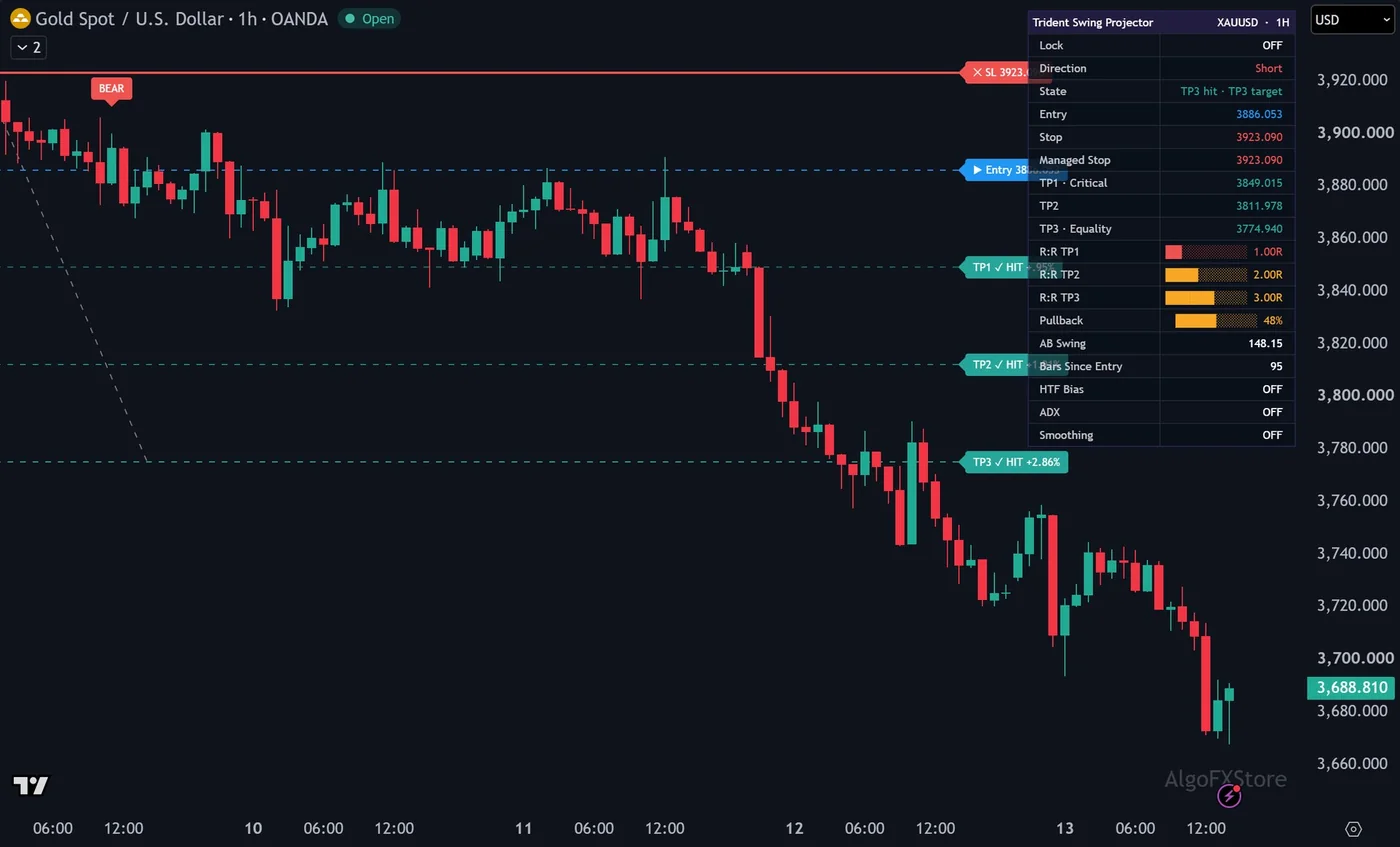
- Level labels at the right end: ' SL <price>', ' Entry <price>', ' TP1 <price> · 1.00R', ' TP2 <price> · 2.00R', ' TP3 <price> · 3.00R' (stop red, entry blue, targets green)
- Entry marker on the trigger bar: 'BULL' (green, below the bar) or 'BEAR' (red, above the bar)
- Hit updates on the labels: 'TP1 tick HIT +0.25%', 'TP2 tick HIT...', 'TP3 tick HIT...' (green), 'SL tick HIT -0.25%' or 'SL tick TREND FAILURE -0.25%' (red)
- Cancelled setup: its level lines and labels are deleted, the A · B · C markers and the projected leg stay
- Dashboard top right, 19 rows
- Warning label ' Non-standard chart type: price levels may not reflect real price' on Heikin Ashi, Renko, Kagi, Point & Figure, Line Break and Range charts
- Only the newest setup is drawn (Keep Last N Setups = 1; up to 20)
- AlgoFXStore watermark, bottom right
How Trident Swing Projector builds a setup
This is the logic of the shipped Pine Script v6 code. Swings are read from closed bars, and only the optional bias filter reads a higher timeframe.
- 1
Confirmed swing points
A pivot high is a bar whose high is higher than the 5 bars before it and the 5 bars after it; a pivot low is the mirror. Pivot Left and Pivot Right set those windows. Because the right side has to complete, a pivot is known only after its window has closed, and the A, B and C markers are placed back on the swing bars.
- 2
The A to B to C pattern
For a LONG, C is a new pivot low above the earlier pivot low A, with pivot high B between them. The pullback from B to C must be between 23.6 % and 78.6 % of the A to B leg, and with Trend Filter on, B must break the previous pivot high. A SHORT is the mirror. Optional HTF and ADX filters can add agreement checks.
- 3
Arming the levels
When C is published and no other setup is armed or open, the setup arms. The entry sits at C plus 25 % of the leg for a LONG, TP1 at 50 %, TP2 at 75 % and TP3 at 100 %, which repeats the A to B swing from C. The stop is at C, with an optional buffer in ticks or a fraction of ATR(14).
- 4
Entry, cancel and expiry
The setup becomes active when a bar closes at or beyond the entry level; the BULL or BEAR marker then prints on the next bar. If price trades beyond C first, the setup is cancelled as C broken. If 20 bars pass without a close through the entry, it is cancelled as Expired, and its level lines are removed.
- 5
Following the trade
Targets and the stop are checked against each bar's high and low. If the stop and a target are touched on the same bar, the stop wins. A stop before TP1 is labelled Trend failure. TP3 completes the setup. An optional Stop to Breakeven after TP1 moves the managed stop to the entry in the dashboard and alerts; the drawn stop line stays where it was.
- 6
Points or percent
Swing Unit Points projects the leg in price, exactly the size of A to B. Percent applies the same percentage move from C, which matters on instruments where price has moved a long way between A and C. Signal Smoothing can average the leg size with SMA, RMA, WMA, HMA or VWMA; it is off by default.
Trident Swing Projector on 12 different markets
Every chart below is a screenshot of TradingView itself with the shipped Trident Swing Projector [AlgoFXStore] attached at its default settings. Forex, metals, indices, energy and crypto, so you can see how it reads each kind of market. They show what the indicator draws; they are not trading results. Tap or click any chart to open it full size.
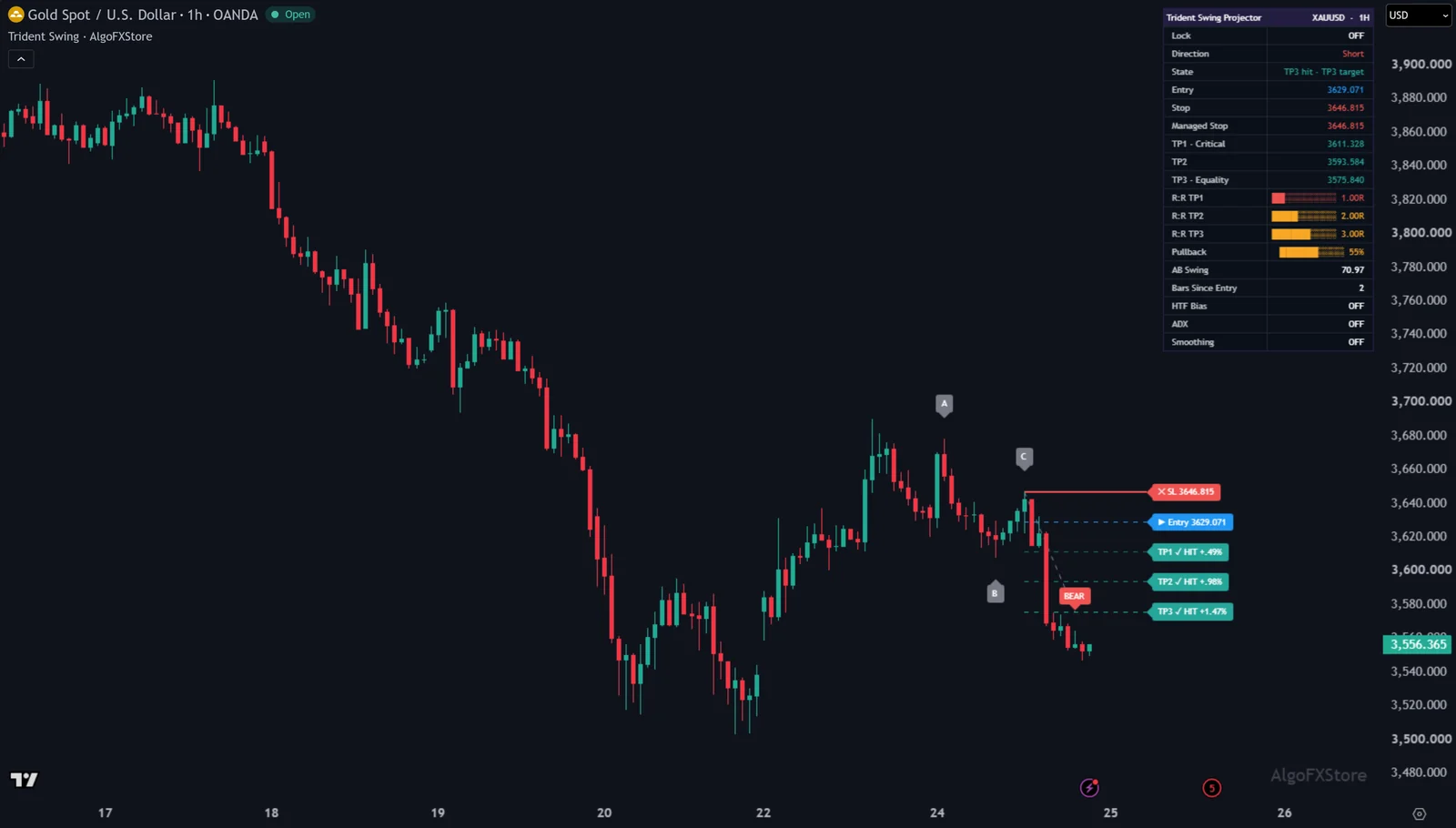
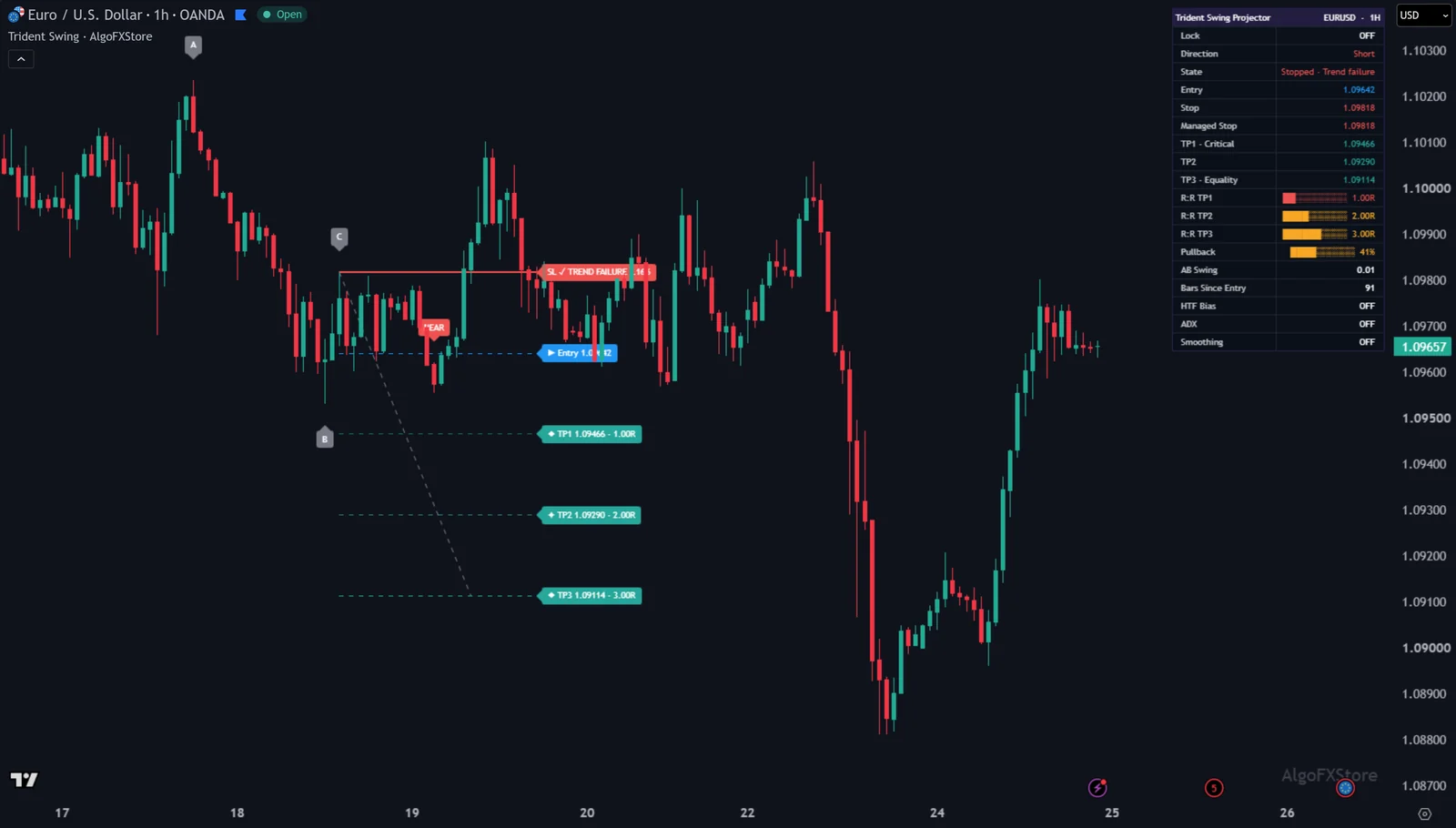
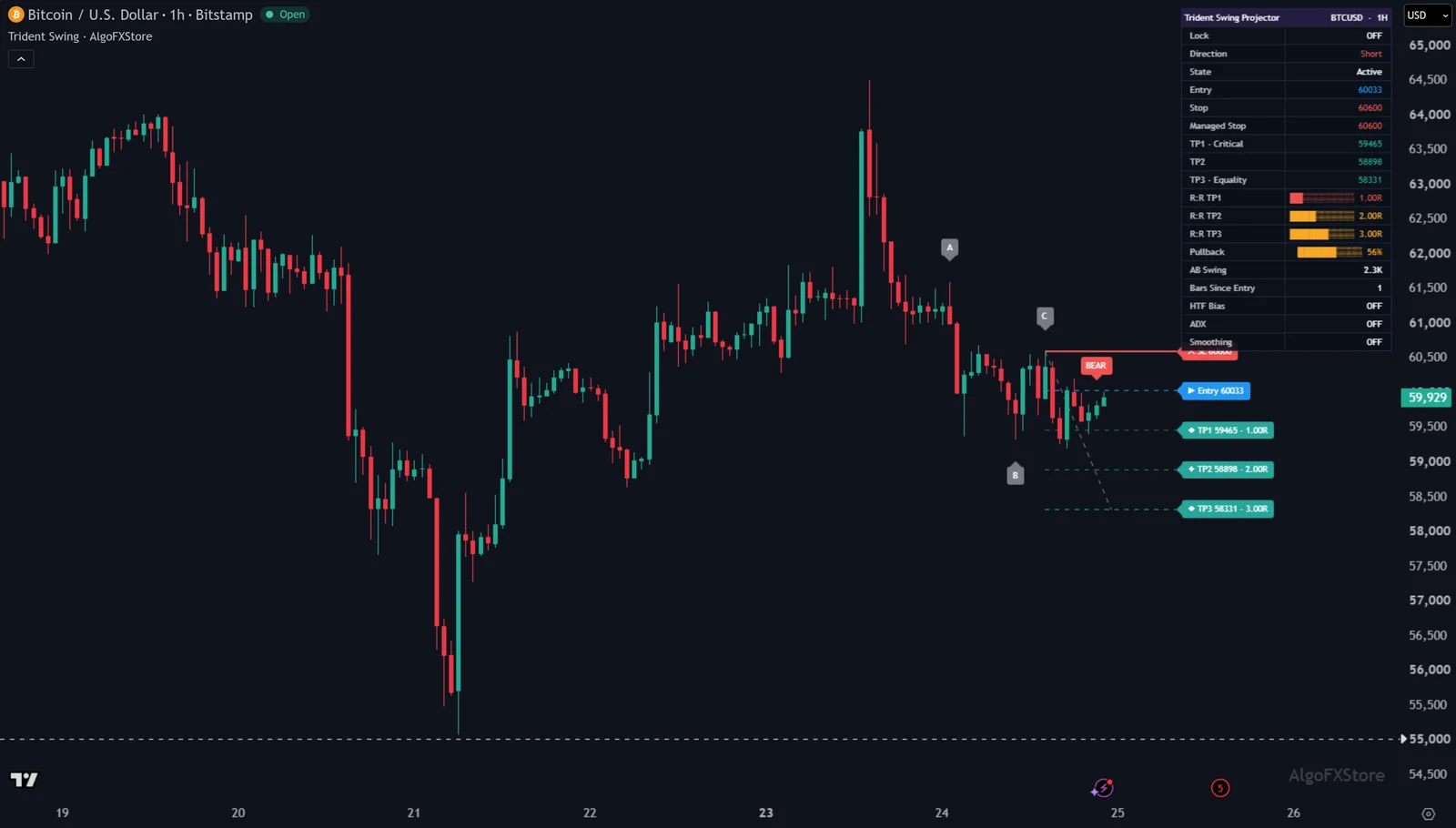
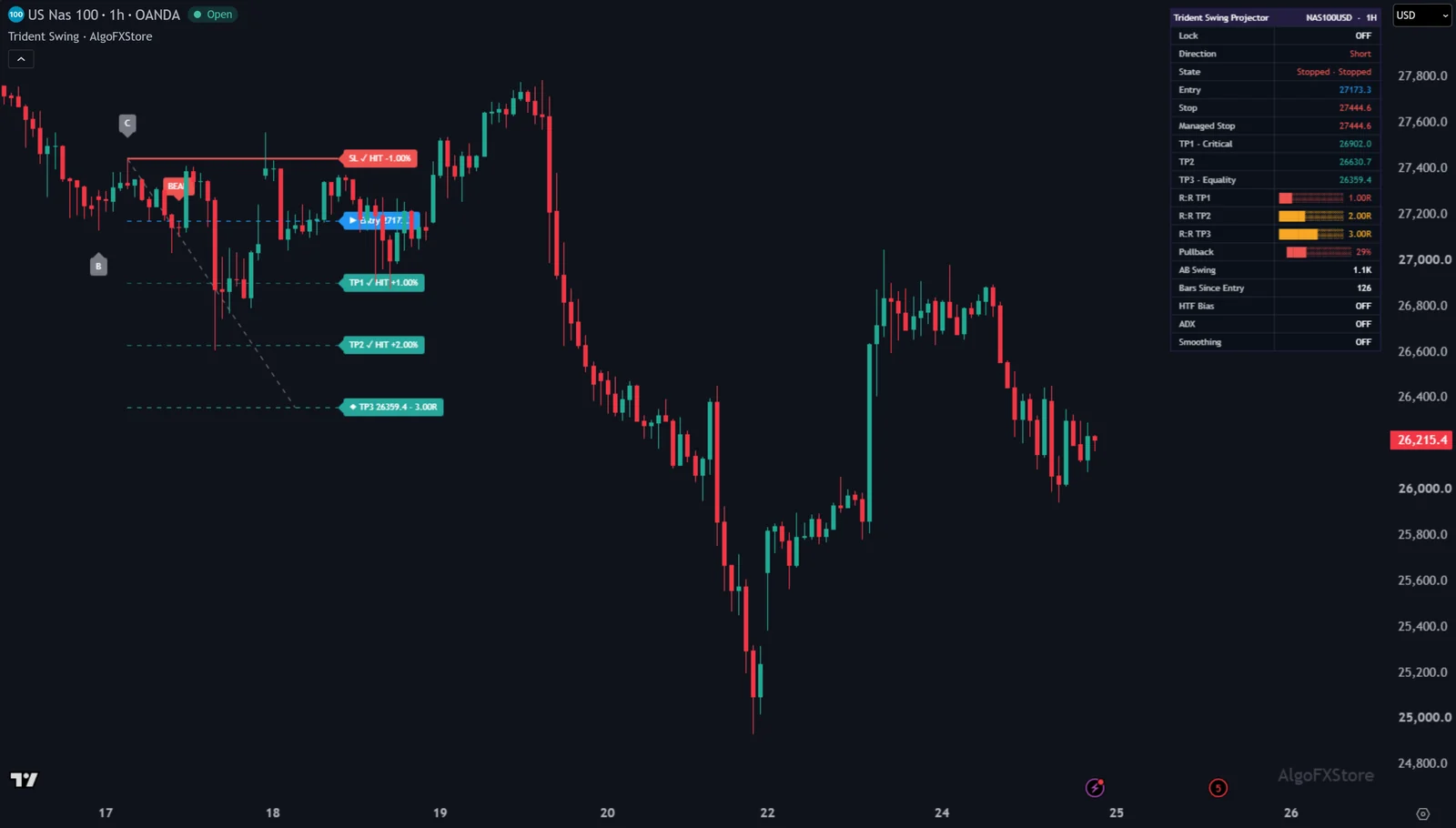
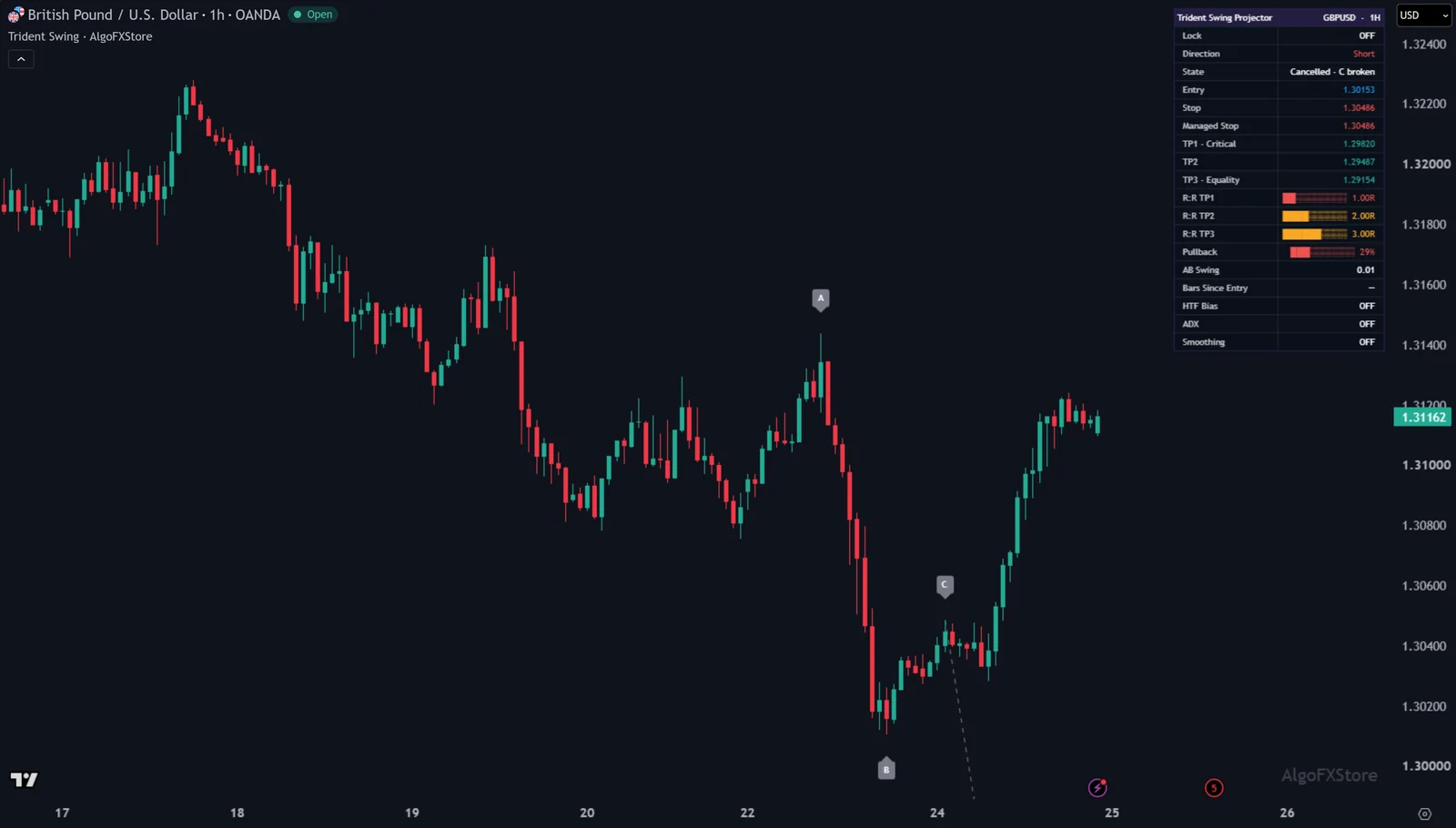
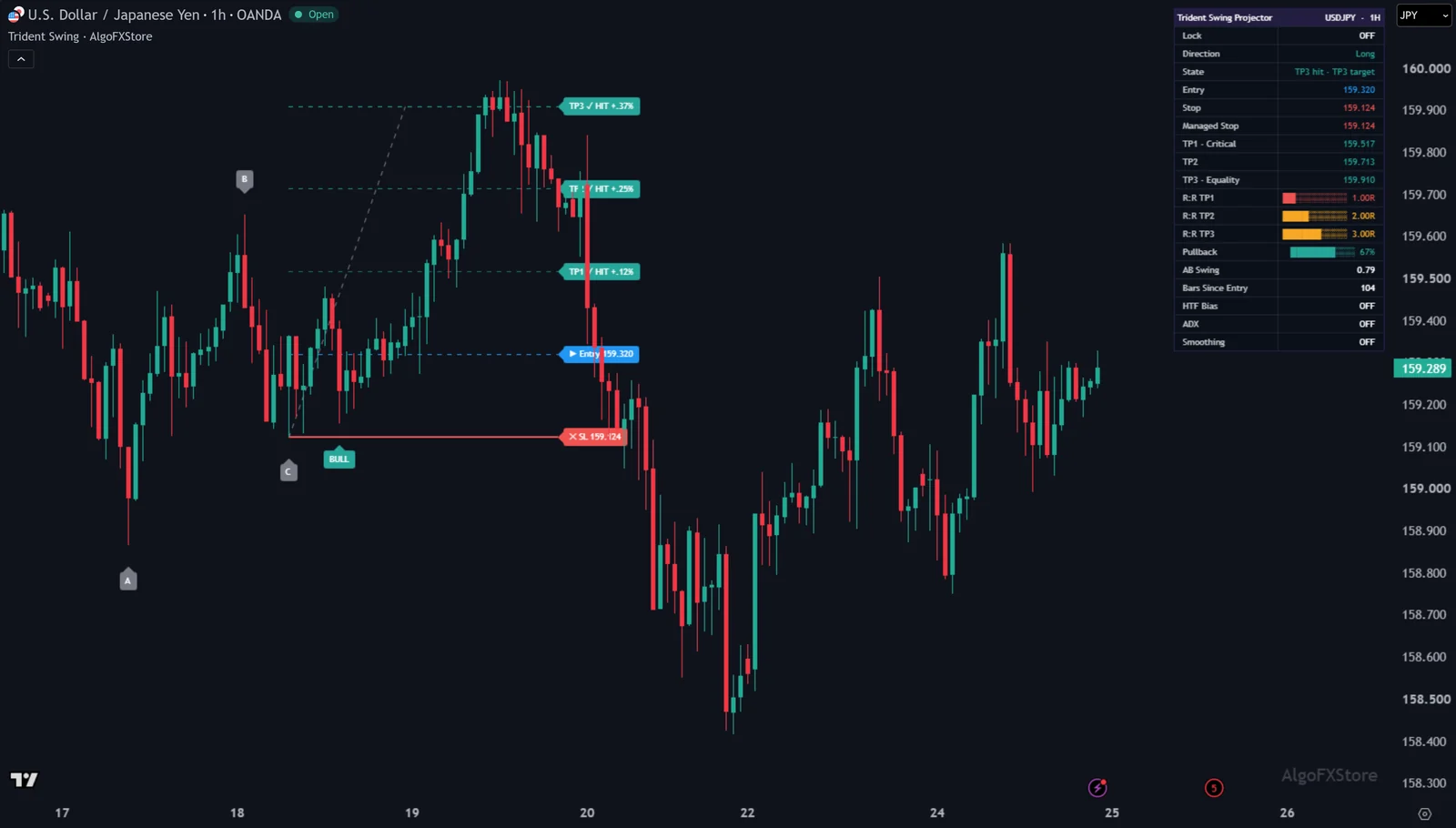
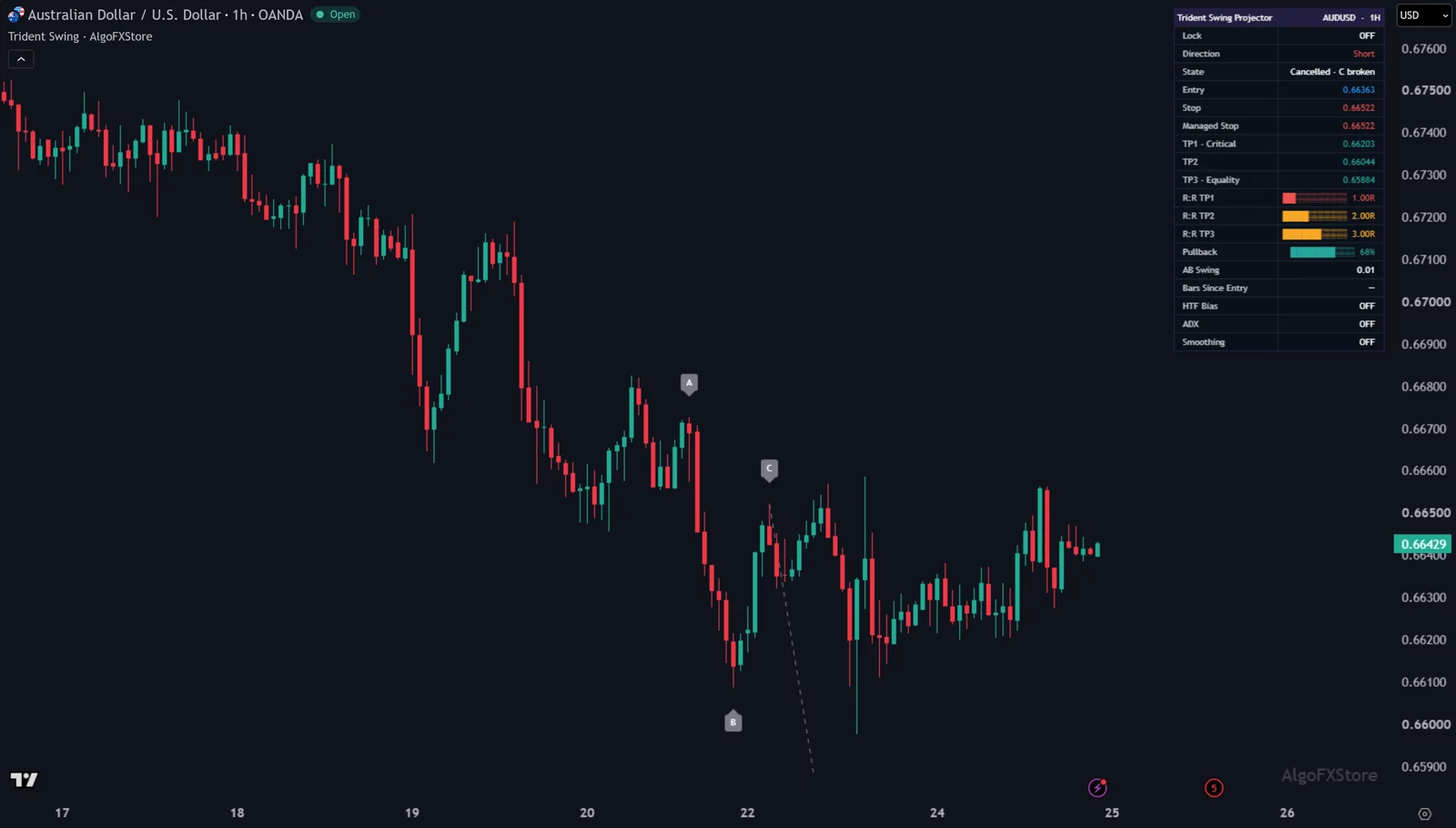
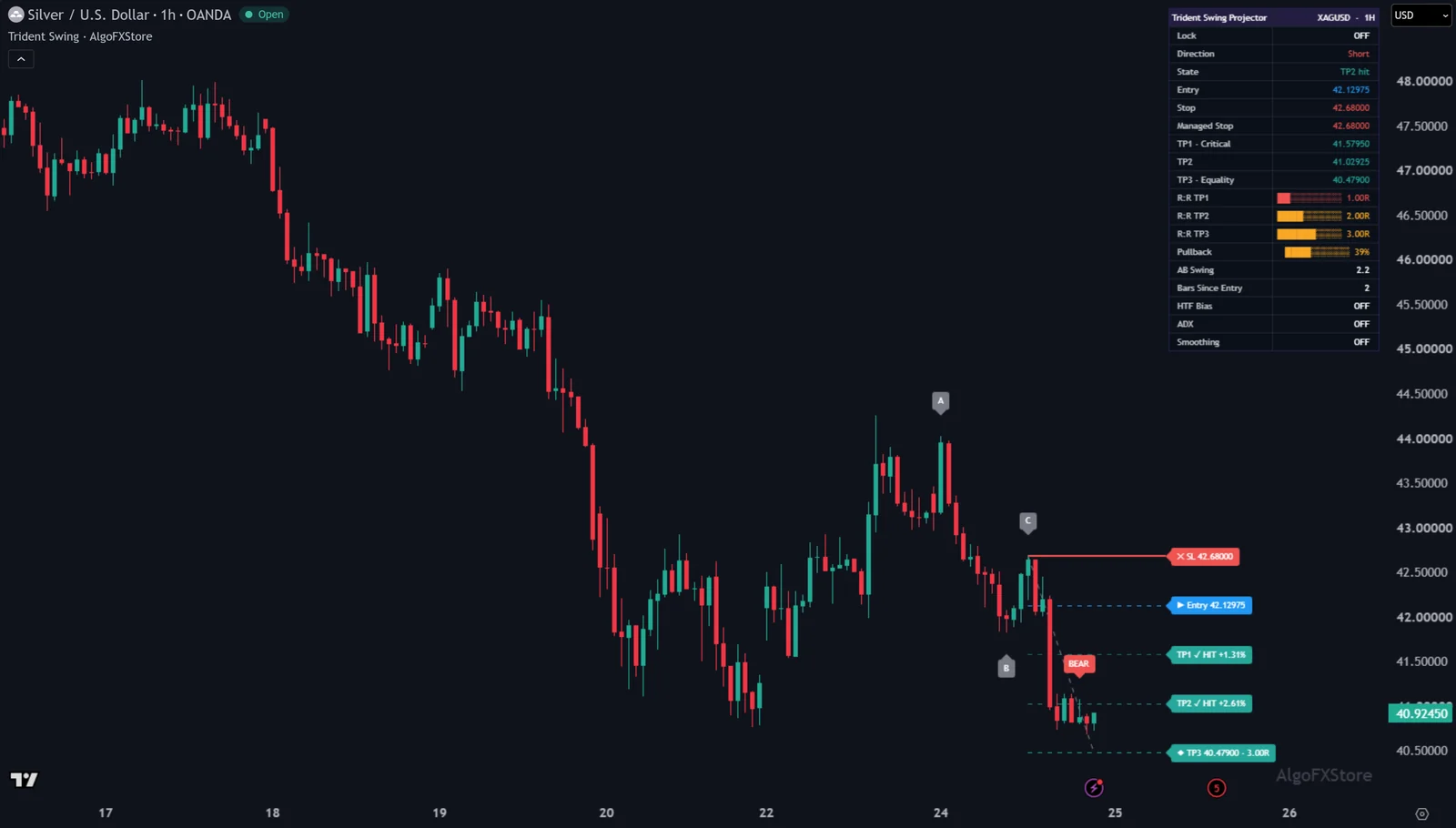
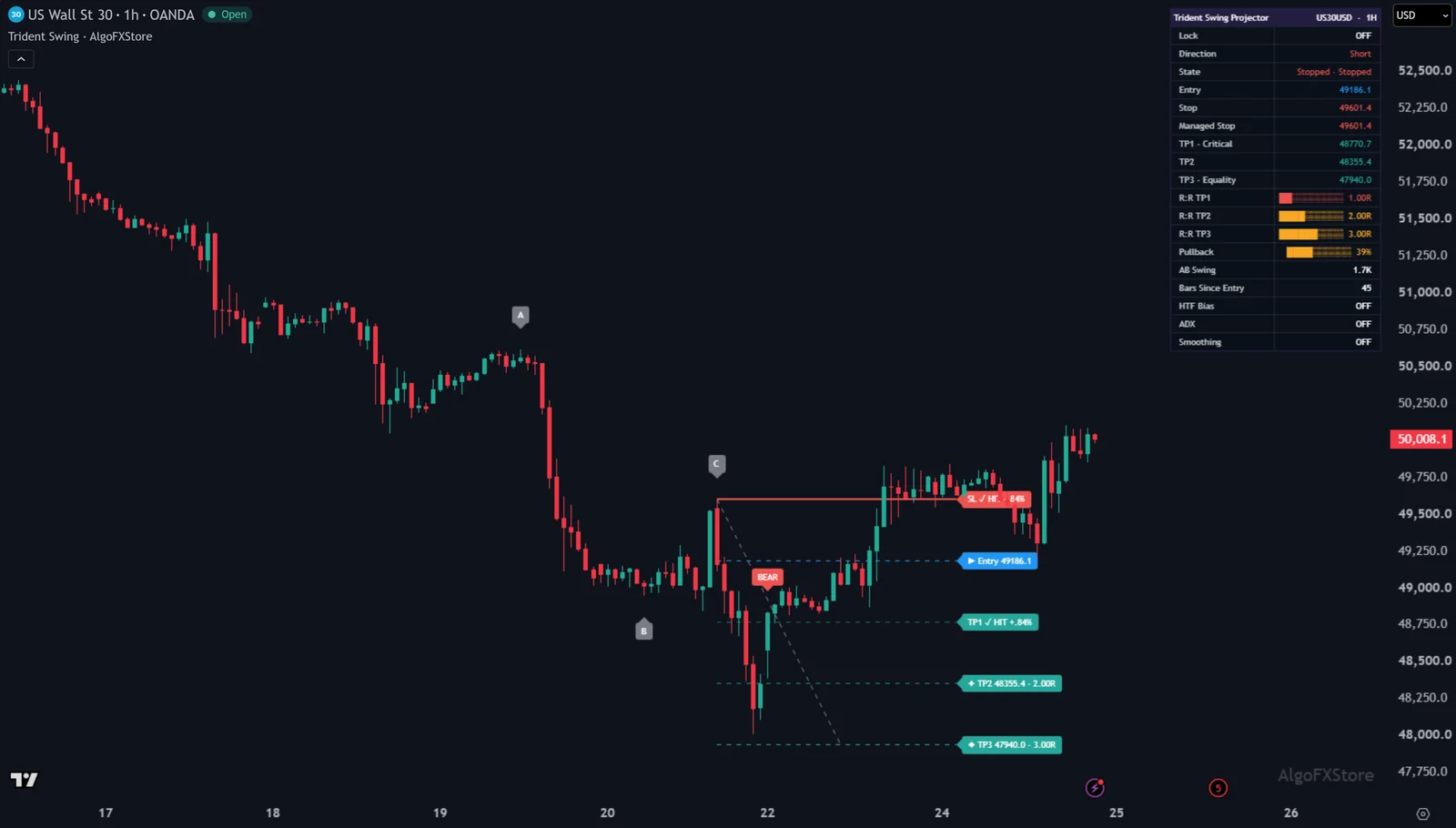
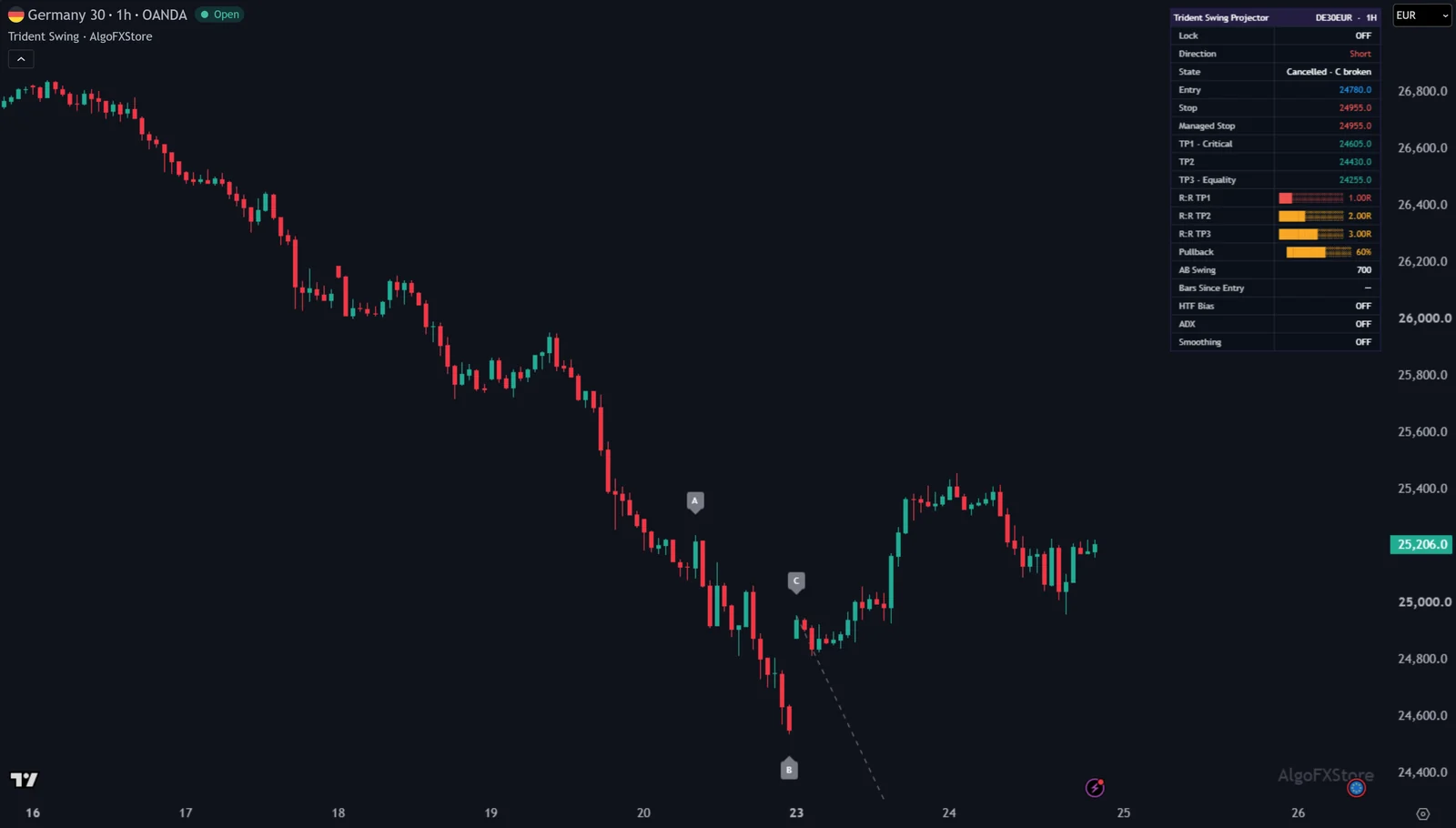
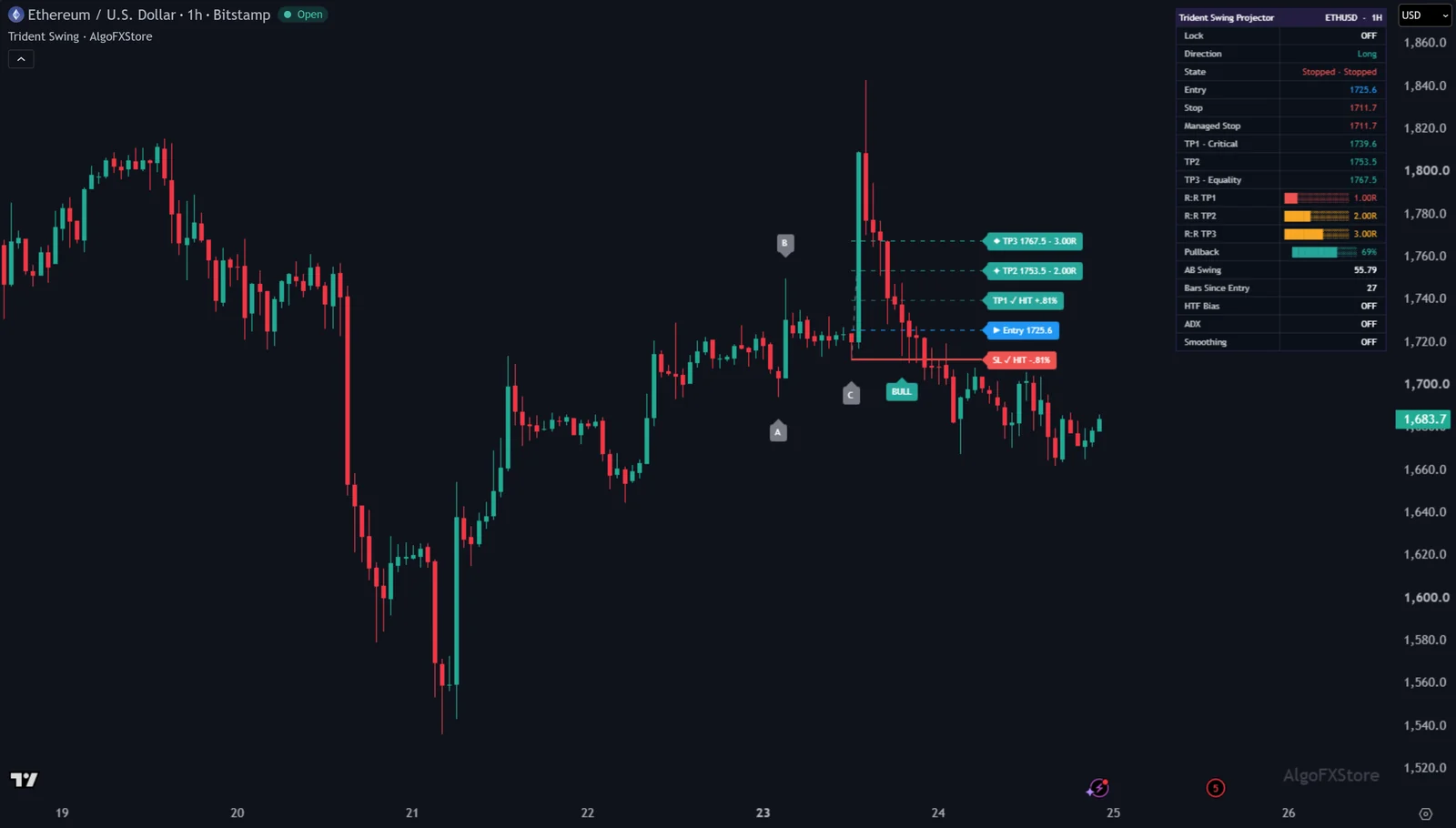
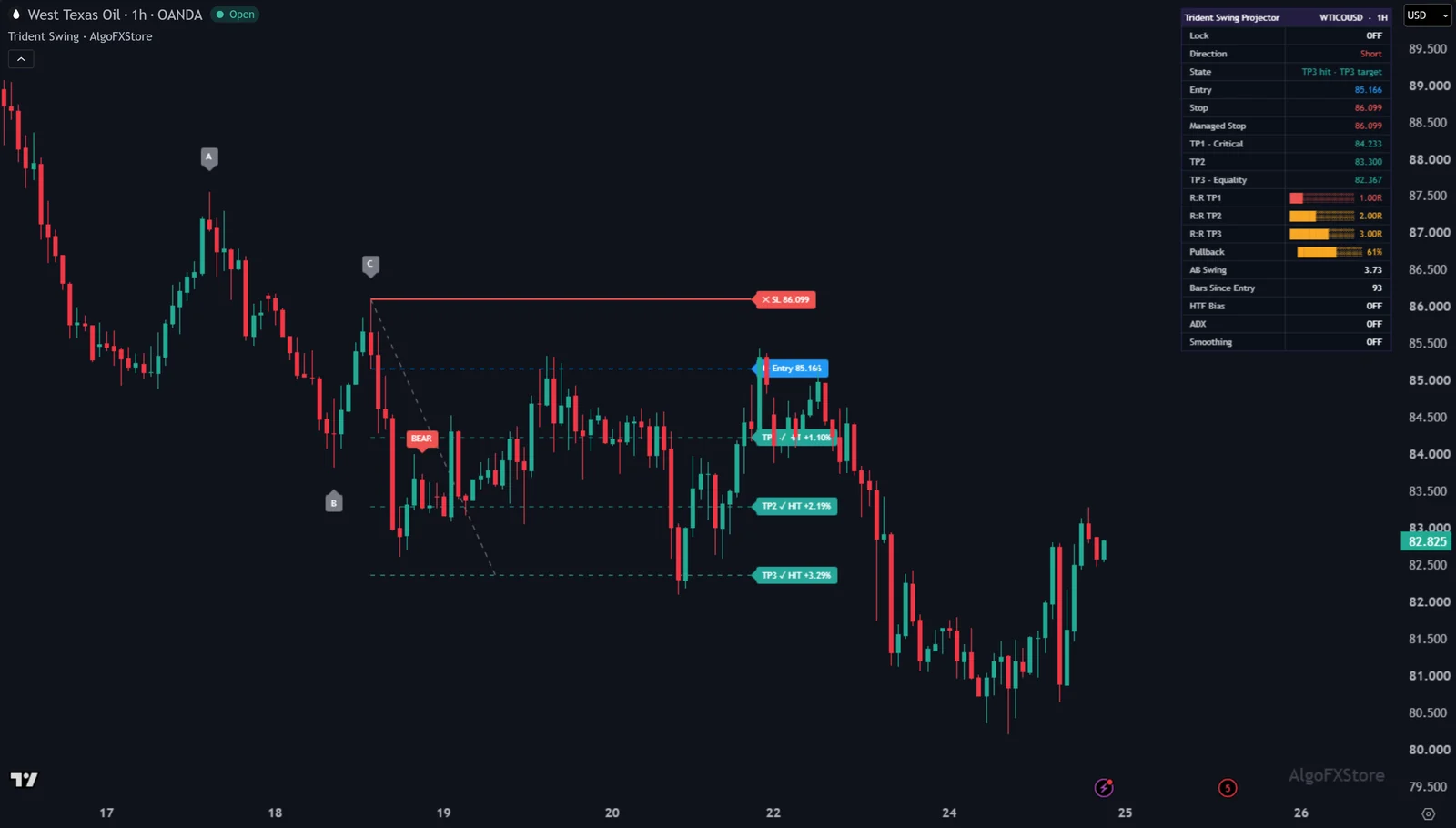
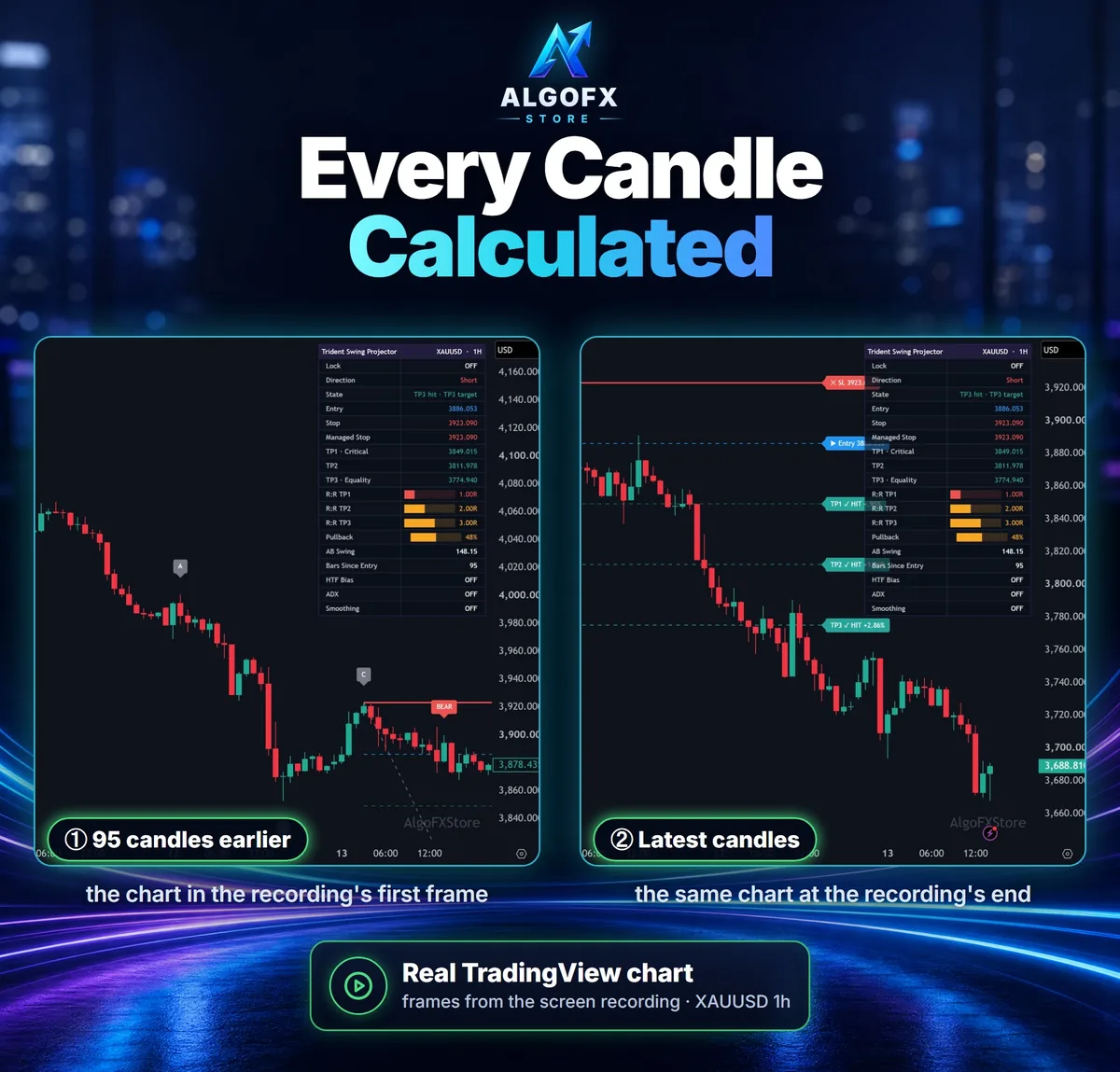
Trident Swing Projector on a real TradingView chart, frame by frame
Frames of a screen recording of the shipped indicator at its default settings, as the chart updates. Nothing is edited into the chart.
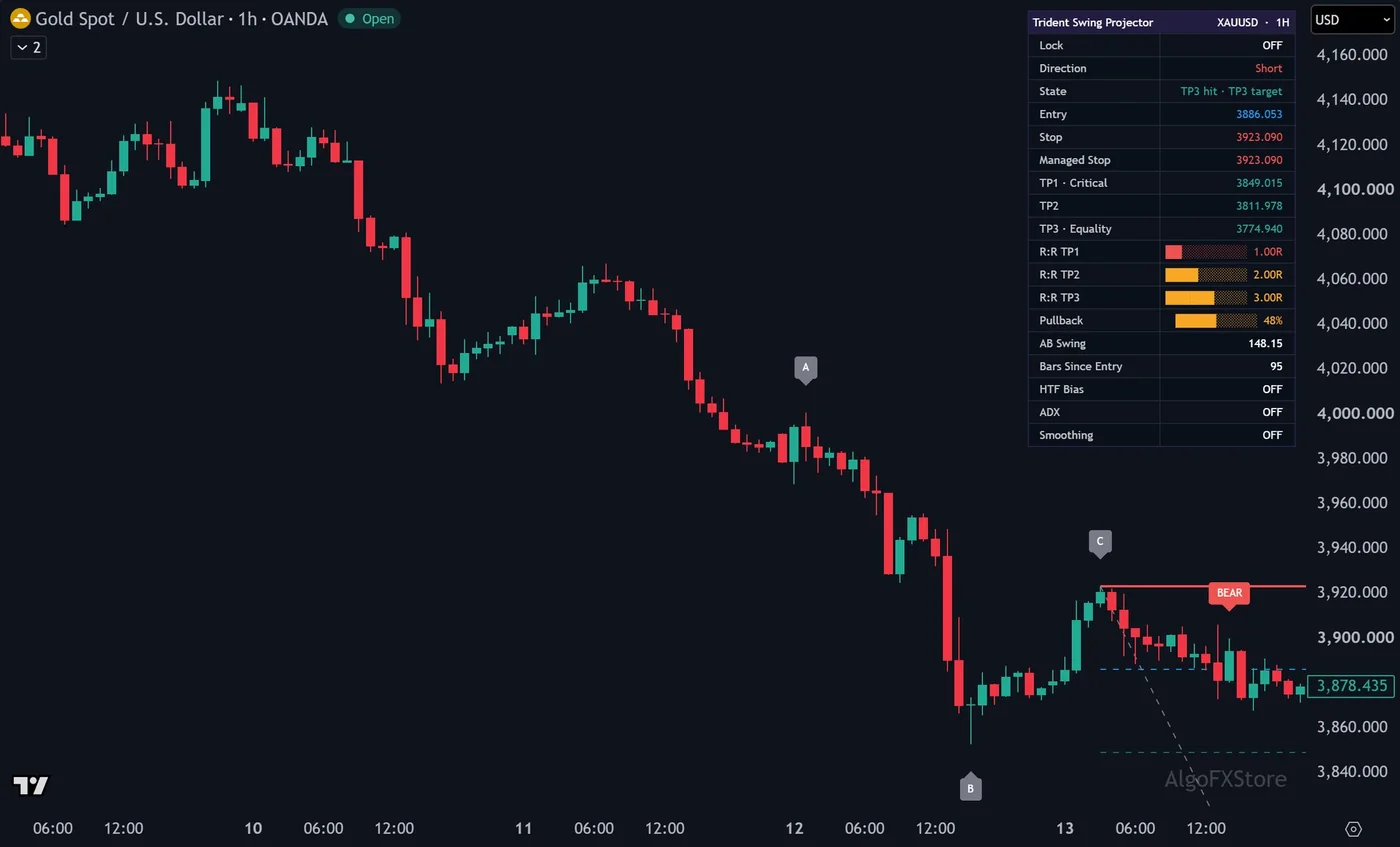
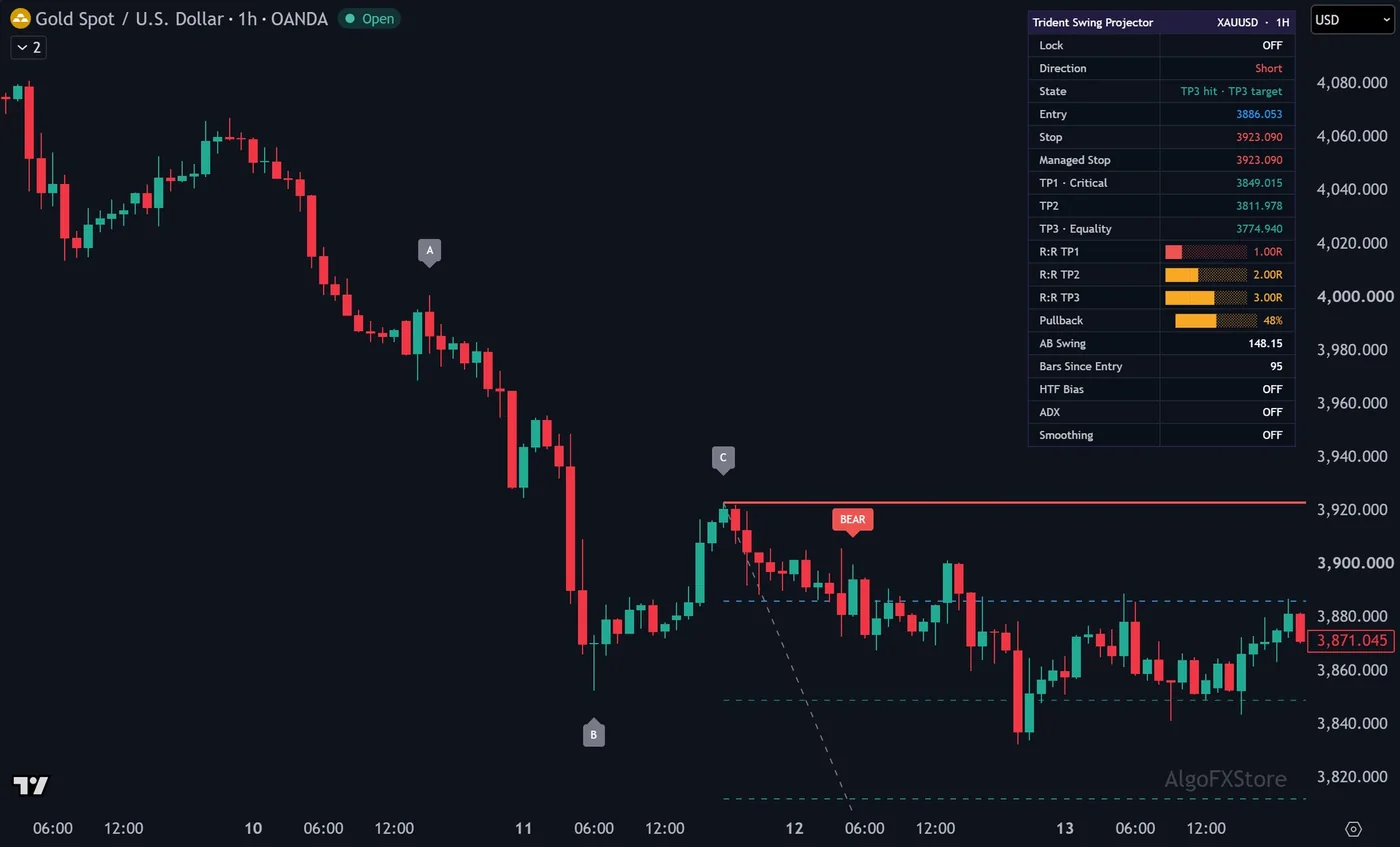
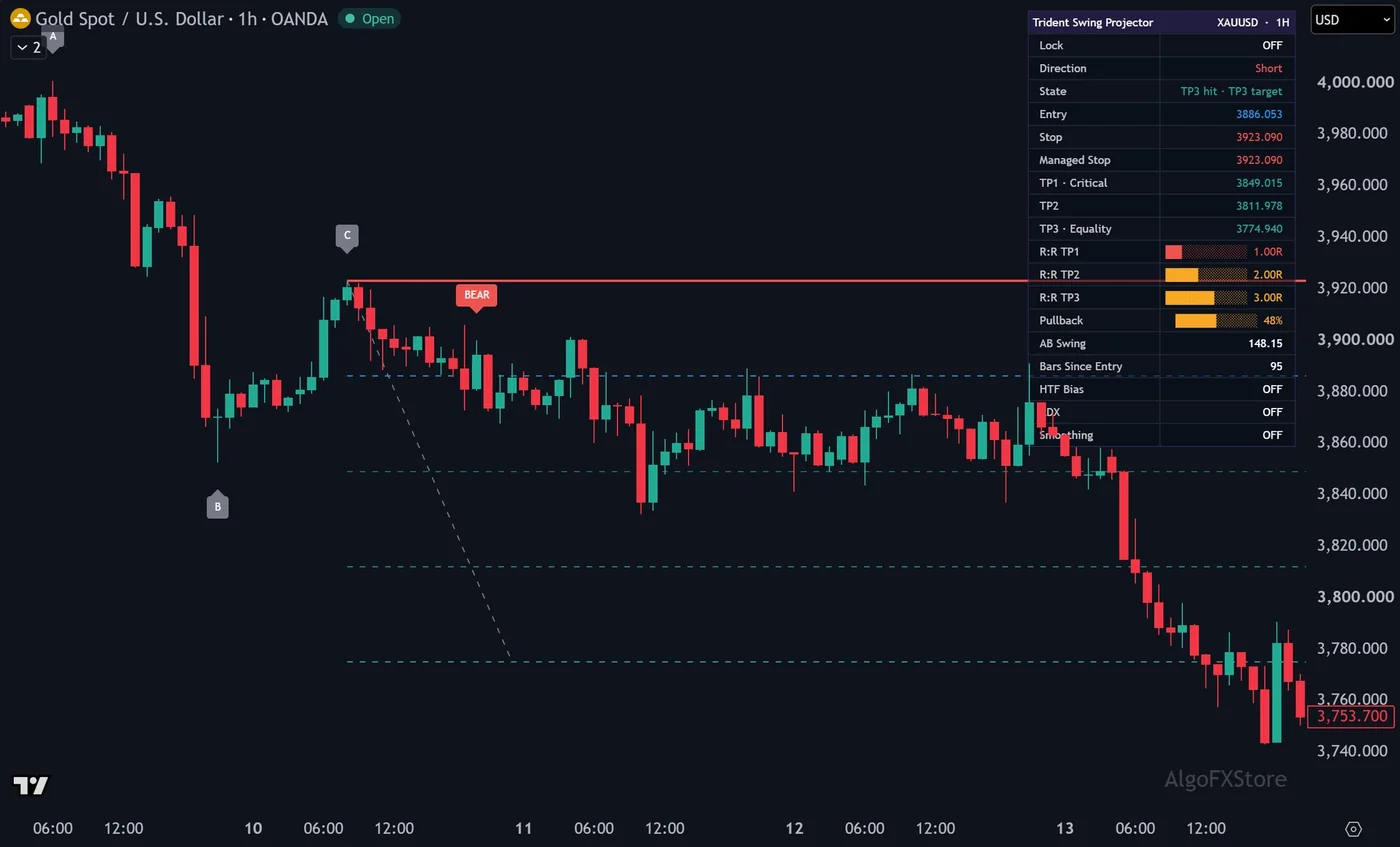
How to use it, step by step
A setup passes through clear states: armed, active, then targets or stop. These steps cover what to do in each.
- 1
Read the armed setup
When the dashboard State reads Armed, the levels are drawn but nothing has happened yet. Check Pullback, the depth of B to C as a share of the leg, and AB Swing, the size of the leg. A shallow pullback leaves less room between C and the entry; a deep one close to 78.6 % means the trend almost failed. Decide now whether you would take it.
- 2
Wait for the close through the entry
The entry is triggered only by a closed bar at or beyond the entry level, and the marker prints on the following bar. Do not anticipate it: if price breaks below C first, the setup is cancelled. An armed setup also expires after 20 bars, because a pullback that takes that long to resume is a different situation.
- 3
Size from the stop at C
With no buffer the risk is 25 % of the leg, the distance from the entry to C. Measure it in price, or read the R:R rows on the dashboard, and size so that distance is a loss you accept. Add a buffer in ticks or ATR if your market often wicks just past swing lows; the targets stay where they are and the R values change.
- 4
Plan the targets
TP1 at 50 % of the leg is labelled Critical, TP3 at 100 % is the swing equality target. With no buffer they are 1R, 2R and 3R. Decide in advance whether you take part at TP1, whether you want the managed stop moved to breakeven after TP1, and whether you hold for TP3, which closes the setup.
- 5
Use the filters for your style
Keep Trend Filter on to trade only pullbacks after a swing that broke the previous high or low. Turn on HTF Confirmation to require the 240 minute bias, the previous closed bar against the one before, to agree. The ADX filter blocks setups while ADX 14 is under 20. Set the HTF above your chart timeframe.
The dashboard, row by row
- Header 'Trident Swing Projector' + '<ticker> · <timeframe>' (e.g. 'XAUUSD · 1H')
- Lock (ACTIVE / OFF), Direction (Long / Short / -), State (Armed, Active, TP1 hit, TP2 hit, TP3 hit · TP3 target, Stopped · Trend failure / Breakeven / Stopped, Cancelled · C broken / Expired)
- Entry, Stop, Managed Stop ('<price> · BE' after break-even), TP1 · Critical, TP2, TP3 · Equality
- R:R TP1, R:R TP2, R:R TP3: 10-cell bar on a 5R scale + the ratio, e.g. '1.00R
- Pullback (bar + % of the A-B leg), AB Swing (leg size), Bars Since Entry, HTF Bias (OFF / Bull / Bear / Flat), ADX (OFF or bar), Smoothing (OFF / method)
Everything Trident Swing Projector does for you
Levels built from the swing itself
Entry at 25 %, TP1 at 50 %, TP2 at 75 % and TP3 at 100 % of the A to B leg, measured from C. Nothing is typed in by hand, so the plan scales with any market and timeframe.
Pullback depth rules
A setup only arms when B to C retraced between 23.6 % and 78.6 % of the leg. Both limits are inputs, so you can demand shallower or allow deeper pullbacks.
Entry on a closed bar
The entry is decided from the previous bar's close through the entry level, and cancellations from the previous bar's range, so an entry marker does not appear and vanish within a bar.
Clear setup states
Armed, Active, TP1 hit, TP2 hit, TP3 hit, Stopped as Trend failure, Breakeven or Stopped, and Cancelled as C broken or Expired, shown in the dashboard State row.
Dashboard with every level
Direction, state, entry, stop, managed stop, TP1 to TP3, R:R bars for each target, pullback depth, AB swing size, bars since entry, HTF bias, ADX and smoothing, in any corner.
Alerts for each stage
Seven alertcondition alerts: Setup Armed, Entry Triggered, TP1 Hit, TP2 Hit, TP3 Hit, Stop Hit and Setup Cancelled. Structured webhook messages with every level go through one Any alert() function call alert.
Stop buffer and breakeven options
Push the stop beyond C by ticks or an ATR fraction, and optionally manage the stop at the entry after TP1, reported in the dashboard and alert messages.
Honest chart warning
On Heikin Ashi, Renko, Kagi, Point and Figure, Line Break and Range charts a warning label says the price levels may not reflect real price.
Trident Swing Projector, feature by feature
Each picture is built from real platform screenshots of the shipped indicator at its default settings, labelled so you can see what every part does. Tap any picture to open it full size.


How traders put it to work
Day trading on 15 minutes and 1 hour
The guide names 15 minute and 1 hour charts for day trading setups. Pivots of 5 bars on each side follow the swings within a session there. Use the 240 minute HTF bias if you only want pullbacks in the direction of the 4 hour trend, and keep the 20-bar expiry so stale setups are cleared.
Swing trading on 4 hours and daily
On 4 hour and daily charts the same rules give larger legs and wider stops. Set HTF Timeframe above the chart, for example daily over a 4 hour chart, or leave it off. Percent mode can suit markets that trend a long way between A and C.
Gold and indices
On XAUUSD and index charts swing lows are often wicked through by a few points. A Stop Buffer in ATR Fraction moves the stop just beyond C while the entry and targets stay put; the R:R rows show how the buffer changes the ratios.
Forex and crypto
The levels are shares of the leg, so they work the same on EURUSD and on Bitcoin. On noisy crypto charts Signal Smoothing over 5 bars can steady the leg size used for the projection.
Every setting, with its default
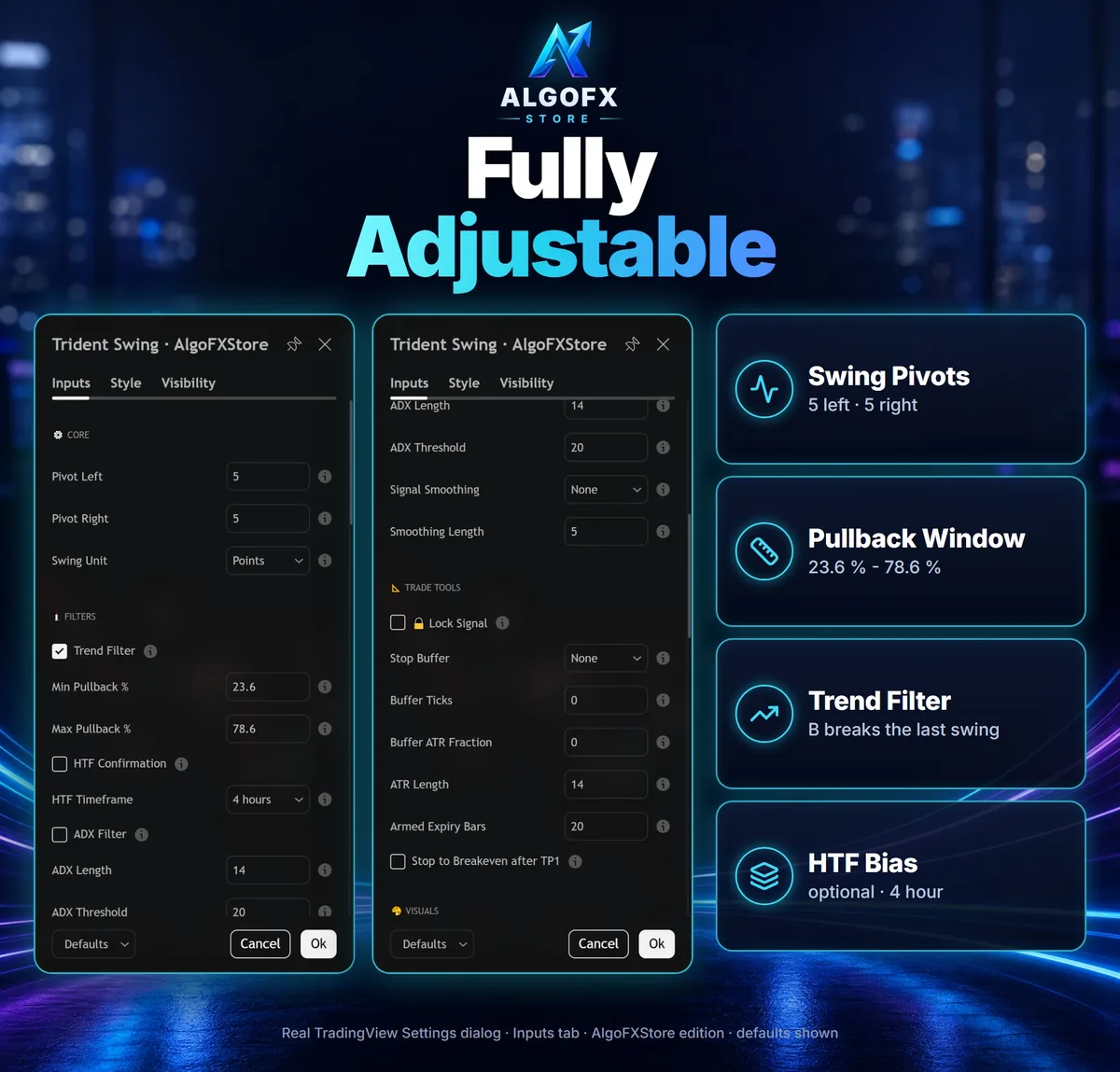
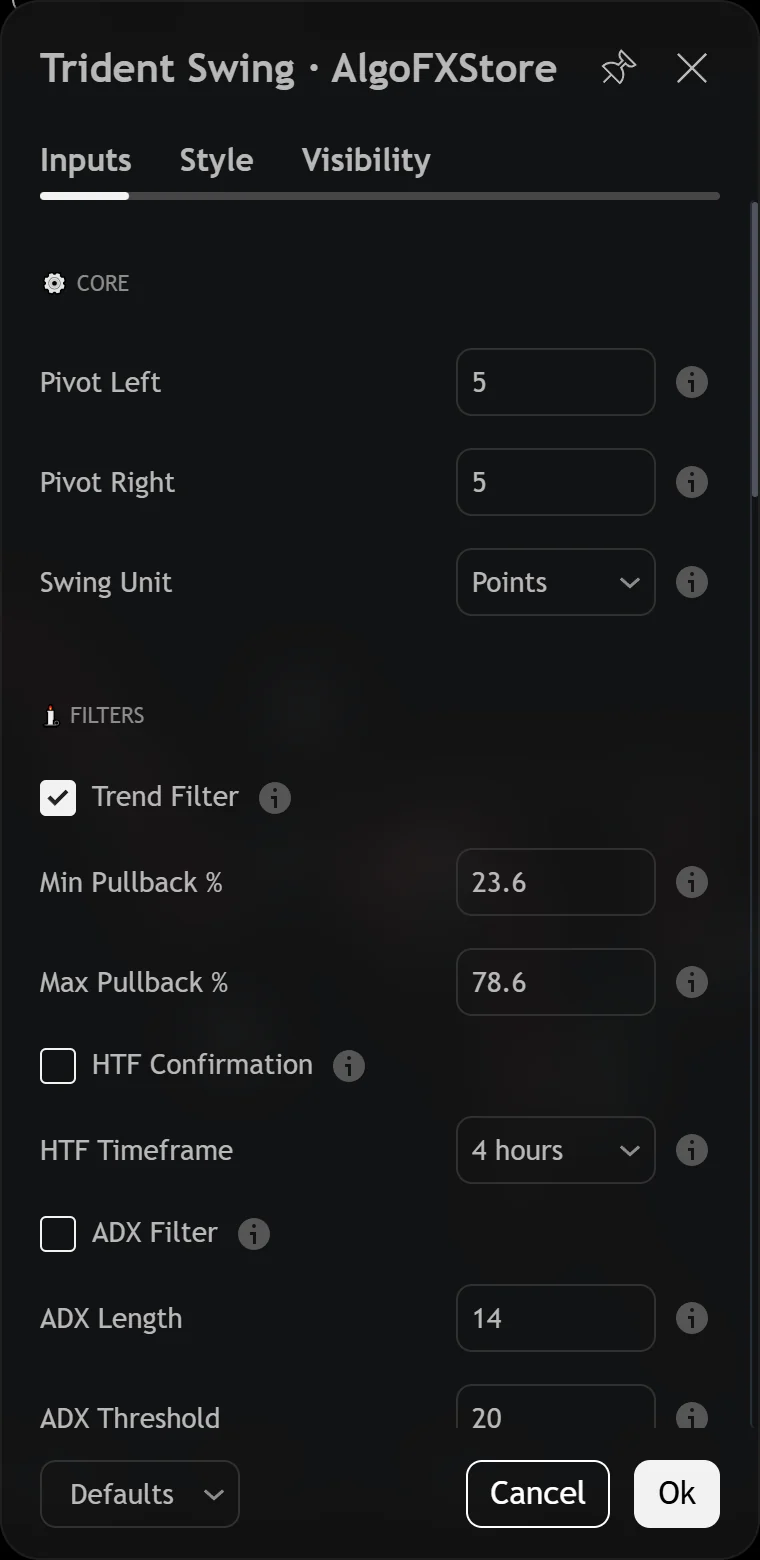
The names are the ones in the script's Settings dialog in TradingView (Inputs tab); the defaults are what every chart on this page uses. Open a group to see its settings.
Core (3)
| Setting | Default | What it does |
|---|---|---|
| Pivot Left | 5 | Bars left of a swing point before it counts as a pivot (1-50). |
| Pivot Right | 5 | Bars right of it; the pivot is published one bar after this window (1-50). |
| Swing Unit | Points | Points: the projected leg equals the A-B leg in price. Percent: the same percentage move applied from C. |
Filters (10)
| Setting | Default | What it does |
|---|---|---|
| Trend Filter | on | B must break the previous swing high (long) or low (short). |
| Min Pullback % | 23.6 | Shallowest B-C pullback, % of the A-B leg. |
| Max Pullback % | 78.6 | Deepest B-C pullback, % of the A-B leg. |
| HTF Confirmation | off | The higher-timeframe bias must agree with the setup. |
| HTF Timeframe | 240 | Timeframe of that bias (previous closed bar vs the one before). |
| ADX Filter | off | Block setups while ADX is below the threshold. |
| ADX Length | 14 | DI / ADX period. |
| ADX Threshold | 20 | Minimum ADX to arm a setup. |
| Signal Smoothing | None | None, SMA, RMA, WMA, HMA, VWMA of the A-B leg size. |
| Smoothing Length | 5 | Length of that smoothing. |
Trade Tools (7)
| Setting | Default | What it does |
|---|---|---|
| Lock Signal | off | Freeze the current setup and block new ones. |
| Stop Buffer | None | None, Ticks, ATR Fraction: extra distance beyond C for the stop. |
| Buffer Ticks | 0 | Ticks beyond C (Stop Buffer = Ticks). |
| Buffer ATR Fraction | 0 | Fraction of ATR beyond C (Stop Buffer = ATR Fraction). |
| ATR Length | 14 | ATR for the ATR Fraction buffer. |
| Armed Expiry Bars | 20 | An armed setup without a close through the entry is cancelled after this many bars. |
| Stop to Breakeven after TP1 | off | After TP1 the managed stop moves to the entry (dashboard and alerts; the drawn stop stays). |
Visuals (5)
| Setting | Default | What it does |
|---|---|---|
| Trade Levels | on | Stop, entry and TP1-TP3 lines and labels. |
| A · B · C Markers | on | Labels on the three swing points. |
| Projected Leg | on | Dashed line from C to TP3. |
| Entry Markers | on | BULL / BEAR label on the entry bar. |
| Keep Last N Setups | 1 | Setups kept on the chart (1-20). |
Dashboard (2)
| Setting | Default | What it does |
|---|---|---|
| Show Dashboard | on | The dashboard table. |
| Position | Top Right | Top Right, Top Left, Bottom Right, Bottom Left. |
Alerts (5)
| Setting | Default | What it does |
|---|---|---|
| Long Action | long | Action word of long entries in the webhook message. |
| Short Action | short | Action word of short entries. |
| Close Long Action | closelong | Action word of long exits (TP, stop). |
| Close Short Action | closeshort | Action word of short exits. |
| • Info Action | info | Action word of armed / cancelled messages. |
Colors (12)
| Setting | Default | What it does |
|---|---|---|
| Bullish | #26a69a | BULL marker and long rows. |
| Bearish | #ef5350 | BEAR marker and short rows. |
| Neutral | #f9a825 | Middle colour of the dashboard bars. |
| Stop | #ef5350 | Stop line, label and dashboard rows. |
| Entry | #2196f3 | Entry line, label and dashboard row. |
| Targets | #26a69a | TP1-TP3 lines, labels and dashboard rows. |
| A · B · C | #787b86 | Swing markers. |
| Projected Leg | #787b86 | Projected leg line. |
| Label Text | #ffffff | Text of every chart label. |
| Dash Header | #3a2a6d (55 %) | Dashboard header. |
| Dash Body | #0a0f1a (10 %) | Dashboard rows. |
| Dash Text | #ffffff | Dashboard text. |
The alert events, one by one
In TradingView: Create alert, choose “Trident Swing Projector [AlgoFXStore]” as the condition and pick the event. TradingView then notifies you the way you set in that dialog: a pop-up in TradingView, a sound, the TradingView app on your phone or an e-mail.
- Trident Setup Armed
- Trident Entry Triggered
- Trident TP1 Hit
- Trident TP2 Hit
- Trident TP3 Hit
- Trident Stop Hit
- Trident Setup Cancelled
- Armed / entry / cancelled / stop (once per bar close), TP1 / TP2 / TP3 (once per bar)
Trident Swing Projector next to the usual options
Where it wins, and where it does not.
| Trident Swing Projector | Typical free swing or Fibonacci indicator | Reading it by hand | |
|---|---|---|---|
| Finding A, B and C | From confirmed pivots, with depth and trend checks | Swing points only, or none | Your judgement on each chart |
| Entry, stop and targets | 25 %, C and 50 / 75 / 100 % of the leg, drawn automatically | Retracement lines without a plan | A Fibonacci tool and a calculator |
| Setup tracking | Armed, active, targets, stop, cancelled or expired | None | Notes and memory |
| Alerts | Seven stage alerts plus structured webhook messages | Rarely | Only while you watch |
| History on the chart | Only the newest setup by default (up to 20) | Often all swings | Whatever you keep |
| Simplicity | 44 inputs and a 19-row dashboard | A few inputs | Nothing to install |
| Cost | A one-time purchase | Free | Free |
Honest about who this fits
A good fit if you
- Pullback traders on TradingView who want entry, stop and targets measured from the impulse swing, not guessed.
- Traders who like a setup to pass clear states, armed, active, target or stop, and want alerts at each one.
- Day traders on 15 minute and 1 hour charts and swing traders on 4 hour and daily charts.
- Traders who size from the stop and want the R:R of each target shown before they enter.
- Traders who route alerts to their own tools and want structured messages with every level.
Not for you if you
- Traders who want early signals at the turn itself: pivots are confirmed only after the right-hand window closes.
- Anyone who wants a chart full of past setups by default: only the newest one is kept unless you raise Keep Last N Setups.
- Traders on Heikin Ashi or Renko charts who want real prices: the levels follow the synthetic bars.
- Anyone who wants orders placed automatically: it draws and alerts and never places a trade.
The full code, one manual, installed in two minutes
- 1Pine Script source codeTrident_Swing_Projector_TradingView_Code.txt (30 KB): the full code. Paste it into the Pine Editor and it appears as “Trident Swing Projector [AlgoFXStore]”.
- 14Page PDF manualInstallation, every setting with its default and how to read the chart.
- 44SettingsEvery one explained above, with the defaults the charts use.
- ✓Alert eventsYou choose which ones are on in the settings.
- 60Day money-back guaranteeIf it is not for you, request a full refund within 60 days through your Digistore24 order e-mail.
Install in five steps
- Download the zip from the page Digistore24 sends you to after checkout and unzip it.
- Open Trident_Swing_Projector_TradingView_Code.txt in a text editor, select all and copy the whole code.
- In TradingView, open the Pine Editor, paste the code over everything that is there and click Save.
- Click Add to chart: “Trident Swing Projector [AlgoFXStore]” appears on your chart.
- Read the PDF manual; the defaults are the settings shown on this page.
Kestutis Balciunas
AlgoFXStore · chart indicators
Kestutis Balciunas builds and publishes chart indicators under the AlgoFXStore name. Every product page shows what the indicator draws on real charts, and every number on it comes from the shipped build.
The charts on this page were captured in TradingView from the shipped Trident Swing Projector [AlgoFXStore] at its default settings and are shown unedited.
No get-rich claims and no quoted win rates. Every trade is uncertain, and no indicator changes that. If you want to know whether it suits the way you trade before you buy, e-mail [email protected] and you will get a straight answer.
One price, one payment
- The full Pine Script source code of Trident Swing Projector and the 14-page PDF manual
- Delivered as a digital download: one zip with the code file and the PDF manual on your download page
- Return period: 60 days, with a full refund if it is not for you
- Free updates to the current version on the same download page
60-day money-back guarantee. Install it, run it on your own charts and read the manual. If Trident Swing Projector is not for you within 60 days of purchase, request a full refund from Digistore24, no questions asked: use the refund link in your Digistore24 order e-mail or Digistore24's order page digistore24.com/en/cancel-revoke-contract. Digistore24 refunds to your original payment method. It is a digital download: right after checkout you land on your download page, and the link to it is also in your Digistore24 order e-mail.
About the setups
Does it repaint?
The setups and entries do not repaint once their bars have closed. Pivots read only closed bars, so A, B and C are known 6 bars after the swing bar and are marked back on it. The entry is decided from the previous bar's close, cancellations from the previous bar's range, and the HTF bias from closed higher-timeframe bars. Target touches are checked on the forming bar. With the ADX filter on, the live bar's ADX can change an arm decision until it closes.
Why are the A, B and C markers placed in the past?
A swing point is only confirmed when the bars to its right have closed, Pivot Right plus one bar later. The marker is then drawn on the swing bar itself, which lies behind the bar that armed the setup. That is how every confirmed pivot works; the markers are not moved afterwards.
Why did my setup disappear?
It was cancelled: either price traded beyond C before the entry triggered (C broken) or 20 bars passed without a close through the entry (Expired). Cancelled setups lose their level lines and labels; the A, B and C markers and the projected leg stay. A new setup also replaces the old one when Keep Last N Setups is 1.
Why is the BULL marker one bar after the breakout candle?
The entry is confirmed by a closed bar at or beyond the entry level, and the setup becomes active on the next bar, where the marker prints. The entry level itself is the projected price, not the open of that bar.
What do the colours and labels mean?
The red solid line is the stop at C, the blue dashed line the entry and the green dashed lines TP1, TP2 and TP3 with their R values. Grey A, B and C labels mark the swing points and a grey dashed line shows the projected leg to TP3. BULL is green below the bar, BEAR red above it.
Settings and the dashboard
Should I keep the defaults?
Start with them: pivots 5 and 5, Points mode, Trend Filter on, pullback 23.6 to 78.6 %, no stop buffer, 20-bar expiry, HTF and ADX filters off. Pivot windows, pullback limits and filters change which setups appear. Stop buffer and breakeven change only the trade management.
What does the dashboard show?
Lock, direction and state, then entry, stop, managed stop, TP1 Critical, TP2 and TP3 Equality, an R:R bar for each target on a 5R scale with the ratio, the pullback depth, the AB swing size, bars since entry, the HTF bias, ADX and smoothing. It sits top right by default.
What is the managed stop?
With Stop to Breakeven after TP1 on, the stop is managed at the entry price once TP1 is reached. That managed stop is shown in the dashboard and used in alert messages. The drawn stop line keeps the original level, so the chart still shows where the plan began.
Which timeframes and markets suit it?
Any symbol and timeframe: every level is a share of the swing, so it scales by itself. 15 minute and 1 hour charts suit day trading, 1 hour to daily suit swing trading. Pivots and the expiry are counted in bars, so higher timeframes mean slower setups.
Alerts and running it
Which alerts can I set?
Seven alertcondition alerts in Create alert: Trident Setup Armed, Entry Triggered, TP1 Hit, TP2 Hit, TP3 Hit, Stop Hit and Setup Cancelled. Armed, entry, cancelled and stop alerts wait for the bar close; target alerts fire once per bar when touched. An Any alert() function call alert receives the structured messages.
What are the action words in the Alerts settings?
They fill the action field of the structured messages: long, short, closelong, closeshort and info by default. Each message also carries the event, state, entry, stop, managed stop, the three targets, the leg size and the TP3 ratio. Webhook delivery needs a paid TradingView plan.
Can I see older setups?
Yes. Raise Keep Last N Setups from 1 to up to 20 and older setups stay on the chart with their markers and levels. With 1, only the newest setup is drawn, which keeps the chart clean but means the history shows no past trades.
Can I combine it with other tools?
Yes. It is a price overlay with its own dashboard, so your own support and resistance or a trend tool can sit beside it; the built-in HTF bias and ADX filters cover two common checks without extra indicators.
How it works
Will it place trades for me?
No. Trident Swing Projector is an indicator: it draws on the chart and can alert you. It never sends an order.
Do I need a paid TradingView plan?
No. It reads only the chart's own bars, so the free TradingView plan runs it. Alerts count against your plan's alert limit.
After you buy
How do I get it after paying?
Digistore24 runs the checkout. Right after payment it takes you to your download page with one zip holding the Pine Script source code file and the PDF guide; the link to that page is also in your Digistore24 order e-mail, so you can download again at any time.
How do I install it?
Open the code file, open the Pine Editor in TradingView, paste the whole code, click Save and then Add to chart: “Trident Swing Projector [AlgoFXStore]” appears on your chart. The guide walks through it step by step.
Who is Digistore24?
Digistore24 is the reseller that sells Trident Swing Projector for Kestutis Balciunas (AlgoFXStore): it runs the checkout, charges your card or PayPal, collects the VAT for your country and delivers the download. Its name is the one on your statement, and its order e-mail holds your download link and the refund link.
What is the refund policy?
A 60-day money-back guarantee, handled by Digistore24. If Trident Swing Projector is not for you within 60 days of purchase, use the refund link in your Digistore24 order e-mail or Digistore24's order page (digistore24.com/en/cancel-revoke-contract) for a full refund, no questions asked. Digistore24 makes the refund to your original payment method.
Do I get the source code?
Yes. You get the full Pine Script source code as a text file for your own use; the licence line at the top of the code does not allow resale, sharing or republishing.
Trident Swing Projector for TradingView.
Put the A, B, C swing projection and its full plan on your own TradingView charts and decide which pullbacks are worth your risk. The full code, the manual and every setting explained. Instant download for €47, one payment.
Get instant access