Trade futures VWAP pullbacks with the stop and three targets drawn on the closed bar
Supreme VWAP And Targets anchors a volume-weighted average price at the latest confirmed swing, weights it by real contract volume, and prints BUY or SELL when a pullback into its value band is reclaimed on a closed bar.
- VWAP anchored at a swing confirmed 10 bars each side and weighted by real contract volume
- BUY or SELL only after a pullback into the value band and a reclaim close on the closed bar
- Entry, stop and TP1 to TP3 at 1R, 2R and 3R, labelled at the instrument's tick size
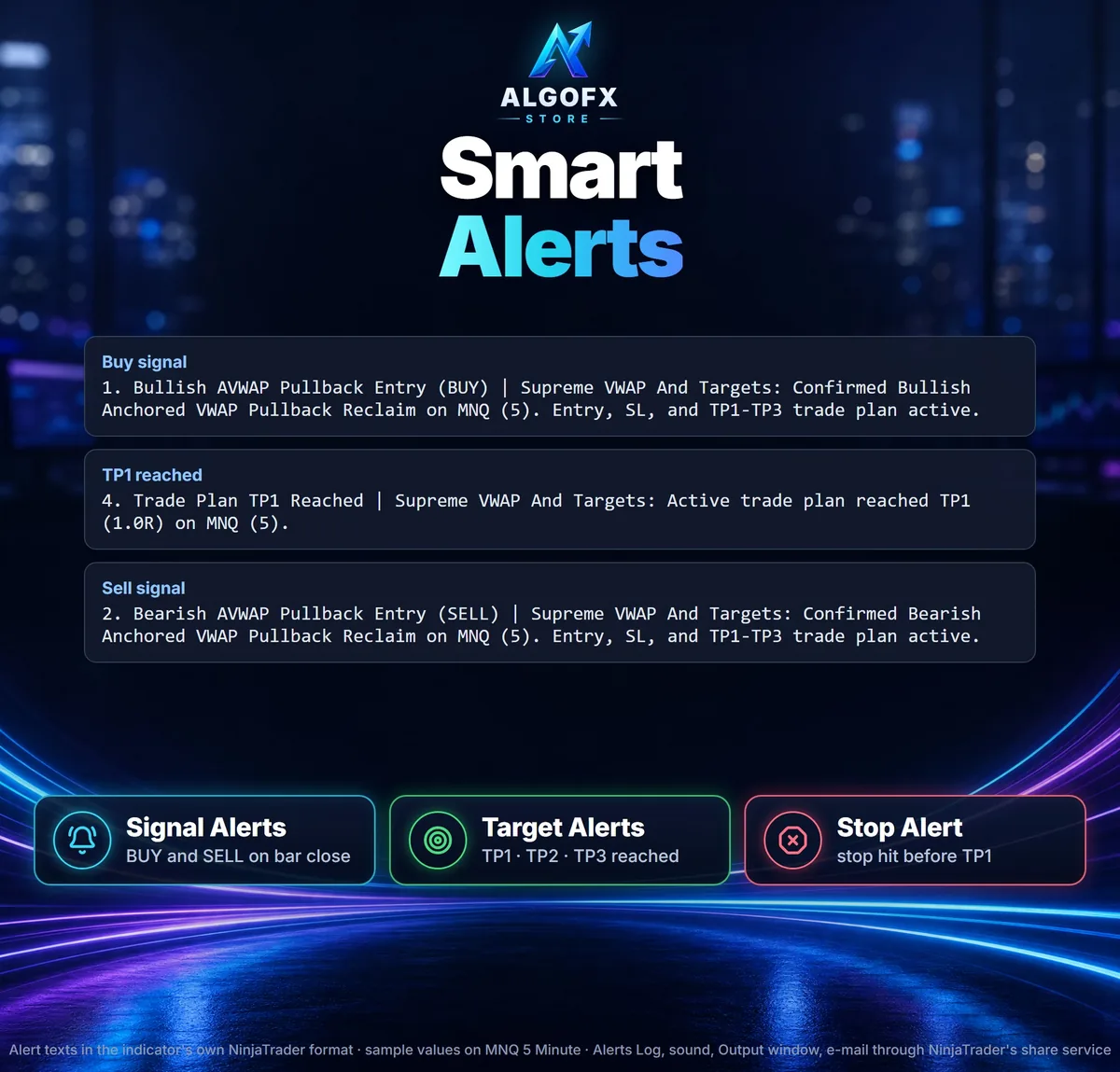
- Seven filter profiles, a dashboard and seven alerts to the Alerts Log, sound, NinjaScript Output and e-mail
- A NinjaTrader 8 Add-On. Import one zip and it appears as “Supreme VWAP And Targets AlgoFX” in your Indicators list.
- A 16-page PDF manual with every setting, the signals, the alerts and installation. One-time €77.
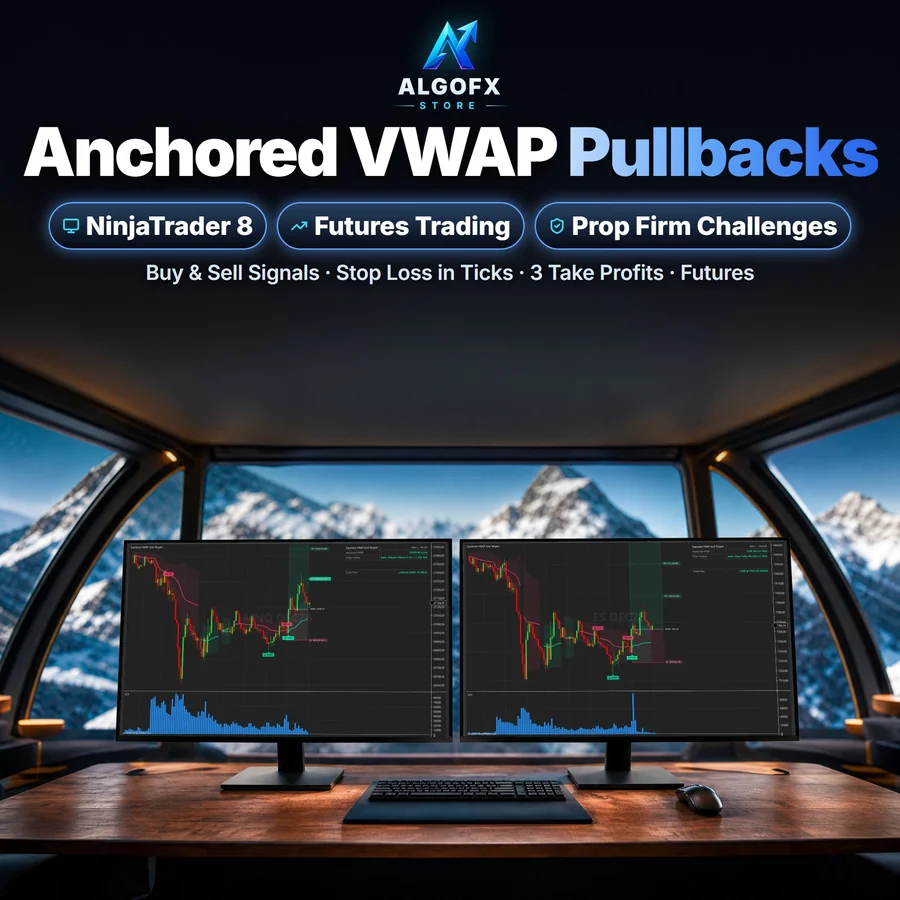
See Supreme VWAP And Targets on a real chart
Press play; use the full-screen button to see every detail.
This video shows the same indicator on another charting platform; the NinjaTrader 8 edition sold here runs in NinjaTrader 8's own chart and settings windows. · 2:44 · Plays from YouTube when you press play (YouTube then sets its own cookies; see Privacy).
An anchored VWAP helps only when anchor, wait and stop are right
Futures traders who use an anchored VWAP do the same three jobs by hand on every chart. They pick the bar to anchor from, they wait for price to come back to the line, and they work out where the stop and the targets go. The anchor is a judgement call that changes the line completely, the wait can take most of a session, and the stop is where accounts get hurt: a stop inside the noise, or a target never measured against the risk.
The second mistake is treating a touch of the VWAP as the trade. A touch only means a pullback has started. On MNQ or CL price can slice straight through the average and keep going, and a long taken on the touch is then a long into a falling market. What matters is whether buyers step back in: a bar that closes back above the line in the direction of the leg, after the pullback stayed within a sensible distance of the average.
The third is sizing by habit instead of by the stop. A band-based stop follows the pullback and the volatility, so on one chart it is a few ticks and on the next, after a fast impulse, it can be wider than a whole daily loss limit on a mini contract. Supreme VWAP And Targets does the anchoring, the waiting and the stop arithmetic on closed bars and draws the result, so your job is the decision and the contract count.
What Supreme VWAP And Targets draws, and what each mark means
Read from the shipped NinjaScript edition.
| What you see | What it means |
|---|---|
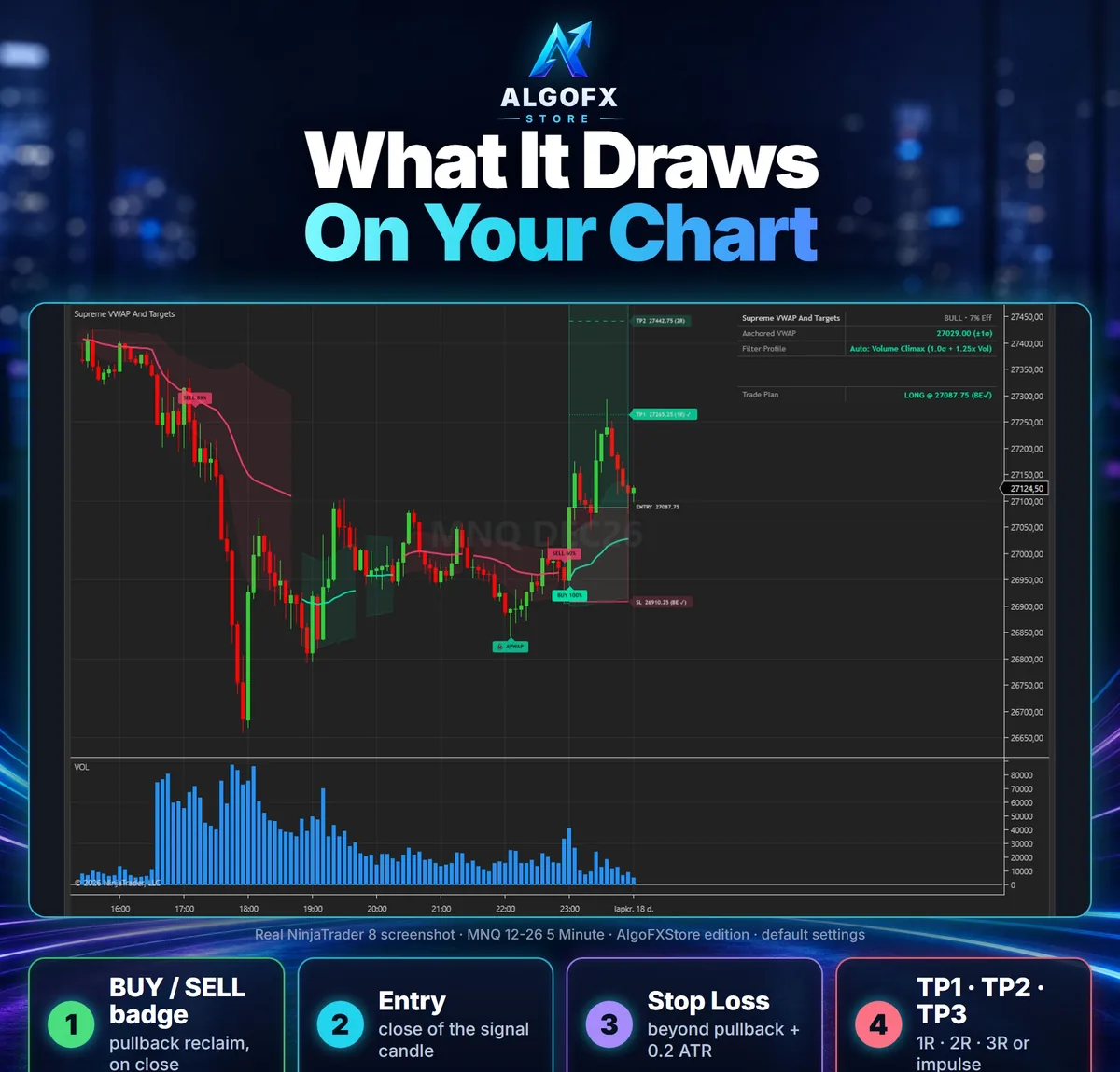
| Thick line with a shaded band | Anchored VWAP of the current swing and its value band (green bull bias, red bear bias). |
| ⚓ AVWAP badge | The swing the VWAP is anchored to. |
| BUY 83% / SELL 84% badge | A pullback reclaim that passed the profile's filters; the number is the setup quality. |
| Dotted box | The pullback, from where it began to the signal candle. |
| Red box / green box | Risk from entry to stop / reward from entry to TP3. |
| ENTRY, SL, TP1-TP3 labels | Plan prices with their R; ✓ = target reached; SL (BE) = stop at entry. |
| SKIP circle (optional) | A reclaim the filters refused. |
| Dashboard top right | Bias and efficiency, live VWAP, profile in use, current plan state. |
How a swing becomes an anchored VWAP, and a pullback becomes a signal
Every step below is the shipped NinjaScript logic. Anchors, pullbacks, signals and plans are committed once per closed bar; a preview of the forming bar is rolled back and decides nothing.
- 1
The swing anchor is found for you
A swing low is a low that no bar within Structural Anchor Swing Lookback (10) bars on either side goes below, so it is confirmed 10 bars after its own bar. It becomes the bullish anchor when the confirming bar closes above it and there is no anchor yet, the new low is lower, the current anchor has used its pullbacks, or the leg has already moved the minimum impulse from a higher low. Swing highs do the same for the bearish anchor.
- 2
The VWAP and its value band
From the anchor, each bar's typical price, (high + low + close) / 3, is weighted by its contract volume; where a bar has no volume, its range against the ATR stands in. Sigma is the volume-weighted standard deviation, never below a quarter of ATR(14). The value band is the VWAP plus and minus the profile's width times sigma, 1.0 sigma on Balanced. A wider defence line, 2.0 sigma on Balanced, is not drawn but cancels a pullback that goes too deep.
- 3
The leg has to arm first
An anchor alone gives no signal. The leg is armed once its extreme is at least Min Impulse Expansion (1.40) x ATR(14) away from the anchor. A bullish anchor ends on a close below the anchor price or more than 2.6 sigma below the VWAP, mirrored for a bearish one, and the next qualifying swing starts a new one. With no active anchor the dashboard reads Scanning... and there is no band.
- 4
Pullback, then a reclaim close
On an armed bullish leg, a closed bar whose low reaches the band's upper edge, while it closes above the anchor and the defence line without making a new high, starts a pullback. During the pullback, a bullish candle that closes above the VWAP and no lower than the previous bar's high minus 0.2 ATR is a reclaim. A SELL mirrors every rule on an armed bearish leg.
- 5
The profile's gates decide BUY or SKIP
A reclaim becomes a signal only when the profile agrees on trend efficiency (net move of the last 10 closes as a share of the path, 26 percent minimum on Balanced), setup quality (0 to 100, 52 minimum on Balanced) and a pullback depth of 12 to 85 percent of the leg. Volume Climax also wants 1.25 times the 20-bar average volume. Anything else is a SKIP, and the next pullback starts fresh.
- 6
The plan is drawn and followed
Entry is the signal bar's close. For a buy, the stop sits below the lower of the pullback low and the band's lower edge by 0.20 x ATR, scaled by the profile, and is kept between the profile's minimum (0.30 to 0.40 ATR) and 3 ATR. That distance is R. From the next bar, each closed bar checks the stop first, then TP1, TP2, TP3. A plan ends at TP3, the stop, 60 bars after the signal, or the profile's next signal.
Supreme VWAP And Targets on 12 different markets
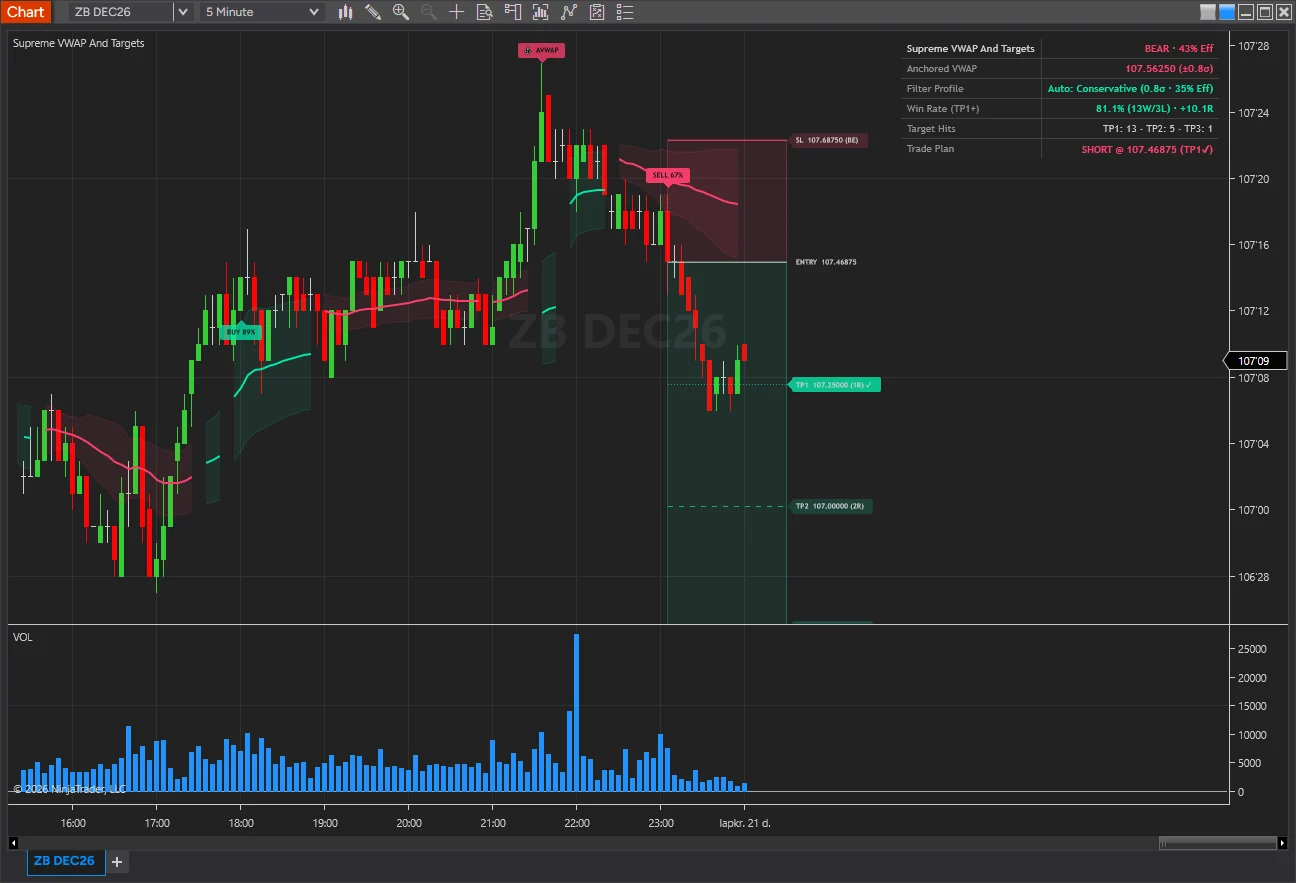
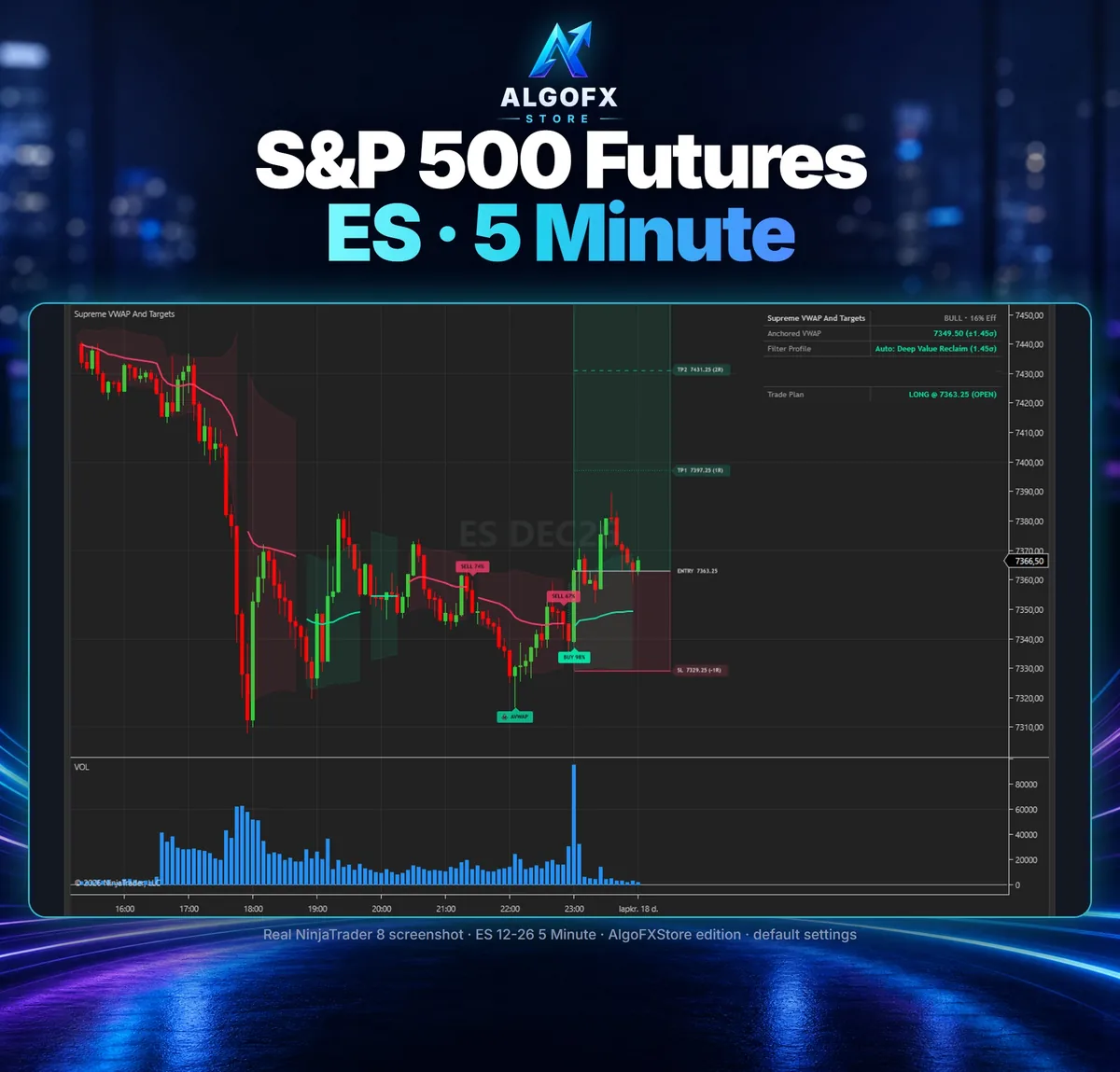
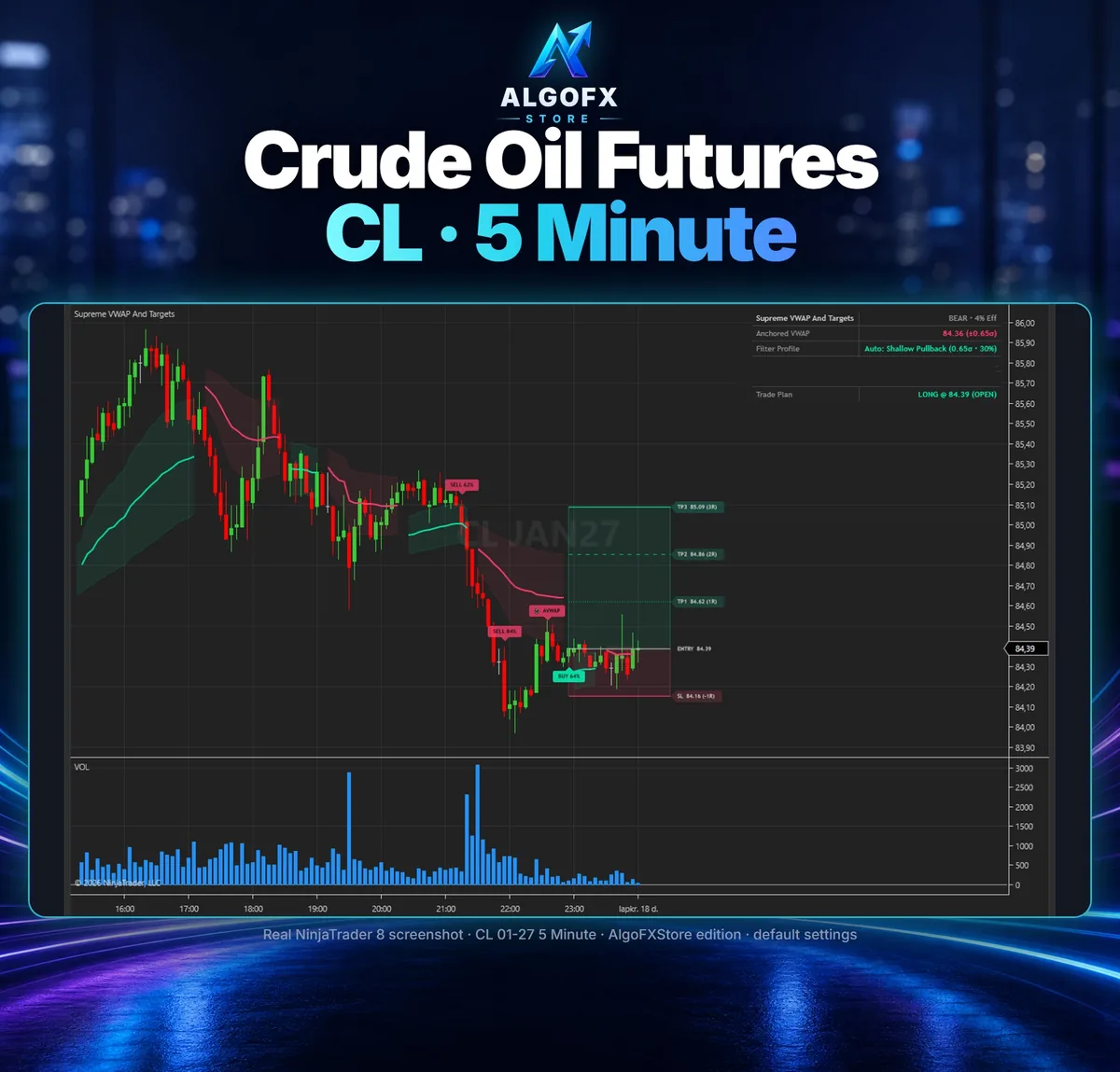
Every chart below is a screenshot of NinjaTrader 8 itself with the shipped Supreme VWAP And Targets AlgoFX attached at its default settings. Forex, metals, indices, energy and crypto, so you can see how it reads each kind of market. They show what the indicator draws; they are not trading results. Tap or click any chart to open it full size.
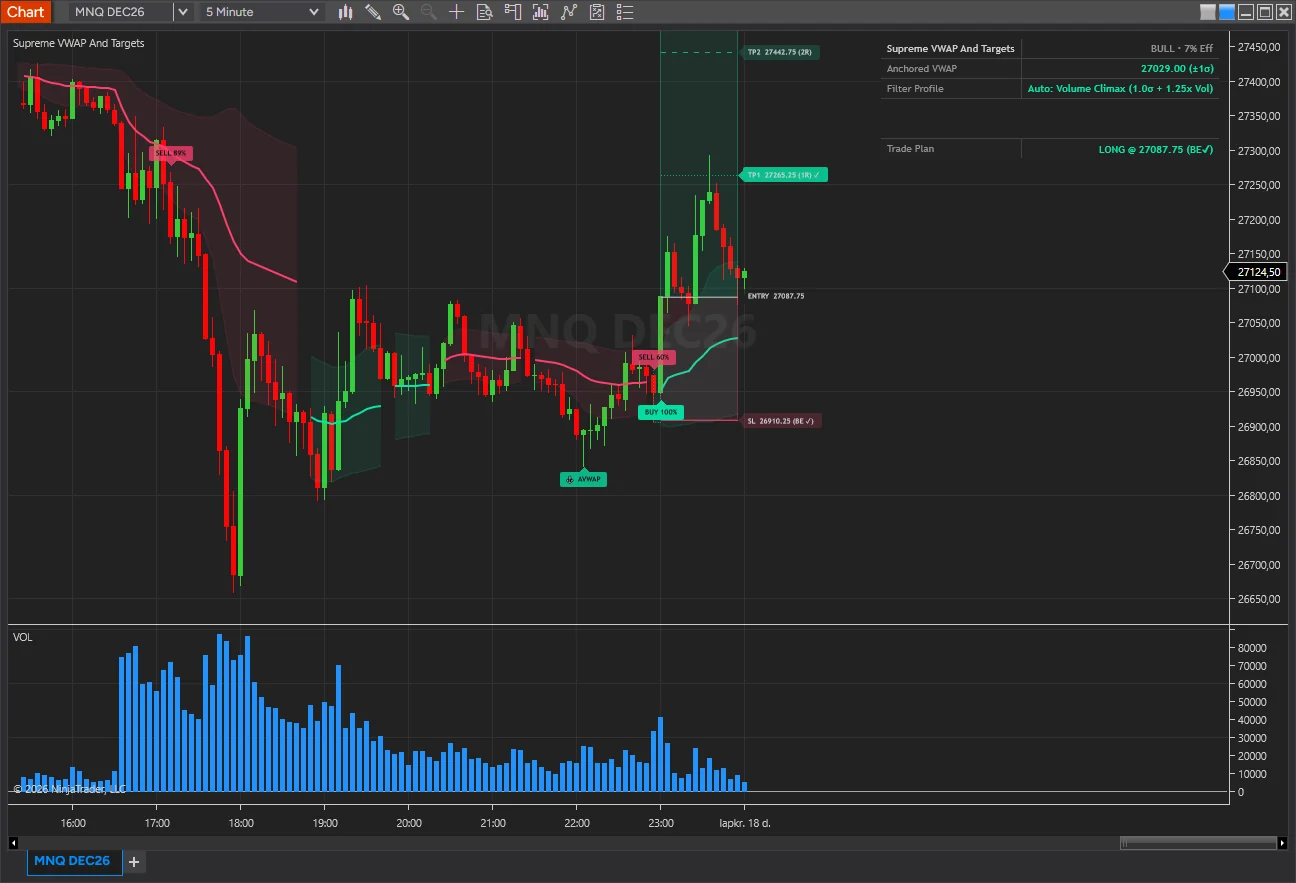
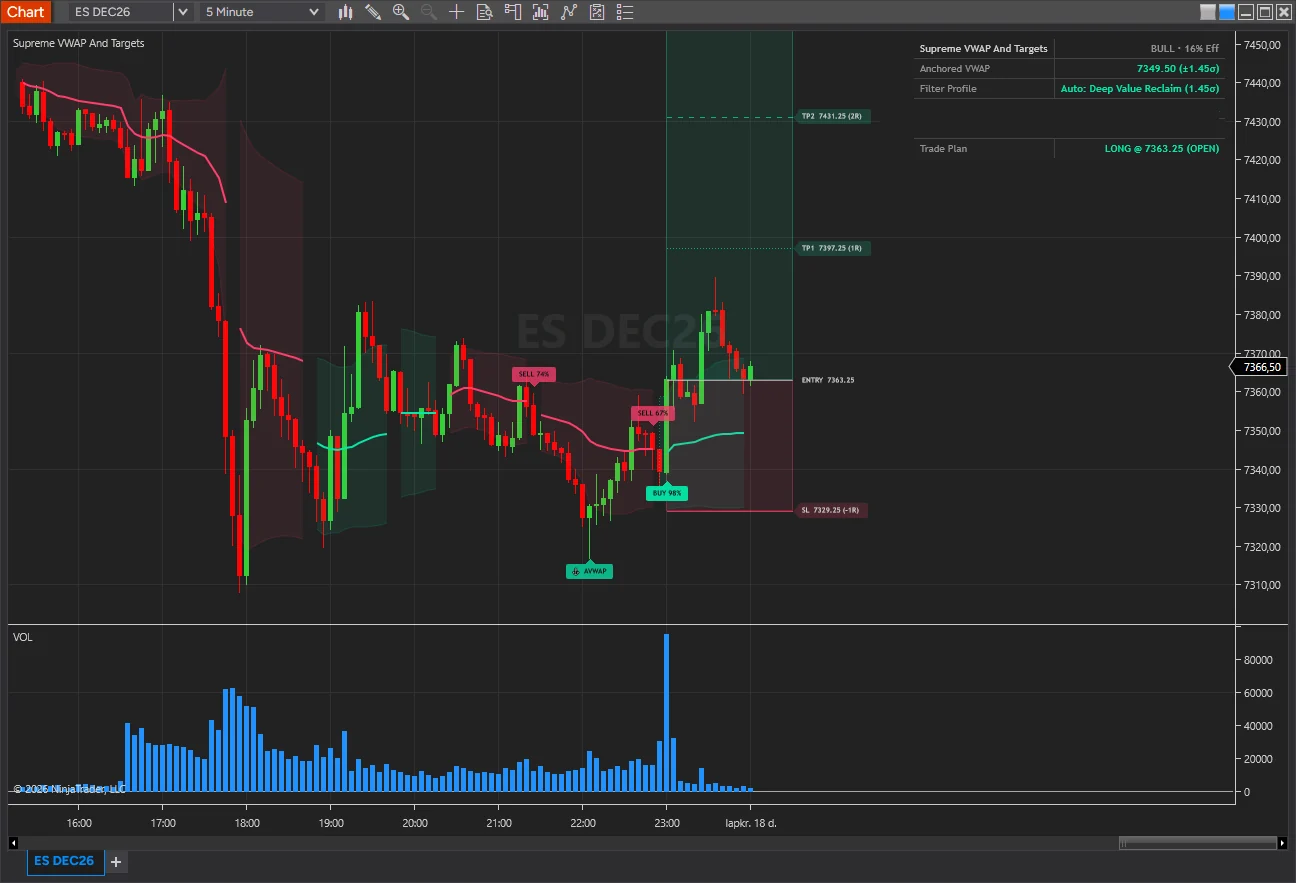
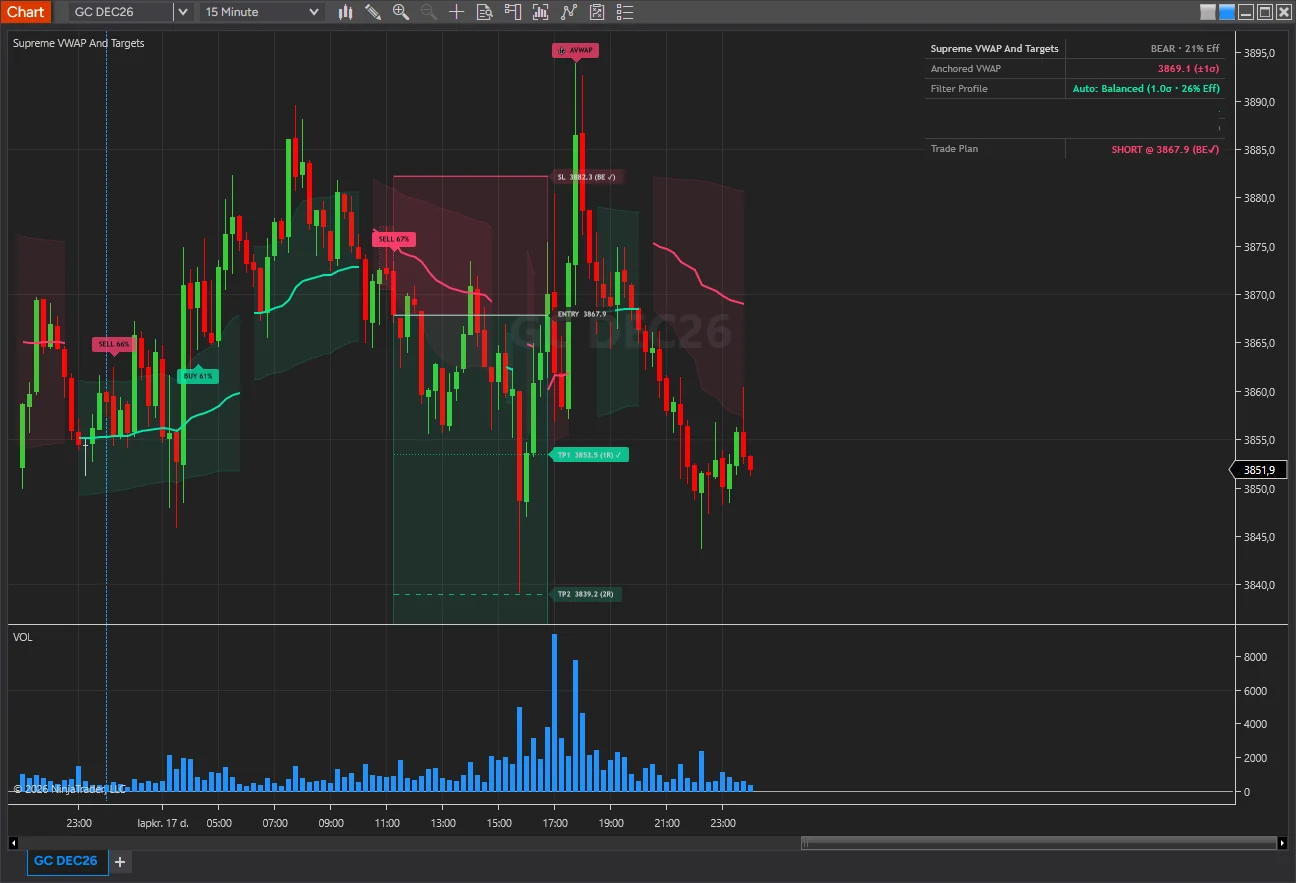
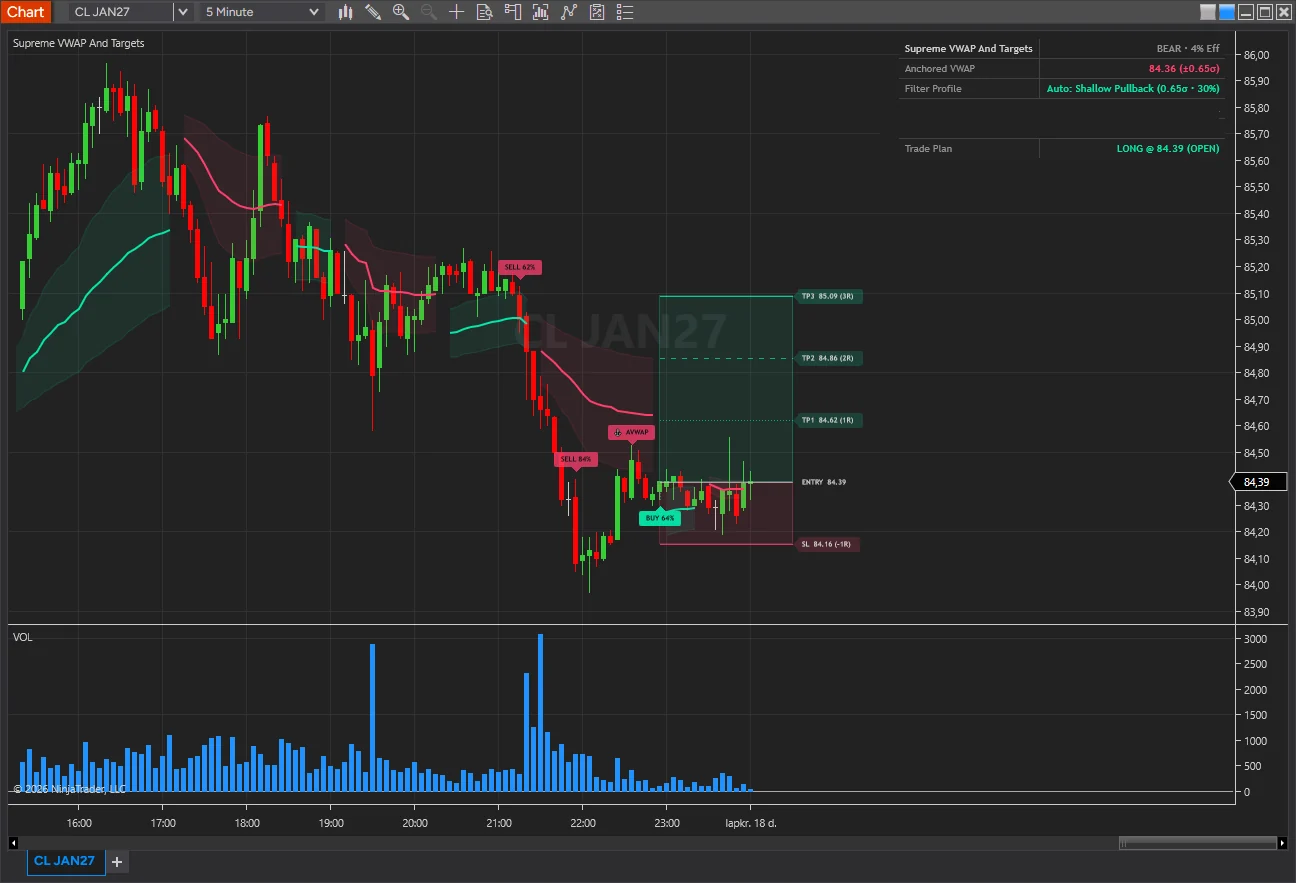
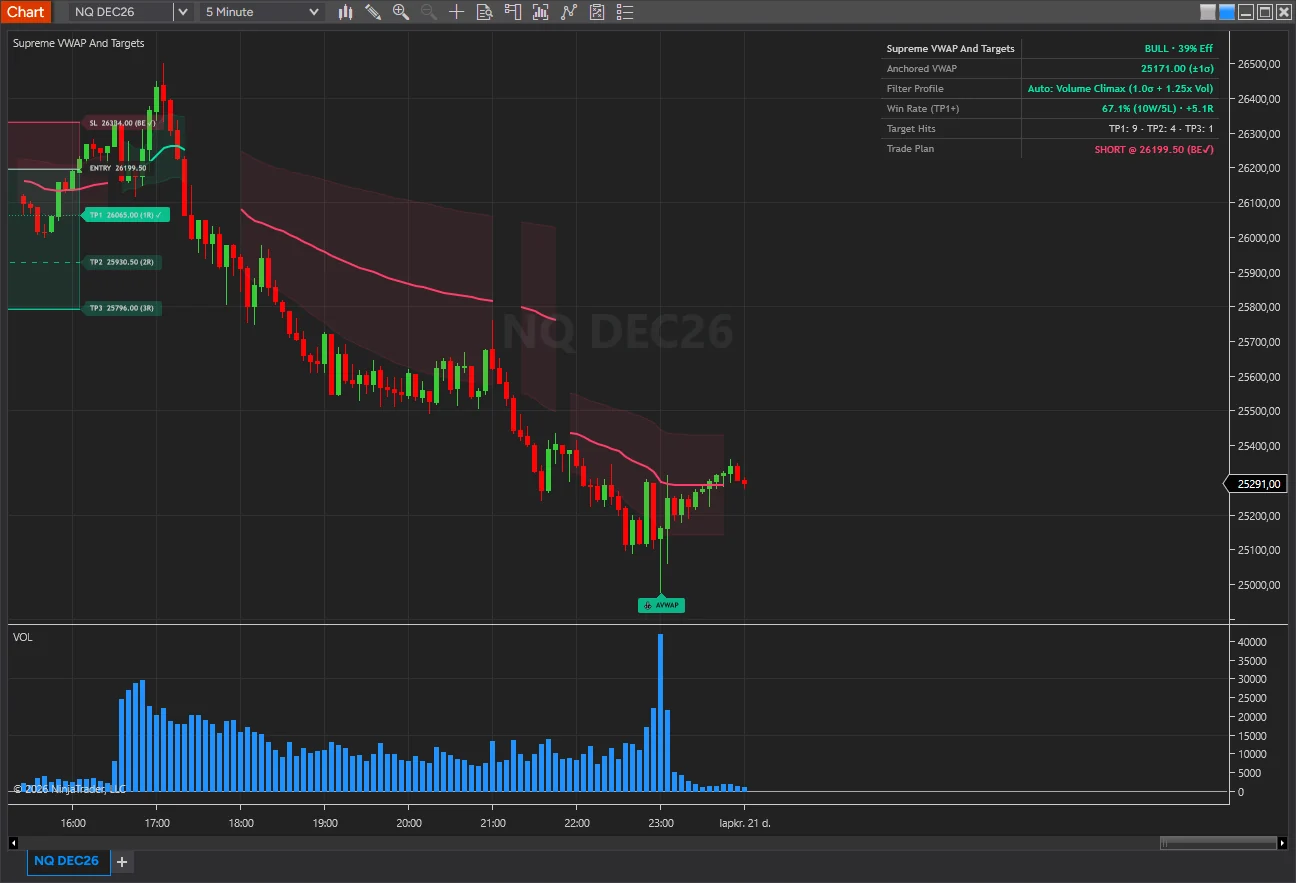
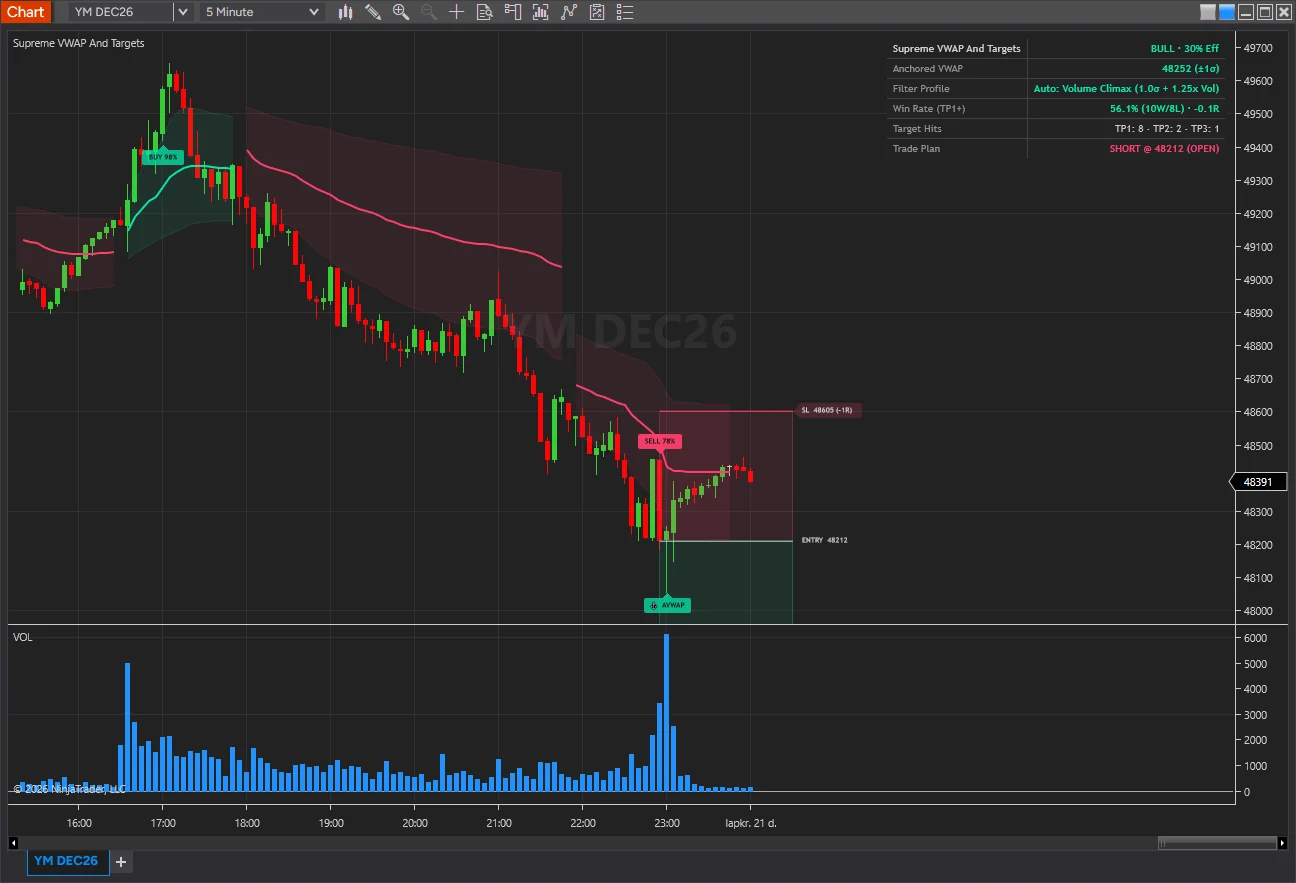
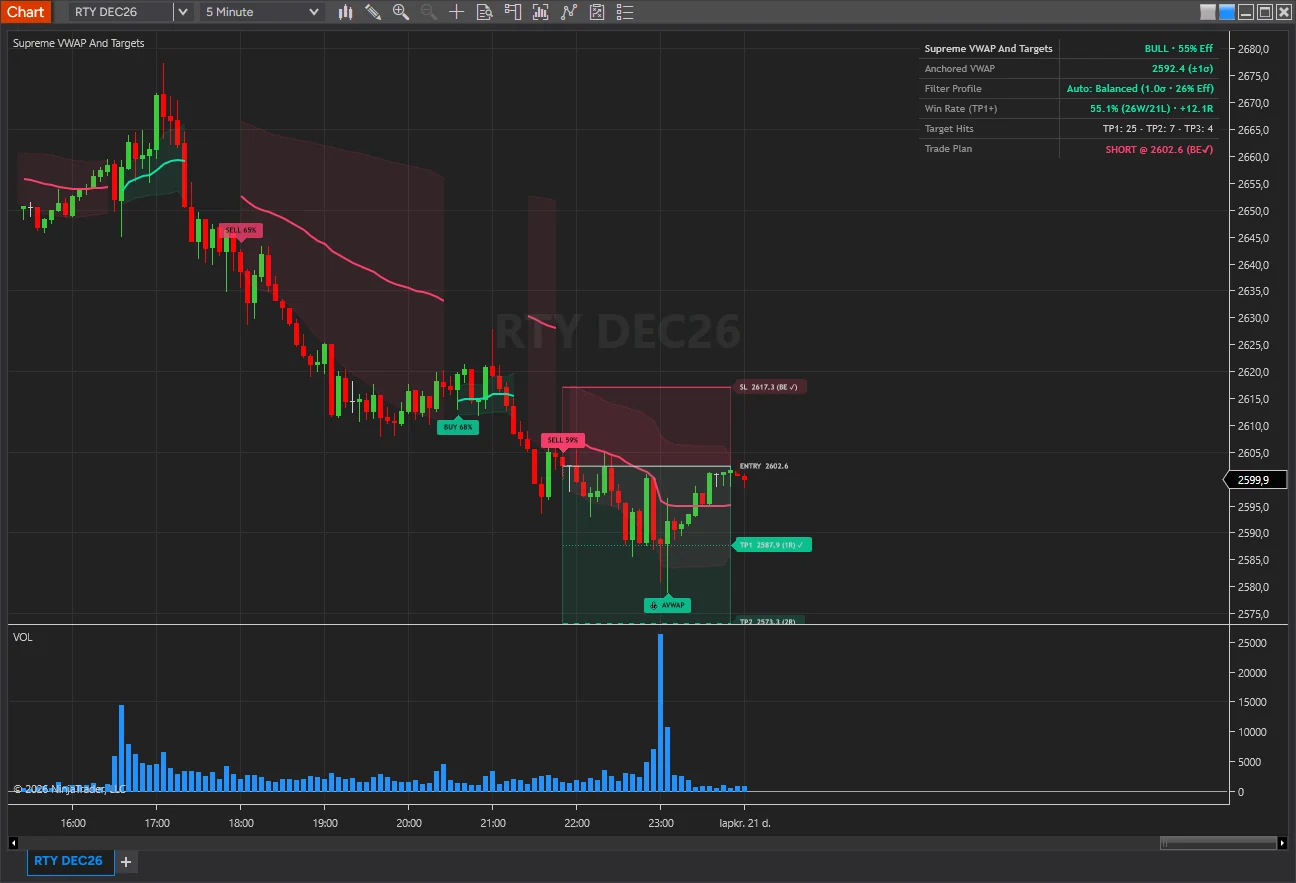
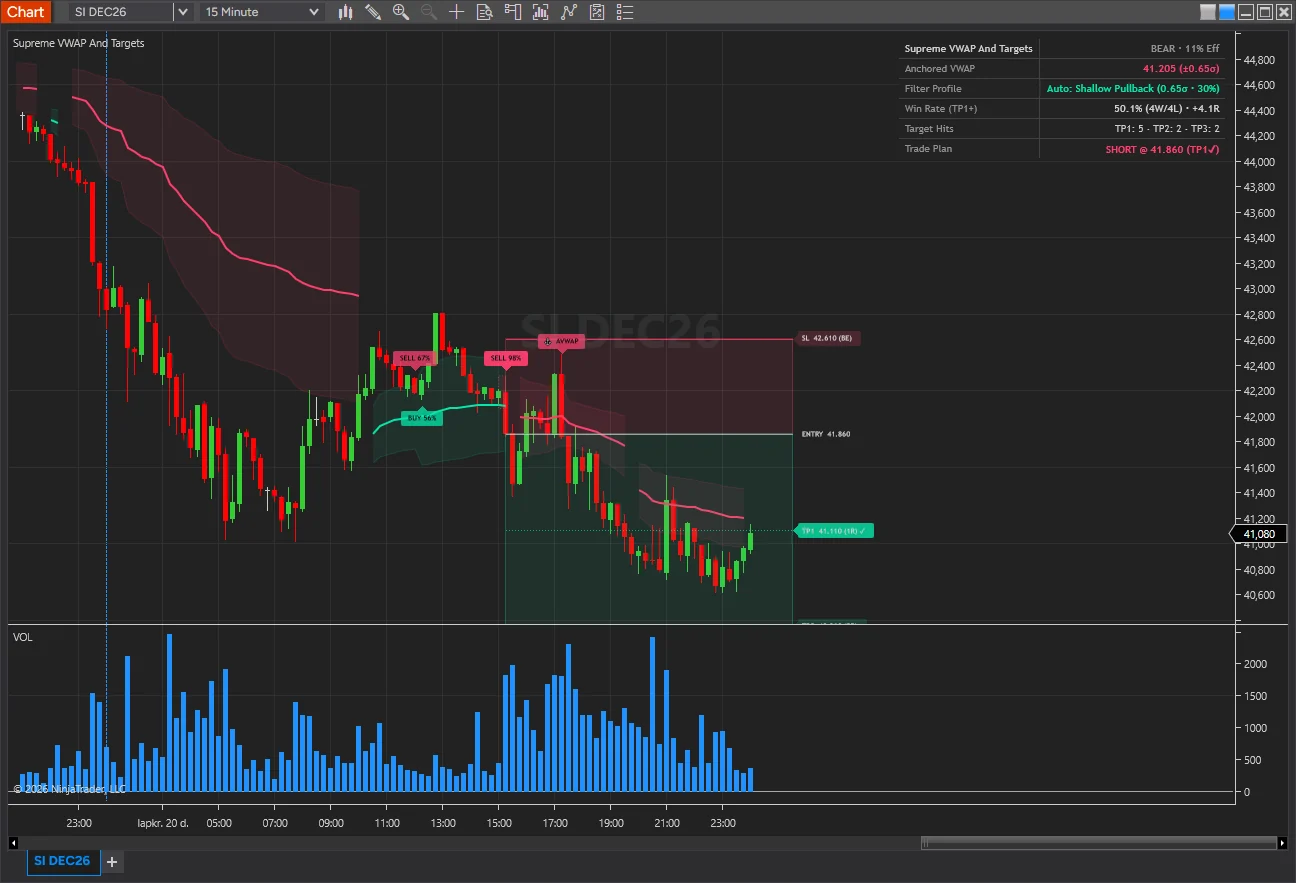
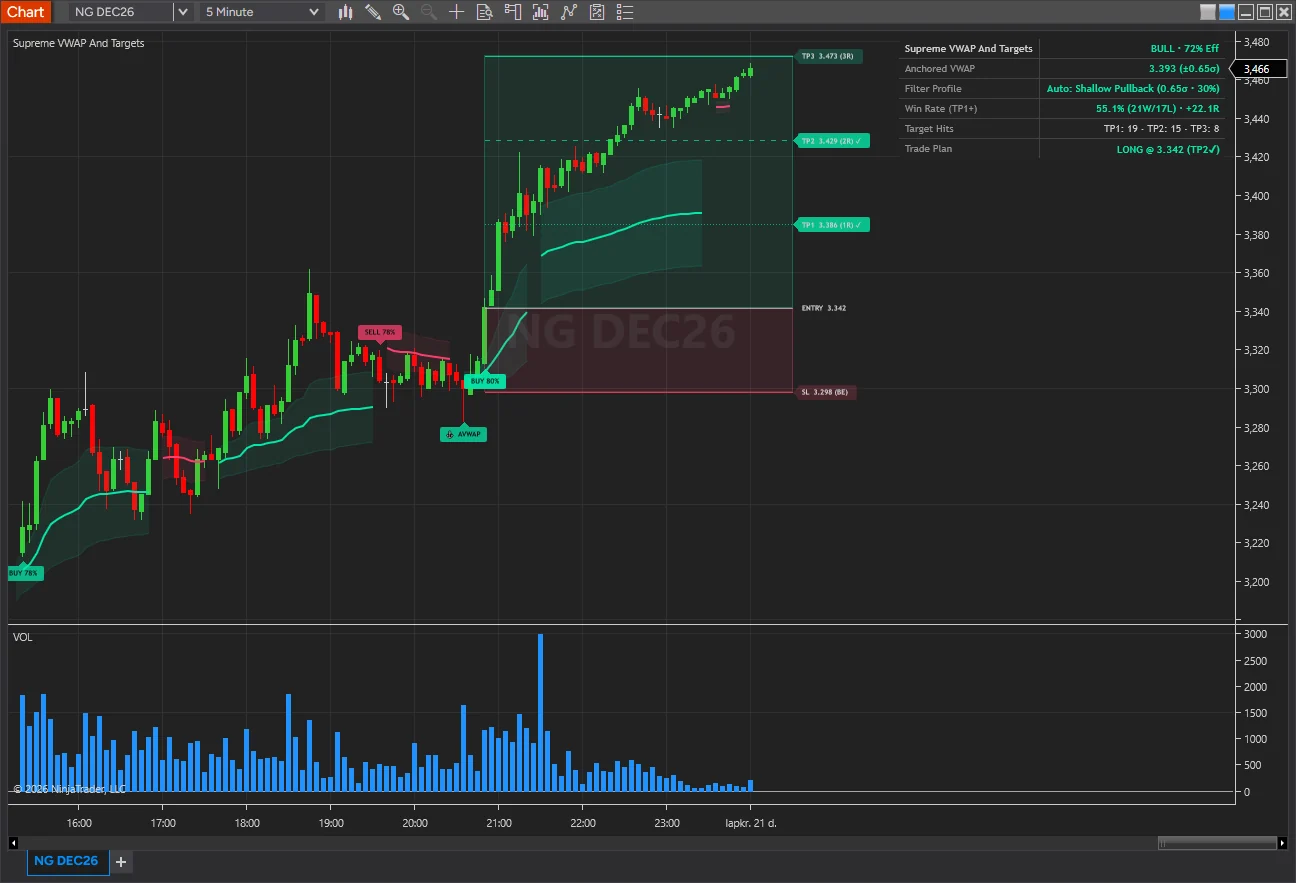
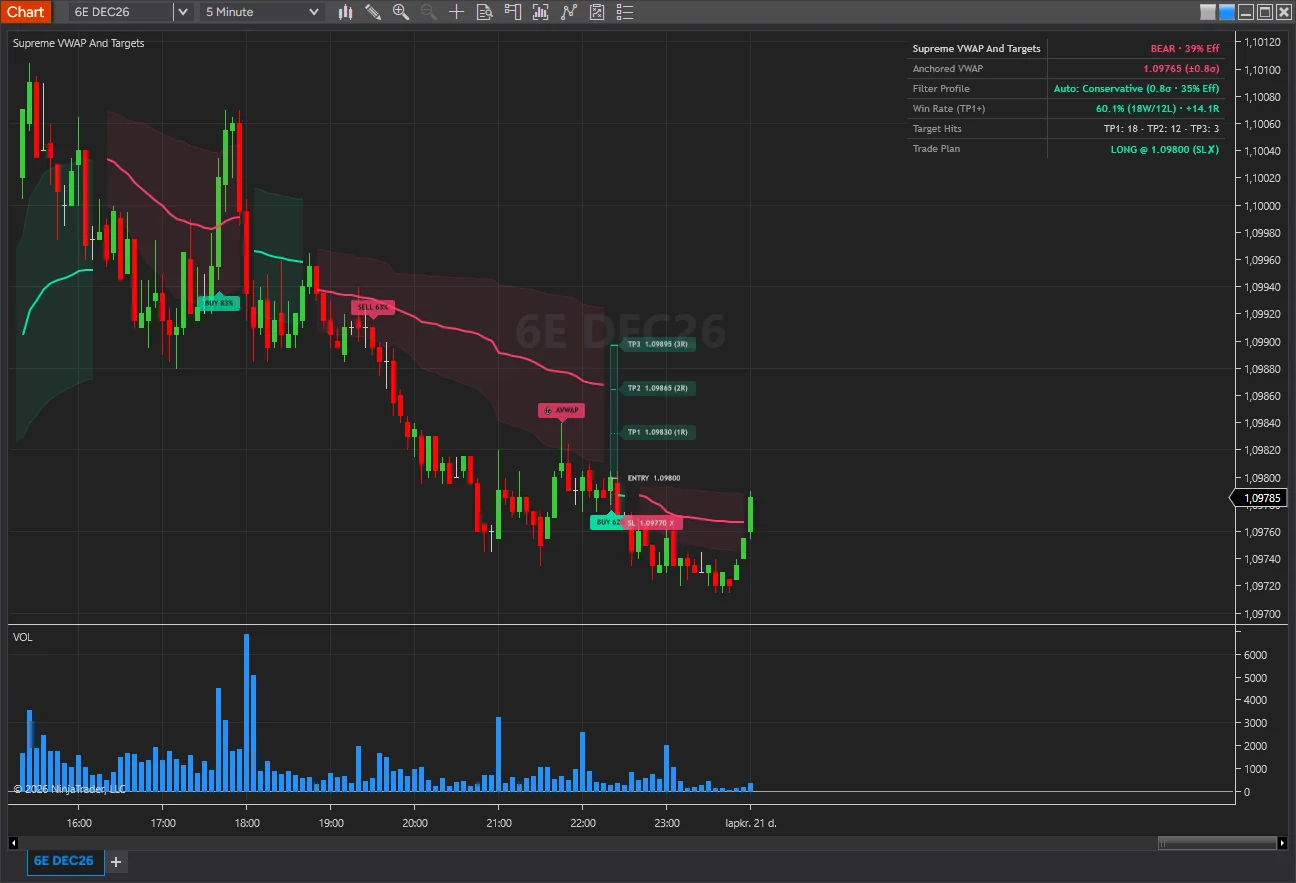
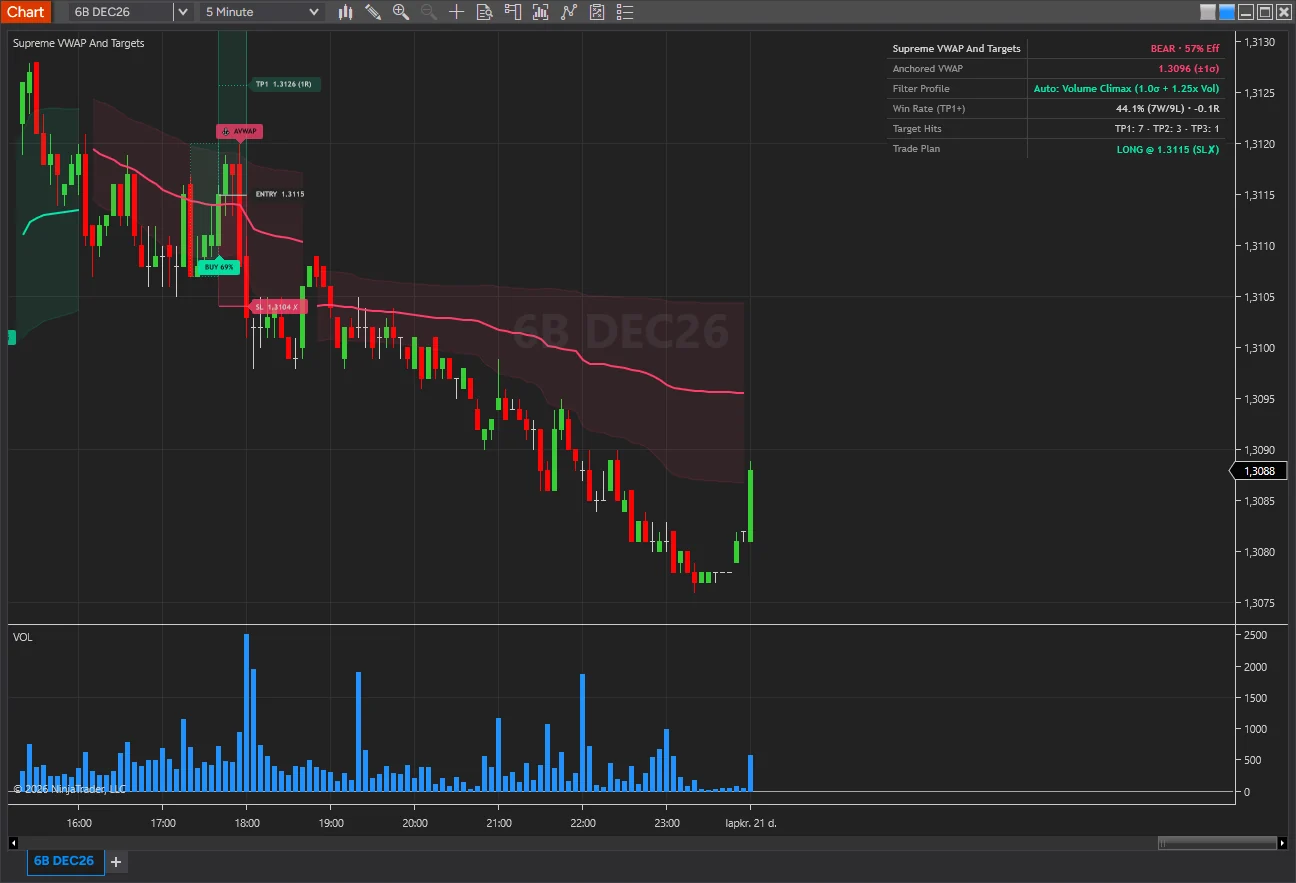
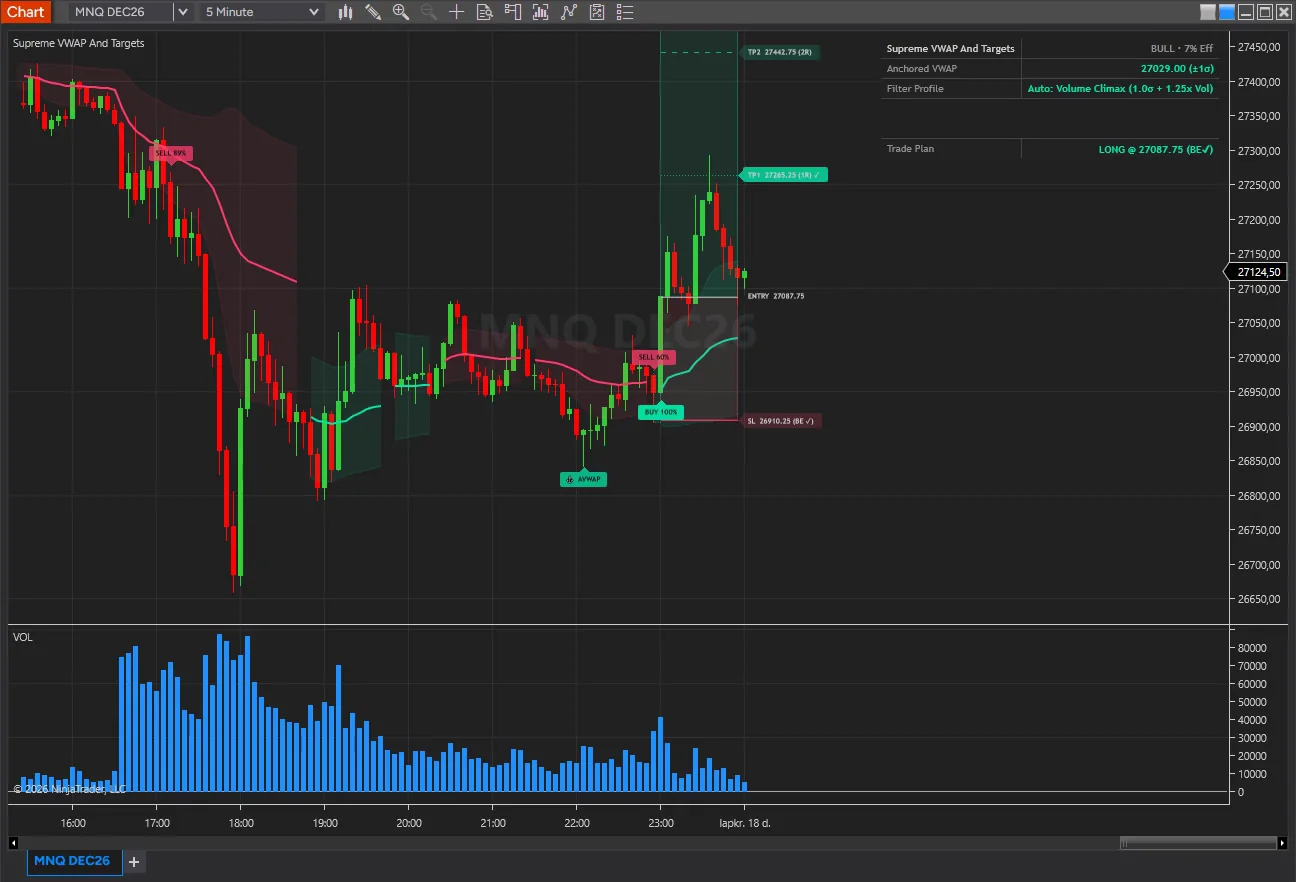
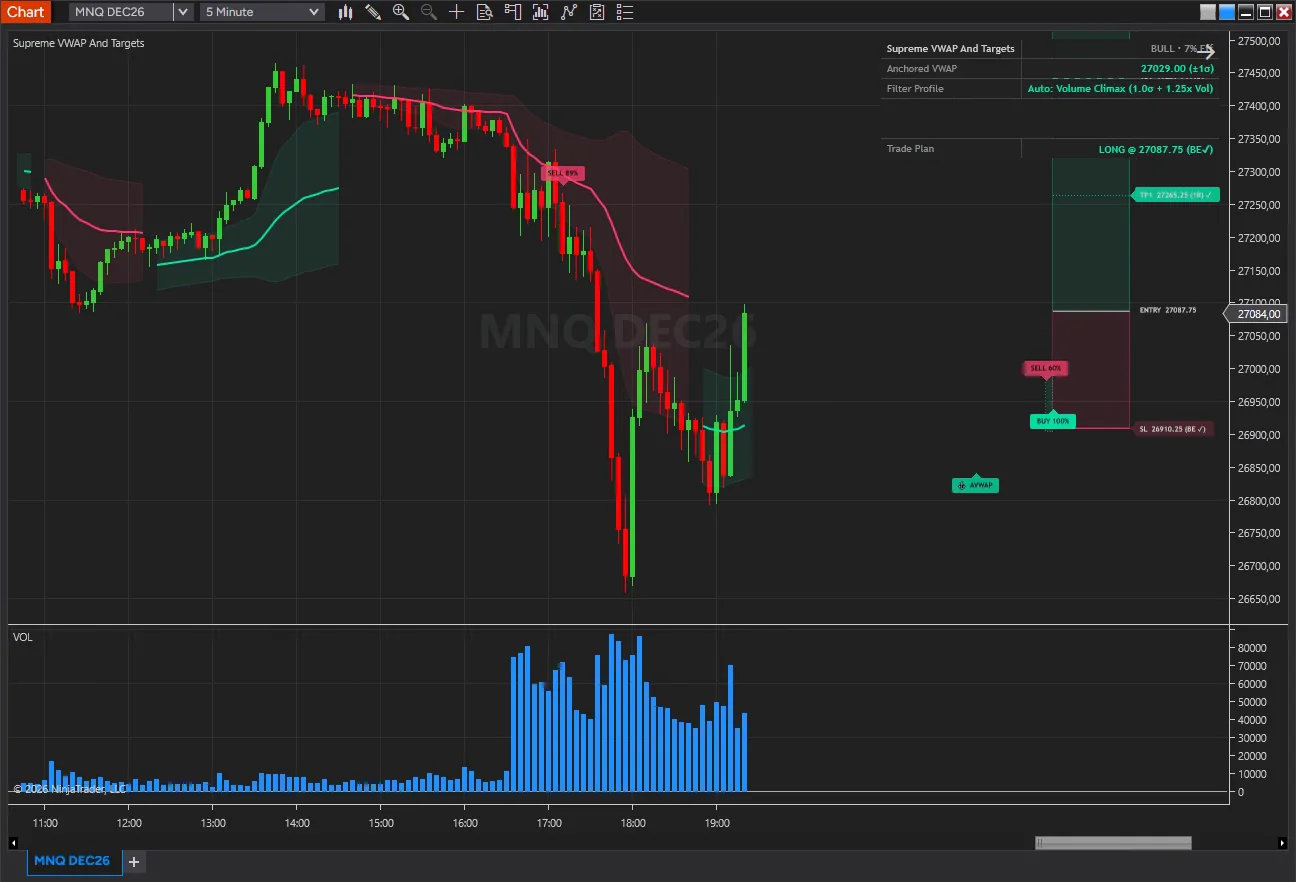
Watch Supreme VWAP And Targets work on a real NinjaTrader 8 chart
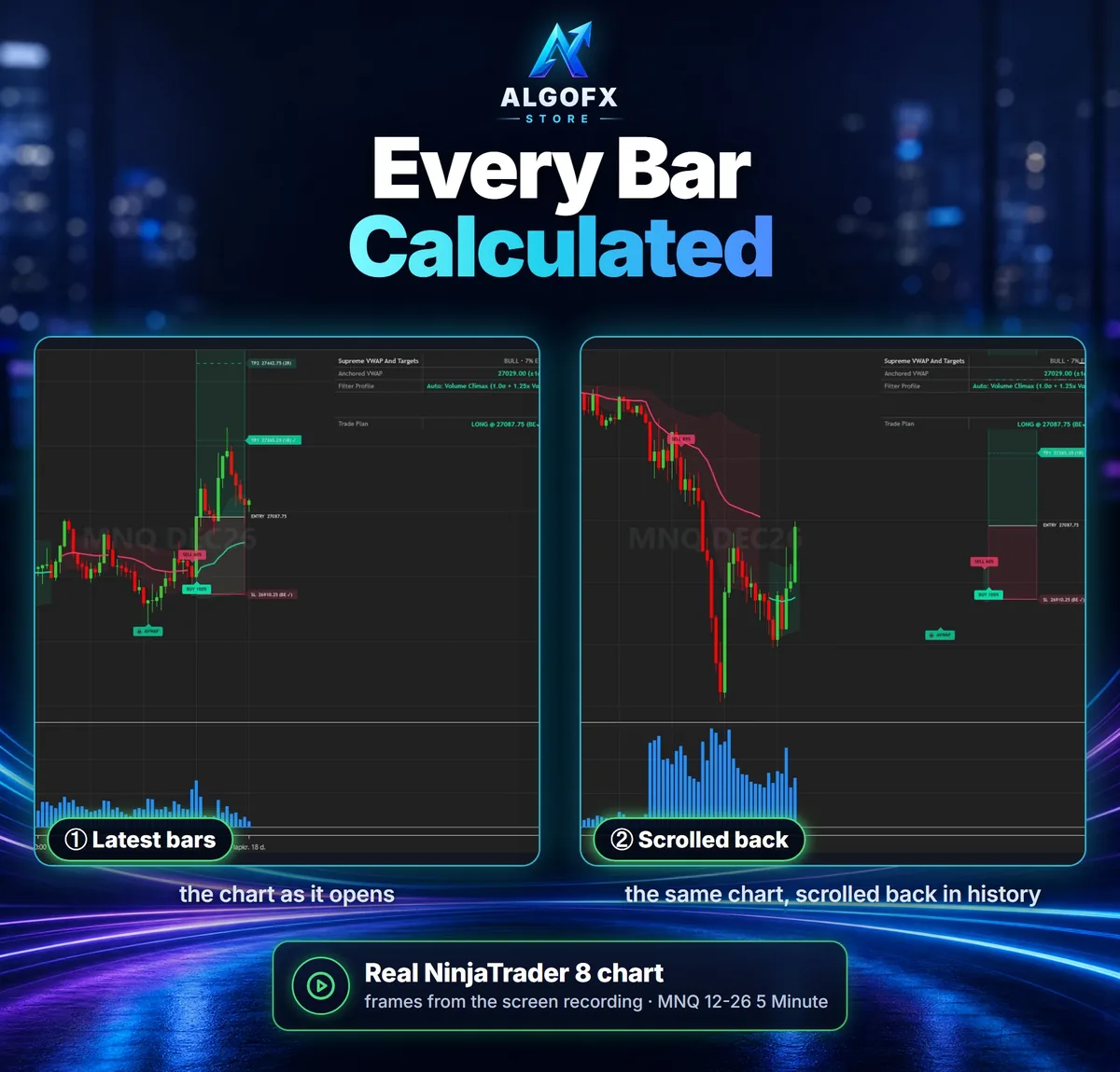
A screen recording and frames from the shipped indicator at its default settings, as the chart updates. Nothing is edited into the chart.
A step-by-step way to trade the reclaim on futures
The indicator lays out the evidence; the read, the contract count and the orders are yours. The PDF manual adds tick tables, a session plan and a pre-session checklist built on these steps.
- 1
Set up the chart and fix a profile
Open a chart on the right contract month with 30 or more Days to load and the Trading Hours template you trade (RTH for the day session only). A good start is 5 Minute for MNQ, MES and MCL and 15 Minute for MGC. For a session plan, set Pullback Filter Mode to Balanced or Conservative, so the chart keeps one set of rules all day instead of switching profile.
- 2
Read the bias before anything else
The dashboard header reads BULL, BEAR or NEUTRAL with the trend efficiency, for example BULL · 59% Eff. In the bias colour the efficiency clears the profile's minimum; muted, it does not. Take signals only when the header shows the bias in colour. The anchor badge on the swing bar tells you where the line starts.
- 3
Wait for the reclaim, not the touch
When price trades into the band a pullback is running; a close beyond the defence line ends it. The signal is the closed reclaim bar with every gate passed, never the touch. Keep alerts 1 and 2 on and add 4 (TP1) and 7 (Stop Loss Hit) so you can follow each plan from the Alerts Log or by e-mail without watching every tick.
- 4
Turn the stop into ticks and contracts
From the ENTRY and SL labels: ticks = distance divided by tick size; risk per contract = ticks x tick value; contracts = your risk per trade divided by that, rounded down. Example from an ES 5 Minute chart: entry 7671.25, stop 7648.50, 22.75 points = 91 ticks. If the answer is zero contracts, even on a micro, skip the signal. Place your stop at the SL price or one tick further.
- 5
Know when to skip
Skip a signal whose stop does not fit your budget on one micro, a signal just before a major scheduled release, and anything in the final 30 minutes before you must be flat. A signal on a session's final bar appears only after the reopen: never chase it. A cluster of SKIP circles around the VWAP says price is chopping around its average.
- 6
Manage by the plan, stop for the day
Decide before entering what you do at TP1. The breakeven move after TP1 is drawn, not executed: the SL label reads (BE), so move your own stop order, for example with an ATM strategy. Choose FixedRLadder if exact 1R, 2R and 3R exits suit your rules. Stop for the day after a set number of losing plans; the stop-loss alert tells you each one.
5 rows that read the market for you
The on-chart dashboard, row by row.
- Header: Supreme VWAP And Targets | BULL, BEAR or NEUTRAL with the 10-bar trend efficiency, for example BULL · 59% Eff (in the bias colour when the efficiency clears the profile's minimum, muted when not)
- Anchored VWAP | the live VWAP price with the band width in sigma, for example 7691.50 (±1σ), or Scanning... when no anchor is active
- Filter Profile | the profile in use, for example Auto: Volume Climax (1.0σ + 1.25x Vol); no 'Auto:' in front with a fixed profile
- Two record rows | how the shown profile's finished plans on this chart's calculated bars ended (count of plans that reached TP1 or ended without a loss, losses, net R, and how often TP1, TP2 and TP3 were reached), with no slippage or commission; a record of this chart, not a forecast
- Trade Plan | LONG @ or SHORT @ the entry with its state (OPEN, TP1, TP2, BE, SL or TP3), or the last signal text such as BUY (AVWAP · 83%), SKIP (CHOP · 18%) or NONE
Everything Supreme VWAP And Targets does for you
No hand-picked anchor
The VWAP starts at a pivot confirmed 10 bars each side and re-anchors by fixed rules: a lower low, used-up pullbacks or a fresh impulse. The AVWAP badge with its anchor symbol sits on the swing bar at the swing's price.
Real contract volume in the VWAP
Each bar's typical price is weighted by real contract volume from your feed, and a quarter of the quality score is the bar's volume against its 20-bar average. Bars without volume fall back to their range against the ATR.
Seven profiles judge every reclaim
Balanced, Conservative, Aggressive, ShallowPullback, DeepValueReclaim, VolumeClimaxReclaim and CustomThresholds run side by side on every closed bar, each with its own band width, efficiency and quality minimum, stop factor (0.85 to 1.25) and minimum stop.
A quality score you can read
The number on the badge, for example BUY 83%, is 40 percent close location in the bar's range, 35 percent trend efficiency (full at 55 percent) and 25 percent volume (full at twice the 20-bar average). A setup score, not a probability.
Plan labels at the tick size
ENTRY, SL and TP1, TP2, TP3 labels with prices at the instrument's tick size and the R multiple, a red risk box from entry to stop, a green reward box from entry to TP3, and a dotted box around the pullback.
Targets that respect the impulse
In the default RLadderAndImpulseMagnet mode, TP2 moves onto the impulse extreme when it lies 1.3R to 2.4R away and TP3 when it lies 2.4R to 4.5R away, tagged MAG with its own R. FixedRLadder keeps exactly 1R, 2R and 3R.
Same signals in every Calculate mode
OnBarClose is the default. OnEachTick and OnPriceChange commit the closed bar once at the next bar's first tick and preview the forming bar at most four times a second; the preview is rolled back, so signals do not depend on the mode.
Alerts that never fire for old bars
Seven switchable events, a row in the Alerts Log every time, optional sound, a NinjaScript Output line and e-mail through NinjaTrader's Mail share service. Live bars only, once per bar, and never for a bar that closed more than two bar periods plus five seconds ago.
Series a strategy can reference
Besides the VWAP and band plots, hidden series carry the signal (1 or -1), the quality, the trend efficiency, the open plan's direction and TP1, TP2, TP3 and stop events, so your own NinjaScript strategy can read them. Every input except the colours is a NinjaScript property.
Supreme VWAP And Targets, feature by feature
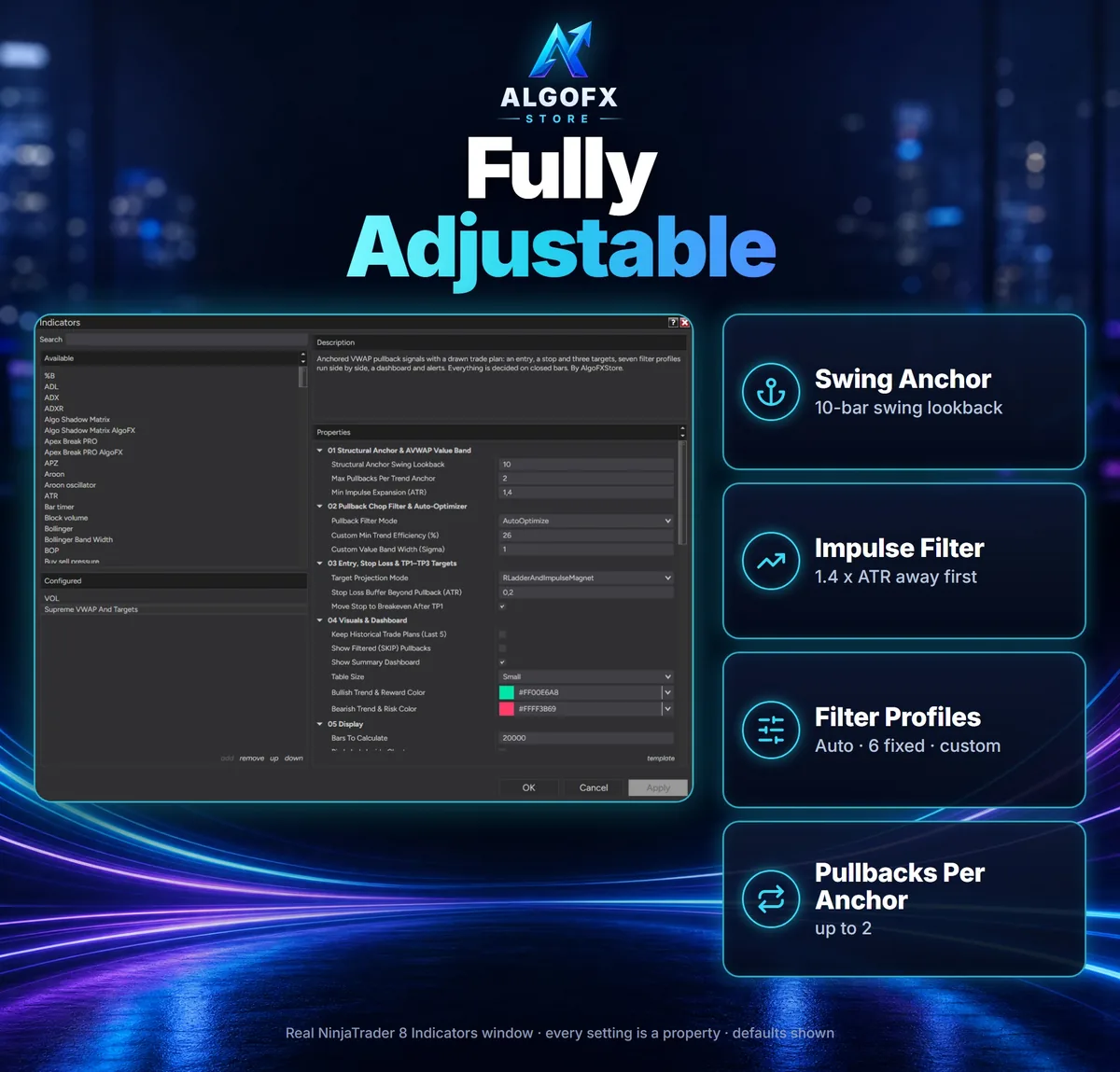
Each picture is built from real platform screenshots of the shipped indicator at its default settings, labelled so you can see what every part does. Tap any picture to open it full size.


How traders put it to work
Index futures on 5 Minute
MNQ, MES, NQ and ES on 5 Minute are the documented first look, with 20 to 30 days loaded. R is in index points, and the stop is held between the profile's minimum and 3 ATR. On a full-size contract one band-based stop can exceed a daily loss limit, so the micros let you size in small steps.
Gold on 15 Minute
Gold needs 15 Minute for a clean leg. Expect wider stops in ticks: the GC 15 Minute example plan had a 231-tick stop, more than a small risk budget on one MGC allows. Read the stop before sizing and skip a plan that does not fit; Deep Value Reclaim gives the most stop room, ShallowPullback the least.
Crude oil
CL and MCL on 5 Minute are a documented start; the example plan on CL 5 Minute was a short with a 117-tick stop. Watch the contract roll: on a continuous contract without back adjustment the price jump can end an anchor, stretch the band and inflate the ATR behind the stops for a while.
Day session only, or around the clock
The indicator has no session logic of its own: the chart's Trading Hours template decides which bars exist. With an RTH template the overnight bars do not shape the swings, the VWAP or the ATR; with ETH they do. The VWAP does not reset at a session, and the 60-bar plan limit counts bars, not time.
Tick, volume, range and Renko bars
Time-based bars from seconds to months are fully supported; tick, volume, range and Renko bars run as well. On non-time bars the age limit for alerts is at least five minutes instead of two bar periods. Faster bars give smaller swings, smaller stops and more signals.
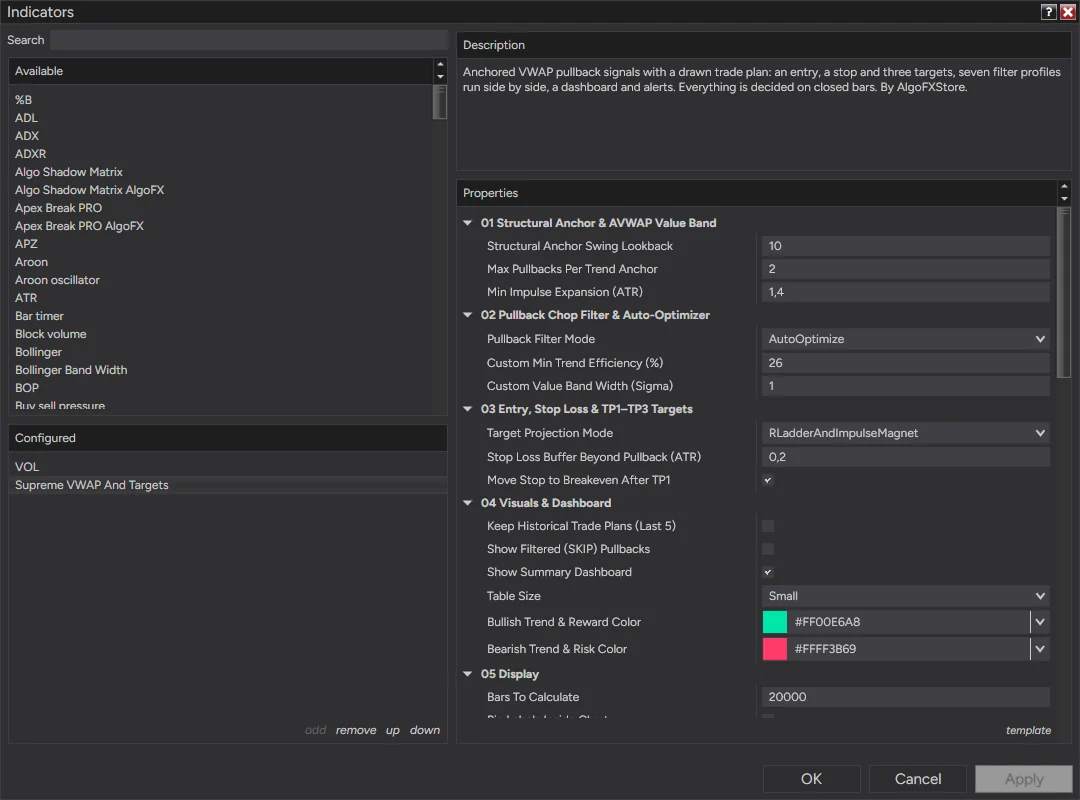
Every setting, with its default
The names are the ones in the NinjaTrader indicator dialog; the defaults are what every chart on this page uses.
| Setting | Default | What it does |
|---|---|---|
| 01 Structural Anchor & AVWAP Value Band > Structural Anchor Swing Lookback | 10 (3-40) | Bars each side of the swing the VWAP is anchored to. |
| 01... > Max Pullbacks Per Trend Anchor | 2 (1-4) | Plans one anchor may produce. |
| 01... > Min Impulse Expansion (ATR) | 1.40 (0.60-3.50) | Move away from the anchor before pullbacks count. |
| 02 Pullback Chop Filter & Auto-Optimizer > Pullback Filter Mode | AutoOptimize | Auto, six fixed profiles or CustomThresholds. |
| 02... > Custom Min Trend Efficiency (%) / Custom Value Band Width (Sigma) | 26.0 / 1.00 | Used with CustomThresholds. |
| 03 Entry, Stop Loss & TP1–TP3 Targets > Target Projection Mode | RLadderAndImpulseMagnet | Or FixedRLadder 1R / 2R / 3R. |
| 03... > Stop Loss Buffer Beyond Pullback (ATR) | 0.20 (0.05-1.00) | Room beyond the pullback or band edge, scaled by the profile. |
| 03... > Move Stop to Breakeven After TP1 | true | Stop moves to entry after TP1. |
| 04 Visuals & Dashboard > Keep Historical Trade Plans (Last 5) / Show Filtered (SKIP) Pullbacks | false / false | Past plans and refused pullbacks. |
| 04... > Show Summary Dashboard / Table Size | true / Small | Dashboard on or off, four sizes. |
| 04... > Bullish Trend & Reward Color / Bearish Trend & Risk Color | #00E6A8 / #FF3B69 | Trend, reward and targets / risk and stop. |
| 05 Display > Bars To Calculate / Pin Labels Inside Chart | 20000 (500-200000) / true | History depth; keep plan labels inside the chart. |
| 06 Alerts | BUY and SELL on, the rest off; Alert Log Line on; sound, e-mail and test off | Seven events, three channels. |
| 07 NinjaTrader > Debug Mode / Dump Bars + Outputs CSV | false / false | Diagnostics for support. |
7 alert events
Alerts can go to the NinjaTrader Alerts Log, a sound and an e-mail (NinjaTrader's e-mail share service must be set up).
- 1. Bullish AVWAP Pullback Entry (BUY)
- 2. Bearish AVWAP Pullback Entry (SELL)
- 3. Any Confirmed AVWAP Pullback Entry (BUY or SELL)
- 4. Trade Plan TP1 Reached
- 5. Trade Plan TP2 Reached
- 6. Trade Plan TP3 Reached
- 7. Trade Plan Stop Loss Hit
Supreme VWAP And Targets next to the usual options
Where it wins, and where it does not.
| Supreme VWAP And Targets | Typical free VWAP indicator | Reading it by hand | |
|---|---|---|---|
| Where the VWAP starts | At a swing confirmed 10 bars each side, re-anchored by fixed rules | Usually the session open or a fixed start | Wherever you choose, a judgement call each time |
| What counts as a pullback | Low into the band, close inside the defence line, no new high | A line and bands; the rule is up to you | Eyeballed |
| When a signal is decided | On the closed reclaim bar, after every gate of the profile | Usually no signal at all | When you decide it, often on the touch |
| Stop, targets and ticks | Drawn with each signal, labels at the contract's tick size | Not included | Worked out by hand per trade |
| Filtering chop | Trend efficiency, quality score, depth 12 to 85 percent, optional volume gate | None | Your own discipline |
| Choosing the anchor yourself | Not possible: the swing rule picks it | Often possible with a time input | Full control |
| Cost and learning time | A one-time purchase, seven profiles to understand | Free and simple | Free, but slow on every chart |
Honest about who this fits
A good fit if you
- You trade index, metal or energy futures in NinjaTrader 8 and already like pullbacks to an average price.
- You want the anchor, the band and the stop arithmetic done the same way on every chart and every session.
- You size by the stop in ticks and want ENTRY and SL in front of you before you decide.
- You prefer waiting for a closed bar and a defined reclaim over buying the first touch of a line.
- You keep a daily loss limit of your own and want a stop-loss alert to count your losing plans.
- You like to see why a setup was refused, with SKIP circles and a named filter profile.
Not for you if you
- Traders who want a signal on every swing: an anchor gives at most two signals per profile by default, and choppy legs give none.
- Anyone who wants to anchor the VWAP on a bar of their own choosing; the swing rule picks the anchor.
- Traders who want old badges to stay identical while running AutoOptimize; fix a profile if that matters to you.
- Anyone looking for automated trading, NinjaTrader Web or the mobile app: it is an indicator for NinjaTrader 8 Desktop that draws and alerts, and you place every order.
One Add-On, one manual, imported in a minute
- 1NinjaScript Add-OnSupremeVwapAndTargetsAlgoFX.zip (0.2 MB). Import it in NinjaTrader 8 and it appears as “Supreme VWAP And Targets AlgoFX”.
- 16Page PDF manualInstalling, every setting with its default, reading the signals, the levels, the dashboard, the alerts.
- 14Setting groupsEvery one explained above, with the defaults the charts use.
- 7Alert eventsYou choose which ones are on in the settings.
- 60Day money-back guaranteeIf it is not for you, request a full refund within 60 days through your Digistore24 order e-mail.
Install in four steps
- Download the zip from the page Digistore24 sends you to after checkout. Keep it zipped.
- NinjaTrader 8: Control Center, Tools, Import, NinjaScript Add-On, and choose the zip.
- Open a chart, open Indicators, and add “Supreme VWAP And Targets AlgoFX”.
- Read the manual's quick start; the defaults are the settings shown on this page.

Kestutis Balciunas
AlgoFXStore · chart indicators for MetaTrader, TradingView, cTrader and NinjaTrader
Kestutis Balciunas builds and publishes chart indicators under the AlgoFXStore name for MetaTrader 4 and 5, TradingView, cTrader and NinjaTrader 8. Every product page shows what the indicator draws on real charts, and every number on it comes from the shipped build.
The charts on this page were captured in NinjaTrader 8 from the shipped Supreme VWAP And Targets AlgoFX at its default settings and are shown unedited.
No get-rich claims and no quoted win rates. Every trade is uncertain, and no indicator changes that. If you want to know whether it suits the way you trade before you buy, e-mail [email protected] and you will get a straight answer.
One price, one payment
- The NinjaScript Add-On for NinjaTrader 8 and the 16-page PDF manual
- Delivered as a digital download: the Add-On zip and the PDF manual on your download page
- Return period: 60 days, with a full refund if it is not for you
- Free updates to the current version on the same download page
60-day money-back guarantee. Install it, run it on your own charts and read the manual. If Supreme VWAP And Targets is not for you within 60 days of purchase, request a full refund from Digistore24, no questions asked: use the refund link in your Digistore24 order e-mail or Digistore24's order page digistore24.com/en/cancel-revoke-contract. Digistore24 refunds to your original payment method. It is a digital download: right after checkout you land on your download page, and the link to it is also in your Digistore24 order e-mail.
Also by Kestutis Balciunas: Supreme VWAP And Targets for MT4 and MT5.
About the signals
Does it repaint?
Every BUY and SELL, plan and alert is decided on a closed bar, in every Calculate mode; a live test on MNQ 1 Minute across the switch from history to live bars matched the closed-bar replay with 0 mismatches. One thing can still change what you see: under the default AutoOptimize the chart shows whichever profile leads, and when that changes, the badges on past bars switch to the new leader's. Fix a profile to stop that.
Should I use AutoOptimize or a fixed profile?
AutoOptimize shows the built-in profile whose finished plans on your chart's history most often reached TP1, needs three closed plans, shows Balanced until then and re-picks every bar. Its pick depends on Bars To Calculate and Days to load, and it follows the past, not the future. For a session plan a fixed profile is easier to follow: one rule set, stable badges.
What does the percentage on the badge mean?
It is the setup quality of that reclaim, 0 to 100: where the close sits in its bar, the 10-bar trend efficiency and the bar's volume against its 20-bar average. It is not a probability. Rest the pointer on a badge for its tooltip; the tooltip prints the whole number followed by .1, so 73.1% means 73.
Why did a SELL print while the band is bullish?
Both legs are watched for pullbacks at the same time. The band and the anchor badge belong to the bias side; when both legs are armed, the newer anchor sets the bias. A SELL can therefore come from an armed bearish leg while a bullish band is on screen. Read the badge and its plan, not only the band colour, and decide beforehand whether you take counter-bias signals.
Price pulled back into the band, so why no signal?
A signal needs an armed leg, a pullback inside the defence line, a reclaim close and every gate of the profile. None prints while that profile already has an open plan in the same direction, and one anchor gives at most two. The last bar may also still be forming, or the session has ended. Turn on Show Filtered (SKIP) Pullbacks to see the refused reclaims.
Levels, colours and the dashboard
What do the colours and labels mean?
Green #00E6A8 is the bullish band, BUY badges, the reward box and the target lines (TP1 dotted, TP2 dashed, TP3 solid); red #FF3B69 the bearish band, SELL badges, the risk box and the stop line, for buys and sells alike. The entry line, the labels and the dashboard take the chart's own text and background colours when the indicator loads. A reached target gets a tick mark; a stop hit before TP1 a cross.
Are the levels rounded to the tick?
The labels print at the instrument's tick size. The calculated stop and targets themselves are not rounded, so place your own stop order at the SL price shown or one tick further away from the entry. The price axis frames the bars and the band, not the drawings, so a far stop or target can sit outside the panel.
What does the dashboard show?
One table at the top right in Tiny, Small, Normal or Large, or hidden: the bias with the trend efficiency, the anchored VWAP price with the band width or Scanning..., the profile in use, two record rows with how its past plans on this chart ended, and the latest plan's state (OPEN, TP1, TP2, BE, SL or TP3). The record rows count drawn plans without slippage or commission and are not a forecast.
NinjaTrader 8 setup and alerts
Which Calculate mode should I use?
The default OnBarClose is enough. OnEachTick and OnPriceChange give the same signals on the same bars; they only let the dashboard's efficiency, the VWAP's last point and an open plan's right end follow the forming bar. In those modes a SKIP circle can show on the forming bar and go again when it closes; the one on the closed bar stays.
When do alerts fire, and where do they go?
Once, when the bar that made the event has closed, on a live chart only. Each alert is a row in the Alerts Log, with an optional sound (Alert2.wav or your own file), a line in the NinjaScript Output window and an optional e-mail after you set up a Mail share service under Tools > Options > Share. Test Alerts on Start sends one test through every channel that is on.
Why did a signal appear only after the reopen?
NinjaTrader closes a bar when the next bar's first tick arrives, and the indicator decides a bar only once it has closed. A signal on a session's final bar therefore appears after the reopen, and its alert is sent only if the reopen comes within two bar periods plus five seconds; otherwise it prints with no alert. Do not chase it.
Can I run it on several charts and next to other indicators?
Yes. Every instance paints its own surface and every alert carries the instrument, the period and an instance id, and it keeps calculating while its chart window is minimized. Two charts of the same contract match only with the same Days to load, Bars To Calculate and Trading Hours template, because the profiles are ranked on the loaded bars.
Which NinjaTrader version and data do I need?
NinjaTrader 8 Desktop for Windows, version 8.1.x; it was tested on 8.1.9.0 on twelve futures charts from MNQ 1 Minute to SI 30 Minute. Any feed that delivers bars works, including the simulation feed. It reads one data series only and needs no market depth, Order Flow features or tick history.
How it works
Will it place trades for me?
No. Supreme VWAP And Targets is an indicator: it draws on the chart and can alert you. It never sends an order.
Which markets and charts does it work on?
Any instrument with bars (futures, micro futures); time-based bars (second, minute, day, week, month) fully; tick, volume, range and Renko bars run (alert age limit at least 5 minutes there). Verified in NinjaTrader 8.1.9.0 on MNQ 1 Minute (both runs) and on 12 futures charts (MNQ 1m, MES 3m, ES 5m, YM 5m, CL 5m, NQ 15m, GC 15m, RTY 15m, NG 15m, ZB 15m, 6E 30m, SI 30m). Real contract volume weights the VWAP (range/ATR where a bar has none). Single data series: nothing read from other instruments or timeframes. No session logic of its own: the chart's Trading Hours template decides the bars. Bars To Calculate 20,000 of what Days to load provides; the band covers the newest 181 bars on load.
Does it work on NinjaTrader 7?
No. It is built for NinjaTrader 8 and imported as a NinjaScript Add-On.
After you buy
How do I get it after paying?
Digistore24 runs the checkout. Right after payment it takes you to your download page with the NinjaScript Add-On zip and the PDF manual; the link to that page is also in your Digistore24 order e-mail, so you can download again at any time.
How do I install it?
In NinjaTrader 8: Control Center, Tools, Import, NinjaScript Add-On, then choose the zip exactly as you downloaded it (do not unzip it). After the import, add “Supreme VWAP And Targets AlgoFX” to a chart from the Indicators window. The manual walks through it step by step.
Who is Digistore24?
Digistore24 is the reseller that sells Supreme VWAP And Targets for Kestutis Balciunas (AlgoFXStore): it runs the checkout, charges your card or PayPal, collects the VAT for your country and delivers the download. Its name is the one on your statement, and its order e-mail holds your download link and the refund link.
What is the refund policy?
A 60-day money-back guarantee, handled by Digistore24. If Supreme VWAP And Targets is not for you within 60 days of purchase, use the refund link in your Digistore24 order e-mail or Digistore24's order page (digistore24.com/en/cancel-revoke-contract) for a full refund, no questions asked. Digistore24 makes the refund to your original payment method.
Do I get the source code?
No. The Add-On ships compiled; the zip is exactly what NinjaTrader imports.
Supreme VWAP And Targets for NinjaTrader 8.
Let the chart anchor the VWAP, wait for the reclaim and draw the stop and targets in ticks, so you only make the decision. The Add-On, the manual and every setting explained. Instant download for €77, one payment.
Get instant access