A liquidity sweep, a change of character and a retest, defined in code on your chart
PRO ICT Structure Engine draws the ICT toolkit on your TradingView chart: market structure, order blocks, fair value gaps, liquidity pools, killzones and the premium and discount range.
- External and internal structure with BOS, CHoCH and HH, LH, HL, LL labels
- Order blocks scored 0 to 4 stars, fair value gaps, rejection and propulsion blocks
- Sweep, CHoCH within 20 candles and a retest, gated by killzone and premium or discount
- Stop beyond the wick, TP1 to TP3, break-even after TP1 and alerts with every price
- The full Pine Script source code. Paste it into the Pine Editor, save, and add “PRO ICT Structure Engine [AlgoFXStore]” to your chart.
- A 15-page PDF manual with installation, every setting and how to read the chart. One-time €47.
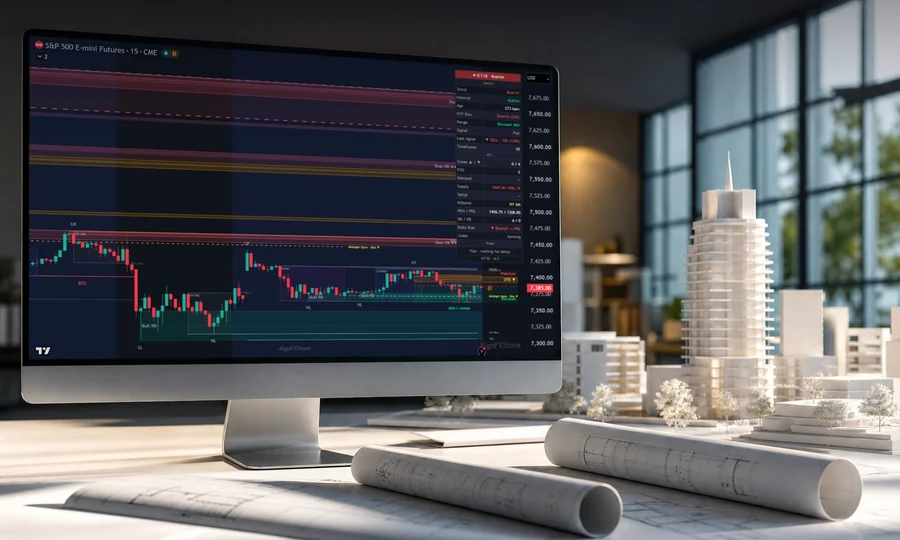
See PRO ICT Structure Engine on a real chart
Press play; use the full-screen button to see every detail.
ICT charts fill up quickly, and the model gets lost among the boxes
Order blocks, fair value gaps, equal highs, session levels, killzones, premium and discount: each ICT idea is simple on its own, and many free tools draw them. Put them all on one chart and you get a wall of boxes and lines, with no clear answer to the only question that matters: is there a setup here right now, or not?
The model most ICT traders follow is a sequence, not a single box. Liquidity is taken, structure shifts the other way with displacement, and price returns to the gap or block that shift left behind, at the right time of day and on the right side of the range. Checking every step by hand on several charts is slow, and it is easy to skip a step when a trade looks tempting.
PRO ICT Structure Engine draws the toolkit and runs the sequence for you. It arms a setup only when a sweep is followed by a closed-candle change of character within 20 candles, with a fair value gap in that leg, inside an enabled killzone, and then waits for the retest. Every step is decided on a closed candle and shown on the chart and in the dashboard.
Everything PRO ICT Structure Engine draws on your chart
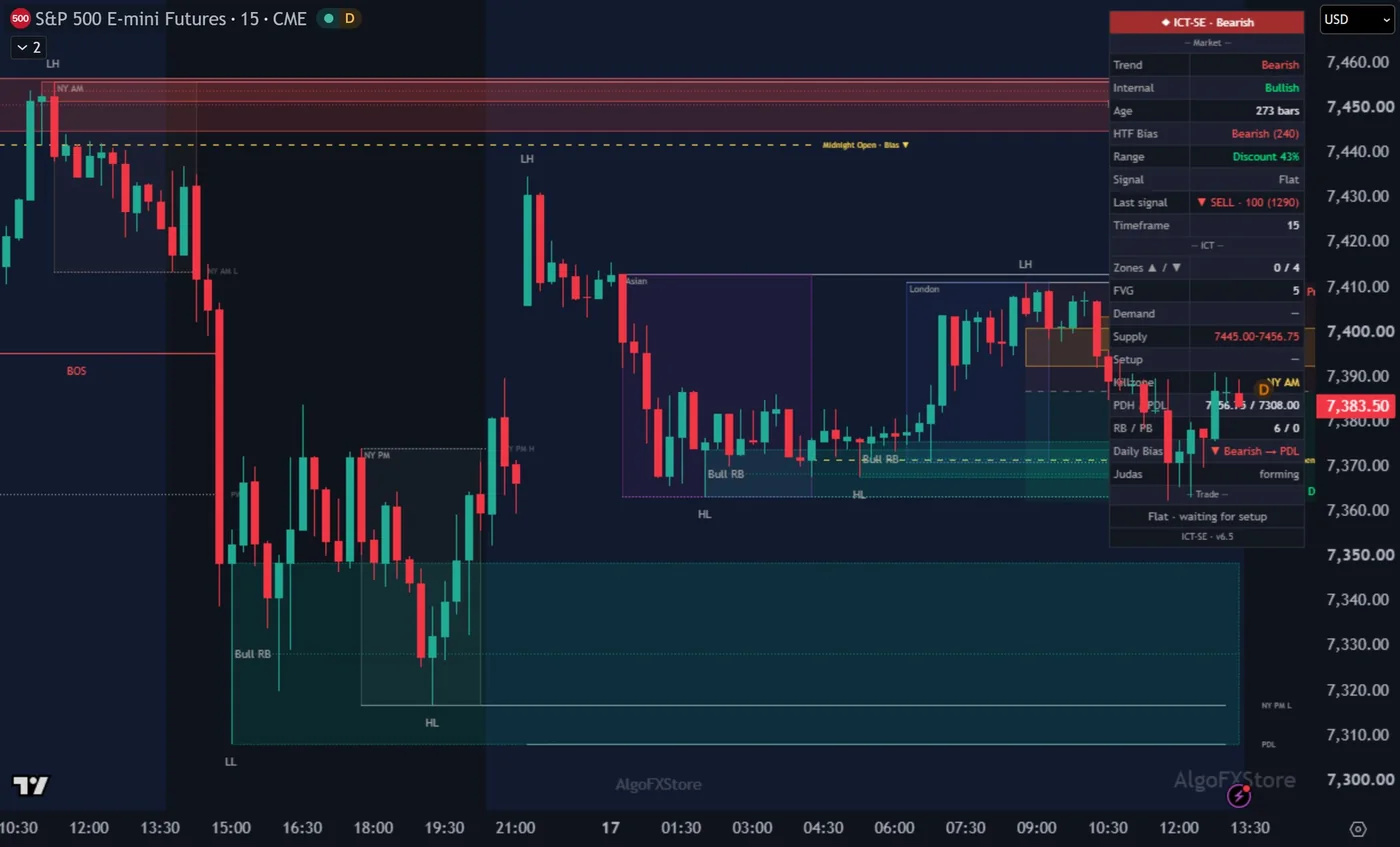
Read from the shipped Pine Script code.
- External BOS / CHoCH: a solid line from the broken swing to the break bar with a 'BOS' or 'CHoCH' label, green for up and red for down; internal BOS / CHoCH dashed (off by default)
- HH / LH / HL / LL labels at confirmed external swings (10 bars each side, so they appear 10 bars late)
- Order blocks from external structure breaks: Bull OB green / Bear OB red boxes at 85 % transparency, height capped at 1.5 x ATR(50), dotted 50 % line, text such as 'Bull OB (2 stars) ' (score 0-4), '· tested' after the first touch; broken OBs flip into dashed 'Bull Breaker (2 stars) ' / 'Bear Breaker star ' boxes; max 4 per side
- Fair value gaps: blue (bull) / orange (bear) boxes without text, minimum 0.2 x ATR, shrinking as they fill, removed when fully filled; max 5 per side
- Rejection Blocks ('Bull RB' / 'Bear RB', teal / pink) on long wicks of external swings and Propulsion Blocks ('Bull PB' / 'Bear PB', OB colours with a dotted border); max 3 per side each
- Liquidity: equal highs / lows as grey lines labelled 'EQH' / 'EQL' (or 'EQH ×3'), 'Sweep' labels when a pool is pierced and the bar closes back inside (single swing pools are tracked but not drawn by default)
- Key levels as grey lines with labels at the right: PDH / PDL, PWH / PWL, session highs and lows ('Asia H', 'London L', 'NY AM H', 'NY PM L'), dotted once taken, '<name> sweep' labels on a sweep
- Killzone boxes spanning each session's high and low: 'Asian' (purple), 'London' (indigo), 'NY AM' (brown), 'NY PM' (blue-grey); intraday charts up to 1H
- Midnight Open: amber dashed line with 'Midnight Open · Bias up / down /-' (needs a bar opening at 00:00 New York)
- Judas Swing: amber 'Judas up ' / 'Judas down ' label at the false-move extreme, once per day
- Premium / Discount shading of the current dealing range with an equilibrium line and an amber 'OTE up / down ' band (62-79 %) in the external trend direction
- HTF order blocks: the latest live bullish and bearish 4H order block as dashed boxes labelled 'HTF 240 OB'
- Setups: a 'Setup up ' / 'Setup down ' label on the bar a Sweep -> CHoCH setup is armed (tooltip: swept level, displacement, killzone, zone, score), the setup zone outlined and labelled 'SETUP FVG' / 'SETUP down (3 stars) ', and SD projections '-1 SD', '-2 SD', '-2.5 SD' as purple dotted lines
- BUY / SELL labels (green / red with the default Bear colour) on the retest bar that opens a trade, tooltip with setup, sweep, score, RSI, SL and TP1
- Trade lines: ENTRY (dotted blue-grey), SL (solid red, width 2), TP1 / TP2 / TP3 (dashed green), 20 bars forward and extended while open, labels with price and % distance; reached TPs turn solid with ' tick '; at break-even the SL line and label move to the BE price
- Silver Bullet background highlight (optional, off)
- Dashboard (top right): Market, ICT, Trade and Stats sections
- Watermarks: 'AlgoFXStore' bottom right (large grey, always) and 'AlgoFXStore' bottom centre (Show Watermark, on)
The toolkit and the model
Structure, zones, liquidity, setups and entries are decided inside one block that runs only on confirmed candles. Higher-timeframe, daily and weekly values come from the last closed candle.
- 1
Structure in two layers
External swings need 10 candles on each side and internal swings 3, so they confirm that many candles late and are labelled back at the swing. A close through a swing is a BOS in the trend's direction or a CHoCH against it. The dashboard shows the external trend, the internal trend and the age of the trend in candles.
- 2
Zones and gaps
Order blocks come from external structure breaks, up to 1.5 ATR tall, with a 50 % line and a score of 0 to 4 stars for a gap in the impulse, a sweep at the extreme, the higher-timeframe trend and the premium or discount side. A close through a block turns it into a breaker. Fair value gaps of at least 0.2 ATR shrink as they fill.
- 3
Liquidity and key levels
Equal highs and lows within 0.1 ATR of each other, previous day and week highs and lows, and the Asian, London and New York session highs and lows are tracked as pools. A sweep is a candle that pierces an untaken pool and closes back inside. Killzone boxes, the Midnight Open and the daily bias arrow add time and direction.
- 4
Arming a setup
After a sweep, a CHoCH the other way by a close within 20 candles arms a setup, as long as the leg holds a fair value gap and the CHoCH falls inside an enabled killzone. The setup zone is the newest fair value gap of that leg, or else the order block of the CHoCH. It waits 30 candles; an opposite CHoCH, expiry or a broken zone cancels it.
- 5
The entry on the retest
The first candle that trades into the zone and closes without breaking it gives the entry at its close, if the location filter agrees: longs in discount, below the middle of the dealing range, and shorts in premium. BUY or SELL prints on that candle. Only one position runs at a time, and an opposite signal with a valid plan reverses it.
- 6
Stop, targets and the trade
The default stop sits beyond the signal candle's wick plus 0.25 ATR, at least 0.5 ATR from the entry. TP1, TP2 and TP3 are 1R, 2R and 3R with the Balanced preset, or liquidity or standard deviation levels. After TP1 the stop moves to the entry. TP3 or the stop ends the trade, and a candle touching both a target and the stop counts the target.
PRO ICT Structure Engine on 12 different markets
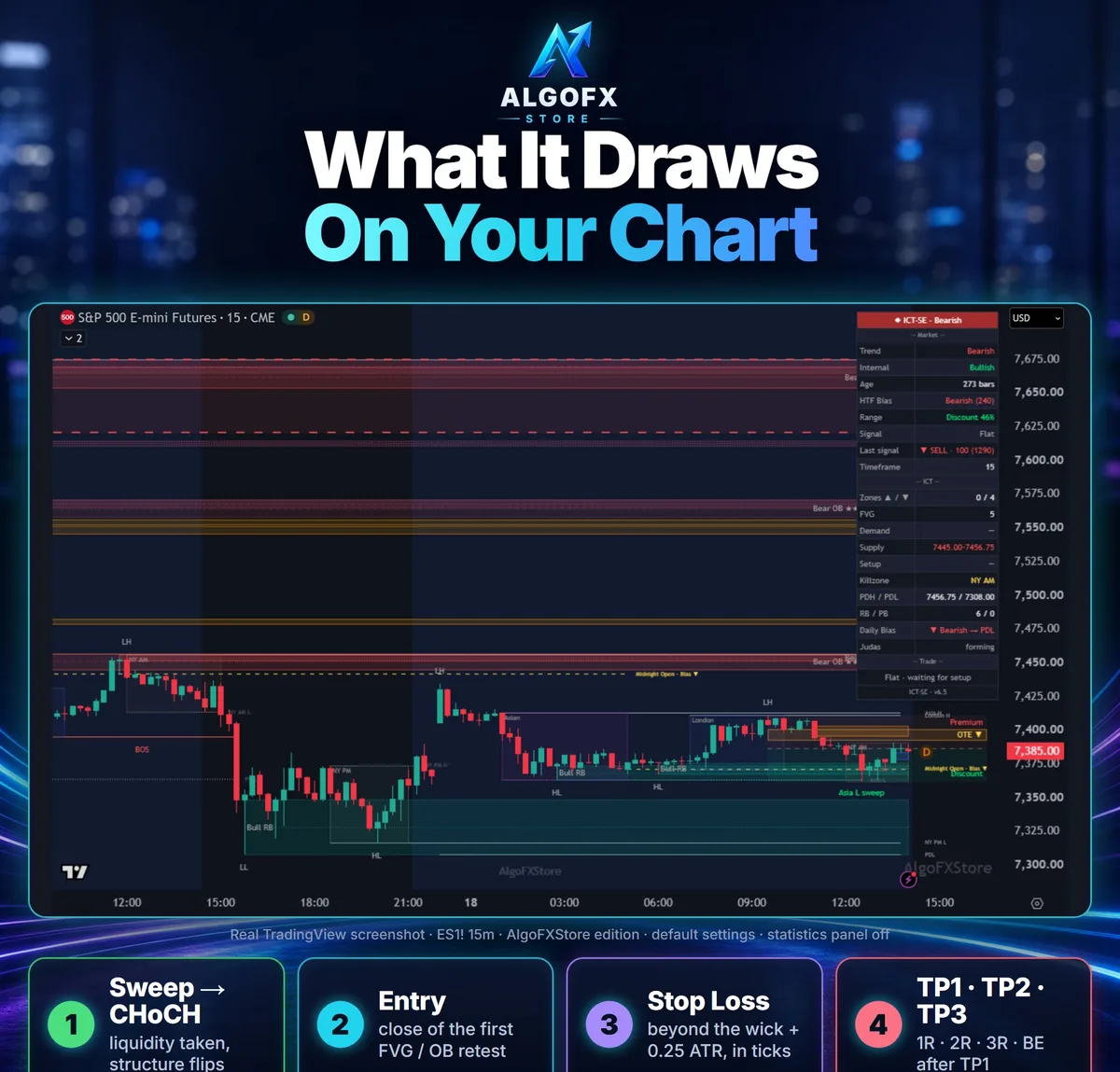
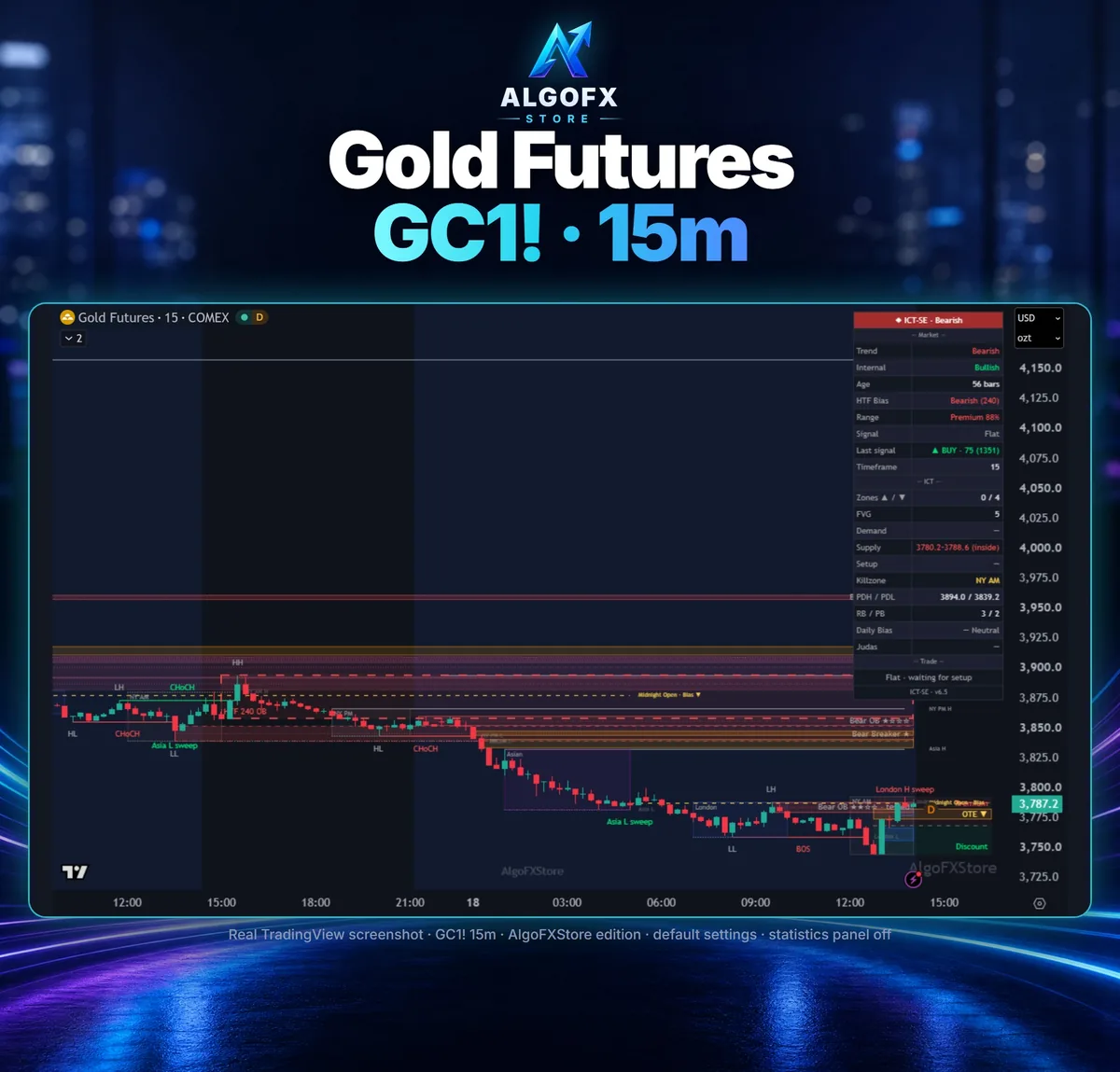
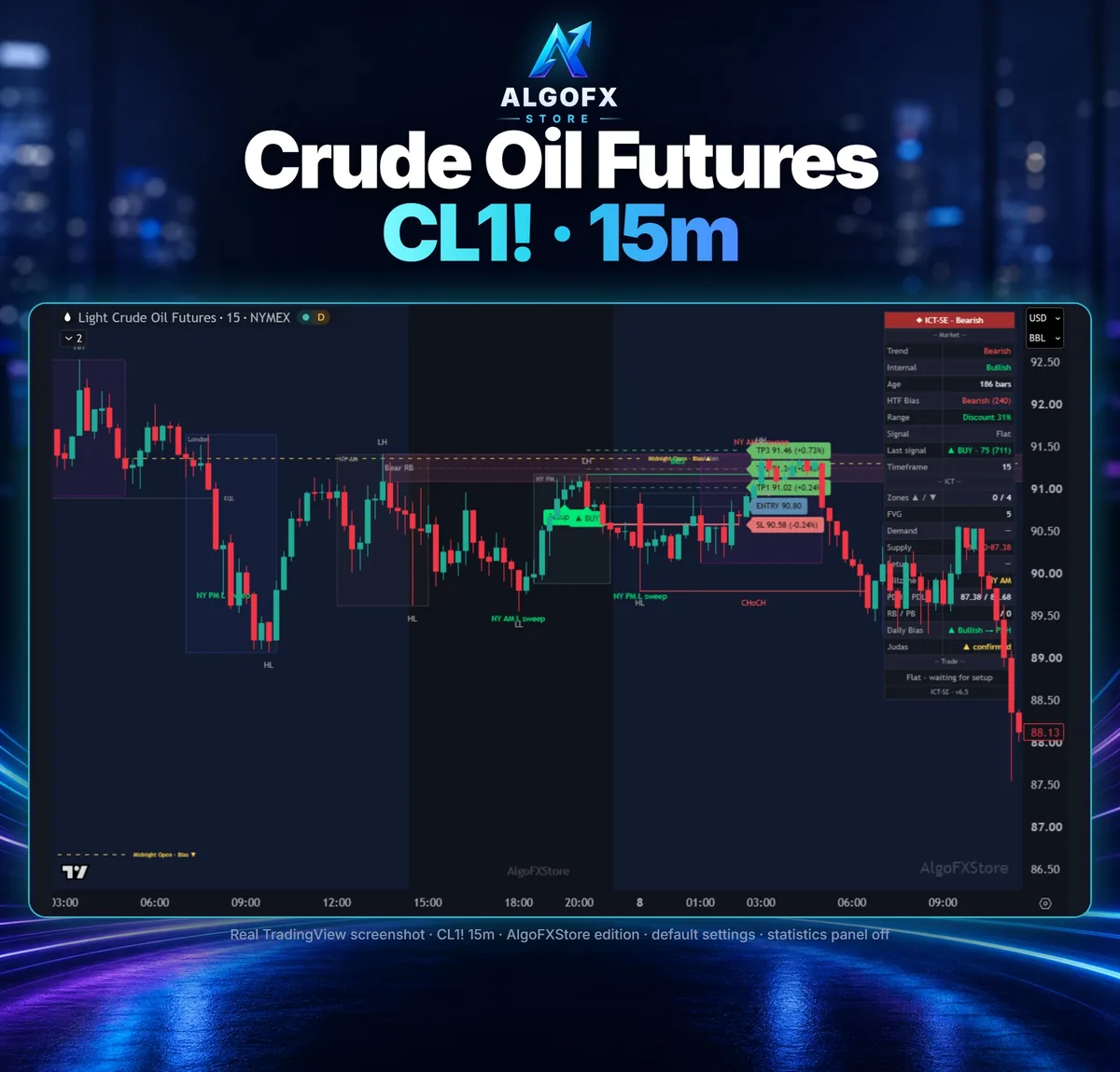
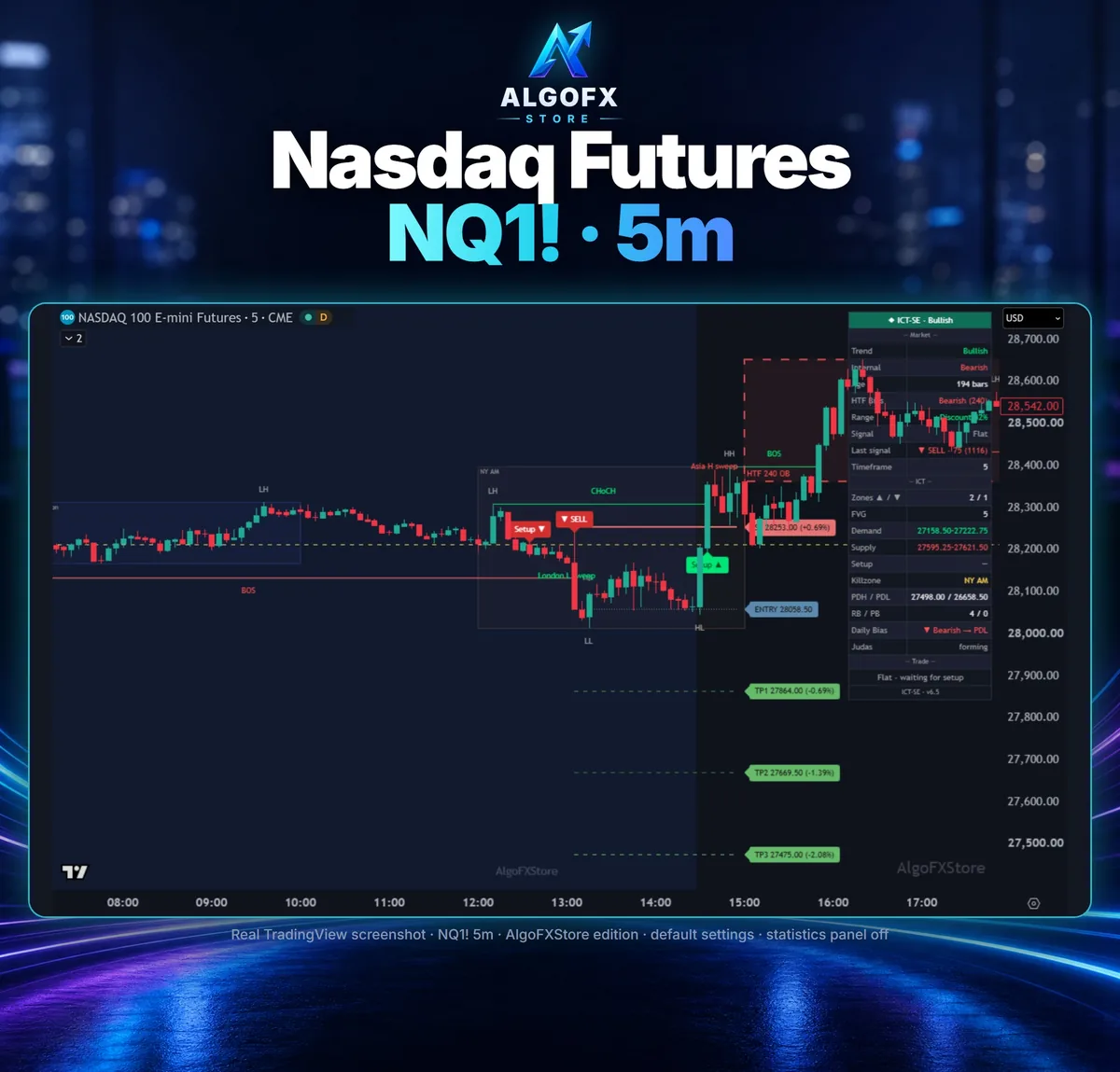
Every chart below is a screenshot of TradingView itself with the shipped PRO ICT Structure Engine [AlgoFXStore] attached at its default settings. Forex, metals, indices, energy and crypto, so you can see how it reads each kind of market. They show what the indicator draws; they are not trading results. Tap or click any chart to open it full size.
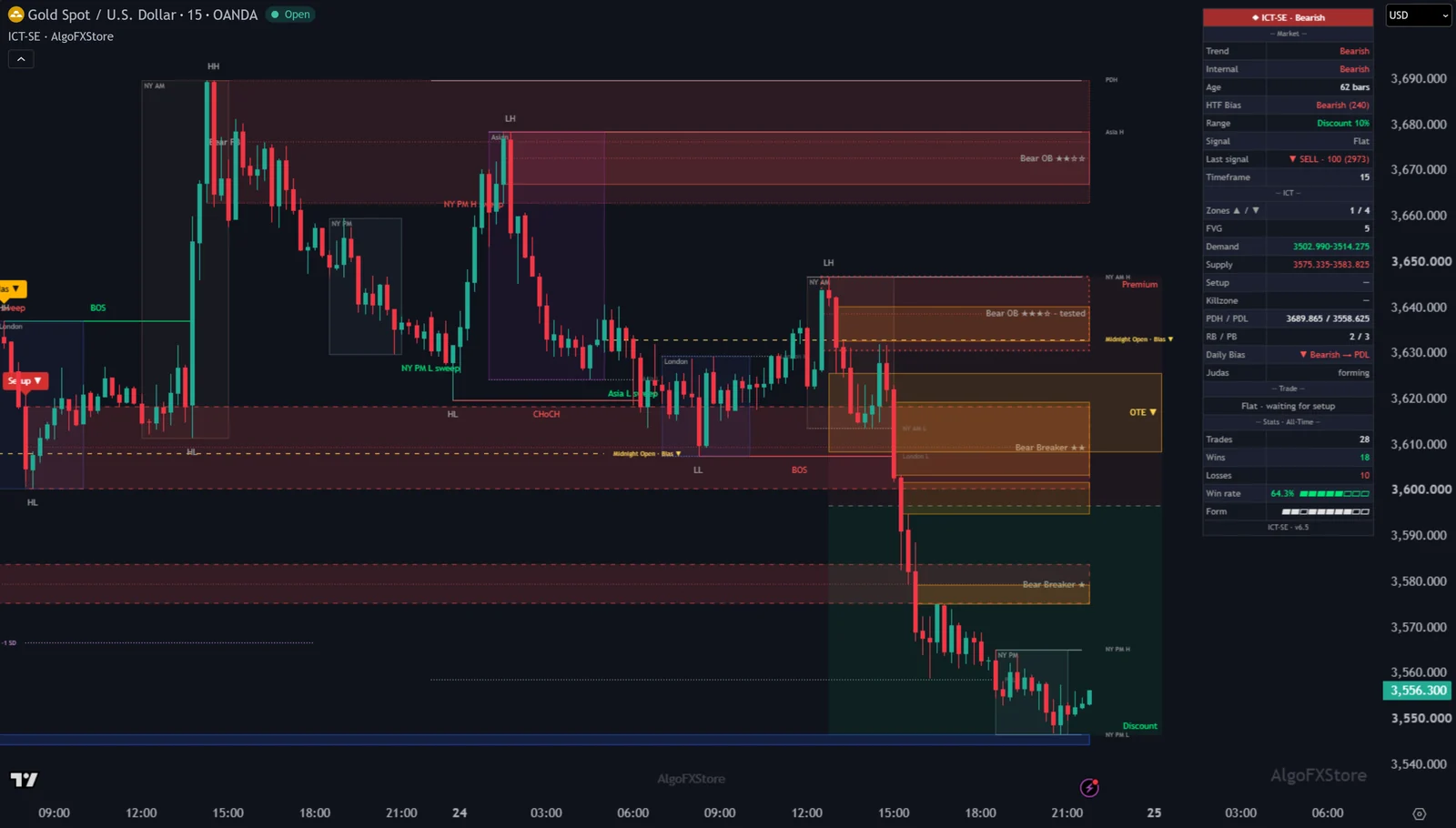
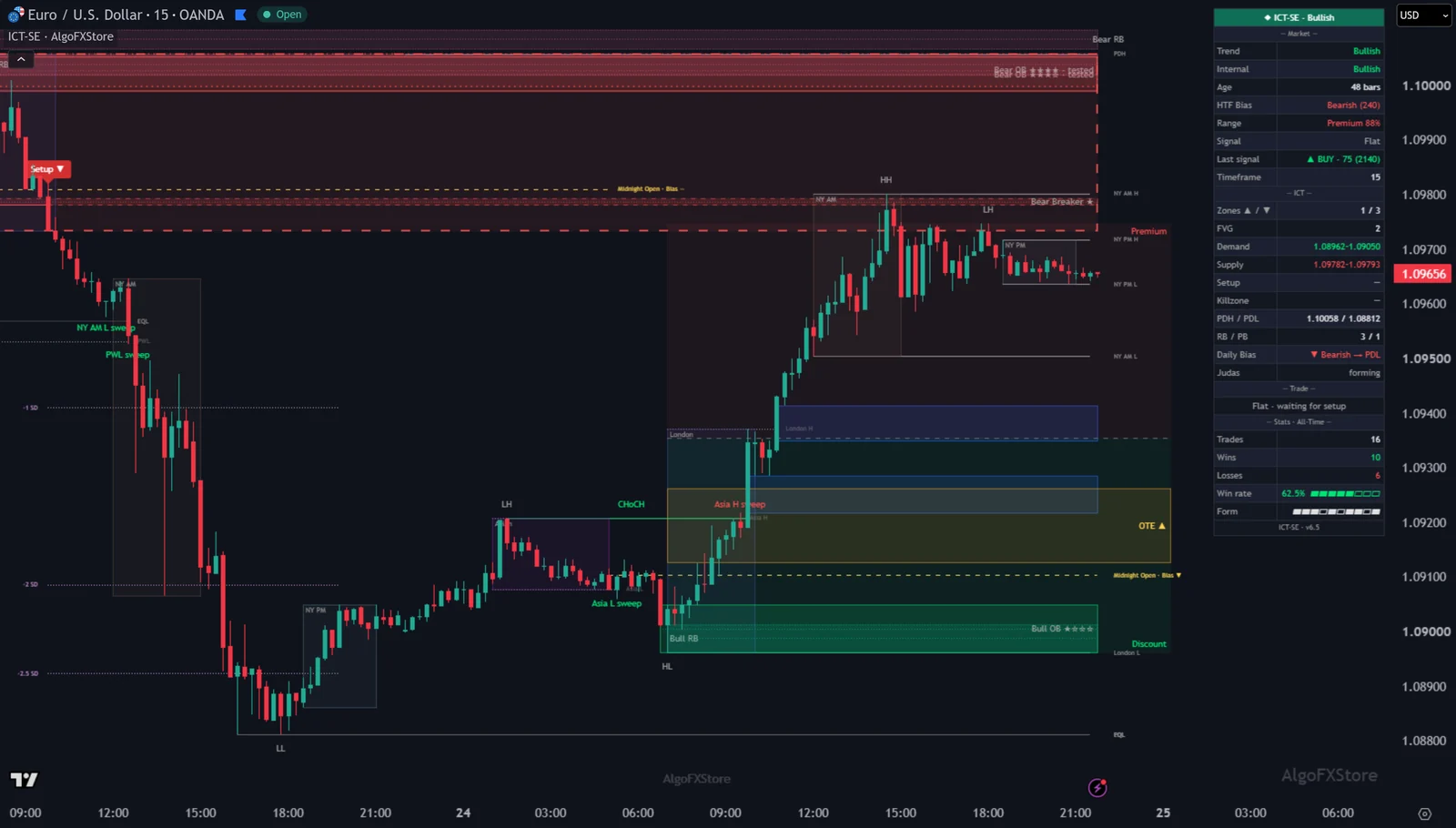
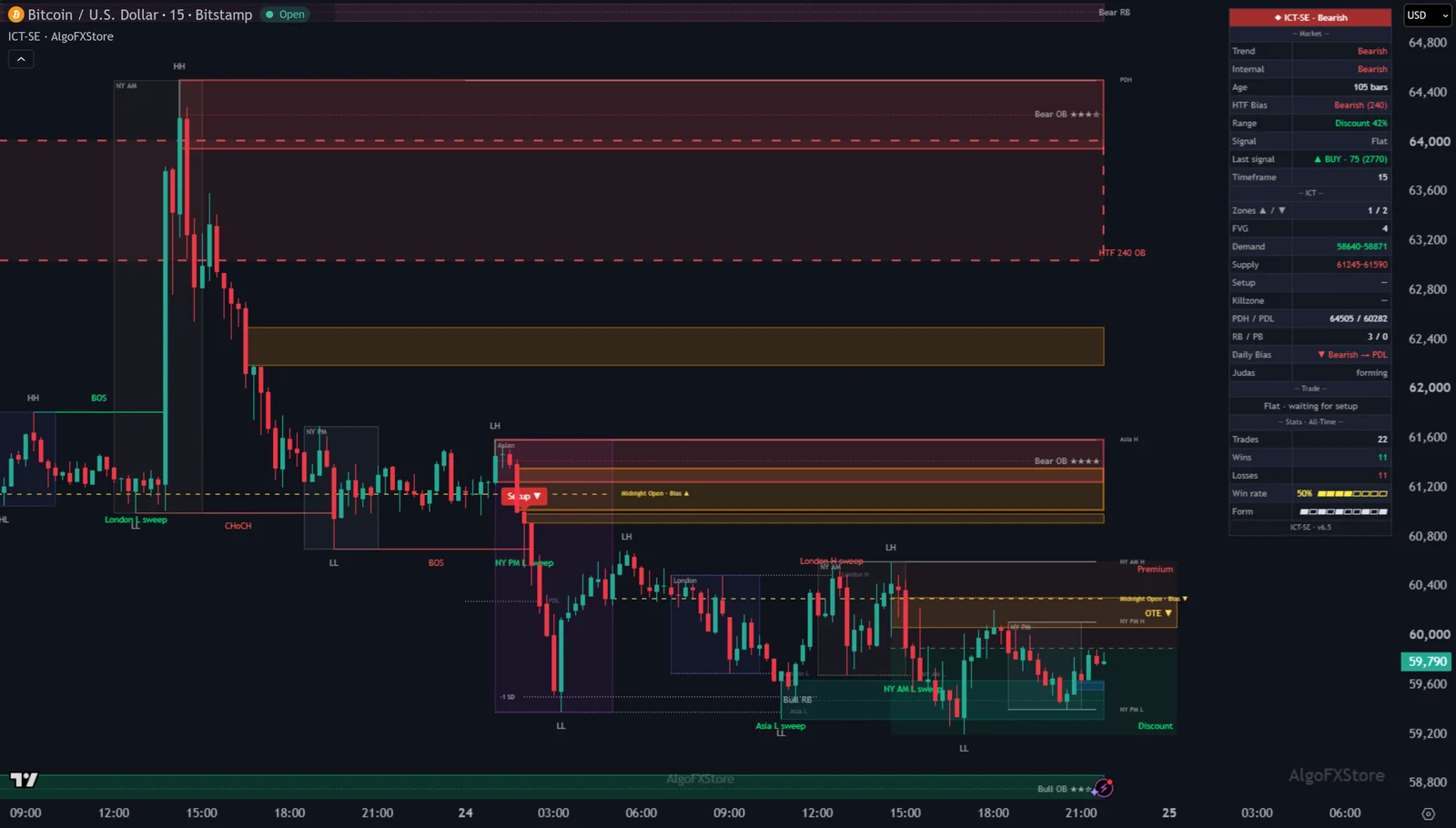
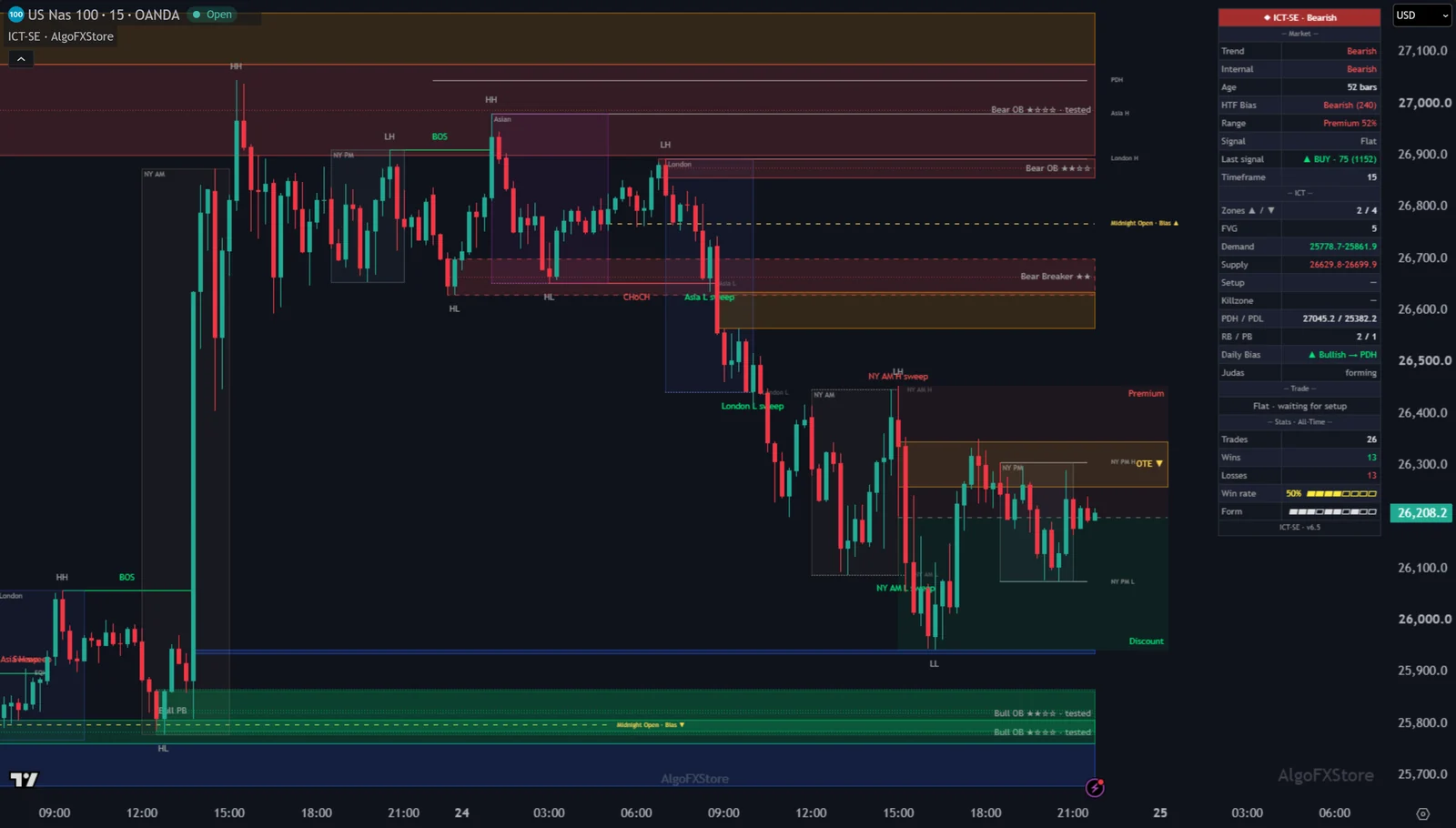
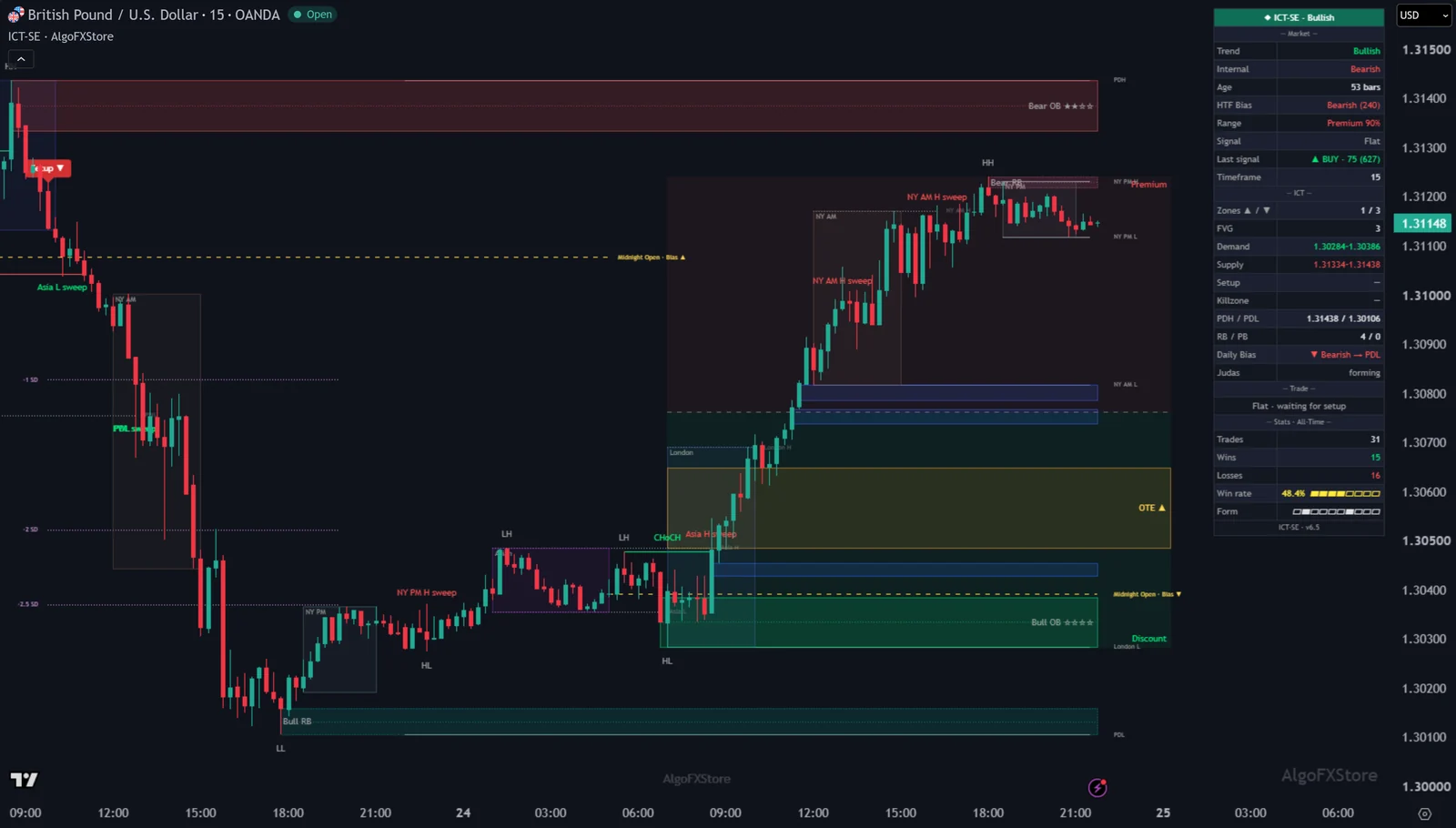
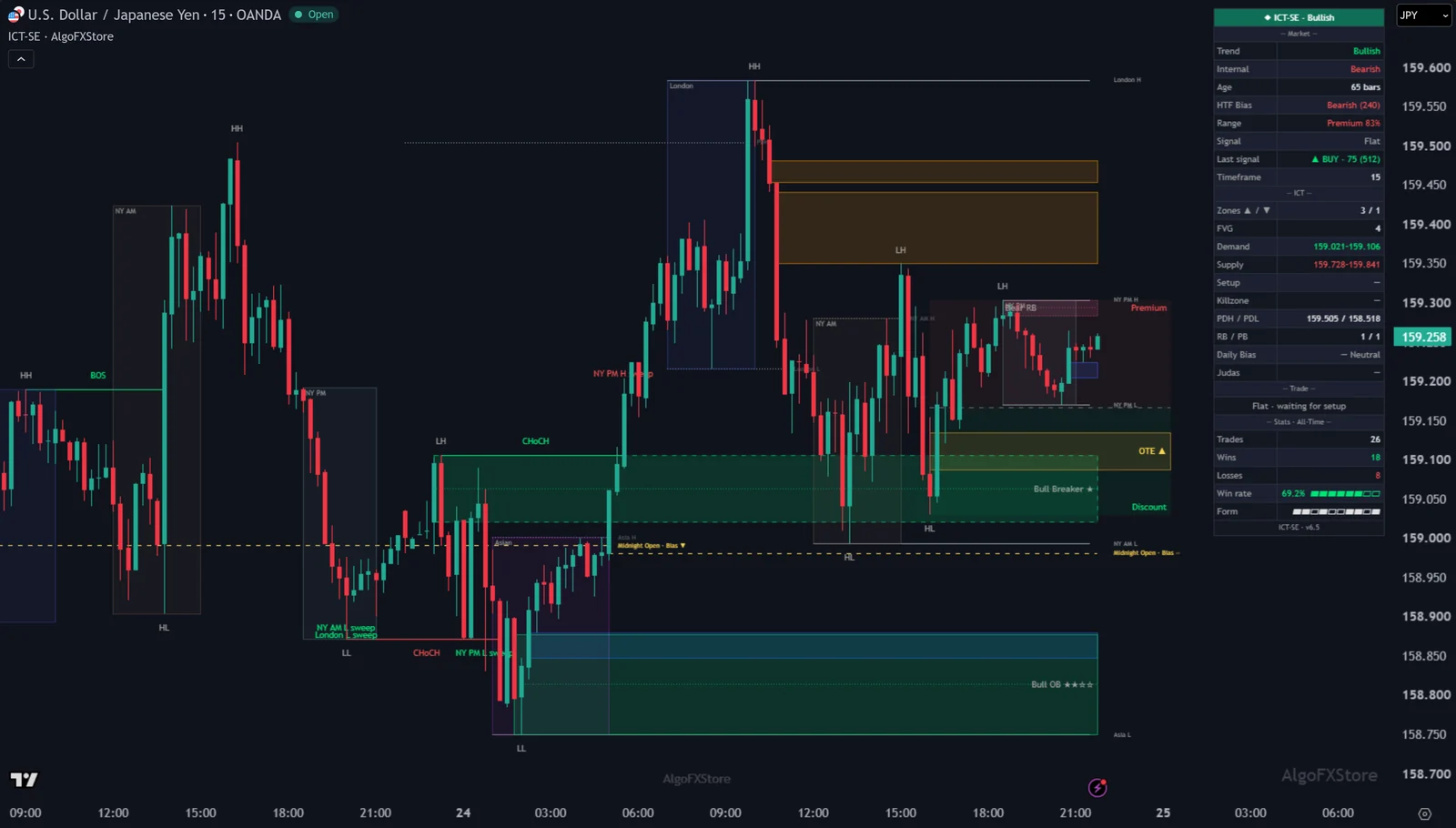
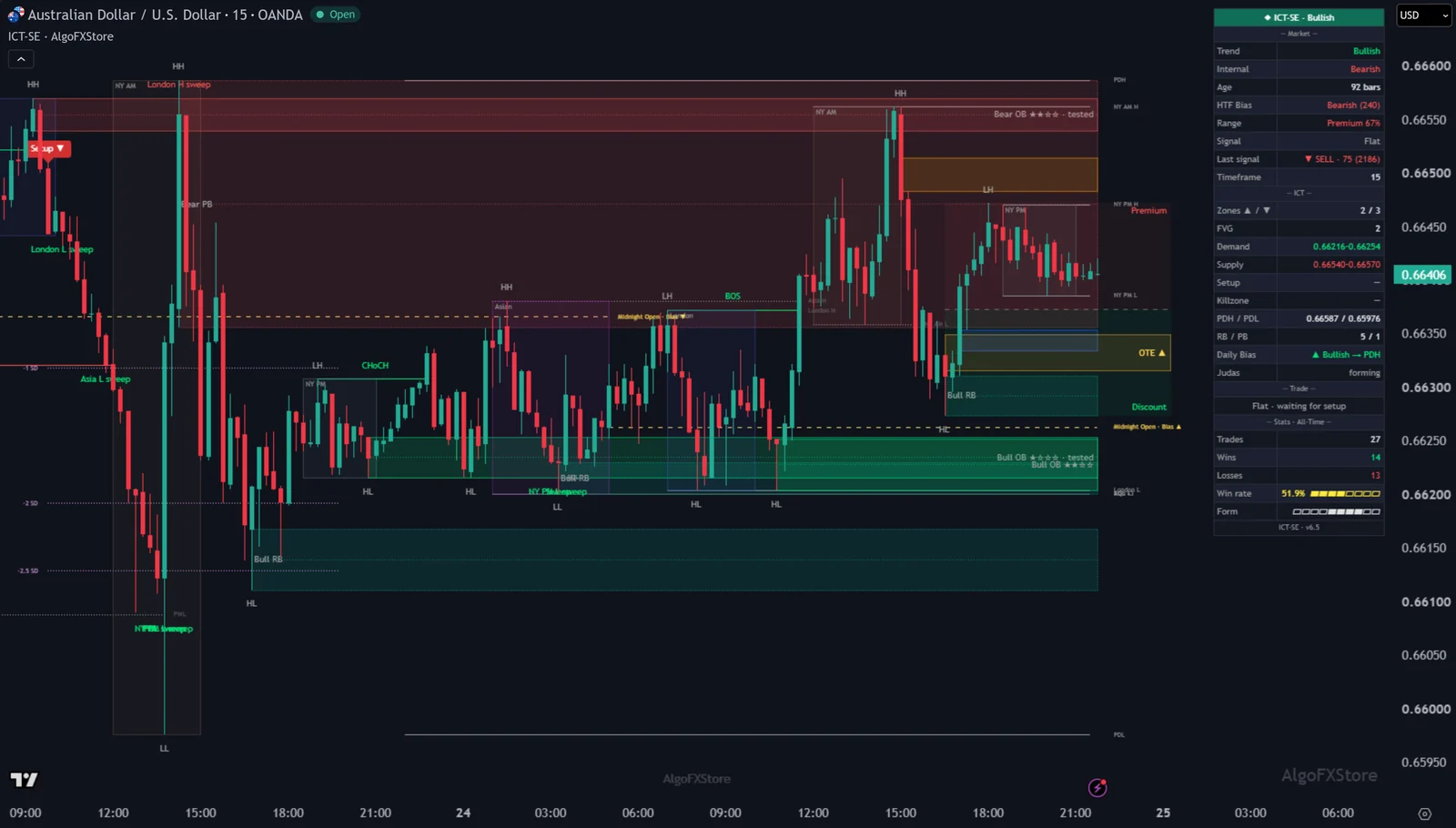
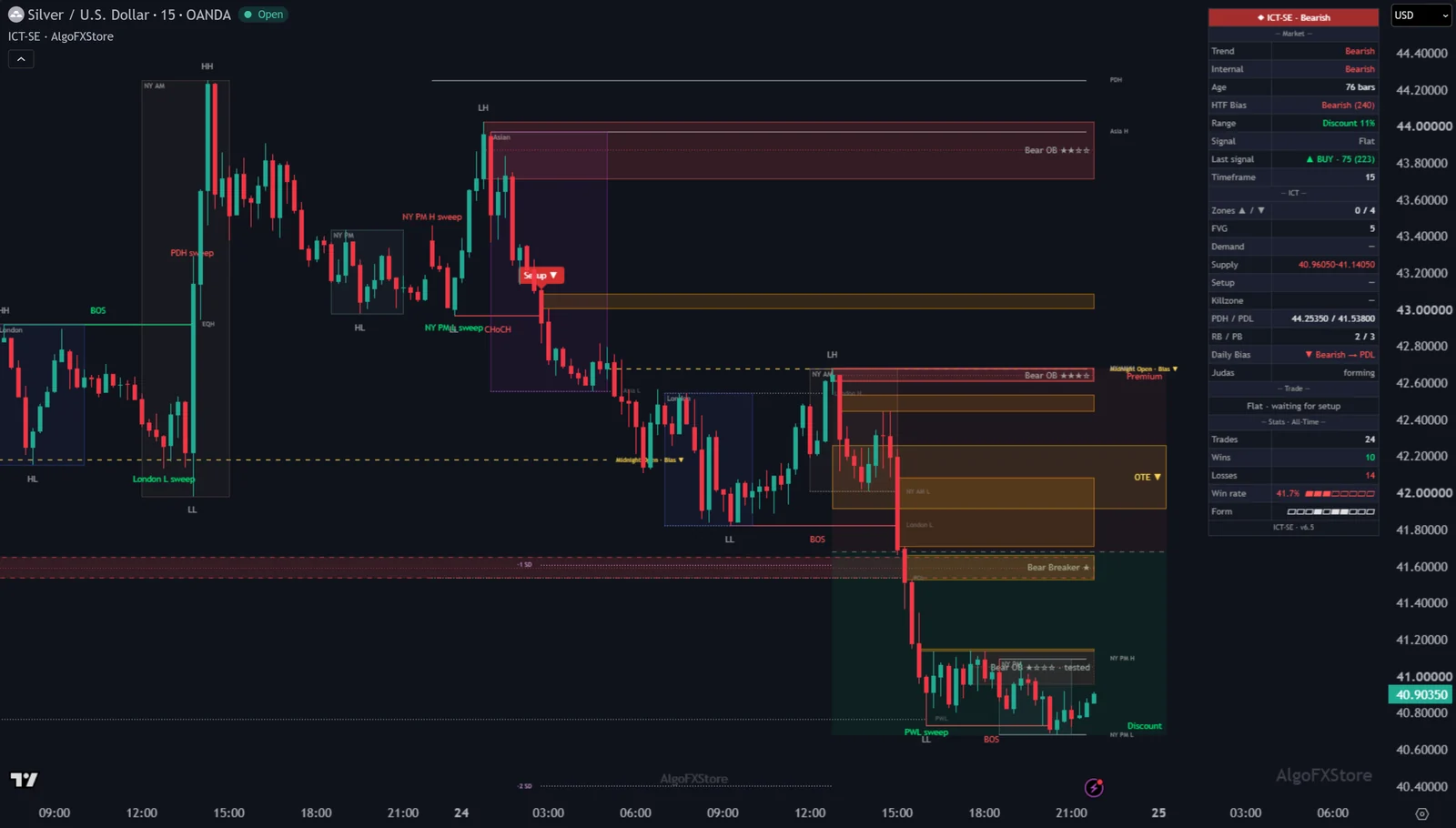
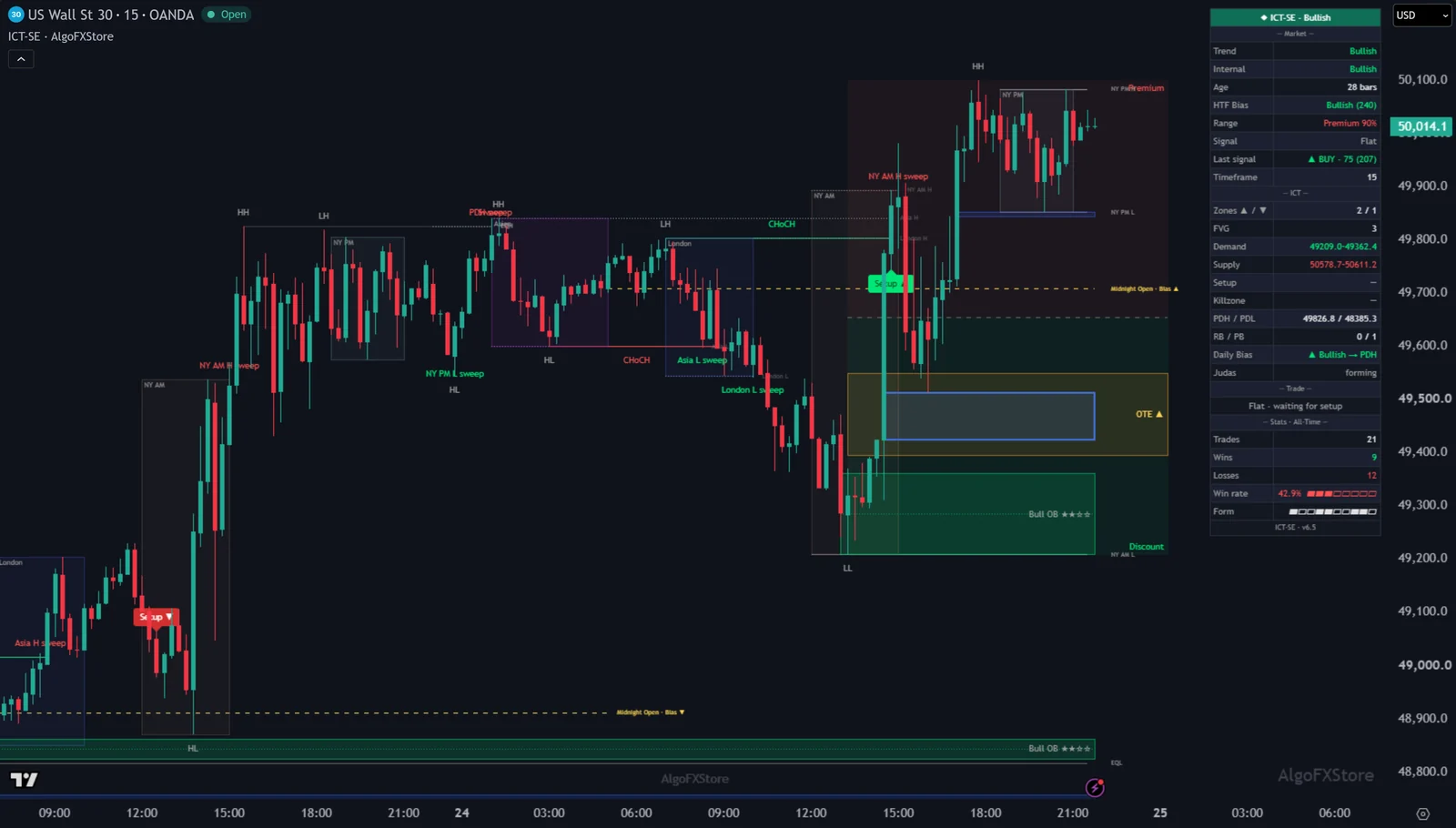
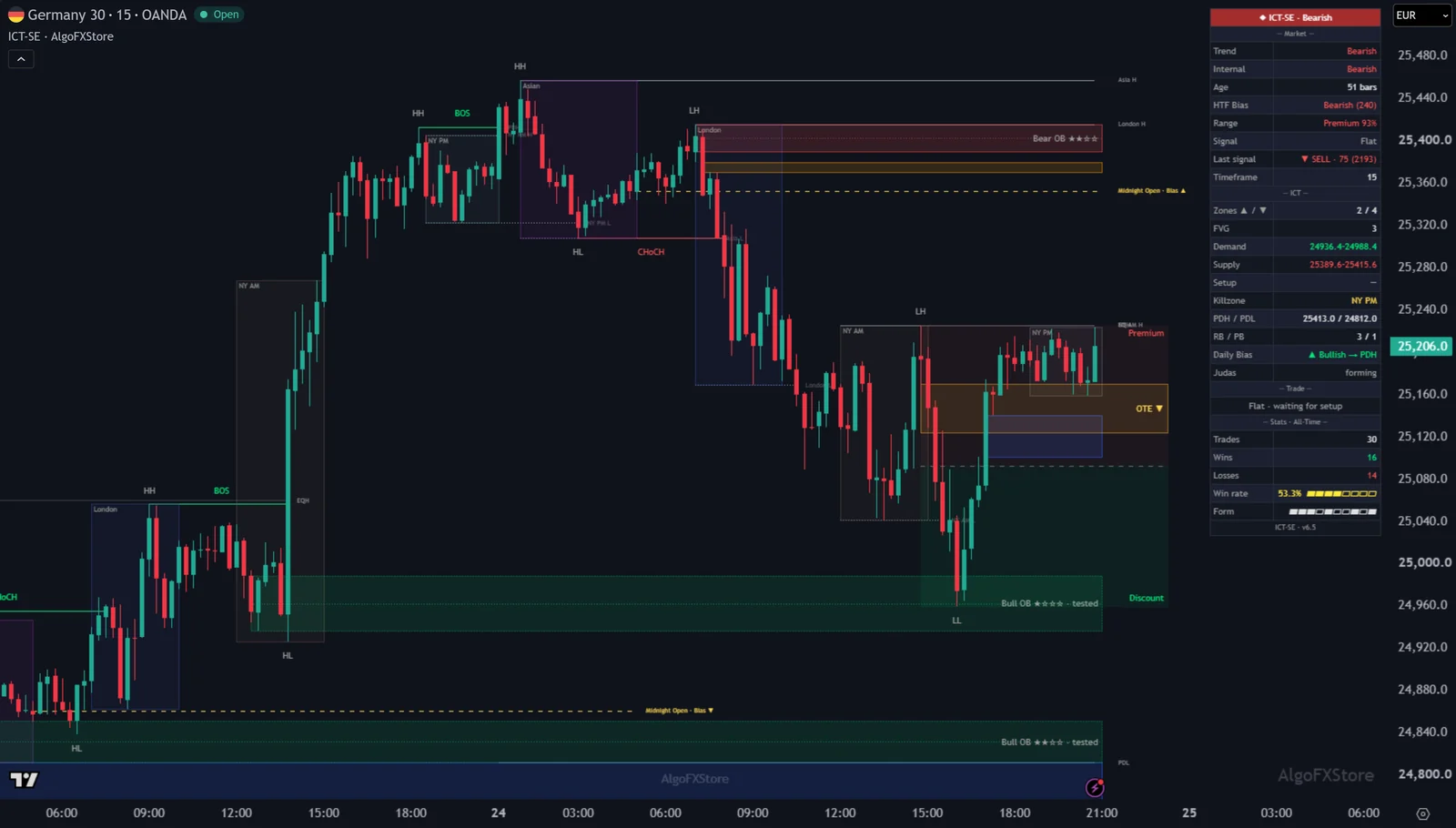
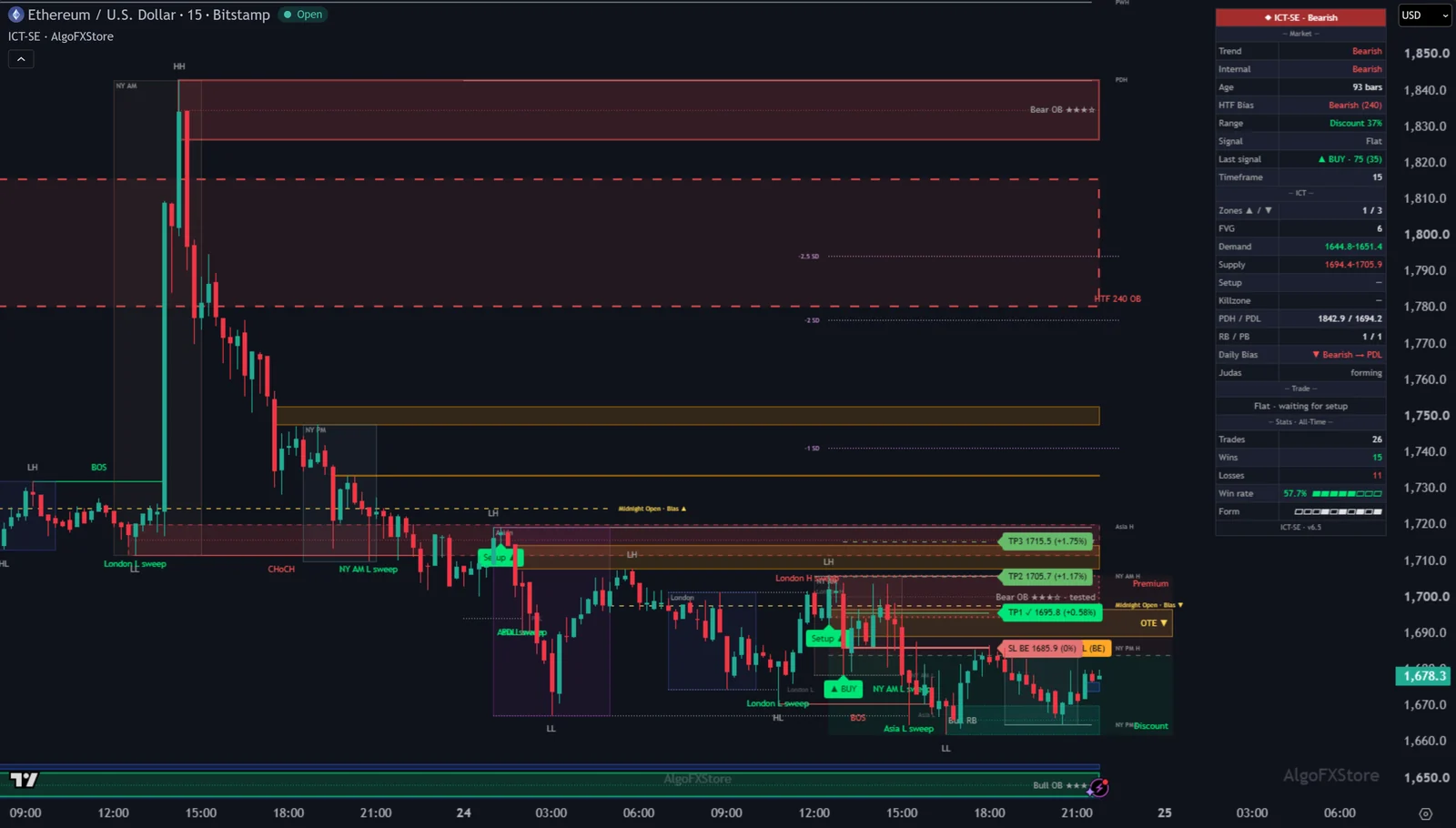
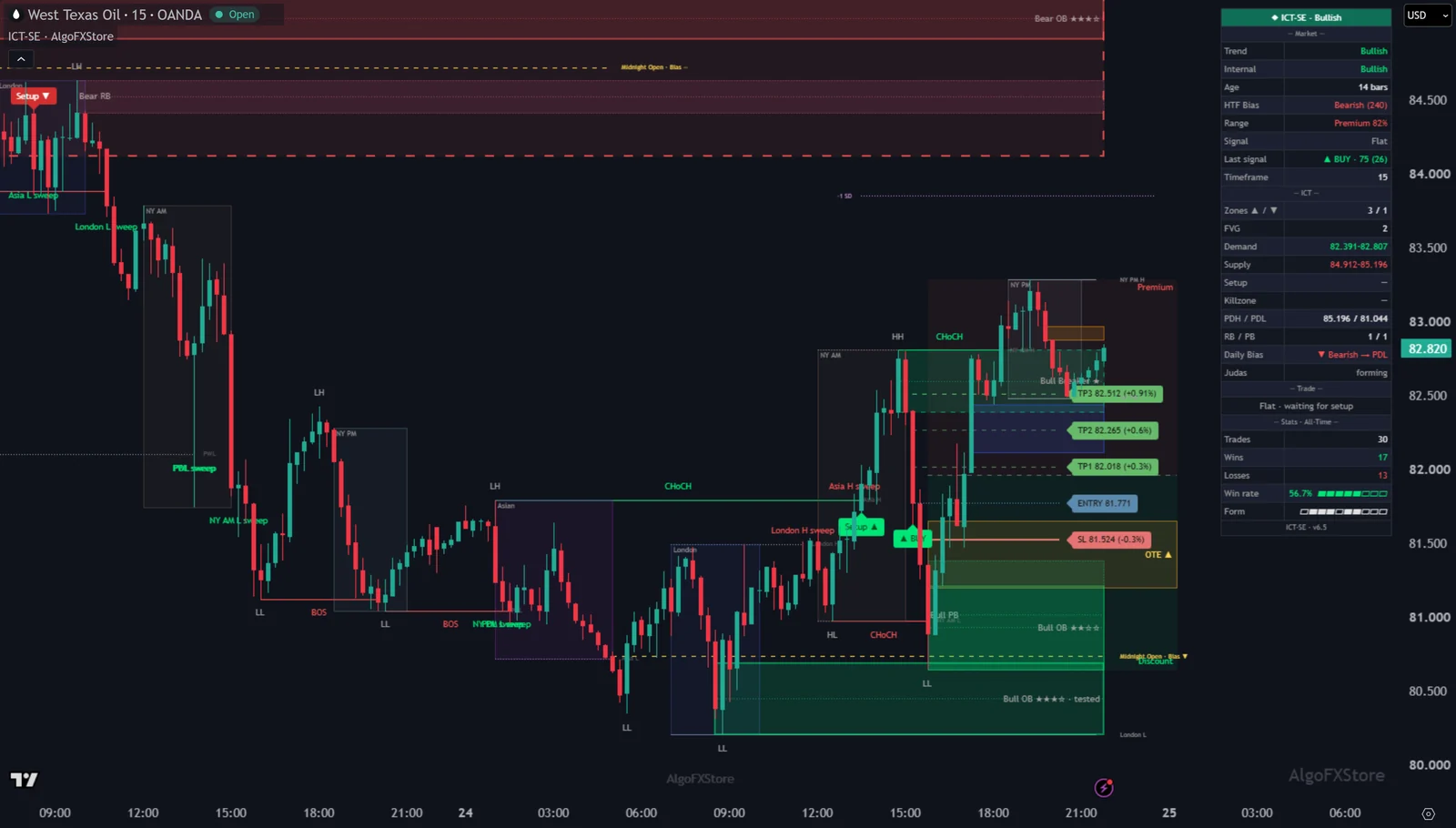
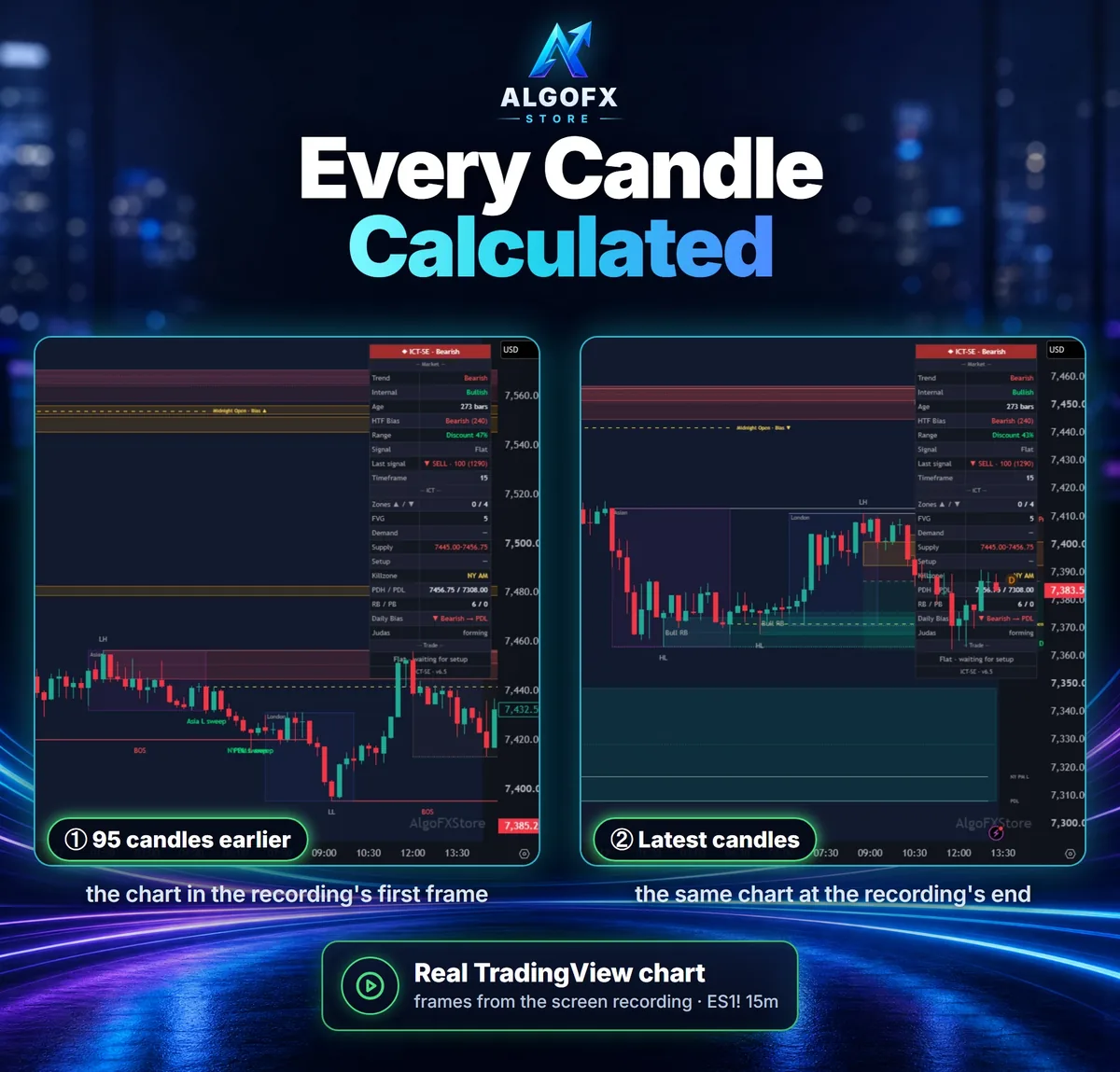
PRO ICT Structure Engine on a real TradingView chart, frame by frame
Frames of a screen recording of the shipped indicator at its default settings, as the chart updates. Nothing is edited into the chart.
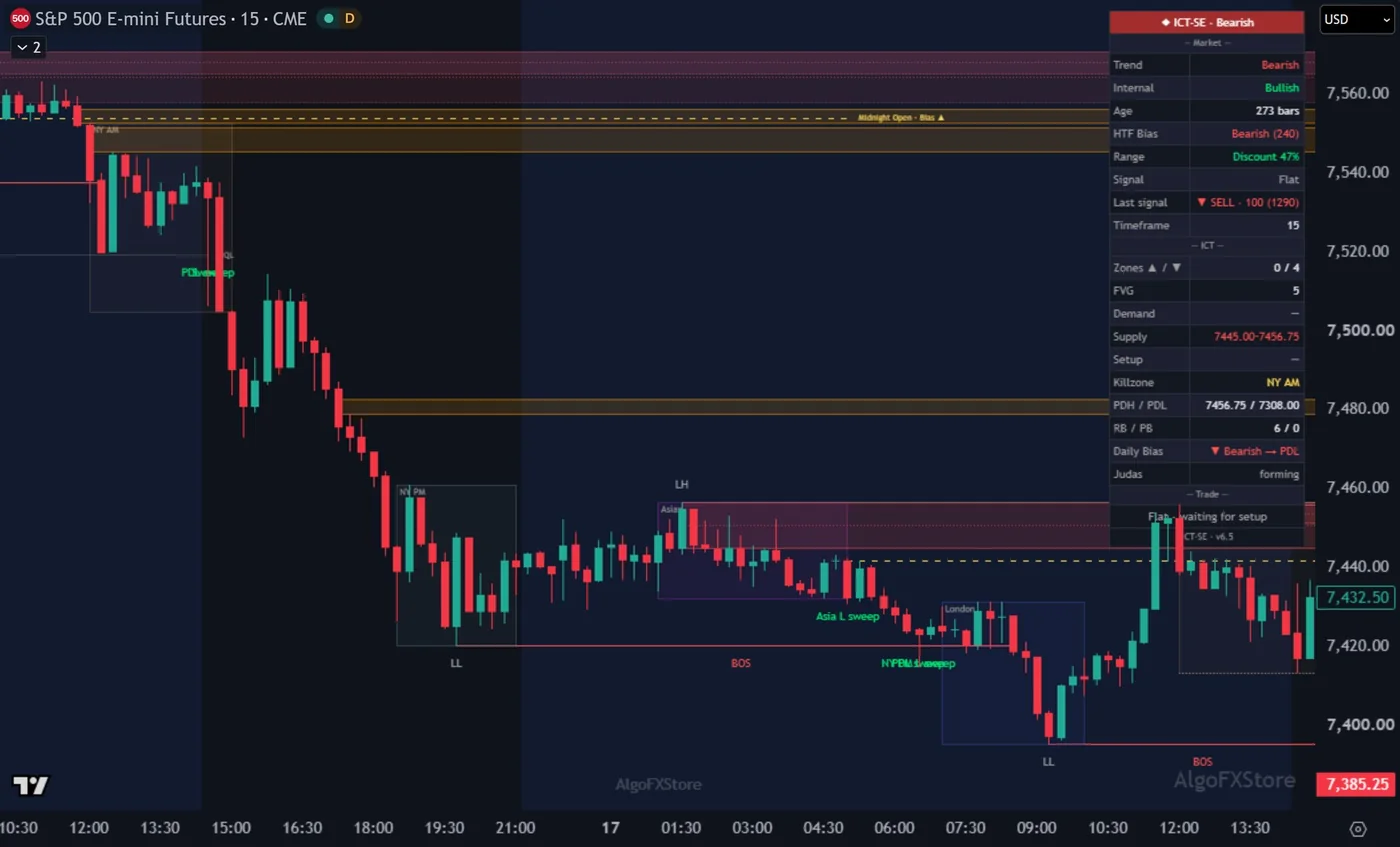
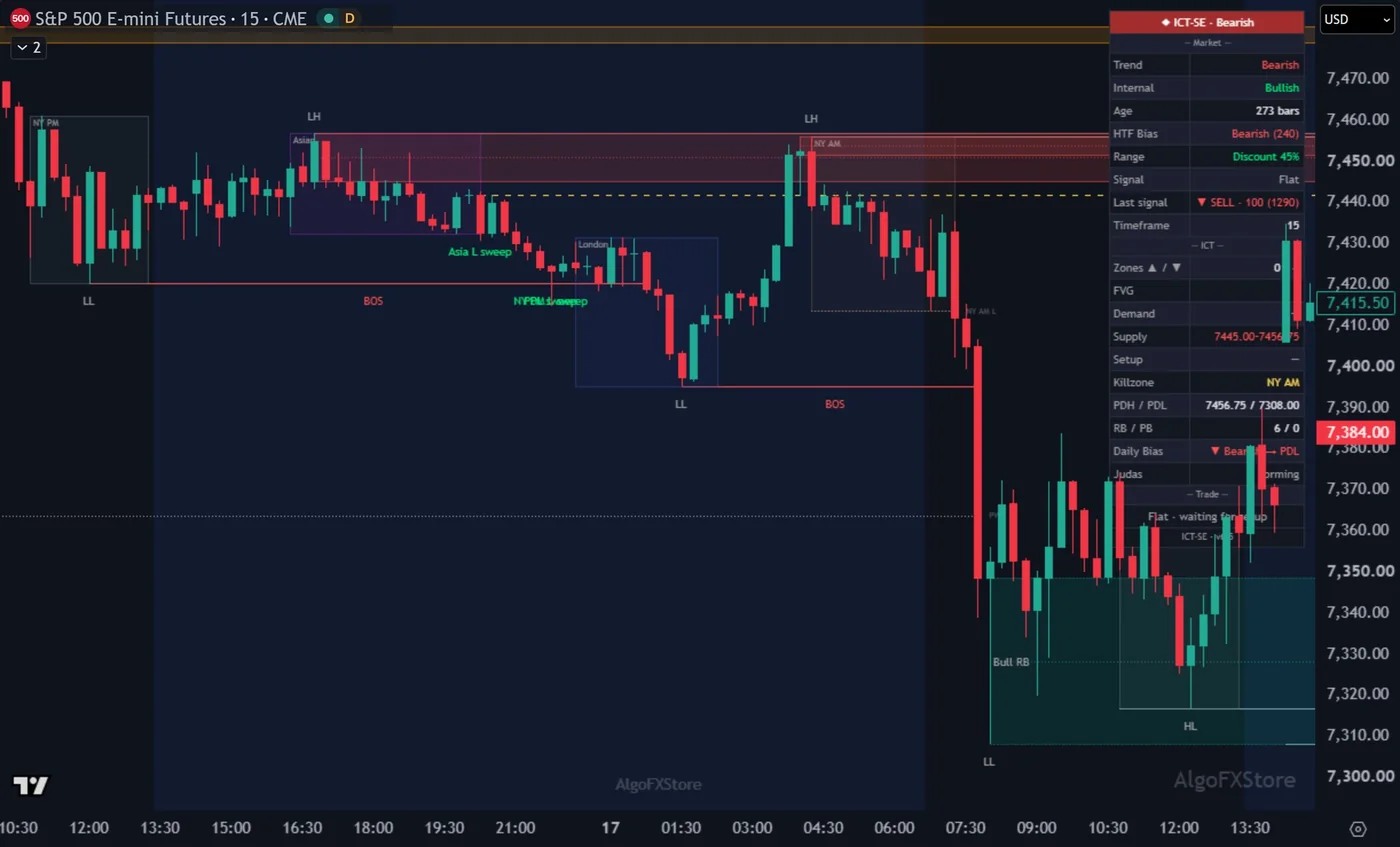
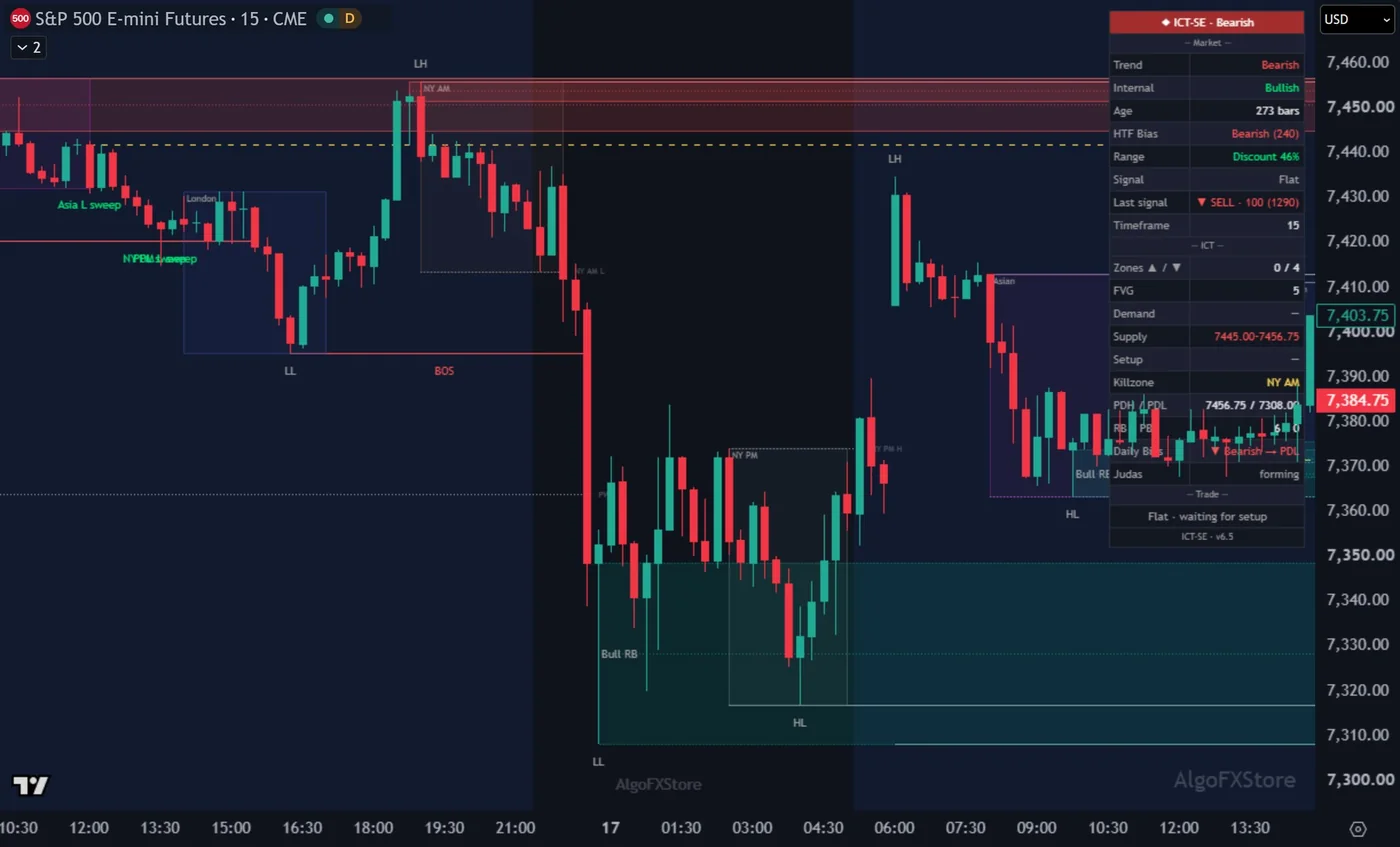
Following the model without giving up control
The indicator arms setups, prints entries and follows a modelled trade. It never places an order; these steps keep the decisions with you.
- 1
Watch the setup label
A Setup label with an outlined zone means a sweep and a CHoCH have lined up and the engine is waiting for the retest; the dashboard counts the candles left. That is the moment to prepare: check the higher-timeframe bias, the daily bias, and whether the zone sits in discount for a long or in premium for a short.
- 2
Choose your killzones
By default the Asian, London, New York AM and PM killzones are all enabled, so on futures charts that trade overnight a setup can arm in the Asian session. If you only trade New York, switch the others off, or use the Silver Bullet highlight to focus on that window.
- 3
Size the position from the stop
When BUY or SELL prints, read the entry and SL labels, which also show the distance in percent. Count the distance in ticks or points, convert it into money with your symbol's tick value, divide your planned loss by that figure and round down. If the smallest size still risks too much, let the trade go.
- 4
Manage it like the plan, or your way
The modelled trade moves the stop to the entry after TP1 and ends at TP3 or the stop. Decide before the entry whether you follow that exactly or take part of the position at TP1. The alerts for TP1 to TP3, break-even and the stop carry the prices, so you can follow from your phone.
- 5
When to stand aside
Skip an entry when the stop is too wide for your account, when higher-timeframe order blocks sit right in the way of TP1, or when high-impact news is due, since the code has no news filter. Every setup can fail, however many conditions it passed, so the stop is the most important line on the chart.
The dashboard, row by row
- Header: ICT-SE with the external trend (Bullish, Bearish or Neutral)
- Market: Trend, Internal, Age (bars), HTF Bias, Range (premium or discount with percent), Signal (Long, Short or Flat), Last signal with its score, Timeframe
- ICT: active zones and FVGs, nearest Demand and Supply, Setup (armed with candles left), Killzone, PDH / PDL, RB / PB, Daily Bias, Judas
- Trade: Entry, SL (BE after break-even), TP1, TP2 and TP3 with a tick when reached, R:R, SL distance in percent, or Flat while waiting for a setup
- Stats (on by default, can be switched off): count of modelled trades on the loaded chart, how many touched TP1, and a form strip; hindsight bookkeeping, not a forecast
- Footer: ICT-SE v6.5
Everything PRO ICT Structure Engine does for you
Market structure, clearly labelled
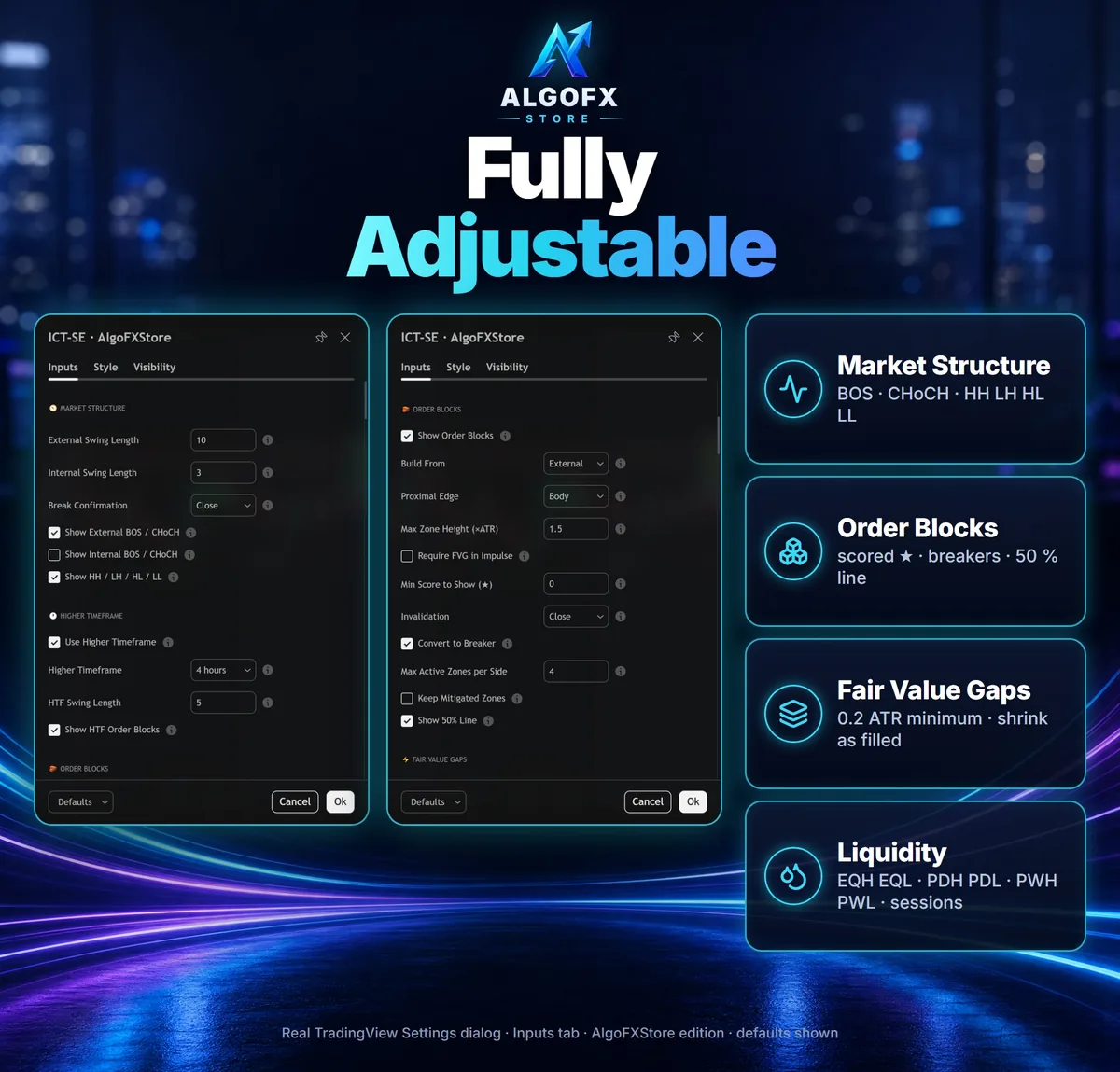
External BOS and CHoCH with HH, LH, HL and LL labels, optional internal structure, and breaks confirmed by a close. External Swing Length (10) and Internal Swing Length (3) are inputs.
Scored order blocks and breakers
Blocks built from external breaks with a body or wick proximal edge, a 0 to 4 star score, a 50 % line, tested marks and conversion to breakers when closed through, up to 4 active per side.
Gaps, rejection and propulsion blocks
Fair value gaps that shrink as they fill, up to 5 per side, plus rejection blocks with a long wick and propulsion blocks confirmed within 3 candles.
Liquidity and session levels
Equal highs and lows, optional single swing pools, previous day and week highs and lows, Asian, London and New York session highs and lows, and the Midnight Open, each with sweep labels.
Time and bias context
Killzone boxes for Asia, London, New York AM and PM in the time zone you choose, an optional Silver Bullet highlight, the daily bias arrow and Judas Swing labels.
Premium, discount and the higher timeframe
Premium and discount shading of the dealing range with the OTE band from 62 to 79 %, and the latest 4-hour order blocks from the last closed higher-timeframe candle.
A complete trade model
Setup labels, BUY and SELL on the retest, a stop by wick, zone or sweep, target presets from Conservative to Scalping, R, liquidity or standard deviation targets, and break-even with an optional offset.
Alerts through one condition
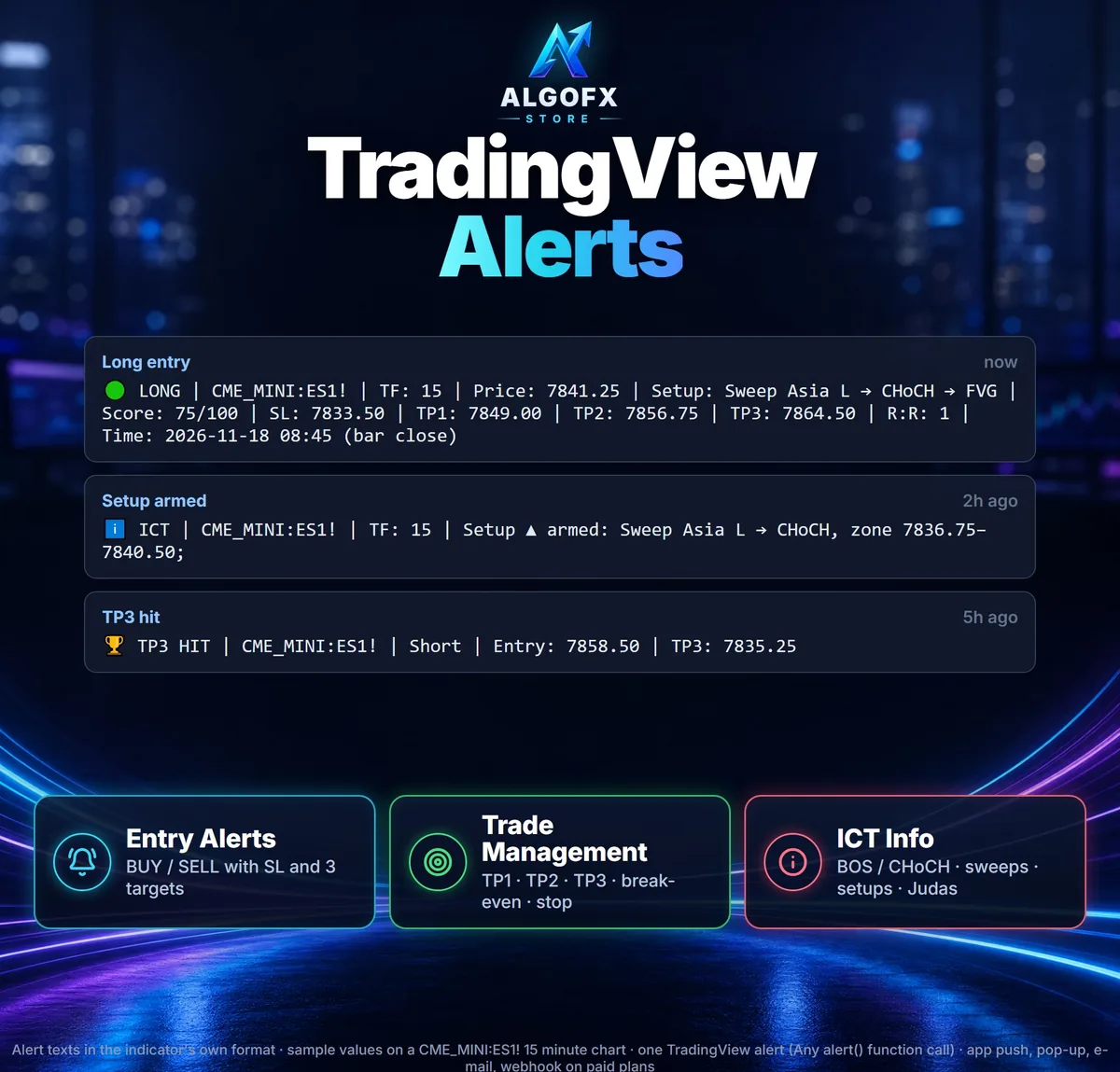
Any alert() function call delivers entries with setup, score, SL and TP1 to TP3, target hits, break-even, the stop and reversals, plus ICT information such as BOS, CHoCH, sweeps, armed setups and the Judas Swing.
PRO ICT Structure Engine, feature by feature
Each picture is built from real platform screenshots of the shipped indicator at its default settings, labelled so you can see what every part does. Tap any picture to open it full size.

How traders put it to work
Index futures on 5 or 15 minutes
NQ on 5 minutes fills the view with killzone boxes and session levels; ES, gold and crude on 15 minutes use the default 15-minute to 4-hour pairing, where an external swing of 10 candles spans two and a half hours. Keep the full electronic session so that the midnight New York candle exists.
New York session only
Switch off the Asian, London and PM killzones and keep NY AM, optionally with the Silver Bullet highlight. Setups then arm only in the New York morning, which suits traders who do not watch the overnight sessions.
Forex and crypto
Any intraday symbol works. Killzones, the setup time filter, the Midnight Open and the Judas Swing need 1 hour or lower; above 1 hour the time filter switches off automatically. Set the Timezone input if you want the killzones in a different time zone.
A lighter chart
Hiding internal structure, rejection and propulsion blocks, OTE and the standard deviation projections, and raising Min Score to Show for order blocks, leaves a far quieter chart with the structure, the main zones and the trade plan in view.
Every setting, with its default
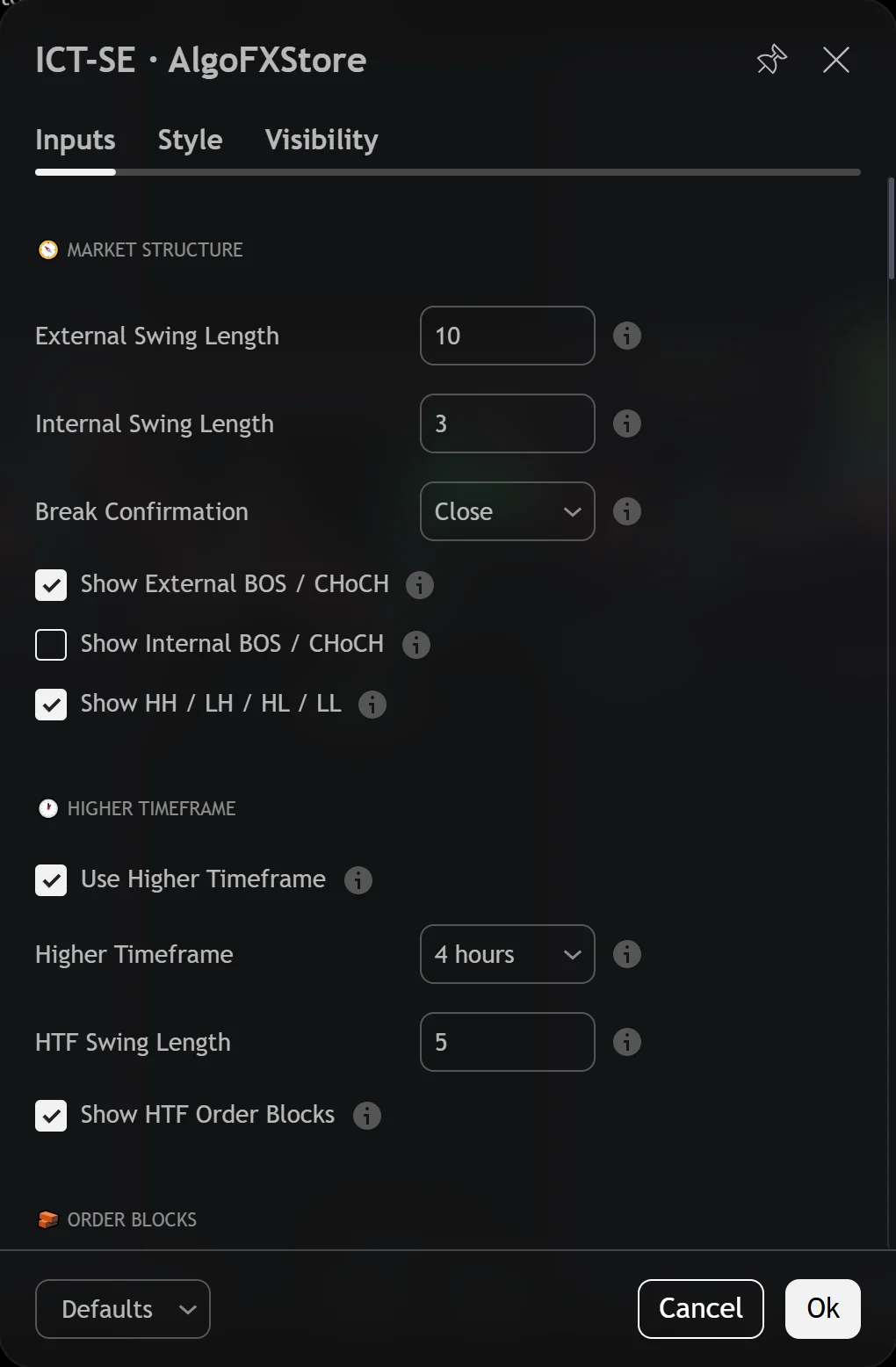
The names are the ones in the script's Settings dialog in TradingView (Inputs tab); the defaults are what every chart on this page uses. Open a group to see its settings.
Market Structure (6)
| Setting | Default | What it does |
|---|---|---|
| External Swing Length | 10 | Bars each side for an external swing (main structure, CHoCH); 8-20 |
| Internal Swing Length | 3 | Bars each side for internal swings; must be smaller than external |
| Break Confirmation | Close | Close: the candle must close beyond the swing (a wick pierce is a sweep); Wick: any pierce |
| Show External BOS / CHoCH | on | Lines and labels for external breaks |
| Show Internal BOS / CHoCH | off | Dashed internal breaks |
| Show HH / LH / HL / LL | on | Label confirmed external swings (appear N bars late) |
Higher Timeframe (4)
| Setting | Default | What it does |
|---|---|---|
| Use Higher Timeframe | on | HTF trend and dealing range feed the zone score and the PD entry filter; data from the last closed HTF bar |
| Higher Timeframe | 240 | Must be >= the chart timeframe (equal = ignored); 5-15M chart -> 1H-4H, 1H -> 4H-D |
| HTF Swing Length | 5 | Swing confirmation on the HTF; 3-8 |
| Show HTF Order Blocks | on | Latest live HTF OB of each side (dashed); visual only |
Order Blocks (11)
| Setting | Default | What it does |
|---|---|---|
| Show Order Blocks | on | Detect and draw OBs; off also removes OBs from setups |
| Build From | External | External (fewer, stronger) or Internal structure breaks |
| Proximal Edge | Body | Body (tighter) or Wick of the opposite candle at the extreme |
| Max Zone Height (×ATR) | 1.5 | Wider zones trimmed from the distal edge; 0 = no limit |
| Require FVG in Impulse | off | OB only if the impulse left an FVG |
| Min Score to Show (star) | 0 | Score 0-4: +1 FVG in impulse, +1 sweep at the extreme, +1 HTF trend aligned, +1 midpoint in discount/premium |
| Invalidation | Close | Close / Wick / 50% beyond the zone |
| Convert to Breaker | on | Broken OB flips into a Breaker (max (2 stars)) |
| Max Active Zones per Side | 4 | Including breakers |
| Keep Mitigated Zones | off | Leave broken zones in grey |
| Show 50% Line | on | Dotted mean threshold in OB, RB and PB |
Fair Value Gaps (5)
| Setting | Default | What it does |
|---|---|---|
| Show Fair Value Gaps | on | Detect and draw FVGs; off also removes FVGs from setups |
| Min Size (×ATR) | 0.2 | Ignore smaller gaps (also the OB FVG factor) |
| Filled When | Full | Touch / 50% / Full |
| Shrink as Filled | on | Show only the unfilled part |
| Max Active FVGs per Side | 5 | Oldest removed first |
Liquidity (5)
| Setting | Default | What it does |
|---|---|---|
| Show Liquidity | on | Draw EQH / EQL and sweeps (always calculated) |
| Pool Swing Length | 5 | Swing length for liquidity pools |
| Equal Tolerance (×ATR) | 0.1 | A new swing joins an untaken pool within this share of ATR |
| Single Swings: Draw & Alert | off | By default only equal highs/lows are drawn and alerted |
| Max Active Pools per Side | 6 | Oldest removed first |
Rejection & Propulsion Blocks (6)
| Setting | Default | What it does |
|---|---|---|
| Show Rejection Blocks | on | Long wick of an external swing (body to wick extreme) |
| └ Min Wick Share | 0.5 | Wick as a share of the candle range |
| └ Max per Side | 3 | Active rejection blocks |
| Show Propulsion Blocks | on | Opposite candle tapping an OB, then a close beyond it |
| └ Confirm Within (bars) | 3 | Bars to close beyond the tapping candle |
| └ Max per Side | 3 | Active propulsion blocks |
Key Levels (4)
| Setting | Default | What it does |
|---|---|---|
| Previous Day High / Low | on | PDH / PDL as liquidity pools (intraday charts) |
| Previous Week High / Low | on | PWH / PWL (charts below 1W) |
| Session Highs / Lows | on | Killzone session highs/lows become pools when the session ends |
| Midnight Open | on | Line at the 00:00 open (killzone time zone); needs a bar at 00:00 |
Daily Bias & Judas Swing (5)
| Setting | Default | What it does |
|---|---|---|
| Daily Bias | on | Previous day's close vs the prior day range -> Bullish (draw on PDH) / Bearish (PDL) / Neutral |
| └ Setup Filter | Off | Off / With bias only / Not against bias |
| Judas Swing | on | False move beyond the Midnight Open against the bias, then a close back across it; once per day |
| └ Window | 0000-0500 | Judas window (New York) |
| └ Require Asian Range Sweep | on | The false move must also take the Asian low (bullish) / high (bearish) |
Standard Deviations (2)
| Setting | Default | What it does |
|---|---|---|
| Show SD Projections | on | Project the setup leg beyond its end when a setup is armed |
| └ Levels | 1, 2, 2.5 | Up to 8 multiples, each up to 10; also used by TP Mode Std Deviations |
Killzones (8)
| Setting | Default | What it does |
|---|---|---|
| Show Killzones | on | Box per enabled killzone spanning its high and low (intraday up to 1H) |
| Asian | on · 2000-0000 | Asian killzone |
| London | on · 0200-0500 | London killzone |
| NY AM | on · 0700-1000 | New York AM killzone |
| NY PM | on · 1330-1600 | New York PM killzone |
| Timezone | America/New_York | Time zone of the killzones and Midnight Open |
| Setup Time Filter | Killzones | Killzones / Silver Bullet (03-04, 10-11, 14-15 New York) / Off; automatically off above 1H |
| Highlight Silver Bullet | off | Faint background in the Silver Bullet hours |
Setup (Sweep to CHoCH) (6)
| Setting | Default | What it does |
|---|---|---|
| Enable Setups | on | Sweep -> CHoCH -> first retest of the impulse's OB/FVG = BUY/SELL |
| Sweep to CHoCH Window (bars) | 20 | CHoCH within this many bars after the sweep |
| Wait for Retest (bars) | 30 | Armed setup expires after this many bars |
| Require Displacement | on | The Sweep -> CHoCH leg must contain an FVG |
| Entry PD Array | FVG first | FVG first / OB first / FVG only / OB only |
| Entry Location Filter | Discount / Premium | Discount / Premium (HTF range if HTF on) / OTE (>= 62 %) / Off |
Premium / Discount (2)
| Setting | Default | What it does |
|---|---|---|
| Show Premium / Discount | on | Shade the current dealing range; visual only |
| Show OTE (62-79%) | on | OTE band in the external trend direction |
Visual Settings (10)
| Setting | Default | What it does |
|---|---|---|
| Theme | Auto | Auto / Dark / Light |
| Show Buy/Sell Labels | on | BUY / SELL on every entry |
| Show Setup Labels | on | Mark the bar where a setup is armed |
| Signal Label Size | Small | BUY / SELL and setup labels |
| SL/TP Label Font Size | Small | Entry / SL / TP labels |
| Structure & Zone Text Size | Small | BOS / CHoCH, swings, sweeps, zone text |
| Show Zone Labels | on | Text inside zones (setup zones always labelled) |
| Show Sweep Labels | on | Mark sweeps on the chart |
| Zone Transparency | 85 | 70-95 |
| Show Watermark | on | 'AlgoFXStore' at the bottom centre (tooltip text wrong, see notes_for_owner) |
Risk Management (16)
| Setting | Default | What it does |
|---|---|---|
| Risk Preset | Balanced | Conservative / Balanced / Aggressive / Scalping / Custom |
| SL Mode | Wick-Anchored | Wick-Anchored / Zone-Anchored / Sweep-Anchored / ATR (structure modes + 0.25 ATR buffer, min 0.5 ATR) |
| TP Mode | R-Multiples | R-Multiples / Liquidity / Std Deviations |
| ATR Length (SL) | 14 | ATR for the stop |
| SL Multiplier (×ATR) | 1.5 | Custom preset, ATR mode |
| TP1 Multiplier (×Risk) | 1.0 | Custom preset |
| TP2 Multiplier (×Risk) | 2.0 | Custom preset |
| TP3 Multiplier (×Risk) | 3.0 | Custom preset; closes the trade |
| Break-Even After TP1 | on | Stop to entry at TP1 |
| BE Offset (×ATR) | 0.0 | Offset beyond entry, capped at half the way to TP1 |
| Show SL/TP Lines | on | Entry / SL / TP lines |
| Show SL/TP Labels | on | Price labels |
| Show % Distance on Labels | on | % from entry |
| Entry Line Style | Dotted | Solid / Dashed / Dotted |
| SL Line Style | Solid | Width 2 |
| TP Line Style | Dashed | Solid / Dashed / Dotted |
Dashboard (6)
| Setting | Default | What it does |
|---|---|---|
| Show Dashboard | on | The table |
| Dashboard Position | Top Right | Five positions |
| Dashboard Font Size | Small | Small / Normal / Large / Huge |
| ├ Market section | on | Trend, age, HTF bias, range position, position, last signal, timeframe |
| ├ ICT section | on | Zones, FVGs, nearest demand/supply, setup, killzone, PDH/PDL, RB/PB, daily bias, Judas |
| ├ Trade section | on | Entry, SL, TP1-3, R:R, SL distance |
Alerts (12)
| Setting | Default | What it does |
|---|---|---|
| Webhook JSON Format | off | Structured webhook messages for automation tools |
| Alert on SL Hit & Reversal | on | SL, BE stop-out, reversal |
| Alert on TP & Break-Even | on | TP1 / TP2 / TP3, break-even move, BE exit at close |
| Alert on BOS / CHoCH | on | Info on external breaks |
| Alert on Setup Armed / Cancelled | on | Info with reason; entries always alert |
| Alert on First OB Touch | on | First touch of an OB / Breaker that is not a setup zone |
| └ Min Score (star) | 2 | Only zones with at least this score |
| Alert on New FVG | off | Every new FVG |
| Alert on Liquidity Sweep | on | Equal highs/lows (or single swings if enabled) and key levels swept |
| Alert on RB / PB | off | New PBs and first touches of RB / PB |
| Alert on Judas Swing | on | Judas Swing confirmed |
| Alert on Daily Bias | off | Daily bias at the start of each day |
Colors (5)
| Setting | Default | What it does |
|---|---|---|
| Bull / Bear | #00E676 / #FF5252 | BUY/SELL labels and demand/supply zones |
| FVG Bull / FVG Bear | #2962FF / #FF9800 | Fair value gaps |
| OTE | #F9A825 | OTE band |
| RB Bull / RB Bear | #00BFA5 / #F06292 | Rejection blocks |
| Asia / London / NY AM / NY PM | #9C27B0 / #3F51B5 / #795548 / #607D8B | Killzone boxes |
Advanced (2)
| Setting | Default | What it does |
|---|---|---|
| Zone ATR Length | 50 | ATR for all zone thresholds |
| History Size | 150 | Historical labels and retired lines/zones kept |
The alert events, one by one
In TradingView: Create alert, choose “PRO ICT Structure Engine [AlgoFXStore]” as the condition and pick the event. TradingView then notifies you the way you set in that dialog: a pop-up in TradingView, a sound, the TradingView app on your phone or an e-mail.
- Entry (always on)
- TP1 hit (Alert on TP & Break-Even)
- TP2 hit (Alert on TP & Break-Even)
- TP3 hit (Alert on TP & Break-Even)
- Break-even (Alert on TP & Break-Even)
- BE exit at close (Alert on TP & Break-Even)
- Stop hit / BE stop-out (Alert on SL Hit & Reversal)
- Reversal (Alert on SL Hit & Reversal)
- ICT info, one message per bar (BOS / CHoCH on, setup armed / cancelled on, first OB touch >= (2 stars) on, liquidity sweep on, Judas on; new FVG, RB / PB and daily bias off)
PRO ICT Structure Engine next to the usual options
Where it wins, and where it does not.
| PRO ICT Structure Engine | Typical free ICT indicator | Reading it by hand | |
|---|---|---|---|
| Toolkit | Structure, OBs, FVGs, RB, PB, liquidity, killzones, premium and discount in one script | Usually one or two tools | Several tools and manual drawings |
| Model | Sweep, CHoCH with displacement, retest, inside a killzone | Rarely a full sequence | Checked step by step by eye |
| Entry and plan | BUY or SELL on the retest with stop, TP1 to TP3 and break-even | Rarely drawn | Calculated by you |
| Higher timeframe | 4-hour order blocks and bias from the last closed candle | Often missing | Another chart |
| Timing | Decided on closed candles | Varies | Whenever you look |
| Simplicity | Many layers and inputs to learn | Few marks, quick to read | As simple as you make it |
| Cost | One payment | Free | Free |
Honest about who this fits
A good fit if you
- You trade ICT concepts and want the sweep, CHoCH and retest model run the same way on every chart.
- You want structure, order blocks, gaps, liquidity and killzones from one indicator instead of five.
- You trade index futures, forex, gold or crypto on intraday TradingView charts.
- You want a stop and three targets with every entry, and alerts that carry them.
- You are prepared to learn a detailed tool and its settings.
Not for you if you
- Traders who want a minimal chart: even with layers switched off, this is a detailed tool.
- Anyone who reads the Stats section as a forecast: it is a model of past trades on the loaded chart, with targets counted first on shared candles.
- Swing traders on daily or weekly charts: killzones, the setup time filter and the Midnight Open need 1 hour or lower.
- Anyone who wants orders placed: it draws, models and alerts only.
The full code, one manual, installed in two minutes
- 1Pine Script source codePRO_ICT_Structure_Engine_TradingView_Code.txt (140 KB): the full code. Paste it into the Pine Editor and it appears as “PRO ICT Structure Engine [AlgoFXStore]”.
- 15Page PDF manualInstallation, every setting with its default and how to read the chart.
- ✓Every main setting explainedThe table above lists the main settings with the defaults the charts use.
- ✓Alert eventsYou choose which ones are on in the settings.
- 60Day money-back guaranteeIf it is not for you, request a full refund within 60 days through your Digistore24 order e-mail.
Install in five steps
- Download the zip from the page Digistore24 sends you to after checkout and unzip it.
- Open PRO_ICT_Structure_Engine_TradingView_Code.txt in a text editor, select all and copy the whole code.
- In TradingView, open the Pine Editor, paste the code over everything that is there and click Save.
- Click Add to chart: “PRO ICT Structure Engine [AlgoFXStore]” appears on your chart.
- Read the PDF manual; the defaults are the settings shown on this page.

Kestutis Balciunas
AlgoFXStore · chart indicators
Kestutis Balciunas builds and publishes chart indicators under the AlgoFXStore name. Every product page shows what the indicator draws on real charts, and every number on it comes from the shipped build.
The charts on this page were captured in TradingView from the shipped PRO ICT Structure Engine [AlgoFXStore] at its default settings and are shown unedited.
No get-rich claims and no quoted win rates. Every trade is uncertain, and no indicator changes that. If you want to know whether it suits the way you trade before you buy, e-mail [email protected] and you will get a straight answer.
One price, one payment
- The full Pine Script source code of PRO ICT Structure Engine and the 15-page PDF manual
- Delivered as a digital download: one zip with the code file and the PDF manual on your download page
- Return period: 60 days, with a full refund if it is not for you
- Free updates to the current version on the same download page
60-day money-back guarantee. Install it, run it on your own charts and read the manual. If PRO ICT Structure Engine is not for you within 60 days of purchase, request a full refund from Digistore24, no questions asked: use the refund link in your Digistore24 order e-mail or Digistore24's order page digistore24.com/en/cancel-revoke-contract. Digistore24 refunds to your original payment method. It is a digital download: right after checkout you land on your download page, and the link to it is also in your Digistore24 order e-mail.
About the model
Does it repaint?
Structure, zones, liquidity, setups and entries are decided on confirmed candles, alerts fire once per bar close, and higher-timeframe, daily and weekly values come from the last closed candle. Swings confirm late by design, 10 candles for external and 3 for internal, and are labelled back at the swing; order blocks and gaps are drawn from their origin candle. Premium and discount, OTE and the dashboard move with the forming candle.
Why did a sweep and a CHoCH not arm a setup?
All conditions must hold: the CHoCH comes by a close within 20 candles of the sweep, the leg holds a fair value gap of at least 0.2 ATR, the CHoCH falls inside an enabled killzone, and the sweep has not been used before. With the daily bias filter switched on, the direction must also agree with the daily bias.
Why was there no entry after the setup armed?
The setup waits 30 candles for a candle that trades into the zone and closes without breaking it. An opposite CHoCH, a broken zone or expiry cancels it, and the entry location filter can still refuse a long above the middle of the dealing range or a short below it. The setup alerts tell you when and why a setup was cancelled.
What happens when a candle touches a target and the stop?
The target counts first. That is the code's rule for the modelled trade and for the Stats section. On your real account the order of prices inside the candle decides, so on such candles the model can look better than a live trade would.
What does the star score of an order block mean?
One star each for a fair value gap in the impulse, a sweep at the extreme, agreement with the higher-timeframe trend, and the block sitting on the discount side for bullish or the premium side for bearish blocks. Min Score to Show hides weaker blocks. The setup score shown out of 100 is the same kind of count, not a probability.
The dashboard and the settings
How should I read the Stats section?
It counts the trades the engine modelled on the loaded chart, how many touched TP1, and a form strip of recent results. A trade counts once TP1 is touched, even if it then closes at break-even, and targets count first on shared candles. It is hindsight bookkeeping, not a forecast, and you can switch the section off.
What do the colours mean?
Bull green and bear red for BUY, SELL and order blocks; fair value gaps in blue and orange; rejection blocks in teal and pink; the OTE band amber; killzones in four muted colours. On a trade the stop is red and the targets green, and reached targets stay green. The entry label turns orange after break-even.
Should I keep the defaults?
They form a complete model: FVG-first entries, a wick-anchored stop, Balanced targets and all four killzones. The inputs that change the most are the killzones, Entry PD Array, Entry Location Filter, SL Mode and Risk Preset. Change one at a time and use the setup alerts to see why setups are cancelled.
Which timeframes and markets suit it?
Intraday charts. Killzones, the setup time filter, the Midnight Open and the Judas Swing need 1 hour or lower, previous day levels need an intraday chart and previous week levels a chart below weekly. The Higher Timeframe (240) must be at or above your chart. It needs about 50 candles to warm up.
What are the 4-hour order blocks?
With Use Higher Timeframe on, the engine builds order blocks on the Higher Timeframe, 240 minutes by default, and draws the latest ones on your chart. They appear when the 4-hour candle closes, because they use the last closed higher-timeframe candle, and the box is placed back at that candle's time. Their label reads HTF 240 OB.
Alerts and daily use
How do the alerts work?
All alerts come from one condition: choose Any alert() function call in Create alert. Entries carry the setup, the swept level, the score, SL, TP1 to TP3 and R:R; target hits, break-even, the stop and reversals follow, each once per bar close. ICT information alerts for BOS, CHoCH, sweeps, setups, first order block touches and the Judas Swing can be switched on or off.
Can I use it on several charts?
Yes. Each copy builds its own structure, zones, setups and Stats for its symbol and timeframe, with its own alerts. One alert per chart covers every event on that chart.
Can I combine it with other tools?
It already covers most ICT tools, so adding more boxes rarely helps. Volume or your own levels sit beside it without trouble. Leave room on the right of the chart for the trade labels, and keep other tables away from the dashboard's corner.
How it works
Will it place trades for me?
No. PRO ICT Structure Engine is an indicator: it draws on the chart and can alert you. It never sends an order.
Do I need a paid TradingView plan?
No. It reads only the chart's own bars, so the free TradingView plan runs it. Alerts count against your plan's alert limit.
After you buy
How do I get it after paying?
Digistore24 runs the checkout. Right after payment it takes you to your download page with one zip holding the Pine Script source code file and the PDF guide; the link to that page is also in your Digistore24 order e-mail, so you can download again at any time.
How do I install it?
Open the code file, open the Pine Editor in TradingView, paste the whole code, click Save and then Add to chart: “PRO ICT Structure Engine [AlgoFXStore]” appears on your chart. The guide walks through it step by step.
Who is Digistore24?
Digistore24 is the reseller that sells PRO ICT Structure Engine for Kestutis Balciunas (AlgoFXStore): it runs the checkout, charges your card or PayPal, collects the VAT for your country and delivers the download. Its name is the one on your statement, and its order e-mail holds your download link and the refund link.
What is the refund policy?
A 60-day money-back guarantee, handled by Digistore24. If PRO ICT Structure Engine is not for you within 60 days of purchase, use the refund link in your Digistore24 order e-mail or Digistore24's order page (digistore24.com/en/cancel-revoke-contract) for a full refund, no questions asked. Digistore24 makes the refund to your original payment method.
Do I get the source code?
Yes. You get the full Pine Script source code as a text file for your own use; the licence line at the top of the code does not allow resale, sharing or republishing.
PRO ICT Structure Engine for TradingView.
Put the full ICT toolkit and one clearly defined sweep, CHoCH and retest model on your own TradingView charts. The full code, the manual and every setting explained. Instant download for €47, one payment.
Get instant access