Higher-timeframe liquidity sweeps, then a lower-timeframe entry with its full plan
PRO HTF Sweep ICT watches the higher-timeframe candles behind your TradingView chart, waits for price to sweep a previous HTF high or low, and then looks on your chart timeframe for the structure that follows: order block and CISD level, fair value gaps, inversions and breakers.
- Automatic HTF pairing, such as 5 minutes to 1 hour and 15 minutes to 4 hours
- Sweeps of the previous HTF candle and of untaken HTF highs and lows of the last 10 candles
- Entry at a breaker by default, with 18 entry points across OB, CISD, FVG, IFVG and breaker
- Limit entries, a stop at the swept extreme, TP1 to TP3, break-even and alerts with prices
- The full Pine Script source code. Paste it into the Pine Editor, save, and add “PRO HTF Sweep ICT [AlgoFXStore]” to your chart.
- A 15-page PDF manual with installation, every setting and how to read the chart. One-time €47.
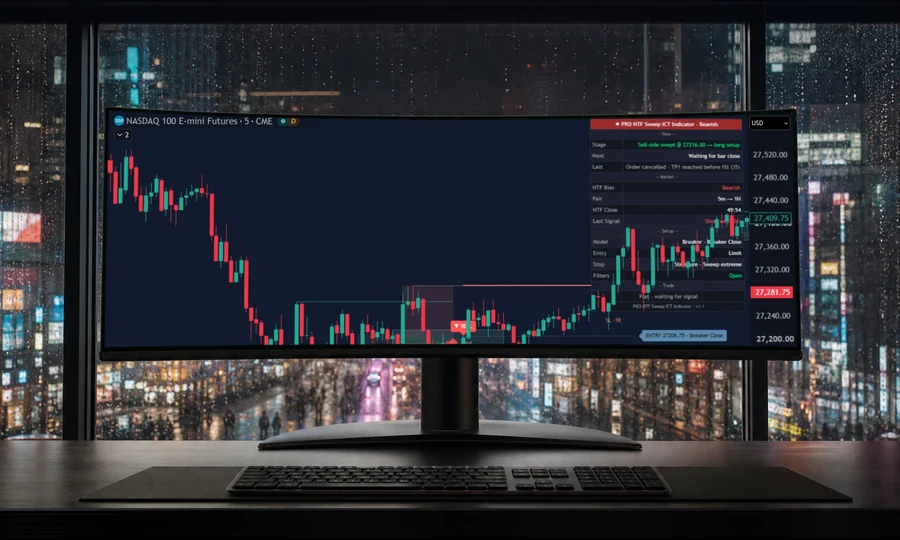
See PRO HTF Sweep ICT on a real chart
Press play; use the full-screen button to see every detail.
The sweep happens on one timeframe and the entry on another
The ICT idea is easy to state: wait for price to run the liquidity above or below a higher-timeframe candle, then enter on the lower timeframe when structure shifts back. Doing it live is harder. You watch the hourly candle on one chart and the 5-minute structure on another, and by the time you have found the breaker or the gap, price has often moved on.
Then come the details that decide the trade: which HTF high counts, whether the sweep came inside a kill zone, where exactly the entry sits inside the array, whether the stop is too wide or too tight, and what happens if the limit never fills. Done by hand, each of those calls drifts a little from day to day, and the model you think you trade is not quite the one you do trade.
PRO HTF Sweep ICT runs both timeframes on one chart and writes those calls down as inputs. HTF candles are built from your chart, the sweep and the structure after it are defined in code, and a setup is only accepted on a closed candle. Entry, stop, targets and the limit's expiry follow from your settings, the same way every time.
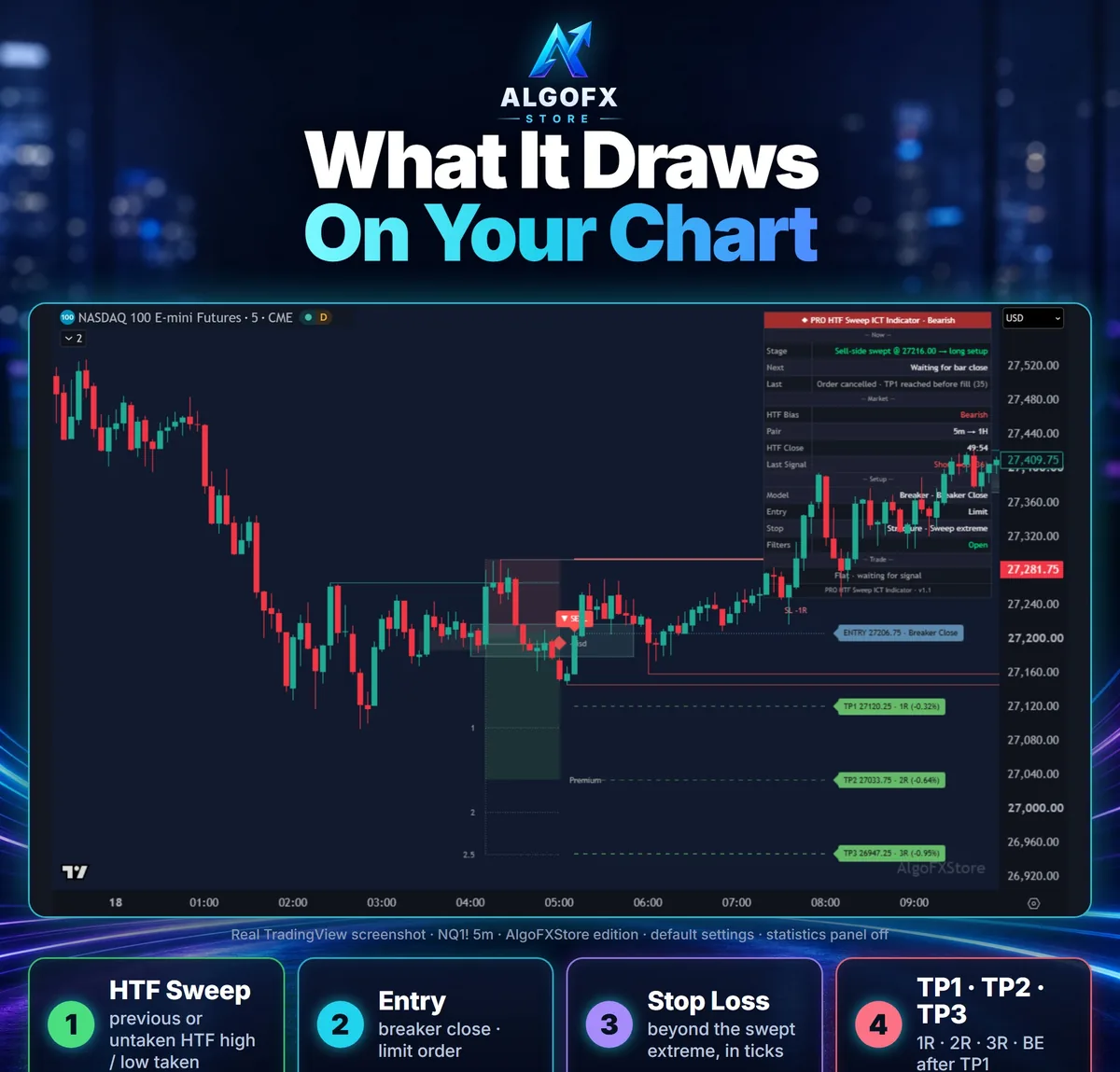
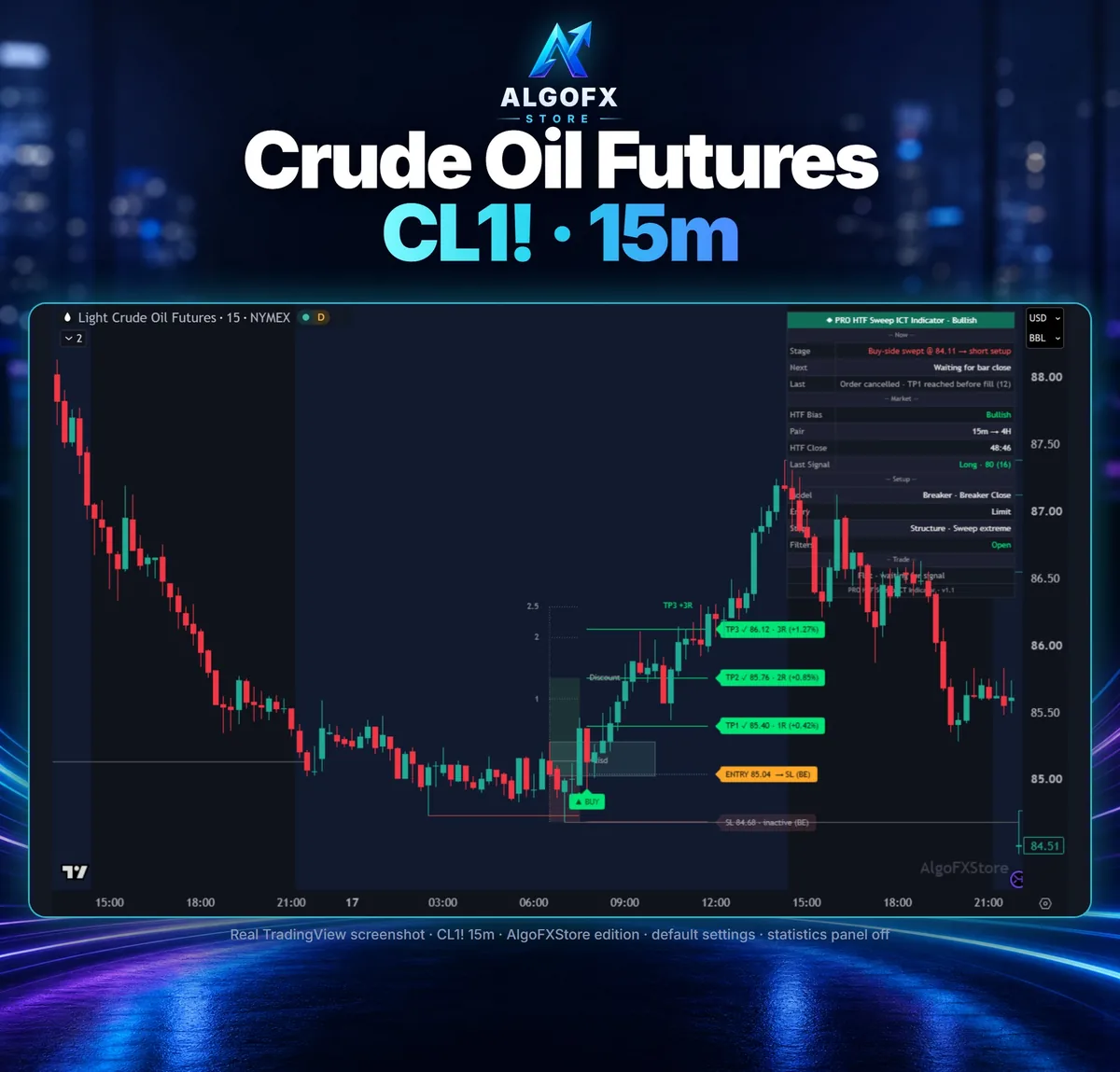
Everything PRO HTF Sweep ICT draws on your chart
Read from the shipped Pine Script code.
- HTF liquidity lines: untaken highs (buy-side, at 25 % transparency) and lows (sell-side,) of the last 10 higher-timeframe candles, built from chart bars; a line is deleted when price trades through it (Keep Swept Levels off)
- Previous HTF candle high and low as grey lines from that candle's open to 5 bars right of price
- HTF candle panel to the right of price: the last 8 HTF candles (incl. the forming one), 15 bars offset, teal up / red down bodies, short teal/red marks where a candle took the previous high/low, the HTF name above and below with a countdown to the HTF close (realtime only, otherwise 'n/a'), and the latest HTF CISD level labelled '+CISD' / '-CISD'
- Per accepted setup: a red risk box (entry to stop) and a green reward box (entry to TP2 by default), 4 bars wide, starting at the OB/CISD run (back-drawn)
- Per setup: the entry PD array zone (box, extended 10 bars past the setup), other found FVG / IFVG as grey boxes, the swept level as a line (red for a sell-side sweep, teal for buy-side), a '+cisd' / '-cisd' mark at the CISD level, the swept extreme line (extended until traded through, 30 newest), dotted measured-move levels 1, 2, 2.5 with numbers, context tags such as 'Discount · DOL 2.4R · SMT'
- Pending limit order: a small diamond under (long) / over (short) the signal bar, a dashed entry line labelled 'LIMIT LONG <price> · Breaker Close · <n> bars left', a dotted red planned stop 'SL (planned)...' and a dotted green 'TP1 (planned)... · cancels the order if reached first'; a cancelled order stays as a grey 'LIMIT <reason>' record
- BUY / SELL labels (green / red) on the actual entry bar: the signal bar for market entries, the fill bar for limit orders, with a tooltip of entry model, stop source, TP3 source, score and levels
- Active trade: ENTRY (dotted, blue-grey), SL (solid red, width 2), TP1 / TP2 / TP3 (dashed green) lines 20 bars forward and extended while open, labels with price, source, R multiple and % distance; a reached TP turns solid with ' tick '; at break-even the SL line dims and the entry label reads ' to SL (BE)'
- Exit marks above/below the exit bar: 'TP3 +3R', 'SL -1R', 'BE +0R', 'REV +0.42R' (Show Trade Outcomes on)
- Dashboard (top right): Now, Market, Setup, Trade and Stats sections
Sweep, structure, limit, trade
Setups are accepted, limits filled or cancelled and trades closed only on confirmed candles, and every alert fires once per bar close.
- 1
The paired higher timeframe
By default the HTF is paired automatically: 1 minute to 15 minutes, 3 to 30 minutes, 5 minutes to 1 hour, 15 minutes to 4 hours, 1 hour to daily and 4 hours to weekly. HTF candles are built from your chart's own candles, skipping the first partial one. Eight of them are drawn to the right of price, with a countdown to the HTF close.
- 2
The HTF sweep
A long context starts when a chart candle trades below the previous HTF candle's low, or below any untaken HTF low of the last 10 HTF candles; a short context mirrors this on highs. You can also require the HTF candle to close first, or a close back into its body. The context waits up to 36 candles for a setup and lives at most 120.
- 3
Structure after the sweep
On your timeframe the engine tracks the new extreme, the last opposite-candle run before it (its open is the order block and CISD level), fair value gaps after the extreme, inversions of older opposing gaps, and breakers: closes through the last confirmed pivot with 3 candles each side. CISD, inversion and breaker need a displacement body of at least 0.5 ATR.
- 4
Entry, stop and gates
The default entry is the close of the breaker candle, one of 18 choices. The stop is the swept extreme, with no buffer. A setup passes only with a risk between 0.25 and 3 ATR, levels in the right order after tick rounding, open filters, and no trade or order already open in that direction. A long and a short on the same candle are both skipped.
- 5
The limit order and the fill
In Limit mode a diamond and a dashed line mark a pending limit at the entry price. It fills on a later closed candle that trades to it, where the BUY or SELL label prints. It is cancelled after 60 candles, when TP1 trades before the fill, on an opposite signal or outside your filters. If price had already passed the entry, it fills at the signal close.
- 6
Targets and trade management
The Balanced preset puts TP1, TP2 and TP3 at 1R, 2R and 3R of the actual stop; Conservative, Aggressive, Scalping and Custom are alternatives, and TP3 can move to HTF liquidity. When TP1 is touched the stop moves to the entry. TP3 or the stop ends the trade, and an accepted opposite signal closes it as a reversal.
PRO HTF Sweep ICT on 12 different markets
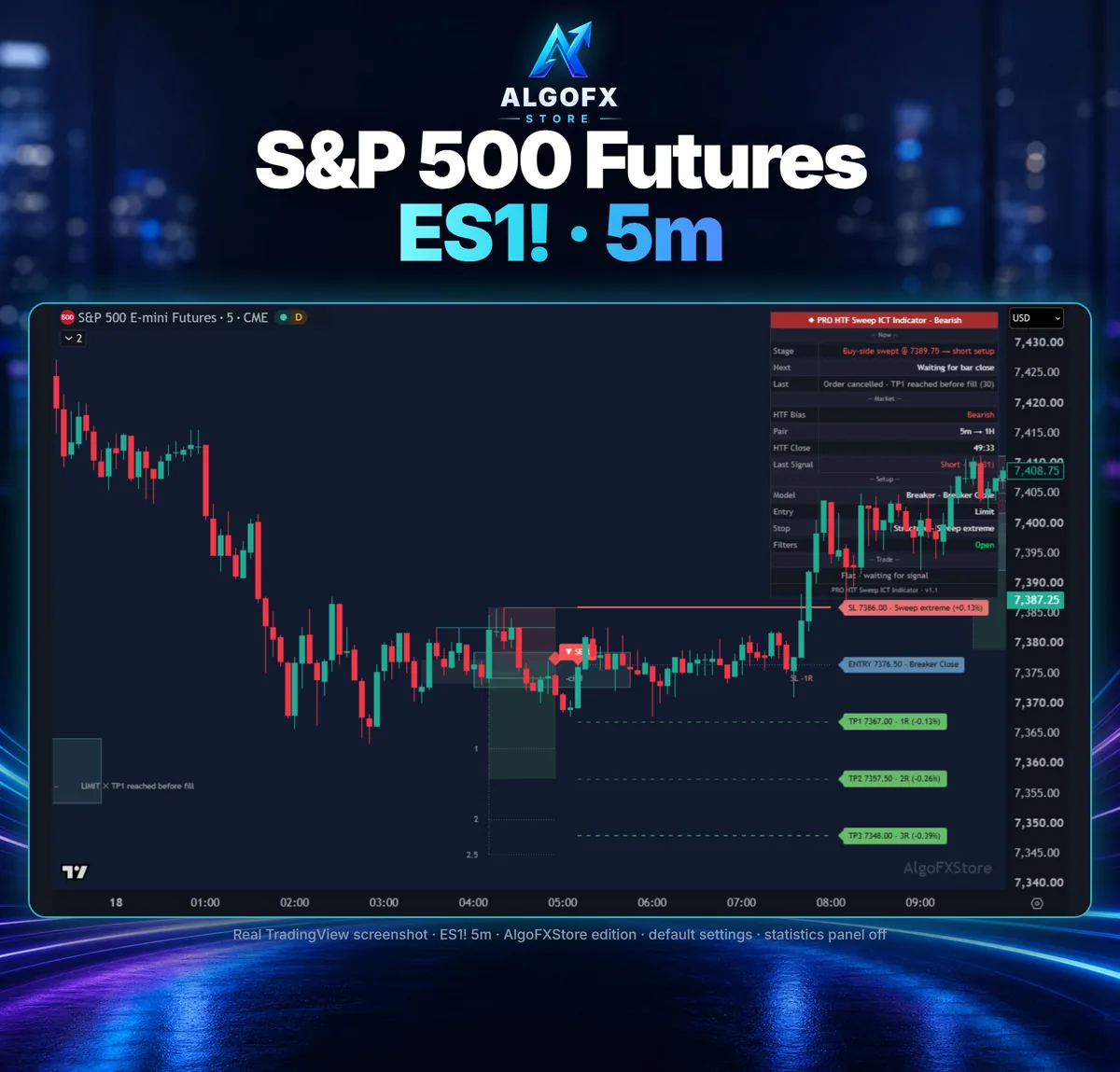
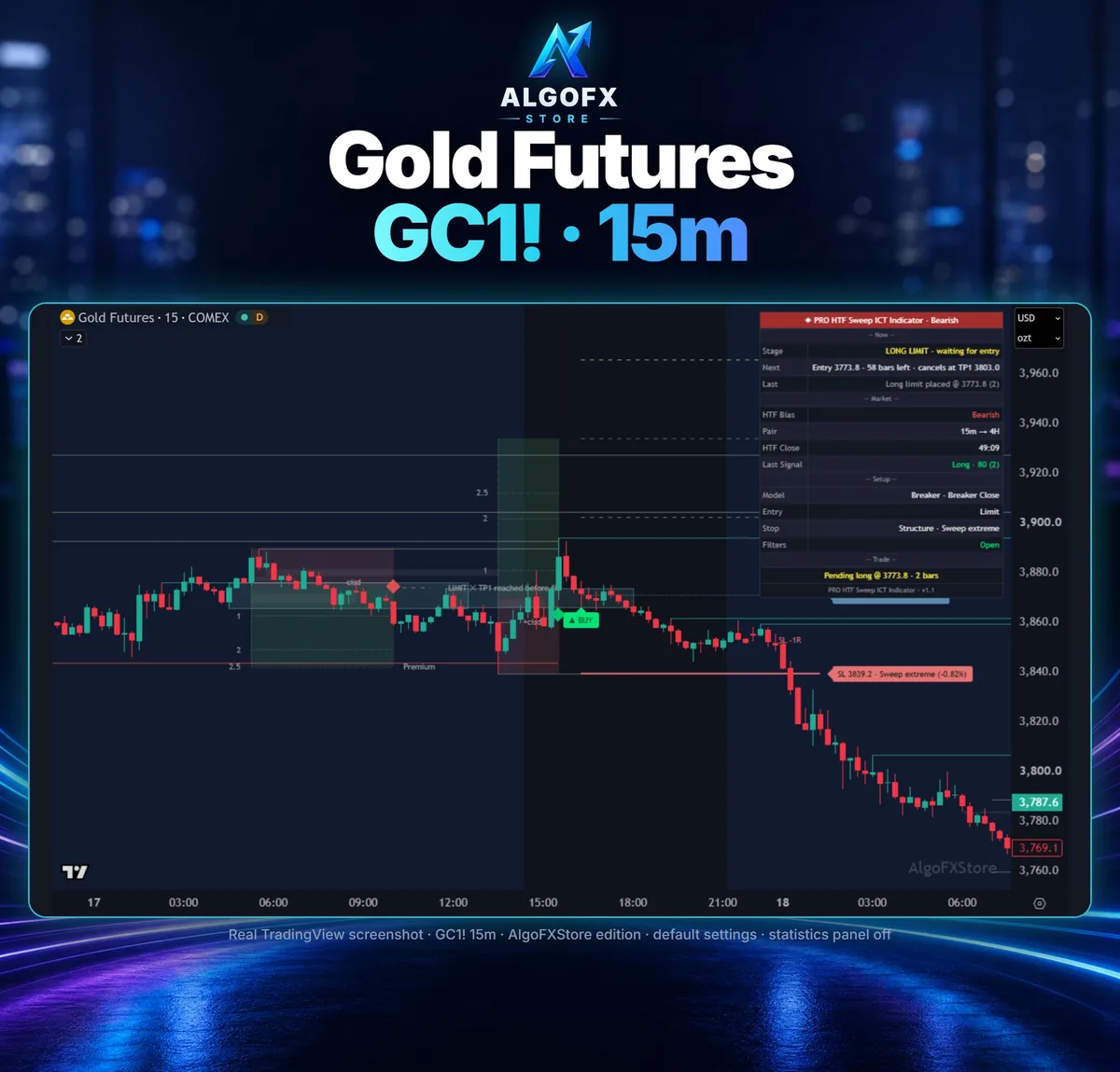
Every chart below is a screenshot of TradingView itself with the shipped PRO HTF Sweep ICT [AlgoFXStore] attached at its default settings. Forex, metals, indices, energy and crypto, so you can see how it reads each kind of market. They show what the indicator draws; they are not trading results. Tap or click any chart to open it full size.
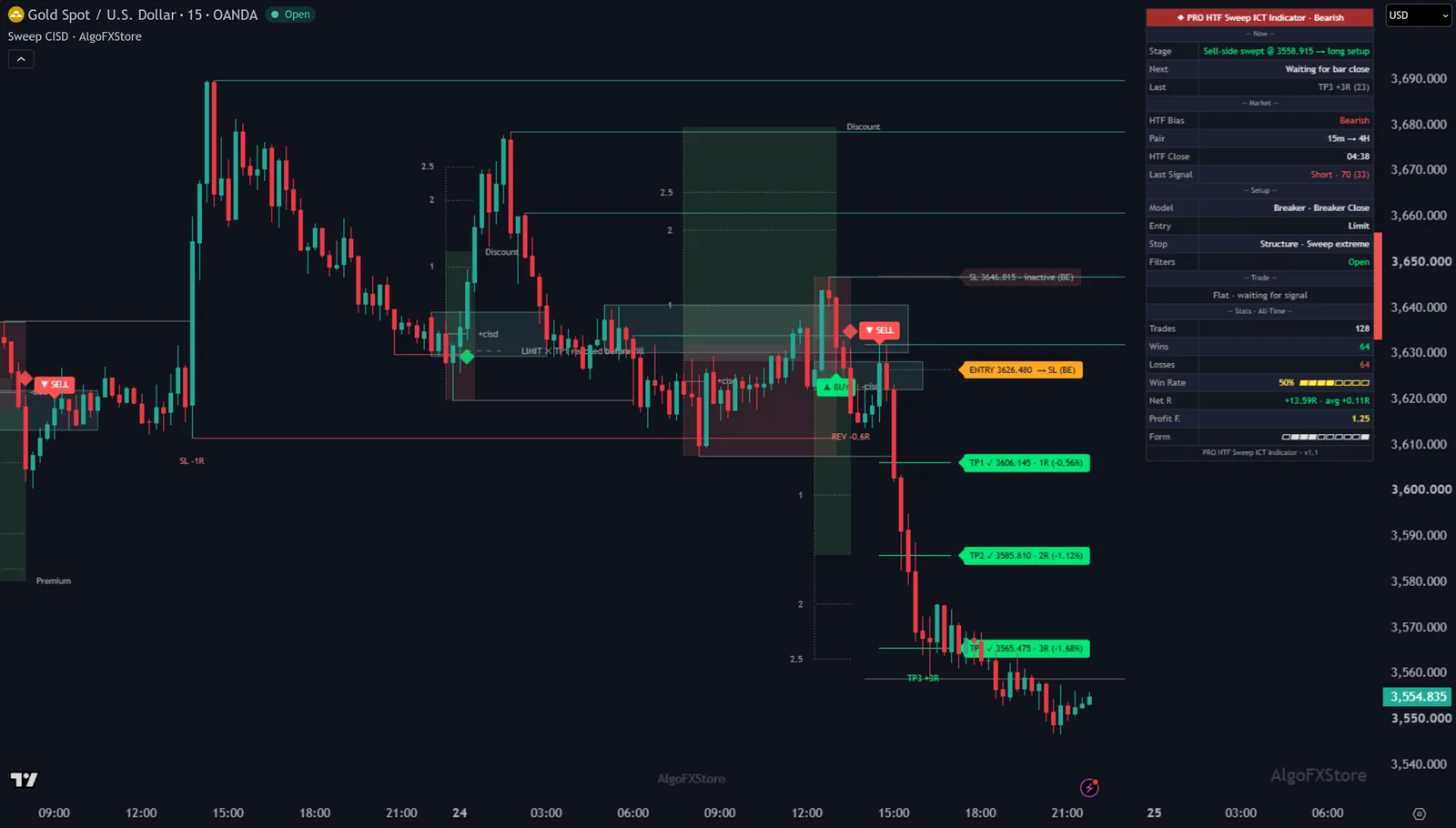
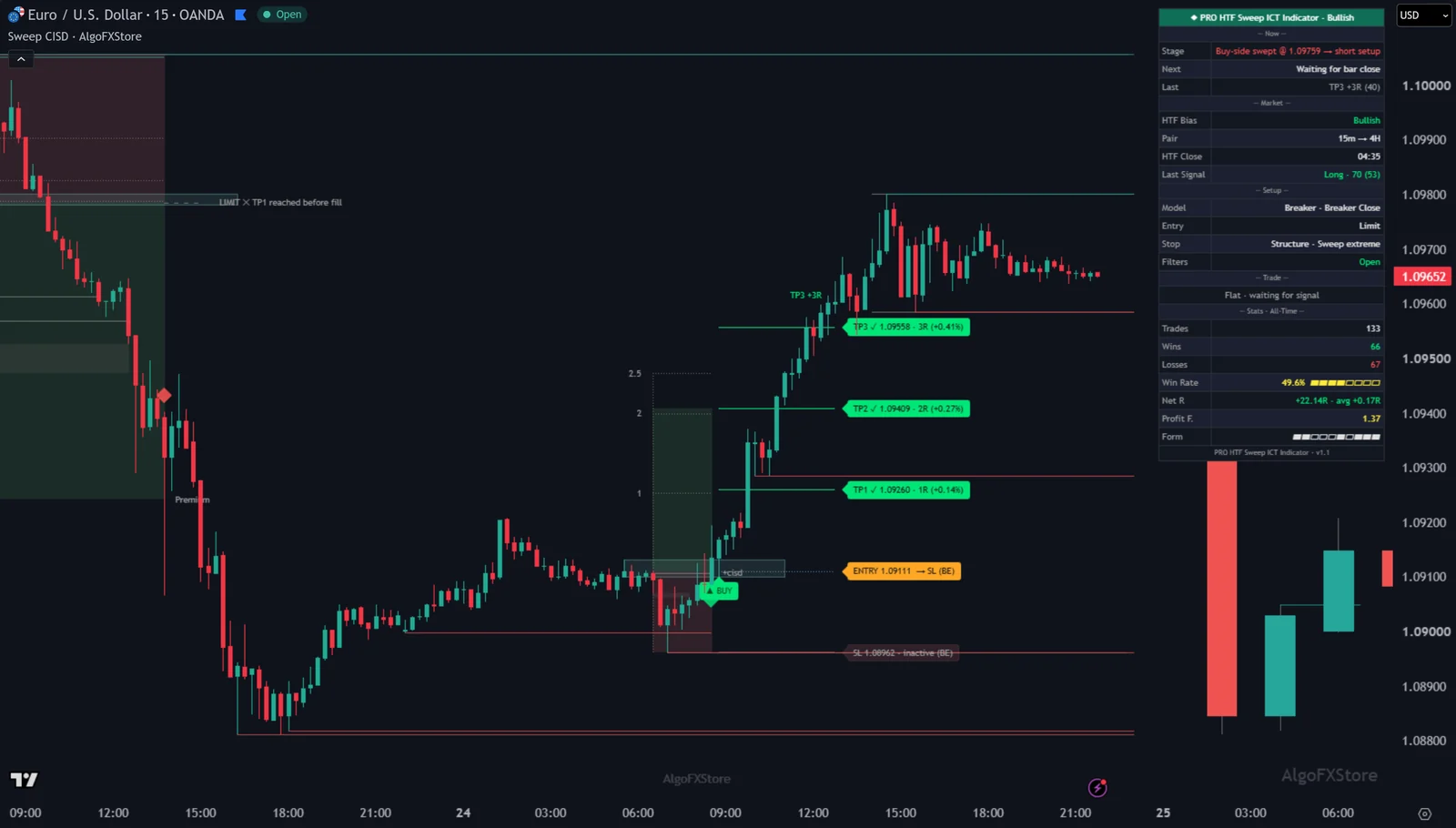
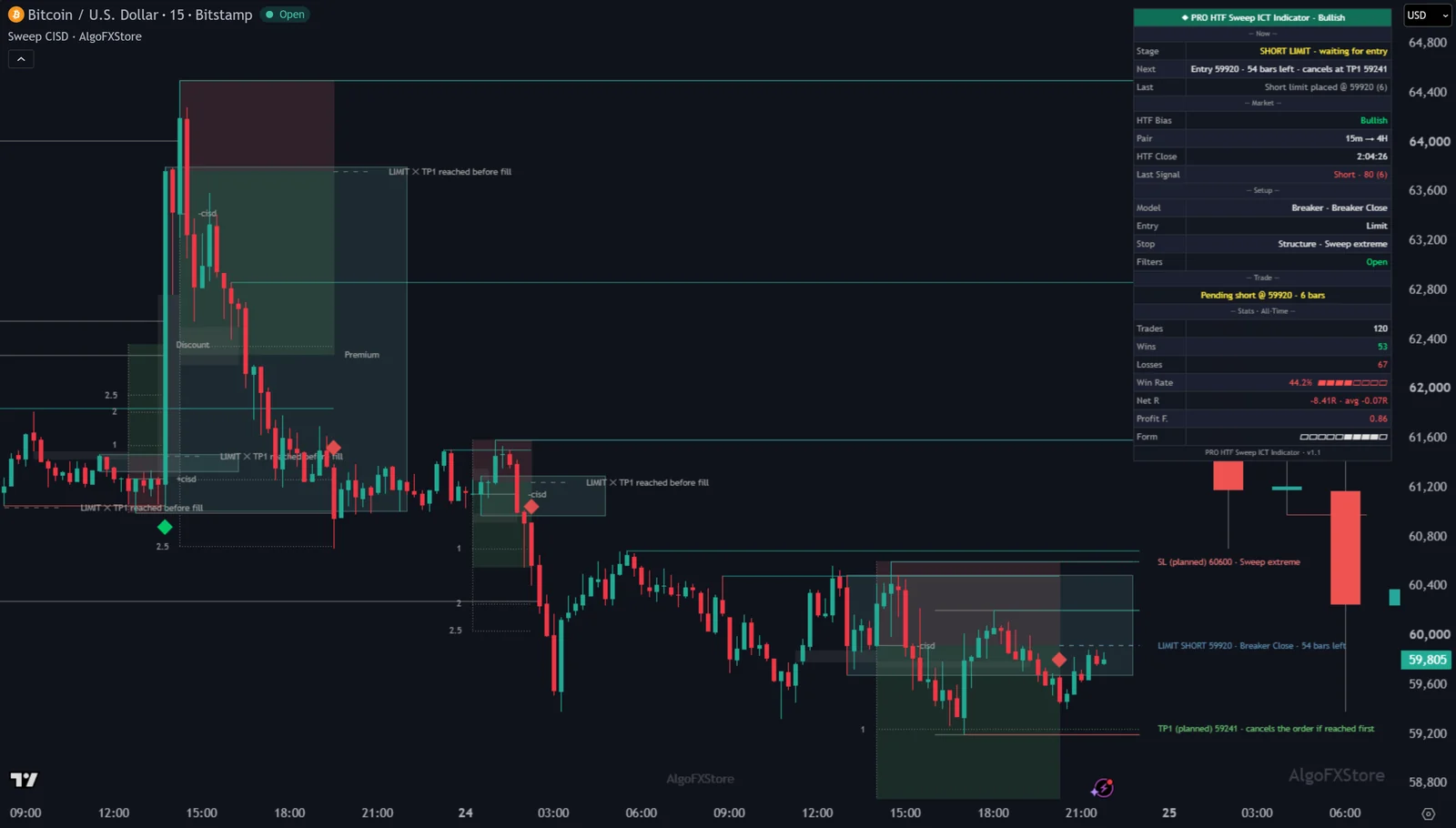
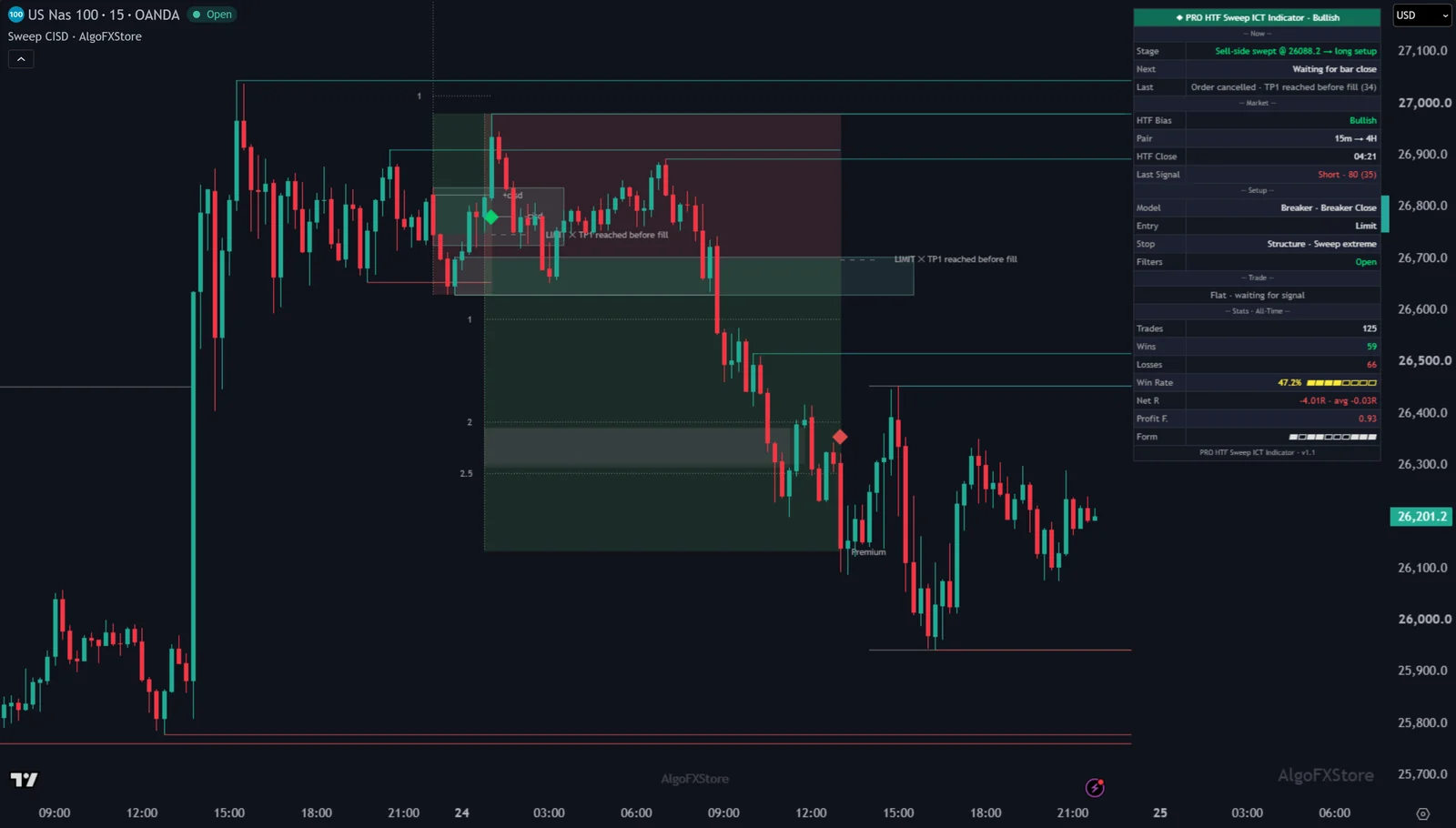
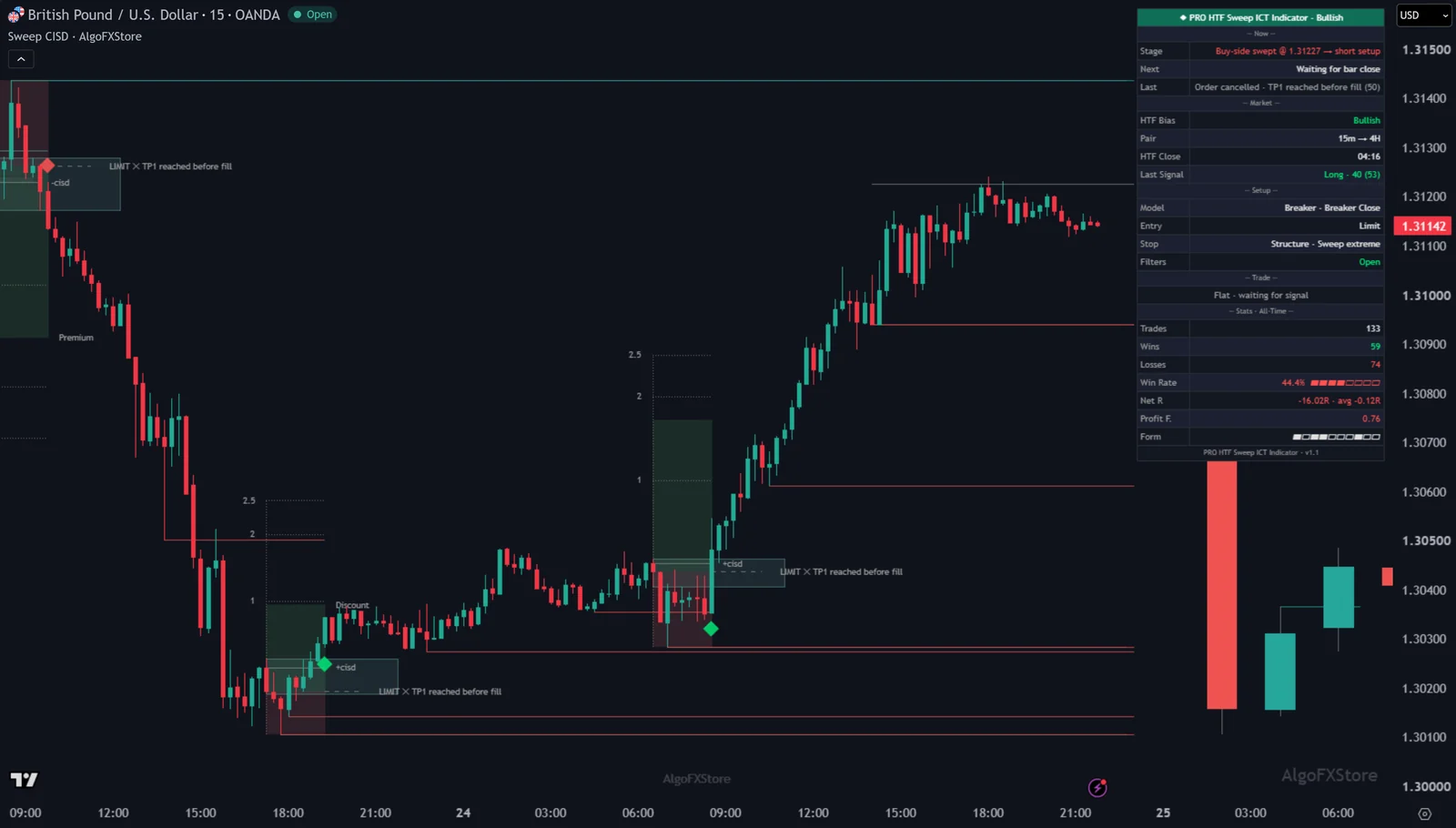
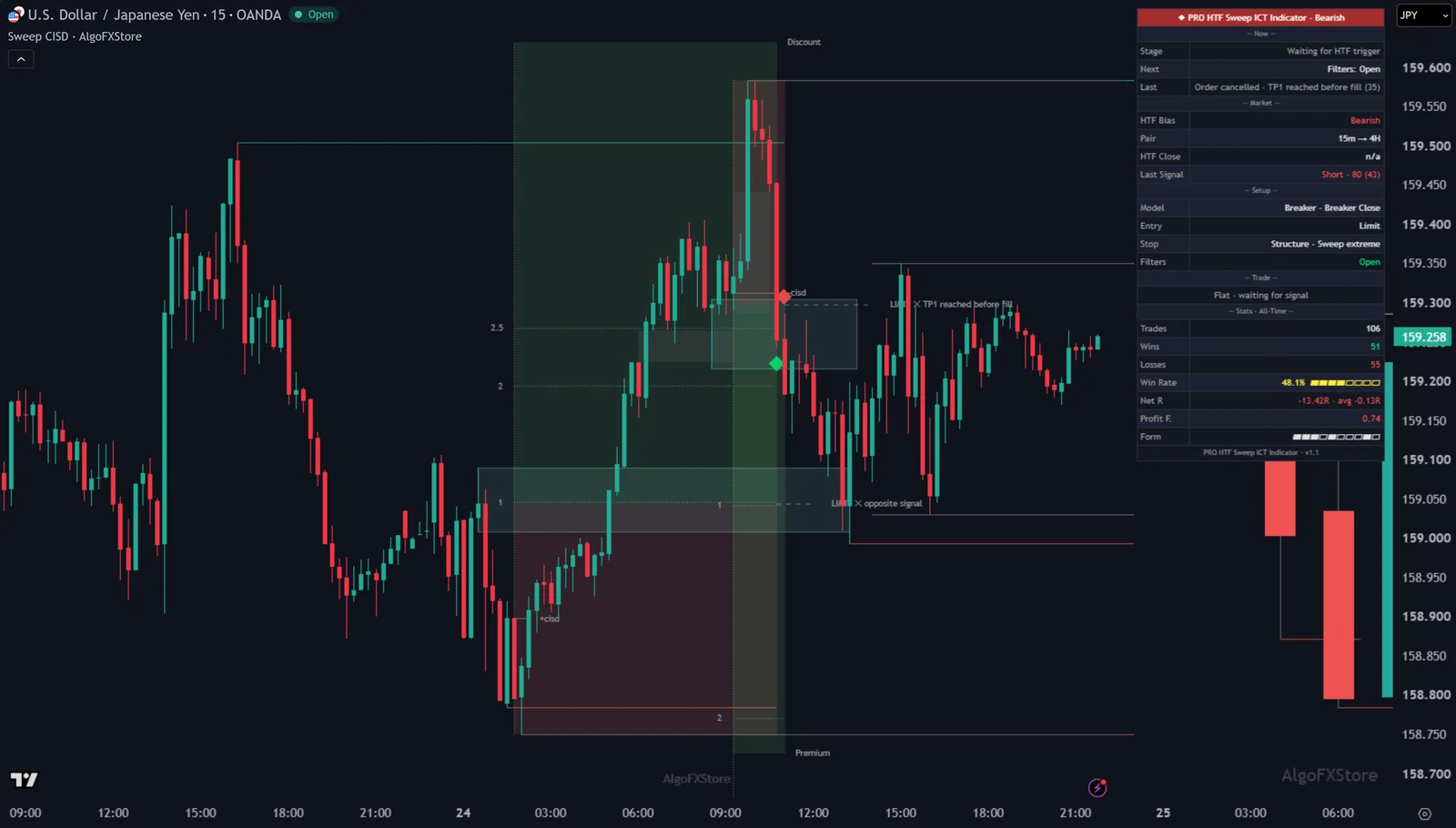
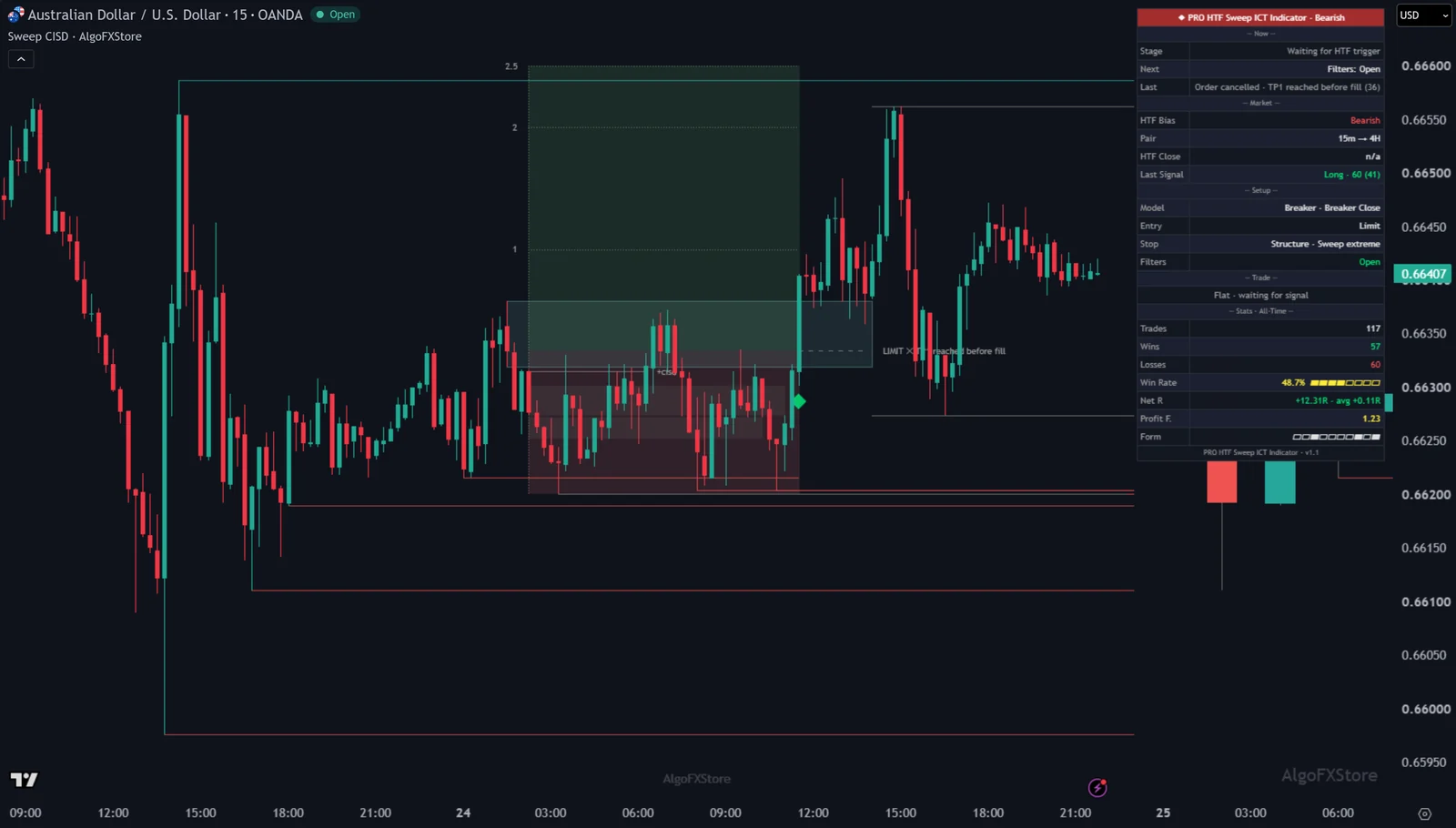
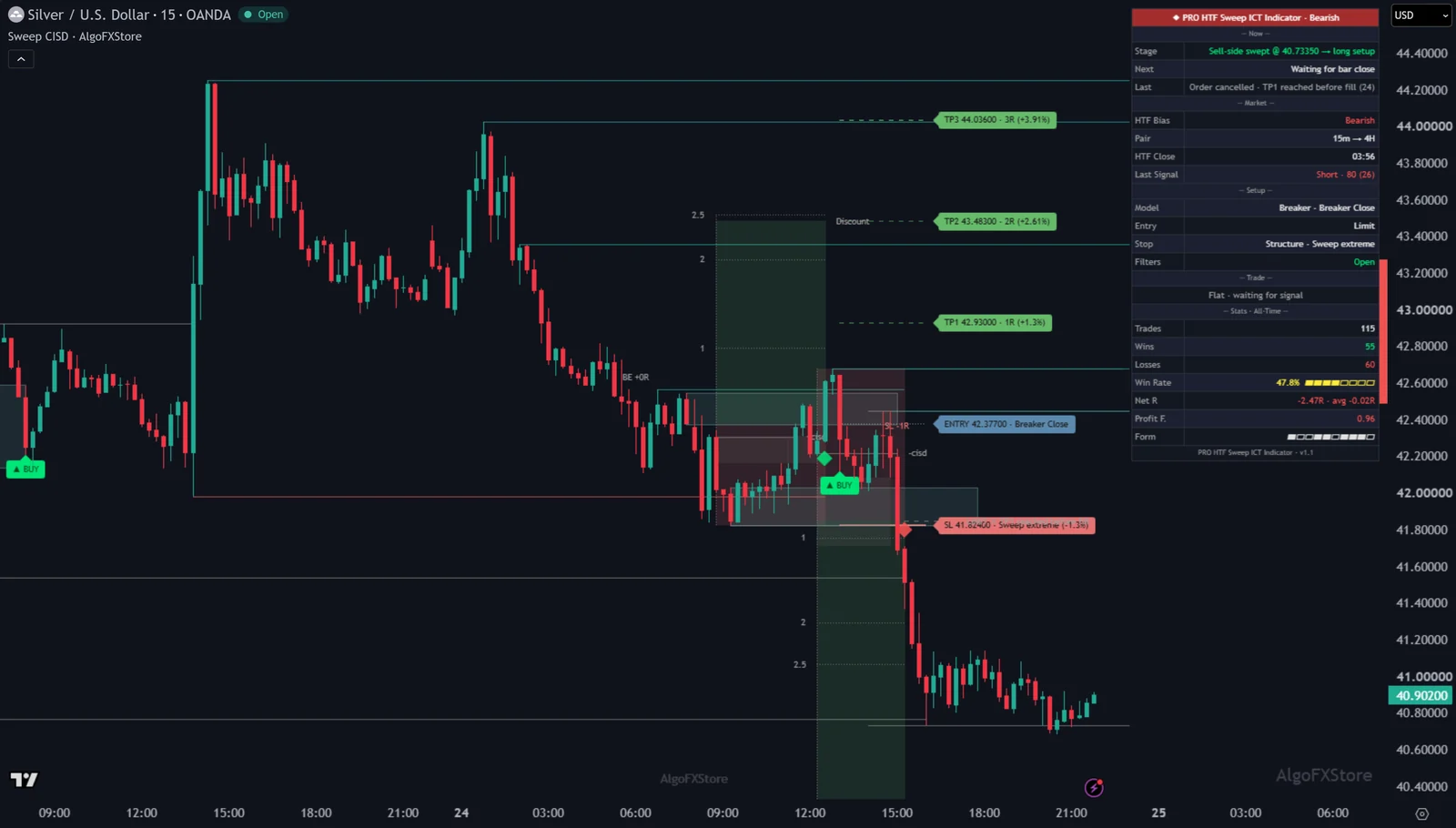
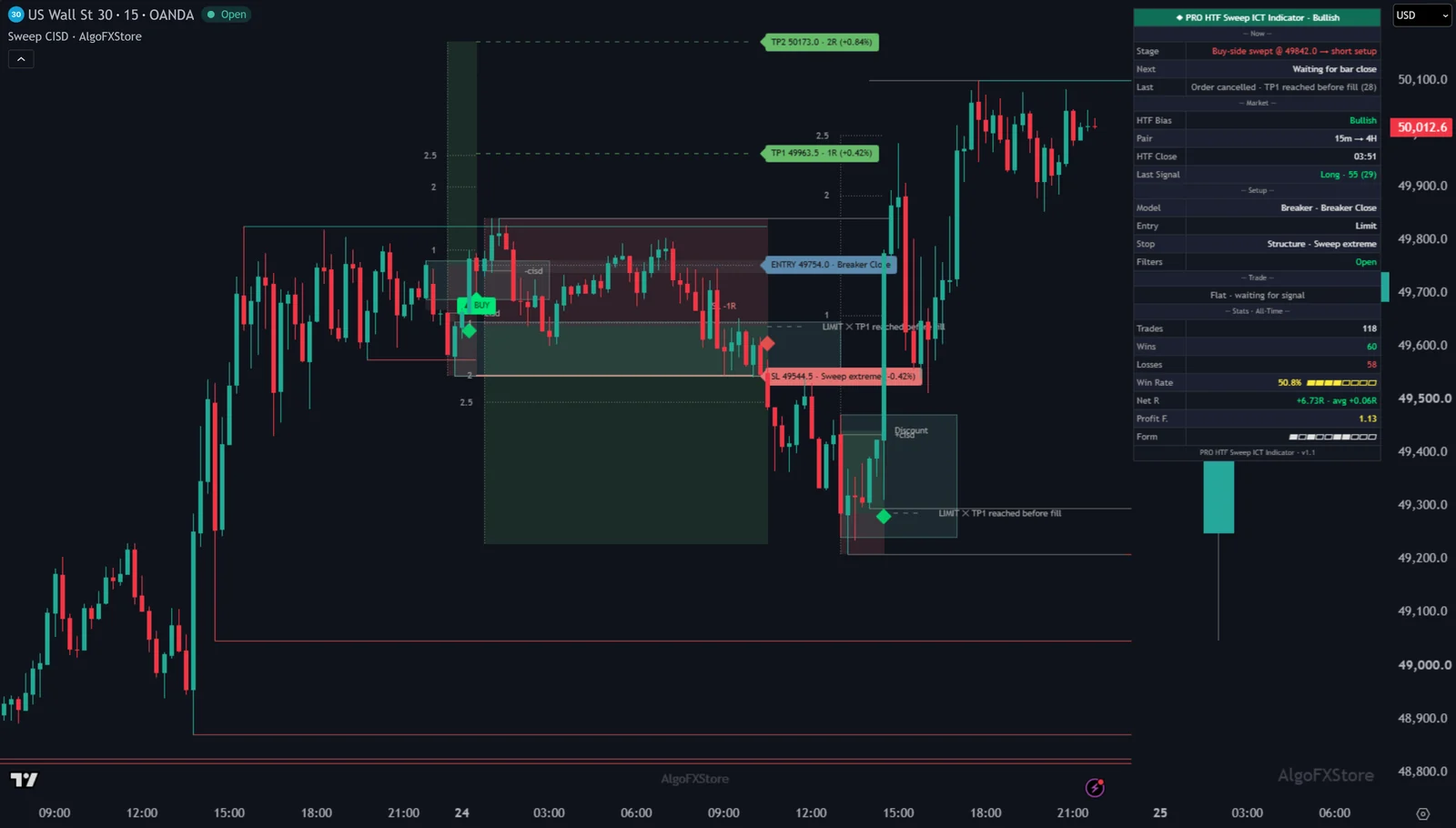
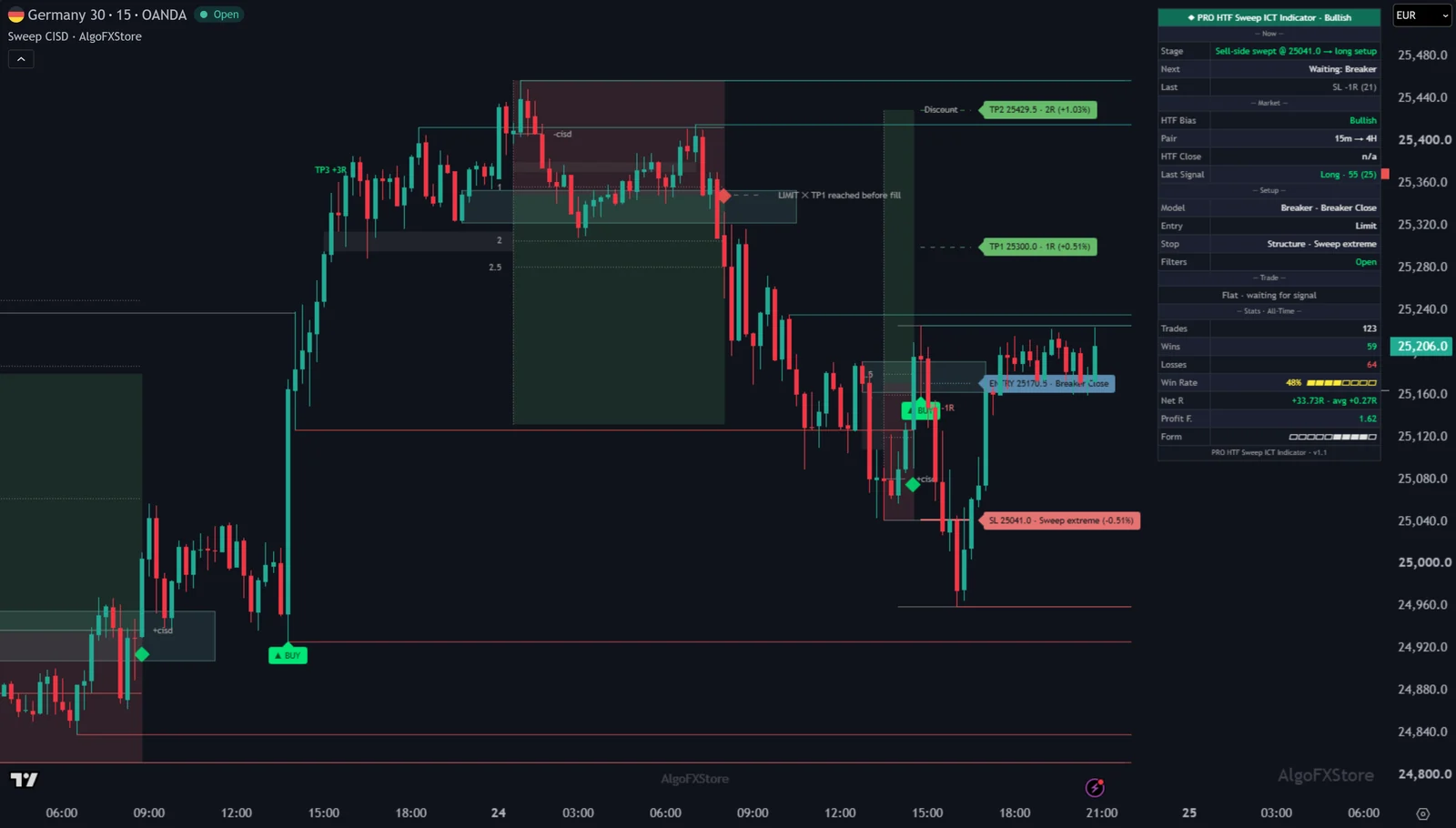
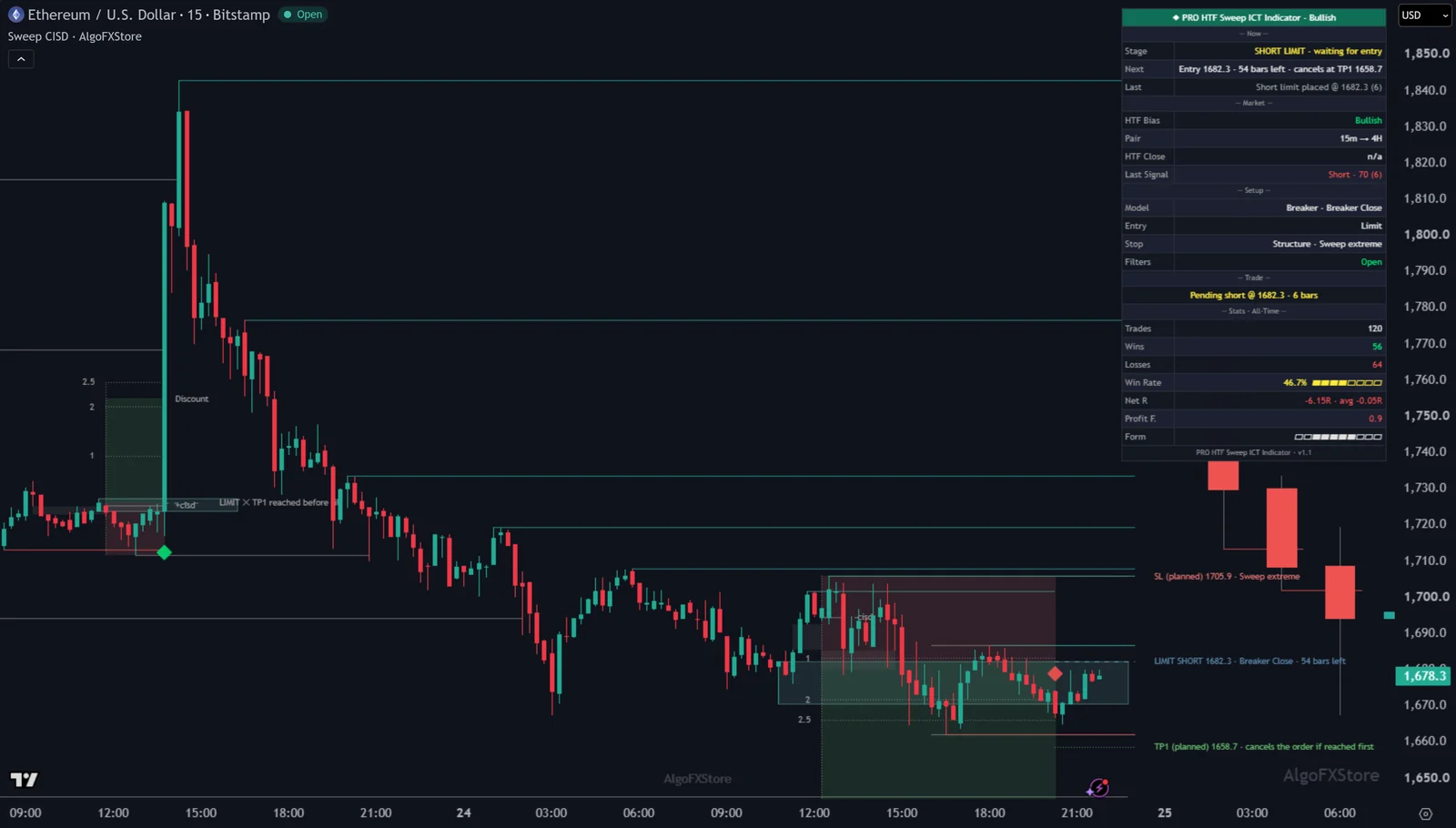
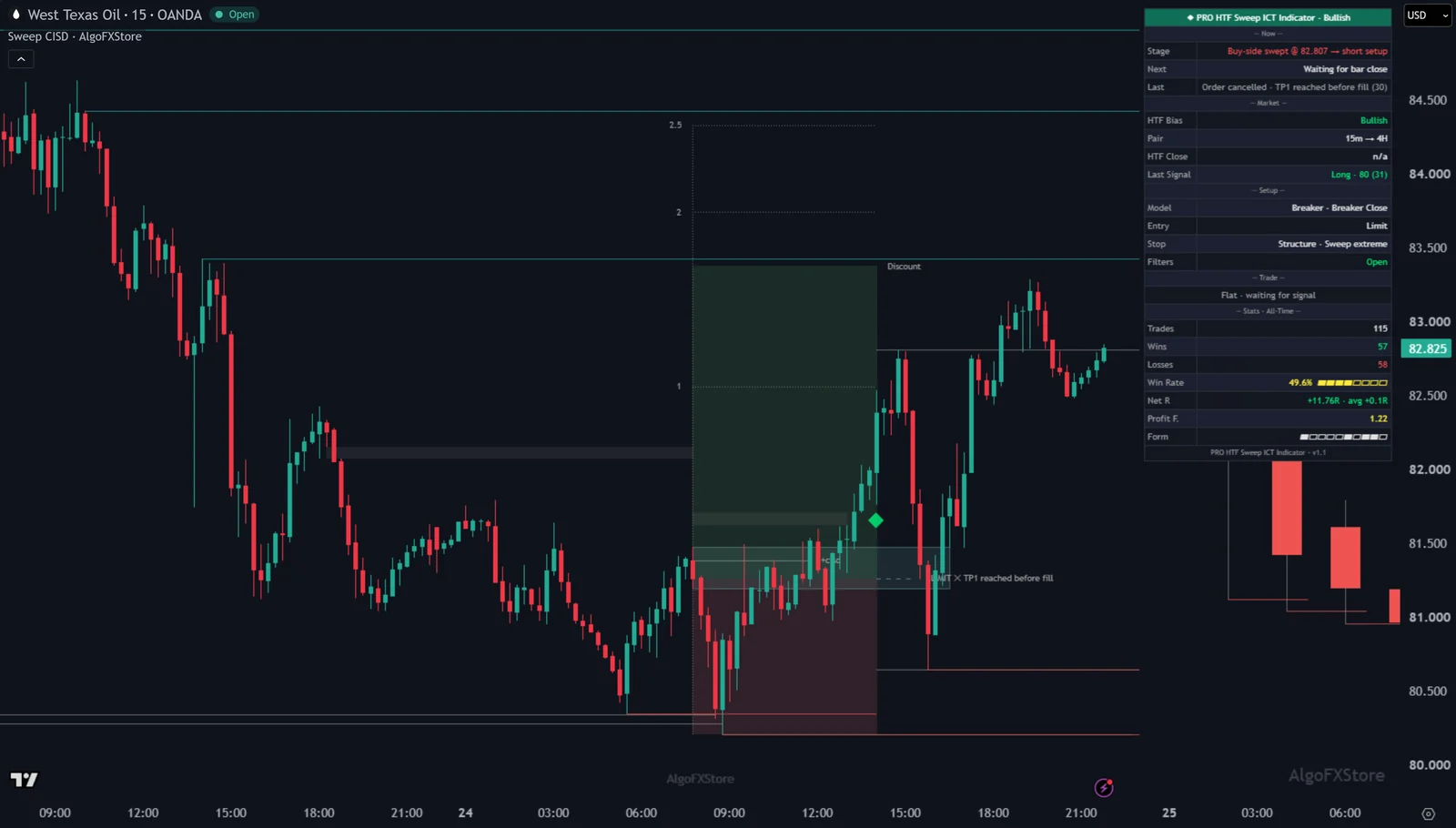
PRO HTF Sweep ICT on a real TradingView chart, frame by frame
Frames of a screen recording of the shipped indicator at its default settings, as the chart updates. Nothing is edited into the chart.
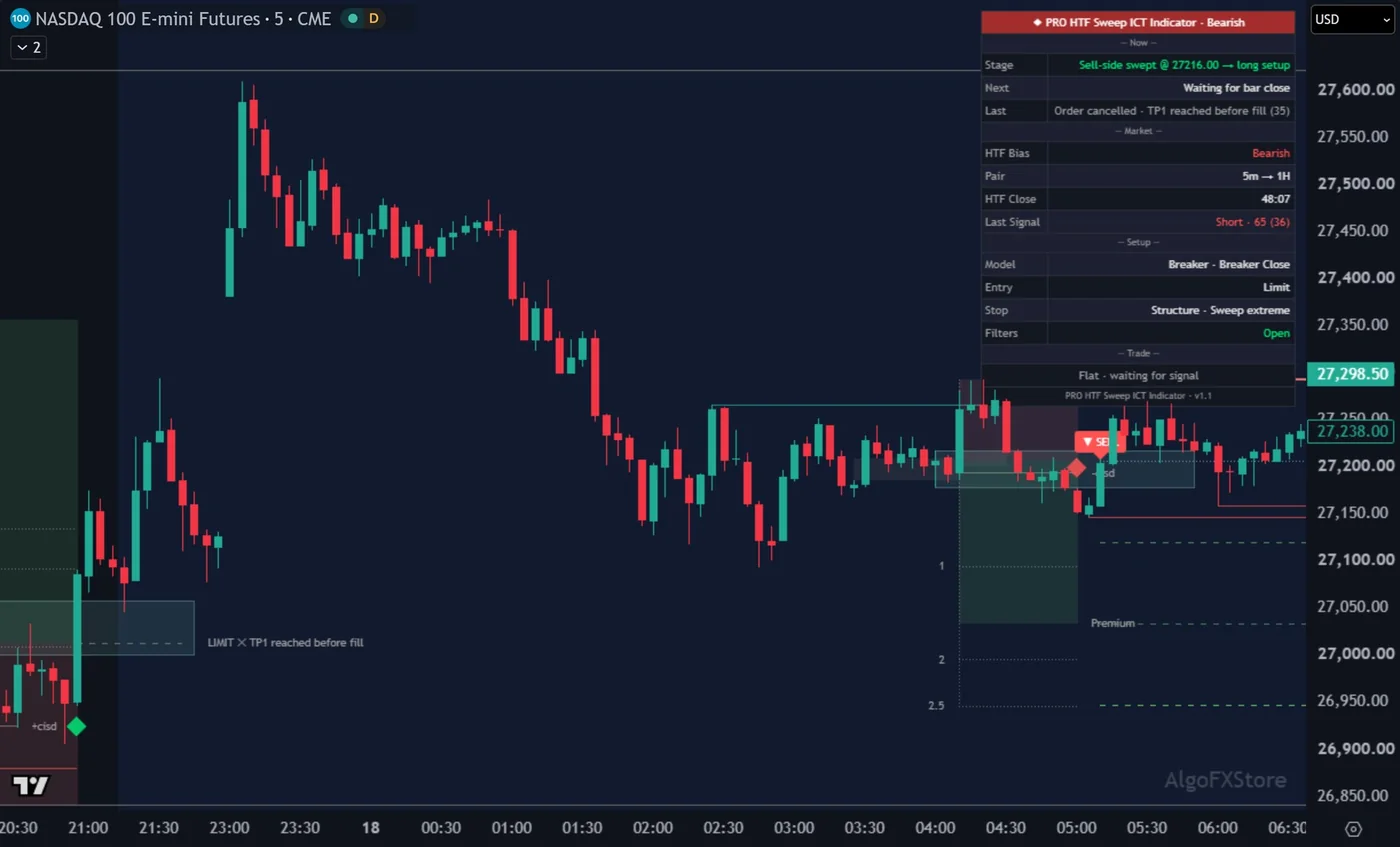
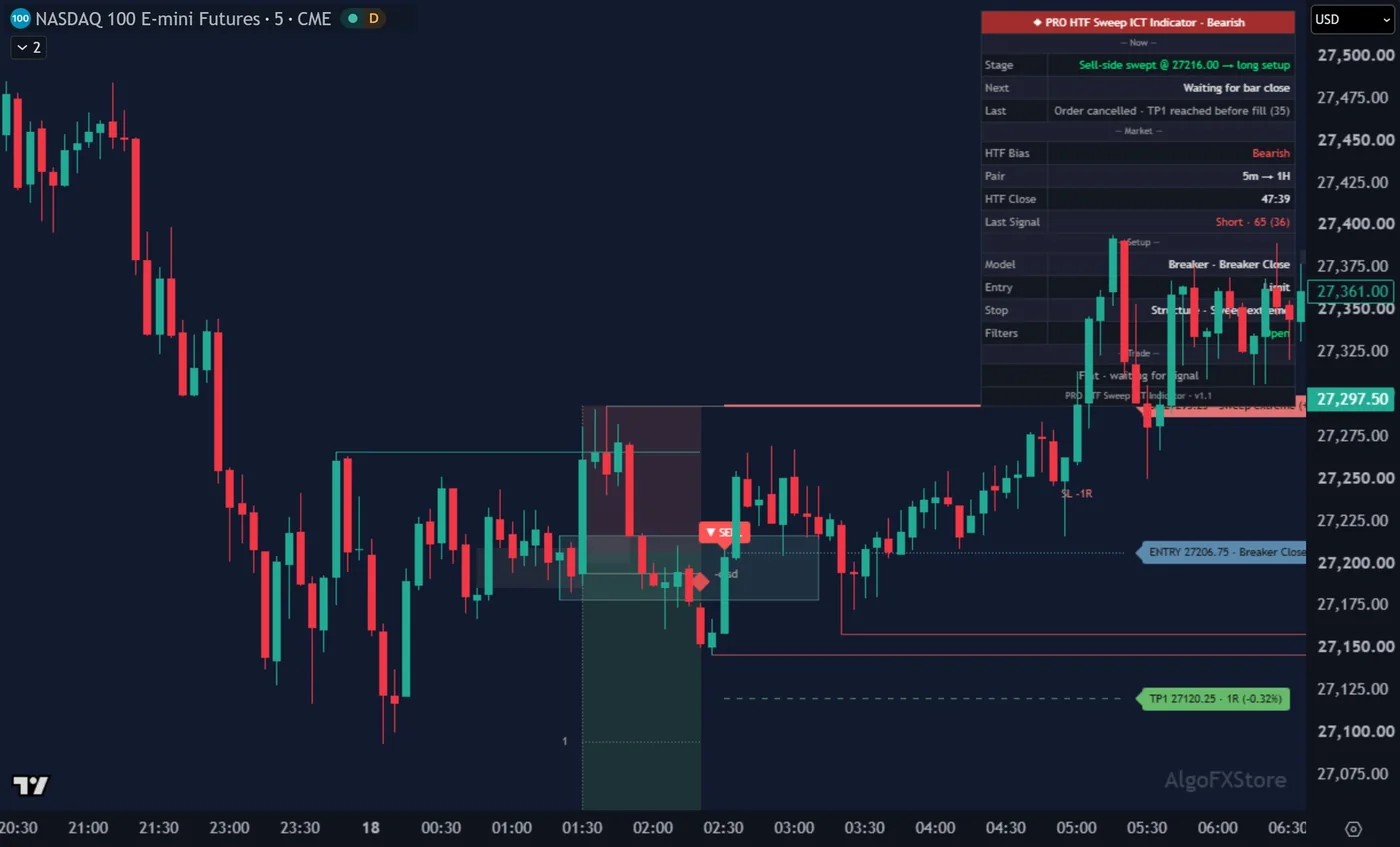
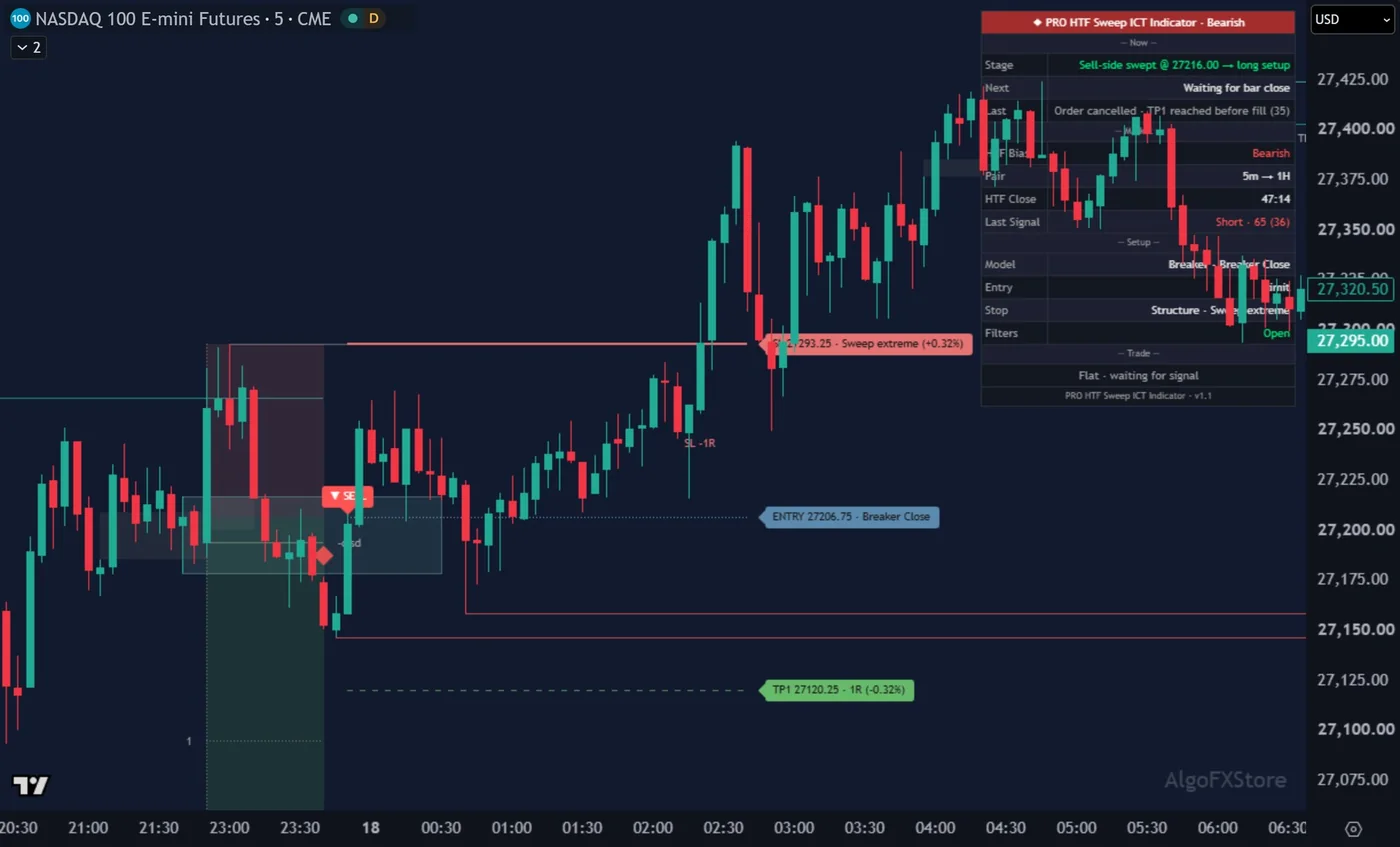
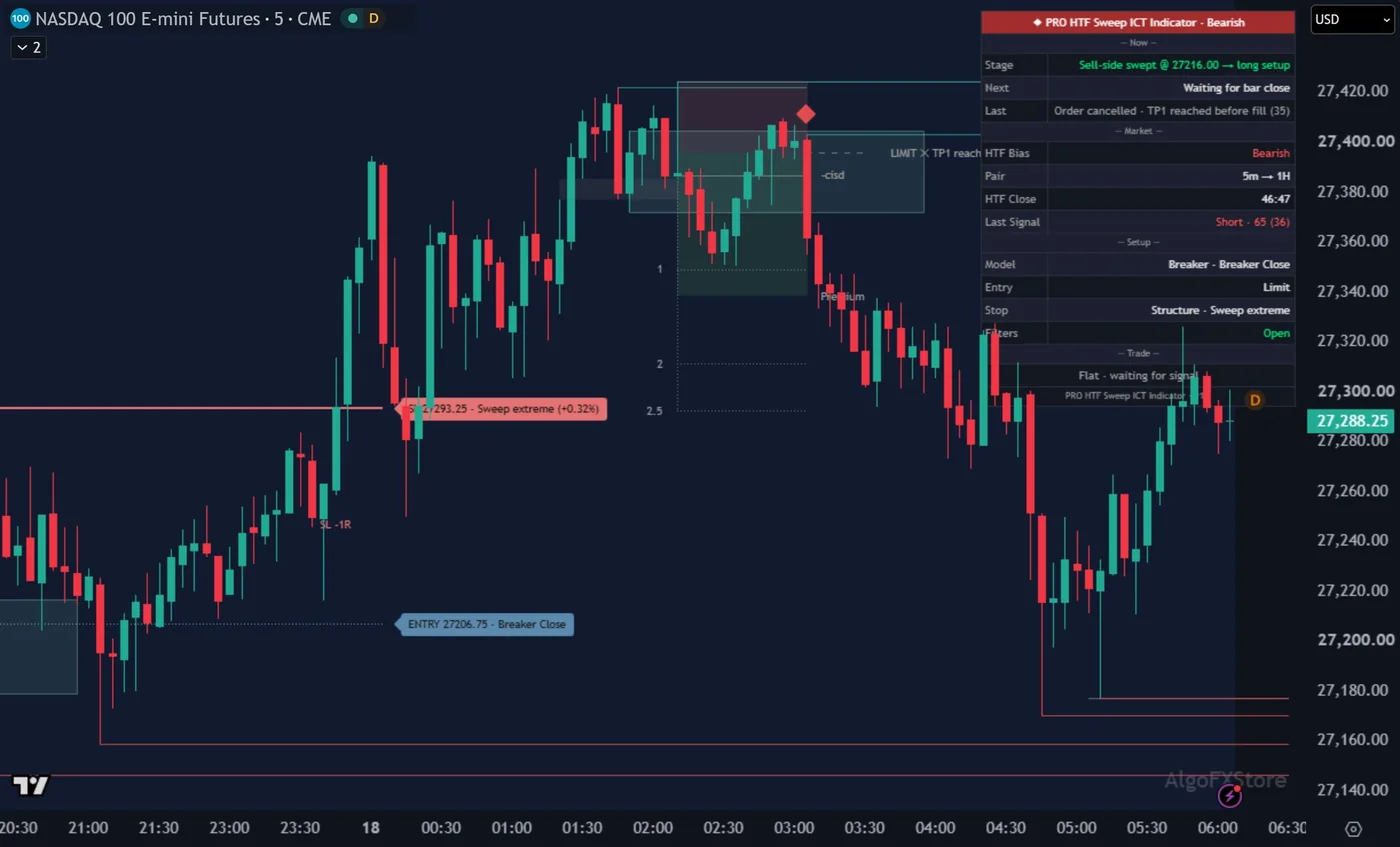
Running the model with your own judgement
The indicator finds the setup, draws the order and follows it on the chart. It never sends an order to a broker; you place and manage every trade.
- 1
Choose your pair and session
Pick the chart timeframe whose pairing you want, for example 5 minutes for sweeps of 1-hour candles. If you only trade certain hours, switch on the kill zones you use and the news block windows, and set the Timezone input. With every filter off, setups can form at any time of day.
- 2
Follow the Now section
The dashboard's Now section tells you the stage: waiting for an HTF trigger, a sweep found with a setup forming, a limit waiting for its entry, or a position open. Next shows what the engine is waiting for or what blocks it, for example a risk smaller than the minimum you set.
- 3
Mirror the limit or skip it
When a limit appears, decide whether you want it. If you do, place your own limit at the same price with the stop at the swept extreme, and size the position from the stop distance so the stop costs only what you planned. If the dashboard shows the order cancelled, cancel yours as well.
- 4
Manage the trade by its rules
In the indicator's model, TP1 moves the stop to the entry; decide in advance whether you will do the same in your account. The alerts for TP1, TP2, break-even, the stop and TP3 carry the prices, so you can follow the plan from your phone without watching every candle.
- 5
When to let a setup go
Pass when the stop distance is too large for your account, when the HTF bias points the other way and you only trade with the bias, or when news is due and your block windows are off. A sweep in a strong HTF trend can simply keep running, and no filter in the code can rule that out.
The dashboard, row by row
- Header: PRO HTF Sweep ICT Indicator with the HTF bias (Bullish, Bearish or Neutral)
- Now: Stage (waiting for an HTF trigger, sweep found, limit waiting, position open), Next (what the engine waits for or what blocks it), Last (the latest trade or order event)
- Market: HTF Bias, Pair (for example 5m to 1H), HTF Close countdown, Last Signal with its confluence score
- Setup: Model (entry array), Entry (Limit or Market), Stop (structure choice), Filters (open or blocked)
- Trade: Entry, SL (BE after break-even), TP1, TP2 and TP3 with a tick when reached, R:R preset, SL distance in percent
- Footer: PRO HTF Sweep ICT Indicator v1.1
Everything PRO HTF Sweep ICT does for you
Two timeframes on one chart
Automatic or manual HTF, HTF candles drawn beside price with a countdown and the HTF CISD, the previous HTF high and low, and untaken HTF liquidity lines that are removed once swept.
Sweep triggers you choose
Sweep of the previous HTF high or low, sweep of any of the last 10, a close back into the body, a new short-term pivot, or waiting for the HTF candle to close. Each one is a switch.
A full array toolkit
Order block and CISD, fair value gaps, inversions, breakers and the unicorn model, with the required arrays as switches and 18 entry points across them. Breaker with Require Pivot is the default.
Limit or market entries
Limit mode with a diamond, a dashed pending line and expiry after 60 candles, or market entries at the signal close. Skip Already-Traded Entries avoids limits that price has already passed.
Stops and target presets
Structure stops at the swept extreme or another array edge, wick-anchored or ATR stops; Balanced, Conservative, Aggressive, Scalping or Custom targets; TP3 at fixed R or at HTF liquidity; break-even after TP1.
Session and context filters
Asia, London, New York AM and PM kill zones, ICT macro windows, two news block windows, premium and discount, SMT divergence against a correlated symbol, ATR percentile limits, daily caps and HTF bias direction. All are off by default.
A five-section dashboard
Now, Market, Setup, Trade and Stats, each with its own switch, in five positions and four font sizes, with a light or dark theme that follows your chart.
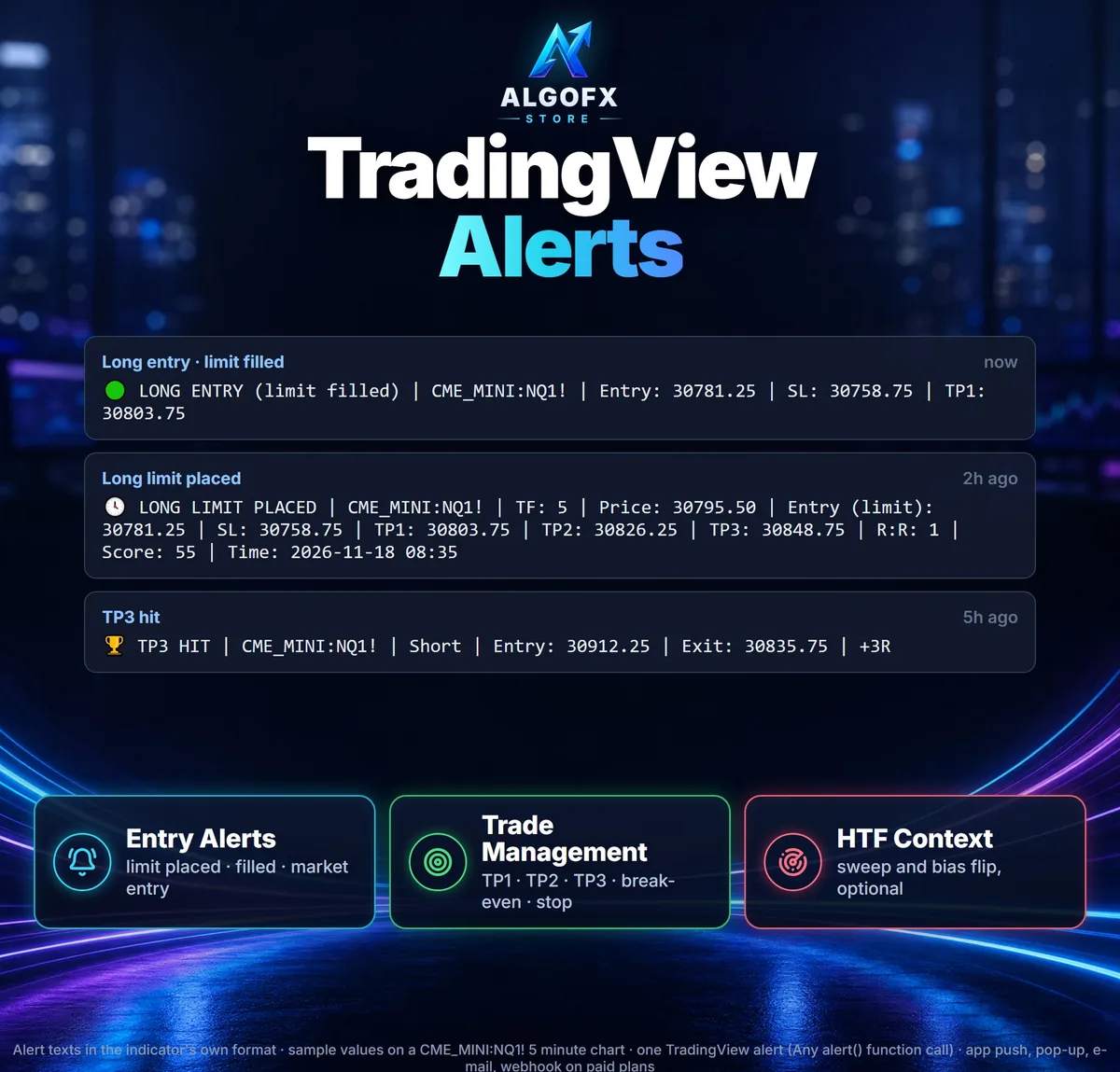
Alerts with every price
Entry or limit placed with entry, SL, TP1 to TP3 and a confluence score, plus alerts for fills and cancels, TP hits and break-even, the stop, TP3 and reversals, and optional HTF bias flips and HTF sweeps, as text or webhook JSON.
PRO HTF Sweep ICT, feature by feature
Each picture is built from real platform screenshots of the shipped indicator at its default settings, labelled so you can see what every part does. Tap any picture to open it full size.


How traders put it to work
NQ and ES on 5 minutes
The classic pairing: 5-minute entries after sweeps of 1-hour highs and lows, with about seven sessions in 2,000 candles. Switching on the New York AM kill zone and the 08:25 to 08:45 news block window narrows the model to the morning session.
Gold and crude on 15 minutes
15-minute charts pair with 4-hour candles, which give cleaner sweeps on metals and energy, and 2,000 candles cover about three weeks. The stop at the swept extreme is wider in price here, so check the risk against your account before you follow a limit.
Forex and crypto
Any symbol with candles works. On markets that trade around the clock, the kill zones and macro windows decide when setups may form, so set the Timezone input to match the hours you trade. SMT divergence can compare the chart with a correlated symbol you name.
Fewer, stricter setups
Turn on Only First Sweep per Direction per Day, Only in Direction of HTF Bias and one kill zone, and choose the Conservative preset. You will see fewer setups, each with the context you require, and the Next row shows which filter blocked the others.
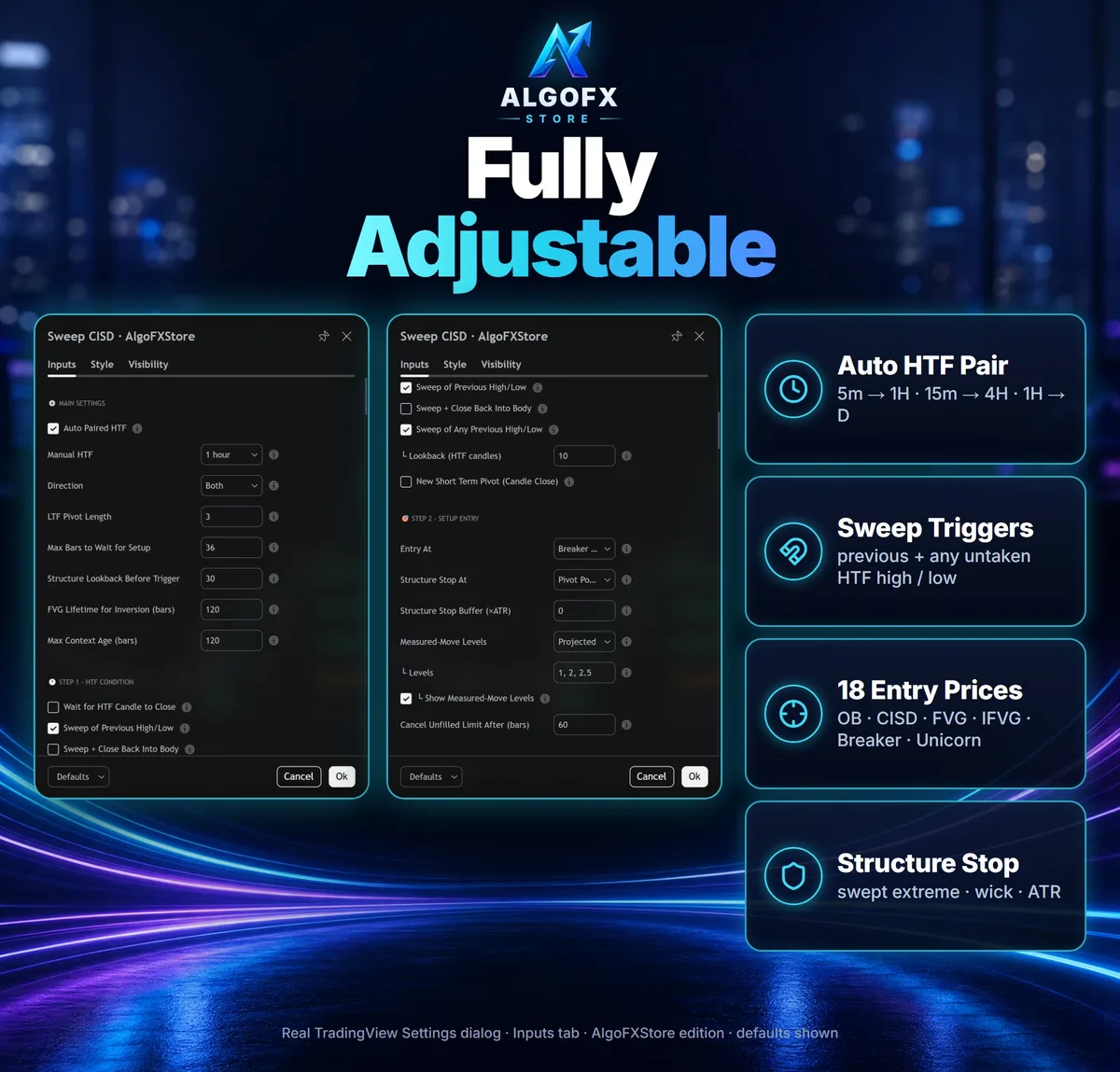
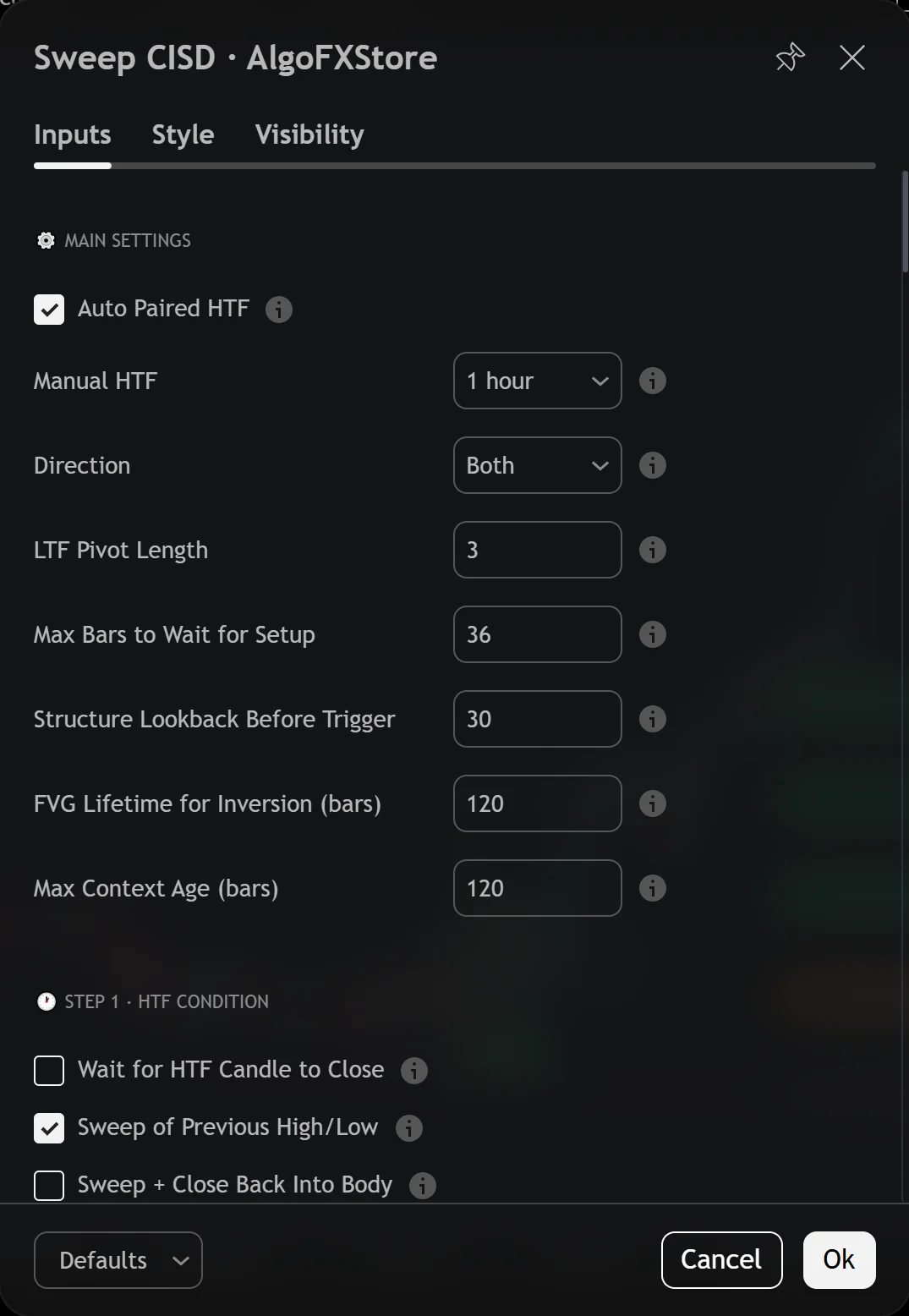
Every setting, with its default
The names are the ones in the script's Settings dialog in TradingView (Inputs tab); the defaults are what every chart on this page uses. Open a group to see its settings.
Main Settings (8)
| Setting | Default | What it does |
|---|---|---|
| Auto Paired HTF | on | Picks the HTF from the chart: 1m to 15m, 3m to 30m, 5m to 1H, 15m to 4H, 1H to D, 4H to W |
| Manual HTF | 60 | HTF when Auto is off; must be higher than the chart timeframe |
| Direction | Both | Both / Long only / Short only |
| LTF Pivot Length | 3 | Bars each side that confirm a chart-timeframe swing (breakers) |
| Max Bars to Wait for Setup | 36 | Bars after the latest trigger the engine keeps looking for an entry |
| Structure Lookback Before Trigger | 30 | Bars before the trigger scanned for the OB/CISD run and opposing FVGs |
| FVG duration for Inversion (bars) | 120 | How long an opposing FVG can still be inverted (IFVG) |
| Max Context Age (bars) | 120 | Absolute duration of a trigger context (must be >= Max Bars to Wait) |
Step 1 · HTF Condition (6)
| Setting | Default | What it does |
|---|---|---|
| Wait for HTF Candle to Close | off | On: triggers only at the HTF close; off: as soon as a chart bar takes the level |
| Sweep of Previous High/Low | on | Trigger on a trade through the previous HTF candle's low (long) / high (short) |
| Sweep + Close Back Into Body | off | Trigger when the previous HTF high/low is swept and price closes back inside that candle's body |
| Sweep of Any Previous High/Low | on | Trigger on a sweep of any untaken HTF high/low within the lookback |
| └ Lookback (HTF candles) | 10 | HTF candles whose untaken highs/lows are tracked |
| New Short Term Pivot (Candle Close) | off | Trigger on a confirmed 3-candle HTF swing low (long) / high (short) |
Step 2 · Setup Entry (7)
| Setting | Default | What it does |
|---|---|---|
| Entry At | Breaker · Breaker Close | Entry price model (18 options); the chosen PD array is required for a setup |
| Structure Stop At | Pivot Point | Stop location in Structure mode; Pivot Point = the swept extreme; falls back to it if the array is missing |
| Structure Stop Buffer (×ATR) | 0 | Extra distance beyond the structure stop |
| Measured-Move Levels | Projected | Projected (0 = CISD / OB open, -1 = stop) or Risk:Reward (0 = entry); visual only |
| └ Levels | 1, 2, 2.5 | Comma list, at most 8 |
| └ Show Measured-Move Levels | on | Dotted levels with numbers on each setup |
| Cancel Unfilled Limit After (bars) | 60 | Pending limit expires after this many bars (or when TP1 trades first) |
Step 3 · Required PD Arrays (7)
| Setting | Default | What it does |
|---|---|---|
| Order Block / CISD Cross | off | Require a close through the open of the run that delivered the sweep |
| Any FVG | off | Require a fair value gap after the sweep |
| FVG After Order Block Open | off | Require the FVG beyond the OB open during the CISD displacement |
| IFVG | off | Require an inverted opposing FVG after the sweep |
| Breaker Block | off | Require a close through the swing before the sweep |
| Require Pivot | on | Breaker must be a confirmed LTF pivot; off = the candle before the OB run |
| Unicorn Model | off | Require a breaker overlapping an FVG |
Filters · Time & Quality (20)
| Setting | Default | What it does |
|---|---|---|
| Timezone | America/New_York | Time zone of kill zones, macros and block windows |
| Asia KZ | off · 2000-0000 | Kill zone; if any zone is on, setups form only inside enabled zones |
| London KZ | off · 0200-0500 | London kill zone |
| NY AM KZ | off · 0830-1100 | New York morning kill zone |
| NY PM KZ | off · 1330-1600 | New York afternoon kill zone |
| Only Inside ICT Macros (xx:50-xx:10) | off | Setups only in the last and first 10 minutes of each hour |
| Block Window 1 (news) | off · 0825-0845 | No setups inside; set your release times by hand |
| Block Window 2 (news) | off · 1355-1415 | Second blocked window, e.g. FOMC |
| ATR Length | 14 | ATR for all ATR filters, stops and buffers |
| Min Risk (×ATR, 0 = off) | 0.25 | Skip setups with a tighter stop |
| Max Risk (×ATR, 0 = off) | 3.0 | Skip setups with a wider stop |
| Displacement Body (×ATR, 0 = off) | 0.5 | Minimum body of the candle that crosses CISD, inverts an FVG or breaks the breaker |
| Min FVG Size (×ATR, 0 = off) | 0.1 | Ignore smaller gaps |
| Skip Already-Traded Entries | on | Limit mode: skip if price already returned to the entry before confirmation |
| Only First Sweep per Direction per Day | off | Ignore repeated same-direction sweeps that day |
| Cancel Pending Outside Filters | on | Cancel a pending limit when a bar opens outside kill zones / macro, in a news block or outside the volatility band |
| Cancel Pending on New Day | off | Cancel a pending limit at the first bar of a new day |
| Same-Bar Long & Short | Skip both | Skip both, or Follow HTF bias |
| Max Signals per Day (0 = off) | 0 | Daily cap on accepted signals |
| Only in Direction of HTF Bias | off | Longs only with bullish HTF bias, shorts only with bearish |
Filters · Context (11)
| Setting | Default | What it does |
|---|---|---|
| Premium / Discount Filter | Off | Off / HTF range / Previous day: longs only below equilibrium, shorts only above (always used for the score) |
| └ HTF Range Candles | 4 | HTF candles that form the dealing range |
| Final Target (TP3) | Fixed R | Fixed R / Nearest HTF liquidity / First HTF liquidity ≥ min R:R |
| └ Min R:R to Liquidity | 1.5 | Minimum reward-to-risk for a liquidity target |
| └ Include Previous Day High/Low | on | PDH / PDL as target candidates |
| └ No Liquidity Found to Fixed R | on | Fall back to Fixed R instead of skipping |
| SMT Divergence | Off | Off / Mark only / Required |
| └ Correlated Symbol (empty = auto) | (empty) | Auto: ES NQ, MES MNQ, YM/RTY to ES, MYM/M2K to MES |
| ATR Percentile Lookback | 500 | Bars used to rank the current ATR |
| └ Min ATR Percentile (0 = off) | 0 | Skip very quiet conditions |
| └ Max ATR Percentile (100 = off) | 100 | Skip extreme volatility |
Risk Management (19)
| Setting | Default | What it does |
|---|---|---|
| Entry Mode | Limit | Limit: pending order at the PD array price; Market: close of the signal bar |
| SL Mode | Structure | Structure / Wick-Anchored / ATR |
| Risk Preset | Balanced | Conservative / Balanced / Aggressive / Scalping / Custom |
| SL Multiplier (×ATR) | 1.5 | Custom preset, ATR mode only |
| TP1 (×Risk) | 1.0 | Custom preset |
| TP2 (×Risk) | 2.0 | Custom preset |
| TP3 (×Risk) | 3.0 | Custom preset; closes the trade |
| Break-Even After TP1 | on | Stop to entry once TP1 is reached |
| Intrabar Conflict Model | Optimistic | Optimistic (target first) or Conservative (stop first) when one bar touches both |
| Cost per Trade (R) | 0.00 | Commission + slippage per round trip in R, subtracted in the statistics |
| Setup Reward Box To | TP2 | Height of the green reward box |
| Show SL/TP Lines | on | Entry / SL / TP1-3 lines of the active trade |
| Show Pending Limit Order | on | Dashed LIMIT line with planned SL / TP1 and bars left |
| Show Trade Outcomes | on | Exit marks (TP3 / SL / BE / REV with R) and cancel reasons |
| Show SL/TP Labels | on | Price labels at the line ends |
| Show % Distance on Labels | on | Append % distance from entry |
| Entry Line Style | Dotted | Solid / Dashed / Dotted |
| SL Line Style | Solid | Solid / Dashed / Dotted (width 2) |
| TP Line Style | Dashed | Solid / Dashed / Dotted |
Visual Settings (19)
| Setting | Default | What it does |
|---|---|---|
| Theme | Auto | Auto / Dark / Light |
| Show Buy/Sell Labels | on | BUY / SELL at the real entry; diamond for a placed limit |
| Show Setup Boxes | on | Risk / reward boxes, PD array zone, CISD mark and swept line |
| Show Live Preview (repaints) | off | Draw setups forming on the open bar |
| Show Setups Ignored by Trade Engine | off | Grey setups that formed while a same-direction trade/order was open |
| Draw Setup From Confirmation Bar | off | Off: box starts at the OB/CISD run; on: at the confirmation bar |
| Max Setups on Chart | 40 | Older setup drawings are deleted |
| Setup Width (bars) | 4 | Width of the risk/reward boxes |
| Show Entry PD Array Zone | on | Box around the entry PD array plus other found FVG / IFVG |
| └ Extend Past Setup (bars) | 10 | Zone extension to the right |
| Show CISD Mark | on | Line at the CISD level with +cisd / -cisd |
| Show Swept Extreme Line | on | Line at the swept extreme until traded through (30 newest) |
| Show Context Tags | on | e.g. 'Discount · DOL 2.4R · SMT' |
| Show HTF Liquidity | on | Untaken HTF highs and lows within the lookback |
| └ Keep Swept Levels | off | Keep swept levels as dotted lines |
| Show Previous HTF Candle High/Low | on | High and low of the last closed HTF candle |
| Signal Label Size | Small | Tiny to Huge |
| SL/TP & Level Label Size | Small | Tiny to Huge |
| Show Watermark | on | Bottom-centre text watermark (third-party name in this edition - see notes_for_owner) |
HTF Panel (8)
| Setting | Default | What it does |
|---|---|---|
| Show HTF Candles | on | Last HTF candles to the right of price |
| ├ Number of Candles | 8 | Including the forming one |
| ├ Offset (bars) | 15 | Distance from the last bar |
| ├ Candle Width (bars) | 5 | Body width |
| ├ Gap (bars) | 3 | Space between candles |
| ├ Show Candle Times | off | Open time above each candle |
| ├ Show Countdown | on | Time left in the HTF candle (realtime) |
| └ Show HTF CISD | on | Latest HTF CISD level on the panel |
Dashboard (7)
| Setting | Default | What it does |
|---|---|---|
| Show Dashboard | on | Sectioned table |
| Dashboard Position | Top Right | Top Left / Top Right / Bottom Left / Bottom Right / Middle Right |
| Dashboard Font Size | Small | Small / Normal / Large / Huge |
| ├ Now section | on | Stage, next expected event or blocking reason, last event |
| ├ Market section | on | HTF bias, timeframe pair, countdown, last signal |
| ├ Setup section | on | Entry model, entry mode, stop, filter state |
| ├ Trade section | on | Entry / SL / TP1-3 / R:R / SL distance |
Alerts (6)
| Setting | Default | What it does |
|---|---|---|
| Webhook JSON Format | off | Send every alert as a structured webhook payload for automation tools |
| Alert on TP / Break-Even | on | TP1, TP2 and the break-even move |
| Alert on SL Hit, TP3 & Reversal | on | Stop / BE stop-out, TP3, reversal, fill-bar stop |
| Alert on Limit Fill / Cancel | on | Pending limit filled or cancelled |
| Alert on HTF Bias Flip | off | Informational |
| Alert on HTF Sweep | off | Informational: a sweep started a search for an entry |
Colors (4)
| Setting | Default | What it does |
|---|---|---|
| Bull / Bear | #00E676 / #FF5252 | BUY / SELL label backgrounds |
| Panel Up / Panel Down | #26A69A / #EF5350 | HTF panel candles |
| Buy-Side Liquidity / Sell-Side | #26A69A / #EF5350 | HTF liquidity lines |
| Entry Zone | #80CBC4 | Entry PD array box |
The alert events, one by one
In TradingView: Create alert, choose “PRO HTF Sweep ICT [AlgoFXStore]” as the condition and pick the event. TradingView then notifies you the way you set in that dialog: a pop-up in TradingView, a sound, the TradingView app on your phone or an e-mail.
- Order / market entry (always on)
- Limit filled (Alert on Limit Fill / Cancel)
- Order cancelled (Alert on Limit Fill / Cancel)
- TP1 hit (Alert on TP / Break-Even)
- TP2 hit (Alert on TP / Break-Even)
- Break-even (Alert on TP / Break-Even)
- TP3 hit (Alert on SL Hit, TP3 & Reversal)
- Stop hit / break-even stop-out (Alert on SL Hit, TP3 & Reversal)
- Stop on the fill bar (Alert on SL Hit, TP3 & Reversal)
- Reversal close (Alert on SL Hit, TP3 & Reversal)
- HTF bias flip (Alert on HTF Bias Flip, off)
- HTF sweep (Alert on HTF Sweep, off)
PRO HTF Sweep ICT next to the usual options
Where it wins, and where it does not.
| PRO HTF Sweep ICT | Typical free ICT indicator | Reading it by hand | |
|---|---|---|---|
| Timeframes | HTF sweep and chart-timeframe entry on one chart, paired automatically | Usually one timeframe | Two charts side by side |
| Model | Sweep, then OB, CISD, FVG, IFVG or breaker, all defined in code | Often single arrays without a sequence | Your reading of each step |
| Order handling | Limit with expiry and cancel rules, or a market entry | Rarely included | Your own order discipline |
| Stop and targets | Swept extreme, TP1 to TP3 presets, break-even, liquidity targets | Rarely drawn | Calculated by you |
| Session filters | Kill zones, macros, news windows, daily caps | Sometimes kill zone boxes | Watching the clock |
| Simplicity | Many inputs and a five-section dashboard | Few settings, quick to start | As simple as you make it |
| Cost | One payment | Free | Free |
Honest about who this fits
A good fit if you
- You trade the ICT sweep model and want the HTF sweep and the lower-timeframe entry on one chart.
- You want each step, from trigger to entry array to stop, defined by settings you choose.
- You like a limit order drawn with its expiry rules and the full plan, so you can mirror it in your own account.
- You trade index futures, gold, crude, forex or crypto on TradingView on charts from 1 minute to 4 hours.
- You want alerts that carry the entry, stop and target prices.
Not for you if you
- Traders who want a simple arrow indicator: there are many inputs, and the model takes time to learn.
- Anyone who reads the Stats section as a forecast: it is a model of past trades on the loaded chart, with an optimistic intrabar default.
- Traders who want orders sent to their broker: it draws and alerts only.
- Anyone looking for a different entry model: everything here starts from a higher-timeframe sweep.
The full code, one manual, installed in two minutes
- 1Pine Script source codePRO_HTF_Sweep_ICT_TradingView_Code.txt (129 KB): the full code. Paste it into the Pine Editor and it appears as “PRO HTF Sweep ICT [AlgoFXStore]”.
- 15Page PDF manualInstallation, every setting with its default and how to read the chart.
- ✓Every main setting explainedThe table above lists the main settings with the defaults the charts use.
- ✓Alert eventsYou choose which ones are on in the settings.
- 60Day money-back guaranteeIf it is not for you, request a full refund within 60 days through your Digistore24 order e-mail.
Install in five steps
- Download the zip from the page Digistore24 sends you to after checkout and unzip it.
- Open PRO_HTF_Sweep_ICT_TradingView_Code.txt in a text editor, select all and copy the whole code.
- In TradingView, open the Pine Editor, paste the code over everything that is there and click Save.
- Click Add to chart: “PRO HTF Sweep ICT [AlgoFXStore]” appears on your chart.
- Read the PDF manual; the defaults are the settings shown on this page.

Kestutis Balciunas
AlgoFXStore · chart indicators
Kestutis Balciunas builds and publishes chart indicators under the AlgoFXStore name. Every product page shows what the indicator draws on real charts, and every number on it comes from the shipped build.
The charts on this page were captured in TradingView from the shipped PRO HTF Sweep ICT [AlgoFXStore] at its default settings and are shown unedited.
No get-rich claims and no quoted win rates. Every trade is uncertain, and no indicator changes that. If you want to know whether it suits the way you trade before you buy, e-mail [email protected] and you will get a straight answer.
One price, one payment
- The full Pine Script source code of PRO HTF Sweep ICT and the 15-page PDF manual
- Delivered as a digital download: one zip with the code file and the PDF manual on your download page
- Return period: 60 days, with a full refund if it is not for you
- Free updates to the current version on the same download page
60-day money-back guarantee. Install it, run it on your own charts and read the manual. If PRO HTF Sweep ICT is not for you within 60 days of purchase, request a full refund from Digistore24, no questions asked: use the refund link in your Digistore24 order e-mail or Digistore24's order page digistore24.com/en/cancel-revoke-contract. Digistore24 refunds to your original payment method. It is a digital download: right after checkout you land on your download page, and the link to it is also in your Digistore24 order e-mail.
About the signals
Does it repaint?
Setups are accepted, limits filled or cancelled and trades closed only on confirmed candles, and every alert fires once per bar close. Some drawing does move: the optional Show Live Preview, off by default, shows forming setups that can vanish before the close; pivots for breakers confirm 3 candles late; setup boxes are drawn back to the start of the order block run; and swept HTF liquidity lines are deleted.
Why did a sweep not lead to a setup?
After the sweep the engine needs the structure your settings require, by default a breaker with a confirmed pivot and a displacement body of at least 0.5 ATR, within 36 candles. The risk must lie between 0.25 and 3 ATR, the filters must be open and no trade or order may be open in that direction. The Next row says what is missing.
Why did the limit never fill?
A pending limit is cancelled after 60 candles, when price reaches TP1 before the fill, on an opposite signal, when your filters close, and optionally on a new day. The dashboard and the optional alert show the cancel. In those cases there is no BUY or SELL label, because the label marks the fill.
What is the score in the alerts?
A confluence score from 0 to 100 that adds up which arrays and which context were present for the setup. It is not a probability. Use it to compare setups with each other, not as the odds of a trade working out.
How does it decide when a candle touches the stop and a target?
With the Intrabar Conflict Model. Optimistic, the default, counts the target first unless the candle closes beyond the stop; Conservative counts the stop first and ignores targets touched on that candle. The choice changes the drawn outcome and the stats, not your real fills.
The dashboard and the settings
How should I read the Stats section?
It counts the indicator's modelled trades on the loaded chart, how many touched TP1, their net R and a form strip of recent results. A trade counts as reaching TP1 even when it later closes at break-even. It is hindsight bookkeeping from candle data with the optimistic default, not a forecast. Switch the Stats section off if you do not want it.
What do the colours mean?
Green is bullish and red bearish for the BUY and SELL labels. On a trade, the stop and the risk box are red and TP1 to TP3 and the reward box green, and reached targets stay green. The entry line is blue-grey and turns orange with SL (BE) after break-even. The entry array zone is light teal, HTF buy-side liquidity teal and sell-side liquidity red.
Should I keep the defaults?
They form a complete model: breaker entry, structure stop, Balanced targets, limit entries and every filter off. The inputs that change the most are Entry At, the required arrays, Risk Preset and the filters. Change one at a time and watch the dashboard's Next row to see what each change blocks.
Which timeframes and markets can I use?
Any chart from 1 minute up, on any TradingView symbol. The pairing runs from 1 minute to 15 minutes up to 4 hours to weekly, and a manual HTF must be higher than the chart timeframe. HTF candles are built from the loaded chart candles, so more loaded history gives more HTF levels. It needs about 50 candles to warm up.
What are the candles on the right of the chart?
Eight HTF candles drawn 15 candles to the right of price, with a countdown to the HTF close and the HTF CISD level. Leave about 80 candles of room on the right to see them and the trade labels, or switch the panel off.
Alerts and daily use
Which alerts can I create?
The script uses alert() calls, so choose Any alert() function call in Create alert. The order or entry alert is always on and carries the symbol, timeframe, entry, stop, TP1 to TP3, R:R and score. Fills and cancels, TP hits and break-even, the stop, TP3 and reversals are on by default; HTF bias flips and HTF sweeps are optional. Webhook JSON Format switches the message to JSON.
Can I use it on several charts?
Yes. Each copy builds its own HTF candles, setups and trades for its symbol and timeframe, with its own alerts and its own Stats, so the records of two charts are never combined.
Can I combine it with other tools?
Yes, but it already draws HTF candles, liquidity lines, setups, trades and a dashboard, so leave room on the right of the chart. Its own kill zones, news windows and SMT check cover much of what separate session tools would add.
How it works
Will it place trades for me?
No. PRO HTF Sweep ICT is an indicator: it draws on the chart and can alert you. It never sends an order.
Do I need a paid TradingView plan?
No. It reads only the chart's own bars, so the free TradingView plan runs it. Alerts count against your plan's alert limit.
After you buy
How do I get it after paying?
Digistore24 runs the checkout. Right after payment it takes you to your download page with one zip holding the Pine Script source code file and the PDF guide; the link to that page is also in your Digistore24 order e-mail, so you can download again at any time.
How do I install it?
Open the code file, open the Pine Editor in TradingView, paste the whole code, click Save and then Add to chart: “PRO HTF Sweep ICT [AlgoFXStore]” appears on your chart. The guide walks through it step by step.
Who is Digistore24?
Digistore24 is the reseller that sells PRO HTF Sweep ICT for Kestutis Balciunas (AlgoFXStore): it runs the checkout, charges your card or PayPal, collects the VAT for your country and delivers the download. Its name is the one on your statement, and its order e-mail holds your download link and the refund link.
What is the refund policy?
A 60-day money-back guarantee, handled by Digistore24. If PRO HTF Sweep ICT is not for you within 60 days of purchase, use the refund link in your Digistore24 order e-mail or Digistore24's order page (digistore24.com/en/cancel-revoke-contract) for a full refund, no questions asked. Digistore24 makes the refund to your original payment method.
Do I get the source code?
Yes. You get the full Pine Script source code as a text file for your own use; the licence line at the top of the code does not allow resale, sharing or republishing.
PRO HTF Sweep ICT for TradingView.
Put the higher-timeframe sweep, the lower-timeframe entry and the full trade plan on one TradingView chart. The full code, the manual and every setting explained. Instant download for €47, one payment.
Get instant access