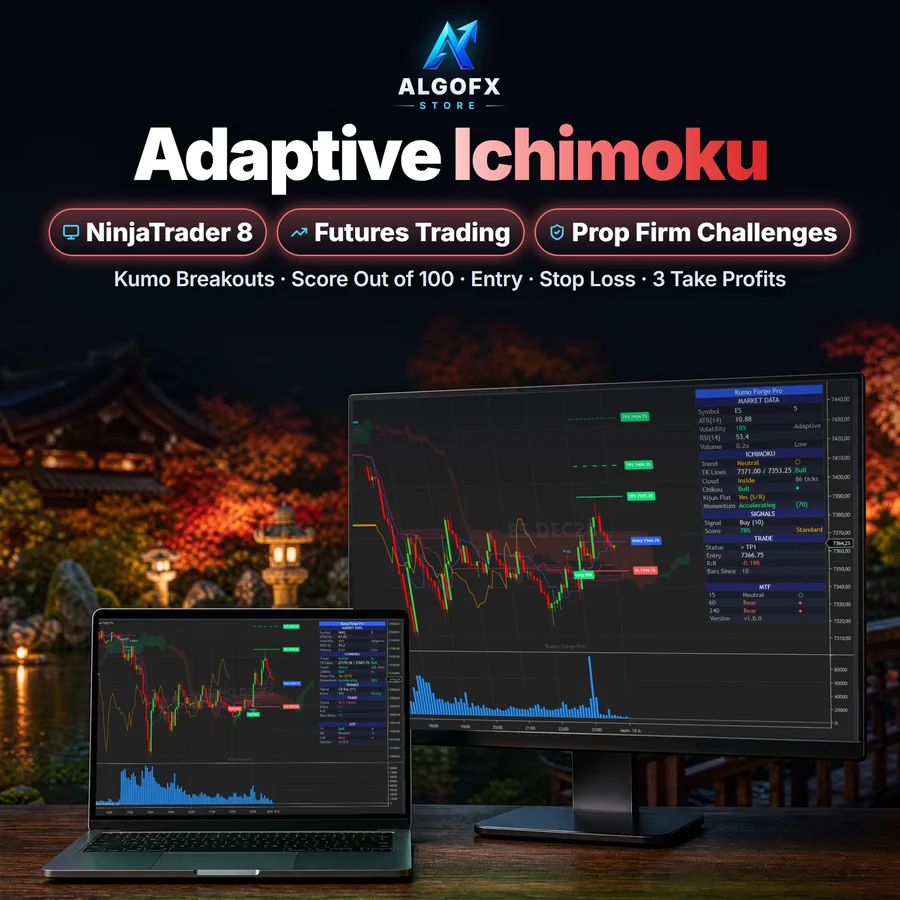
An Ichimoku cloud that adapts to volatility and scores every setup out of 100
Kumo Forge Pro draws the full Ichimoku on your NinjaTrader 8 chart, but in its default Adaptive mode the Tenkan, Kijun and Span B periods stretch and shorten with volatility.
- Periods 9, 26 and 52 move with volatility, by up to 40 percent either way in Adaptive mode
- Every TK cross and bounce carries a confluence score, graded Strong at 80 and Standard at 50
- Each signal draws a blue entry, a red stop and green targets at 1.5R, 2.5R and 4R
- A dashboard in five sections reads the cloud, the newest signal, the tracked trade and three higher timeframes
- A NinjaTrader 8 Add-On. Import one zip and it appears as “Kumo Forge Pro AlgoFX” in your Indicators list.
- A 15-page PDF manual with every setting, the signals, the alerts and installation. One-time €77.
See Kumo Forge Pro on a real chart
Press play; use the full-screen button to see every detail.
This video shows the same indicator on another charting platform; the NinjaTrader 8 edition sold here runs in NinjaTrader 8's own chart and settings windows. · 11:30 · Plays from YouTube when you press play (YouTube then sets its own cookies; see Privacy).
A plain Ichimoku shows you a lot but never says how much agrees
Ichimoku gives you trend, momentum, support and resistance in one picture, and it is one of the slowest indicators to read under pressure. A Tenkan and Kijun cross looks exactly the same above a thick, rising cloud with the Chikou clear of old price as it does inside a thin, flat cloud on a quiet lunch hour. You have to check every component yourself, on every bar, and on a 5 Minute futures chart that check comes too late.
The fixed 9, 26 and 52 periods also treat a fast open and a dead afternoon the same way, so the lines lag when the market runs and whip around when it drifts. And once you are in, the cloud says nothing about where the trade is wrong or where to take profit. Most traders end up guessing a stop and a target, which is exactly where a good read of the cloud turns into a bad trade.
Kumo Forge Pro keeps the Ichimoku you know and adds three things you can check on the chart: periods that follow volatility, a score that counts how many components agree on the signal bar, and a drawn plan with an entry, a stop and three targets the moment a signal prints.
What Kumo Forge Pro draws, and what each mark means
Read from the shipped NinjaScript edition.
| What you see | What it means |
|---|---|
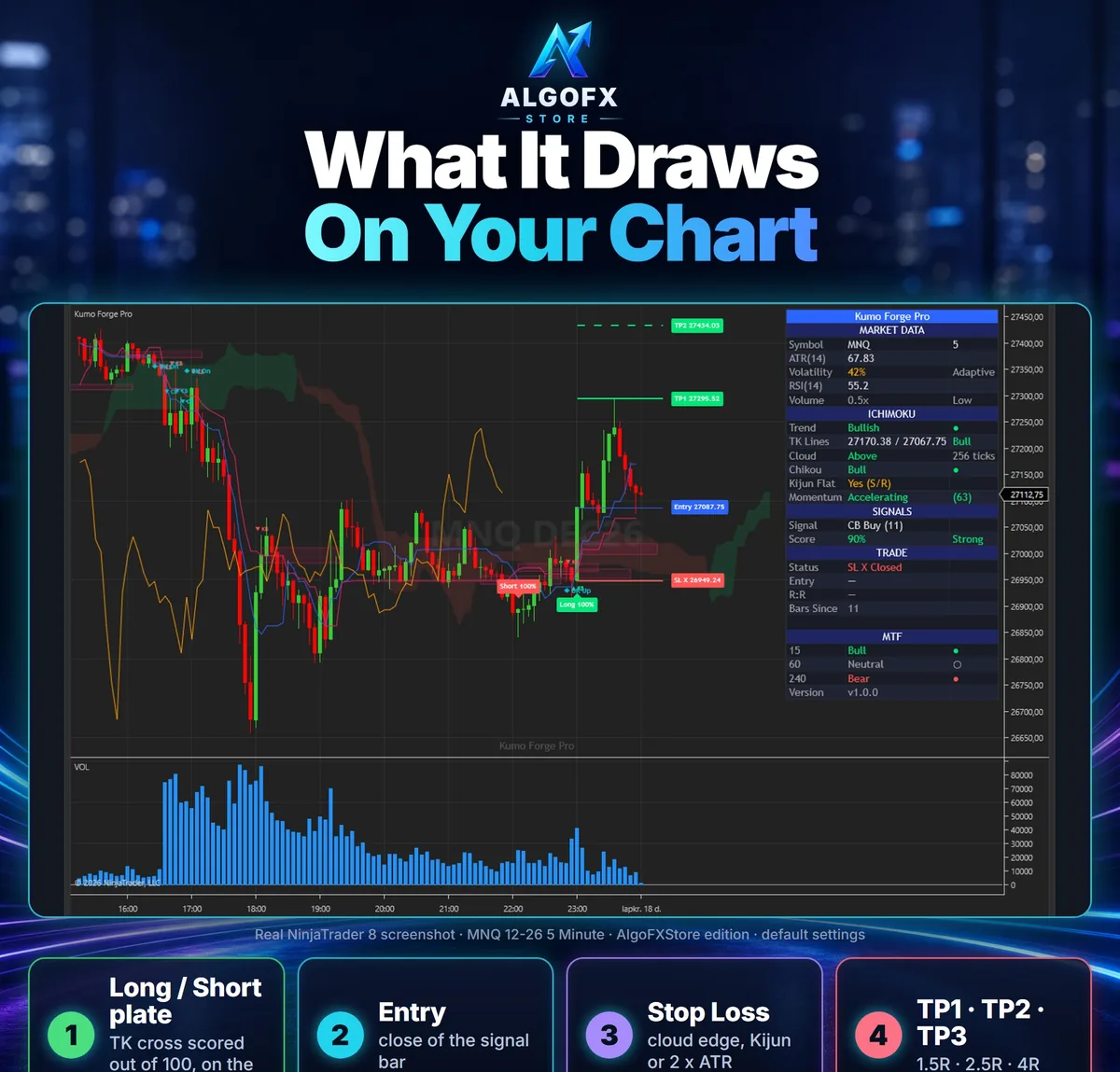
| Green 'Long 88%' plate under a bar | Tenkan crossed above Kijun on that closed bar and passed every filter; 88 % = confluence score. |
| Red 'Short 82%' plate above a bar | Bearish Tenkan/Kijun cross that passed the filters. |
| Cyan ◆ 'BK Up' / 'BK Dn' | Close through the cloud with above-average volume; a small circle later marks a retest. |
| ▲/▼ 'KB' and 'CB' | Bounce off the Kijun line or off a cloud edge in the direction of the trend. |
| Blue line 'Entry <price>' | Entry: close of the signal bar. |
| Red line 'SL <price>' | Stop loss: beyond the far cloud edge plus 0.5 ATR by default. |
| Green lines 'TP1' 'TP2' 'TP3' | Targets at 1.5, 2.5 and 4 times the risk; '+' once reached. |
| Shaded boxes on flat Kijun | Support and resistance zones where the Kijun stopped moving. |
How it decides: an adaptive cloud, a score and a plan
Every step below is read from the shipped NinjaScript edition. All of it is visible on the chart or in the dashboard, so you can check each signal instead of trusting it.
- 1
The periods follow volatility
The indicator places ATR(14) between its lowest and highest value over the Volatility Lookback (50 bars) and shows the result as the Volatility row, 0 to 100 percent. At the volatile end the Tenkan, Kijun and Span B periods shorten to 5, 16 and 31; at the quiet end they lengthen to 13, 36 and 73, with Adapt Strength 0.4. Calculation Mode Classic keeps the fixed 9, 26 and 52.
- 2
Nine factors make the score
Price against the cloud pays 20 on the right side, 8 inside. Tenkan against Kijun pays 15, Chikou agreement 15, cloud direction 10, a cloud that is not thin 8 (2 when thin), volume above 1.2 times its 20-bar average 10, momentum 12 or 6, rising momentum 10. RSI(14) on the right side of 50 adds 10 if you switch the RSI Confluence Filter on, so the total reaches 110.
- 3
Filters decide the TK cross plate
A Long or Short plate needs the Tenkan to cross the Kijun on a closed bar, the cloud not thinner than 30 percent of its 50-bar average thickness, volume above 1.2 times its 20-bar average, the Chikou agreeing with the direction and a score of at least Min Confluence Score 40. The plate shows the score, for example Long 88%, which is points, not a probability.
- 4
Four more kinds of entry
KB marks a wick to the Kijun that closes back on the trend side, with price beyond the cloud. CB marks the same against the cloud edge. A cyan diamond BK Up or BK Dn marks a close through the cloud on volume above 1.3 times its average, and a small circle marks a retest of the broken edge 2 to 10 bars later. Chikou breakouts exist but are off by default.
- 5
Every signal gets its own plan
The close of the signal bar is the entry. SL Mode KumoEdge puts the stop beyond the far cloud edge plus 0.5 ATR; Kijun mode uses the Kijun plus the buffer; ATR mode uses a fixed 2 x ATR(14). Targets sit at 1.5, 2.5 and 4 times the risk, and the risk is never taken as less than half an ATR. TP3 or the stop ends the tracked trade; a new signal replaces it.
- 6
Higher timeframes on closed bars
Three extra data series of the same instrument (15, 60 and 240 minutes by default, 500 bars each) feed the MTF rows. Each row is a classic Ichimoku test: Bull when that timeframe's close is above both spans with the fast line on top, Bear mirrored, Neutral otherwise. A row reads only bars that have closed, and it is never a condition of any signal.
Kumo Forge Pro on 12 different markets
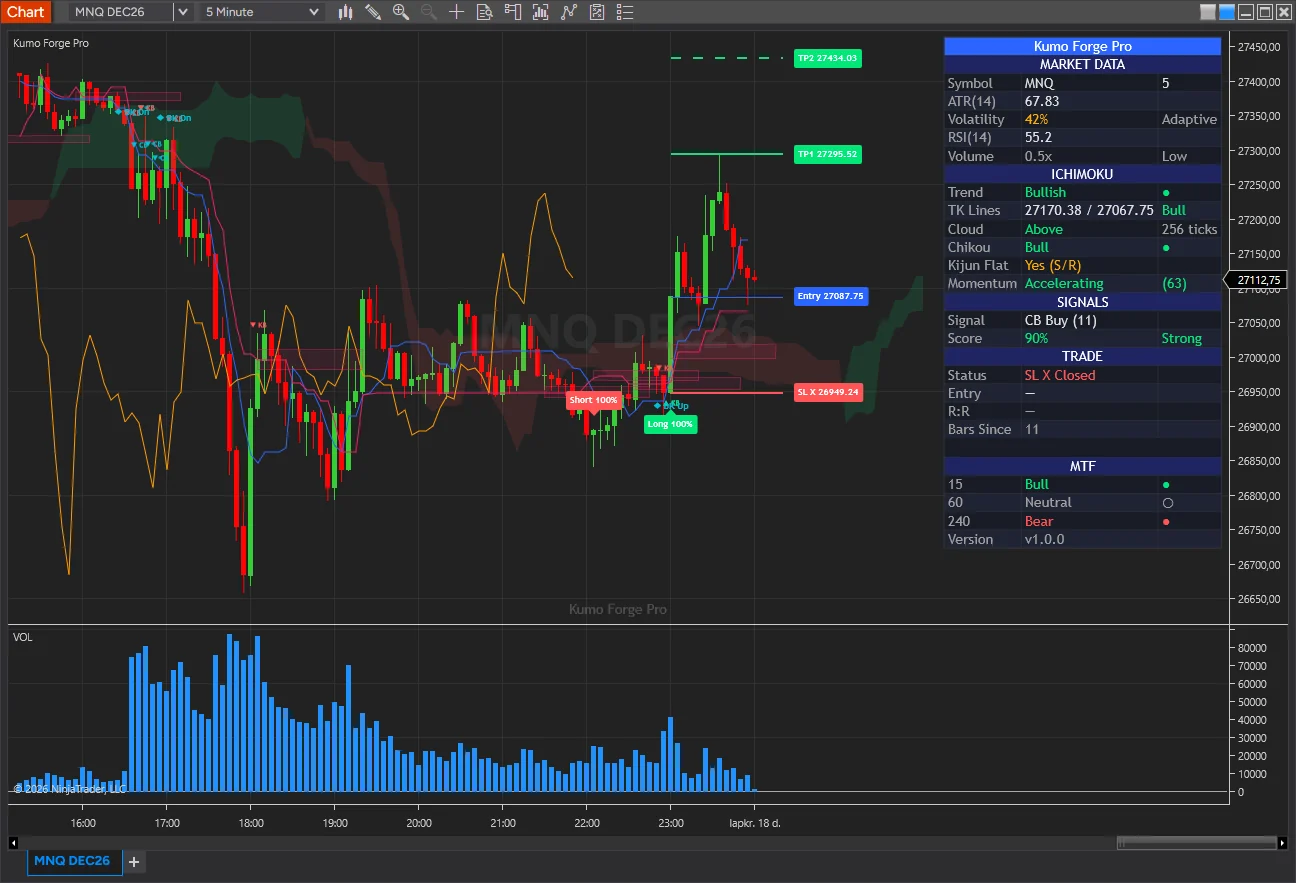
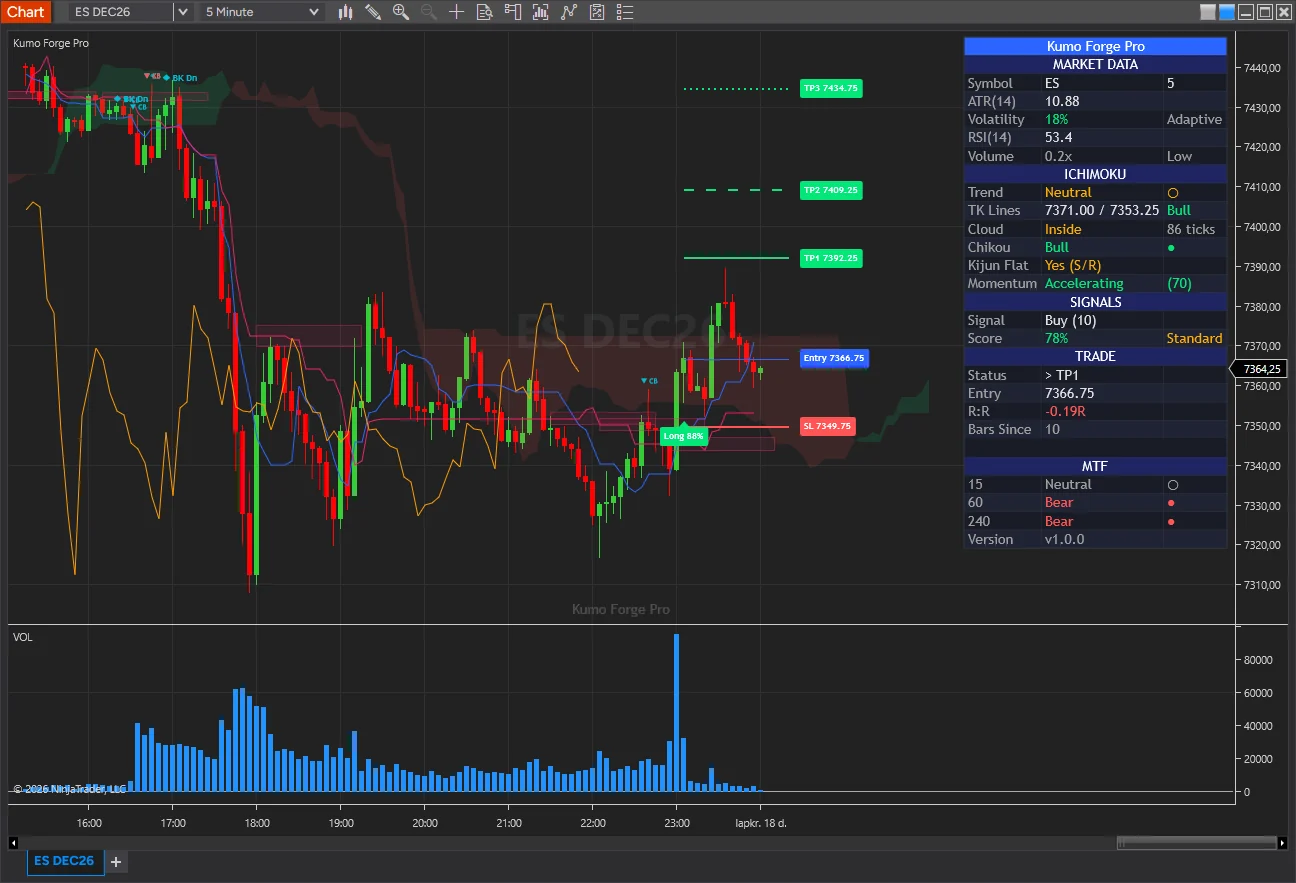
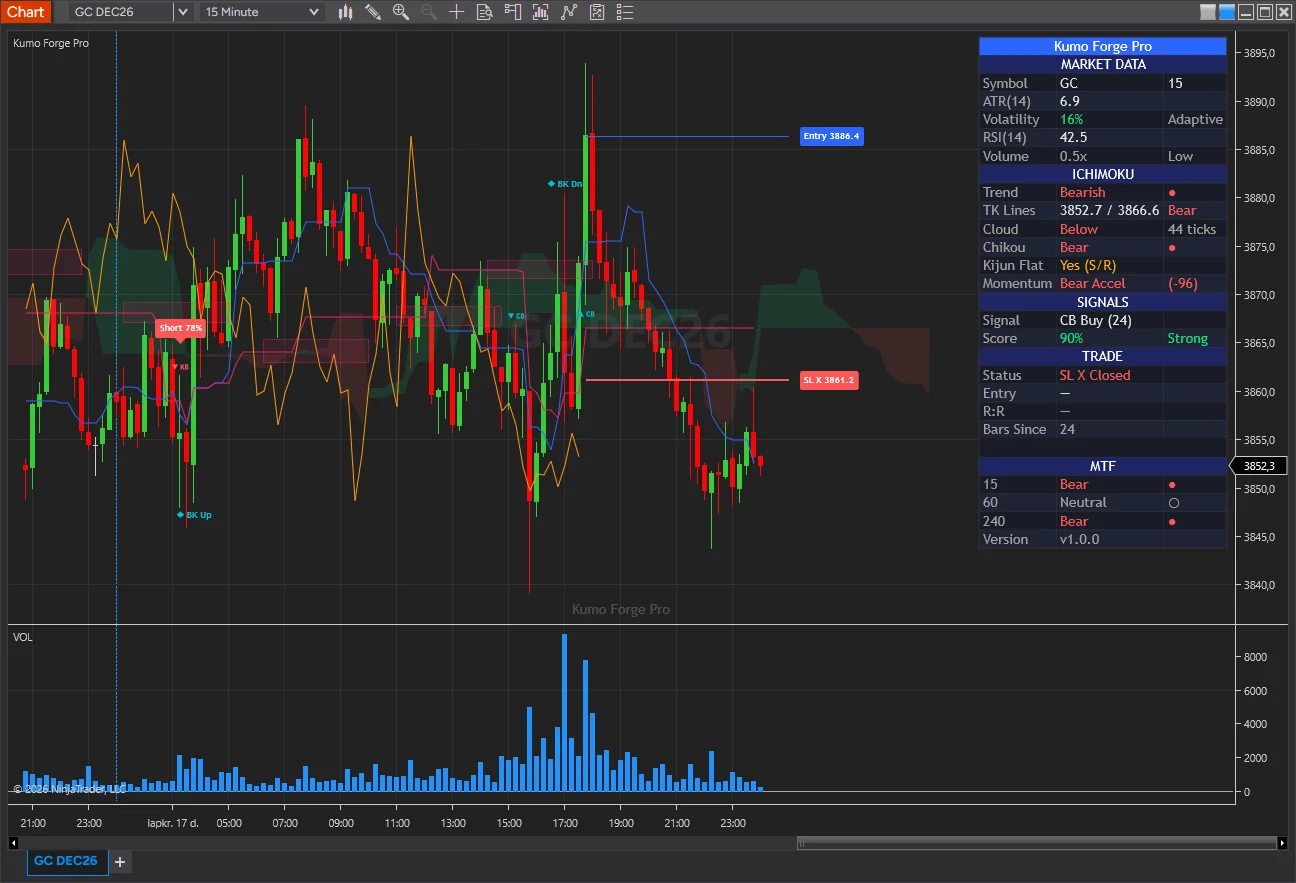
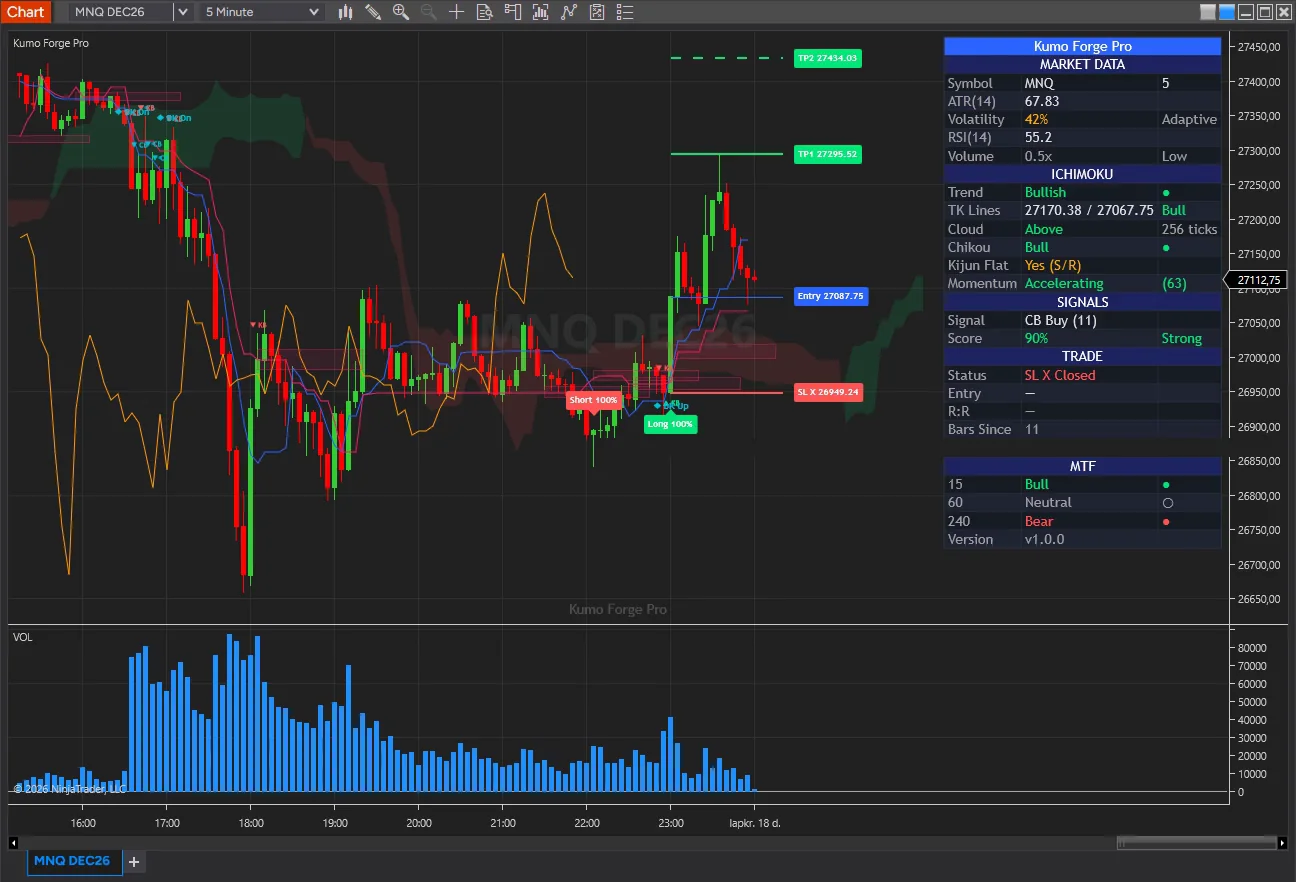
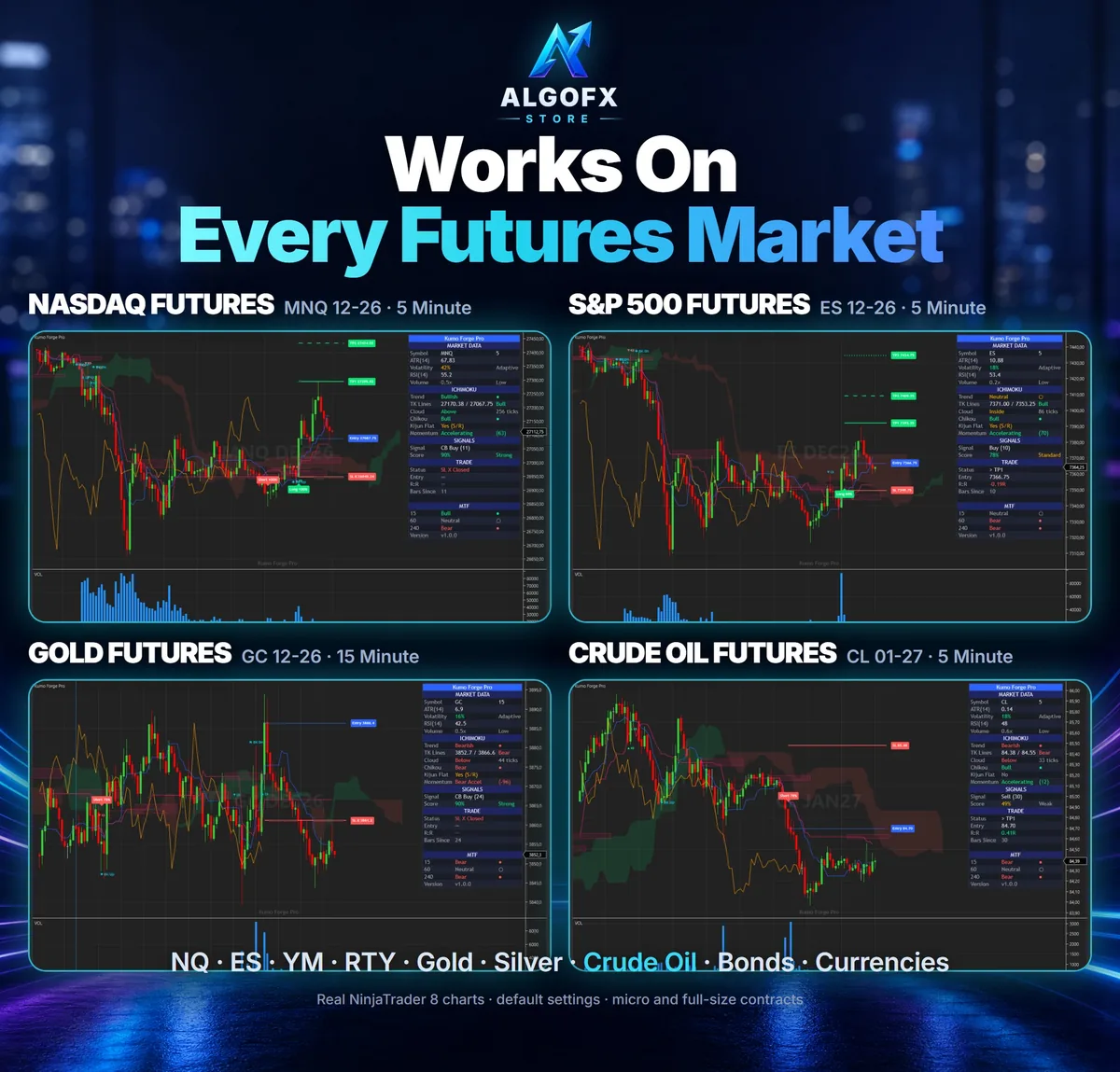
Every chart below is a screenshot of NinjaTrader 8 itself with the shipped Kumo Forge Pro AlgoFX attached at its default settings. Forex, metals, indices, energy and crypto, so you can see how it reads each kind of market. They show what the indicator draws; they are not trading results. Tap or click any chart to open it full size.
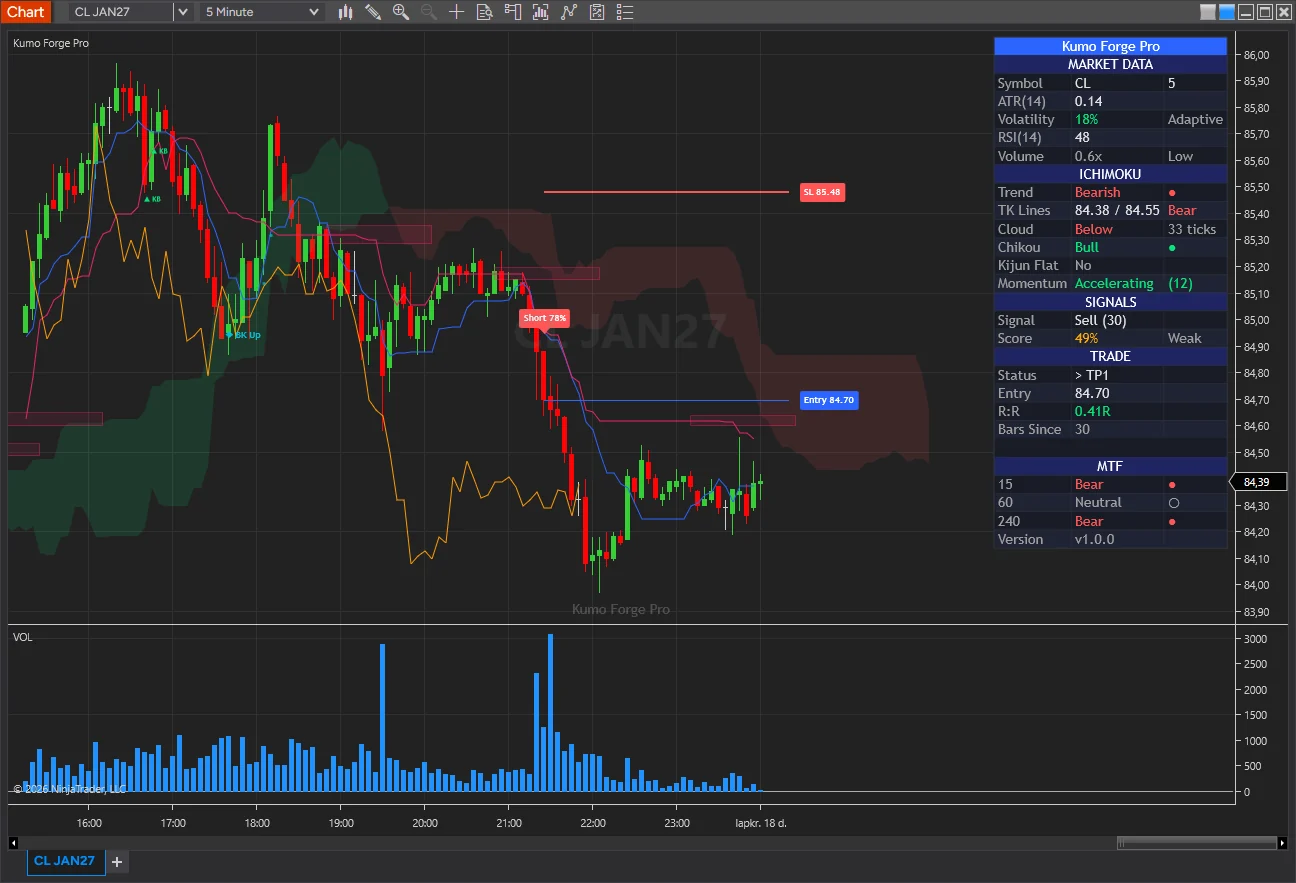
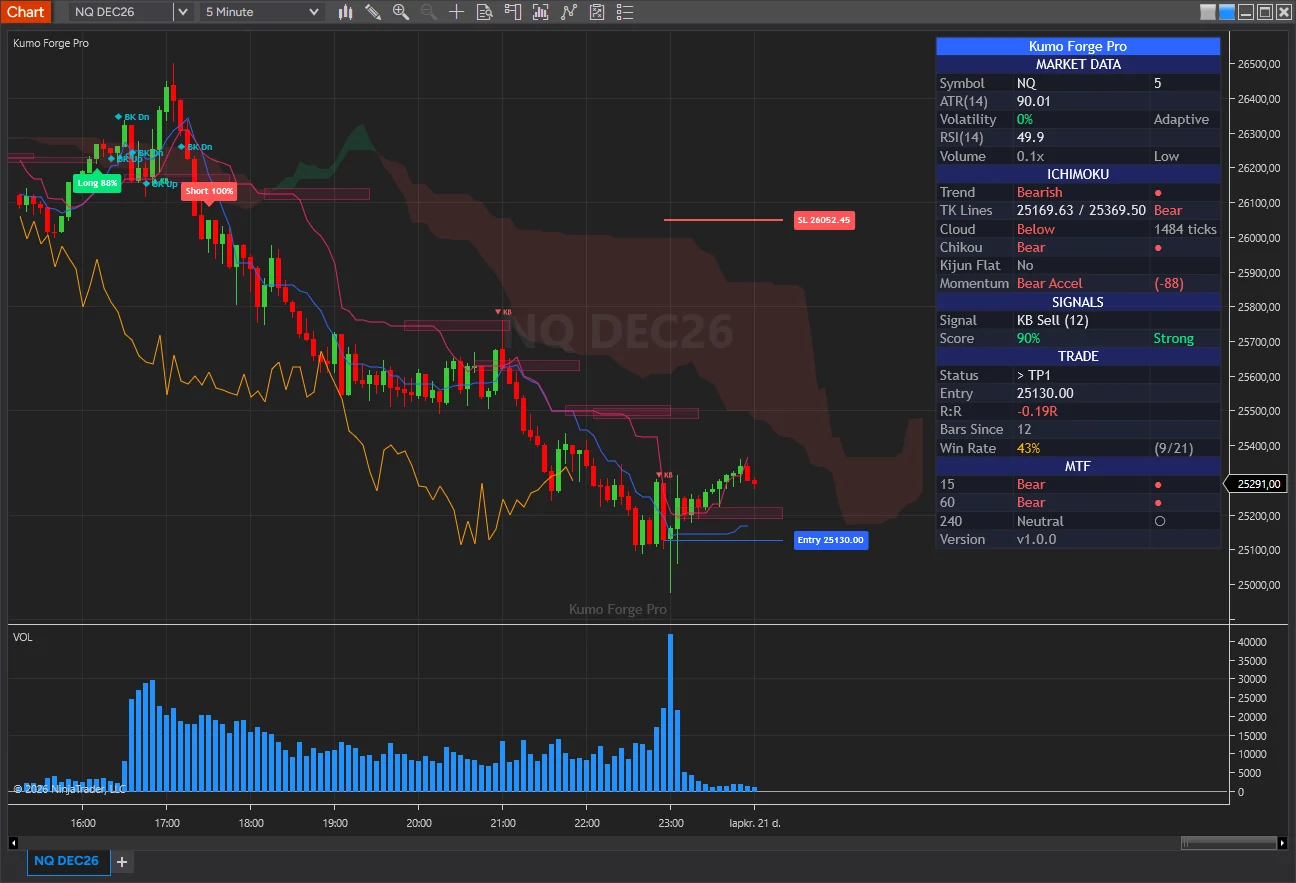
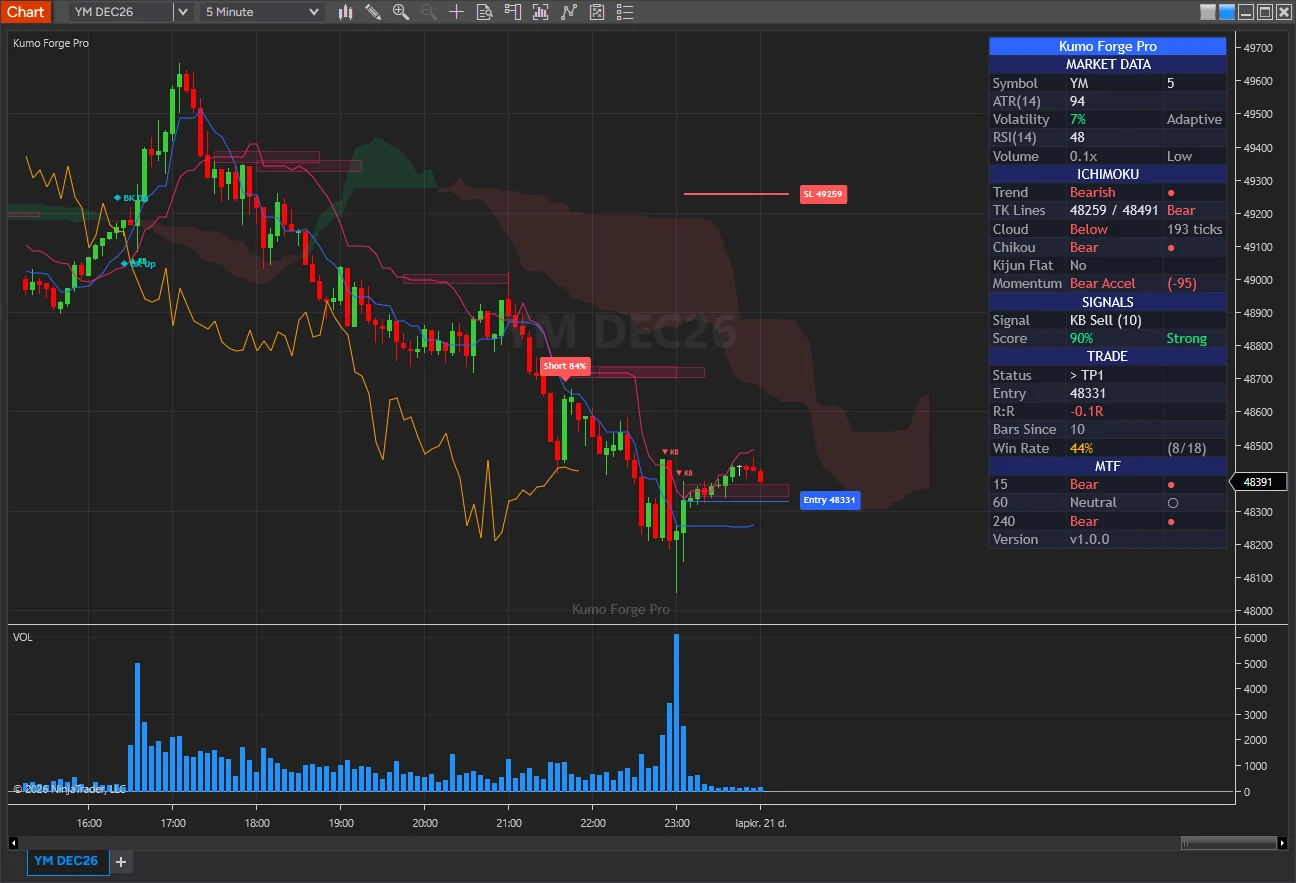
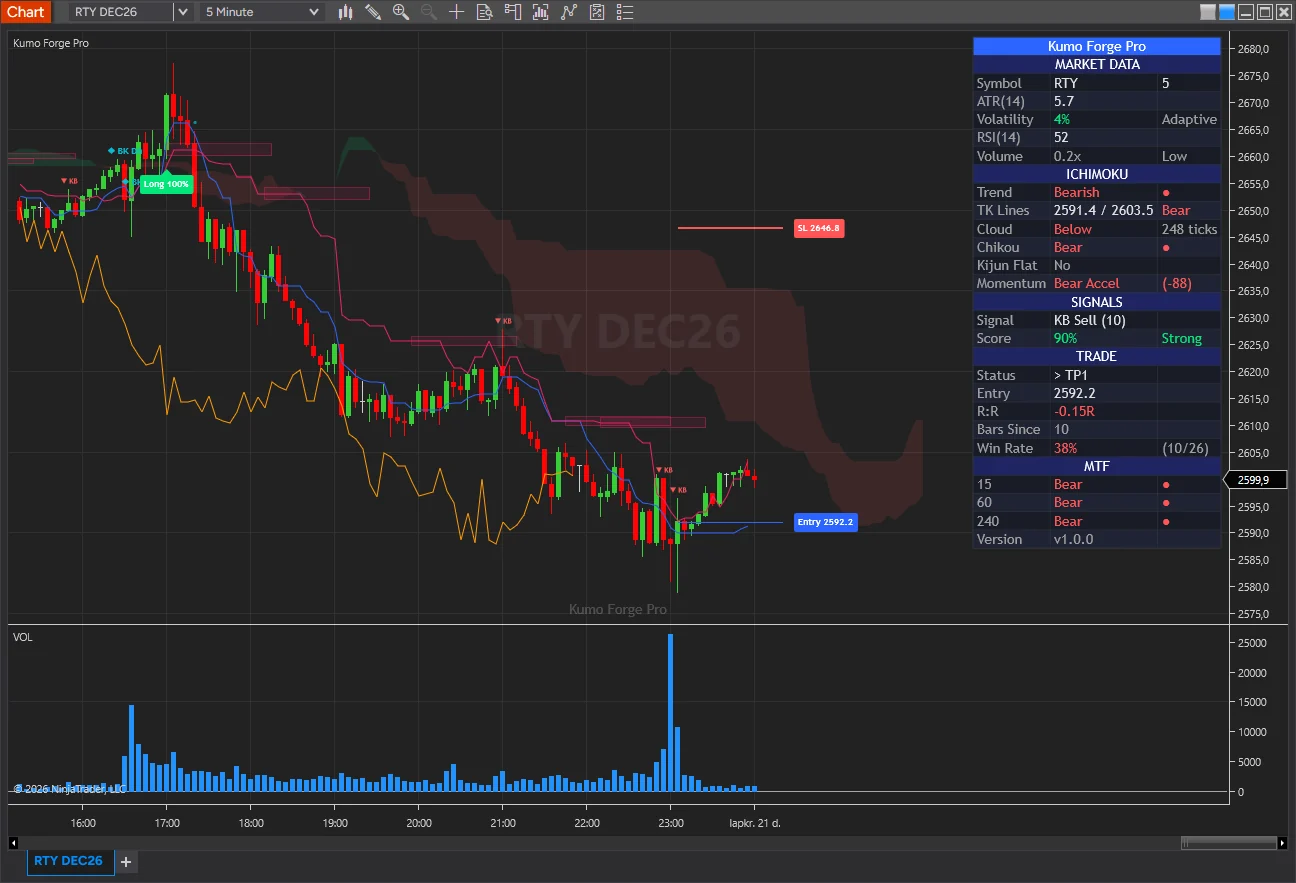
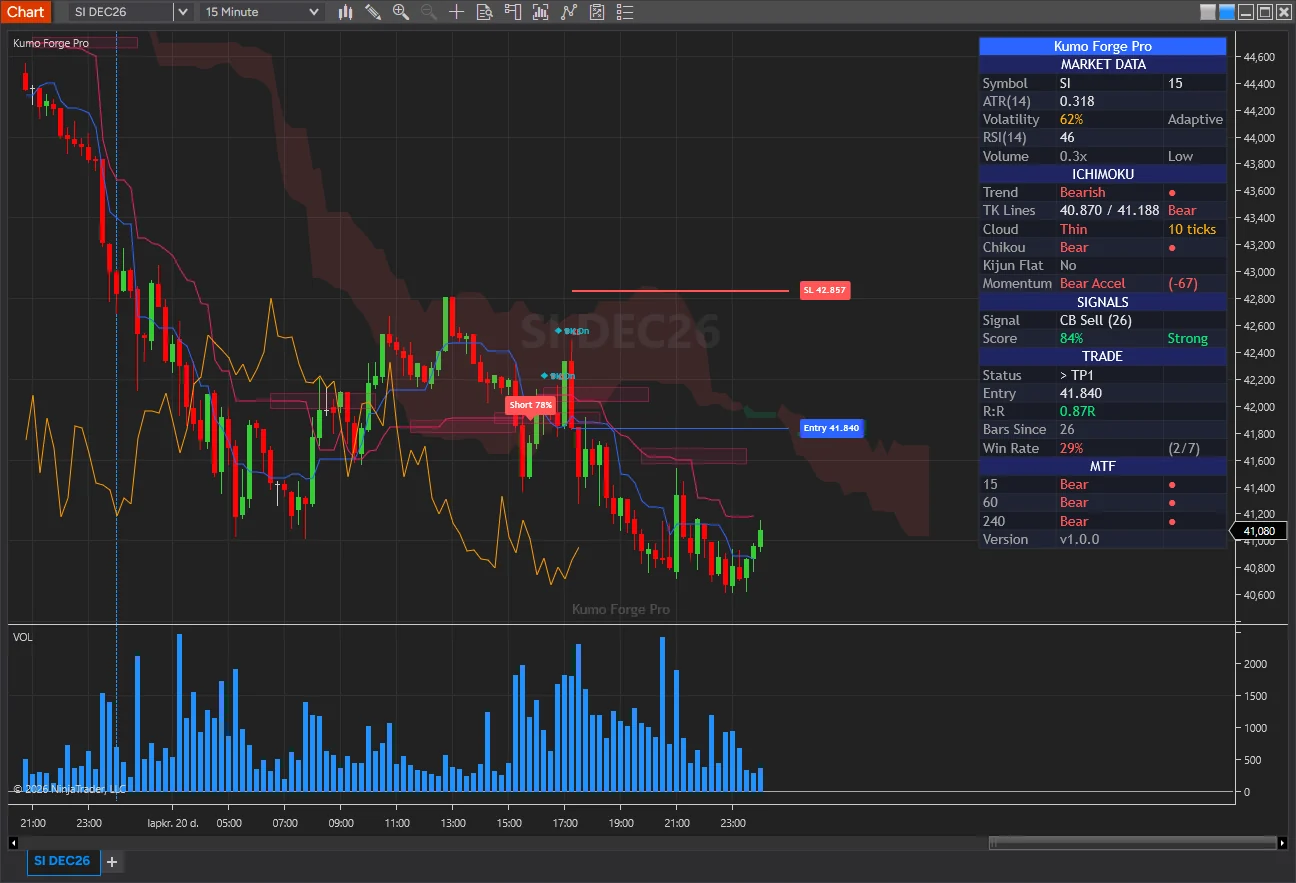
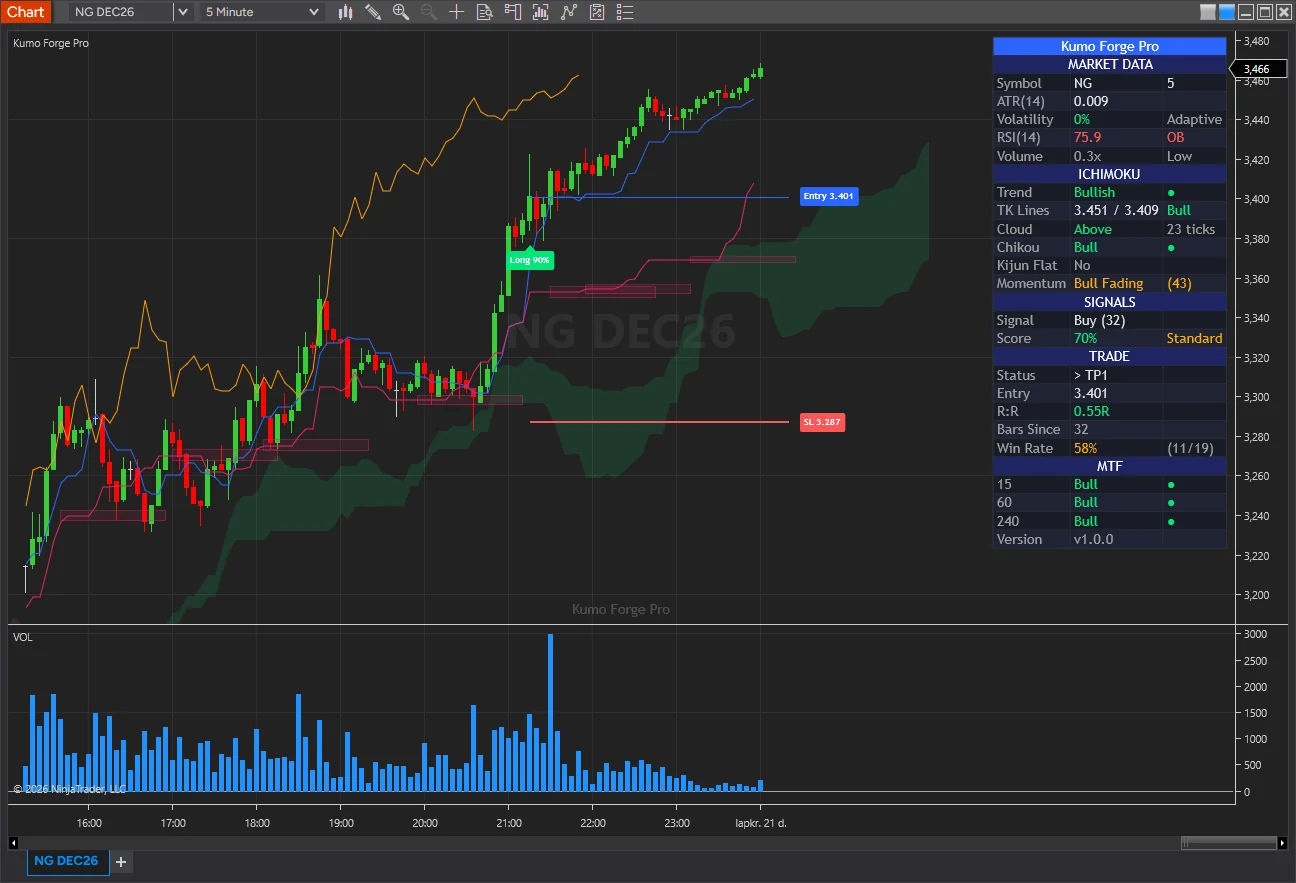
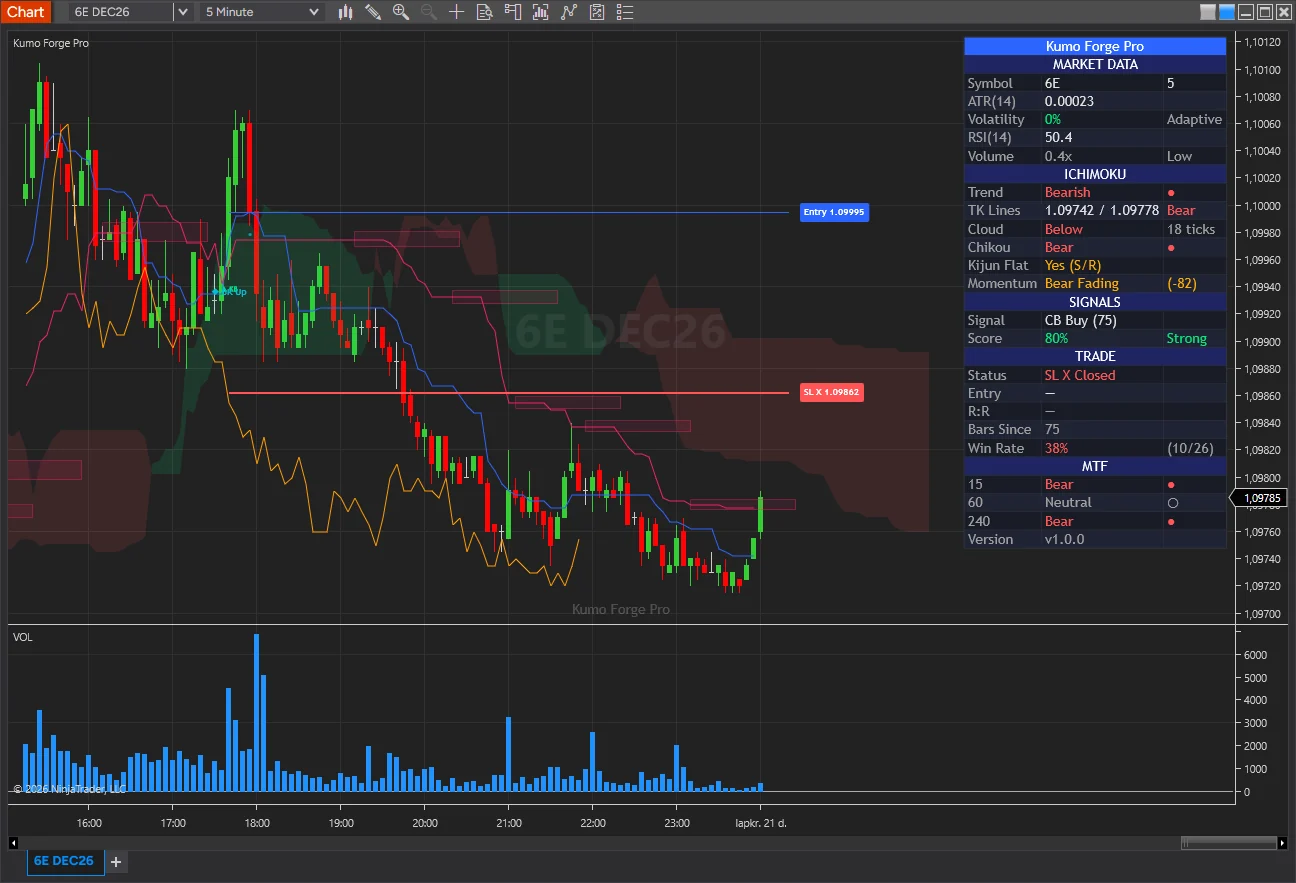
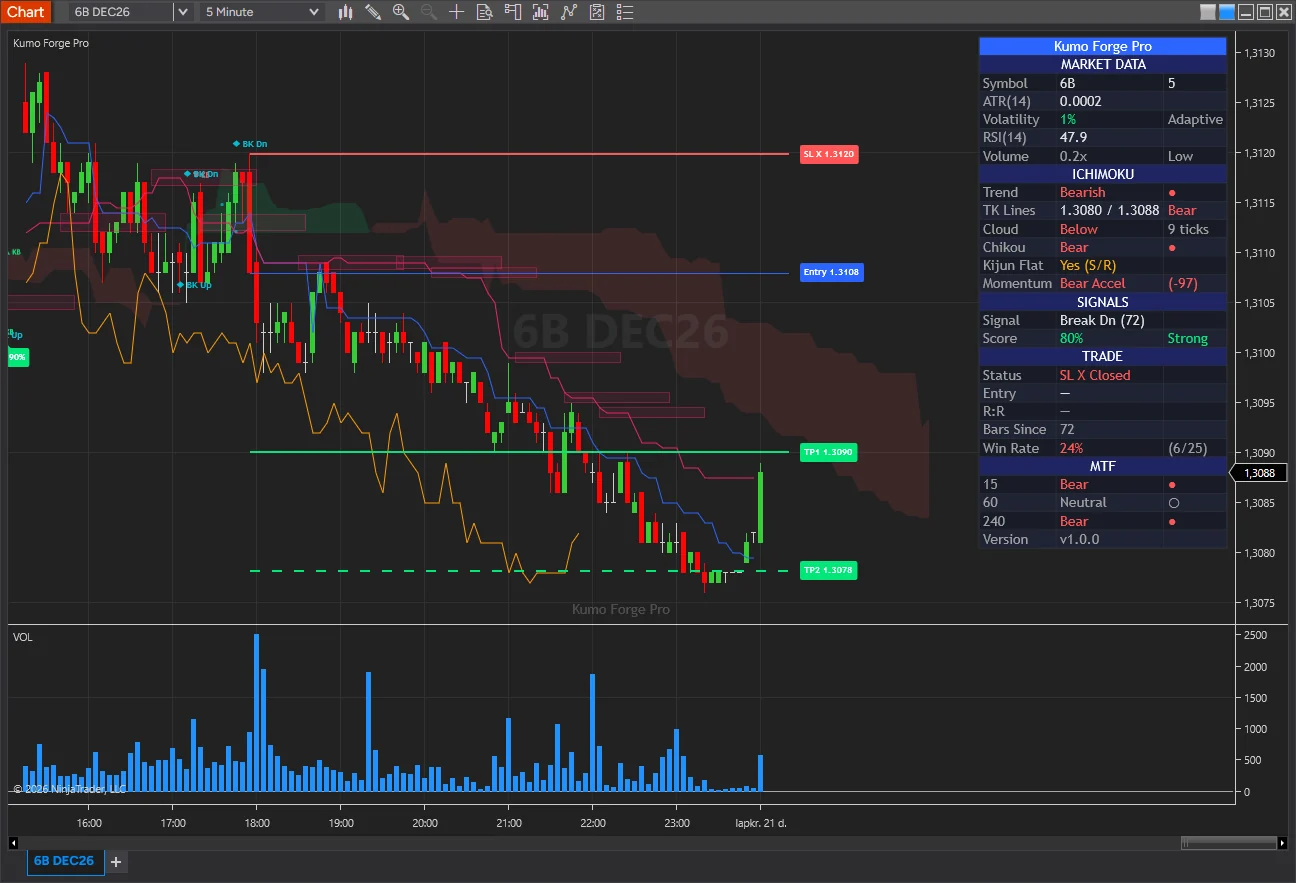
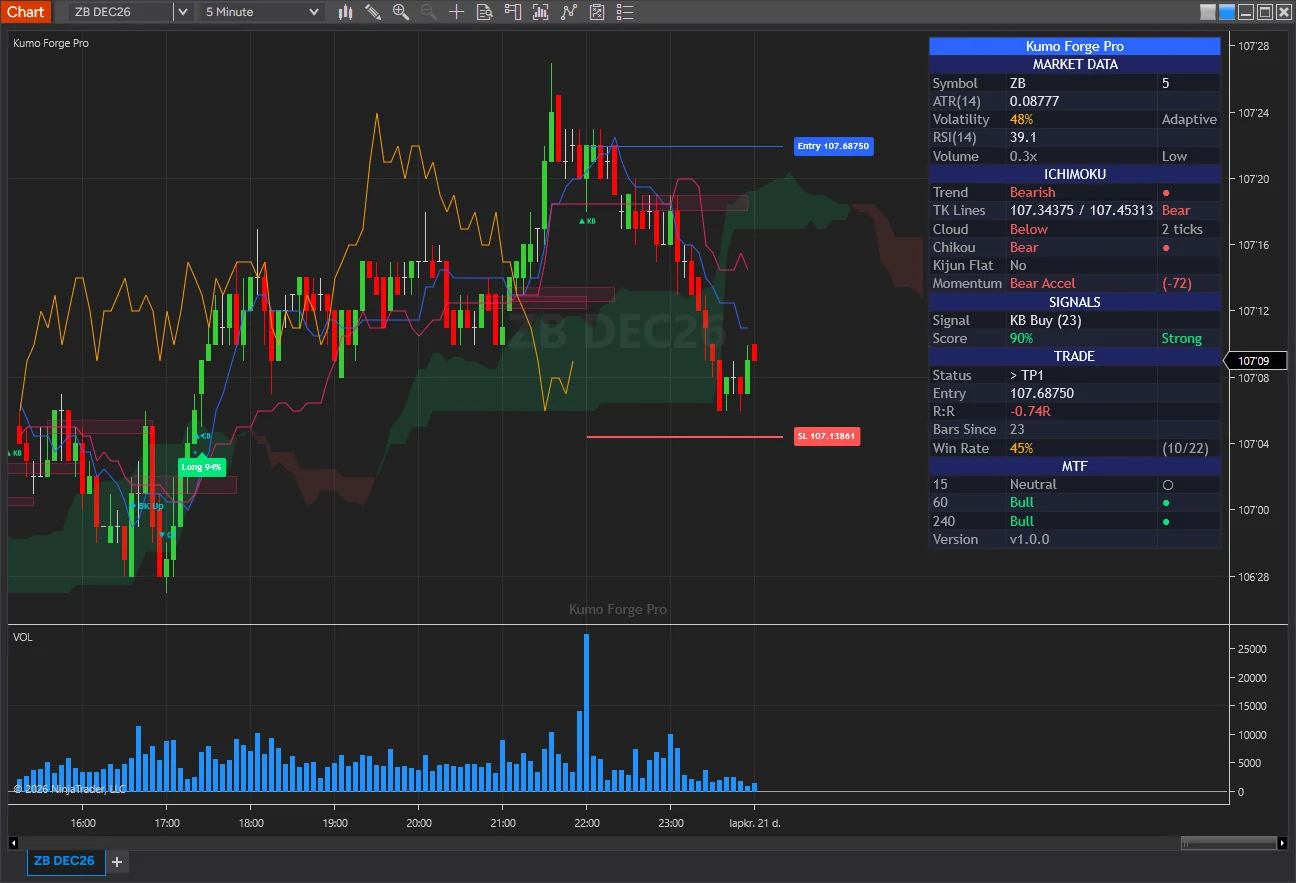
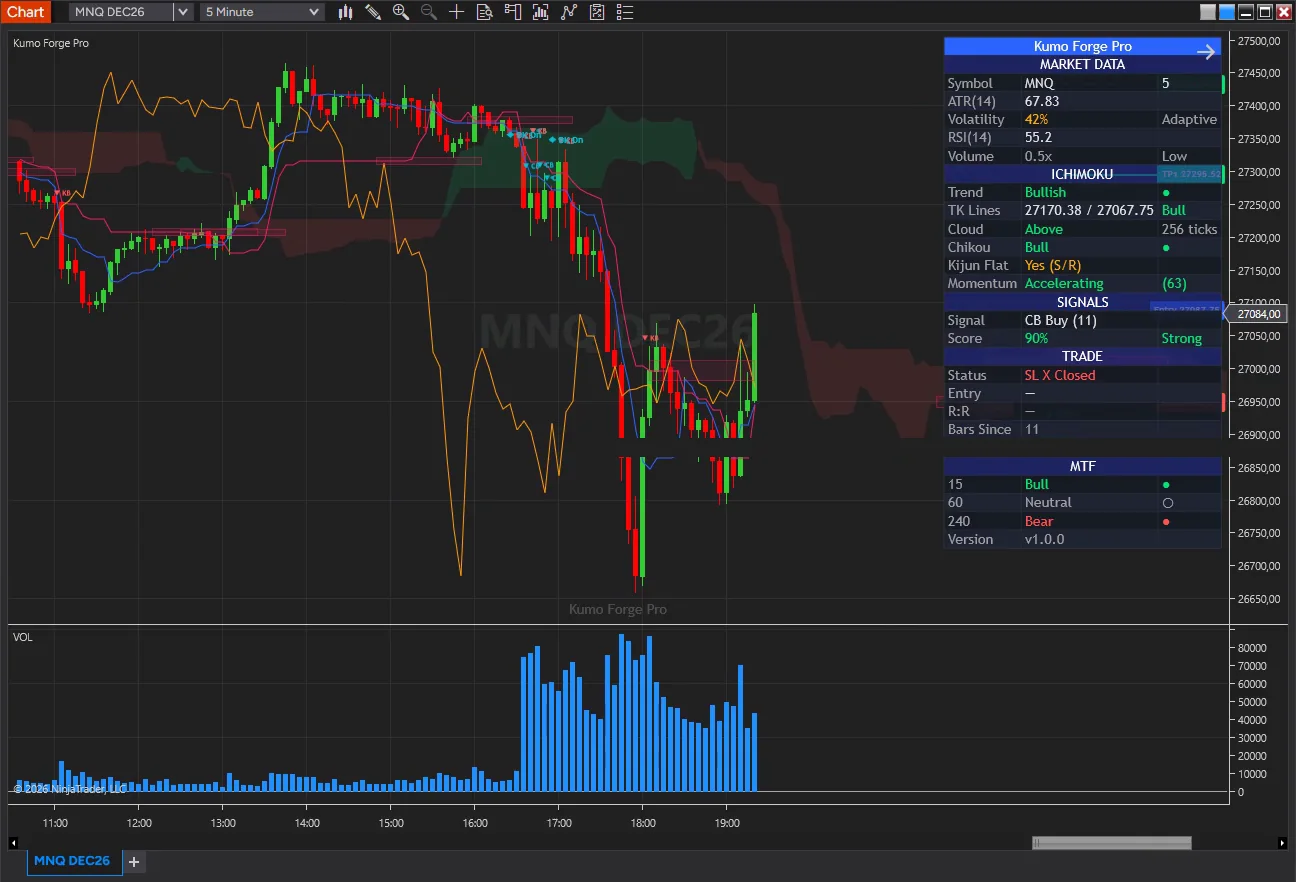
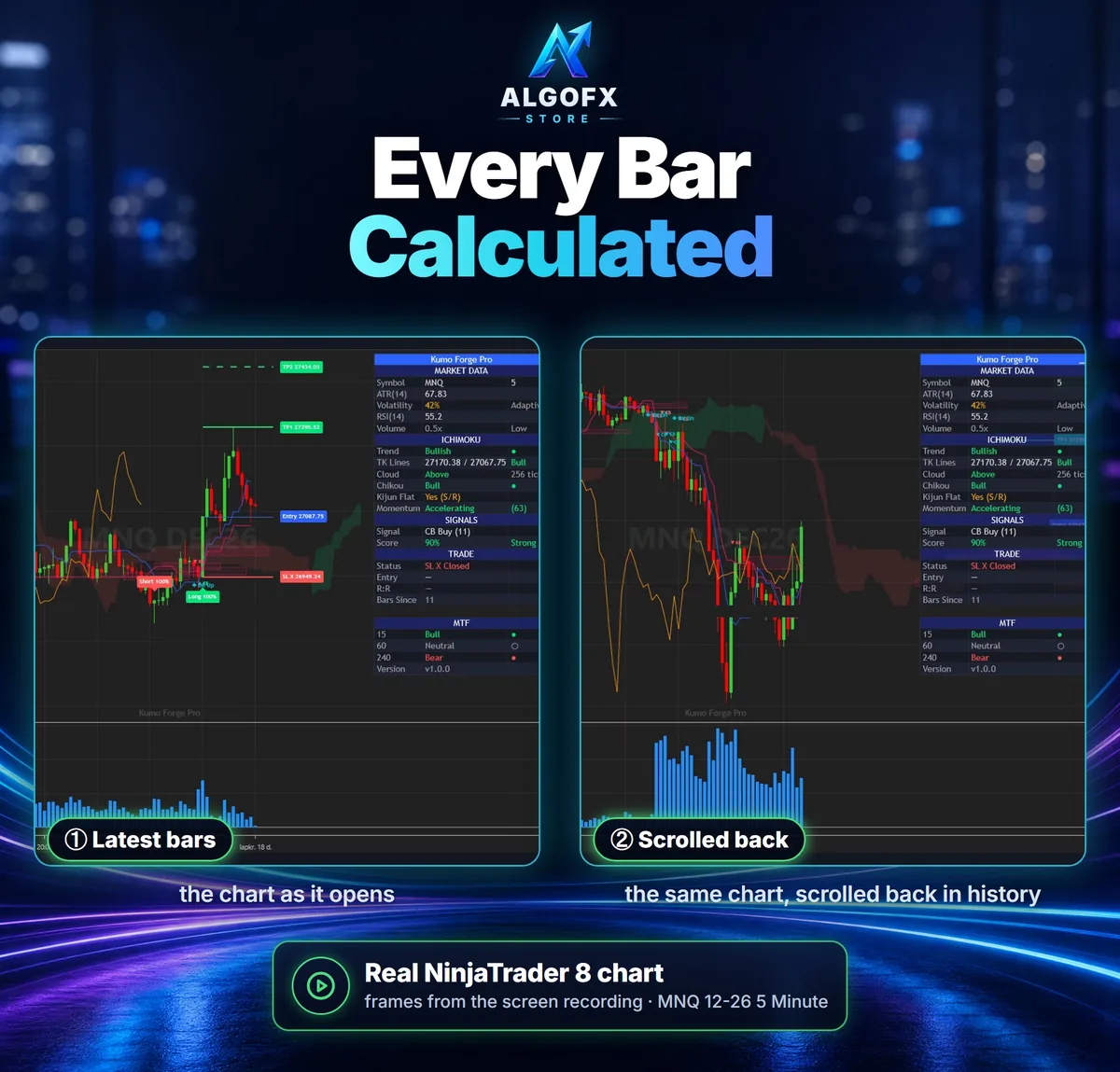
Watch Kumo Forge Pro work on a real NinjaTrader 8 chart
A screen recording and frames from the shipped indicator at its default settings, as the chart updates. Nothing is edited into the chart.
How to trade it, step by step
The indicator gives you the read and the levels; the decision and the order stay yours. This is the routine the manual describes, written as a checklist you can follow on a live chart.
- 1
Set the chart up once
Open a 5 Minute chart of MNQ, MES or MCL, or a 15 Minute MGC chart, keep Calculate on On bar close and pick one Trading Hours template, RTH or ETH, and stay with it. Use the front month or a back-adjusted merge so a roll gap does not inflate the cloud and the ATR. Wait until the three MTF rows show Bull or Bear rather than Neutral for lack of history.
- 2
Wait for a closed-bar signal
Act only on a plate or marker on a bar that has closed. For a long, the dashboard Cloud row should read Above and the grade should be Standard or Strong. A Weak grade means few components agreed on that bar. Raising Min Confluence Score to 50 removes Weak setups from the chart entirely if you would rather not see them.
- 3
Confirm with the dashboard
Look for at least two of the three MTF rows on your side, the Volume row reading OK rather than Low, and a Momentum state that is not fading against you. On a short, mirror every check: Cloud Below, MTF rows Bear. If the rows are split, the setup has the chart's own timeframe behind it and little else.
- 4
Check the stop before you size
The KumoEdge stop sits beyond the far cloud edge, so its width depends on how far price is from the cloud. Count the ticks from entry to the red SL line and size from that, not from a habit. The stop must be below the entry for a long and above it for a short; a long cross can print while price is still under the cloud, and then the cloud stop lands on the wrong side. Skip it, or use SL Mode ATR.
- 5
Round the levels and manage
Level prices are exact computations, not rounded to the tick grid, so a stop can read 28471.71 on MNQ. Round the stop away from your entry and the targets towards it. The TP1, TP2, TP3 and SL Hit alerts tell you when a level is reached. The indicator never moves your stop, and a new signal moves the lines to the new trade while your open order stays as it is.
- 6
Know when to stand aside
Skip signals when the Cloud row reads Inside or Thin, when Volume reads Low, when the MTF rows disagree, in the first minutes after the open, inside a news window and late in the session when TP1 is out of reach. A signal on a session's last bar appears only after the reopen, because NinjaTrader closes a bar when the next tick arrives.
22 rows that read the market for you
The on-chart dashboard, row by row.
- Symbol: the instrument and the chart period
- ATR(14): the 14-bar average true range, in price
- Volatility: where ATR(14) sits between its low and high over the Volatility Lookback, 0 to 100 percent, with Adaptive or Fixed
- RSI(14): RSI of the Source, marked OB above 70 and OS below 30
- Volume: the bar's volume as a multiple of its 20-bar average, OK above 1.2 times, otherwise Low (N/A without volume)
- Trend: Bullish above the cloud with Tenkan above Kijun, Bearish mirrored, otherwise Neutral
- TK Lines: the Tenkan and Kijun values, with Bull, Bear or Flat
- Cloud: Above, Below, Inside or Thin, with the cloud thickness in ticks
- Chikou: Bull or Bear, the Chikou span against the Source one displacement earlier
- Kijun Flat: Yes (S/R) when the Kijun has held one value for four bars, otherwise No
- Momentum: the momentum state, for example Accelerating or Bear Fading, with its value
- Signal: BUY or SELL on a signal bar, otherwise the last signal and how many bars ago, or Wait
- Score: the signal's score on a signal bar, otherwise the higher of the buy and sell scores, graded Strong, Standard or Weak
- Status: > TP1, TP1+ > TP2, TP1+ TP2+ > TP3, TP3 + Closed, SL X Closed or No Active
- Entry: the tracked trade's entry price
- R:R: the open trade's distance from the entry on the last close, in multiples of its risk
- Bars Since: bars since the last signal
- Tally (n/m): first targets reached against first targets plus stops on the loaded bars; it describes the drawing, not a trading record
- 15: the 15-minute Ichimoku state, Bull, Bear or Neutral, from closed bars
- 60: the same reading for 60 minutes
- 240: the same reading for 240 minutes
- Version: the indicator version
Everything Kumo Forge Pro does for you
Setups you can rank at a glance
Every TK cross plate prints its score, and the dashboard grades the newest signal Strong (80 or more), Standard (50 or more) or Weak. Min Confluence Score from 0 to 110 decides how much a TK cross, Kijun bounce, cloud bounce or Chikou breakout needs.
Five entries from one rule set
The first TK cross, the Kijun bounces and cloud-edge bounces that follow a trend, Kumo breakouts on volume and their retests, plus optional Chikou breakouts. Each family has its own switch, its own mark and its own alert.
Three ways to place the stop
KumoEdge (the far cloud edge plus 0.5 ATR, the default), Kijun (the Kijun plus the buffer) or ATR (a fixed 2 x ATR(14), buffer ignored). ATR mode makes the next stop predictable before the signal prints, which helps when you size in ticks.
Three targets as R multiples
TP1 at 1.5R is a solid green line, TP2 at 2.5R dashed and TP3 at 4R dotted, each adjustable. Tags change to TP1 + once reached and SL X once hit, and the TRADE status row reads, for example, TP1+ > TP2.
Support and resistance from a flat Kijun
When the Kijun has held one value for four bars and then moves, a shaded box marks that level 0.15 ATR either side, from 5 bars before to 10 bars after. Up to 180 boxes stay on the chart (S/R Box Cap).
A dashboard that reads the cloud for you
MARKET DATA (ATR, Volatility, RSI, Volume), ICHIMOKU (Trend, TK Lines, Cloud with thickness in ticks, Chikou, Kijun Flat, Momentum), SIGNALS, TRADE and three MTF rows. Pick the corner, Tiny to Large text, and Theme Auto, Dark or Light.
Alerts on every closed-bar event
Thirteen switches, all on by default, cover 23 conditions: TK crosses, breakouts, retests, both bounces, Chikou breaks, TP1, TP2, TP3, the stop, MTF alignment, trend changes and Strong signals. Each one is a row in the Alerts Log and a line in the NinjaScript Output window, with an optional sound and e-mail.
Built for NinjaTrader 8, not bolted on
Everything is painted on one SharpDX surface with DPI scaling and no draw objects, every setting saves with templates and workspaces, several instances can share a chart, and a minimized chart keeps calculating and alerting. The indicator opens no network connection.
Series a strategy can read
TenkanSen, KijunSen, ChikouSpan, SenkouA, SenkouB and a hidden Signal series (+1 on a closed bar with any buy signal, -1 with any sell, 0 otherwise) can be read by your own NinjaScript strategy, which must add the same three data series.
Kumo Forge Pro, feature by feature
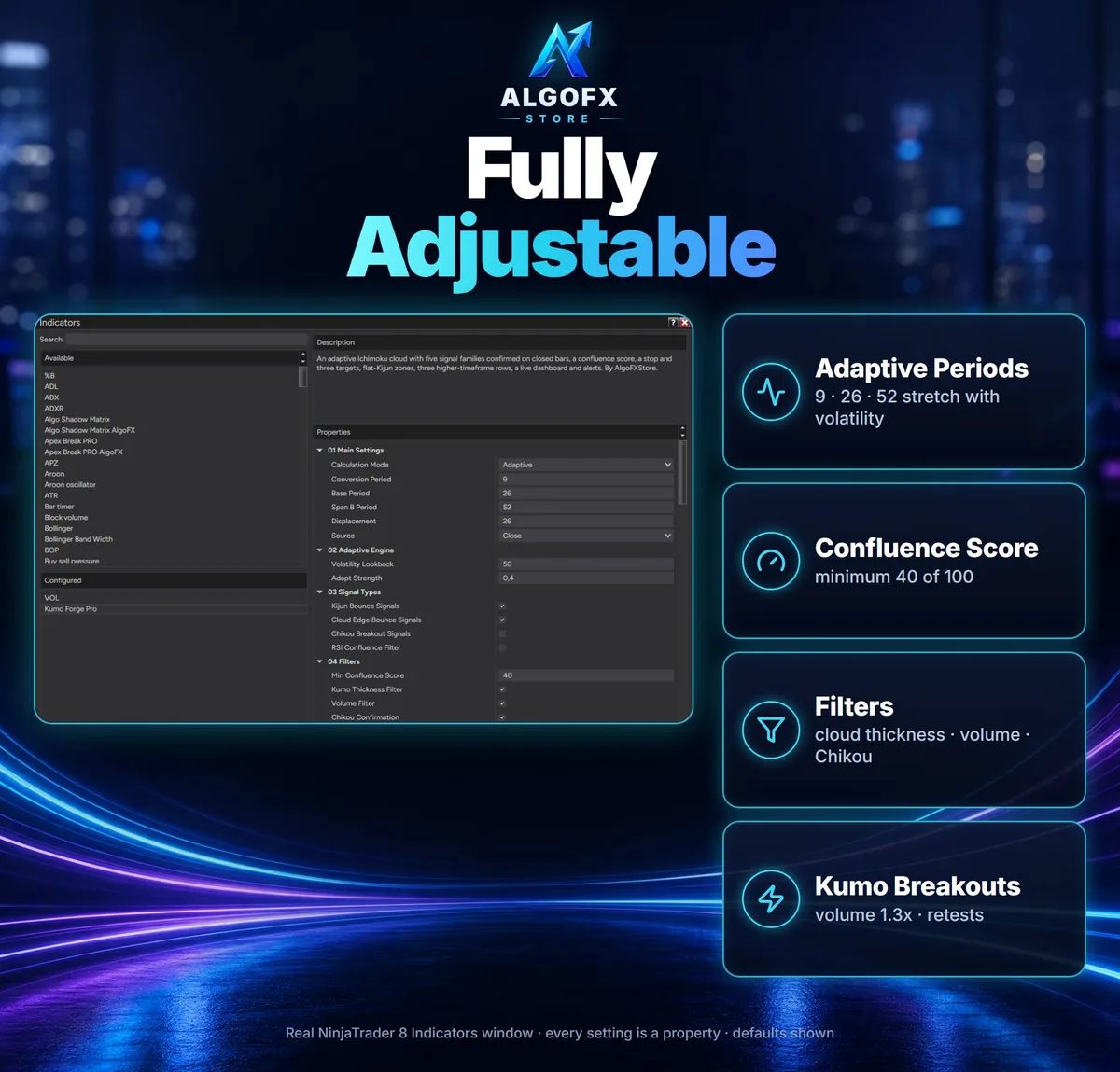
Each picture is built from real platform screenshots of the shipped indicator at its default settings, labelled so you can see what every part does. Tap any picture to open it full size.
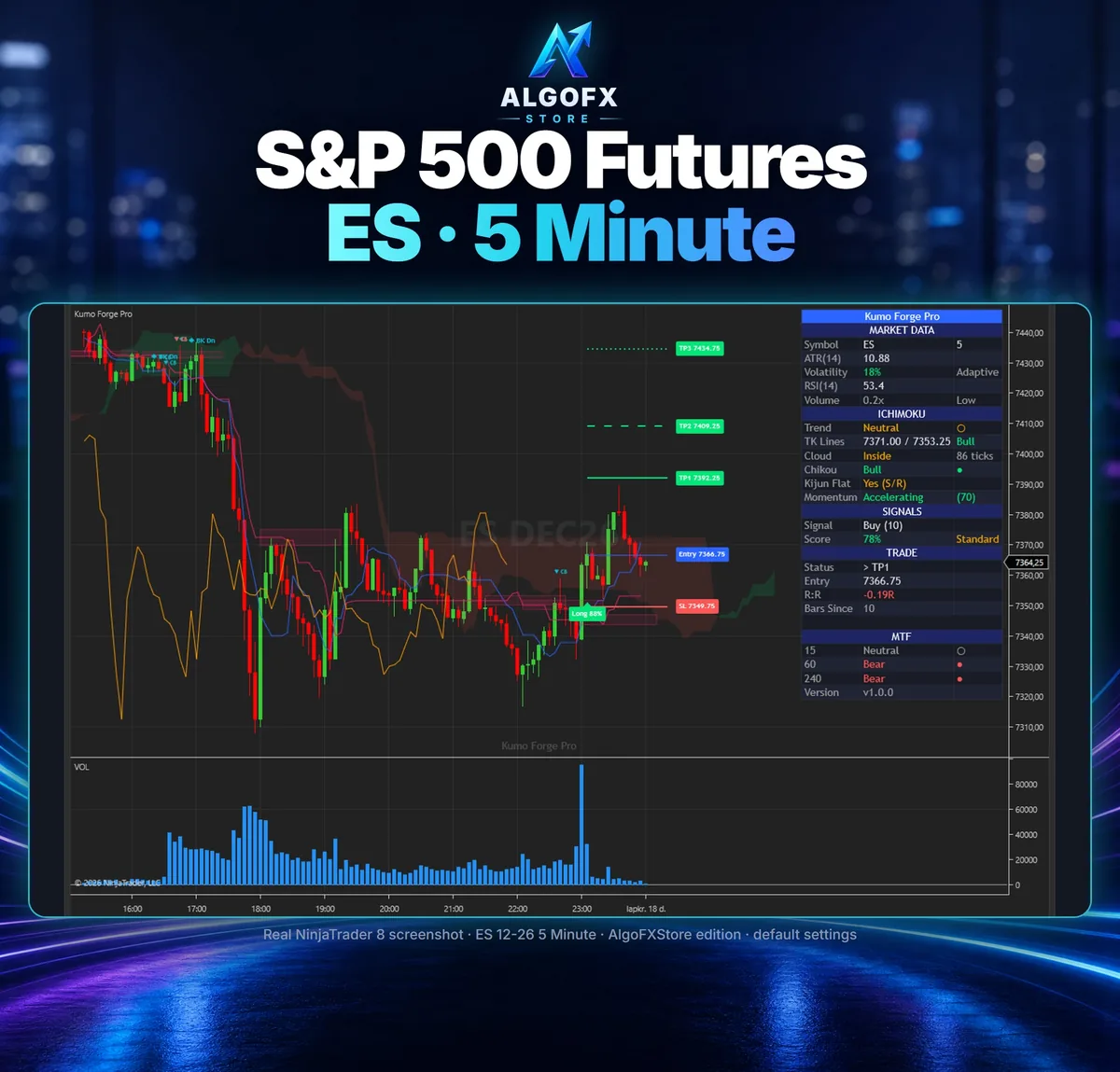
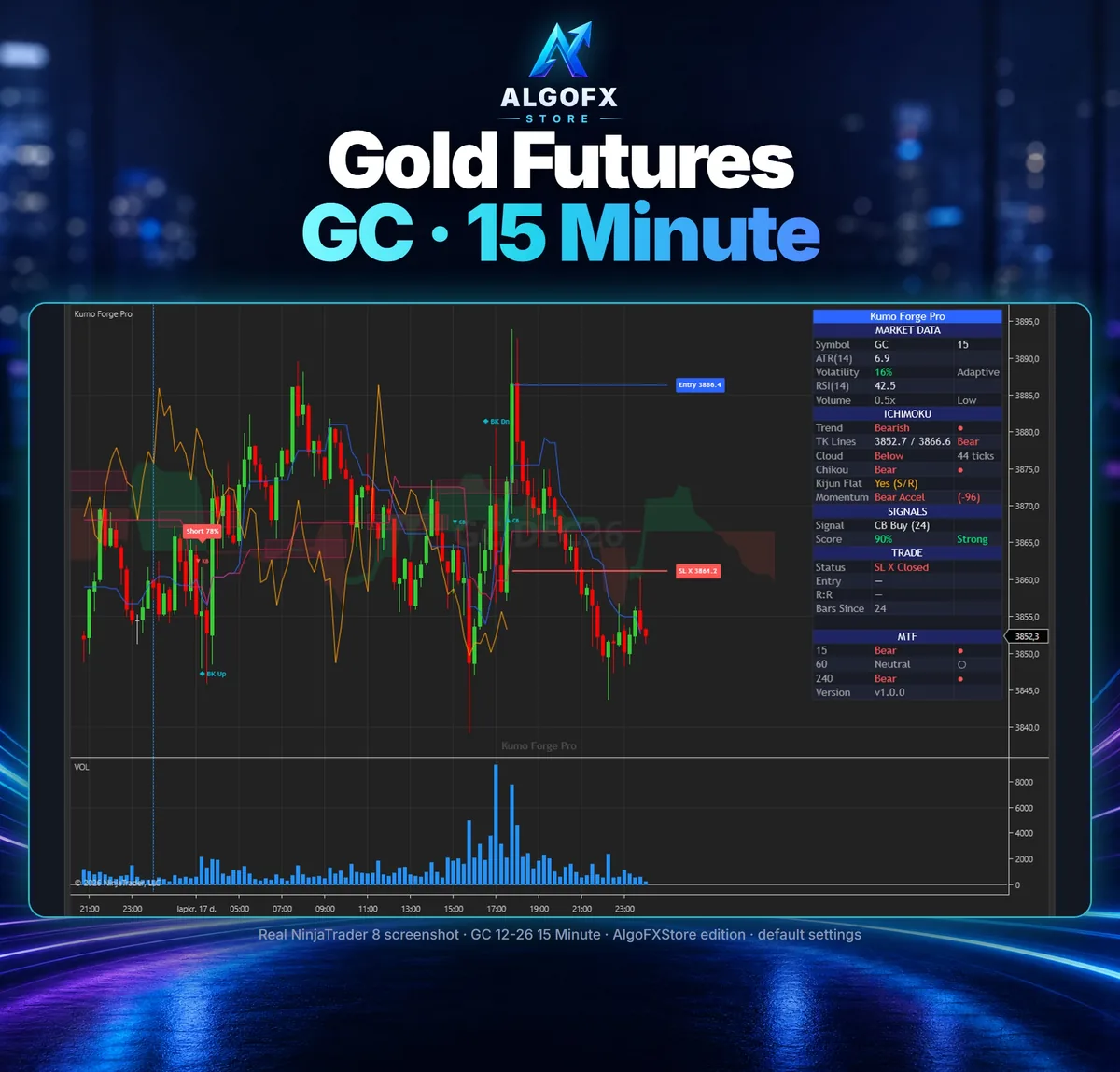
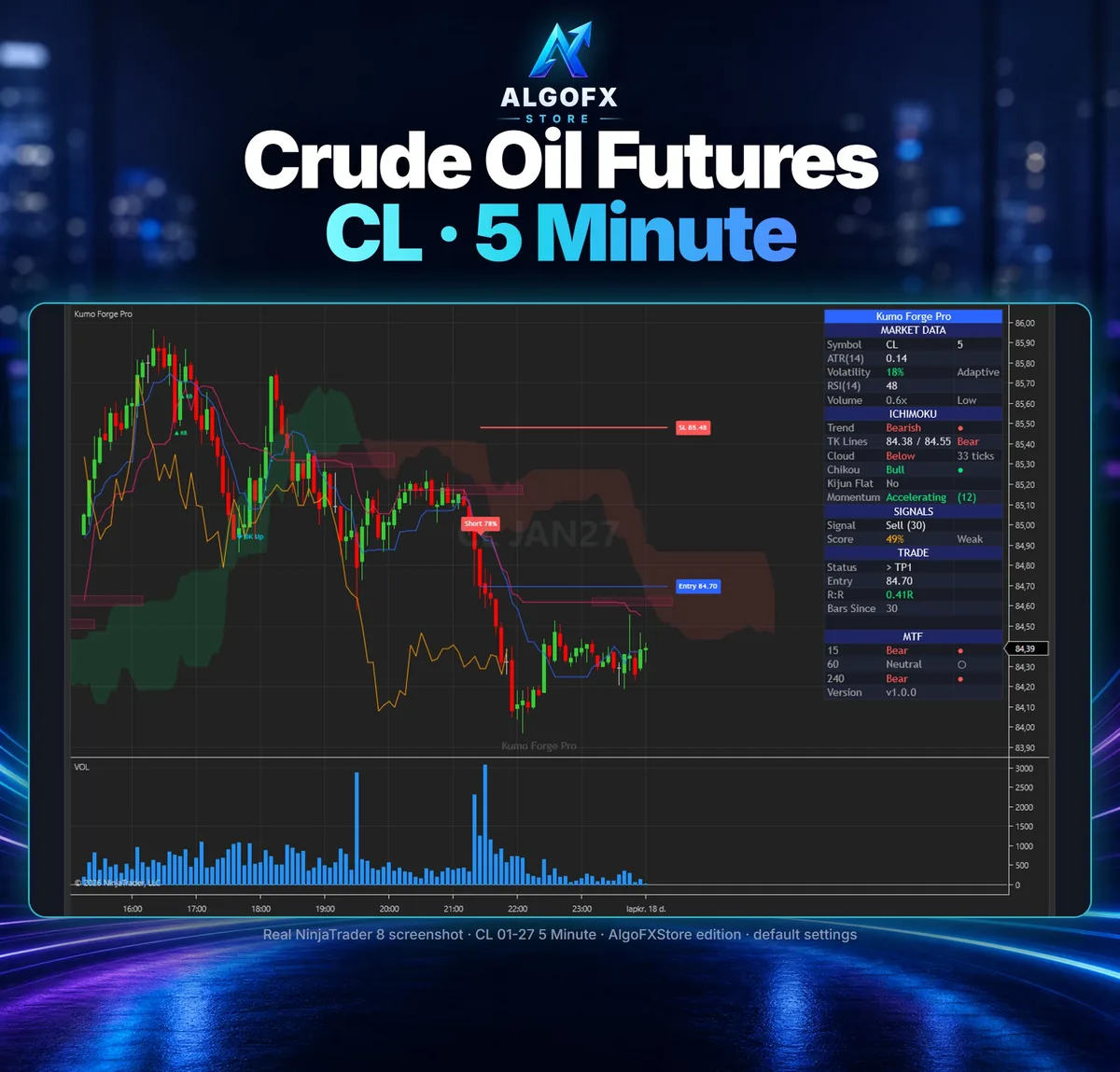
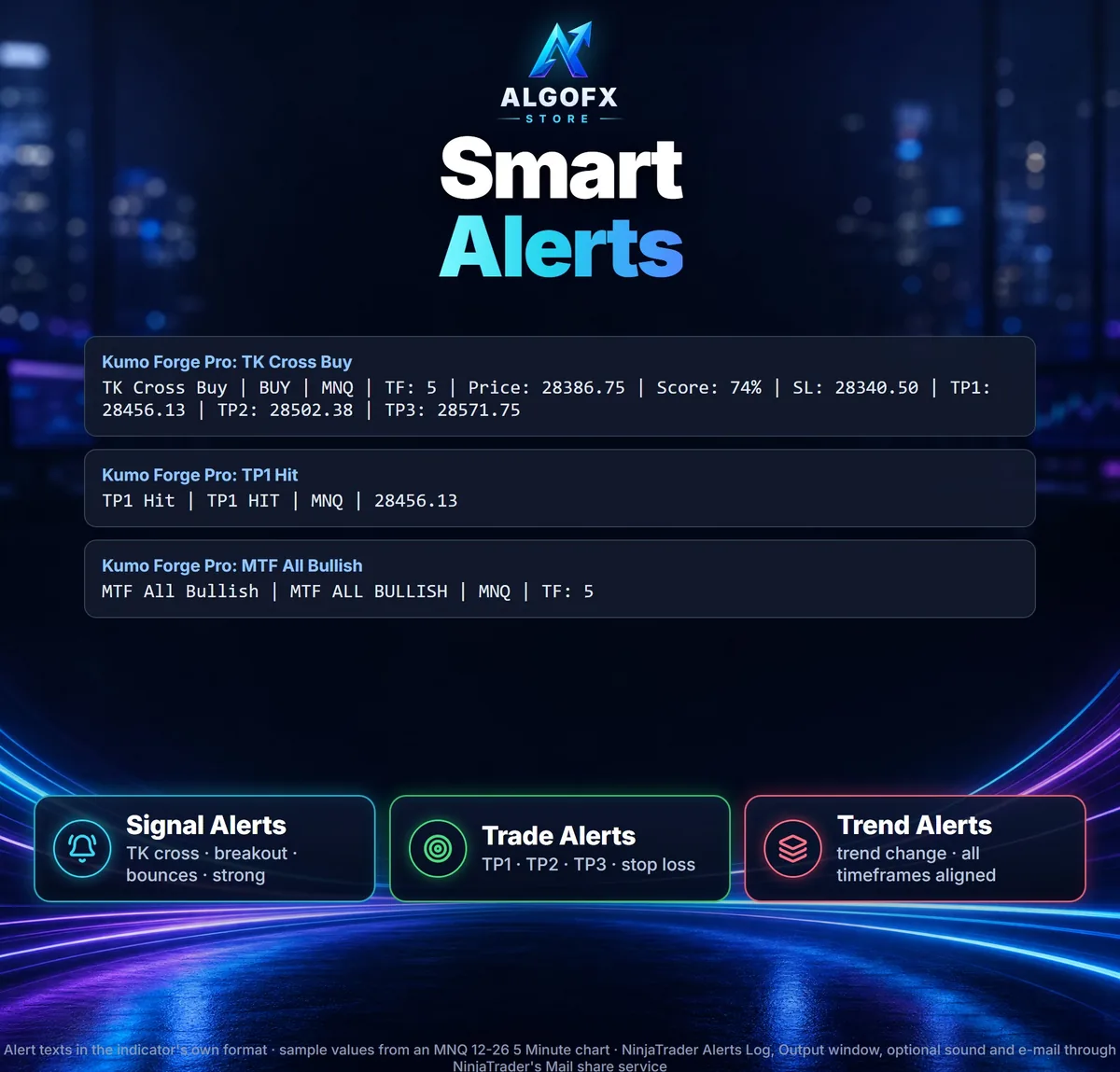
How traders put it to work
Intraday index micros on 5 Minute
With the default higher timeframes of 15, 60 and 240 minutes, a 5 Minute MNQ or MES chart is where the defaults sit most naturally. On the ES 5 Minute chart in the manual a Long plate at 7543.75 carried a KumoEdge stop of 71 ticks and ATR(14) of 7.31. Keep the Volume Filter on: futures volume is real contract volume, so the volume checks mean what they say.
Gold and crude with a predictable stop
On a 15 Minute GC or MGC chart and a 5 Minute CL or MCL chart the cloud-edge stop can be wide one day and tight the next. The manual's examples show neither mode is always tighter: on GC the cloud stop was closer than 2 x ATR, on a 1 Minute MNQ chart it was almost twice as far. Switch SL Mode to ATR when you want to know the stop before the signal.
1 Minute charts
On a 1 Minute chart, set TF 1 to 5 minutes so the first MTF row stays close to the bars you trade, and consider Min Confluence Score 50 so only Standard and Strong setups print. Every family opens a new tracked trade, so if the chart gets busy switch Cloud Edge Bounce Signals off first and keep Chikou Breakout Signals off.
Traditional Ichimoku readers
If you learned the cloud on fixed periods and want it that way, choose Calculation Mode Classic. The periods stay at 9, 26 and 52 with a displacement of 26, and you still get the score, the five signal families, the levels, the flat-Kijun zones and the dashboard on top of the familiar lines.
Tick, range and Renko charts
Time-based bars are fully supported. Tick, volume, range and Renko charts run too: the lines past the last bar are placed on the observed bar spacing, and each higher-timeframe row reads the bars that closed by the chart bar's own close. Stocks and forex instruments with bars work as well; a bar with no volume simply passes the volume tests.
Every setting, with its default
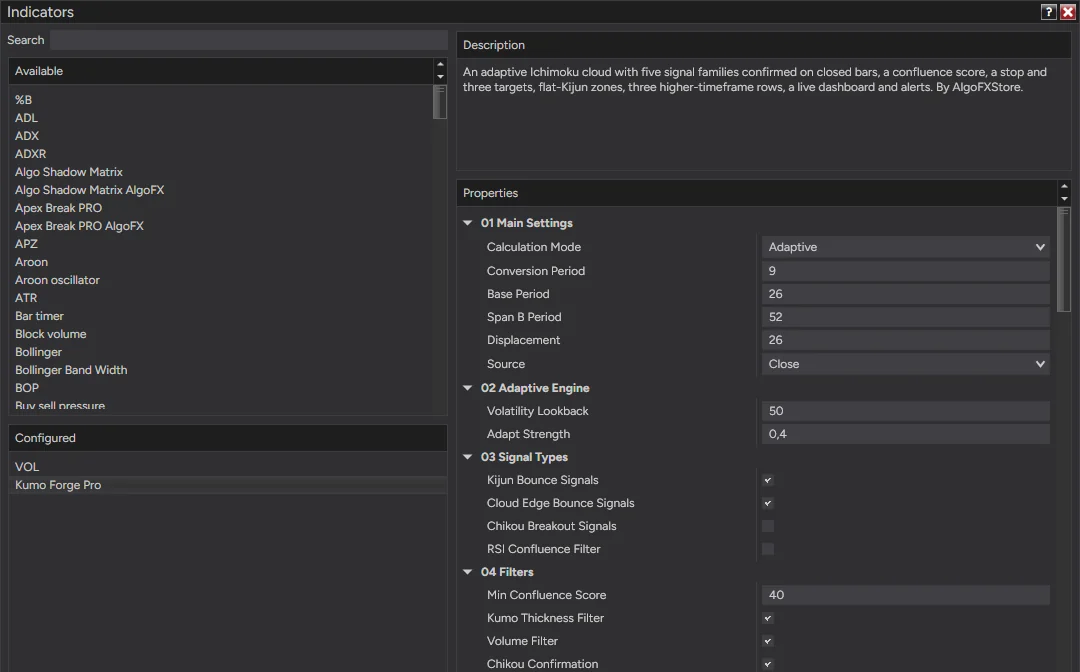
The names are the ones in the NinjaTrader indicator dialog; the defaults are what every chart on this page uses.
| Setting | Default | What it does |
|---|---|---|
| Calculation Mode / Conversion / Base / Span B / Displacement | Adaptive / 9 / 26 / 52 / 26 | Adaptive scales the Ichimoku periods with volatility; Classic keeps them fixed. |
| Source | Close | Price for the Chikou span and the RSI (NinjaTrader's Input series row has no effect). |
| Volatility Lookback / Adapt Strength | 50 / 0.4 | ATR window and how far (up to 40 %) the periods may stretch. |
| Kijun Bounce / Cloud Edge Bounce / Chikou Breakout / RSI Confluence | on / on / off / off | Extra signal families and the optional RSI score factor. |
| Min Confluence Score | 40 | Minimum score (0-110) for a signal. |
| Kumo Thickness / Volume / Chikou Confirmation filters | on / on / on | Vetoes on thin clouds, low volume and Chikou disagreement. |
| Show TP/SL Lines / SL Mode / SL ATR Buffer | on / KumoEdge / 0.5 | Trade tracking and where the stop goes. |
| TP1 / TP2 / TP3 R:R | 1.5 / 2.5 / 4.0 | Targets as multiples of the risk. |
| Show Kumo Breakouts / Breakout Vol Mult / Retest Signals | on / 1.3 / on | Cloud breakouts with a volume check and retest marks. |
| Show MTF Panel / TF 1 / TF 2 / TF 3 | on / 15 min / 60 min / 240 min | Higher-timeframe Ichimoku state rows. |
| Show Dashboard / Position / Font Size | on / TopRight / Normal | Panel on or off, corner and text size. |
13 alert events
Alerts can go to the NinjaTrader Alerts Log, a sound and an e-mail (NinjaTrader's e-mail share service must be set up).
- TK Cross
- Kumo Breakout
- Retest
- Kijun Bounce
- Cloud Bounce
- Chikou Break
- TP1 Hit
- TP2 Hit
- TP3 Hit
- SL Hit
- MTF Alignment
- Trend Change
- Strong Signal
Kumo Forge Pro next to the usual options
Where it wins, and where it does not.
| Kumo Forge Pro | Typical free Ichimoku indicator | Reading it by hand | |
|---|---|---|---|
| Periods that follow volatility | Adaptive mode, up to 40 percent either way, or Classic | Fixed 9, 26, 52 | Fixed, unless you recalculate |
| How much agrees on a signal | Score from nine factors, graded Strong, Standard, Weak | Not shown | You count the components yourself on every bar |
| Entries beyond the TK cross | Kijun bounce, cloud bounce, Kumo breakout, retest, Chikou breakout | Usually the cross only, if any mark at all | Possible, but easy to miss on a fast chart |
| Stop and targets | Entry, stop and three targets drawn on every signal | None | You place and measure them yourself |
| Stop at swing structure | No. The stop is the cloud edge, the Kijun or 2 x ATR, plus a buffer | No | Yes, if that is how you trade |
| Simplicity of the chart | Busier: plates, markers, zones, five lines and a dashboard | Cleaner: just the lines and the cloud | As clean as you keep it |
| Cost | A one-time purchase | Free | Free, apart from your time |
Honest about who this fits
A good fit if you
- You trade futures on NinjaTrader 8 Desktop and already read the Ichimoku, or want to, and would like each setup scored instead of judged by eye.
- You want the entry, the stop and three targets on the chart the moment a signal prints, so you can count the ticks before you decide.
- You like several kinds of entry from one rule set: the first cross, the bounces in an established trend and the breakouts with their retests.
- You trade 5 to 15 minute charts on index, metal or energy micros and want three higher timeframes summarised in one corner.
- You prefer to tune: 75 settings let you change the periods, the filters, the stop mode, the targets and every drawing.
Not for you if you
- You want an automated system that enters and exits for you. This indicator draws, tracks levels and alerts; you place and manage every order.
- You want stops at swing highs and lows. These stops are the cloud edge, the Kijun or two ATRs, plus a buffer.
- You want a quiet chart with one line on it. Kumo Forge Pro draws a cloud, five lines, plates, markers, zones and a large dashboard by default.
- You use NinjaTrader Web, the mobile apps, a Mac or NinjaTrader 7. It needs NinjaTrader 8 Desktop for Windows, version 8.1.
One Add-On, one manual, imported in a minute
- 1NinjaScript Add-OnKumoForgeProAlgoFX.zip (0.2 MB). Import it in NinjaTrader 8 and it appears as “Kumo Forge Pro AlgoFX”.
- 15Page PDF manualInstalling, every setting with its default, reading the signals, the levels, the dashboard, the alerts.
- 11Setting groupsEvery one explained above, with the defaults the charts use.
- 13Alert eventsYou choose which ones are on in the settings.
- 60Day money-back guaranteeIf it is not for you, request a full refund within 60 days through your Digistore24 order e-mail.
Install in four steps
- Download the zip from the page Digistore24 sends you to after checkout. Keep it zipped.
- NinjaTrader 8: Control Center, Tools, Import, NinjaScript Add-On, and choose the zip.
- Open a chart, open Indicators, and add “Kumo Forge Pro AlgoFX”.
- Read the manual's quick start; the defaults are the settings shown on this page.
Kestutis Balciunas
AlgoFXStore · chart indicators for MetaTrader, TradingView, cTrader and NinjaTrader
Kestutis Balciunas builds and publishes chart indicators under the AlgoFXStore name for MetaTrader 4 and 5, TradingView, cTrader and NinjaTrader 8. Every product page shows what the indicator draws on real charts, and every number on it comes from the shipped build.
The charts on this page were captured in NinjaTrader 8 from the shipped Kumo Forge Pro AlgoFX at its default settings and are shown unedited.
No get-rich claims and no quoted win rates. Every trade is uncertain, and no indicator changes that. If you want to know whether it suits the way you trade before you buy, e-mail [email protected] and you will get a straight answer.
One price, one payment
- The NinjaScript Add-On for NinjaTrader 8 and the 15-page PDF manual
- Delivered as a digital download: the Add-On zip and the PDF manual on your download page
- Return period: 60 days, with a full refund if it is not for you
- Free updates to the current version on the same download page
60-day money-back guarantee. Install it, run it on your own charts and read the manual. If Kumo Forge Pro is not for you within 60 days of purchase, request a full refund from Digistore24, no questions asked: use the refund link in your Digistore24 order e-mail or Digistore24's order page digistore24.com/en/cancel-revoke-contract. Digistore24 refunds to your original payment method. It is a digital download: right after checkout you land on your download page, and the link to it is also in your Digistore24 order e-mail.
Also by Kestutis Balciunas: Kumo Forge Pro for MT4 and MT5.
About the signals
Does it repaint?
Signals are fixed once the bar closes: the plates, markers and zones of a closed bar stay where they printed. What moves is meant to move. The five trade lines are redrawn on the newest bar so they keep reaching past it, at the same prices. One honest caveat: a live bar is built from ticks and a reloaded bar from the provider's history, and their volumes can differ slightly, so on a bar where volume was borderline a signal seen live can differ after a reload.
What happens on the forming bar with On each tick?
The forming bar is calculated on a scratch copy of the engine and leaves nothing behind, so the lines and the dashboard follow the market while signals still belong to closed bars. Five conditions can be true on a forming bar under On each tick or On price change: the three trend changes and the two MTF alignments, so those alerts can fire and the state can turn back before the close. With the default On bar close that cannot happen.
What does the number on the plate mean?
It is the confluence score in points: up to 100 from eight factors, 110 with the optional RSI factor. Long 88% means 88 points of agreement on that bar, not an 88 percent chance of anything. The score counts how much agrees at that moment; it is not a forecast of what happens next.
Why do I see few Strong plates?
Strong needs 80 points or more, which in practice means price on the right side of the cloud, Tenkan and Kijun aligned, the Chikou agreeing and most of the momentum and volume factors paying too. The Strong Signal alert fires for TK crosses scoring 80 or more, in addition to the TK Cross alert.
What if a new signal prints while a trade is still tracked?
Any signal of any family, a cross, breakout, retest, bounce or Chikou break, starts a new tracked trade from its bar's close and replaces the previous lines. Your own order does not change with them. If the replacements get in the way, raise Min Confluence Score or switch off the families you do not trade, starting with Cloud Edge Bounce Signals.
Reading the chart and the dashboard
What do the colours mean?
Blue is the Tenkan and the entry line, pink the Kijun and the flat-Kijun boxes, orange the Chikou, cyan the breakouts, retests and cloud-edge bounces. Green is bullish: Long plates, KB buy markers, the bullish cloud and all three target lines. Red is bearish: Short plates, KB sell markers, the bearish cloud and the stop line, for longs and shorts alike.
What does Thin mean in the Cloud row?
The cloud is thinner than 30 percent of its own 50-bar average thickness. Thin wins over Above, Below and Inside, so a thin cloud never reports a side. The thickness itself is printed in ticks of your instrument. The Kumo Thickness Filter blocks TK crosses and Kijun bounces while the cloud is thin.
Why does an MTF row read Neutral for a long time?
Either that timeframe really is Neutral, or it has too few closed bars yet. Each higher timeframe loads 500 bars by default; if your feed holds less history, load more in the Historical Data window. A row reads only closed higher-timeframe bars, so it can lag a bar that has just ended on a closed market until the next session's first tick.
The dashboard is hard to read on my light chart. What do I change?
Set Theme to Dark. Theme Auto reads the chart background, and on the light colours the section titles are white on pale blue, which is hard to read. You can also move the panel to any corner with Position and shrink it with Font Size, from Tiny to Large.
Markets, settings and setup
Which chart periods suit the defaults?
5 and 15 minute charts, with the default higher timeframes of 15, 60 and 240 minutes. On a 1 Minute chart set TF 1 to 5 minutes. The first signal needs Span B plus Displacement bars of history, 80 at the defaults, so give the chart a few days of data.
Should I keep the defaults or tune it?
Start with the defaults to learn how it behaves on your instrument. The three changes the manual suggests for futures are SL Mode ATR for predictable risk, Min Confluence Score 50 for fewer, stronger setups, and TP3 R:R 3.0 if you must be flat before the close. Change one thing at a time on a simulation account.
Does the Trading Hours template change the signals?
Yes, as it does for any indicator. The indicator has no session logic of its own, so with an ETH template the overnight bars take part in the Ichimoku windows, the ATR and the volume average, and with RTH they do not. Both are valid; pick one and keep it.
Does it slow NinjaTrader down?
The first load takes a little longer because three extra data series are requested. After that it paints one surface, culled to the visible range, about four times a second in the per-tick modes. If panning a long history feels slow, set Max Visual History to about 5000; that limits drawing only, not the calculation.
Can I run it on several charts or on a VPS?
Yes. Every instance paints its own surface and every alert carries the instrument, the period and the instance, so several charts or two copies on one chart stay apart. It keeps calculating while its chart window is minimized, and a bar that closed more than two bar periods ago is never alerted, so a reconnect does not replay old alerts. NinjaTrader must stay open.
Can I combine it with other tools?
Yes. It is a price panel overlay, so volume profiles, session levels or order flow tools can sit on the same chart. Use Show Trend Background, Show S/R Zones and Signal Label Size to keep the chart readable, or set Label Glyphs to Ascii if your fonts show boxes instead of symbols.
How it works
Will it place trades for me?
No. Kumo Forge Pro is an indicator: it draws on the chart and can alert you. It never sends an order.
Which markets and charts does it work on?
Any instrument with bars; volume feeds the volume filter, one score factor and the breakout test (a bar with no volume passes). Time-based bars fully; tick, volume, range and Renko run. Loads three extra series of the chart's instrument for the MTF rows (15, 60, 240 minutes by default; 500 bars each). No signal before Span B + Displacement (80) bars. 5 and 15 minute charts suit the defaults intraday.
Does it work on NinjaTrader 7?
No. It is built for NinjaTrader 8 and imported as a NinjaScript Add-On.
After you buy
How do I get it after paying?
Digistore24 runs the checkout. Right after payment it takes you to your download page with the NinjaScript Add-On zip and the PDF manual; the link to that page is also in your Digistore24 order e-mail, so you can download again at any time.
How do I install it?
In NinjaTrader 8: Control Center, Tools, Import, NinjaScript Add-On, then choose the zip exactly as you downloaded it (do not unzip it). After the import, add “Kumo Forge Pro AlgoFX” to a chart from the Indicators window. The manual walks through it step by step.
Who is Digistore24?
Digistore24 is the reseller that sells Kumo Forge Pro for Kestutis Balciunas (AlgoFXStore): it runs the checkout, charges your card or PayPal, collects the VAT for your country and delivers the download. Its name is the one on your statement, and its order e-mail holds your download link and the refund link.
What is the refund policy?
A 60-day money-back guarantee, handled by Digistore24. If Kumo Forge Pro is not for you within 60 days of purchase, use the refund link in your Digistore24 order e-mail or Digistore24's order page (digistore24.com/en/cancel-revoke-contract) for a full refund, no questions asked. Digistore24 makes the refund to your original payment method.
Do I get the source code?
No. The Add-On ships compiled; the zip is exactly what NinjaTrader imports.
Kumo Forge Pro for NinjaTrader 8.
Know how much backs a setup, and where it is wrong, before you take it. The Add-On, the manual and every setting explained. Instant download for €77, one payment.
Get instant access