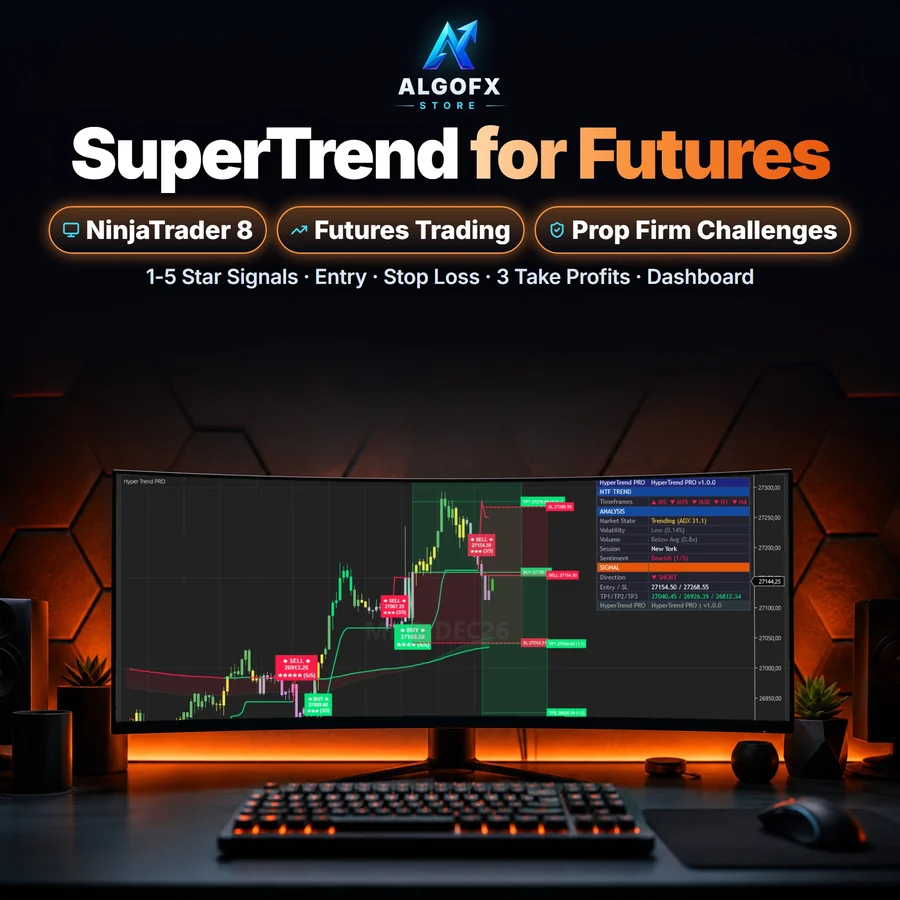
SuperTrend flips scored out of five, with the stop and three targets already drawn
Hyper Trend PRO takes every SuperTrend flip on a closed bar of your NinjaTrader 8 chart and checks it five ways: MACD momentum, the EMA 150/250 trend, ADX, volume and the Hull slope.
- BUY and SELL plates decided on the closed bar, with the price and a score of zero to five stars.
- Entry, a stop at ATR(25) x 3.1 and three targets at 1R, 2R and 3R on every signal.
- Four presets and five optional filters decide how many stars a flip needs before you see it.
- A 14-row dashboard: five-timeframe trend, ADX state, volume, sentiment and the tracked trade.
- A NinjaTrader 8 Add-On. Import one zip and it appears as “Hyper Trend PRO AlgoFX” in your Indicators list.
- A 16-page PDF manual with every setting, the signals, the alerts and installation. One-time €77.
See Hyper Trend PRO on a real chart
Press play; use the full-screen button to see every detail.
This video shows the same indicator on another charting platform; the NinjaTrader 8 edition sold here runs in NinjaTrader 8's own chart and settings windows. · 11:34 · Plays from YouTube when you press play (YouTube then sets its own cookies; see Privacy).
A plain SuperTrend flips the same way in a trend and in a grind
A SuperTrend is one of the clearest trend tools there is, and one of the most frustrating. It flips the same way in a strong trend and in a sideways session, every flip looks equally important, and once you are in, the line says nothing about where to take profit or how far the market can go against you before the idea is wrong. On a futures chart that last part decides how many contracts you can trade.
So most traders end up doing the same work by hand on every flip: glance at a moving average, check whether ADX is awake, look at volume, guess a stop, count the ticks, work out the dollars per contract. By the time that is done the bar has moved on, and the next flip gets a different checklist because the first one was never written down.
Hyper Trend PRO keeps the SuperTrend and adds the two things it is missing. Every flip on a closed bar is rated, one star for each of five checks that agree, so a five-star flip and a one-star flip no longer look the same. And every signal comes with its own plan, drawn at the moment it prints: the entry, a stop one risk away and three targets at multiples of that risk.
What Hyper Trend PRO draws, and what each mark means
Read from the shipped NinjaScript edition.
| What you see | What it means |
|---|---|
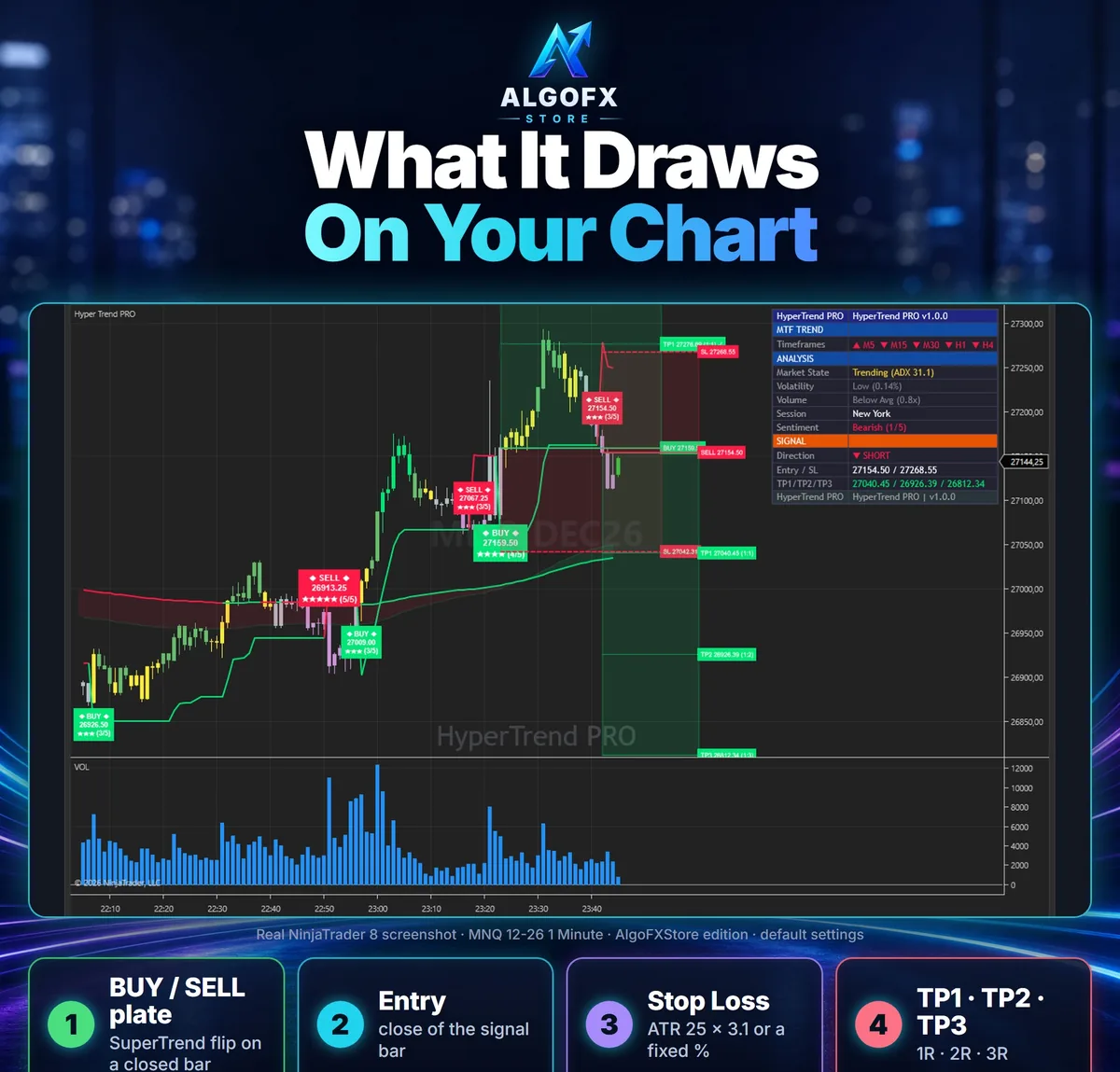
| Green '◆ BUY ◆' plate with price and stars | SuperTrend flipped up on that closed bar and passed the filters; stars and (n/5) = the confluence score. |
| Red '◆ SELL ◆' plate | SuperTrend flipped down on that closed bar. |
| Stepped green/red line | The SuperTrend: under price in an up trend, above it in a down trend. |
| Shaded cloud | EMA 150/250 cloud: green while the faster average is on top, red while below. |
| Long line green/red | Trend Tracer (EMA 250): green while the close is above it. |
| Line 'BUY/SELL <price>' | Entry: the close of the signal bar. |
| Red dashed line 'SL <price>' | Stop loss, ATR x Sensitivity from the entry; ✗ when hit. |
| Green dotted lines 'TP1 (1:1)', 'TP2 (1:2)', 'TP3 (1:3)' | Targets at 1, 2 and 3 times the risk; ✓ when reached. |
| Dashboard | Five-timeframe alignment, market state, volatility, volume, session label, sentiment and the tracked trade. |
A trend, a rating and a plan on every closed bar
Three parts, each one visible on the chart or the dashboard. This is what the shipped NinjaScript computes, in this order, on every bar that closes.
- 1
The SuperTrend sets the direction
The SuperTrend places its bands Sensitivity (3.1) times the 25-bar ATR (Tuner) away from each bar's midpoint and ratchets them with the trend. A signal can only start where the line flips: up for a BUY, down for a SELL, and only on a closed bar. A higher Sensitivity flips less often. The same ATR times Sensitivity is also the stop distance, so one setting moves both.
- 2
Five checks give the stars
At the flip, each check that agrees adds a star: the MACD (12, 26, 9) histogram rising (falling for a SELL), EMA 150 above EMA 250 (below for a SELL), ADX(14) above 20, volume above its 20-bar average and the 55-bar Hull average rising (falling). ADX and volume are not directional, so they count for both sides. Stars and (n/5) print on the plate.
- 3
Your preset and filters decide
The preset sets the minimum score: All Signals 0, Trend Scalper 2, Quality+ 3, Strong+ 4. Min Strength is a second minimum, and the higher of the two applies. Five optional filters can veto a flip on top: Trending Only (ADX above 20), Strong Only, High Vol Only, Cloud-Aligned Only and Contrarian Only. All are off by default, so every flip shows with its stars.
- 4
The plan is fixed at the signal
The signal bar's close is the entry. The risk is ATR(25) times Sensitivity, or a percentage of the entry with Use % SL on. The stop sits one risk away and TP1, TP2 and TP3 at 1.0, 2.0 and 3.0 times the risk. A red box spans entry to stop, a green box entry to TP3, and the lines, tags and boxes reach 30 bars right of the signal bar.
- 5
Targets tick, the stop crosses
From the bar after the signal, a target gets a check mark the first time price trades through it and the stop gets a cross. The stop or TP3 ends the tracked trade, and a new signal replaces it. With Use TP3 off only the stop ends a trade. The previous trade's lines stay until the signal after the next one, so you may see two sets.
- 6
The dashboard reads the context
Fourteen rows sum up the market: an arrow for each of M5, M15, M30, H1 and H4 (close above or below its 200 EMA on that timeframe's last closed bar), Market State from ADX, Volatility, Volume against its average, a Session label, a Sentiment score out of five and the tracked trade's direction, entry, stop and three targets.
Hyper Trend PRO on 12 different markets
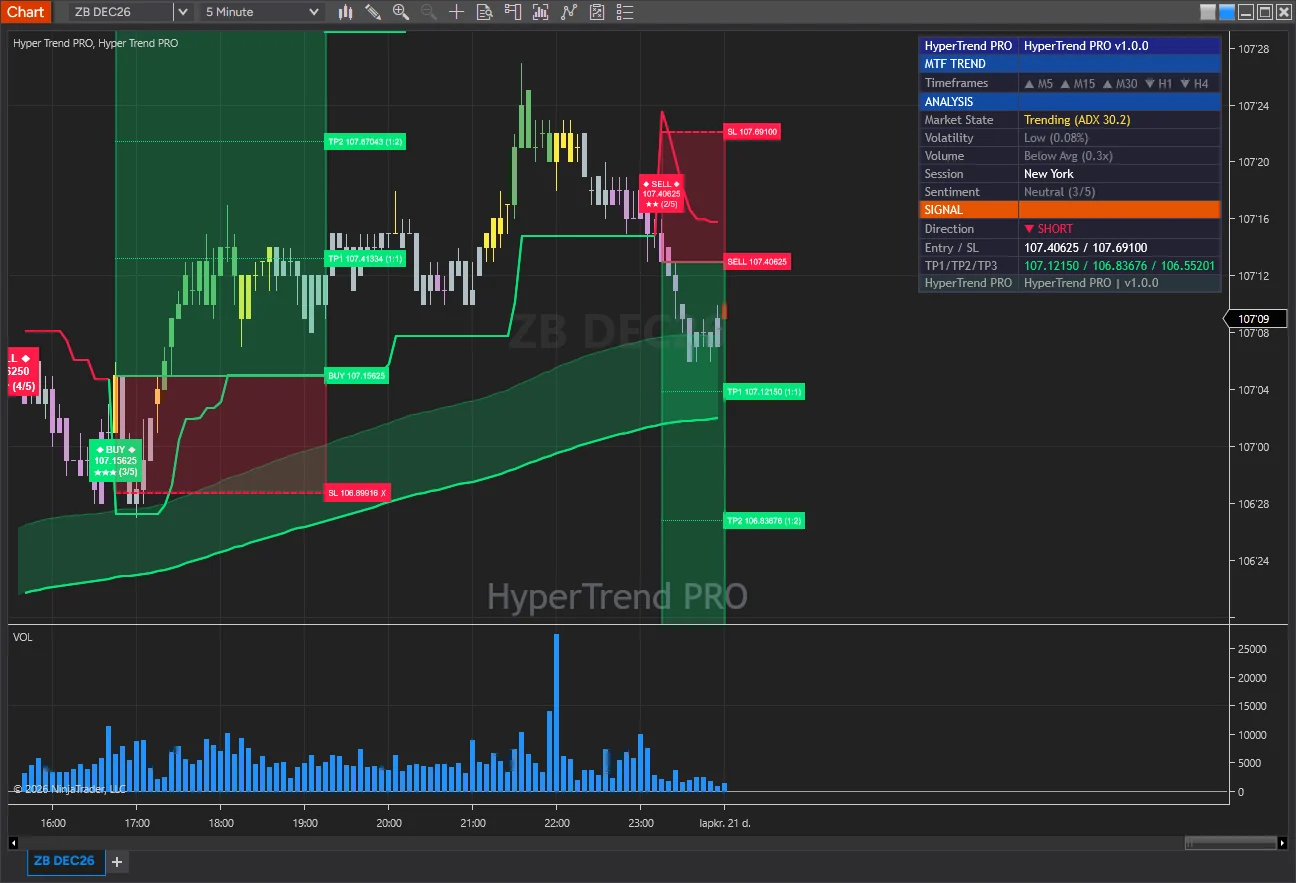
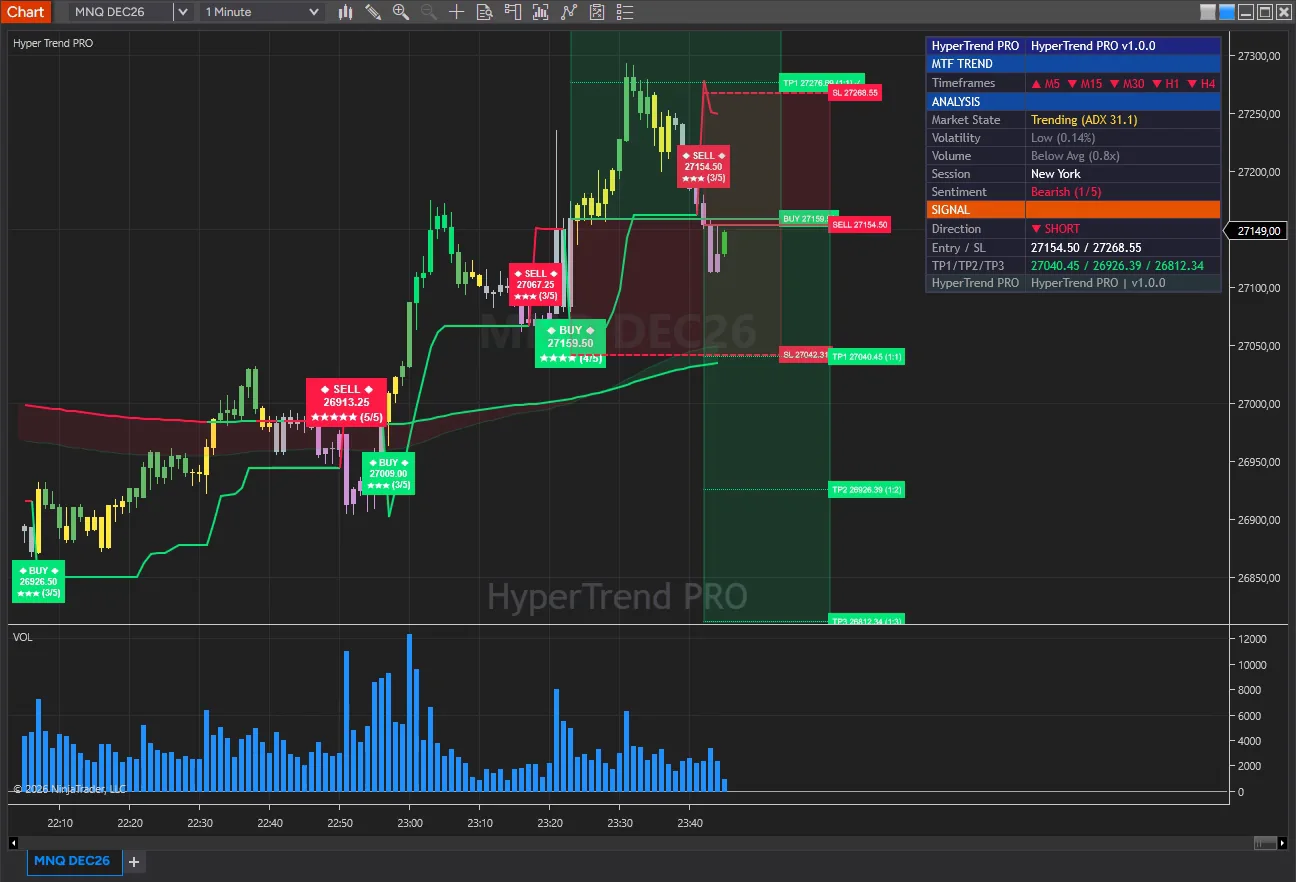
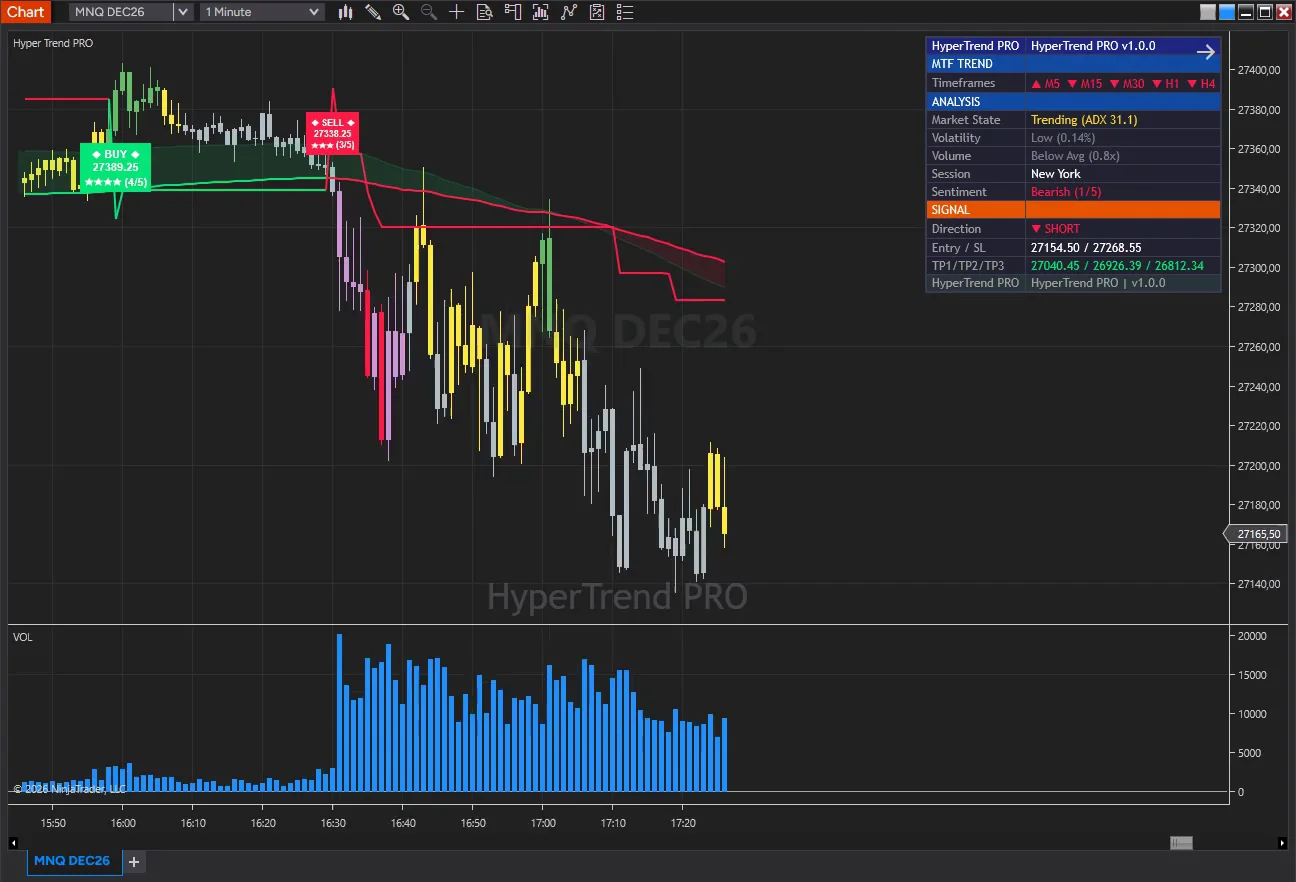
Every chart below is a screenshot of NinjaTrader 8 itself with the shipped Hyper Trend PRO AlgoFX attached at its default settings. Forex, metals, indices, energy and crypto, so you can see how it reads each kind of market. They show what the indicator draws; they are not trading results. Tap or click any chart to open it full size.
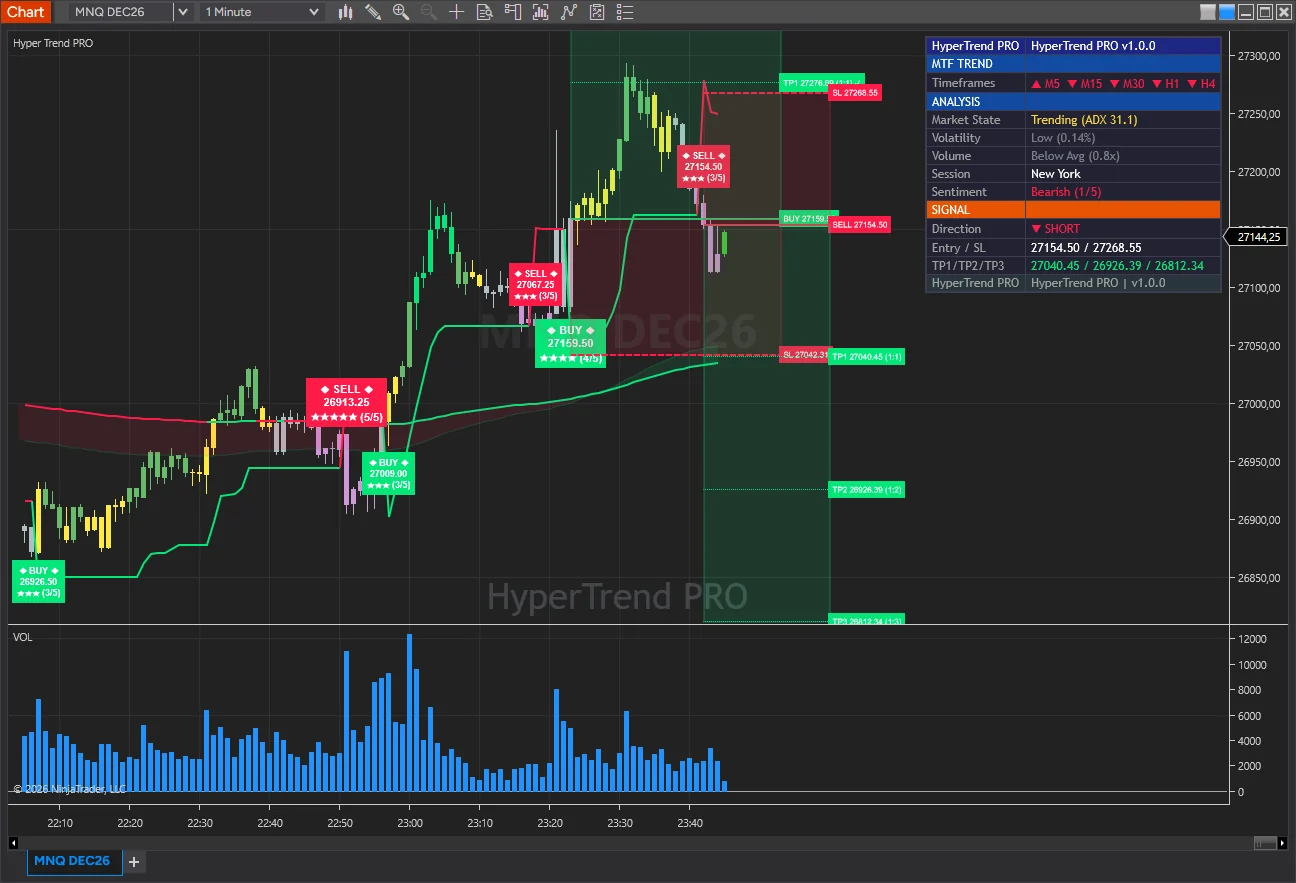
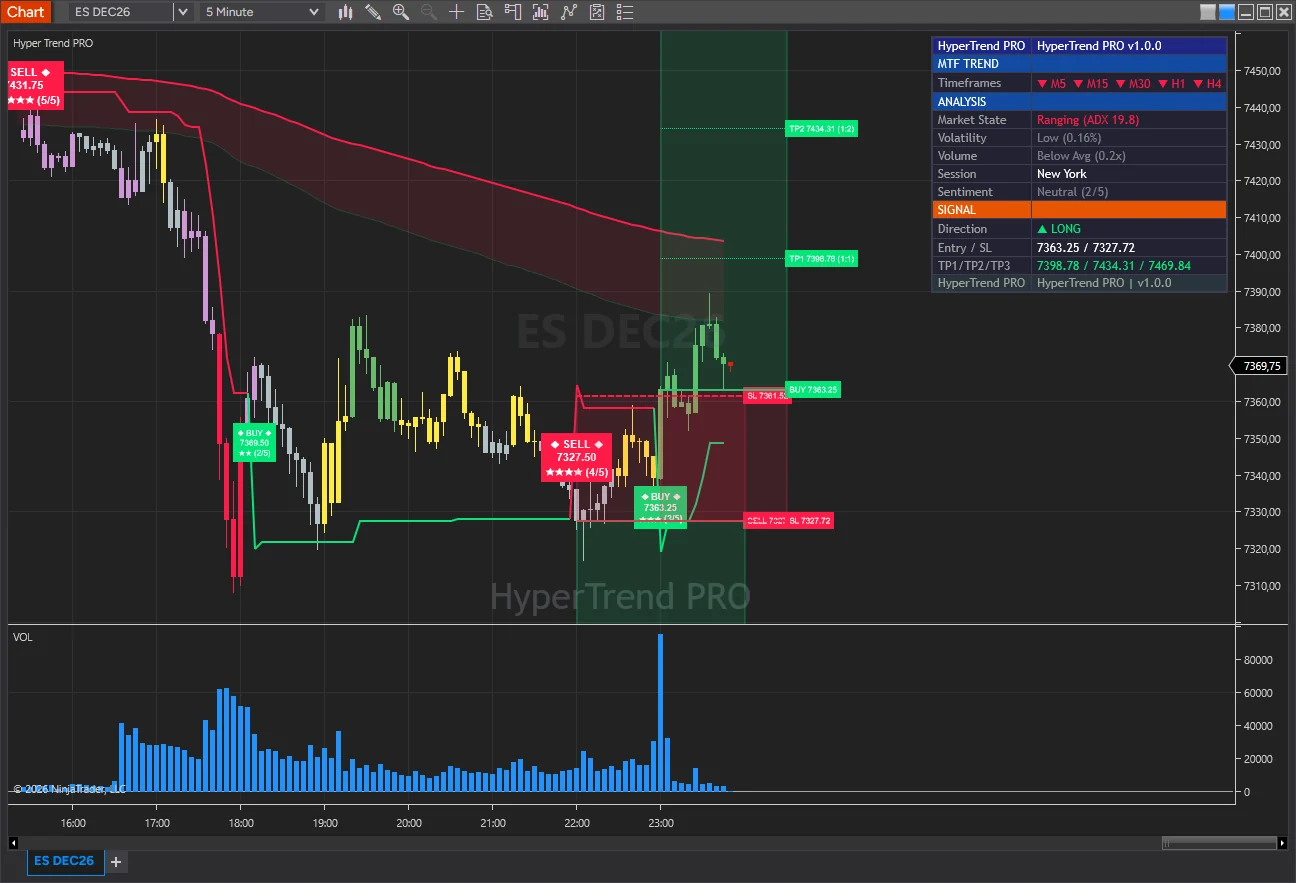
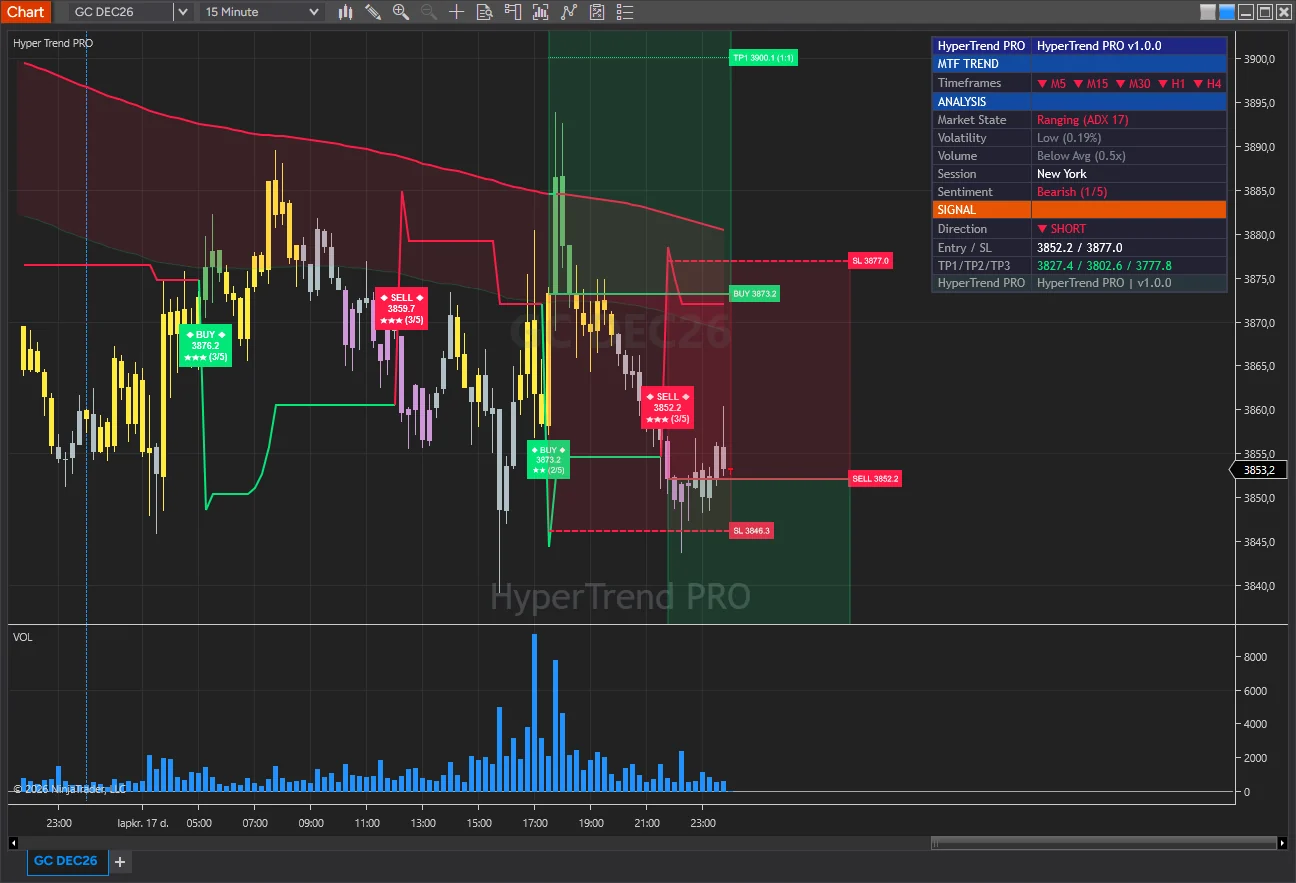
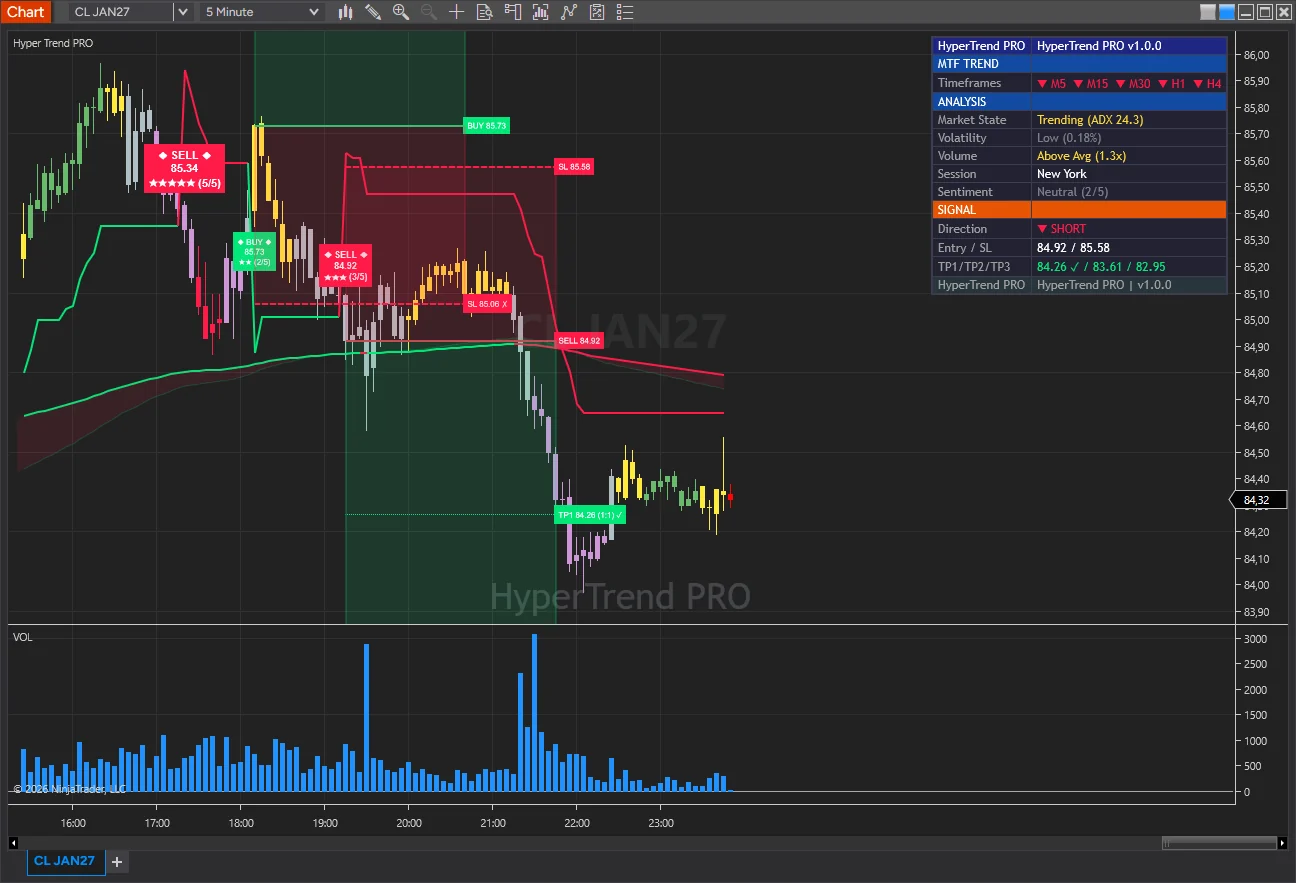
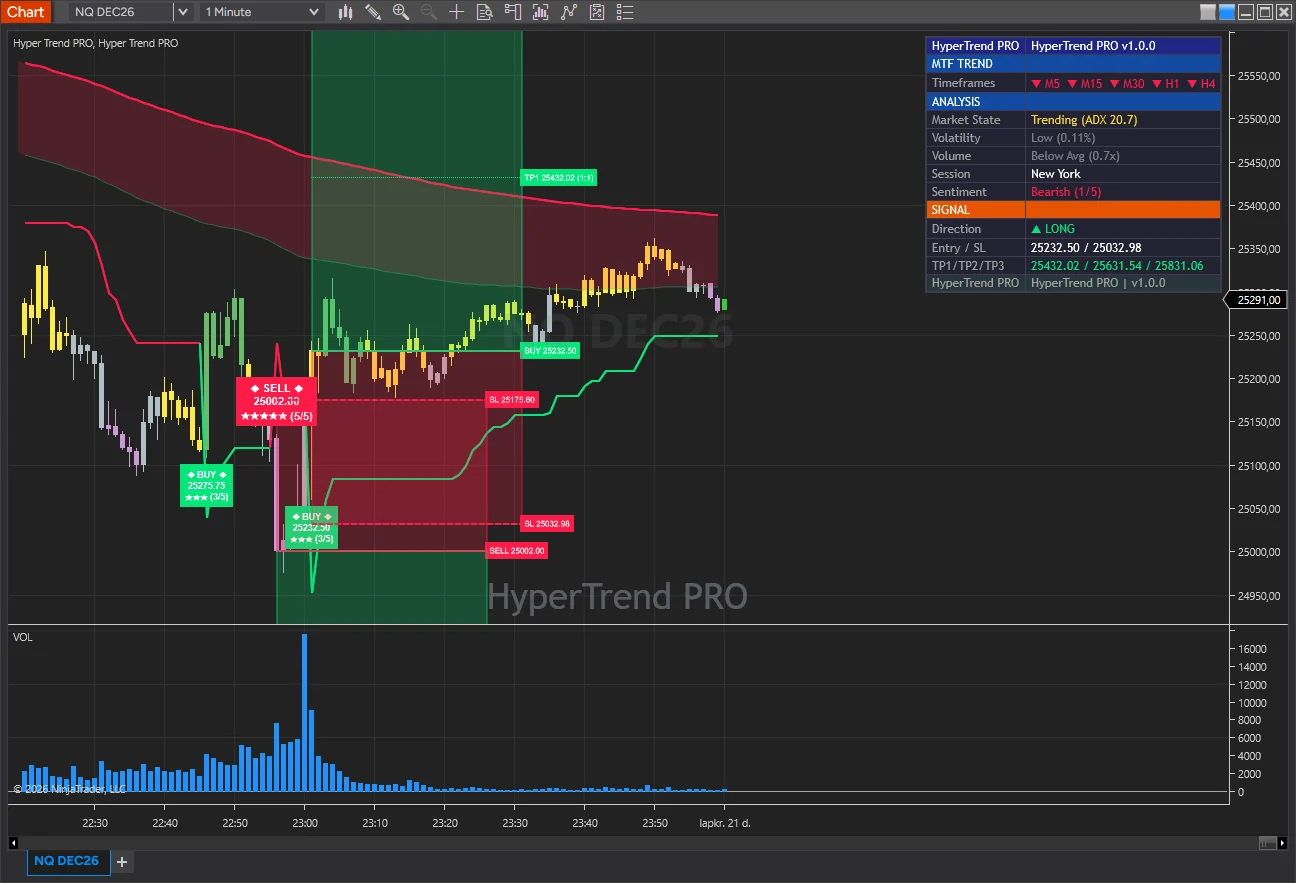
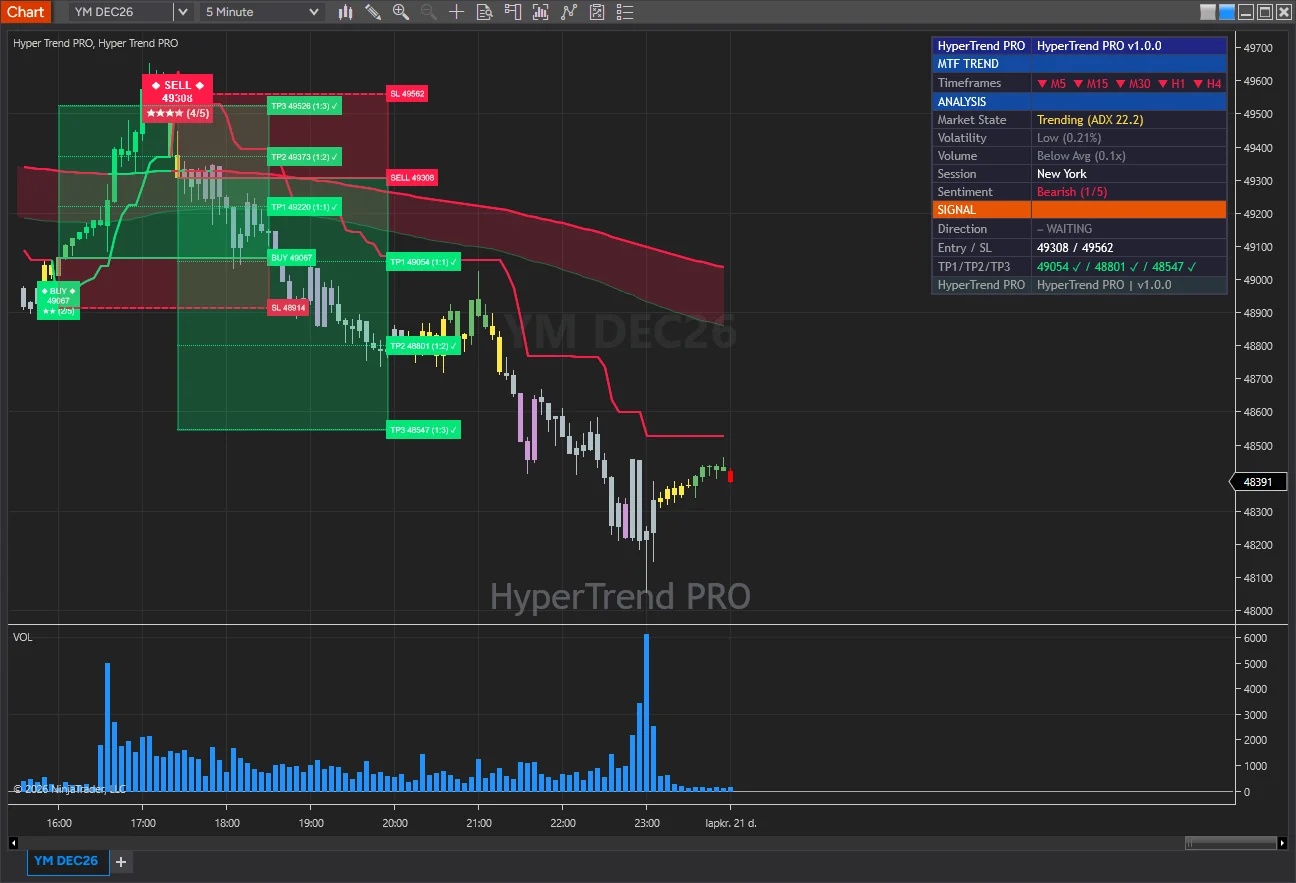
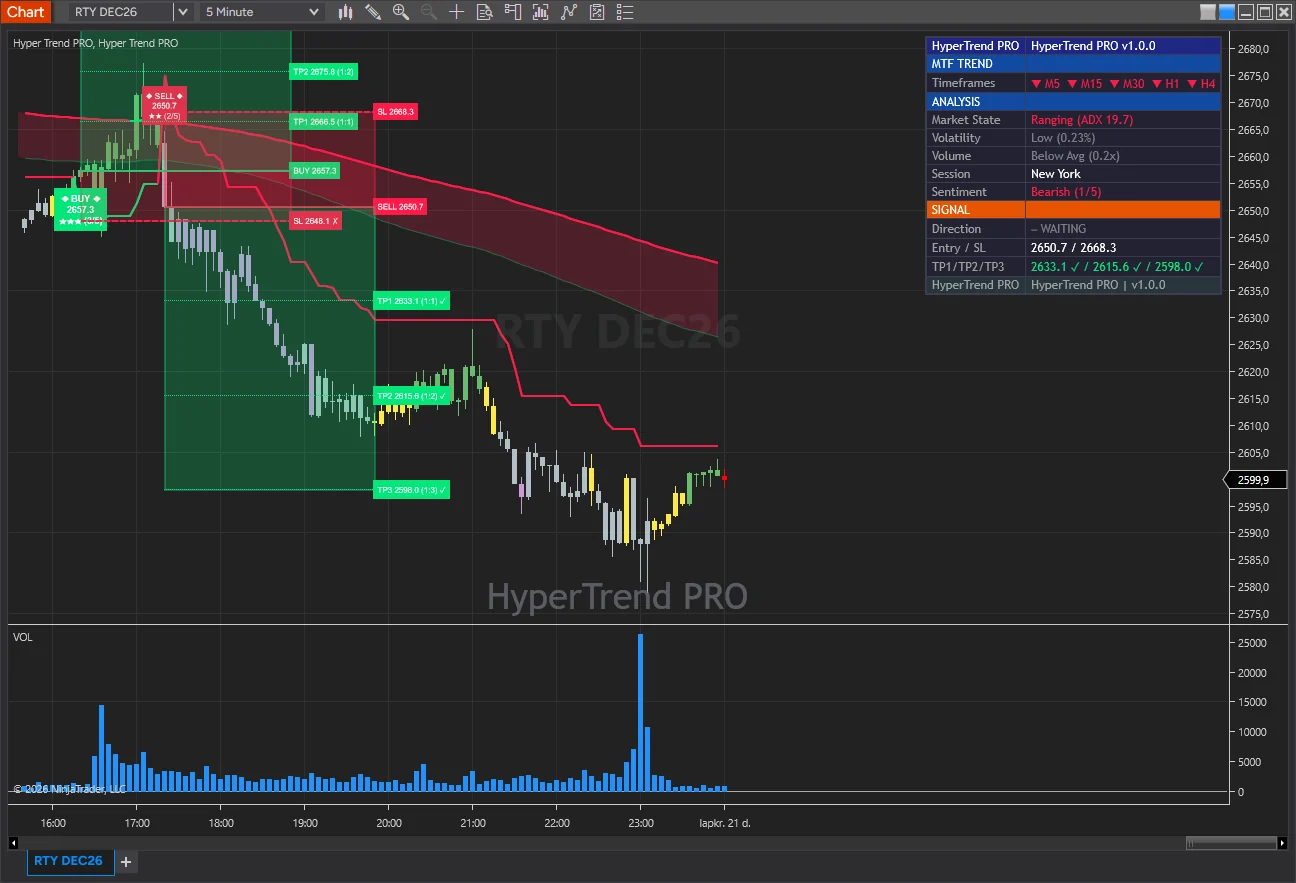
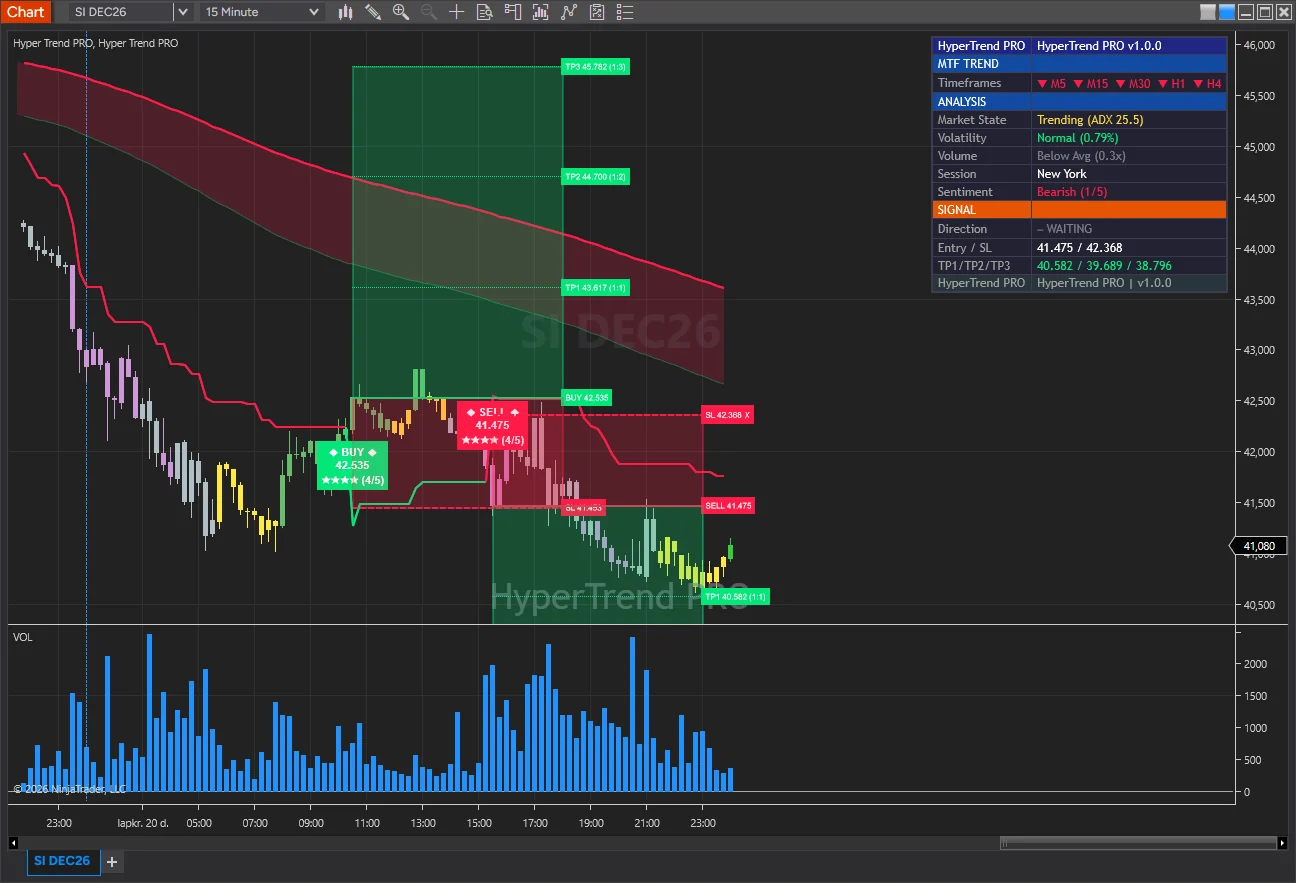
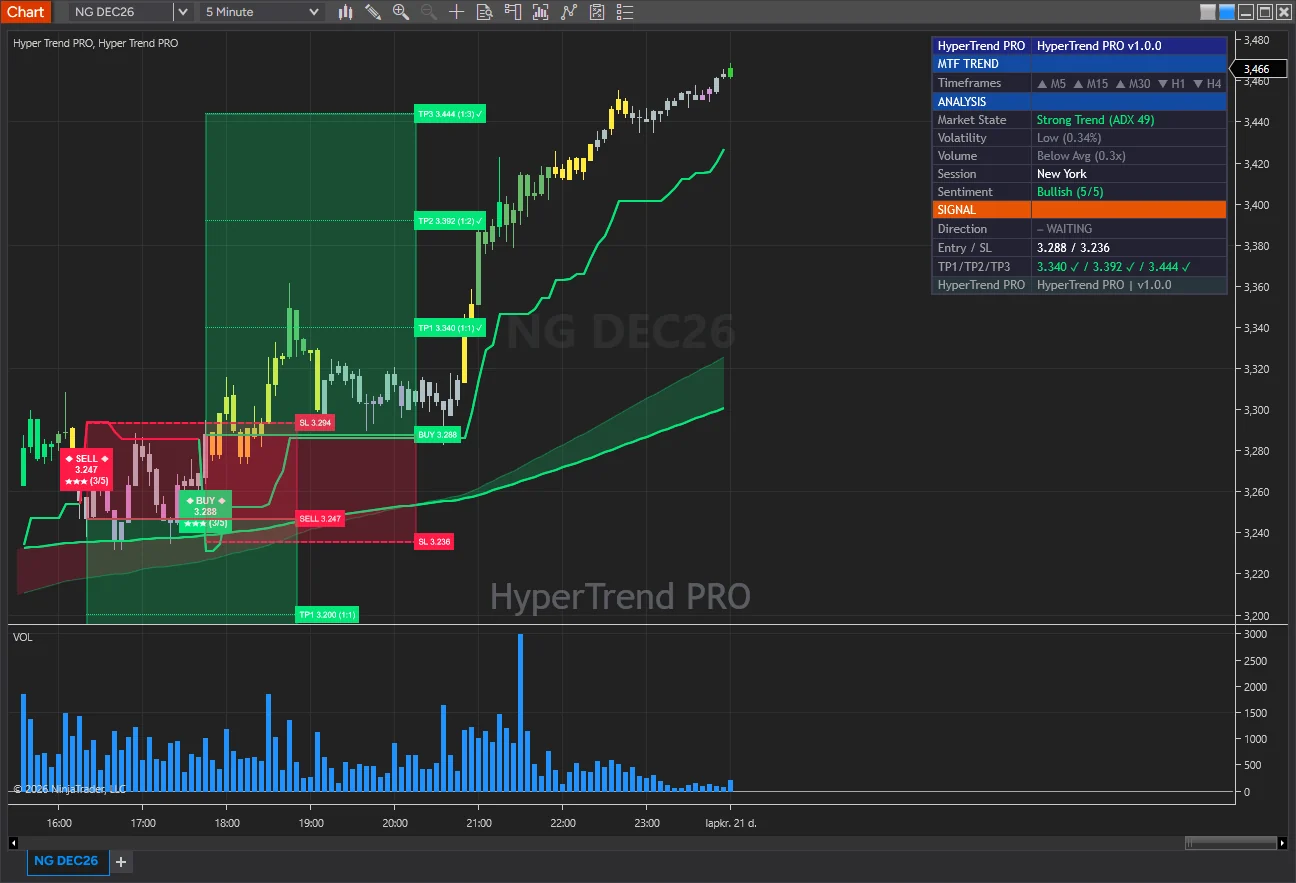
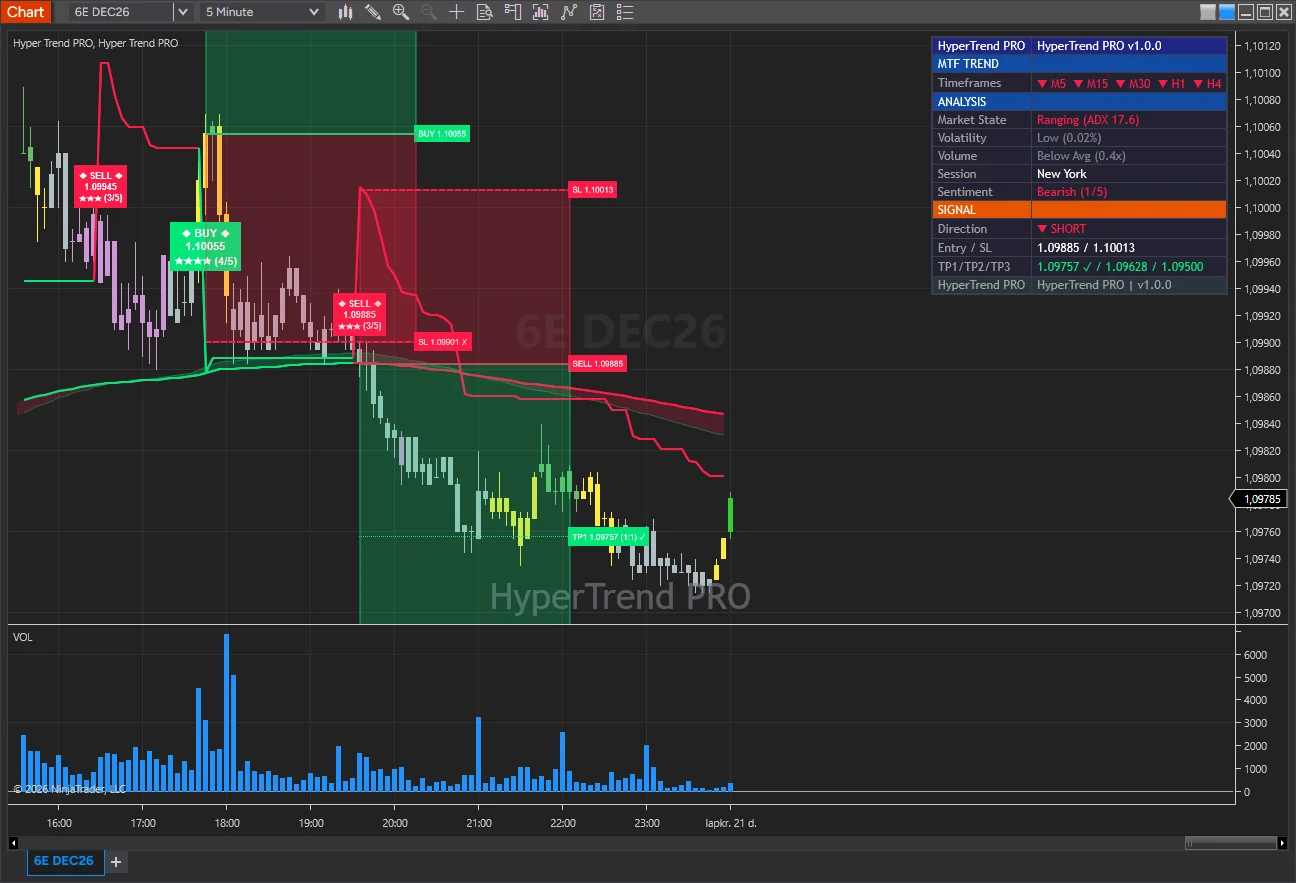
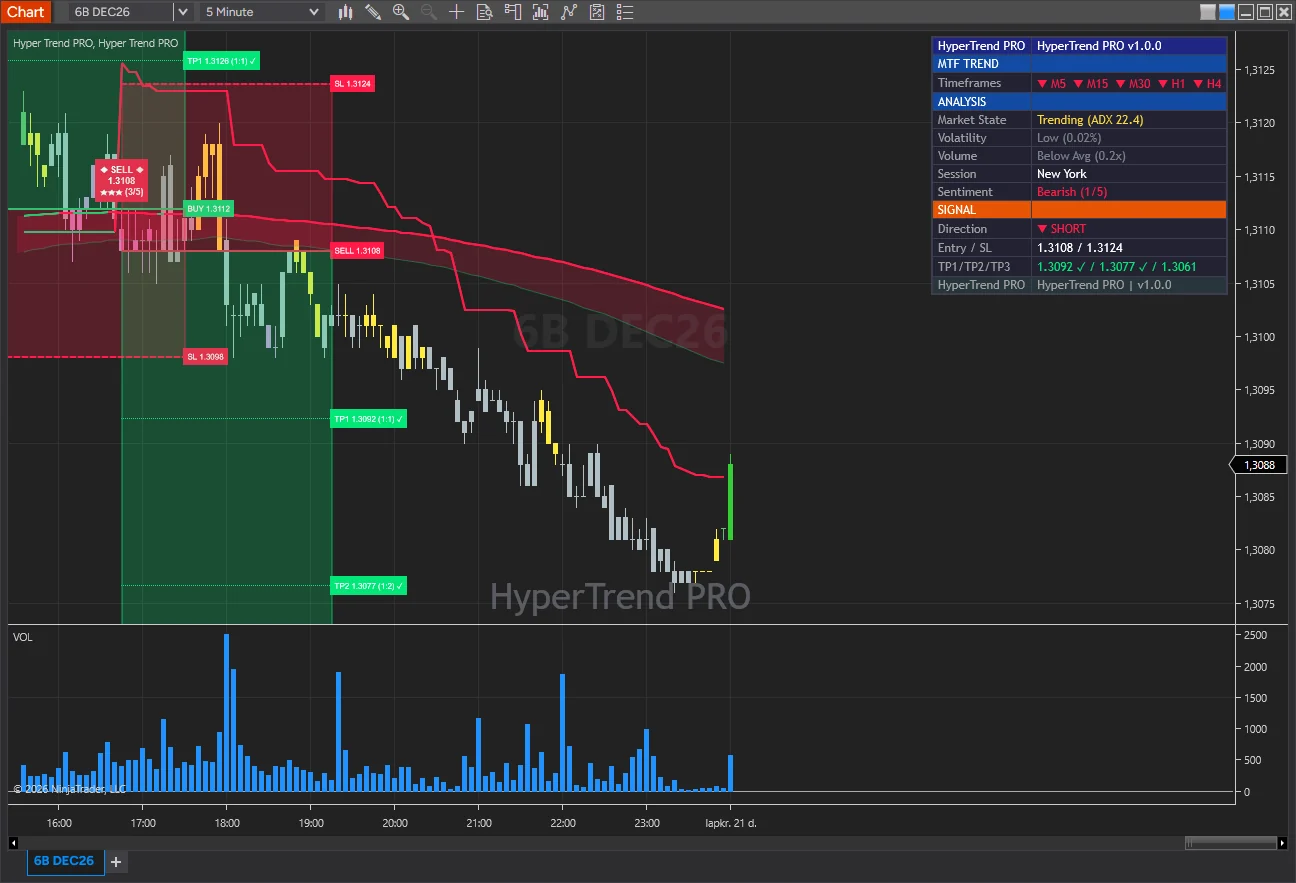
Watch Hyper Trend PRO work on a real NinjaTrader 8 chart
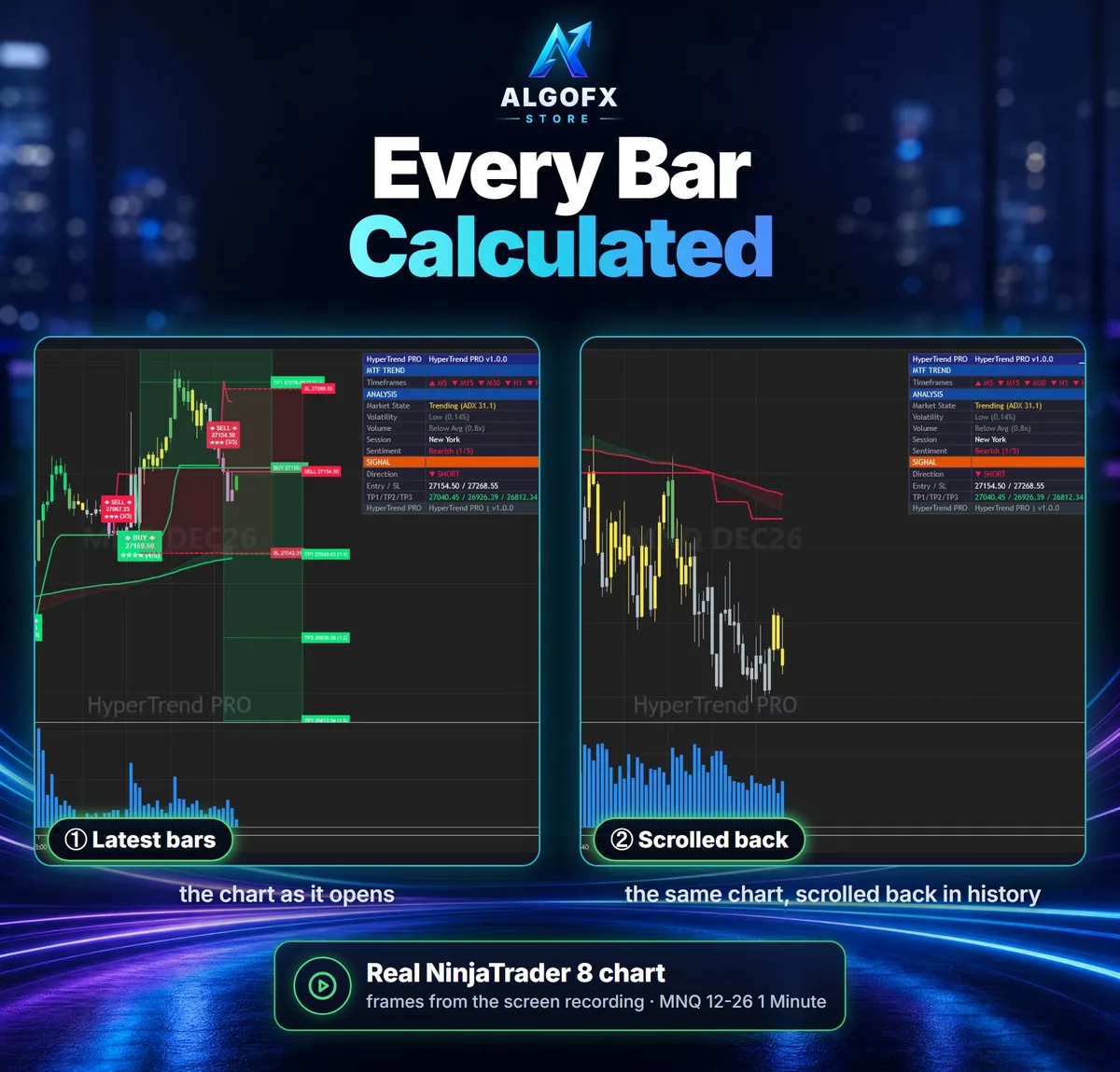
A screen recording and frames from the shipped indicator at its default settings, as the chart updates. Nothing is edited into the chart.
From a plate on the chart to a sized futures trade
The indicator rates, draws and alerts; the rules, the sizing and every order stay with you. The manual gives this routine as an example rule set to test in simulation before you trade it with real money.
- 1
Let the bar close first
With Calculate on On bar close, the default and the recommended setting, the plate, its levels and the Buy or Sell alert arrive when the bar closes. Read the stars and the rating in the alert: Strong at 4 or 5, Moderate at 3, Weak at 0 to 2. Decide in advance which ratings you act on; the preset can hide the rest from the chart altogether.
- 2
Check the context rows
The manual's example plan takes a plate with three stars or more when Market State reads Trending or Strong Trend and the Timeframes row agrees, mostly up arrows for a BUY and mostly down arrows for a SELL. Ignore the Volatility row on intraday futures: it measures ATR as a percentage of price and reads Low almost all the time there. Use Market State and Volume instead.
- 3
Round the stop and size it
Levels print with the instrument's decimals but are not rounded to a tick, so round the stop one tick further from the entry, for example 30897.32 becomes 30897.25 on MNQ. Distance divided by the tick size gives ticks, ticks times the tick value give the risk per contract. Divide your risk per trade by it and round down. If the answer is zero, skip the signal.
- 4
Place a real stop at once
Enter after the close and put a real stop order at your rounded stop straight away, for example with a NinjaTrader ATM strategy. The red line on the chart protects nothing by itself. The ATR changes during the day, so the stop and the contract count change from signal to signal: do the sum every time instead of trading a fixed size by habit.
- 5
Manage with the alerts
TP1 at 1R is reached most often by construction, and many traders take part of the position there and move their stop to the entry by hand. The TP1 Hit alert is the cue if that is your plan; the SL Hit alert confirms the tracked trade is over. The indicator never moves your order, and a check mark describes price, not your fill.
- 6
Skip what does not fit
Skip plates in a Ranging state, plates against the cloud and any signal whose stop is wider than your dollar budget allows. Decide in advance whether you trade around major scheduled news such as CPI, FOMC and payrolls, stop for the day after two losses or half of your own daily loss limit, and be flat by the time you set for yourself.
14 rows that read the market for you
The on-chart dashboard, row by row.
- HyperTrend PRO | HyperTrend PRO v1.0.0 (header)
- MTF TREND (section header)
- Timeframes | ▲ or ▼ for M5, M15, M30, H1 and H4: close above or below its 200 EMA on that timeframe's last closed bar; green when 4 or 5 point up, red when 4 or 5 point down, grey between; reads ▼ until 201 bars of that timeframe have loaded
- ANALYSIS (section header)
- Market State | Strong Trend (ADX above 40), Trending (above 20) or Ranging, with the ADX value
- Volatility | High (ATR above 1.5 % of price), Normal (above 0.5 %) or Low, with the figure
- Volume | Spike (over 2x its 20-bar average), Above Avg or Below Avg, with the ratio
- Session | New York, London, Tokyo or Sydney by the UTC hour, a label only that filters nothing
- Sentiment | Bullish (4 or 5), Neutral (2 or 3) or Bearish (0 or 1), with the score out of 5
- SIGNAL (section header)
- Direction | ▲ LONG or ▼ SHORT while a trade is tracked, WAITING before the first signal and after the stop or TP3
- Entry / SL | entry and stop of the last signal, kept until the next signal (a dash before the first one)
- TP1/TP2/TP3 | the three targets of the last signal, each with a check mark once price has traded through it
- HyperTrend PRO | HyperTrend PRO | v1.0.0 (footer)
Everything Hyper Trend PRO does for you
Every flip carries its score
One star for each of five checks that agree with the flip: MACD histogram, EMA 150 against EMA 250, ADX above 20, volume above its 20-bar average and the Hull 55 slope. The plate shows the stars and (n/5), and the alert names the rating.
Signals fixed when the bar closes
BUY and SELL plates, the trade and its levels need a closed bar. A live MNQ 1-minute run with Calculate on On each tick, from history into real time, matched the closed-bar replay in all 105 output series with no differences.
A complete plan on every signal
Entry at the signal close, a dashed red stop one risk away, dotted green targets tagged (1:1), (1:2) and (1:3), and shaded risk and reward boxes, with a check mark on each target reached and a cross on the stop.
Presets and filters you control
All Signals, Trend Scalper, Quality+ and Strong+ set the minimum stars, and five optional vetoes (Trending Only, Strong Only, High Vol Only, Cloud-Aligned Only, Contrarian Only) cut the count further when you want a few trades per session instead of every flip.
Context drawn around the trend
An EMA cloud in four styles (Smooth EMA 150/250, Scalping, Scalping+ with Hull 21/55, Swing EMA 50/200), a 250-bar Trend Tracer, green while the close is above it and red while below, and candles coloured by Momentum, Trend or Confluence, or left alone.
A 14-row market dashboard
Five-timeframe trend arrows from M5 to H4, Market State with the ADX value, Volatility, Volume with its ratio, Session, Sentiment out of five and the tracked trade's entry, stop and targets. Any corner, in Tiny, Small or Normal size.
Nine alert events
Buy, Sell, Any and Strong Signal, SL Hit, TP1, TP2 and TP3 Hit and Trend Change, each with its own switch and all on by default. They go to the Alerts Log and the NinjaScript Output window, with an optional sound and an optional e-mail.
Optional structure and pullback marks
HH, HL, LH and LL labels at confirmed swing points, small PB marks where a WaveTrend turns back inside the trend, and an orange one-way ATR trailing stop line. All three are off by default and none of them opens a trade.
Series for NinjaScript strategies
Hidden Signal (+1 BUY, -1 SELL), TradeDirection and SignalScore series sit next to the visible ones, so a NinjaScript strategy or a Market Analyzer column can read the signals on closed bars. The indicator itself holds no order logic.
Hyper Trend PRO, feature by feature
Each picture is built from real platform screenshots of the shipped indicator at its default settings, labelled so you can see what every part does. Tap any picture to open it full size.
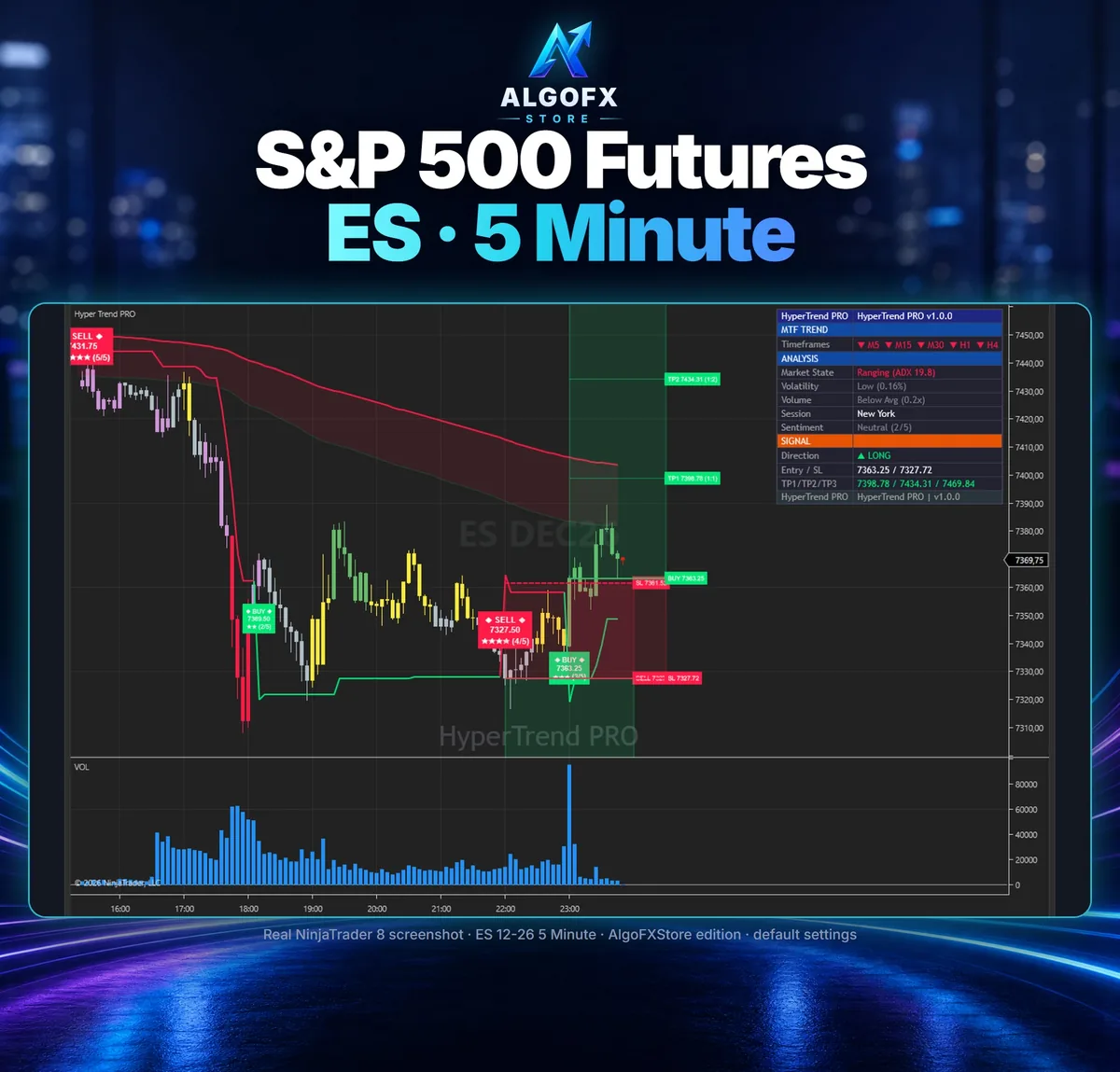
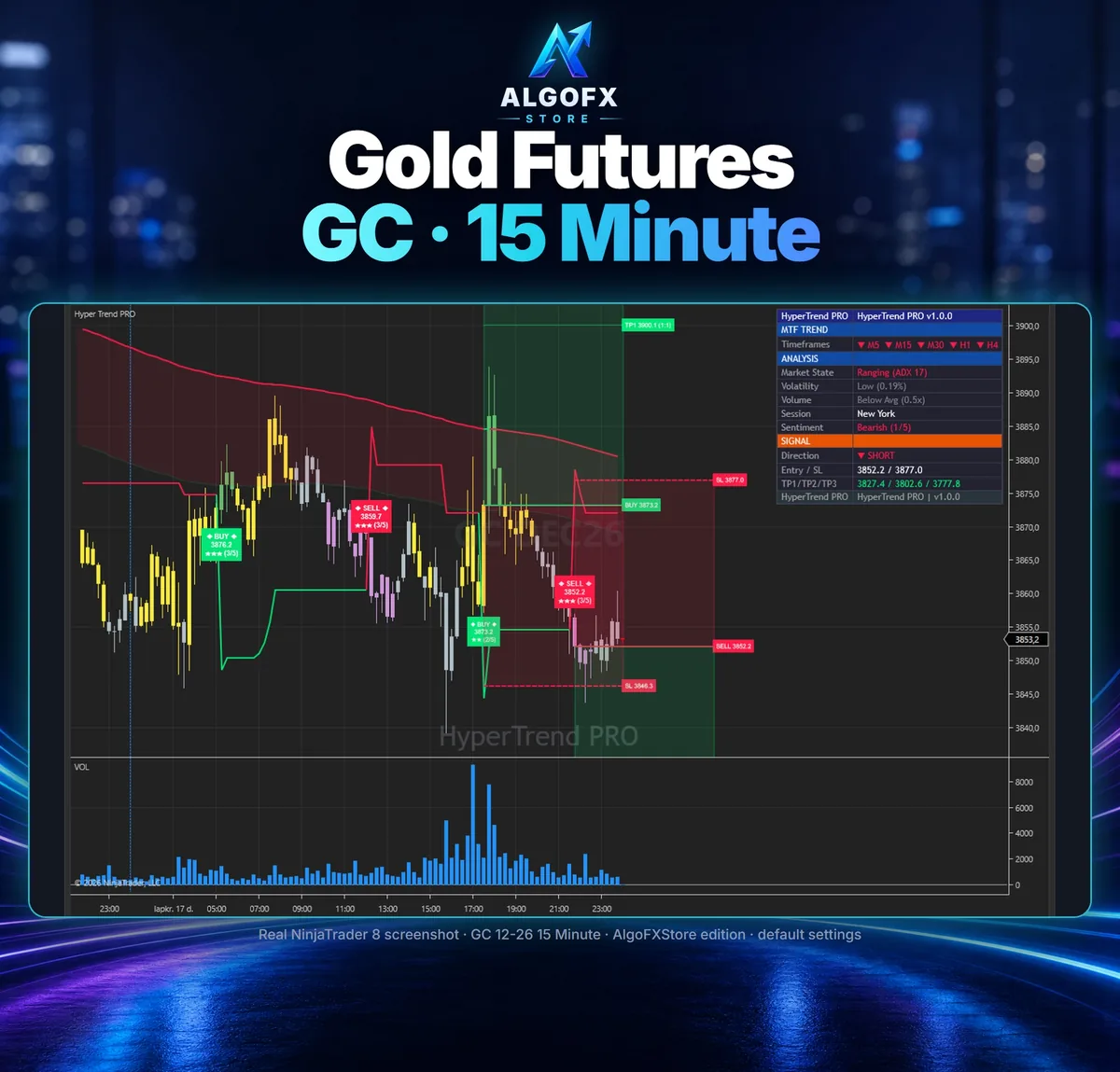
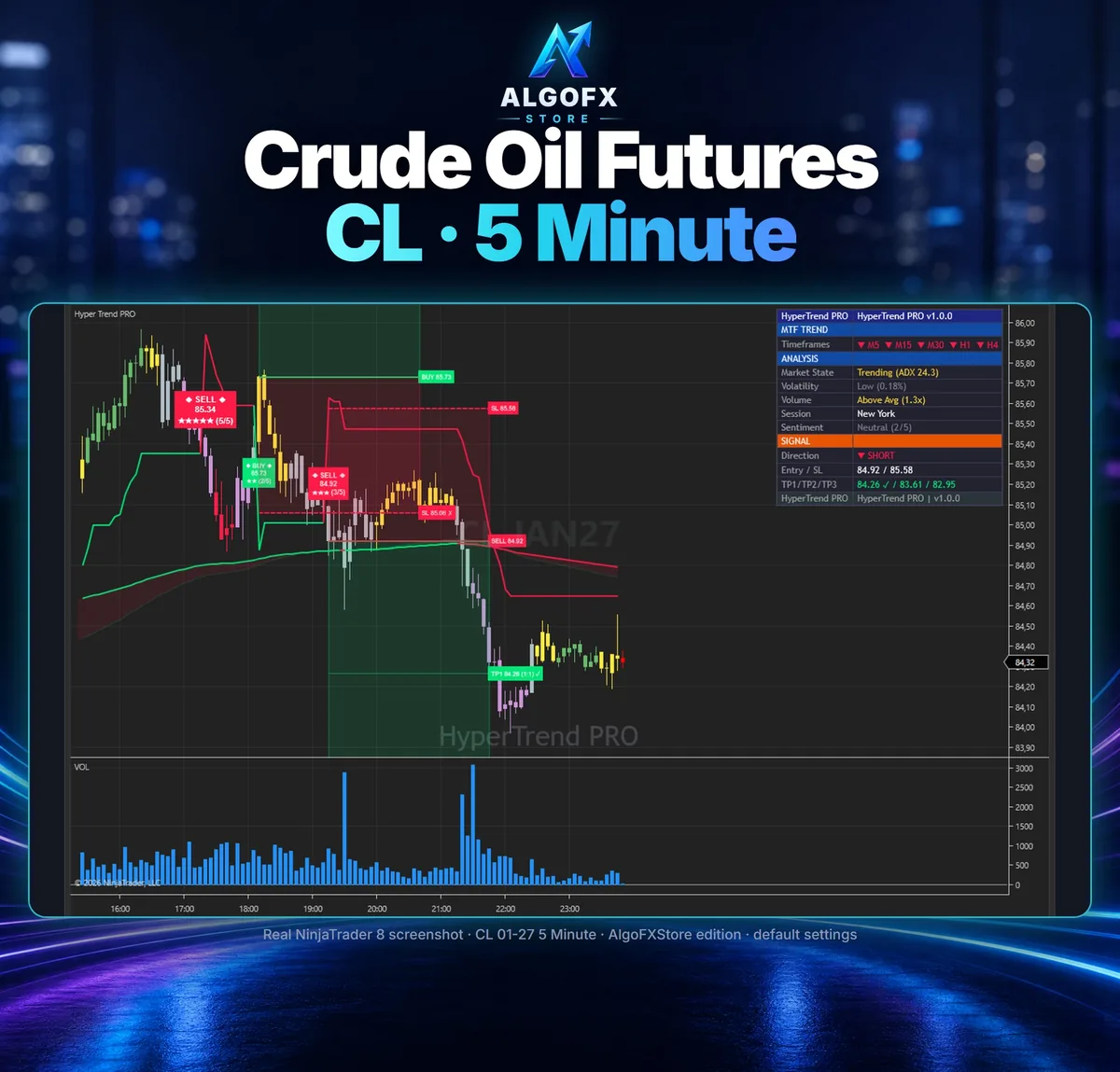
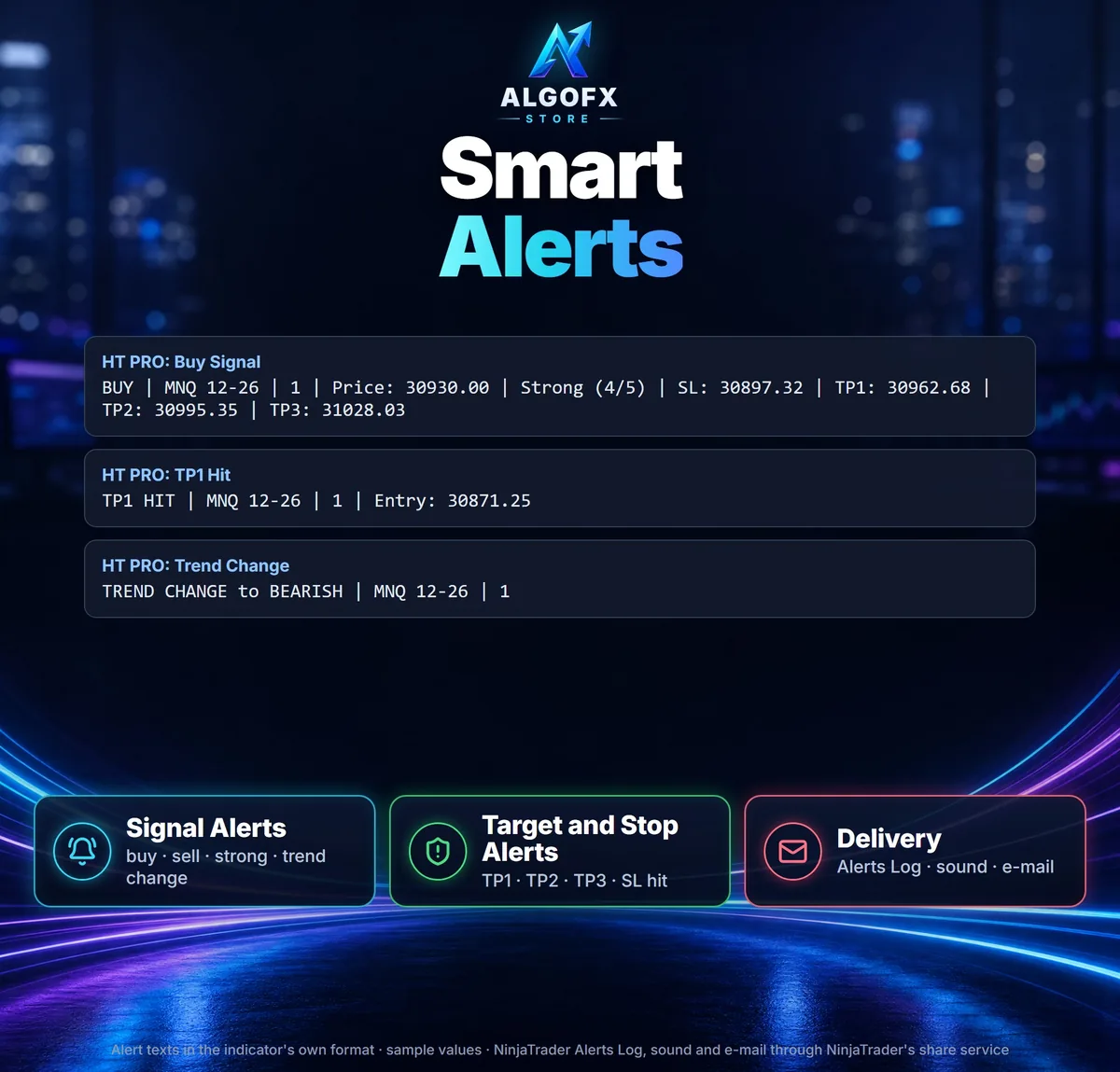
How traders put it to work
MNQ and NQ on 1 to 5 minutes
The manual's starting point is MNQ on 1 minute. Its worked example, a BUY at 30930.00 with a printed stop of 30897.32, is 131 ticks once the stop is rounded: three MNQ fit a small per-trade budget, while one NQ at ten times the tick value does not. Micros give the fine steps that sizing from a fixed risk needs.
MES and ES on 3 to 5 minutes
In the manual's 5-minute example a SELL at 7831.75 had a stop of 58 ticks after rounding. That fitted two MES on the example budget and was far too wide for one ES. Filtering with Quality+ or Strong+ and Trending Only removes many low-score flips during ranging hours, which also makes a consistency rule easier to respect.
Gold and crude oil futures
The manual starts MGC and GC on 5 to 15-minute charts and MCL and CL on 5 minutes. In the manual's 15-minute gold example one MGC already cost more than the example per-trade budget, so the advice is to drop to a 5-minute gold chart, where the ATR and the stop are smaller, or to skip the signal. On CL the worked example fitted one MCL.
Day session only with RTH
The chart's Trading Hours template decides which bars exist. With an ETH template the overnight bars take part in the ATR, the averages and the volume test; with an RTH template they do not, so the stop and the signals differ. If you trade only the day session, an RTH template keeps the overnight bars out of the ATR and the stop.
A busy chart or a clean one
Signal Marker Style swaps the plate for a triangle, arrow or dot; Signal Label Size, Transparency and Offset (ATR) shrink, fade or move it; Label Cap (500) limits how many labels stay. Show Swings, pullback marks and the trailing stop add layers when you want them. None of these presentation settings changes a single signal, level or alert.
Every setting, with its default
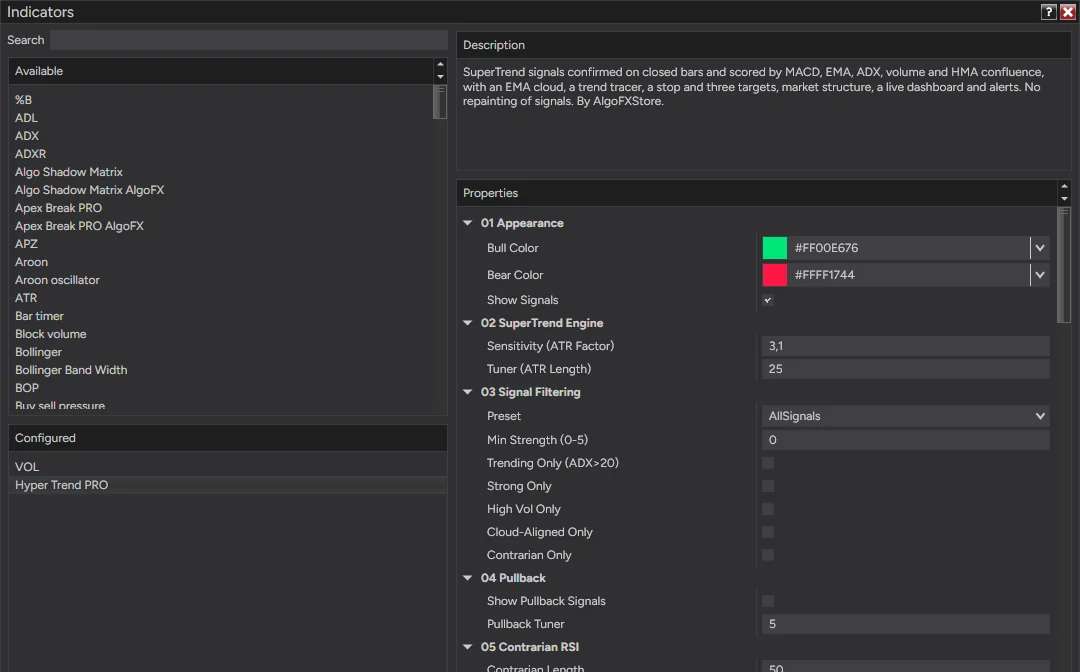
The names are the ones in the NinjaTrader indicator dialog; the defaults are what every chart on this page uses.
| Setting | Default | What it does |
|---|---|---|
| Bull Color / Bear Color / Show Signals | #00E676 / #FF1744 / true | Colours of every object; Show Signals is part of the signal rule. |
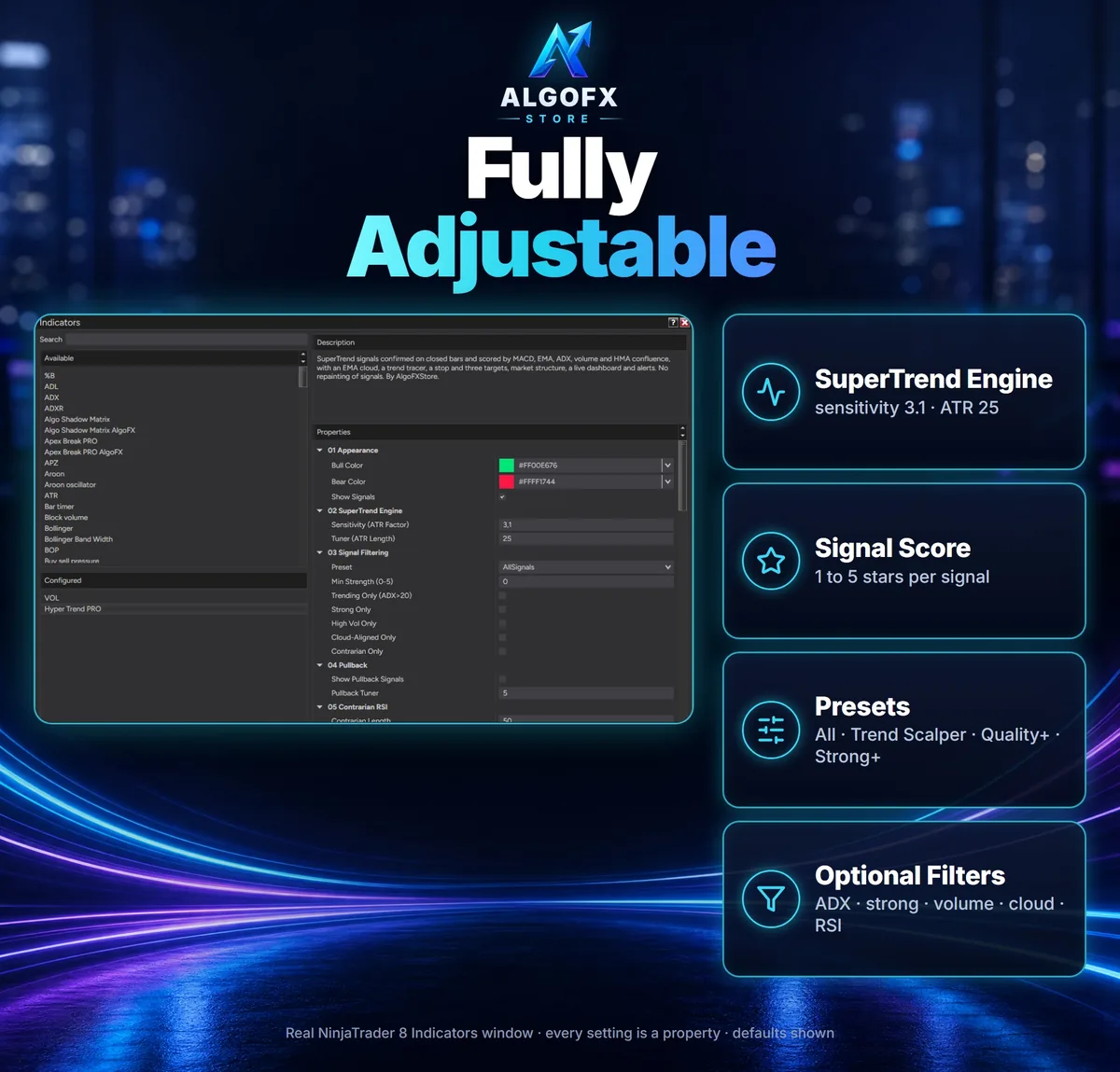
| Sensitivity (ATR Factor) / Tuner (ATR Length) | 3.1 / 25 | SuperTrend band distance and ATR length; the same risk sets the stop. |
| Preset / Min Strength (0-5) | AllSignals / 0 | Minimum confluence score: AllSignals 0, TrendScalper 2, QualityPlus 3, StrongPlus 4; the higher of the two wins. |
| Trending Only (ADX>20) / Strong Only / High Vol Only / Cloud-Aligned Only / Contrarian Only | all false | Optional vetoes on each signal. |
| Show Pullback Signals / Pullback Tuner | false / 5 | PB re-entry marks inside a trend. |
| Contrarian Length / Smoothing / Overbought / Oversold | 50 / 30 / 60 / 40 | The smoothed RSI behind the contrarian filter. |
| Show Cloud / Cloud Style | true / Smooth | EMA 150/250 cloud; Scalping, ScalpingPlus (HMA 21/55) or Swing (EMA 50/200). |
| Show Tracer / Tracer Length | true / 250 | Trend Tracer EMA line. |
| Show TP/SL Area / Show Trailing Stop | true / false | Entry, stop, three targets and the two boxes; optional ATR trail. |
| Use % SL / % SL | false / 1.0 | Stop as a percentage of the entry instead of ATR x Sensitivity (minimum 0.1). |
| TP1 / TP2 / TP3 (RR) | 1.0 / 2.0 / 3.0 | Targets as multiples of the risk; TP3 closes the trade. |
| Show Swings / Swing Period | false / 10 | HH, HL, LH, LL labels. |
| Show Dashboard / Dash Position / Dash Size | true / TopRight / Small | The 14-row panel. |
| Show Watermark | true | Faint product name at the bottom. |
| Alerts: nine events / Play Sound / Sound File / Send Email / Email To | all true / false / Alert1.wav / false / empty | Alerts Log, sound, e-mail. |
| Candle Coloring / Label Glyphs / Signal Marker Style / Signal Label Size / Transparency / Offset (ATR) | Momentum / Symbols / Label / Auto / 0 / 0.0 | Group 13 NinjaTrader presentation switches. |
| Label Cap / Use TP1-TP3 / Strong Only Rule / Debug Mode / Dump Bars + Outputs CSV | 500 / true / Score / false / false | Shared label pool, target tracking, Strong Only meaning, diagnostics. |
9 alert events
Alerts can go to the NinjaTrader Alerts Log, a sound and an e-mail (NinjaTrader's e-mail share service must be set up).
- Buy Signal
- Sell Signal
- Any Signal
- Strong Signal
- SL Hit
- TP1 Hit
- TP2 Hit
- TP3 Hit
- Trend Change
Hyper Trend PRO next to the usual options
Where it wins, and where it does not.
| Hyper Trend PRO | Typical free SuperTrend indicator | Reading a SuperTrend by hand | |
|---|---|---|---|
| Signal stays where it printed | Decided on the closed bar | Can flip and flip back before the bar closes | On the closed bar, if you wait for it |
| Rates each signal | 0 to 5 stars from five checks | No rating | Your own checklist, if you keep it |
| Stop and targets drawn for you | Entry, stop and three targets on every signal | The line only | If you draw them |
| Lets you filter weak flips | Star minimum plus ADX, volume, cloud and RSI filters | No | By judgement |
| Stop at market structure | No. The stop is ATR times Sensitivity, or a percentage | The line itself | Wherever you choose |
| Prices rounded to the tick | No. Round the printed stop yourself | Varies | You round them |
| Cost and setup | A one-time purchase and 63 settings to learn | Free and simple | Free, apart from your time |
Honest about who this fits
A good fit if you
- You trade with the trend on NQ, ES, gold or crude futures and want the entry, stop and targets on the chart the moment a signal prints.
- You want to see how much backs a flip, and choose your own minimum number of stars.
- You size every futures trade from a fixed risk per trade and want the stop distance in ticks before you enter.
- You like a dashboard that tells you at a glance whether the market is trending or ranging and how five timeframes line up.
- You trade 1 to 15-minute charts and want alerts for signals, targets and stops so you do not stare at the chart all day.
Not for you if you
- You want something that places trades for you: it rates, draws and alerts, and every order is yours.
- You want stops at swing highs and lows: these stops are a multiple of the ATR, or a percentage of the entry.
- You want a minimal chart with one line: at its defaults it draws a cloud, a tracer, coloured candles, plates, levels and a dashboard.
- You expect a success figure printed on the box: this page shows what the indicator does, not a promise of profit.
One Add-On, one manual, imported in a minute
- 1NinjaScript Add-OnHyperTrendProAlgoFX.zip (0.2 MB). Import it in NinjaTrader 8 and it appears as “Hyper Trend PRO AlgoFX”.
- 16Page PDF manualInstalling, every setting with its default, reading the signals, the levels, the dashboard, the alerts.
- 17Setting groupsEvery one explained above, with the defaults the charts use.
- 9Alert eventsYou choose which ones are on in the settings.
- 60Day money-back guaranteeIf it is not for you, request a full refund within 60 days through your Digistore24 order e-mail.
Install in four steps
- Download the zip from the page Digistore24 sends you to after checkout. Keep it zipped.
- NinjaTrader 8: Control Center, Tools, Import, NinjaScript Add-On, and choose the zip.
- Open a chart, open Indicators, and add “Hyper Trend PRO AlgoFX”.
- Read the manual's quick start; the defaults are the settings shown on this page.

Kestutis Balciunas
AlgoFXStore · chart indicators for MetaTrader, TradingView, cTrader and NinjaTrader
Kestutis Balciunas builds and publishes chart indicators under the AlgoFXStore name for MetaTrader 4 and 5, TradingView, cTrader and NinjaTrader 8. Every product page shows what the indicator draws on real charts, and every number on it comes from the shipped build.
The charts on this page were captured in NinjaTrader 8 from the shipped Hyper Trend PRO AlgoFX at its default settings and are shown unedited.
No get-rich claims and no quoted win rates. Every trade is uncertain, and no indicator changes that. If you want to know whether it suits the way you trade before you buy, e-mail [email protected] and you will get a straight answer.
One price, one payment
- The NinjaScript Add-On for NinjaTrader 8 and the 16-page PDF manual
- Delivered as a digital download: the Add-On zip and the PDF manual on your download page
- Return period: 60 days, with a full refund if it is not for you
- Free updates to the current version on the same download page
60-day money-back guarantee. Install it, run it on your own charts and read the manual. If Hyper Trend PRO is not for you within 60 days of purchase, request a full refund from Digistore24, no questions asked: use the refund link in your Digistore24 order e-mail or Digistore24's order page digistore24.com/en/cancel-revoke-contract. Digistore24 refunds to your original payment method. It is a digital download: right after checkout you land on your download page, and the link to it is also in your Digistore24 order e-mail.
Also by Kestutis Balciunas: Hyper Trend PRO for MT4 and MT5.
About the signals
Do the signals repaint?
BUY and SELL plates and their levels are decided on closed bars and stay fixed once the bar closes. With the default Calculate On bar close nothing is drawn for the forming bar. With On each tick or On price change, the SuperTrend line, cloud, tracer, candle colour and dashboard of the forming bar update until it closes, and the level lines extend to the right as the chart advances, but plates still wait for the close.
What exactly triggers a BUY or a SELL?
A BUY needs the SuperTrend to flip up on a closed bar, a SELL needs it to flip down. The flip's score must reach the higher of the Preset and Min Strength, every filter you switched on must agree, and Show Signals must be on, because it is part of the signal rule. With the defaults every flip is a signal. Nothing else creates one.
Which preset should I start with?
Start with All Signals to see every flip and its stars on your own instrument and chart period. Once you know which ratings you want to act on, raise the preset: Trend Scalper needs two stars, Quality+ three and Strong+ four. Strong Only gives the same four-star cut, or a close beyond the 200 EMA if you set Strong Only Rule to AboveEma200.
Why do I see two sets of levels?
The previous trade's lines, tags and boxes stay on the chart until the signal after the next one, so for a while two sets can be visible. The dashboard always shows the tracked trade. A new signal replaces the tracked trade, and the stop or TP3 ends it, after which Direction reads WAITING.
Levels, colours and the dashboard
Why are the stop and target prices not on the tick grid?
The prices are printed with the instrument's decimals but are not rounded to a tick multiple, so an MNQ stop can read 30897.32 on a 0.25 tick. Round the stop one tick further from the entry, here 30897.25, and round a target towards the entry, before you place the order. The manual's sizing steps start from the rounded stop.
Can I use the percentage stop on index futures?
Keep Use % SL off, or set % SL very low. The default 1.0 % sounds small but on NQ at 30,930 it is 309.30 points, 1,238 ticks. The lowest allowed value, 0.1 %, gives about 124 ticks on MNQ, close to the default ATR stop on a 1-minute chart. On index futures the ATR stop is the practical choice.
Why does the Volatility row almost always read Low?
Volatility compares the ATR with the price: High above 1.5 %, Normal above 0.5 %, otherwise Low. On intraday index futures the ATR is a few hundredths of a percent of the price, so the row reads Low nearly always. Use Market State, which reads ADX, and the Volume row for context instead. Session is a UTC-hour label and filters nothing.
Why does the H4 arrow always point down?
Each arrow needs 201 closed bars of that timeframe before its 200 EMA exists, and it reads down until then. With 5 days loaded, M5 to M30 are live, H1 needs about 9 trading days and H4 about 40 days. Raise Days to load if you want every arrow filled from the start; the chart opens a little slower.
What do the candle colours mean?
With Candle Coloring on Momentum, the default, the candles shade from green to red by the MACD histogram against the ATR. Trend paints them in Bull or Bear Color by the SuperTrend side, Confluence shades from grey to the trend colour by the score, and Off leaves the candles to NinjaTrader or another indicator.
Alerts, charts and NinjaTrader
Why do I get three alerts for one signal?
Buy (or Sell), Any Signal and Strong Signal are separate events and all nine are on by default, so a four- or five-star BUY raises three lines. Switch off what you do not need; for most traders Buy, Sell, SL Hit and TP1 Hit are enough. Each event fires once per bar and only for bars that close while the chart is live.
Can the Trend Change alert fire inside a bar?
Only with per-tick Calculate. Trend Change fires on every SuperTrend flip, whether or not the flip passed the filters. With On each tick or On price change it can fire on the first tick that crosses the line, and that flip may not hold at the close; target and stop alerts then fire the moment price touches the level. With the default On bar close every alert arrives at the close. BUY and SELL alerts always wait for it.
Where do the alerts arrive?
Every alert goes to the Alerts Log as title and message and to the NinjaScript Output window. A BUY reads, for example: BUY | MNQ 12-26 | 1 | Price: 30930.00 | Strong (4/5) | SL: 30897.32, followed by the three targets. Play Sound uses a .wav from NinjaTrader's sounds folder, and Send Email works through NinjaTrader's Mail share service once you have set it up.
Can I run it on several charts?
Yes. Every draw object and alert carries the instrument, the period and the instance, so each chart has its own plates, levels, dashboard and alerts. It keeps calculating while its chart window is minimized, and a bar that closed more than two bar periods ago is never alerted, so a reconnect does not replay old alerts.
Which charts and history does it need?
NinjaTrader 8 Desktop 8.1.x, tested on 8.1.9.0, with any futures feed that delivers bars. Minute and second charts are fully supported; tick, volume and range bars run too, with the right-hand part of the level lines placed approximately. The longest average is 250 bars, so 5 days of 1-minute bars or a week of 5-minute bars are plenty for the signals.
How it works
Will it place trades for me?
No. Hyper Trend PRO is an indicator: it draws on the chart and can alert you. It never sends an order.
Which markets and charts does it work on?
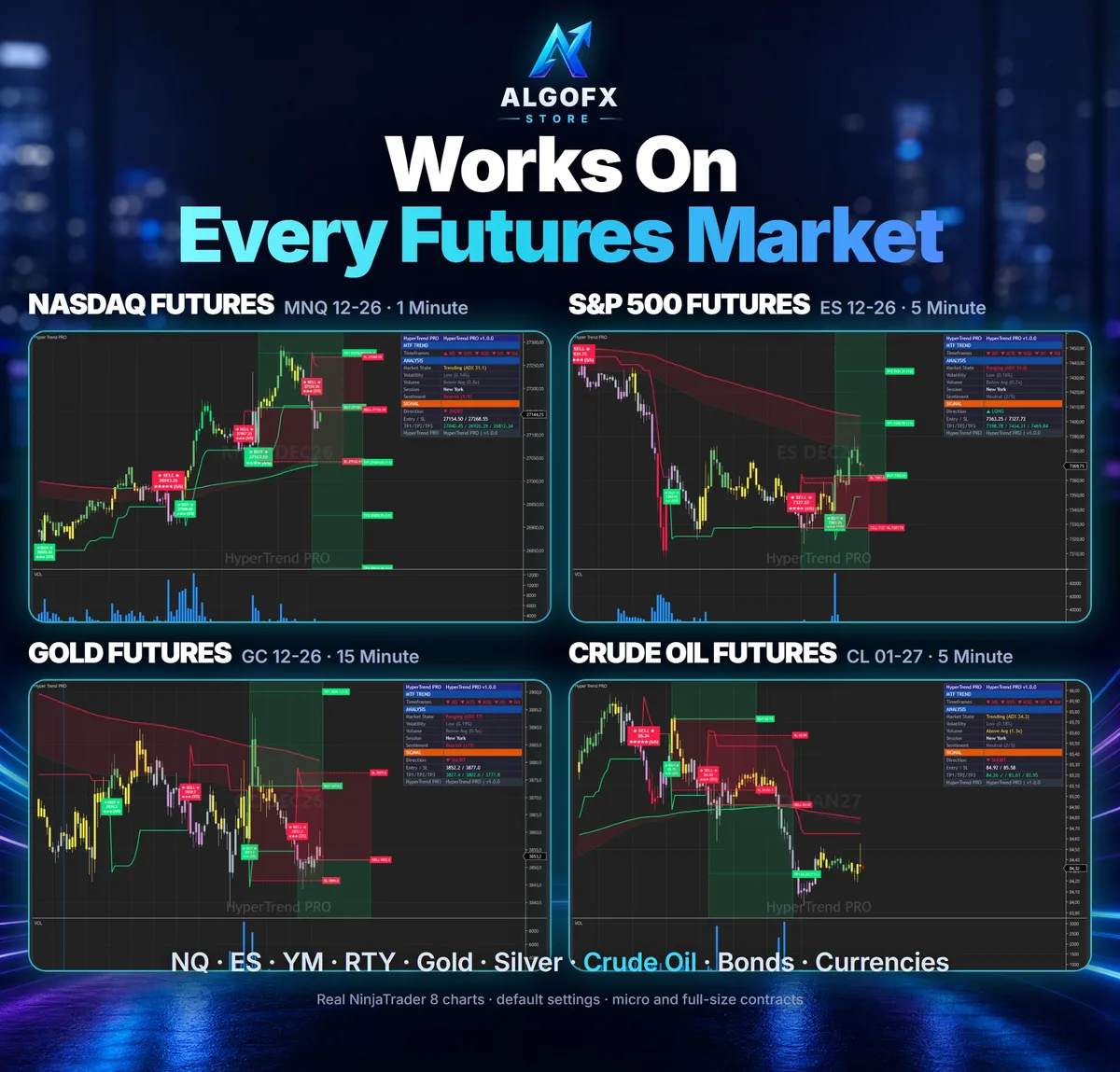
Any futures instrument with bars in NinjaTrader 8 Desktop. Time-based bars (second, minute, day, week) fully; tick, volume, range and Renko run with the right-hand part of the level lines positioned approximately. The longest average is 250 bars (EMA 250 cloud, Trend Tracer): 5 days of 1-minute bars or a week of 5-minute bars are plenty for signals; the dashboard's H4 arrow needs about 40 days (201 closed 240-minute bars). Chart captures used: MNQ 1 Minute, ES 5 Minute, GC 15 Minute, CL 5 Minute (market set also MES 3, NQ 15, YM 5, RTY 15, SI 30, NG 15, 6E 30, ZB 15). Volume = real contract volume.
Does it work on NinjaTrader 7?
No. It is built for NinjaTrader 8 and imported as a NinjaScript Add-On.
After you buy
How do I get it after paying?
Digistore24 runs the checkout. Right after payment it takes you to your download page with the NinjaScript Add-On zip and the PDF manual; the link to that page is also in your Digistore24 order e-mail, so you can download again at any time.
How do I install it?
In NinjaTrader 8: Control Center, Tools, Import, NinjaScript Add-On, then choose the zip exactly as you downloaded it (do not unzip it). After the import, add “Hyper Trend PRO AlgoFX” to a chart from the Indicators window. The manual walks through it step by step.
Who is Digistore24?
Digistore24 is the reseller that sells Hyper Trend PRO for Kestutis Balciunas (AlgoFXStore): it runs the checkout, charges your card or PayPal, collects the VAT for your country and delivers the download. Its name is the one on your statement, and its order e-mail holds your download link and the refund link.
What is the refund policy?
A 60-day money-back guarantee, handled by Digistore24. If Hyper Trend PRO is not for you within 60 days of purchase, use the refund link in your Digistore24 order e-mail or Digistore24's order page (digistore24.com/en/cancel-revoke-contract) for a full refund, no questions asked. Digistore24 makes the refund to your original payment method.
Do I get the source code?
No. The Add-On ships compiled; the zip is exactly what NinjaTrader imports.
Hyper Trend PRO for NinjaTrader 8.
Know how many stars back a flip and where it is wrong, in ticks, before you take it on your NinjaTrader 8 chart. The Add-On, the manual and every setting explained. Instant download for €77, one payment.
Get instant access