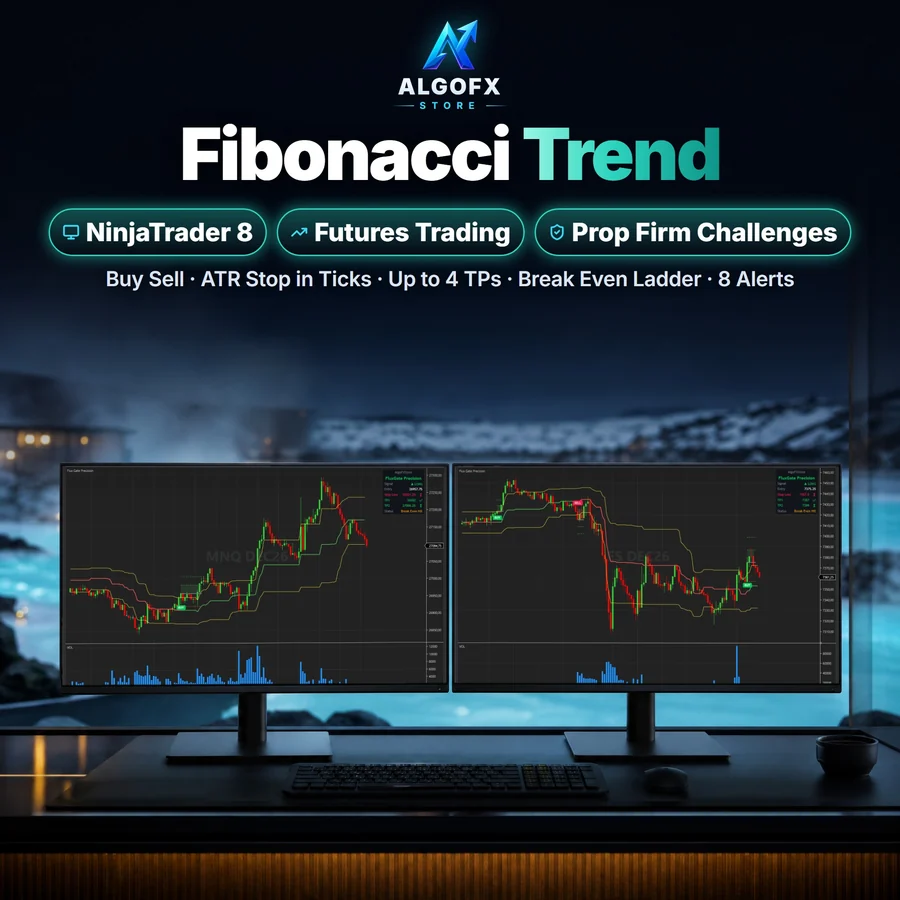
Fibonacci trend signals on closed bars, with the ATR stop and targets already drawn
Flux Gate Precision measures the highest high and the lowest low of the last 44 bars on your NinjaTrader 8 chart and draws two yellow Fibonacci thresholds and a 50 % trend line inside that range.
- BUY and SELL decided on the closed bar: markers, levels and alerts stay fixed once it closes.
- Stop 1.5 x ATR(14), TP1 at 1 x and TP2 at 2 x ATR, rounded to the instrument's tick.
- Break-even ladder on by default: TP1 moves the exit to the entry, TP2 to TP1, TP3 to TP2.
- A dashboard with the last signal and its status, and eight switchable alerts in the Alerts Log.
- A NinjaTrader 8 Add-On. Import one zip and it appears as “Flux Gate Precision AlgoFX” in your Indicators list.
- A 16-page PDF manual with every setting, the signals, the alerts and installation. One-time €77.
See Flux Gate Precision on a real chart
Press play; use the full-screen button to see every detail.
This video shows the same indicator on another charting platform; the NinjaTrader 8 edition sold here runs in NinjaTrader 8's own chart and settings windows. · 2:57 · Plays from YouTube when you press play (YouTube then sets its own cookies; see Privacy).
A hand-drawn Fibonacci leaves the swing, the trigger and the stop to you
A Fibonacci retracement needs two points, and you choose them. Pick a different swing and every level moves. The tool says nothing about what a close through a level means, where the idea is wrong or what to do once price runs, and the levels stay where you left them until you draw them again. Two traders on the same futures chart can draw two different grids and both call them correct.
Many arrow indicators fail in a second way. The arrow appears while the bar is still forming and moves or vanishes when the bar closes, so the history looks cleaner than anything you could have traded live. And the arrow is often all you get: no stop, no target, nothing that tells you how the last signal ended. On futures the stop is the number that matters, because your contract count comes from it.
Flux Gate Precision takes the choice away. The window is the last 44 bars, measured again on every bar, and the rule is the same everywhere: a close beyond the 50 % line and a threshold, on a closed bar, while the trend is not already in that direction. The same close sets the entry, the stop and the targets, rounded to the tick, and the dashboard follows that one trade until it ends.
What Flux Gate Precision draws, and what each mark means
Read from the shipped NinjaScript edition.
| What you see | What it means |
|---|---|
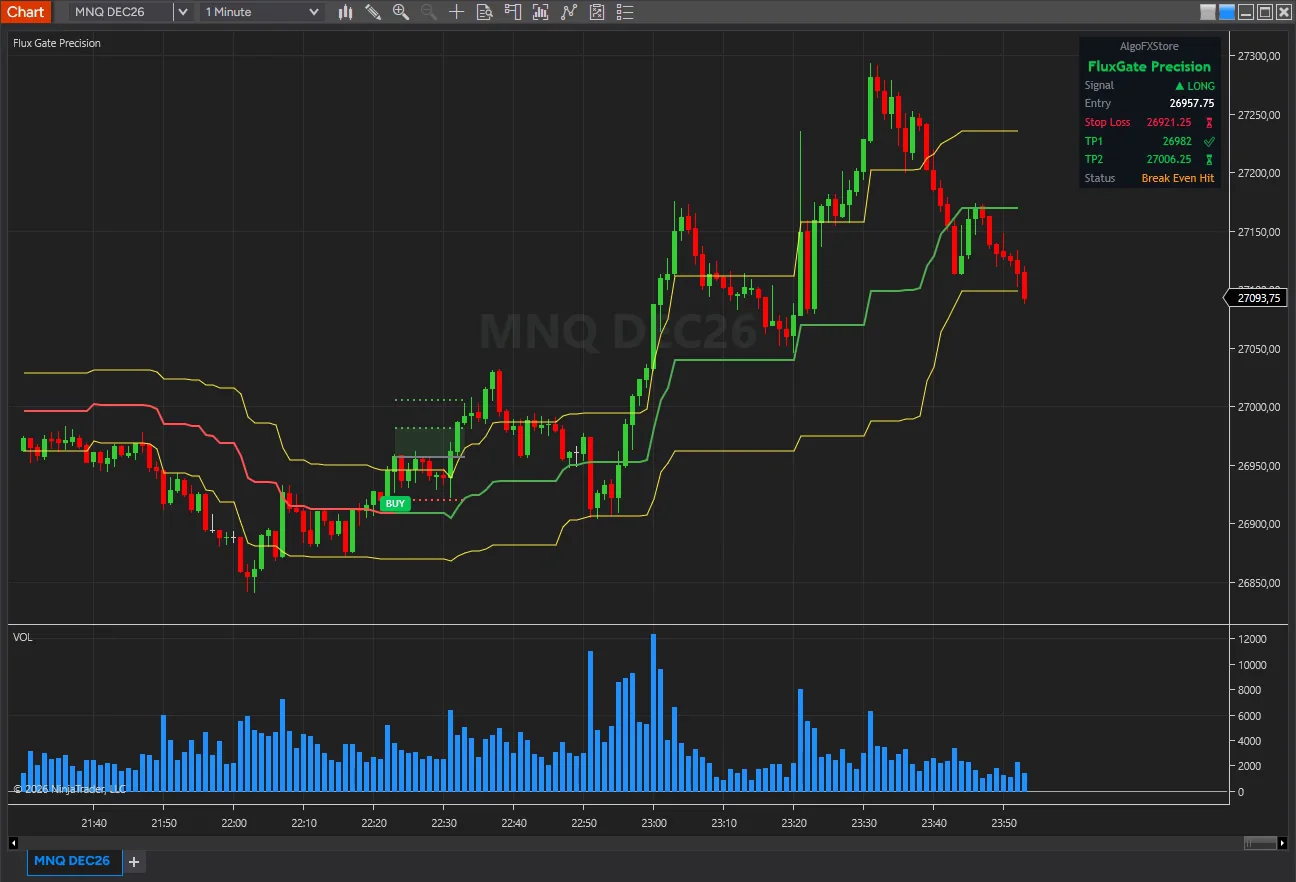
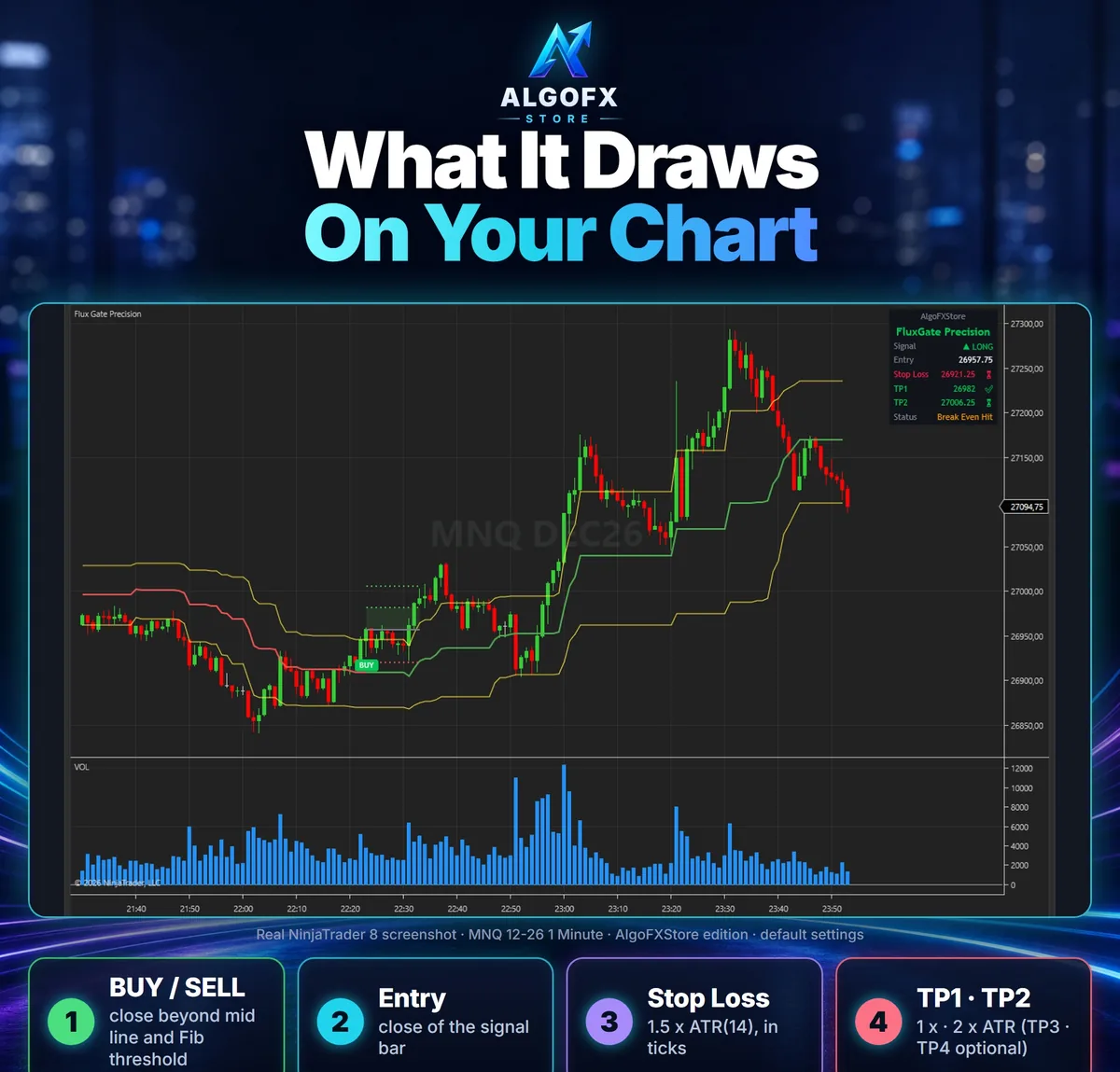
| Two yellow lines | Fibonacci thresholds, 23.6 % and 78.6 % of the 44-bar range below the window high. |
| Green / red middle line | 50 % mid line. Each bar is coloured by the trend as it stood before that bar closed: green while long, red otherwise, so the new colour starts on the bar after a signal. |
| Green 'BUY' / red 'SELL' pill | Close at or beyond the mid line and a threshold while the trend is not already in that direction; fixed when the bar closes. |
| Grey 'Entry <price>' | Close of the signal bar, on a solid grey line. |
| Red 'SL <price>' | Stop 1.5 x ATR(14) from the entry, rounded to the tick, on a dotted red line. |
| Green 'TP1 / TP2 <price>' | Targets at 1 x and 2 x ATR on dotted green lines (TP3 / TP4 when enabled); a reached target keeps its name and drops the price. |
| Light green / red band | Where a target or the stop was reached. |
| Dashboard | Last signal, its levels with hourglass, check mark or cross, and the status. |
One rolling range, two thresholds, one tracked trade
The whole engine is a handful of rules you can check on the chart. This is what the shipped NinjaScript does on every closed bar.
- 1
Measure the 44-bar range
On every bar the indicator takes the highest high and the lowest low of the last 44 bars, the Analysis Window. Three lines are measured down from that high: the upper yellow threshold at 23.6 % of the range, the 50 % mid line and the lower yellow threshold at 78.6 %. Fib High Sensitivity Fib382 and Fib Low Sensitivity Fib618 move the thresholds closer to the mid line. A longer window gives wider thresholds and fewer signals.
- 2
Test the close, never the forming bar
A BUY needs a close at or above both the mid line and the upper threshold while the trend is not already long. A SELL needs a close at or below both the mid line and the lower threshold while the trend is not already short. The whole test runs only once the bar has closed, so BUY and SELL arrive in turn and a strong run can carry a single signal for a long stretch.
- 3
Colour the trend line
The mid line is green while the trend is long and red otherwise, and it takes the new colour from the bar after a signal flips the trend. You can read the current direction at a glance even when the last marker has scrolled off the left of the chart. The two thresholds and the mid line are ordinary plots, so their colours can be changed in the indicator's Plots section.
- 4
Set the plan from the signal close
The close of the signal bar is the entry. In ATR mode, the default, the stop sits 1.5 x ATR(14) away, TP1 at 1.0 x and TP2 at 2.0 x ATR, while TP3 and TP4 stay off until you give them a multiplier above 0. Every level except the entry is rounded to the instrument's tick size. With Use ATR-Based TP/SL off, the stop and targets become percentages of the entry instead.
- 5
Step the exit up the ladder
Reaching TP1 moves the exit to the entry, TP2 moves it to TP1 and TP3 to TP2. A later return to that level closes the trade as Break Even Hit. It is a hard exit level, not a trailing stop: the stop line does not move and the break-even level is not drawn. Targets are tested before the stop and break-even, and neither of those two can trigger on the signal bar itself.
- 6
End the trade and keep the record
One trade is tracked at a time. It ends at TP4 when enabled (All TPs Hit), at the stop (Stopped Out), at the break-even level (Break Even Hit) or when an opposite signal closes it and opens the next trade, whose Status then reads Active. Its labels then go, while its dotted lines and the light green or red bands of every hit stay on the chart, losing trades included.
Flux Gate Precision on 12 different markets
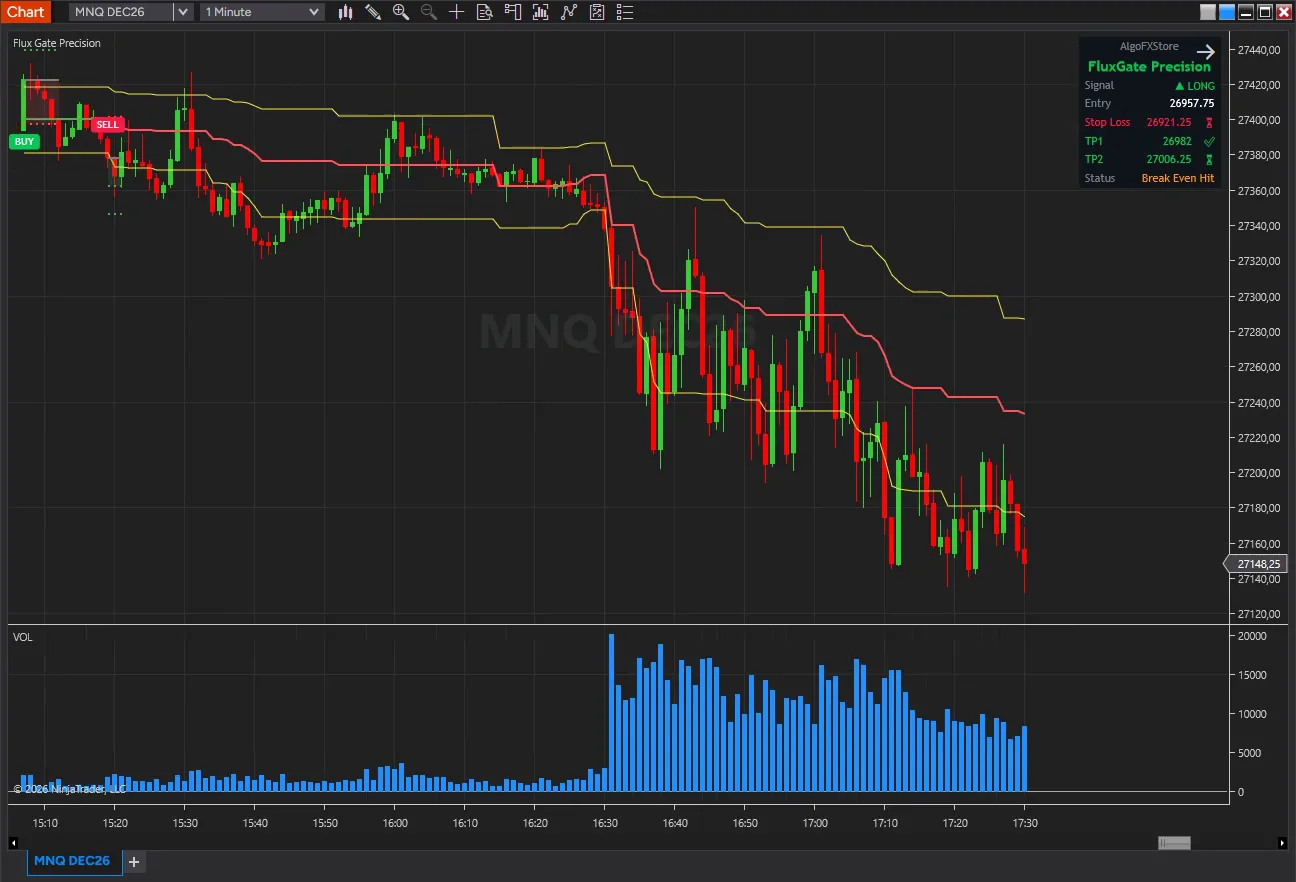
Every chart below is a screenshot of NinjaTrader 8 itself with the shipped Flux Gate Precision AlgoFX attached at its default settings. Forex, metals, indices, energy and crypto, so you can see how it reads each kind of market. They show what the indicator draws; they are not trading results. Tap or click any chart to open it full size.
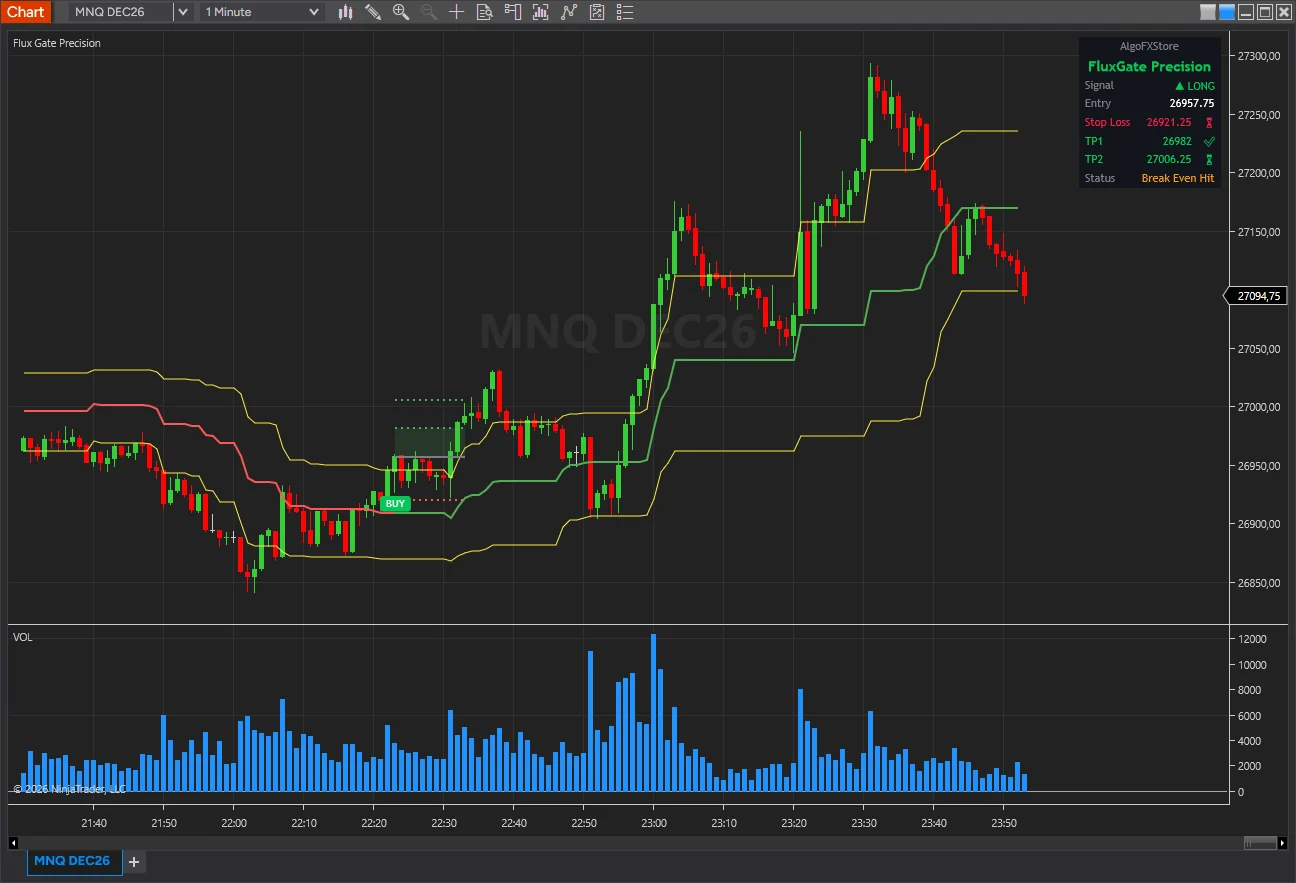
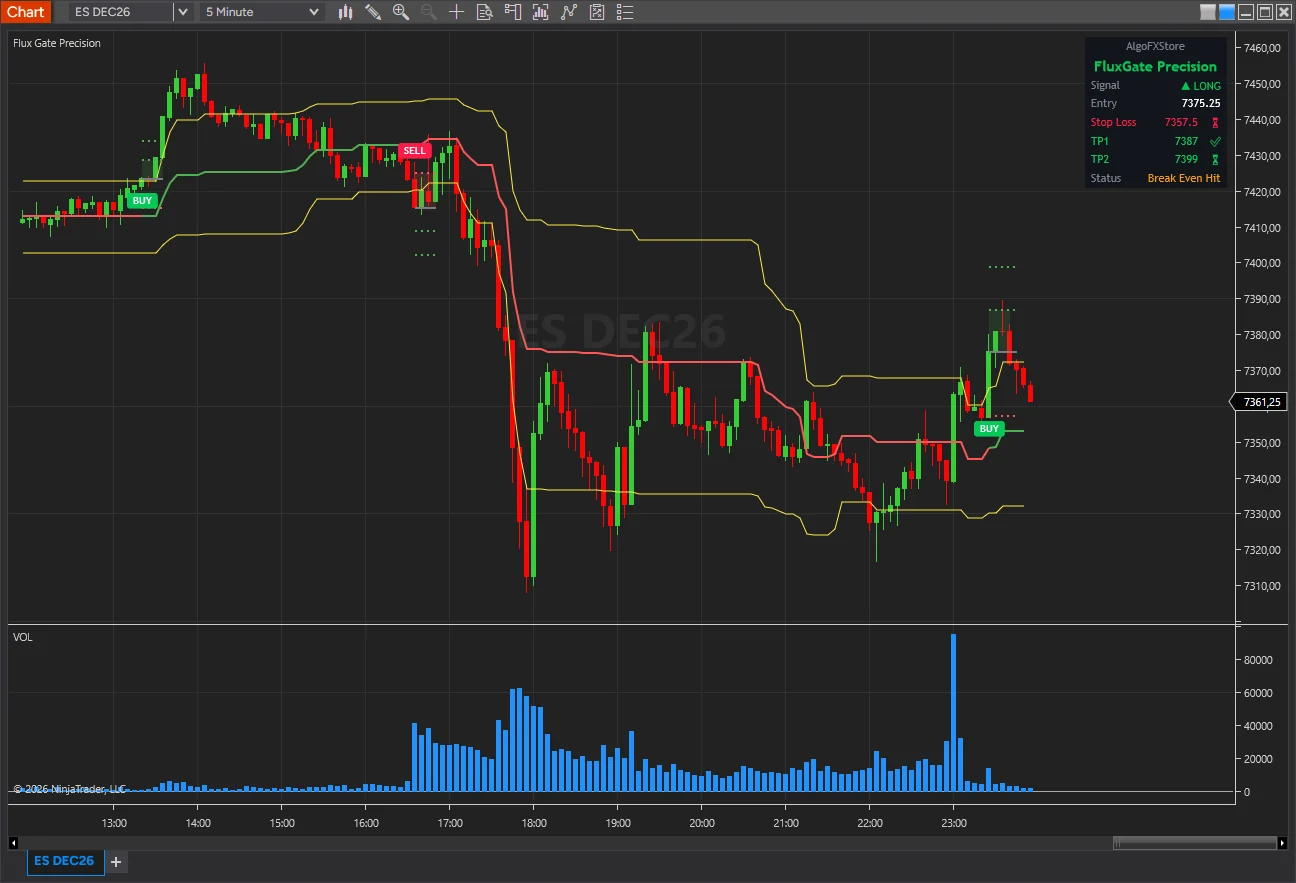
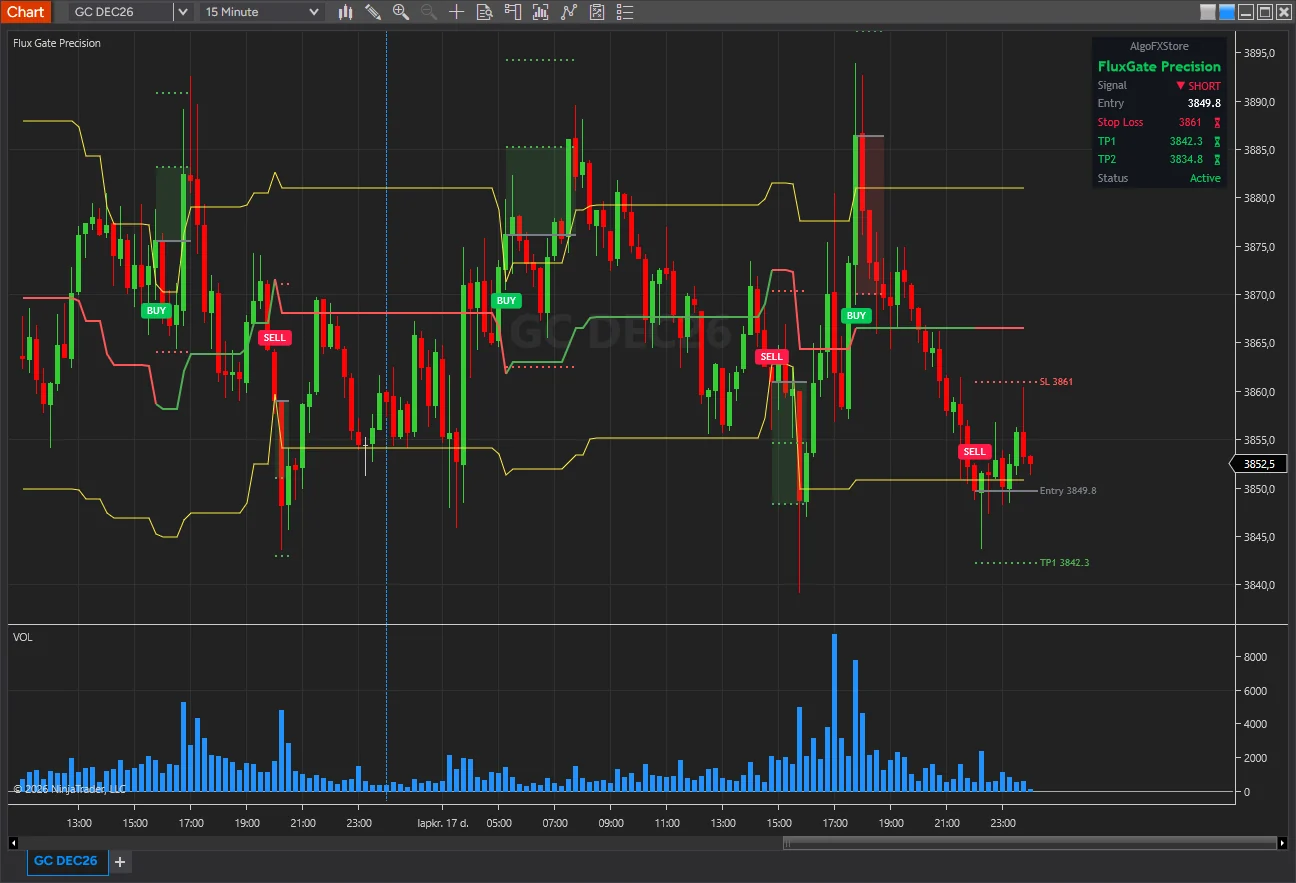
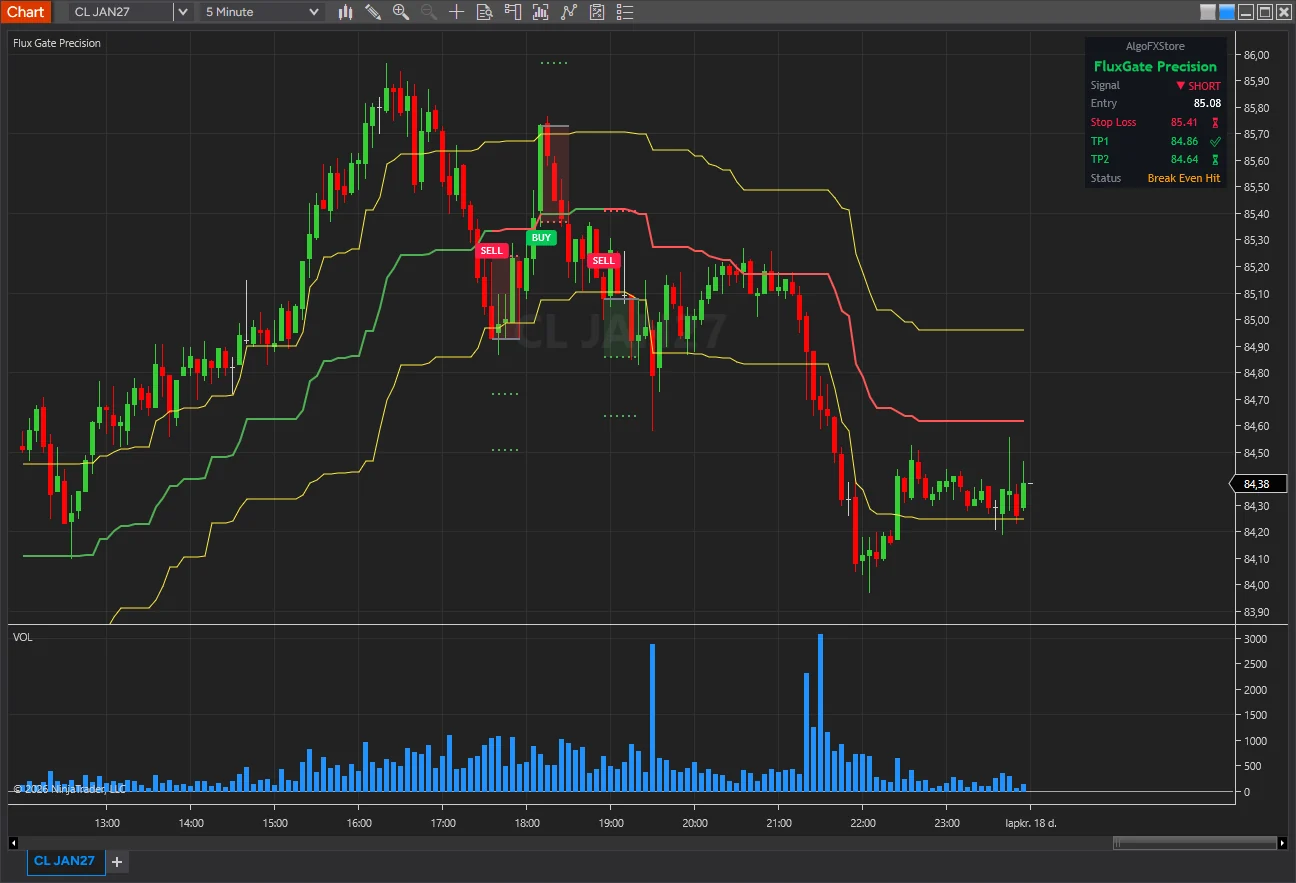
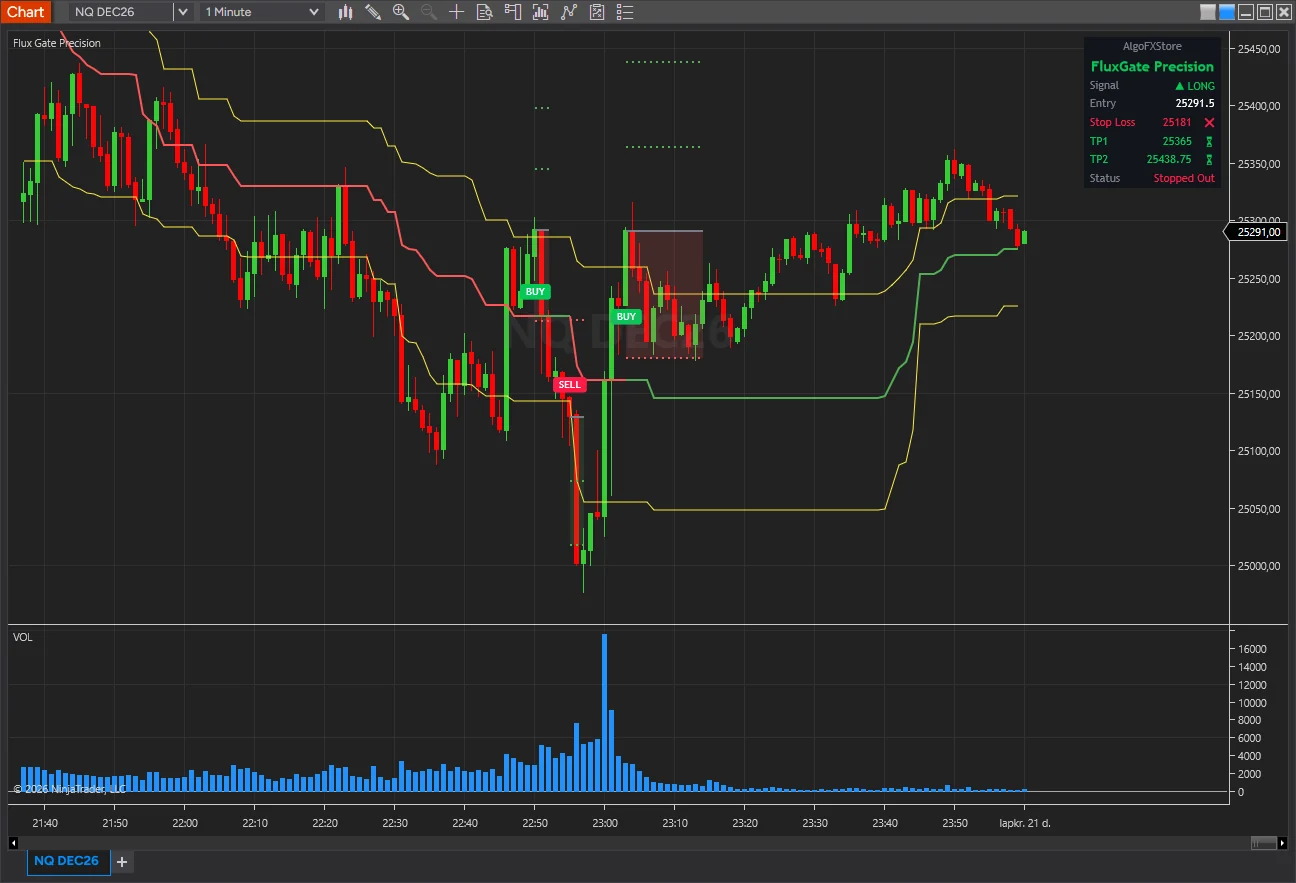
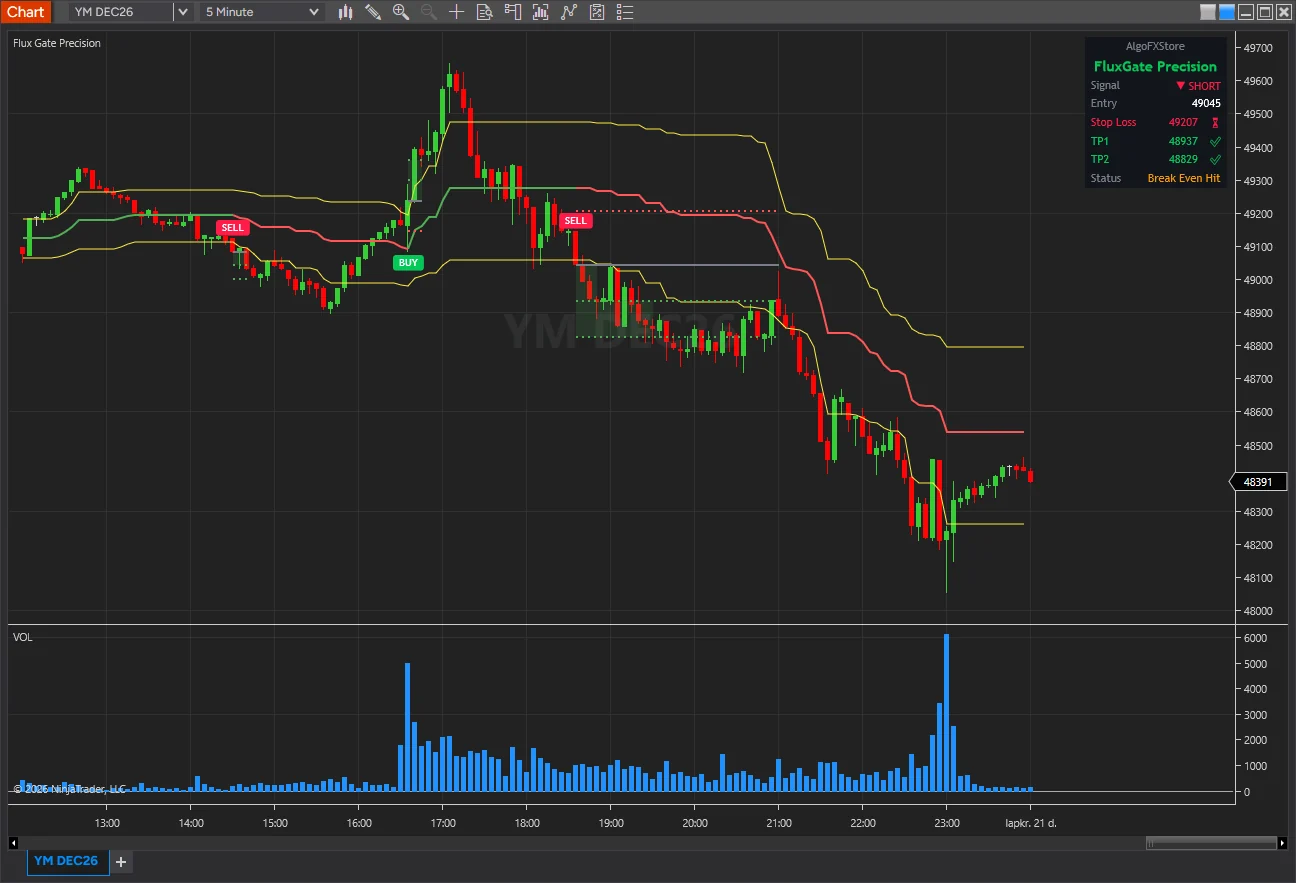
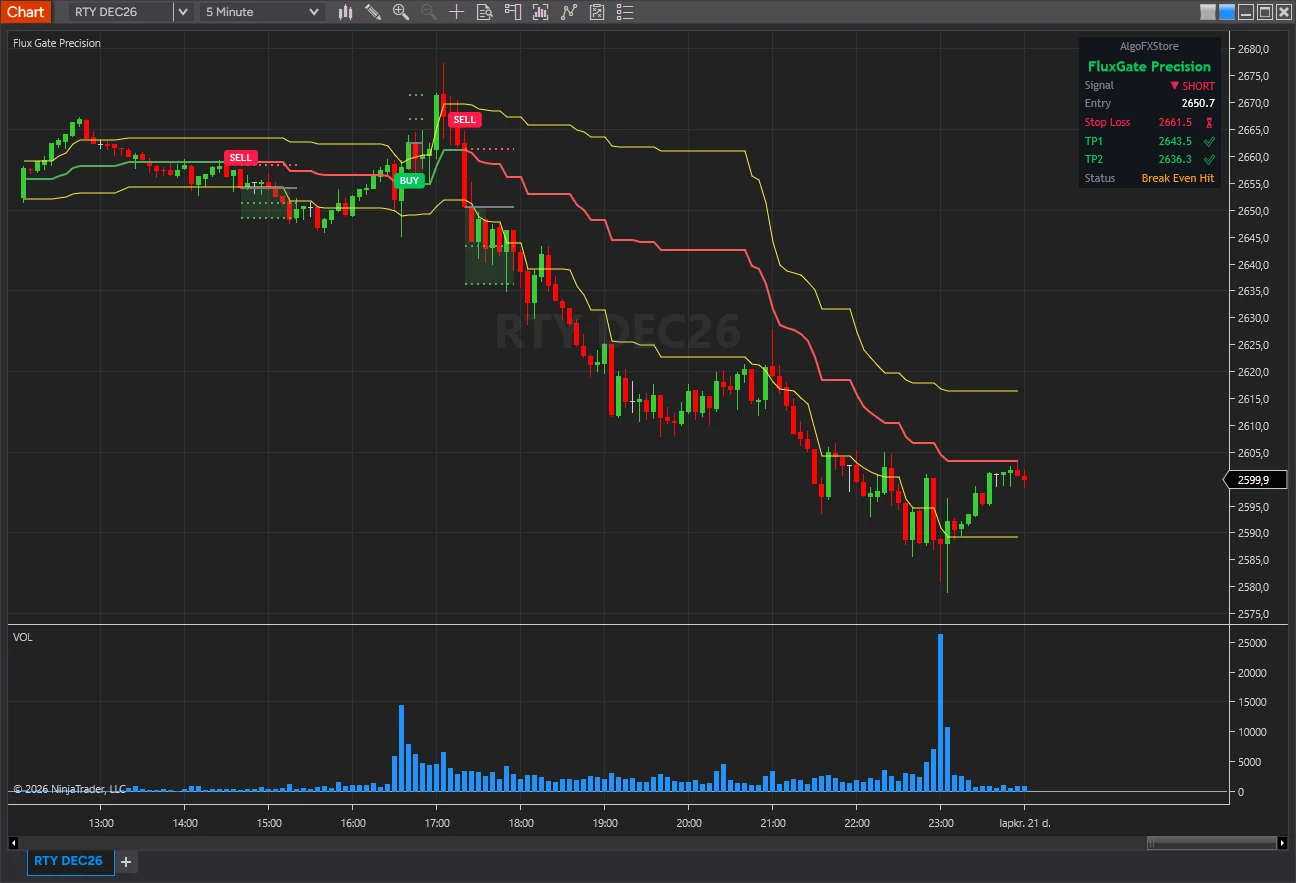
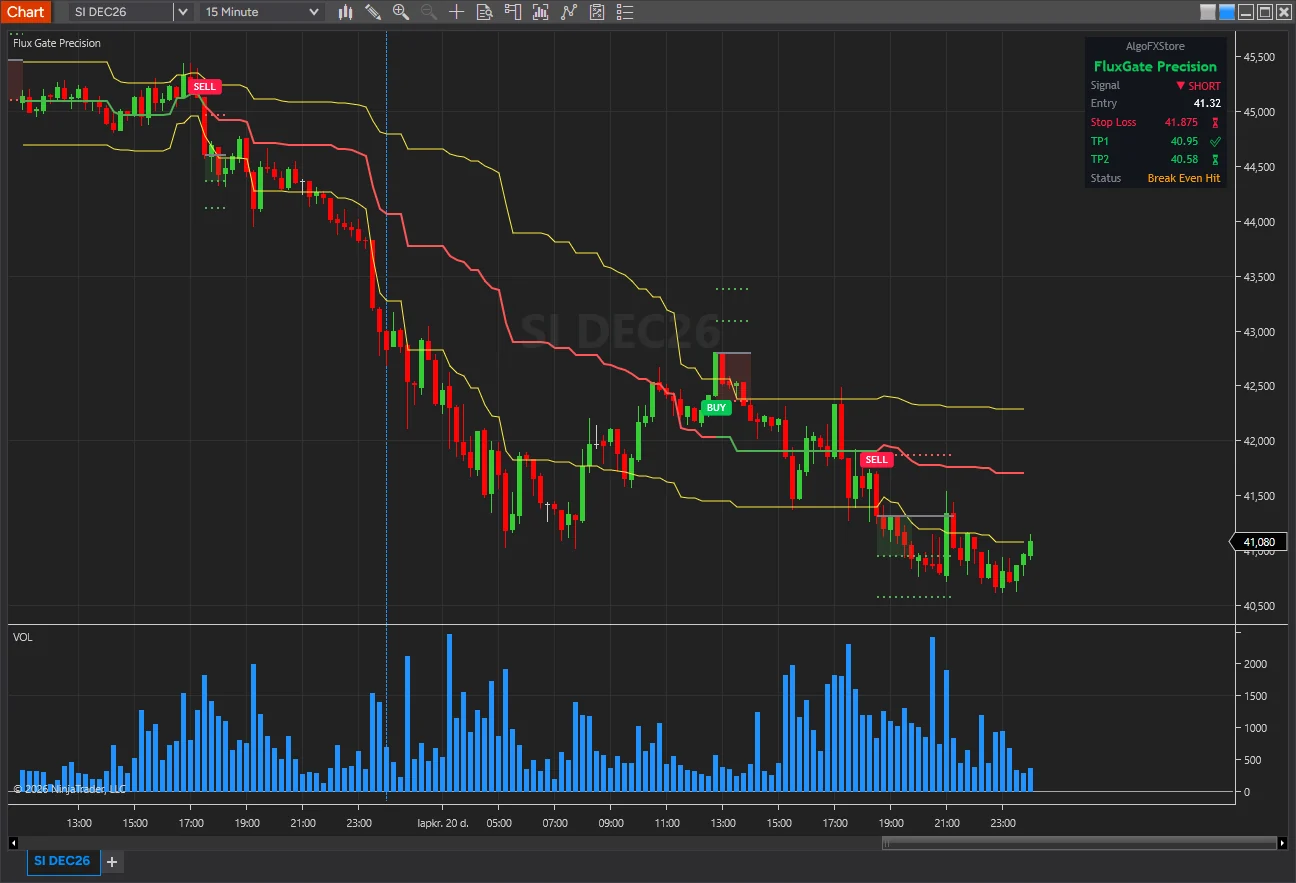

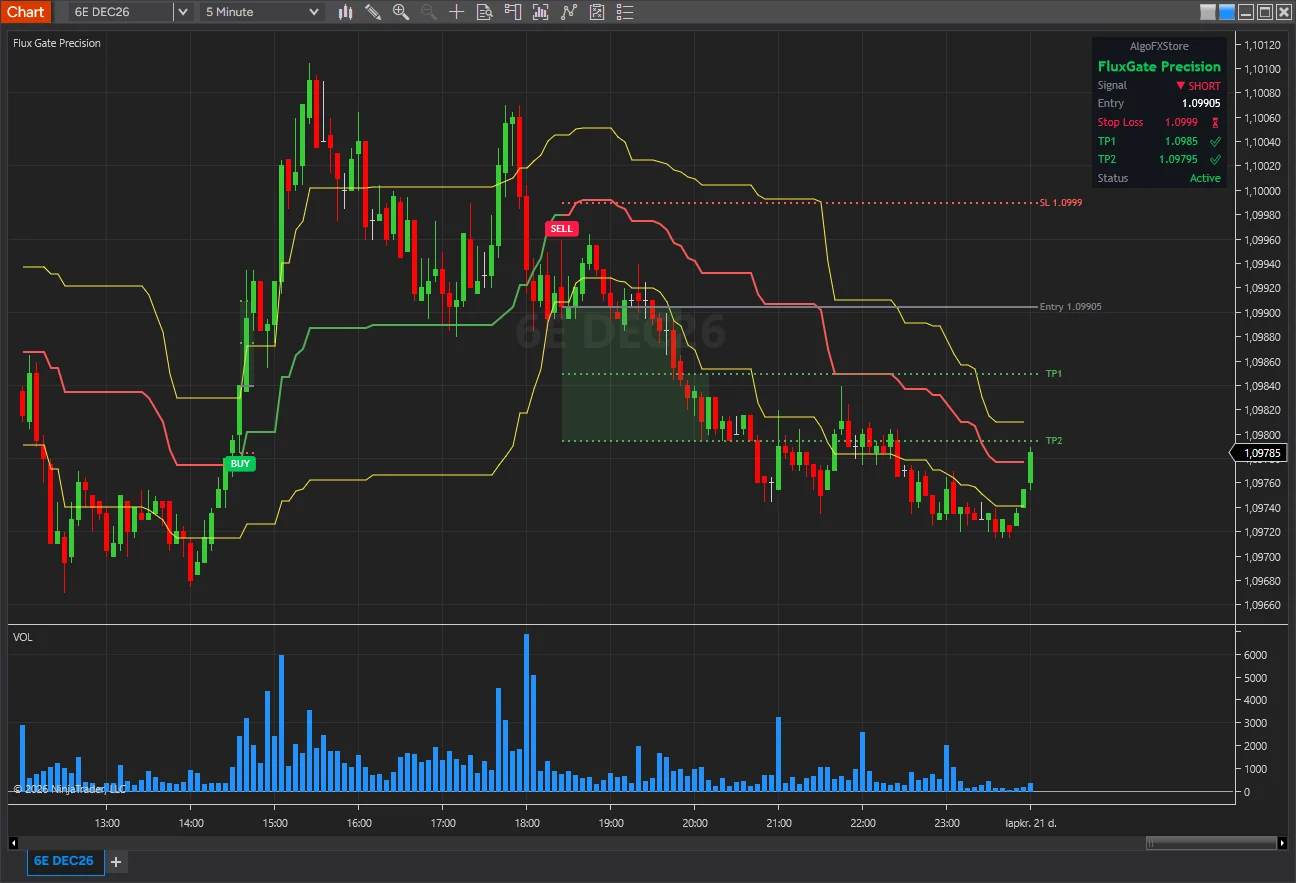
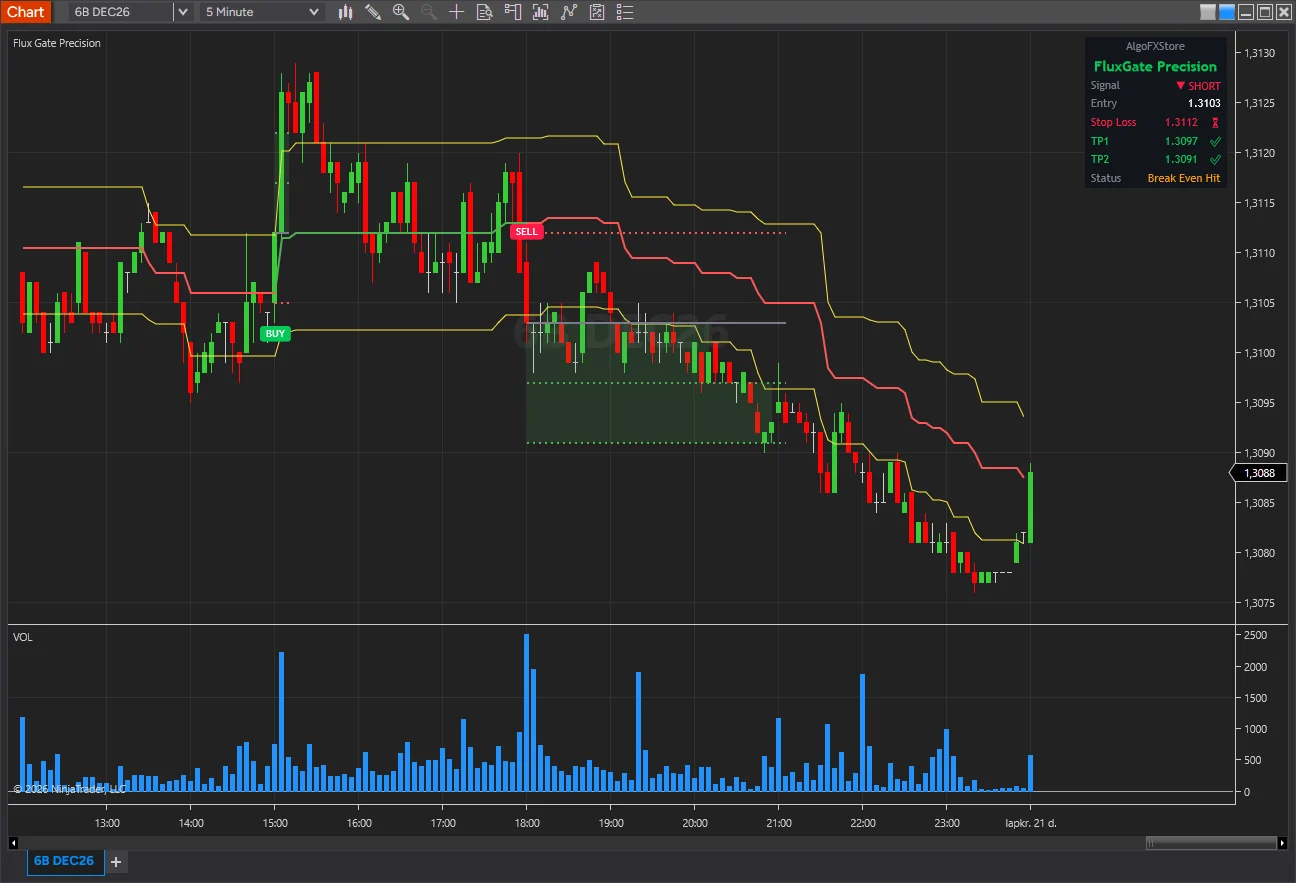
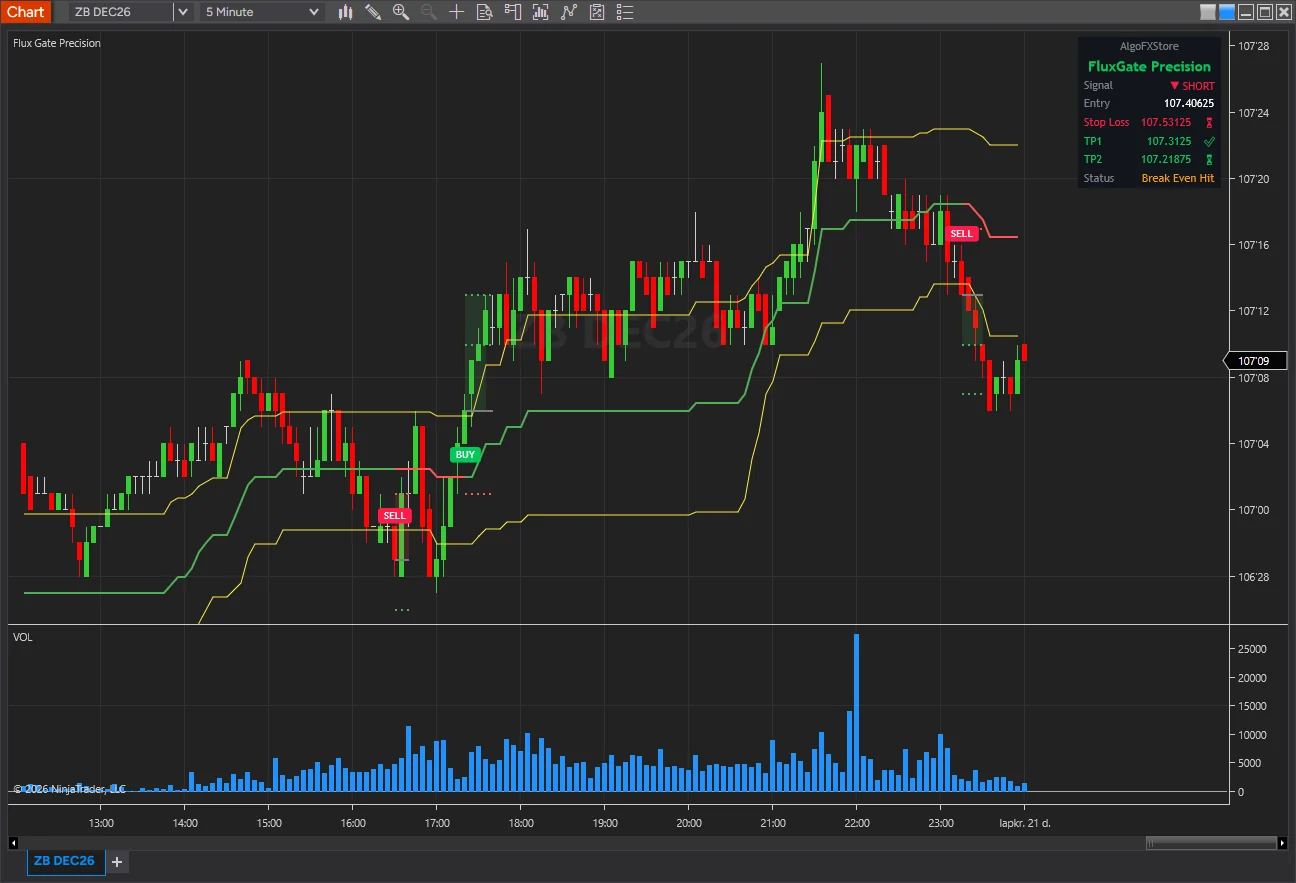
Watch Flux Gate Precision work on a real NinjaTrader 8 chart
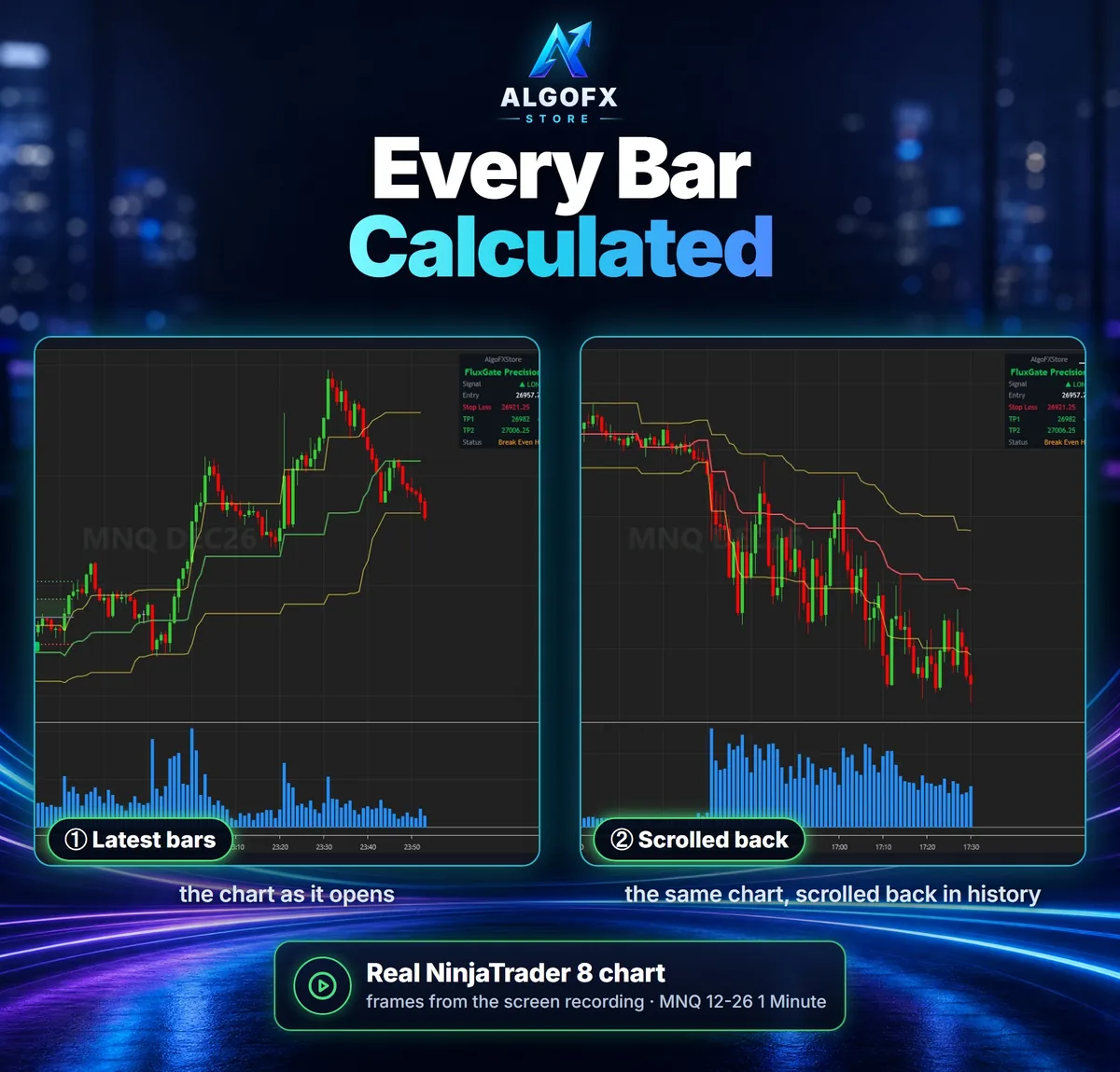
A screen recording and frames from the shipped indicator at its default settings, as the chart updates. Nothing is edited into the chart.
Trading it step by step, from the alert to the exit
The indicator draws and alerts; every order is yours. This routine, taken from the manual, keeps each decision tied to what is on the chart and to your own risk budget.
- 1
Wait for the closed-bar alert
Let the BUY or SELL alert arrive. It fires only for a bar that closed while the chart is live, so the marker will not disappear afterwards. Check that the dashboard Signal row shows the new direction and that Status reads Active. You enter after the close at the next available price, so your fill is not the drawn Entry: measure your real stop distance from your own fill to the drawn Stop Loss.
- 2
Turn the stop into contracts
Read Entry and Stop Loss from the dashboard. The distance divided by the tick size gives ticks, and ticks times the tick value give the dollar risk per contract. Divide your risk per trade by that figure plus a slippage allowance and round down. If even one micro contract costs more than your per-trade budget, skip the signal. Fit the risk with the contract count, never by shrinking the stop.
- 3
Protect the position at once
Place a real stop order at the drawn Stop Loss right after your entry, for example with a NinjaTrader ATM strategy. A line on the chart protects nothing by itself. Decide before you enter whether you will bank part at TP1: at the defaults TP1 sits nearer than the stop, 1.0 against 1.5 ATR, which suits a trader who takes partial profit early.
- 4
Manage with the ladder alerts
At the TP1 alert consider moving your stop to the entry, as the ladder shows. At TP2 consider taking profit or trailing to TP1. With the defaults no target ends the tracked trade, so after TP2 its exit sits at TP1 until price returns or the trend flips. Set TP4 Multiplier to 3.0 if you want a final target with an All TPs Hit status and its own alert.
- 5
Know when to skip
Skip a signal that arrives while you are away from the screen, one whose stop does not fit your budget, and anything within about 15 minutes of a major scheduled release such as a rate decision, an inflation or jobs report, or the weekly crude inventory report on CL. An opposite signal closes the old tracked trade and opens the next one at once: close whatever is left of your old position.
- 6
Stop for the day on your rules
The manual's session plan stops after two stopped-out trades or once the day's loss reaches half of your own daily limit, whichever comes first, and keeps the contract size steady from day to day. If you close out by a set time, set your own reminder about 15 minutes before it: the indicator does not know your schedule, your account or your position size.
7 rows that read the market for you
The on-chart dashboard, row by row.
- AlgoFXStore (brand line)
- FluxGate Precision (title)
- Signal | ▲ LONG or ▼ SHORT for the last signal, a dash before the first one
- Entry | close of the signal bar
- Stop Loss | price with an hourglass (pending) or a cross (stop reached)
- TP1, TP2 (TP3, TP4 only when enabled) | price with an hourglass (pending) or a check mark (reached)
- Status | Awaiting Signal, Active, All TPs Hit, Stopped Out or Break Even Hit; an opposite signal opens the next trade at once, so Status then reads Active again
Everything Flux Gate Precision does for you
No swing to pick by hand
The thresholds are measured from the last 44 bars on every bar, 23.6 % and 78.6 % below the window high by default. Every chart of the same bars shows the same lines, with nothing to draw and nothing to redraw.
Signals fixed when the bar closes
Markers, levels, target and stop hits, break-even exits and alerts come from closed bars only. A live MNQ 1 Minute run with Calculate on On each tick, across the switch from history to live bars, matched the closed-bar replay in all 58 output series with no differences.
A stop you can count in ticks
Stop 1.5 x ATR(14), TP1 1.0 x and TP2 2.0 x ATR, with optional TP3 and TP4, each rounded to the instrument's tick. Prices print as decimals with trailing zeros trimmed, so the stop distance in ticks is one subtraction away.
A break-even ladder that alerts
TP1 moves the exit to the entry, TP2 to TP1 and TP3 to TP2, and a return to that level closes the trade with its own Break Even alert. Switch Break Even off and only the stop, TP4 or an opposite signal ends a trade.
A chart that keeps its record
Dotted level lines run from the signal bar to the bar the trade closed, with a light green band where a target was reached and a light red band on a stop. Max Visual History 0 keeps every past trade; 10 to 20 keeps a long session clean.
A dashboard with a Status row
Seven to ten rows in any corner: Signal (LONG, SHORT or a dash), Entry, Stop Loss with an hourglass or a cross, each active target with an hourglass or a check mark, and a Status row: Awaiting Signal, Active, All TPs Hit, Stopped Out or Break Even Hit.
Eight alerts, each with its own switch
BUY, SELL, TP1 to TP4, Stop Loss and Break Even, plus a master switch, all on by default. Every alert goes to the Alerts Log and the NinjaScript Output window; a sound and an e-mail through NinjaTrader's Mail share service are optional.
Series for your own NinjaScript
Fib High, Trend Line (bullish), Trend Line (bearish), Fib Low and a hidden Signal series (+1 on a BUY bar, -1 on a SELL bar, 0 otherwise) can be read by a NinjaScript strategy or shown as Market Analyzer columns on closed bars.
Prices only, any data feed
It reads open, high, low and close and nothing else. Volume, market depth, tick history and Order Flow+ are not needed, so the simulation feed, a broker feed or any other data connection draws the same lines from the same bars.
Flux Gate Precision, feature by feature
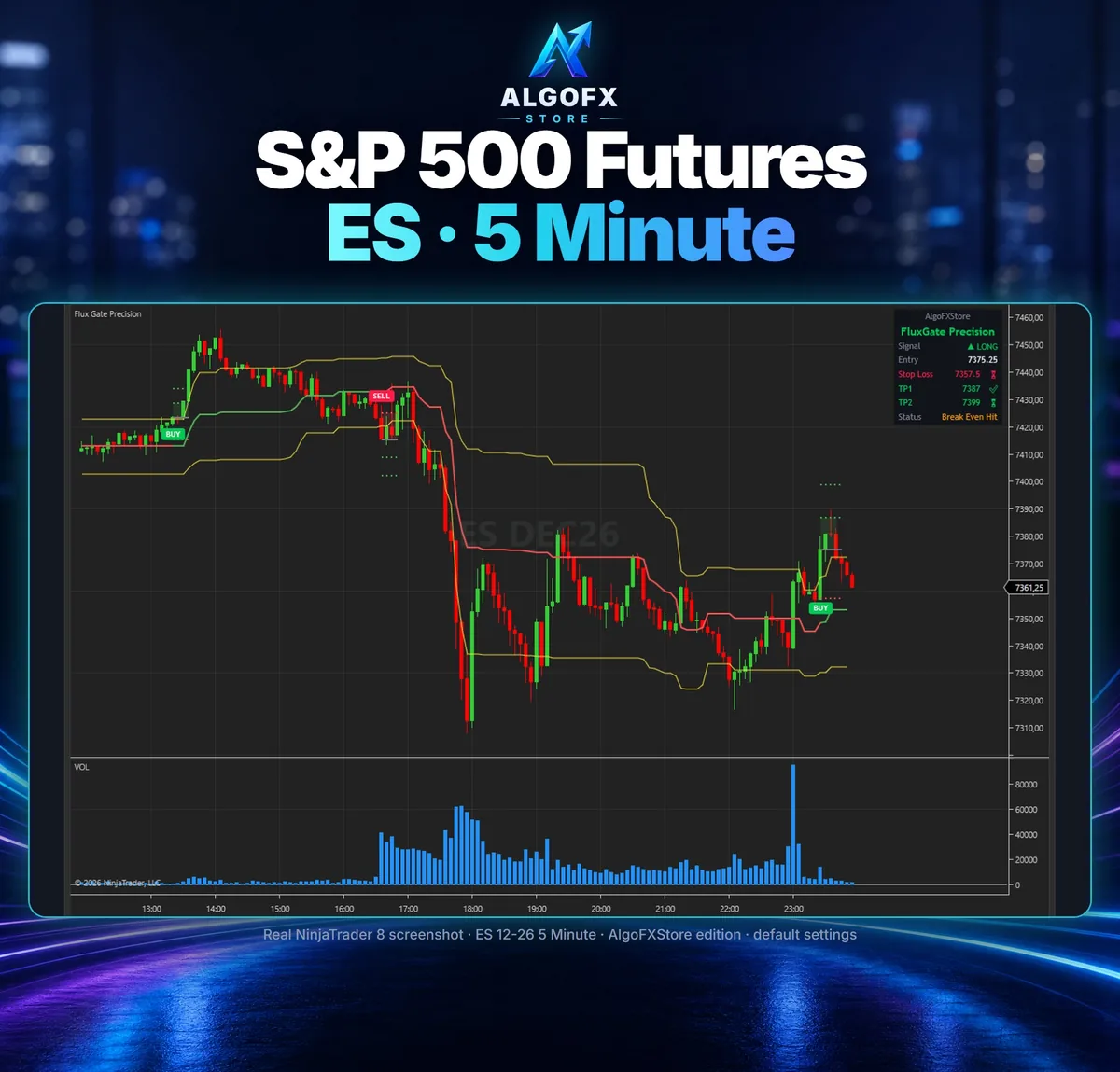
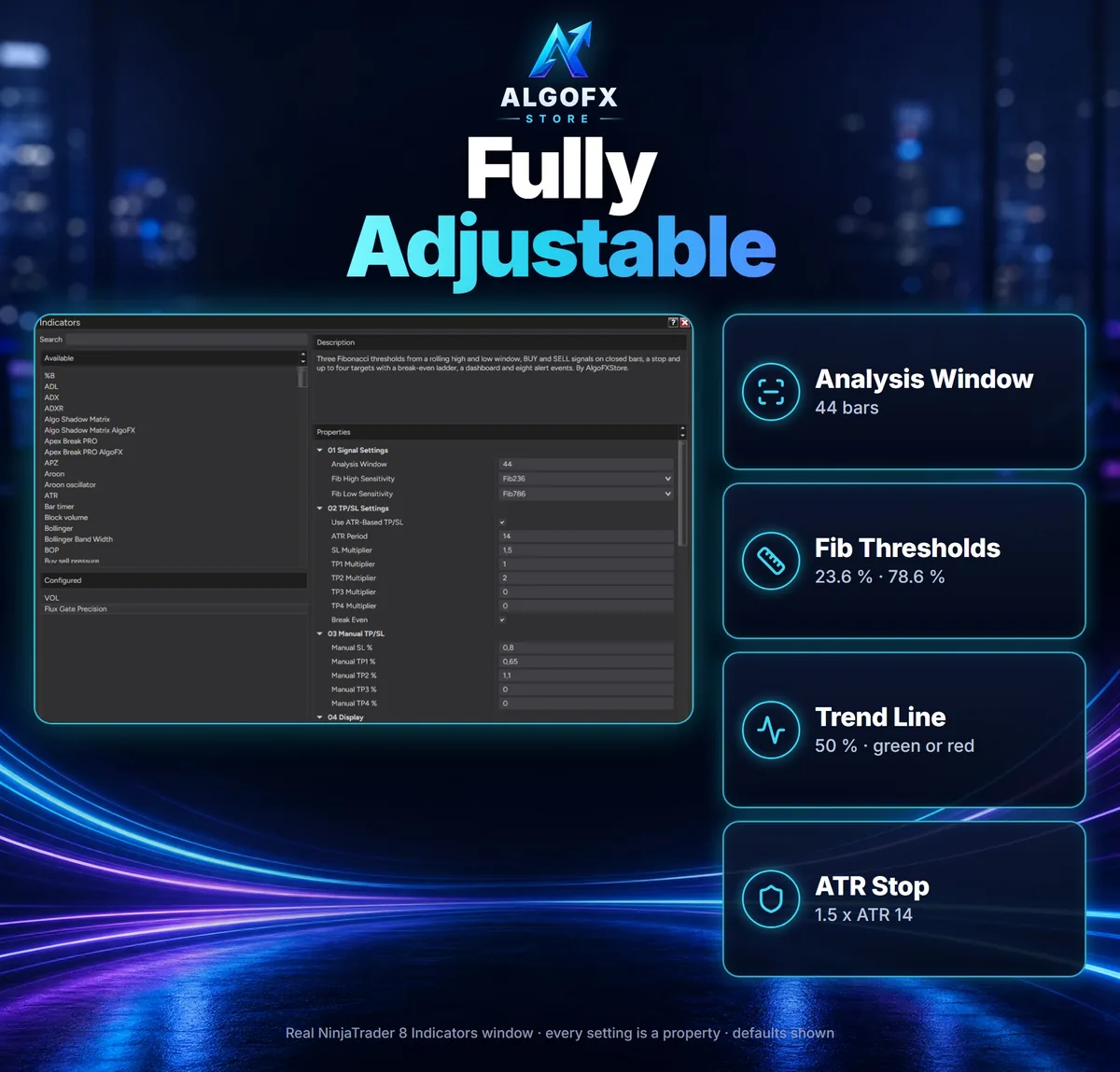
Each picture is built from real platform screenshots of the shipped indicator at its default settings, labelled so you can see what every part does. Tap any picture to open it full size.
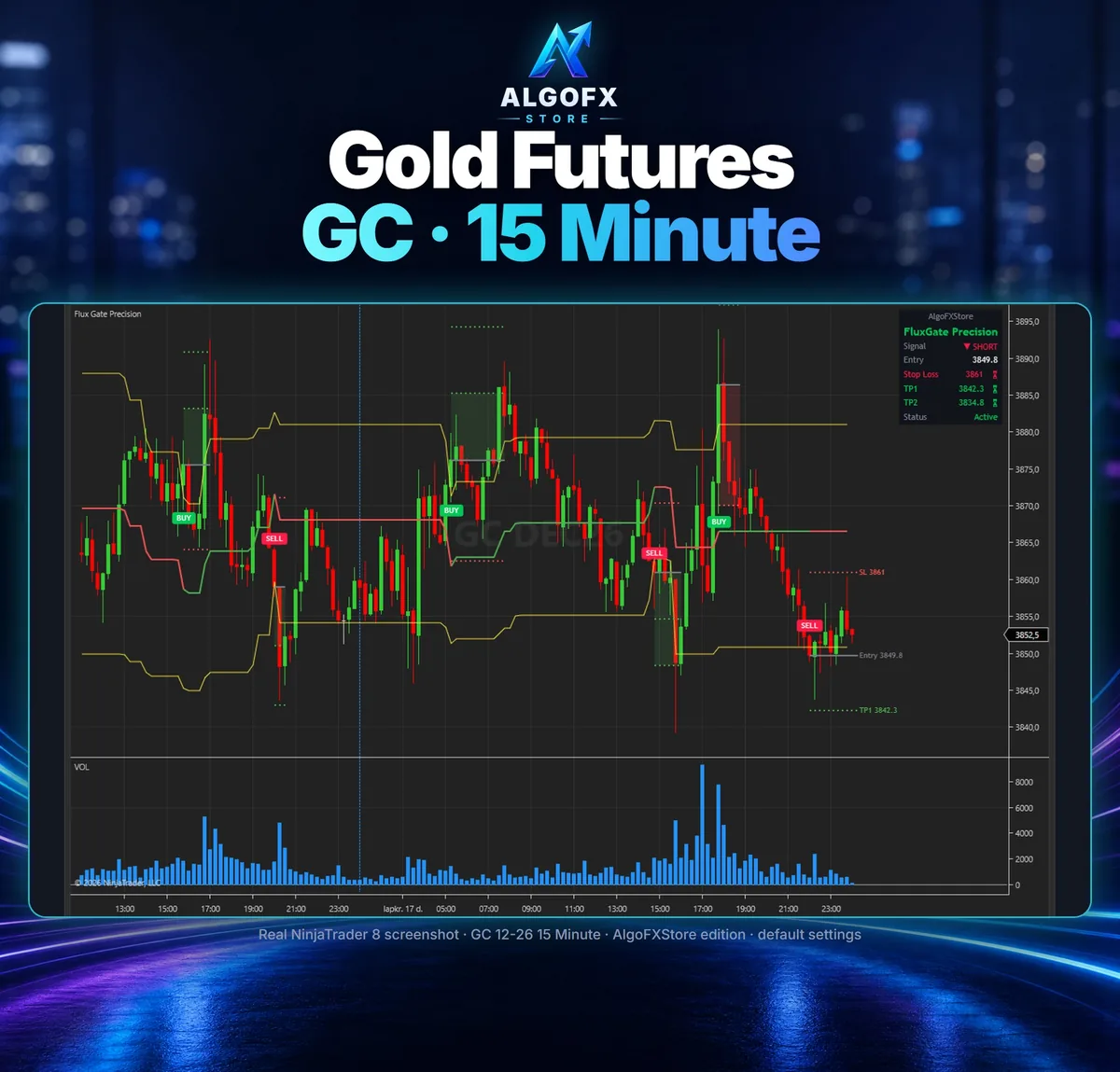
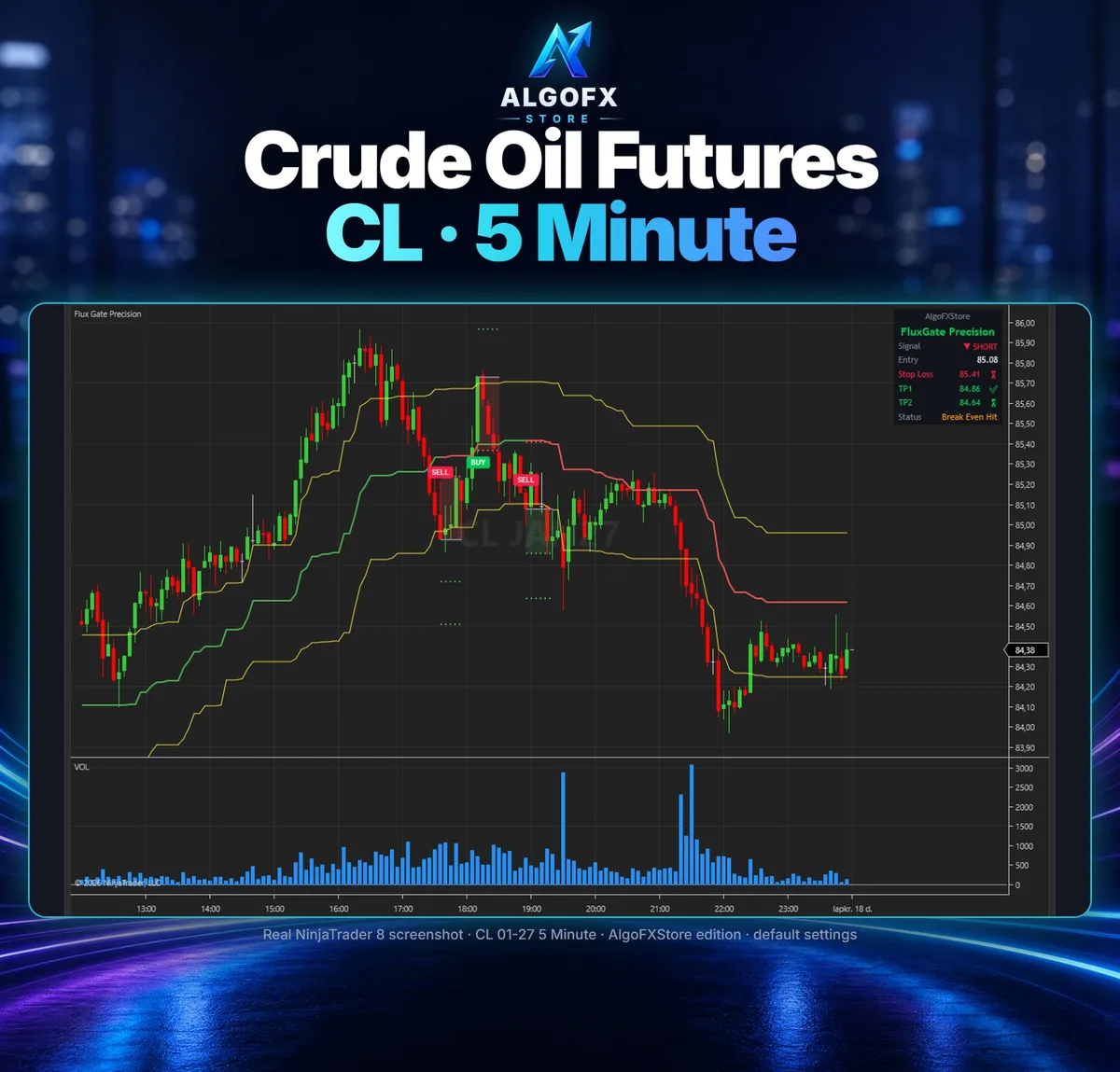
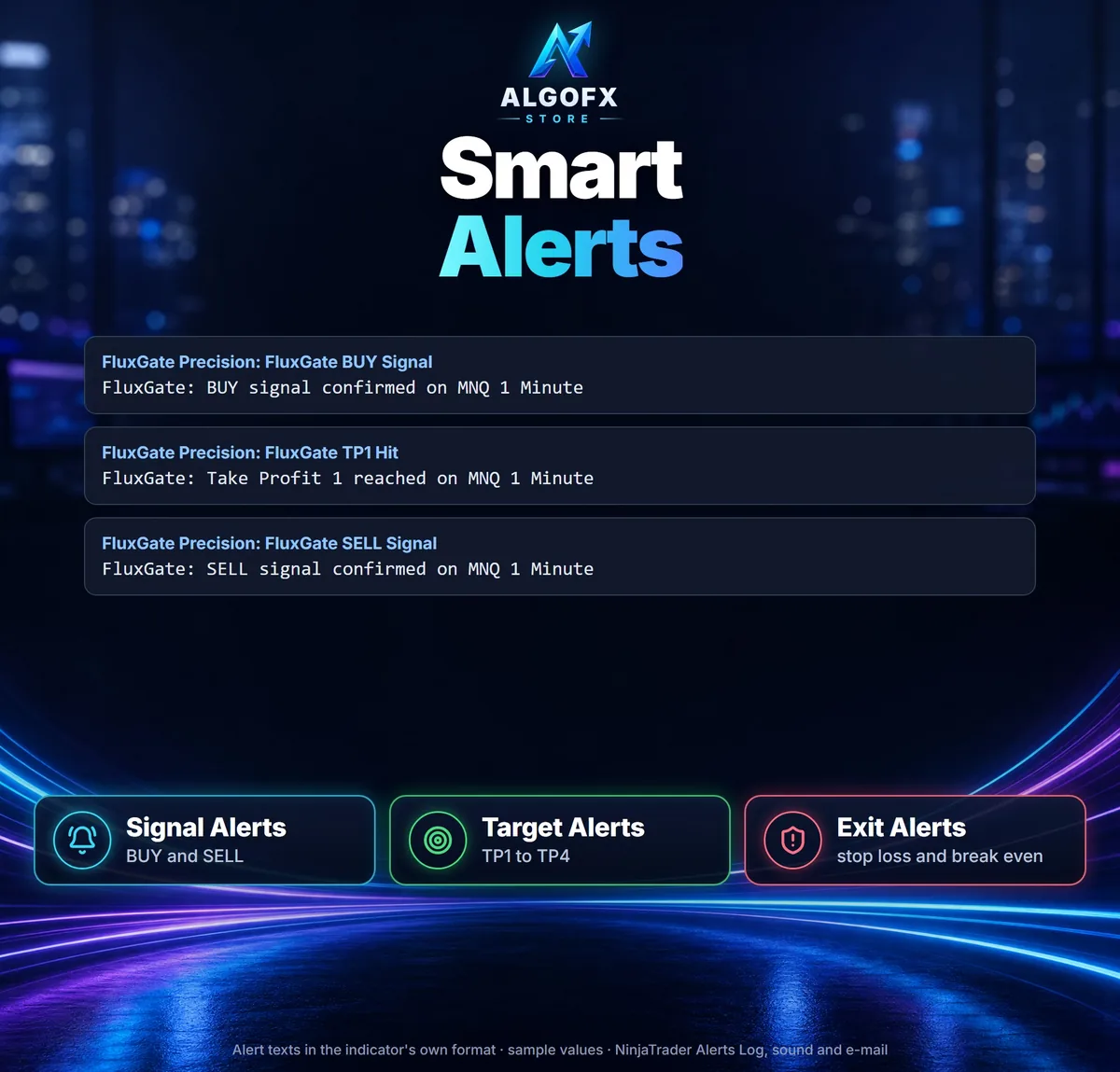
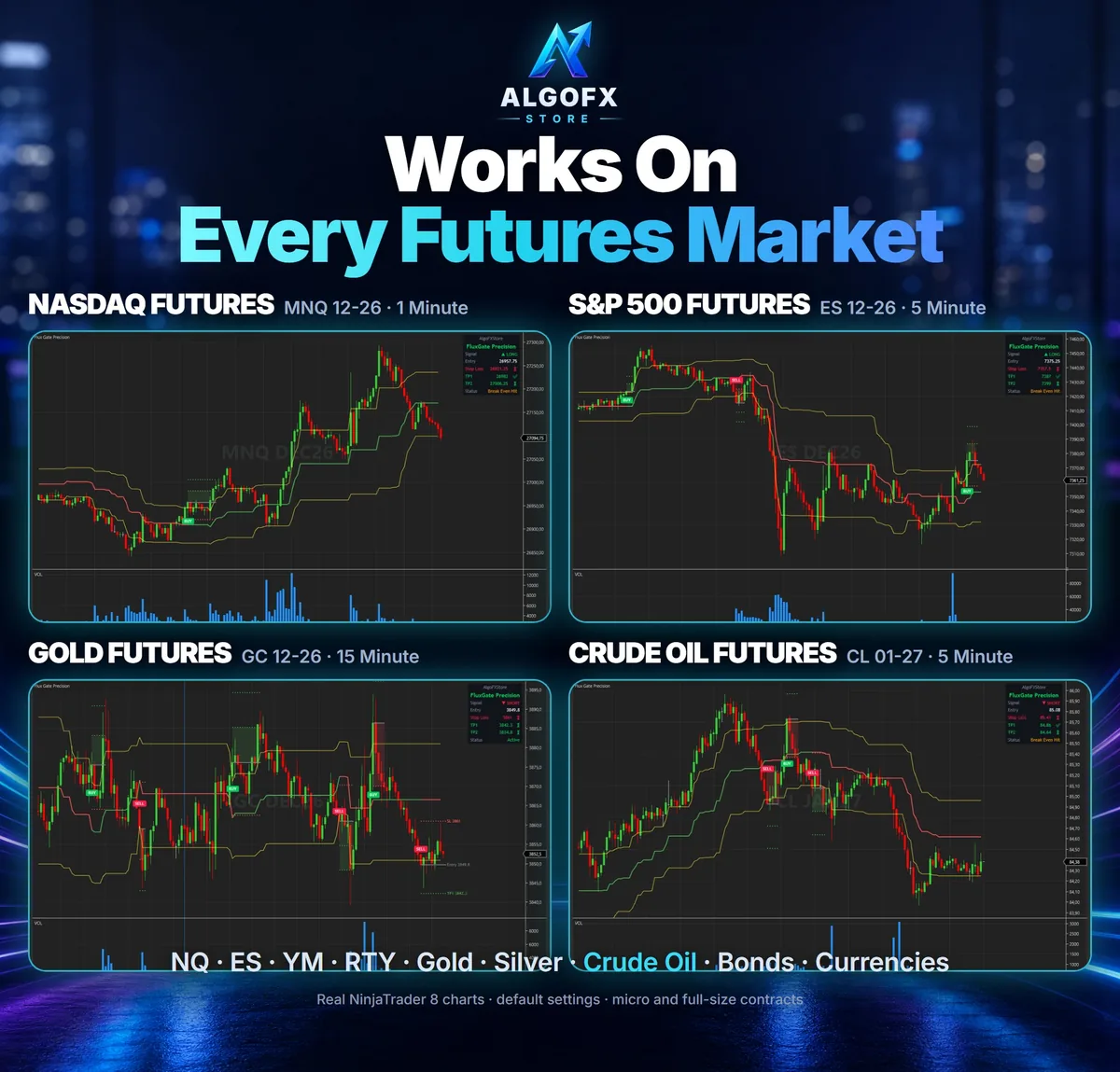
How traders put it to work
MNQ and NQ on 1 to 5 minutes
This is the manual's starting point for Nasdaq futures. The stop is 1.5 x ATR of the chart you trade, so a 1 minute chart gives smaller stops in ticks and more signals, a 5 minute chart larger stops and fewer. On a small account a stop that is far too large for one NQ often fits on MNQ, because one mini equals ten micros.
MES and ES on 5 minutes
Start on 5 minutes with the defaults. In the manual's worked example an ES 5 Minute BUY carried a 54-tick stop, the same 54 ticks on MES at one tenth of the dollar risk per contract. The ATR stop on that signal was 54 ticks where the 0.8 % manual stop would have been 241 ticks, which is why ATR mode stays on for index futures.
Gold and crude oil futures
MGC and GC on 15 minutes and MCL and CL on 5 minutes are the manual's starting points. The stop and targets snap to the 0.10 or 0.01 tick and print without trailing zeros, so the tick count reads straight off the dashboard. On CL, keep the weekly inventory report in mind when a signal lands close to it.
ETH or RTH trading hours
The indicator has no session logic of its own: the chart's Trading Hours template decides which bars exist. With an ETH template the overnight bars count towards the 44-bar window and the ATR; with RTH they do not. Pick the template that matches the hours you trade, and expect different thresholds and signals between the two.
Quieter or busier charts
Fib382 and Fib618 sit closer to the mid line and allow more signals; a longer Analysis Window widens the thresholds and gives fewer. Signal Marker Rule EveryEntry marks and announces every tracked trade, and Max Visual History 10 to 20 keeps a long session readable. Display settings change only what you see, never the trades or the alerts.
Every setting, with its default
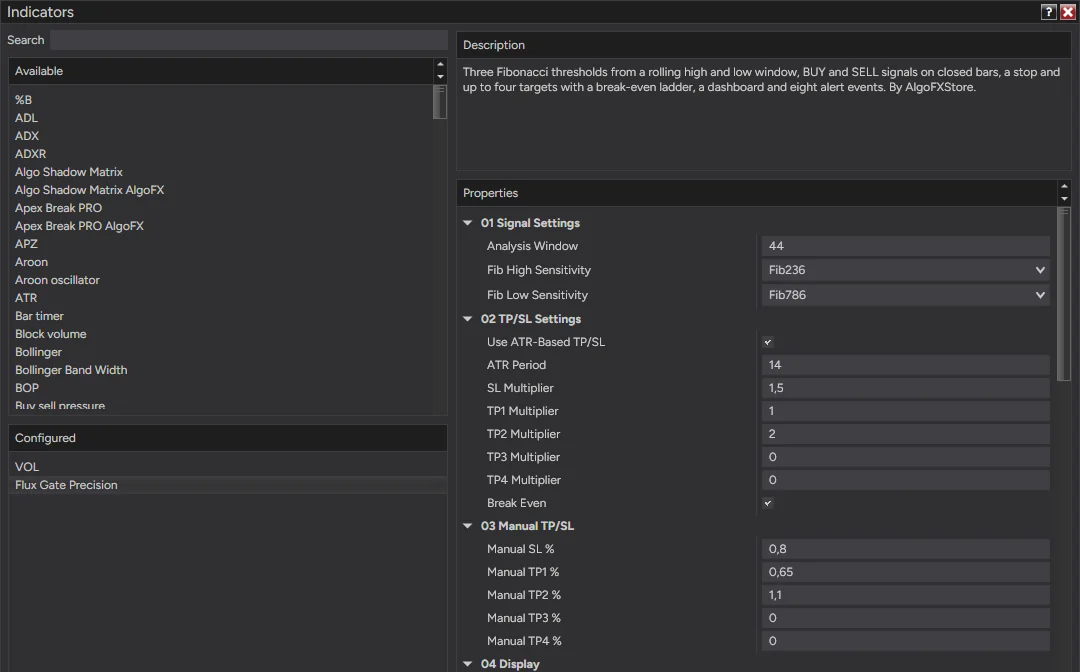
The names are the ones in the NinjaTrader indicator dialog; the defaults are what every chart on this page uses.
| Setting | Default | What it does |
|---|---|---|
| 01 Signal Settings: Analysis Window | 44 | Bars in the rolling high/low window. |
| 01 Signal Settings: Fib High Sensitivity / Fib Low Sensitivity | Fib236 / Fib786 | Fib382 / Fib618 sit closer to the mid line and allow more signals. |
| 02 TP/SL Settings: Use ATR-Based TP/SL / ATR Period | on / 14 | Levels from ATR (else the group 03 percentages). |
| 02 TP/SL Settings: SL / TP1 / TP2 / TP3 / TP4 Multiplier | 1.5 / 1.0 / 2.0 / 0 / 0 | ATR multiples; 0 switches a target off. |
| 02 TP/SL Settings: Break Even | on | Ladder: TP1 -> entry, TP2 -> TP1, TP3 -> TP2. |
| 03 Manual TP/SL: Manual SL / TP1 / TP2 / TP3 / TP4 % | 0.8 / 0.65 / 1.1 / 0 / 0 | Used only when ATR mode is off; far too wide for index futures at default. |
| 04 Display: Show TP/SL Lines / Show Signal Labels / Show Dashboard | on / on / on | Drawing only. |
| 05 Chart: Signal Marker Style / Dashboard Corner / Max Visual History | Label / TopRight / 0 (all) | Look and history. |
| 06 Compatibility: Signal Marker Rule | Alternating | EveryEntry announces every trade. |
| 07 Alerts | all 8 on, sound off (Alert2.wav), e-mail off | Alerts Log + Output window always. |
| 08 NinjaTrader: Debug Mode / Dump Bars + Outputs CSV | off / off | Diagnostics only. |
8 alert events
Alerts can go to the NinjaTrader Alerts Log, a sound and an e-mail (NinjaTrader's e-mail share service must be set up).
- BUY signal (with each BUY marker)
- SELL signal (with each SELL marker)
- TP1 reached
- TP2 reached
- TP3 reached (only when TP3 Multiplier is above 0)
- TP4 reached (only when TP4 Multiplier is above 0)
- Stop Loss
- Break Even
Flux Gate Precision next to the usual options
Where it wins, and where it does not.
| Flux Gate Precision | Typical free Fibonacci or arrow indicator | Drawing Fibonacci levels by hand | |
|---|---|---|---|
| Where the levels come from | A rolling 44-bar range, measured again on every bar | Varies; often a swing the script picks and redraws | The swing you pick |
| When a signal is decided | On the closed bar, fixed once it closes | Many print on the forming bar and can move | When you decide |
| Stop and targets | ATR stop and up to four targets, rounded to the tick | Usually the marker only | If you have the time to draw them |
| Alerts on targets and stops | Eight events in the Alerts Log, sound and e-mail optional | Usually new signals only | You watch the chart |
| Several trades at once | No. One tracked trade; an opposite signal closes it | Varies | As many as you can follow |
| Higher-timeframe or news filter | No. Check the bigger chart and the calendar yourself | Varies | If you look |
| Cost | A one-time purchase | Free | Free, apart from your time |
Honest about who this fits
A good fit if you
- You trade index, metal or energy futures on NinjaTrader 8 and want the stop distance in ticks on the chart the moment a signal closes.
- You size every futures trade from a fixed risk per trade and want the stop distance in ticks before you enter.
- You prefer one plain rule you can check on the chart, a close beyond two visible lines, to a signal you cannot trace.
- You want a break-even routine shown and alerted for you, while you move your own stop.
- You trade 1 to 15 minute charts during set hours and want alerts so you do not have to watch every bar.
Not for you if you
- You want something that places trades for you: this indicator draws and alerts, and every order is yours.
- You need several overlapping trades tracked at once, or a built-in higher-timeframe, session or news filter.
- You want stops at swing highs and lows: the stop is a multiple of the ATR or a percentage of the entry.
- You expect a success figure printed on the box: this page shows what the indicator does, not a promise of profit.
One Add-On, one manual, imported in a minute
- 1NinjaScript Add-OnFluxGatePrecisionAlgoFX.zip (0.2 MB). Import it in NinjaTrader 8 and it appears as “Flux Gate Precision AlgoFX”.
- 16Page PDF manualInstalling, every setting with its default, reading the signals, the levels, the dashboard, the alerts.
- 11Setting groupsEvery one explained above, with the defaults the charts use.
- 8Alert eventsYou choose which ones are on in the settings.
- 60Day money-back guaranteeIf it is not for you, request a full refund within 60 days through your Digistore24 order e-mail.
Install in four steps
- Download the zip from the page Digistore24 sends you to after checkout. Keep it zipped.
- NinjaTrader 8: Control Center, Tools, Import, NinjaScript Add-On, and choose the zip.
- Open a chart, open Indicators, and add “Flux Gate Precision AlgoFX”.
- Read the manual's quick start; the defaults are the settings shown on this page.

Kestutis Balciunas
AlgoFXStore · chart indicators for MetaTrader, TradingView, cTrader and NinjaTrader
Kestutis Balciunas builds and publishes chart indicators under the AlgoFXStore name for MetaTrader 4 and 5, TradingView, cTrader and NinjaTrader 8. Every product page shows what the indicator draws on real charts, and every number on it comes from the shipped build.
The charts on this page were captured in NinjaTrader 8 from the shipped Flux Gate Precision AlgoFX at its default settings and are shown unedited.
No get-rich claims and no quoted win rates. Every trade is uncertain, and no indicator changes that. If you want to know whether it suits the way you trade before you buy, e-mail [email protected] and you will get a straight answer.
One price, one payment
- The NinjaScript Add-On for NinjaTrader 8 and the 16-page PDF manual
- Delivered as a digital download: the Add-On zip and the PDF manual on your download page
- Return period: 60 days, with a full refund if it is not for you
- Free updates to the current version on the same download page
60-day money-back guarantee. Install it, run it on your own charts and read the manual. If Flux Gate Precision is not for you within 60 days of purchase, request a full refund from Digistore24, no questions asked: use the refund link in your Digistore24 order e-mail or Digistore24's order page digistore24.com/en/cancel-revoke-contract. Digistore24 refunds to your original payment method. It is a digital download: right after checkout you land on your download page, and the link to it is also in your Digistore24 order e-mail.
Also by Kestutis Balciunas: Flux Gate Precision for MT4 and MT5.
About the signals
Do the signals repaint?
BUY and SELL markers, the levels, target and stop hits, break-even exits and alerts are decided on closed bars and are fixed once the bar closes. With Calculate on On each tick or On price change, the two yellow thresholds and the mid line on the forming bar follow its high and low until it closes, while signals still wait for the close. The committed bars are identical in all three Calculate modes.
Why does a long trend show only one BUY?
A new BUY needs the trend not to be long already, so a strong run keeps its single signal until a SELL flips it. In a quiet range the next signal can take a long while; that is the rule working, not a fault. Fib382 and Fib618 bring the thresholds closer to the mid line if you want more signals.
Why does a tracked trade sometimes have no marker?
That is the default Signal Marker Rule, Alternating: a long, a short and a long on three bars in a row (or the mirror) open the third trade without a marker and without a signal alert. Set the rule to EveryEntry and every trade the indicator opens is marked and announced.
A signal appeared late on a closed market. Why?
A bar closes when the next bar's first tick arrives. The session's last bar therefore stays open until the next session starts, and a signal on it appears at the reopen. By then the bar is usually older than two bar periods, so its alert is skipped as stale, while the marker and the levels still appear.
Why do the stop and every target sit on the entry price?
That is the ATR warm-up. During the first 14 bars the ATR is zero, so every level lands on the entry. It clears itself once enough bars have loaded. The lines also need the 44-bar window to fill before anything appears, so load a few hundred bars.
Levels, colours and the dashboard
What do the hourglass, check mark and cross mean?
On the dashboard an hourglass means a level is still pending, a check mark that price touched that target on a bar, and a cross that price touched the stop. They describe price on past bars, not filled orders, and contain no commission or slippage. The panel shows the last signal and what has happened to it since, not a fresh reading of the market as it trades now.
What do the light green and red bands mean?
A light green band covers the stretch between a reached target and the level before it, from the signal bar to the bar that reached it. A light red band marks a stop hit. When a trade closes its labels go and its dotted lines and bands stay, so the chart keeps a record of past trades, losing ones included.
Why does a trade stay open after TP2?
With the defaults TP3 and TP4 are off and only TP4 ends a trade by itself. After TP2 the exit sits at TP1, and the trade stays open until price returns there or an opposite signal arrives. Give TP4 a multiplier, for example 3.0, for a final target that ends the trade with All TPs Hit.
Why is TP1 closer than the stop?
At the defaults TP1 is 1.0 x ATR and the stop 1.5 x ATR. That suits a trader who banks part of a position early and lets the ladder protect the rest. If you want every target beyond the stop distance, raise the TP1 Multiplier or lower the SL Multiplier, and keep all multipliers ascending so the ladder steps the right way.
Can I use the percentage stop on index futures?
You can, but the manual shows why ATR mode is the practical choice. The default Manual SL of 0.8 % on NQ at 28,712.75 puts the stop 229.75 points away, 919 ticks. On ES at 7,544.25 it is 241 ticks, where the ATR stop on the same signal was 54. The percentages are built for slower markets.
Charts, alerts and NinjaTrader
Which chart periods should I start with?
The manual's starting points with the defaults are MNQ or NQ on 1 to 5 minutes, MES or ES on 5 minutes, MGC or GC on 15 minutes and MCL or CL on 5 minutes. Second and minute bars are fully supported, hourly and daily work too, and tick, volume, range and Renko bars run on their prices with a looser alert age limit.
Can I run it on several charts and instruments?
Yes. Every instance paints its own surface and raises its own alerts, and each alert names the instrument and the period, for example FluxGate: BUY signal confirmed on MNQ 1 Minute. The indicator keeps calculating while its chart window is minimized, so one Alerts Log can follow several charts.
Will old alerts replay after a reconnect?
No. Alerts fire only for bars that close while the chart is live, once per event and bar, and never for a bar older than two bar periods. Reconnecting, reloading history or restoring a minimized chart does not replay old alerts. On non-time bars such as tick or range bars an alert may be up to five minutes late before it is treated as stale.
How do the sound and e-mail alerts work?
Both are off by default. Alert Sound plays Alert2.wav or another file from NinjaTrader's sounds folder, or a full path to your own .wav. Alert E-mail sends each alert through NinjaTrader's Mail share service once you have set one up in Options and filled in E-mail To. The subject reads, for example, FluxGate Precision: FluxGate BUY Signal.
Can a NinjaScript strategy read its signals?
Yes. Five series are exposed: Fib High, Trend Line (bullish), Trend Line (bearish), Fib Low and a hidden Signal series that is +1 on a BUY bar, -1 on a SELL bar and 0 otherwise. A strategy or a Market Analyzer column can read them on closed bars. The indicator itself holds no order logic.
Which NinjaTrader version does it need?
NinjaTrader 8 Desktop for Windows, version 8.1.x, tested on 8.1.9.0. It does not run on NinjaTrader 8.0, NinjaTrader Web or the mobile apps. Any connection that delivers bars to the desktop platform works, including the simulation feed and your broker's data connection.
How it works
Will it place trades for me?
No. Flux Gate Precision is an indicator: it draws on the chart and can alert you. It never sends an order.
Which markets and charts does it work on?
Any instrument with bars (futures, micro futures) on NinjaTrader 8.1.x Desktop. Time-based bars (second, minute, day, week, month) fully; tick, volume, range and Renko run on their prices, with a looser alert age gate. Volume not used. The chart's Trading Hours template (ETH or RTH) decides which bars count. Warm-up 44 bars (window) and 14 bars (ATR).
Does it work on NinjaTrader 7?
No. It is built for NinjaTrader 8 and imported as a NinjaScript Add-On.
After you buy
How do I get it after paying?
Digistore24 runs the checkout. Right after payment it takes you to your download page with the NinjaScript Add-On zip and the PDF manual; the link to that page is also in your Digistore24 order e-mail, so you can download again at any time.
How do I install it?
In NinjaTrader 8: Control Center, Tools, Import, NinjaScript Add-On, then choose the zip exactly as you downloaded it (do not unzip it). After the import, add “Flux Gate Precision AlgoFX” to a chart from the Indicators window. The manual walks through it step by step.
Who is Digistore24?
Digistore24 is the reseller that sells Flux Gate Precision for Kestutis Balciunas (AlgoFXStore): it runs the checkout, charges your card or PayPal, collects the VAT for your country and delivers the download. Its name is the one on your statement, and its order e-mail holds your download link and the refund link.
What is the refund policy?
A 60-day money-back guarantee, handled by Digistore24. If Flux Gate Precision is not for you within 60 days of purchase, use the refund link in your Digistore24 order e-mail or Digistore24's order page (digistore24.com/en/cancel-revoke-contract) for a full refund, no questions asked. Digistore24 makes the refund to your original payment method.
Do I get the source code?
No. The Add-On ships compiled; the zip is exactly what NinjaTrader imports.
Flux Gate Precision for NinjaTrader 8.
Put the thresholds, the signal and a stop you can count in ticks on your NinjaTrader 8 chart, decided on the closed bar. The Add-On, the manual and every setting explained. Instant download for €77, one payment.
Get instant access