Supply and demand zones and a priced trade plan on every closed-bar futures signal
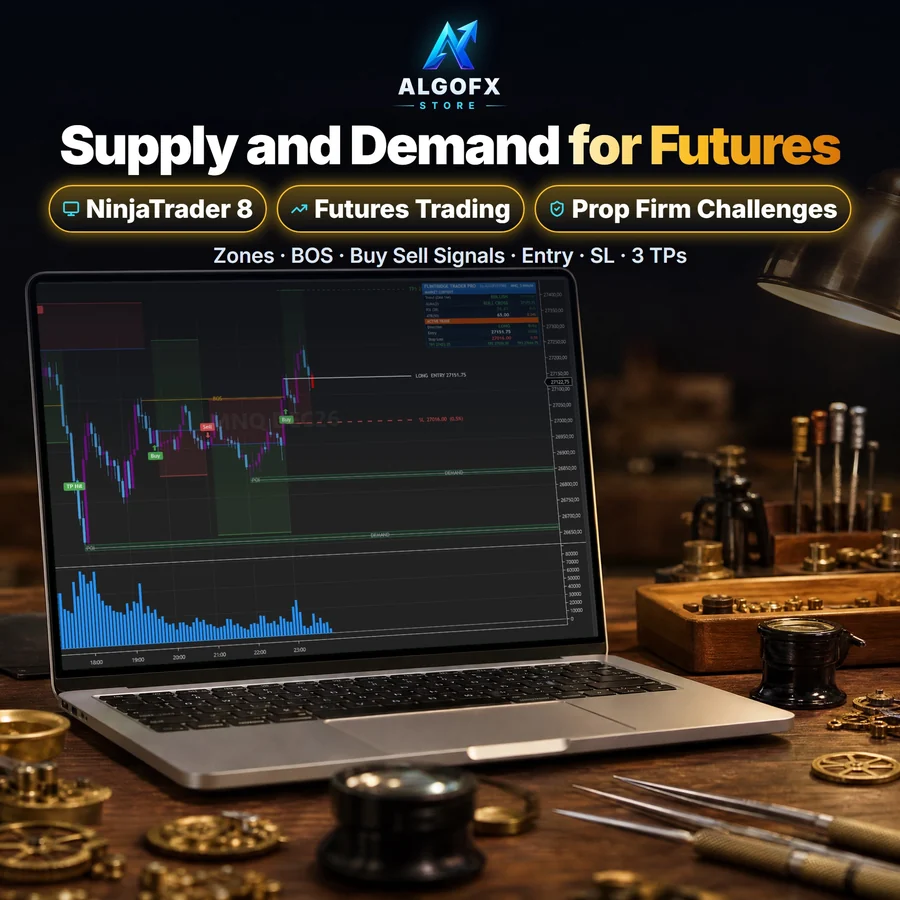
Flintridge Trader Pro draws supply and demand zones with POI and BOS lines on your NinjaTrader 8 chart and prints Buy and Sell signals from a moving-average cross of higher-timeframe closes and opens.
- Signals from alternate bars 8 times your chart, 40-minute bars on a 5 Minute chart, decided on closed bars
- Entry at the signal close, stop 0.5 %, targets 1.0, 1.5 and 2.0 % of price, projected with labels
- Supply and demand zones at confirmed 10-bar swings with a POI line; a close through one leaves a BOS line
- Eleven alert events to the Alerts Log, with optional sound and e-mail, live bars only, once per bar
- A NinjaTrader 8 Add-On. Import one zip and it appears as “Flintridge Trader Pro AlgoFX” in your Indicators list.
- A 16-page PDF manual with every setting, the signals, the alerts and installation. One-time €77.
See Flintridge Trader Pro on a real chart
Press play; use the full-screen button to see every detail.
This video shows the same indicator on another charting platform; the NinjaTrader 8 edition sold here runs in NinjaTrader 8's own chart and settings windows. · 8:07 · Plays from YouTube when you press play (YouTube then sets its own cookies; see Privacy).
An entry arrow without a stop and targets is only half a trade
Many futures traders know the routine: an indicator flashes a signal, and then the real work starts. Where does the stop go? How many ticks is that on MNQ, and how many dollars per contract? Is there a supply zone sitting right above the entry? By the time you have worked it out, the move has started or the setup is gone.
The second trap is history that lies. Many higher-timeframe signals look perfect on a loaded chart because they were placed with knowledge of a bar that had not finished yet. Live, those same signals arrive later or not at all, and you only find out after you have trusted the backtest you did by eye.
Flintridge Trader Pro handles both. Each signal comes with its stop and three targets as prices, drawn the moment the bar closes, beside the zones that give it context. In its default mode a signal sits on history exactly where a live chart printed it, so what you study is what you could have traded.
What Flintridge Trader Pro draws, and what each mark means
Read from the shipped NinjaScript edition.
| What you see | What it means |
|---|---|
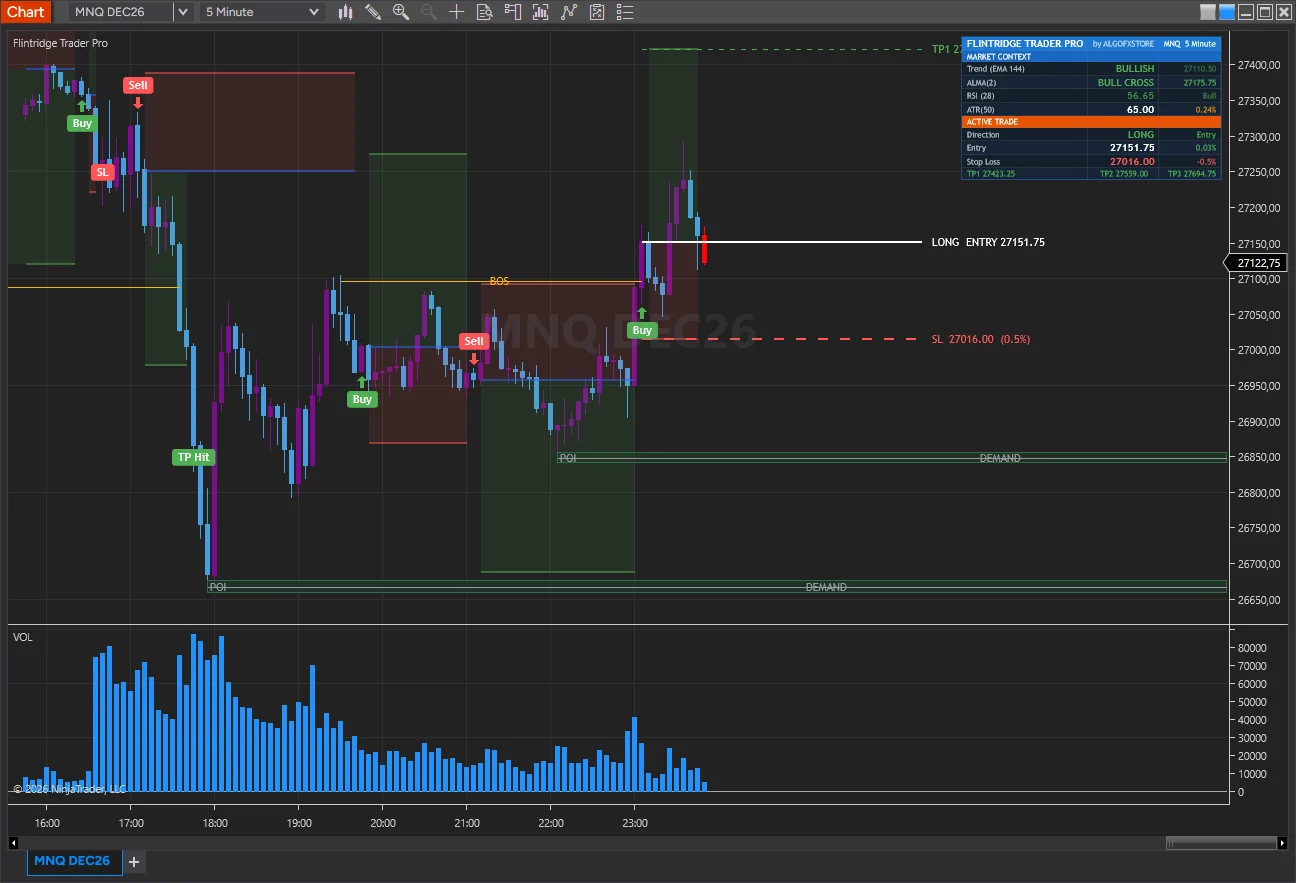
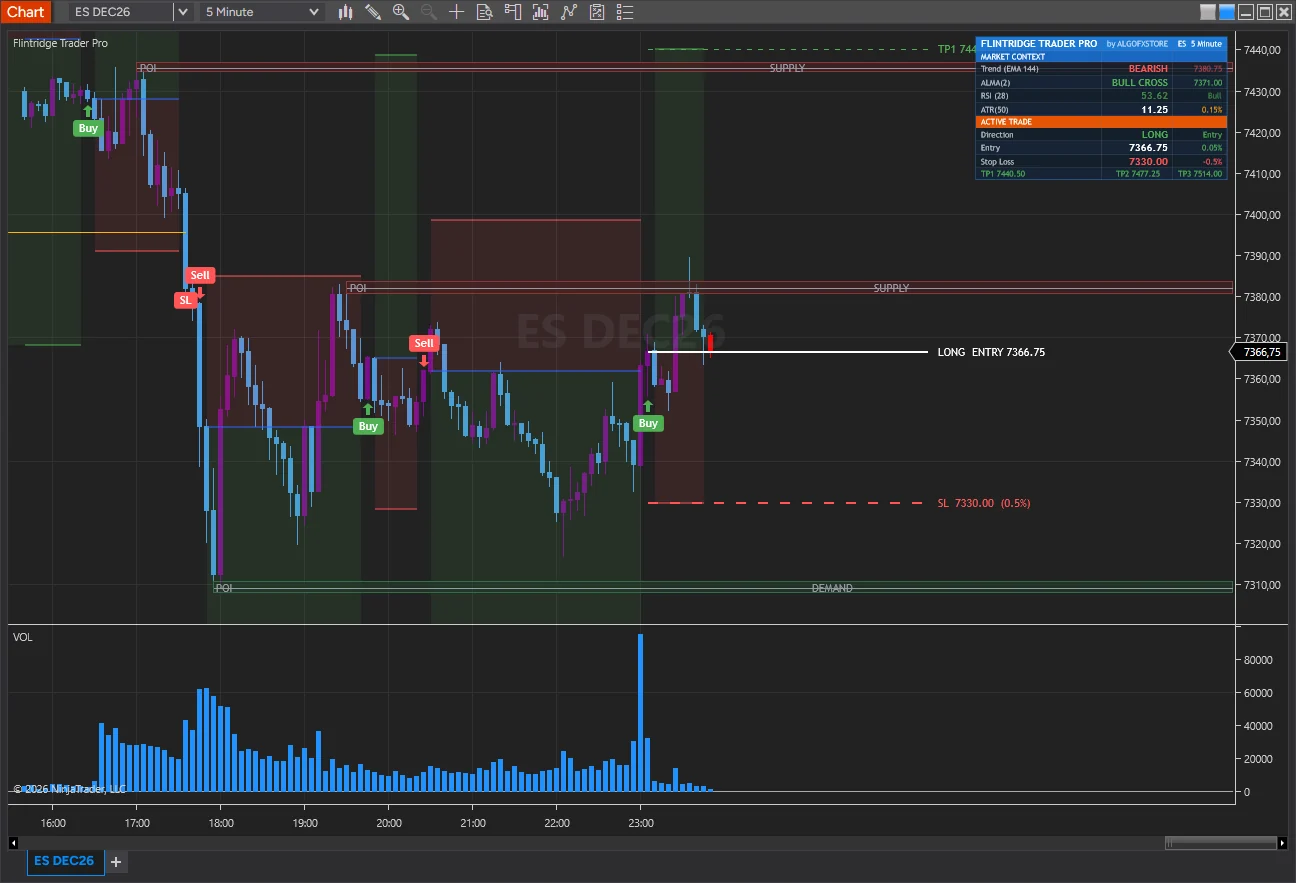
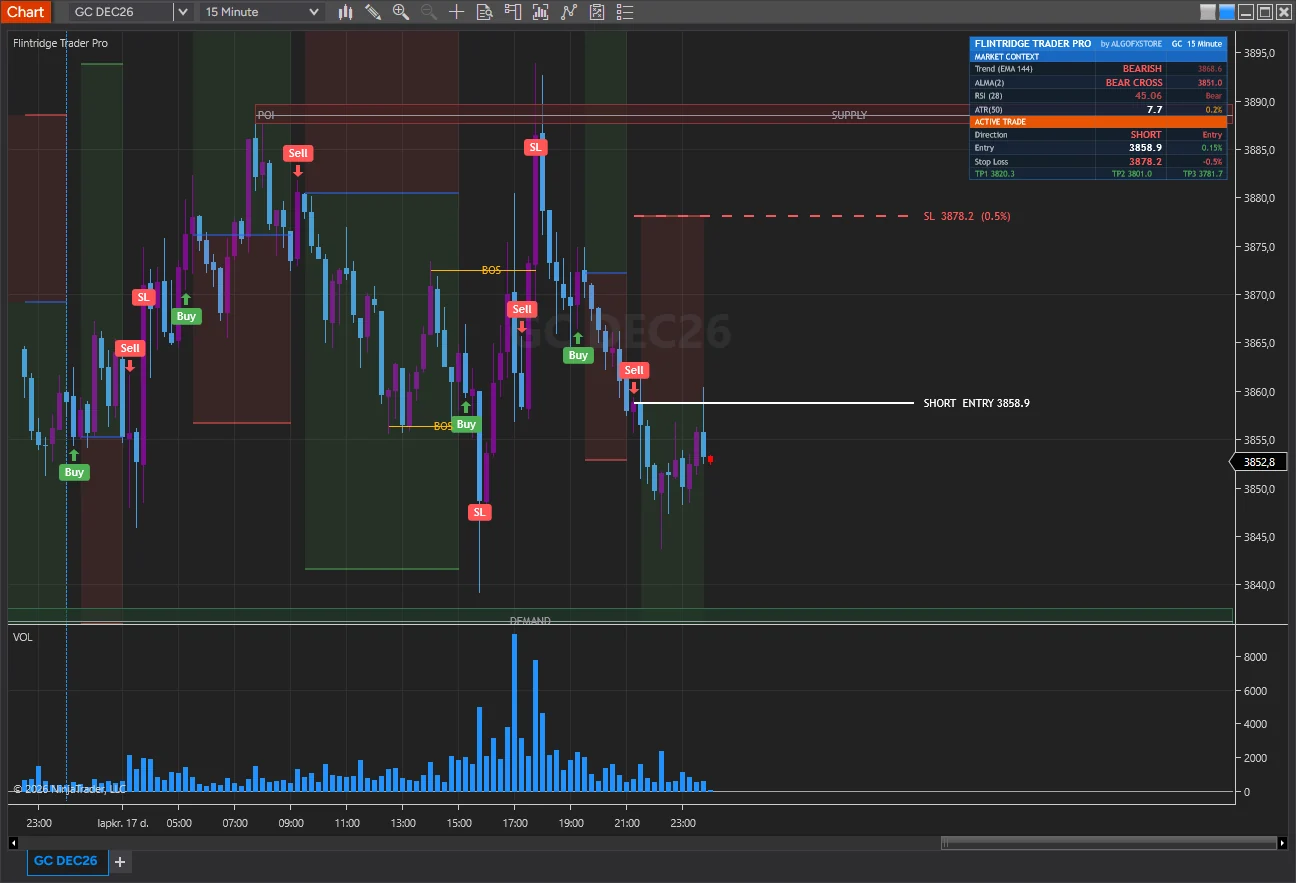
| Dark red box 'SUPPLY' / dark green box 'DEMAND' | Zone at a confirmed swing high / low; grey POI line through its middle to the right edge. |
| Amber 'BOS' line | A close broke through a zone; the zone is removed. |
| Green 'Buy' / red 'Sell' arrow + pill | Alternate-timeframe open/close MA cross up / down, on a closed bar. |
| Blue, green and red step lines with green / red bands | Entry, TP1 and stop of the tracked trade. |
| Green 'TP Hit' / red 'SL' pill | TP1 reached / stop reached, at the close of that bar, on long and short trades. |
| Projected ENTRY (white), SL (red), TP1-TP3 (green) labels | The newest signal's levels with prices and percentages. |
| Purple / blue candles | Up / down closed bars. |
| Dashboard | Trend, MA cross, RSI, ATR (also %), active trade stage and levels. |
How the indicator builds each signal and level
Everything below is taken from the shipped NinjaScript edition and its manual, with the default settings.
- 1
Alternate bars from your chart
The indicator builds its own higher timeframe: your chart interval in whole minutes times the Multiplier for Alternate Signals, 8 by default. On a 5 Minute chart that is a 40-minute bar, on 15 Minute a 2-hour bar. The grid is fixed clock time counted from the open of the chart's first loaded bar and runs on through session breaks and weekends.
- 2
Close average against open average
An ALMA of period 2 (sigma 5, offset 0.85) runs over the alternate bars' closes and a second one over their opens; TEMA or Hull can replace it. When the close average crosses above the open average, a Buy prints; when it crosses below, a Sell. The dashboard's ALMA(2) row shows BULL CROSS or BEAR CROSS, and its change is exactly what makes a signal.
- 3
Only closed alternate bars count
In the default Alt-TF Mode ClosedBar, a chart bar reads the last alternate bar that has already closed. A signal therefore prints on the first chart bar after an alternate bar closes, and its entry is that chart bar's close. The forming bar can never start a signal. In a measured live run across the switch from history to live bars, history and live matched on every compared value.
- 4
A trade ladder for every signal
Each signal opens one tracked trade: stop 0.5 % from the entry, TP1, TP2 and TP3 at 1.0, 1.5 and 2.0 %. The bar's high (the low for a short) moves it to TP1 hit, TP2 hit and TP3 hit, one step per bar. A stop touch returns it to WAITING. An opposite signal replaces it at once, a same-side signal is ignored, and on one bar a target is checked before the stop.
- 5
Zones from confirmed swings
A swing needs 10 bars on each side, so its zone appears 10 bars later, drawn back at the swing. The box is ATR(50) times 2.5 divided by 10 thick, runs to the right edge and carries a grey POI line through its middle. A zone within 2 ATR of an existing one is skipped; the newest 20 per side stay. A close through a zone replaces it with an amber BOS line.
- 6
Optional filters, off by default
Three filters in group 10 thin the signals when you want fewer: EMA-144 Trend Filter (a Buy needs the close above the EMA 144, a Sell below), RSI(28) Filter with levels 65 and 35, and Min Bars Between Entries, which ignores a trigger that comes too soon after the last entry. Without them, every alternate-bar cross becomes a signal.
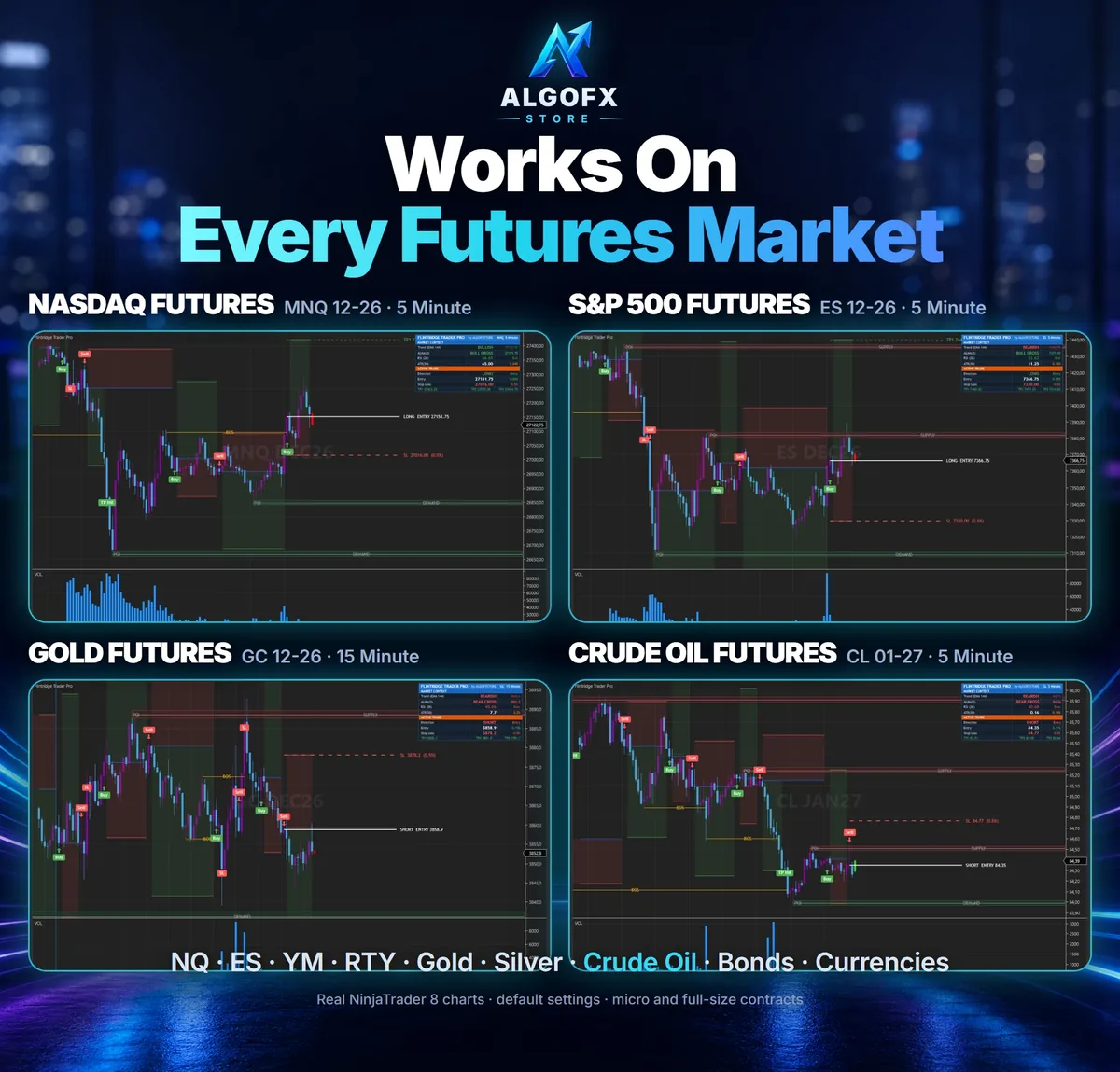
Flintridge Trader Pro on 12 different markets
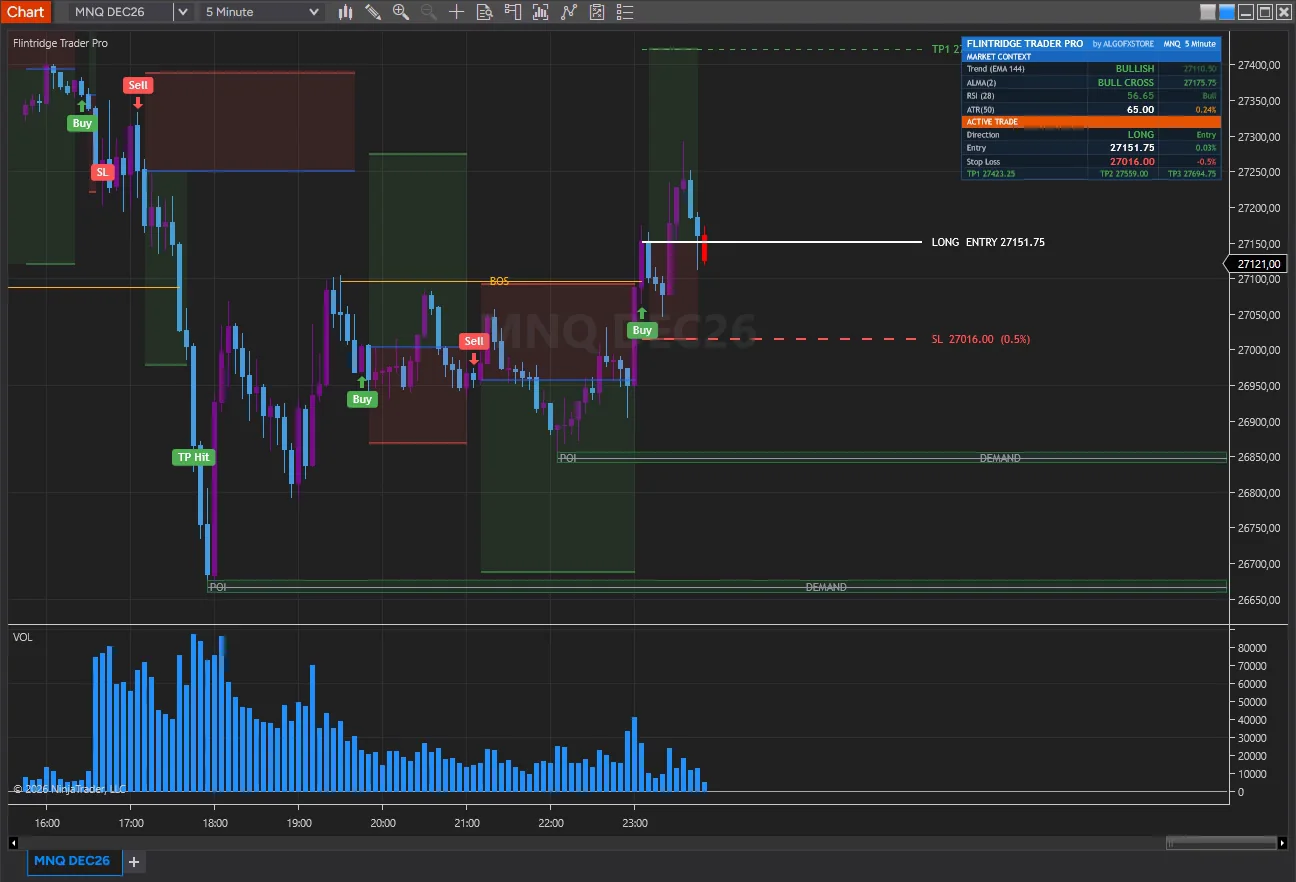
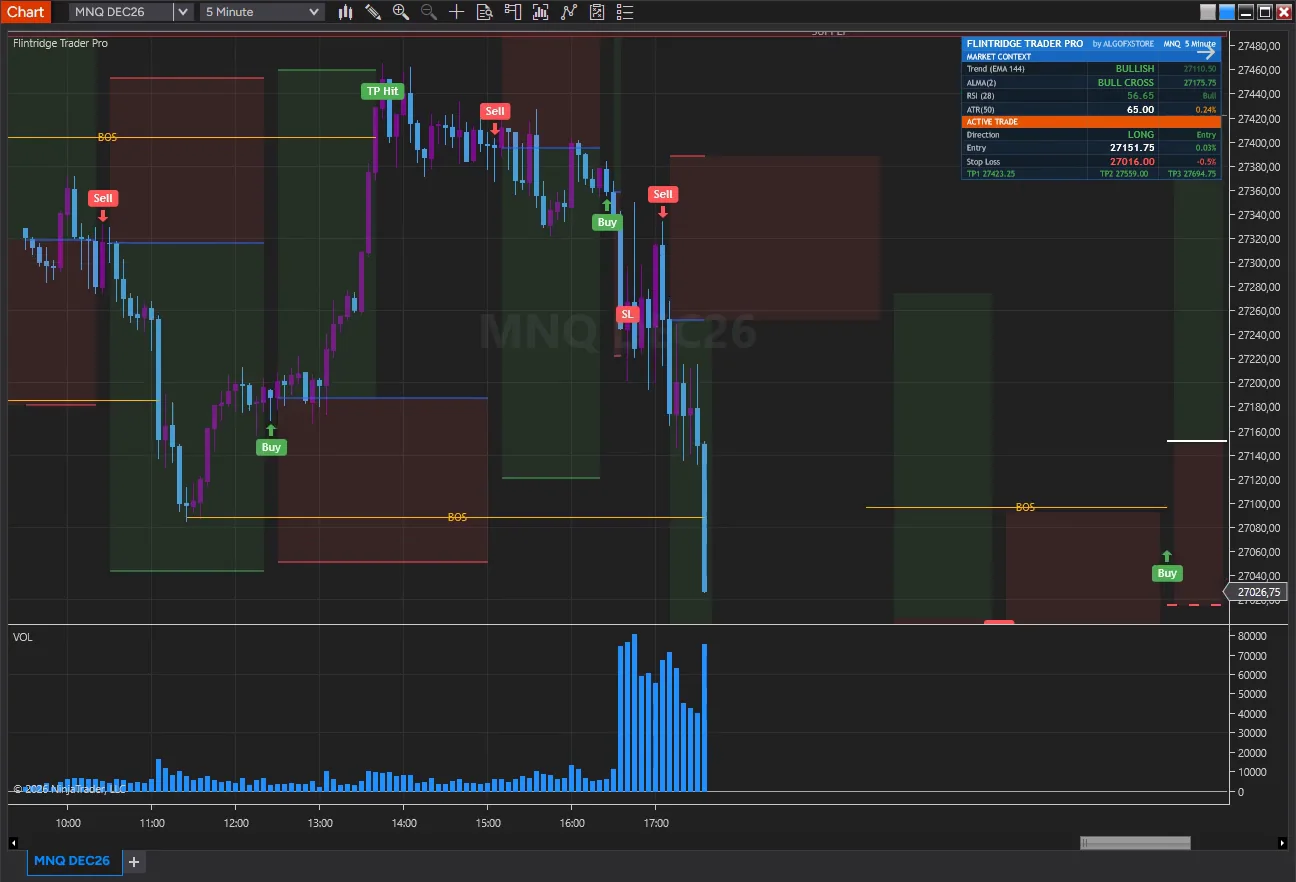
Every chart below is a screenshot of NinjaTrader 8 itself with the shipped Flintridge Trader Pro AlgoFX attached at its default settings. Forex, metals, indices, energy and crypto, so you can see how it reads each kind of market. They show what the indicator draws; they are not trading results. Tap or click any chart to open it full size.
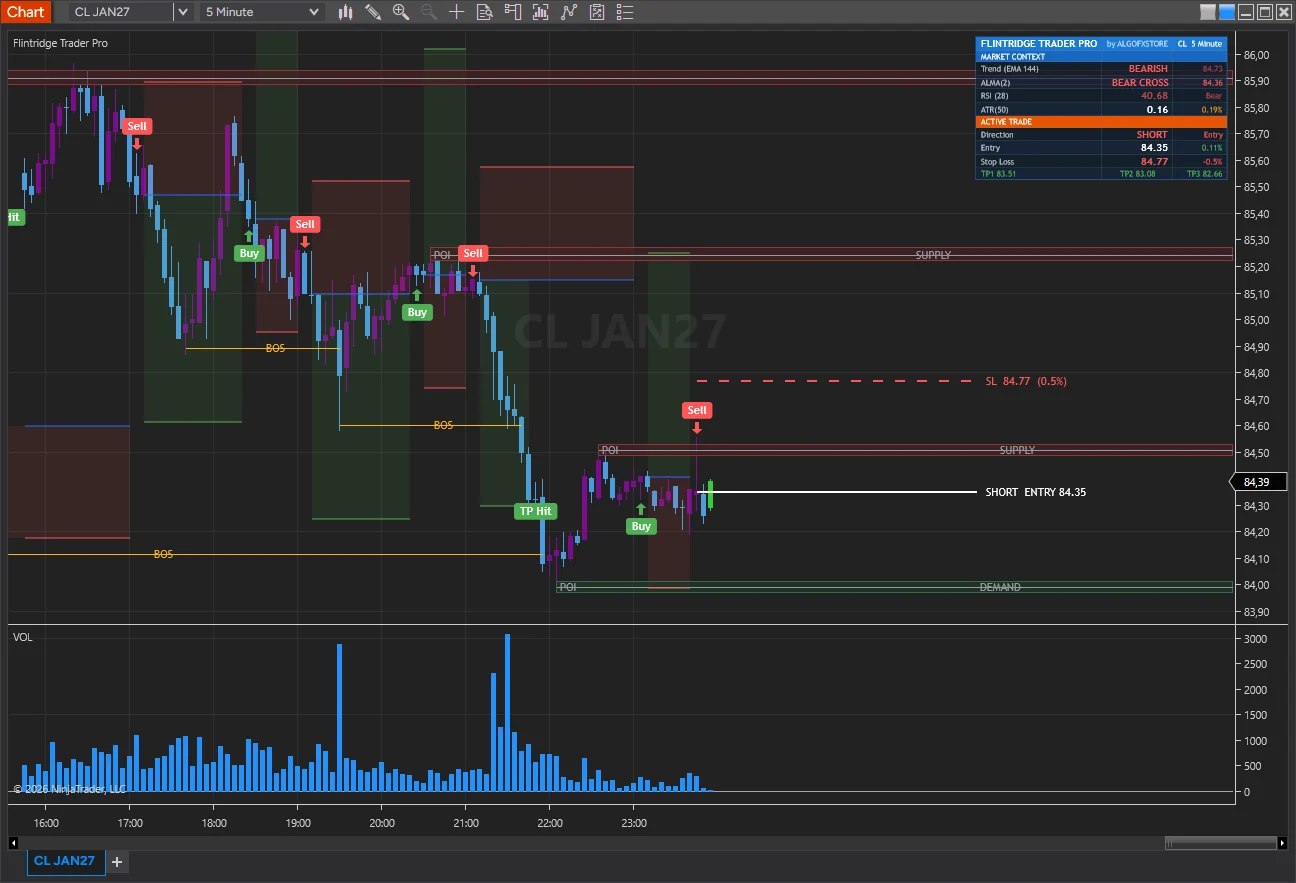
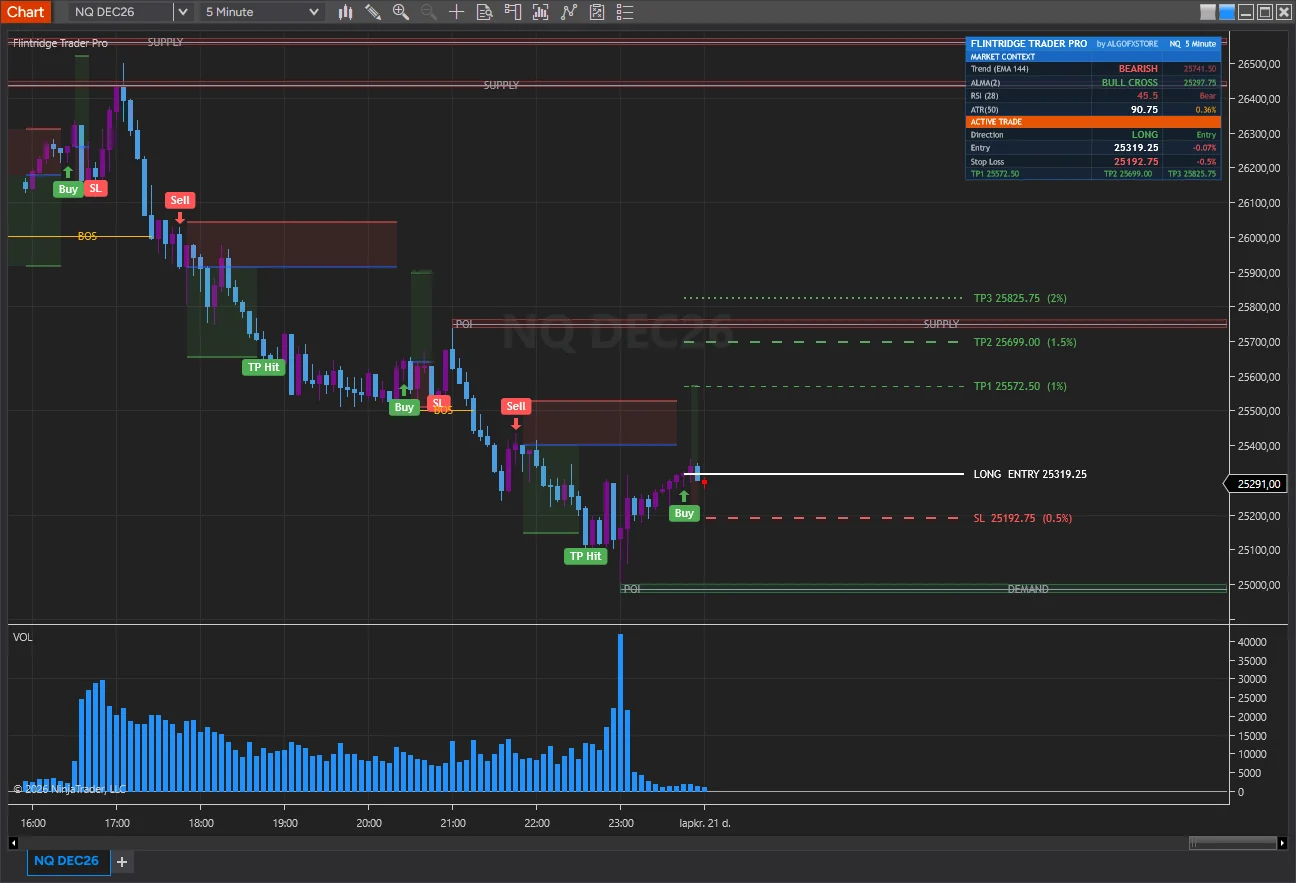
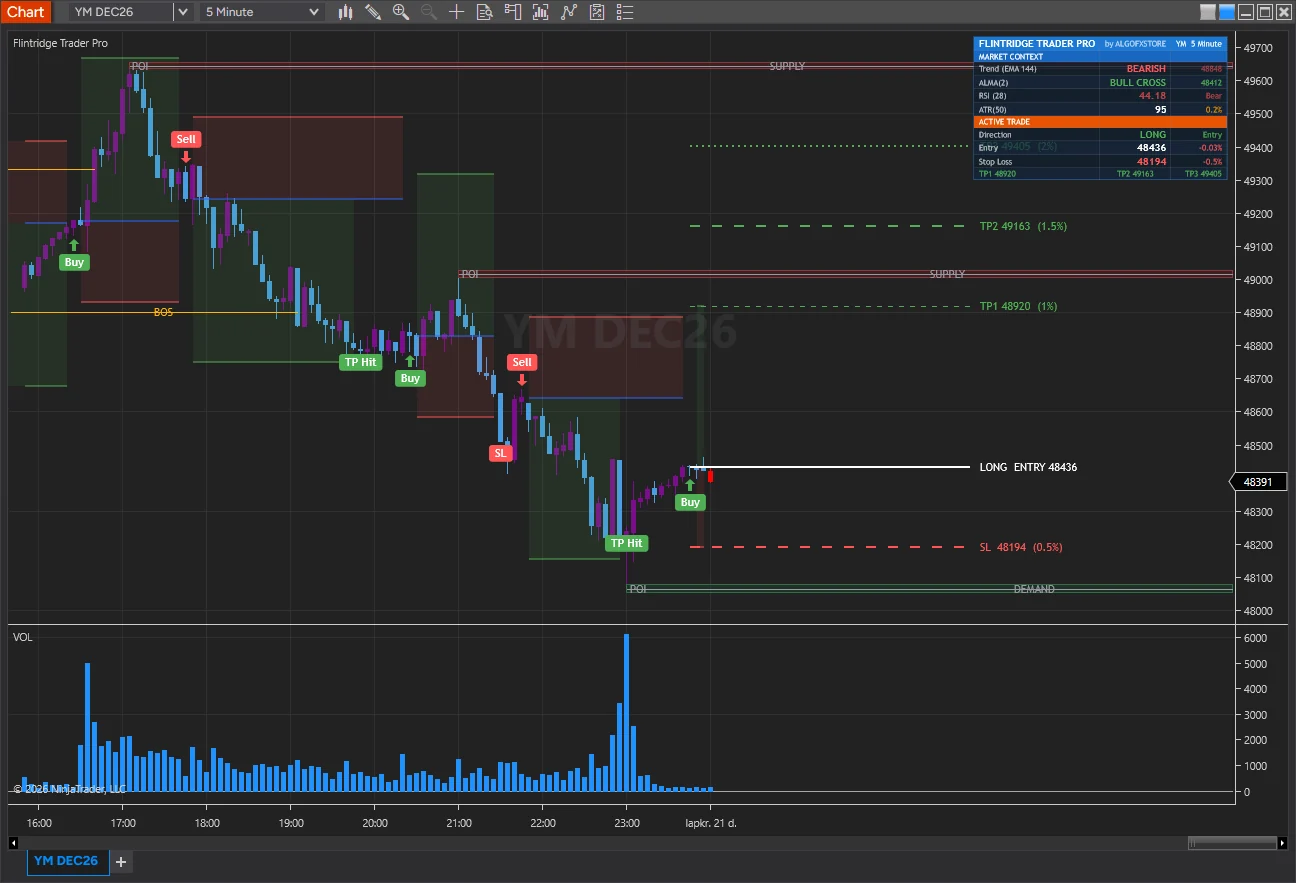
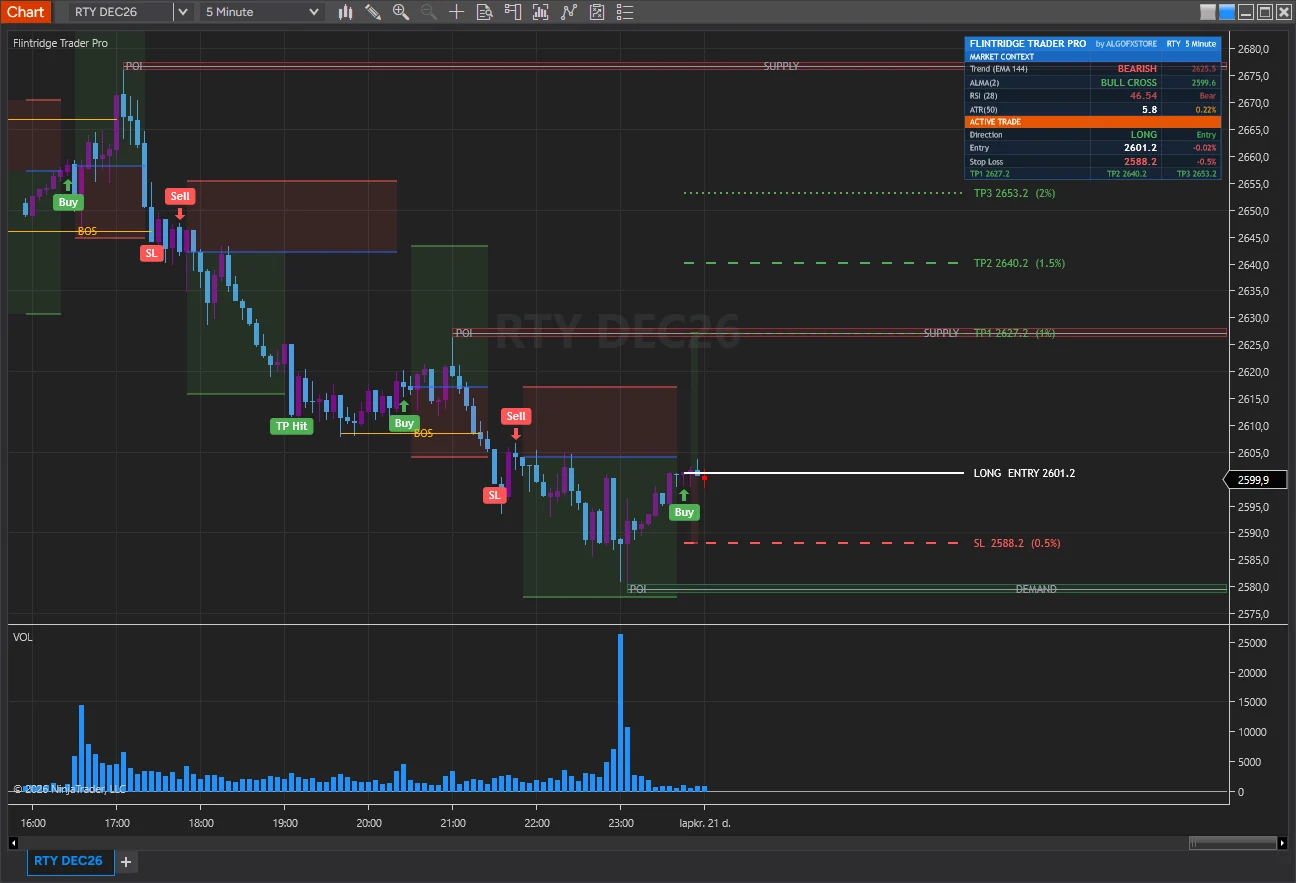
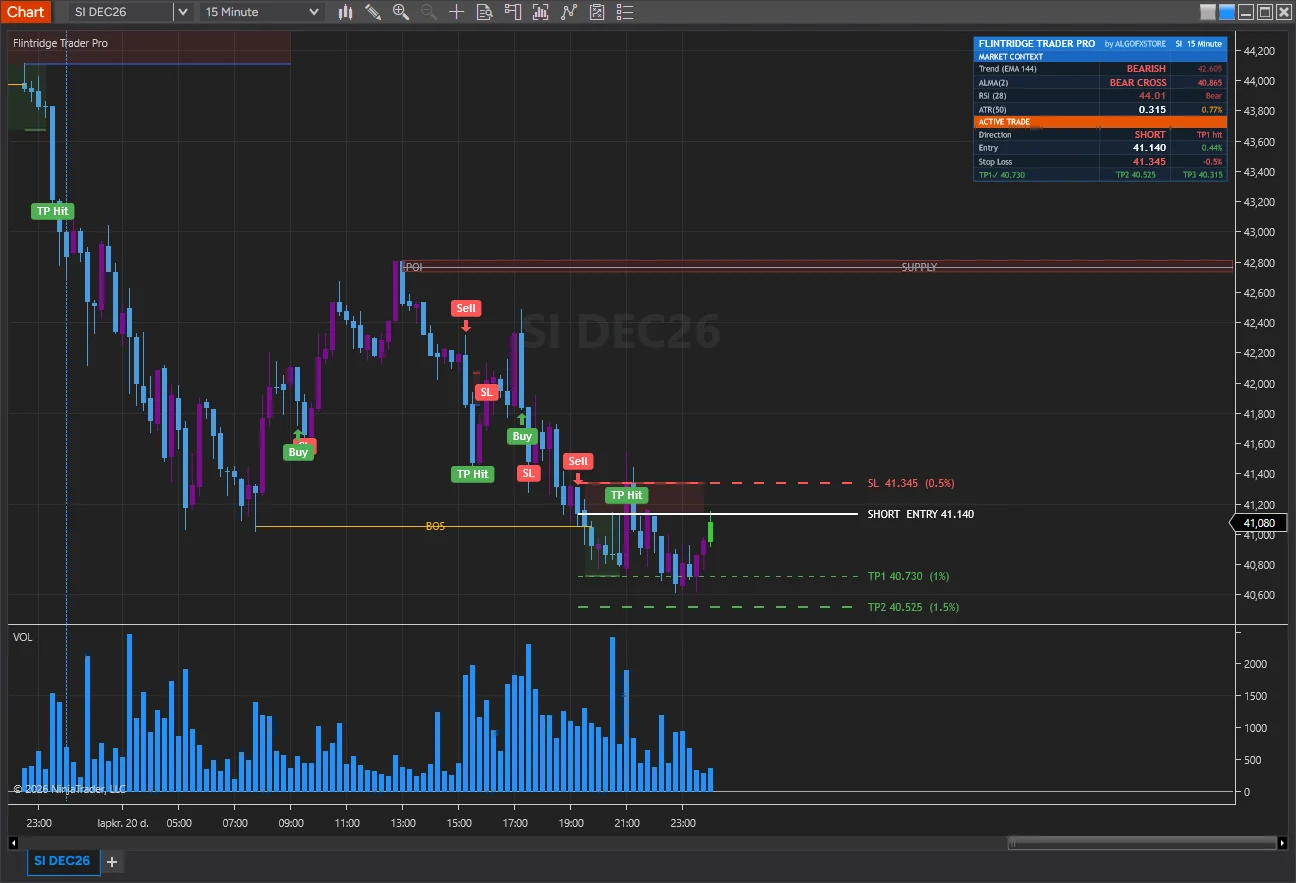
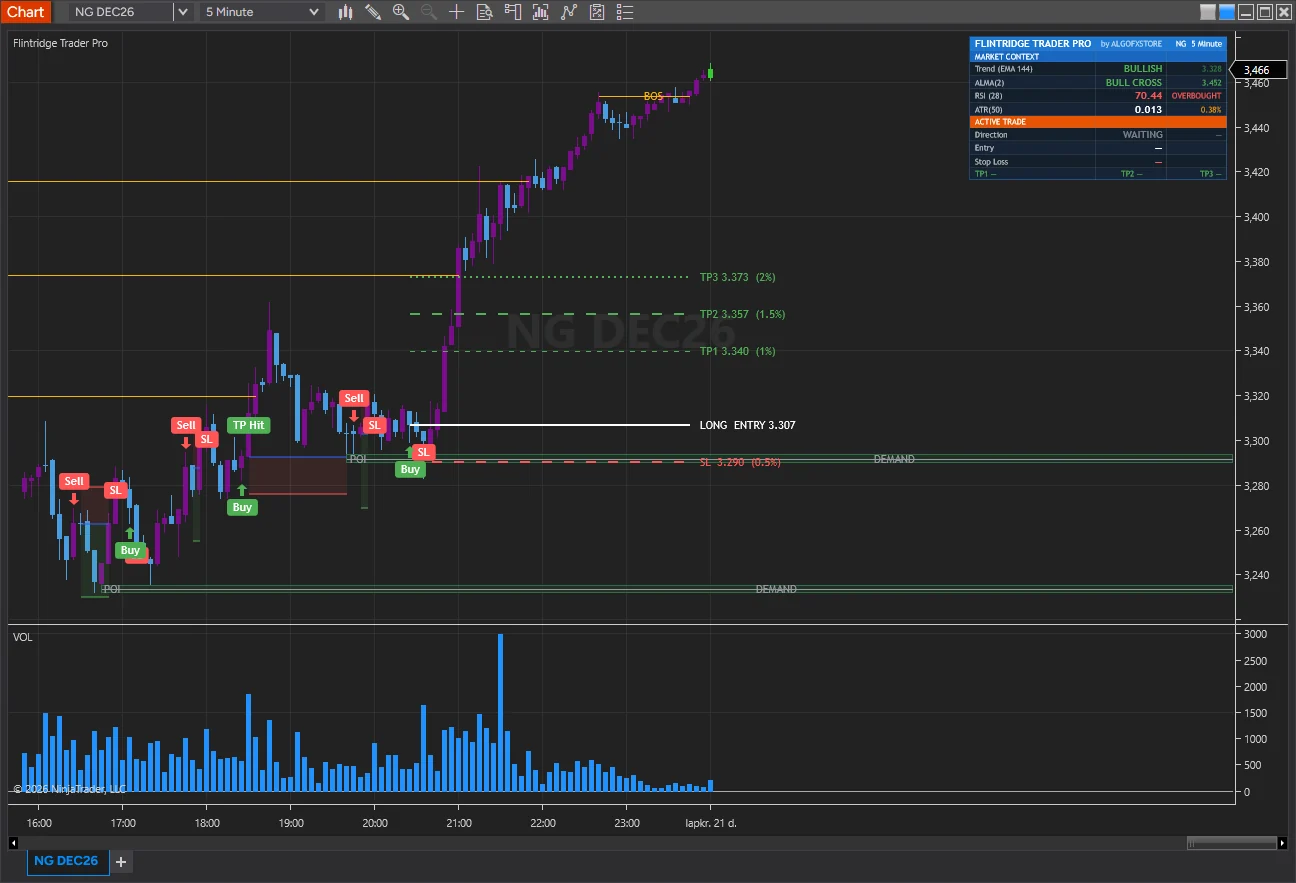
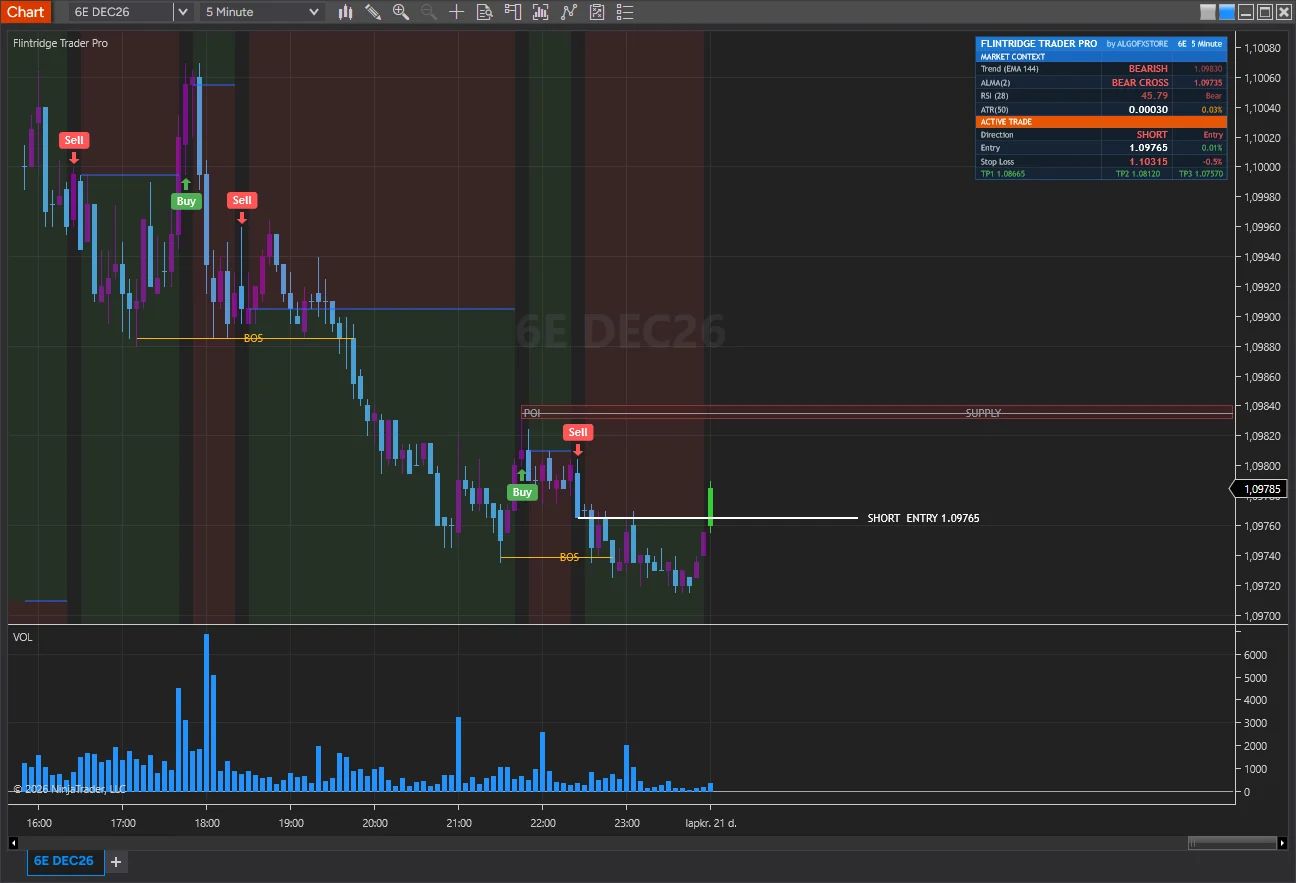
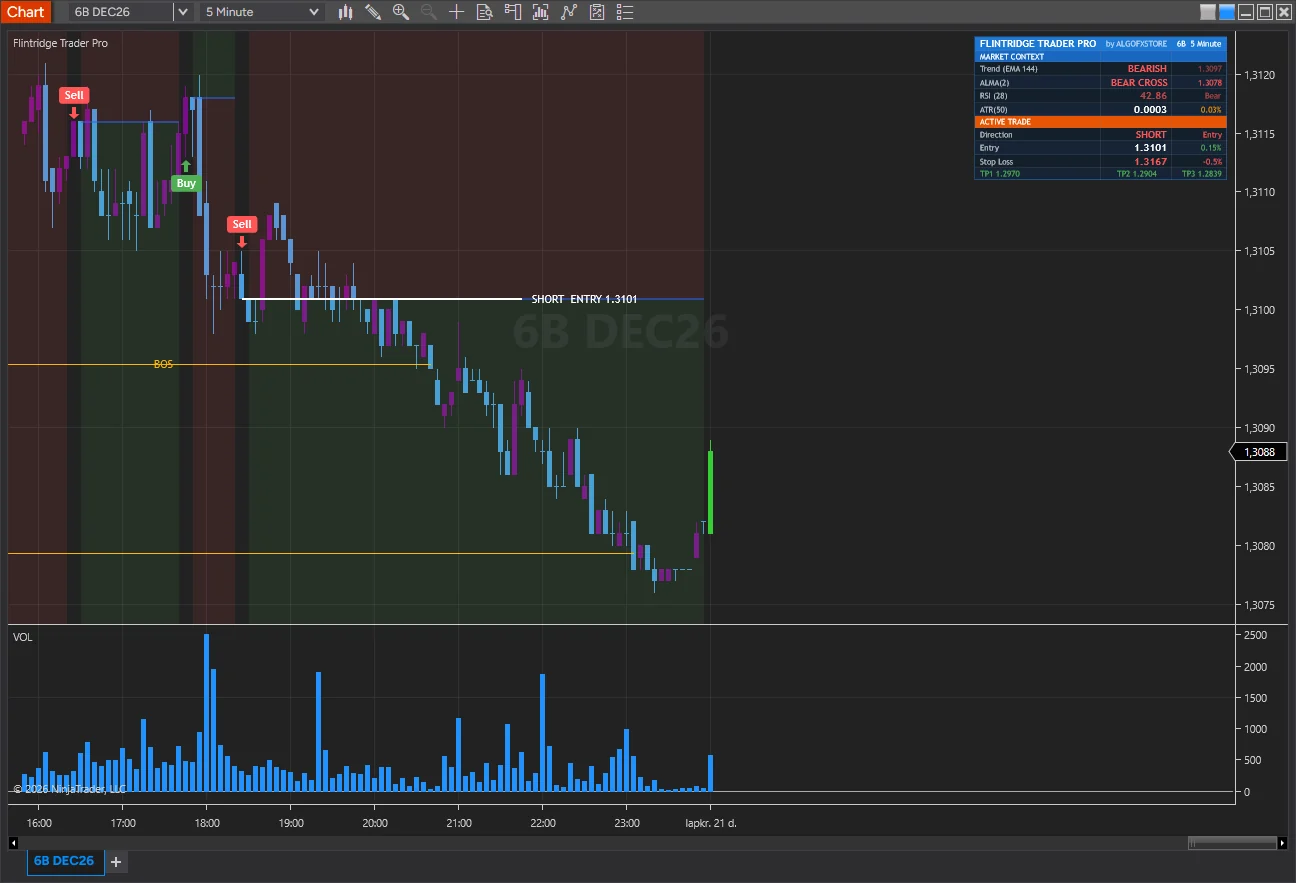
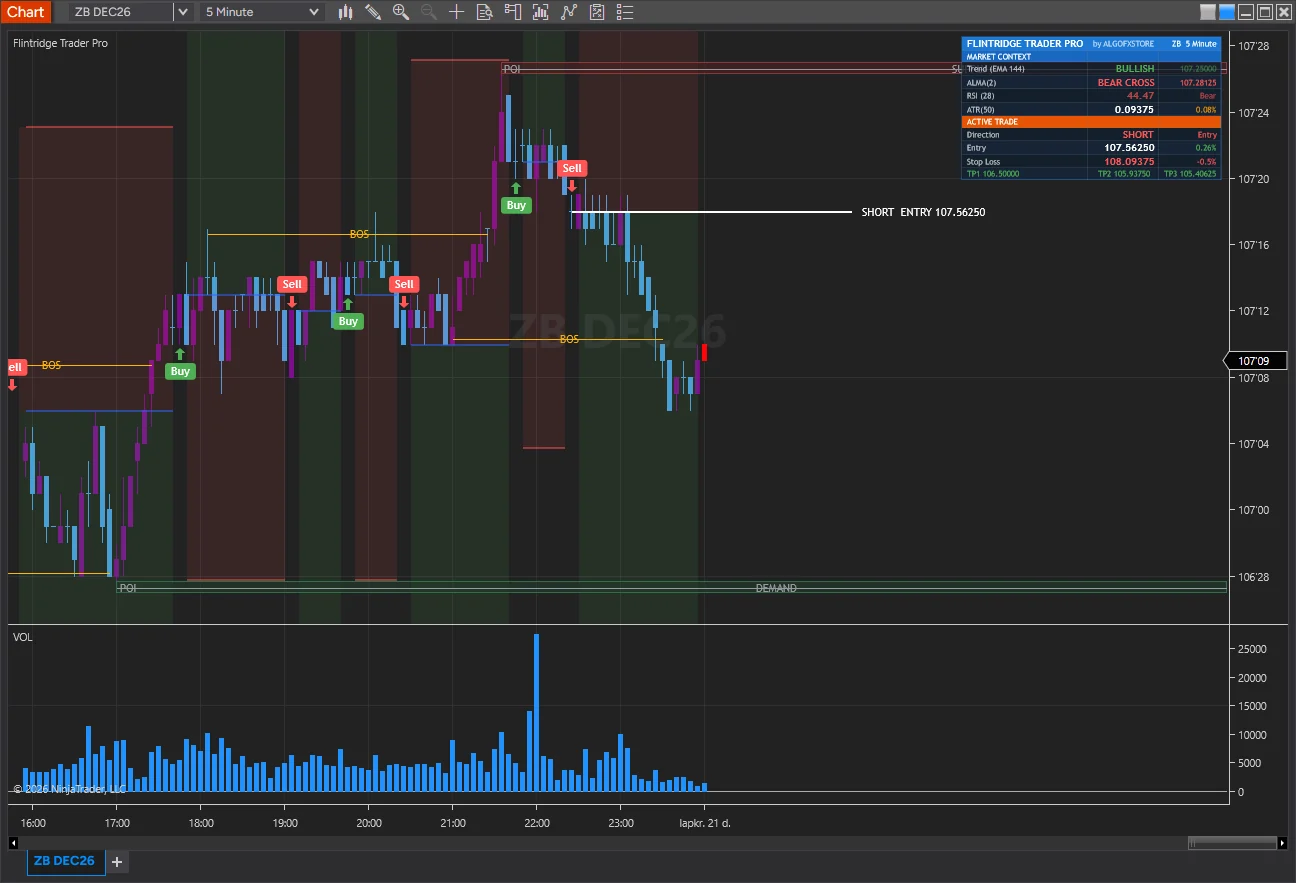
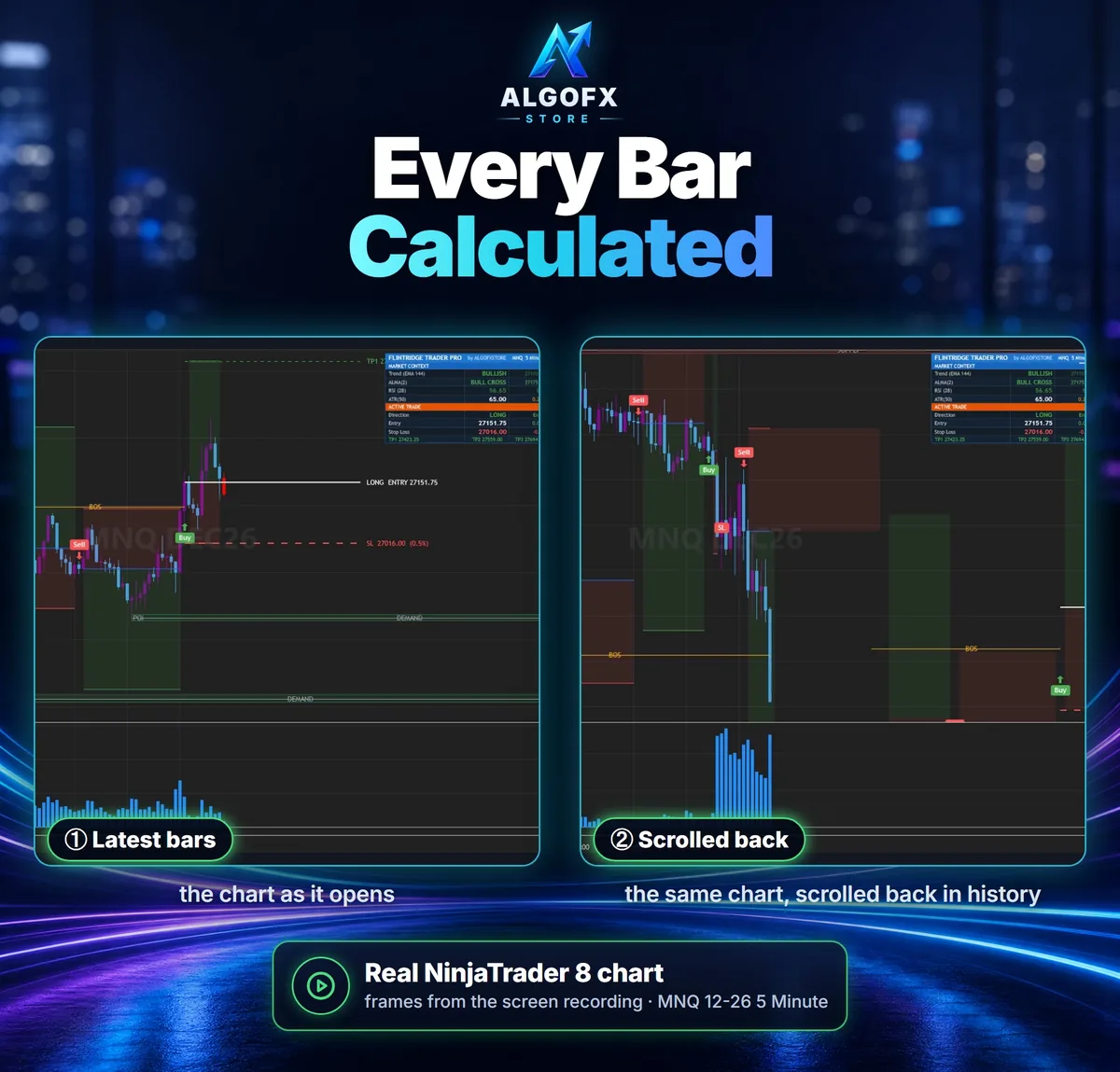
Watch Flintridge Trader Pro work on a real NinjaTrader 8 chart
A screen recording and frames from the shipped indicator at its default settings, as the chart updates. Nothing is edited into the chart.
A step-by-step routine for a futures session
The indicator shows the setup and the numbers; every order and every rule stays with you. Practise this on NinjaTrader's simulation account first.
- 1
Set the stop from today's ATR
Before the open, read the ATR(50) row in percent of price. The manual suggests a Stop Loss of about 1.5 to 2 times that reading, and keeping the default ratios when you scale: TP1 at twice the stop, TP2 three times, TP3 four times. A 0.25 % stop goes with targets at 0.50, 0.75 and 1.0 %. Then note the nearest supply zone above and demand zone below.
- 2
Wait for the closed-bar signal
A Buy or Sell prints only on the first chart bar after an alternate bar closes, so on a 5 Minute chart at most once every 40 minutes. Do not act on the dashboard's cross row changing mid-bar in a per-tick Calculate mode. Nothing counts until the arrow, the pill and the LONG ENTRY or SHORT ENTRY label have printed and the Long Entry or Short Entry alert has arrived.
- 3
Check trend and room to TP1
Prefer signals that agree with the Trend (EMA 144) row, or switch the trend filter on. Then look between the entry and the TP1 label: a Buy whose TP1 sits beyond an unbroken supply zone has to break through it first, so treat it as a weaker trade. A Buy just above a fresh demand zone, or a Sell just under supply, has the zone behind it instead.
- 4
Turn the stop into contracts
Read the distance from the entry label to the SL label in points, divide by the tick size for ticks, multiply by the tick value for dollars per contract, and divide your risk per trade by that, rounding down. Enter the stop and target in ticks in an ATM Strategy template in Chart Trader so the bracket is attached the moment you enter.
- 5
Manage the position yourself
The tracked trade is replaced by an opposite signal and its stop never moves; your real position is separate. Decide in advance whether you exit on an opposite signal, at TP1 or at TP3, and whether your ATM Strategy moves the stop to break-even. The TP Hit pill and the dashboard check marks only record that price touched a drawn level.
- 6
Know when to skip
Skip a signal in the minutes around a major economic release, close to the time you must be flat, after you have reached your own loss limit for the day, or when the stop would sit inside a zone price is still testing. Skip it too when the contract count from the stop does not fit your risk budget even at one micro.
11 rows that read the market for you
The on-chart dashboard, row by row.
- FLINTRIDGE TRADER PRO | by ALGOFXSTORE | instrument and interval, for example MNQ 5 Minute
- MARKET CONTEXT
- Trend (EMA 144) | BULLISH or BEARISH | EMA 144 value
- ALMA(2), or your MA type and period | BULL CROSS or BEAR CROSS | close average
- RSI (28) | value | OVERBOUGHT, OVERSOLD, Bull or Bear
- ATR(50) | value | ATR as a percentage of the close
- ACTIVE TRADE
- Direction | LONG, SHORT or WAITING | Entry, TP1 hit, TP2 hit or TP3 hit
- Entry | entry price | open result in %
- Stop Loss | stop price | distance from the entry in %
- TP1 | TP2 | TP3 | target prices, each with a check mark once reached
Everything Flintridge Trader Pro does for you
History you can trust by default
Alt-TF Mode ClosedBar is the default: a signal sits on history where a live chart printed it, and a reload does not move it. The optional ContainingBar mode is explained in the manual, which tells you to keep ClosedBar for live trading and for reviewing past signals.
The plan drawn with prices
The newest signal is projected 40 bars to the right: a white ENTRY line, a red dashed SL, green dashed TP1 and TP2 and a green dotted TP3, each labelled with its price rounded to the instrument tick and its percentage, for example 'SL 28277.00 (0.5%)'.
Step lines and risk bands
While a trade is tracked, a blue Entry Line, a red SL Line and a green TP Line 1 follow it bar by bar, with a green reward band to TP1 and a red risk band to the stop at 90 % transparency. You see the open trade without opening a single drawing tool.
Zones with POI and BOS
Supply in dark red and demand in dark green at 60 % opacity so the candles stay visible, a POI line through each zone's middle, and an amber BOS line when a close breaks a zone. The newest 20 zones and 5 BOS lines per side stay on the chart.
A dashboard for the trade
Eleven rows, three columns: EMA 144 trend, the MA cross, RSI 28, ATR 50 in value and percent, then direction and stage, entry with open result, stop with distance, and TP1 to TP3 with a check mark once reached. Six positions and four sizes.
Alerts on closed live bars
Eleven events behind eight switches: entries, TP1, TP2 and TP3 hits and stop hits, long and short. Each goes to the Alerts Log and the NinjaScript Output window, with optional sound and e-mail, and keeps working while the chart window is minimized.
Optional structure and S/R
Switch on HH, LH, HL and LL labels for confirmed swings, or the support and resistance module: the highest and lowest pivot of the last 284 bars and up to 21 levels where pivots cluster, with optional dotted zones around them.
Readable by your own strategies
A hidden Signal series carries +1 on a Buy bar, -1 on a Sell bar and 0 otherwise, TradeState carries the trade ladder, and TP Line 1, Entry Line and SL Line carry the levels, so NinjaScript strategies and the Market Analyzer can read them.
Percent levels for every contract
Stop and targets are percentages of the entry price, so one setting works across instruments. The manual converts them into ticks and dollars for MNQ, MES, NQ, ES, MGC, GC, MCL and CL, with a worked sizing example.
Flintridge Trader Pro, feature by feature
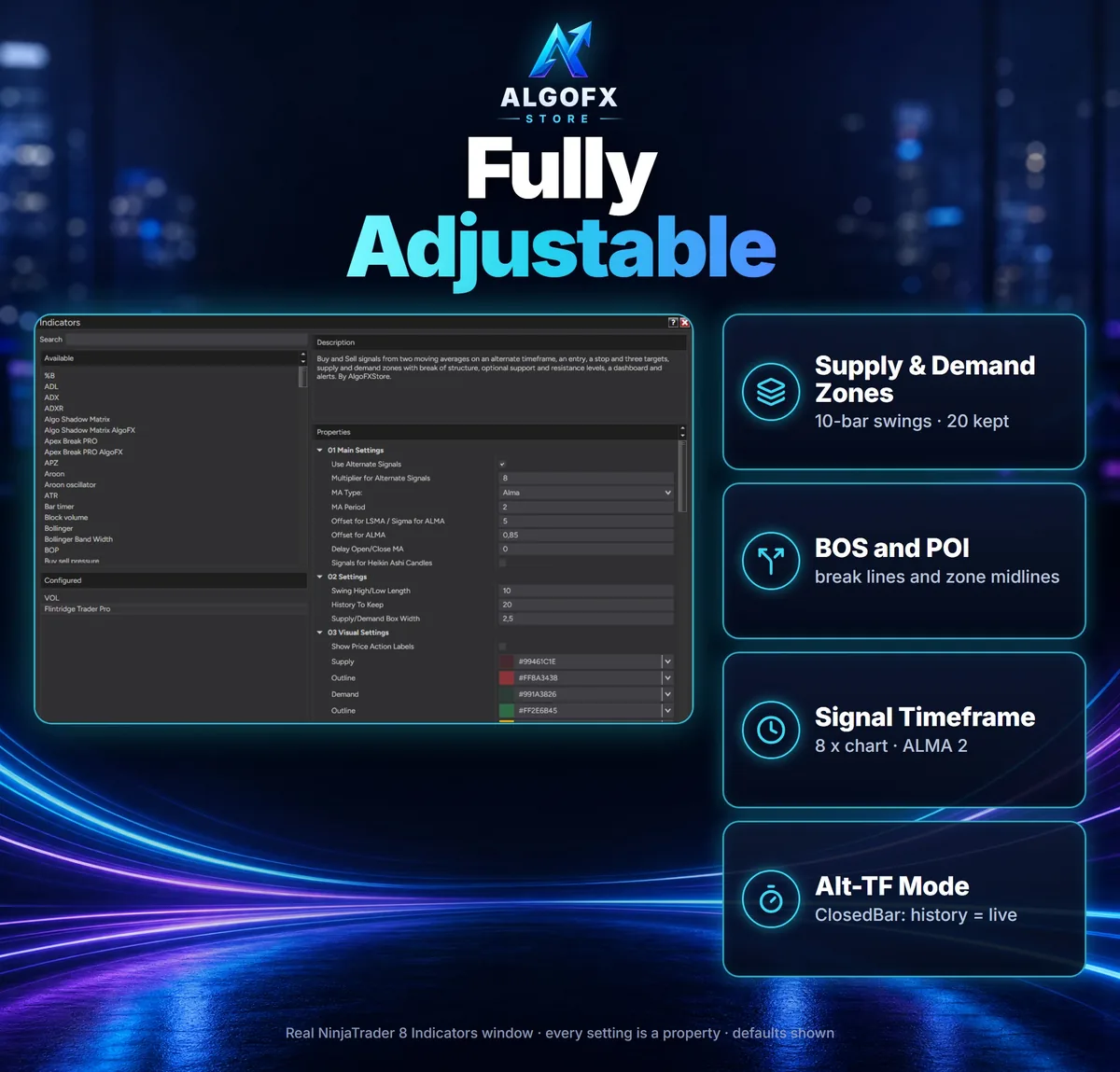
Each picture is built from real platform screenshots of the shipped indicator at its default settings, labelled so you can see what every part does. Tap any picture to open it full size.
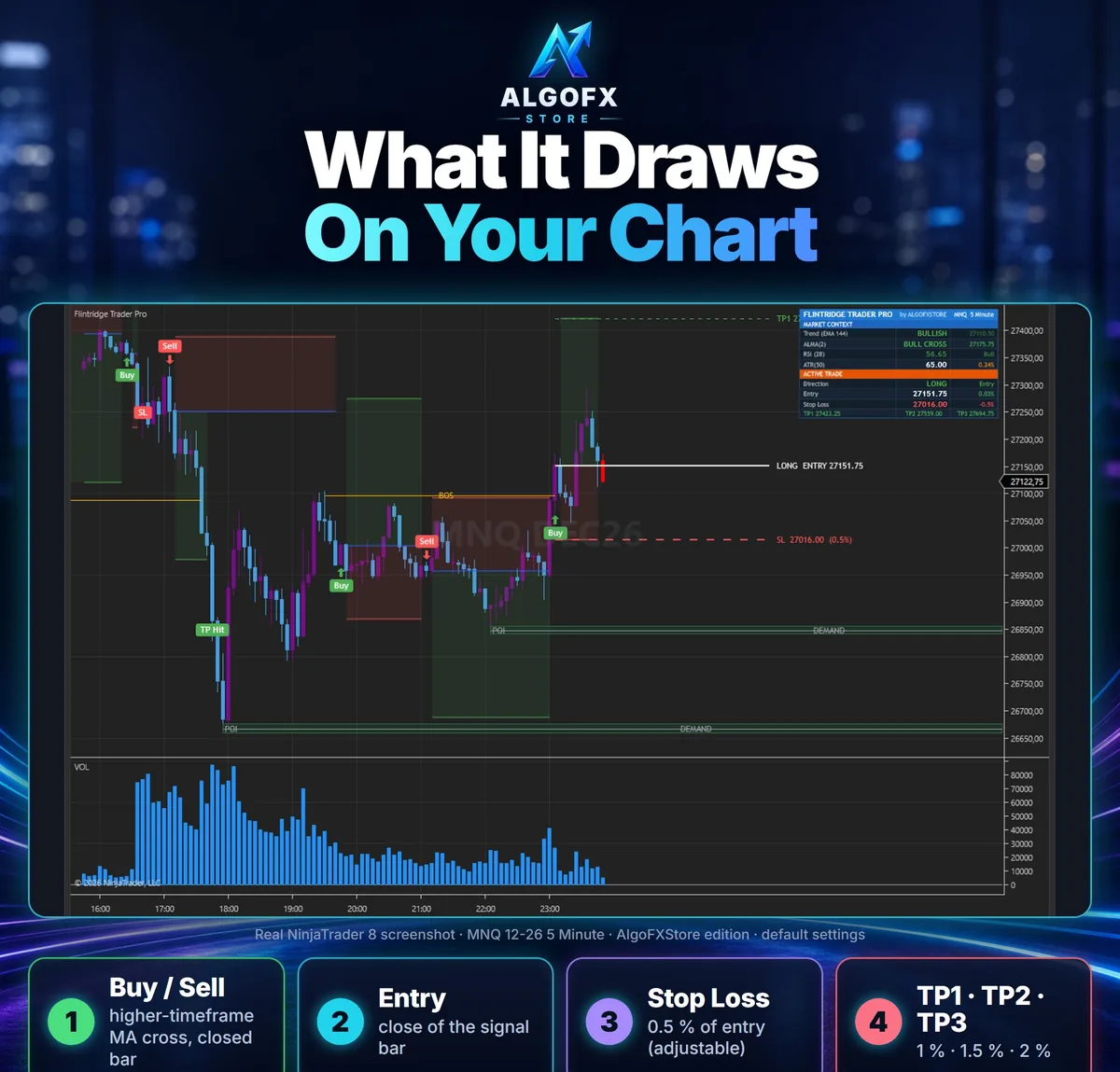
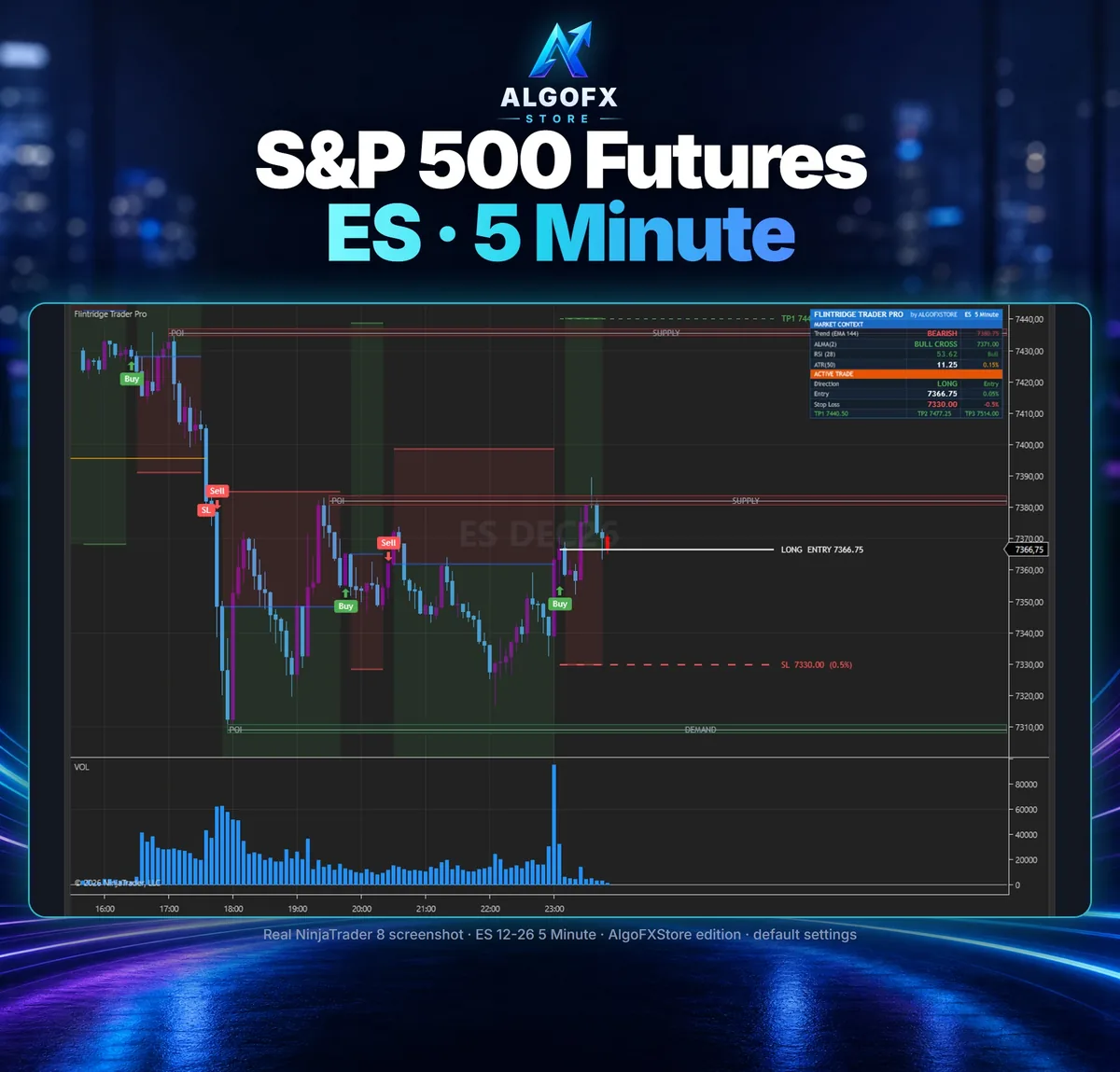
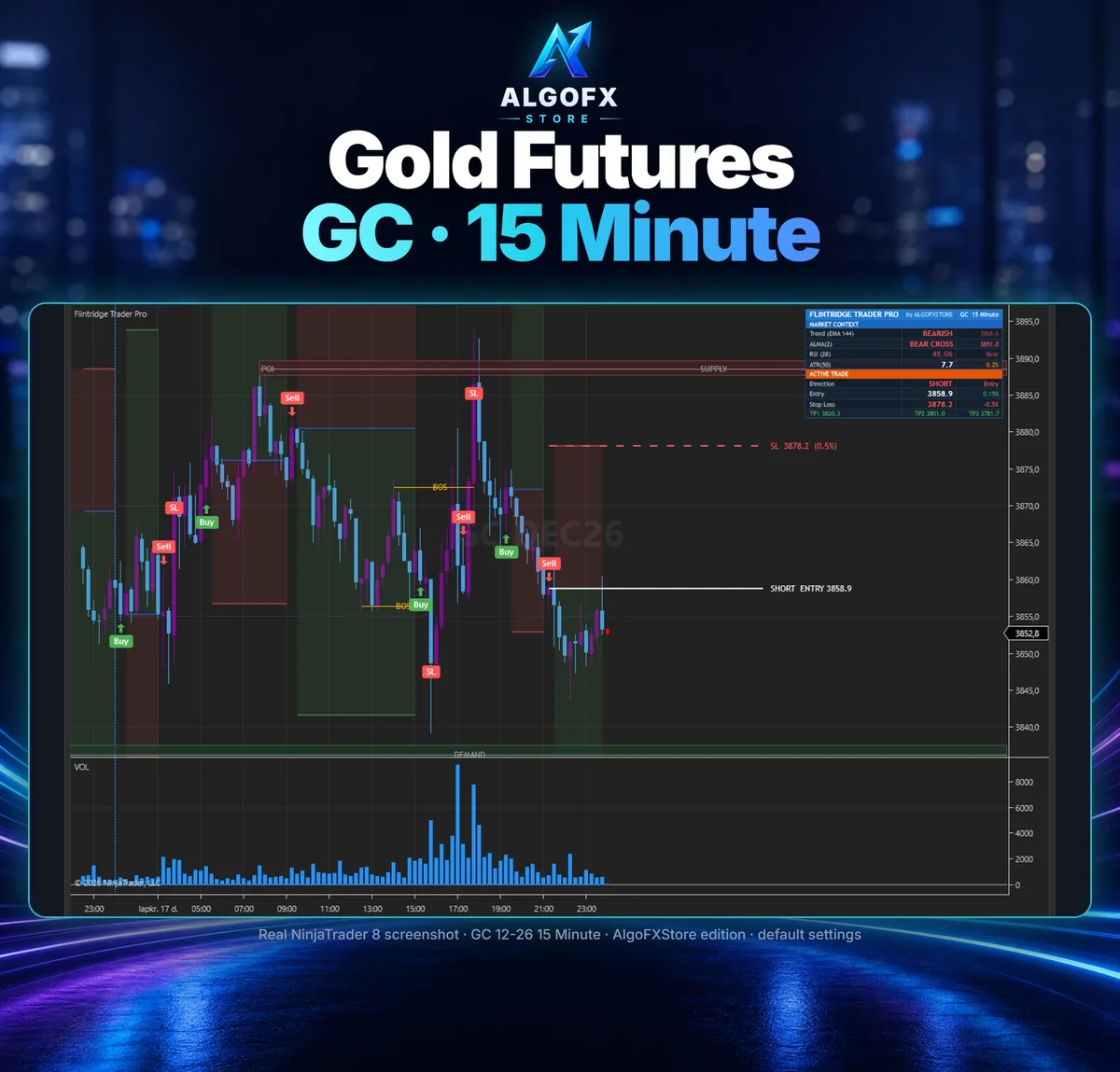
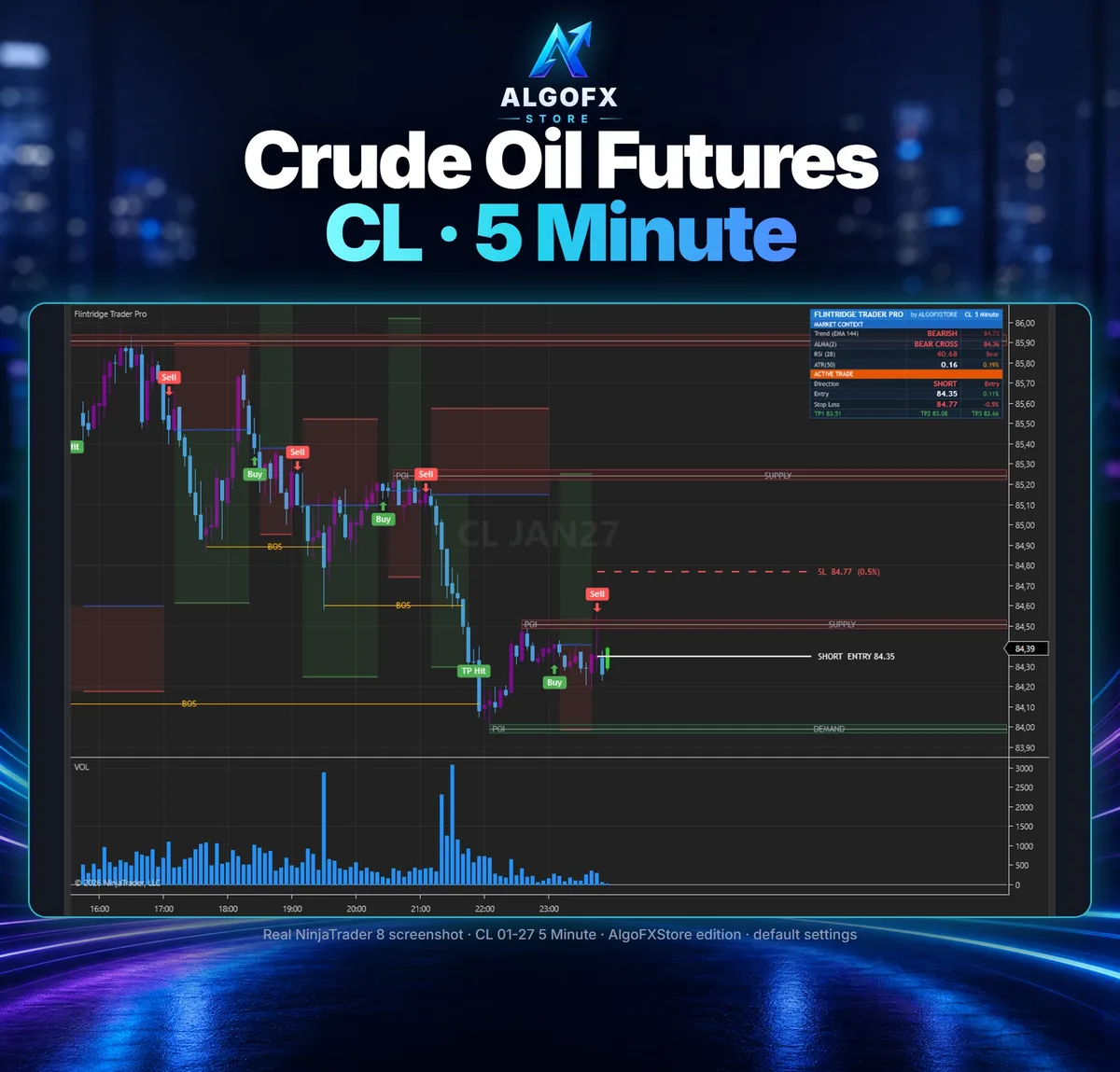
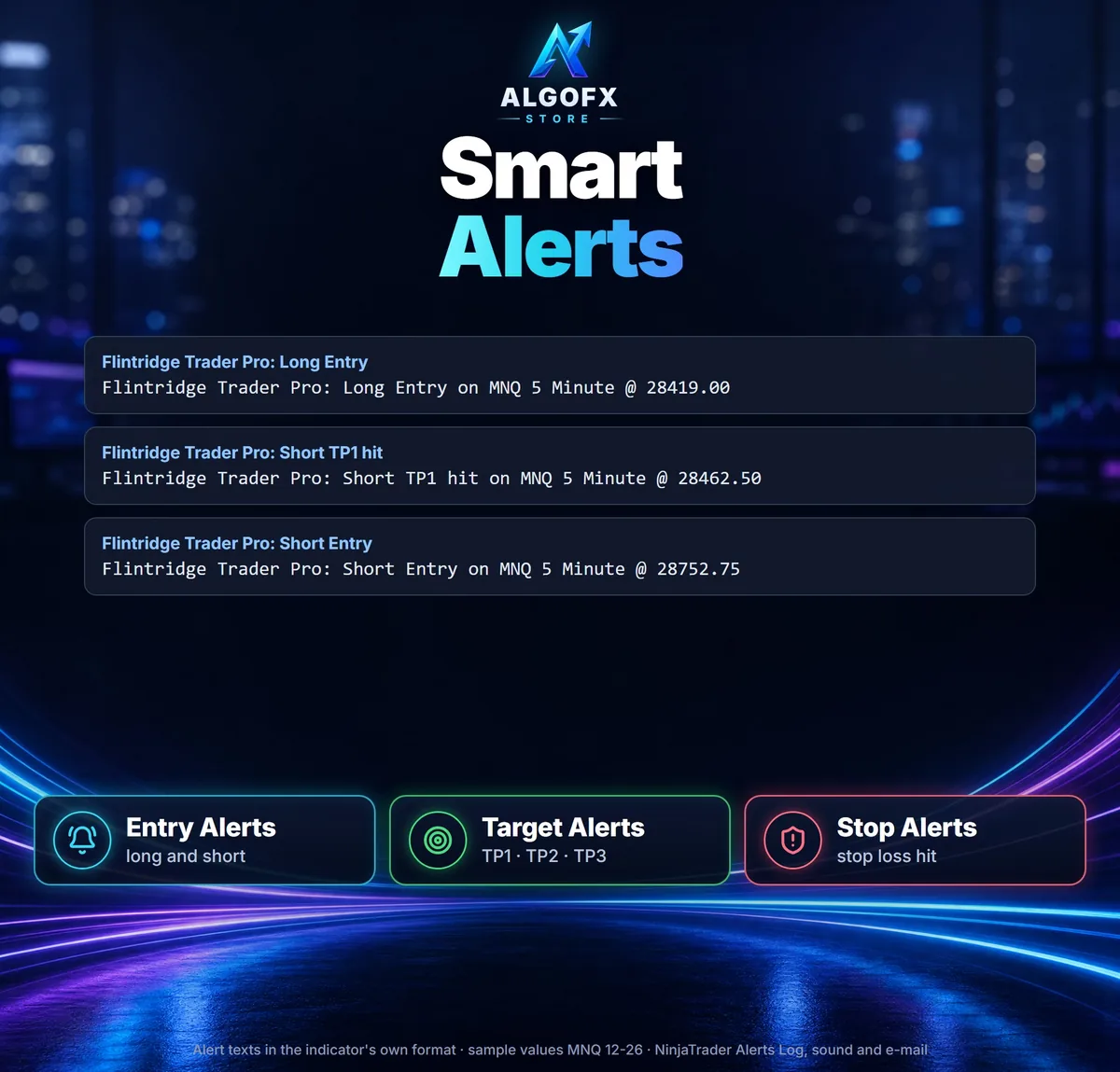
How traders put it to work
MNQ or MES on 5 Minute
40-minute alternate bars, so at most one signal every 40 minutes. On index futures the default 0.5 % stop is wide: on MNQ at 28,419 it is 142 points, 568 ticks and 284 dollars per micro. The manual's example uses 0.25 % on MNQ and 0.20 % on MES, with the targets scaled to keep the default ratios.
Gold on 15 Minute
On a 15 Minute chart the alternate bar is 2 hours, so signals are fewer and slower. The manual's November reading put ATR(50) on GC 15 Minute at 0.24 %, which makes the default 0.5 % stop about two ATRs. On MGC that stop came to 201 ticks, or 201 dollars per micro at the example price.
Crude oil on 5 Minute
Crude moves more per bar, which suits the percentage stop better. In the manual's example the default 0.5 % stop on MCL was 48 ticks, 48 dollars per micro, with an ATR(50) reading of 0.36 % on CL 5 Minute. The manual calls the default stop reasonable on crude, unlike on index futures.
Fast charts on 1 Minute
On 1 Minute the alternate bar is 8 minutes and signals come much more often. Use smaller stop and target percentages, otherwise the bands fill the whole panel, and set Min Bars Between Entries to about 15 or raise the Multiplier or MA Period to thin the signals out.
Sizing from a fixed risk per trade
If you size every trade from a fixed amount of risk, the manual walks through the whole routine: stop in ticks and dollars, contracts rounded down, a session plan, a pre-session checklist and an ATM Strategy bracket. The indicator itself does not know your account and enforces no risk rule.
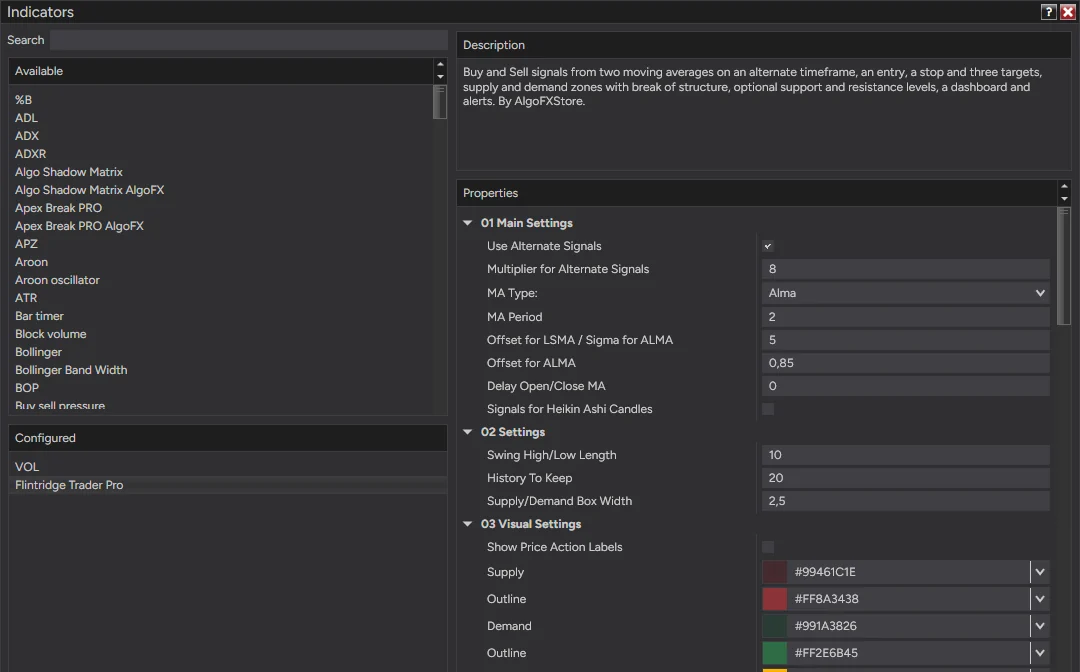
Every setting, with its default
The names are the ones in the NinjaTrader indicator dialog; the defaults are what every chart on this page uses.
| Setting | Default | What it does |
|---|---|---|
| 01 Main: Use Alternate Signals / Multiplier for Alernate Signals | on / 8 | Signals from an alternate timeframe 8 x the chart. |
| 01 Main: MA Type / MA Period / Sigma / Offset / Delay | ALMA / 2 / 5 / 0.85 / 0 | TEMA, HullMA or ALMA of the alternate closes and opens. |
| 01 Main: Signals for Heikin Ashi Candles | off | No effect (kept for settings compatibility). |
| 02 Settings: Swing High/Low Length / History To Keep / Supply/Demand Box Width | 10 / 20 / 2.5 | Zone pivots, zones kept per side, thickness ATR(50) x 2.5 / 10. |
| 03 Visual Settings | labels off; zone colours at 60 % opacity | HH/LH/HL/LL, zone fills and outlines, BOS, POI. |
| 04 SR | off | Optional support/resistance levels and zones. |
| 05 Risk Management: Level TP1 / TP2 / TP3 / Stop Loss | 1.0 / 1.5 / 2.0 / 0.5 % | Percent of the entry price. |
| 06 Display: Alert Labels / Bar Color | on / on | Buy/Sell/TP Hit/SL pills; purple/blue candles. |
| 07 Last Signal Levels: Show projected / N bars | on / 40 | Newest signal's ENTRY, SL, TP1-TP3. |
| 08 Dashboard: Show / Position / Size | on / TopRight / Small | Panel. |
| 09 Signal Mode and Chart: Alt-TF Mode / Marker Style / Max Signal Labels / Max Swing Labels | ClosedBar / ArrowAndPill / 200 / 200 | ClosedBar = history equals live. |
| 10 Compatibility: EMA-144 Trend Filter / RSI(28) Filter / RSI OB-OS / Min Bars Between Entries | off / off / 65-35 / 0 | Optional filters. |
| 11 Alerts | master on; long, short, TP1-3, SL on; any off; sound off; e-mail off | Alerts Log, Output, sound, e-mail. |
| 12 NinjaTrader: Debug Mode / Dump Bars + Outputs CSV | off / off | Diagnostics. |
11 alert events
Alerts can go to the NinjaTrader Alerts Log, a sound and an e-mail (NinjaTrader's e-mail share service must be set up).
- Long Entry
- Short Entry
- Any Entry
- TP1 Hits
- TP2 Hits
- TP3 Hits
- SL Hits
Flintridge Trader Pro next to the usual options
Where it wins, and where it does not.
| Flintridge Trader Pro | Typical free supply and demand indicator | Reading it by hand | |
|---|---|---|---|
| Entry, stop and three targets | Drawn with prices on every signal | Usually zones only, no trade plan | You calculate and draw each level |
| History versus live | Matches in the default ClosedBar mode | Often not stated | Hindsight creeps in |
| Stop in ticks and dollars | Prices on the chart, conversion in the manual | Not covered | Your own spreadsheet |
| Tracking targets and stop | Ladder, pills, dashboard checks and alerts | Not tracked | You watch every bar |
| Readable by strategies | Signal and TradeState series | Sometimes plots only | Not possible |
| Cost | One payment | Free | Free |
| Simplicity | 64 settings in 12 groups to learn | A few boxes, quick to read | As simple as you make it |
Honest about who this fits
A good fit if you
- Futures traders on NinjaTrader 8 who want every signal to arrive with a stop and three targets as prices.
- Traders who use supply and demand zones as context and want the zones and the entry signal on one chart.
- Anyone who reviews past signals and needs history to show what a live chart would have shown.
- Traders who size in micros and want the stop distance on screen before converting it to ticks and dollars.
- NinjaScript users who want a signal and trade-state series their own strategy can read.
Not for you if you
- Traders who want software that places or manages orders: it draws and alerts, and every order stays yours.
- Anyone who expects proof of profit: the charts show what it draws, target check marks are touches with no costs behind them, and no result is promised.
- Traders who need push or webhook alerts: alerts go to the Alerts Log, sound and e-mail only.
- Users of NinjaTrader Web, the mobile apps or NinjaTrader 8.0: it needs NinjaTrader 8.1.x Desktop for Windows.
One Add-On, one manual, imported in a minute
- 1NinjaScript Add-OnFlintridgeTraderProAlgoFX.zip (0.2 MB). Import it in NinjaTrader 8 and it appears as “Flintridge Trader Pro AlgoFX”.
- 16Page PDF manualInstalling, every setting with its default, reading the signals, the levels, the dashboard, the alerts.
- 14Setting groupsEvery one explained above, with the defaults the charts use.
- 7Alert eventsYou choose which ones are on in the settings.
- 60Day money-back guaranteeIf it is not for you, request a full refund within 60 days through your Digistore24 order e-mail.
Install in four steps
- Download the zip from the page Digistore24 sends you to after checkout. Keep it zipped.
- NinjaTrader 8: Control Center, Tools, Import, NinjaScript Add-On, and choose the zip.
- Open a chart, open Indicators, and add “Flintridge Trader Pro AlgoFX”.
- Read the manual's quick start; the defaults are the settings shown on this page.

Kestutis Balciunas
AlgoFXStore · chart indicators for MetaTrader, TradingView, cTrader and NinjaTrader
Kestutis Balciunas builds and publishes chart indicators under the AlgoFXStore name for MetaTrader 4 and 5, TradingView, cTrader and NinjaTrader 8. Every product page shows what the indicator draws on real charts, and every number on it comes from the shipped build.
The charts on this page were captured in NinjaTrader 8 from the shipped Flintridge Trader Pro AlgoFX at its default settings and are shown unedited.
No get-rich claims and no quoted win rates. Every trade is uncertain, and no indicator changes that. If you want to know whether it suits the way you trade before you buy, e-mail [email protected] and you will get a straight answer.
One price, one payment
- The NinjaScript Add-On for NinjaTrader 8 and the 16-page PDF manual
- Delivered as a digital download: the Add-On zip and the PDF manual on your download page
- Return period: 60 days, with a full refund if it is not for you
- Free updates to the current version on the same download page
60-day money-back guarantee. Install it, run it on your own charts and read the manual. If Flintridge Trader Pro is not for you within 60 days of purchase, request a full refund from Digistore24, no questions asked: use the refund link in your Digistore24 order e-mail or Digistore24's order page digistore24.com/en/cancel-revoke-contract. Digistore24 refunds to your original payment method. It is a digital download: right after checkout you land on your download page, and the link to it is also in your Digistore24 order e-mail.
Also by Kestutis Balciunas: Flintridge Trader Pro for MT4 and MT5.
About the signals
Does it repaint?
Not in the default Alt-TF Mode ClosedBar: Buy and Sell markers, their levels and alerts come from closed bars and sit on history where a live chart printed them, unchanged by a reload. Zones appear 10 bars after their swing and turn into BOS lines when broken. The optional ContainingBar mode places history signals up to 7 bars earlier than a live chart could, so keep ClosedBar.
Why does a signal come later than the cross I expected?
In ClosedBar a signal needs its alternate bar to close first. With the multiplier at 8 on a 5 Minute chart, a signal can print at most once per 40 minutes, on the first chart bar after the 40-minute bar closes. A smaller multiplier reacts sooner and gives more signals.
Why did my signals change after I changed Days to load?
The alternate bars are a fixed clock grid counted from the chart's first loaded bar. A different first bar can move the grid and so the signals. The grid runs on universal time, so a chart that starts in winter and one that starts in summer can also differ. To compare two charts, give them the same first bar.
What happens when a Sell prints during a long trade?
The tracked long is replaced at once by a new short from the Sell bar's close, with its own stop, targets and projected labels, and the dashboard switches to SHORT. A Buy during a tracked long is ignored. After TP3 the trade stays in the TP3 hit stage until its stop is touched or an opposite signal prints.
What does each mark mean?
Green arrow and Buy pill under the low, red arrow and Sell pill over the high: the signals. Blue step line: entry; green: TP1 with the reward band; red: stop with the risk band. TP Hit pill: TP1 reached; SL pill: stop reached. Dark red and dark green boxes: supply and demand, with a grey POI line; amber line: BOS. Purple and blue candles: up and down closed bars.
Charts, sessions and settings
Which chart types and instruments work?
Minute, day, week and month bars work fully; second, tick, volume, range and Renko charts run too, with the alternate bar counted in whole minutes and printed in the NinjaScript Output window. Any instrument with bars works, from NQ and ES to GC, CL, 6E and ZB. Volume is not used, so a feed without volume draws the same chart.
Does the Trading Hours template matter?
Yes. The indicator has no session logic of its own; the chart's Trading Hours template decides which bars exist. An ETH template includes the overnight bars and an RTH template does not, so averages, swings and alternate bars differ and so do the signals. If you trade only the day session, an RTH template keeps overnight bars out.
What does the Calculate setting change?
With the default On bar close everything updates once per closed bar. With On each tick or On price change, the step lines, zones and dashboard follow the forming bar and settle when it closes. Markers and alerts always wait for the close, in every Calculate mode.
Should I change the defaults?
Keep Alt-TF Mode on ClosedBar. The settings worth fitting are Stop Loss and Level TP1, TP2 and TP3, because they are percentages of price: on index futures the default stop is wide. For fewer signals, switch on the EMA-144 Trend Filter, set Min Bars Between Entries to about 15, or raise the Multiplier or MA Period.
What is the Heikin Ashi setting for?
Signals for Heikin Ashi Candles has no effect on any signal, level or drawing in this edition. It stays so that saved settings remain compatible. The signal always uses the alternate bars built from your chart's normal opens and closes.
Alerts and running it
How do alerts work and what do they say?
Alerts fire when a bar closes, once per event and bar, on a live chart only, never for history and never for a bar older than two bar periods, so a reconnect does not replay old alerts. Each one adds an Alerts Log row and an Output line, for example 'Flintridge Trader Pro: Long Entry on MNQ 5 Minute @ 28419.00'. Sound and e-mail are optional.
Can alerts reach my phone?
There is no push or webhook channel. Set up a Mail share service in NinjaTrader under Tools, Options, switch Alert E-mail on and fill E-mail To; if your phone receives that mailbox, the alerts reach your phone. NinjaTrader must be running with the chart open.
Can I run it on several charts and with my own strategy?
Yes. It runs on several charts at once, each with its own zones, trade and alerts. Your NinjaScript strategies and the Market Analyzer can read the hidden Signal series (+1 Buy, -1 Sell, 0 otherwise), the TradeState ladder and the three level plots. Read them with Alt-TF Mode on ClosedBar.
What happens on a closed market?
With no tick arriving, NinjaTrader has not closed the session's last bar, so it stays a preview. A signal on that bar appears when the next session opens, and its alert is dropped as stale rather than sent late.
How it works
Will it place trades for me?
No. Flintridge Trader Pro is an indicator: it draws on the chart and can alert you. It never sends an order.
Which markets and charts does it work on?
NinjaTrader 8.1.x Desktop (tested 8.1.9.0). Minute, day, week, month bars fully; second bars with whole-minute alternate bars; tick/volume/range/Renko run with the chart bar inferred in whole minutes. Needs ~250 bars (EMA 144, ATR 50, 10-bar pivots); docs say load at least 300. Volume not used. Session = the chart's Trading Hours template.
Does it work on NinjaTrader 7?
No. It is built for NinjaTrader 8 and imported as a NinjaScript Add-On.
After you buy
How do I get it after paying?
Digistore24 runs the checkout. Right after payment it takes you to your download page with the NinjaScript Add-On zip and the PDF manual; the link to that page is also in your Digistore24 order e-mail, so you can download again at any time.
How do I install it?
In NinjaTrader 8: Control Center, Tools, Import, NinjaScript Add-On, then choose the zip exactly as you downloaded it (do not unzip it). After the import, add “Flintridge Trader Pro AlgoFX” to a chart from the Indicators window. The manual walks through it step by step.
Who is Digistore24?
Digistore24 is the reseller that sells Flintridge Trader Pro for Kestutis Balciunas (AlgoFXStore): it runs the checkout, charges your card or PayPal, collects the VAT for your country and delivers the download. Its name is the one on your statement, and its order e-mail holds your download link and the refund link.
What is the refund policy?
A 60-day money-back guarantee, handled by Digistore24. If Flintridge Trader Pro is not for you within 60 days of purchase, use the refund link in your Digistore24 order e-mail or Digistore24's order page (digistore24.com/en/cancel-revoke-contract) for a full refund, no questions asked. Digistore24 makes the refund to your original payment method.
Do I get the source code?
No. The Add-On ships compiled; the zip is exactly what NinjaTrader imports.
Flintridge Trader Pro for NinjaTrader 8.
Put the zones, the closed-bar signals and a priced plan for every trade on your own NinjaTrader 8 charts, and size each position before you click. The Add-On, the manual and every setting explained. Instant download for €77, one payment.
Get instant access