Take a signal only when the trend timer and the money flow agree on a closed bar
Aroon Money Flow Confluence puts the Aroon Oscillator and Chaikin Money Flow in one TradingView pane and prints BUY or SELL only when both turn the same way within a short window, decided on a closed bar.
- Two independent readings: Aroon, how recently price made new highs versus new lows, and money flow, whether volume is buying or selling.
- BUY or SELL only on a closed bar, when the agreement is new and the Aroon cross happened inside the confirm window.
- Stop at 1.5 x ATR(14) from the signal bar's close and targets at 1R, 2R and 3R, drawn on the price chart with prices.
- A 17-row dashboard with bias, both readings, the trade state and Open R, plus six alertcondition alerts.
- The full Pine Script source code. Paste it into the Pine Editor, save, and add “Aroon Money Flow Confluence [AlgoFXStore]” to your chart.
- A 14-page PDF manual with installation, every setting and how to read the chart. One-time €47.
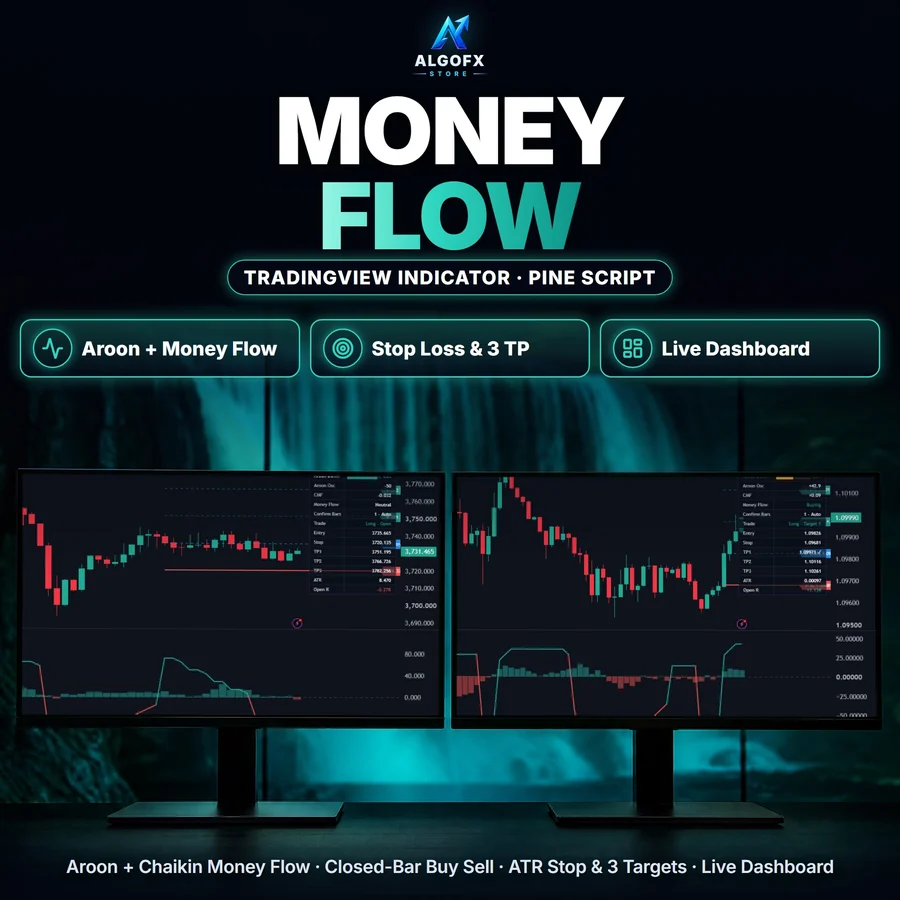
See Aroon Money Flow Confluence on a real chart
Press play; use the full-screen button to see every detail.
One oscillator crossing zero is a timing guess, not a confirmation
Aroon is a clean way to see whether recent highs or recent lows are in charge, and many traders take a cross of the Aroon Oscillator through zero as a signal on its own. The trouble is that a new high made on thin, hesitant volume looks exactly the same to Aroon as one made with real buying behind it. In a range, the oscillator crosses zero again and again.
Money flow has the opposite weakness. Chaikin Money Flow tells you whether closes are landing near the highs or the lows on volume, but it has no sense of timing, and it can sit above zero for a long time while price drifts sideways. Traders who watch both usually eyeball two panes and decide case by case, which means a different standard every time.
This indicator turns that judgement into a rule. A signal needs the Aroon Oscillator on one side of zero, money flow past a buffer on the same side, the agreement new on this bar, and the Aroon cross recent enough to belong to the same move. Only then, on a closed bar, does it print BUY or SELL and draw the full plan.
Everything Aroon Money Flow Confluence draws on your chart
Read from the shipped Pine Script code.
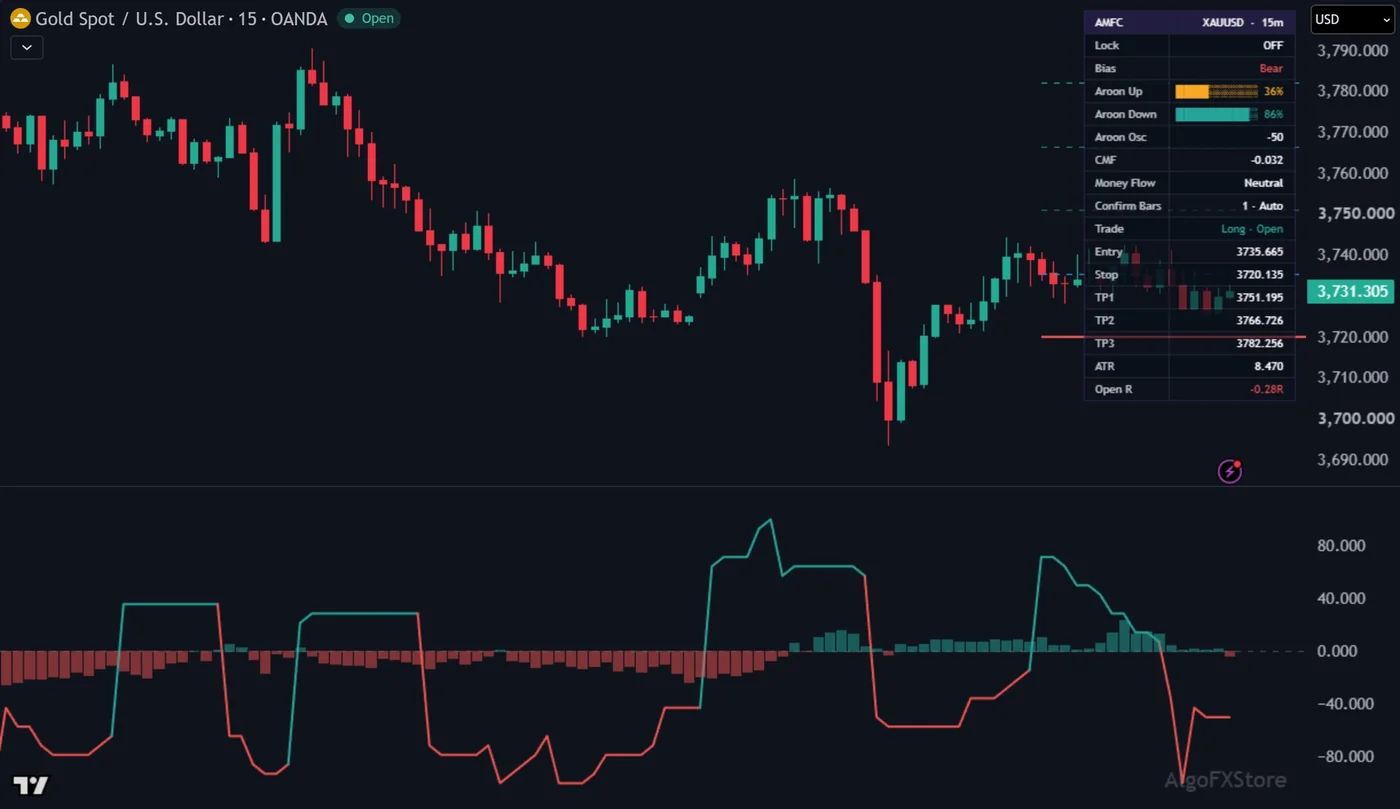
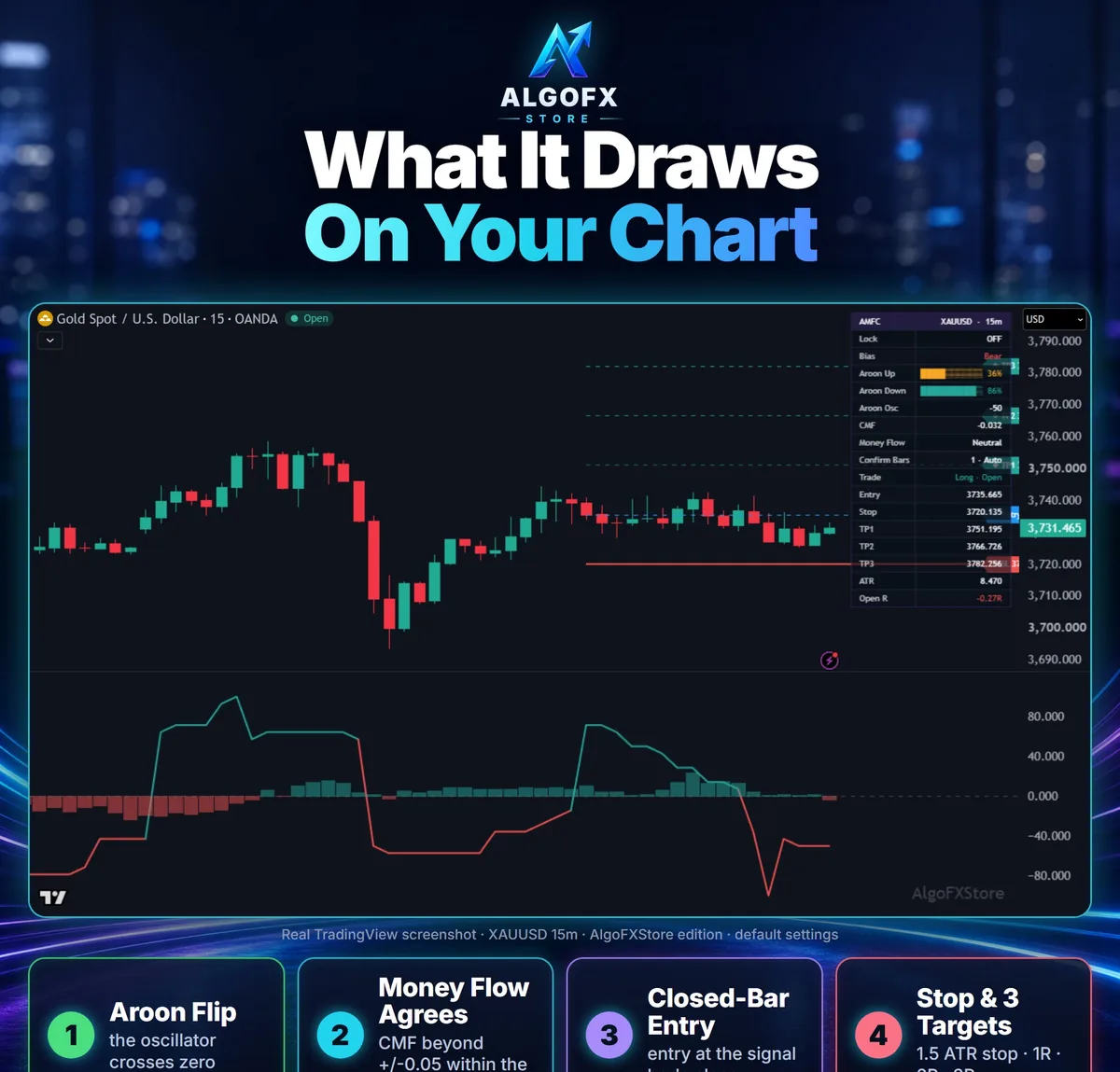
- Own pane (overlay = false): 'Aroon Osc' line, width 2, green at or above zero and red below
- 'CMF %' columns in the pane = Chaikin Money Flow x 100, green 50 % transparent at or above zero, red 50 % below
- Dashed grey zero line in the pane
- On the PRICE chart (force_overlay = true): the trade plan of the latest signal - SL solid red line width 2, Entry dashed blue, TP1 / TP2 / TP3 dashed green, each with a label at its right end. Drawn from the signal bar to 10 bars past the last bar while the trade is open, or to 10 bars past the bar that closed it; deleted when the next signal arrives.
- Optional 'Confluence Candles' on the price chart (input Candles, off): green when Aroon and money flow agree up, red when they agree down, grey otherwise, drawn over the chart's own candles
- Dashboard table on the price chart, top right (Show on Price Chart on; off = in the pane), 17 rows with defaults
- AlgoFXStore watermark in the indicator pane, bottom right
How the readings, the signal and the plan are decided
The steps follow the shipped Pine Script code with its default settings. The pane shows the two readings; the trade plan and the dashboard are drawn on the price chart.
- 1
Aroon measures who made the latest extreme
Aroon Up and Aroon Down measure, over 14 bars, how recently price made its highest high and its lowest low. The Aroon Oscillator is Up minus Down and is drawn in the pane as a line, green at or above zero and red below. Above zero, recent highs are newer than recent lows.
- 2
Money flow measures who has the volume
Chaikin Money Flow over 20 bars weighs each bar's volume by where the close sits in its range. It is drawn in the pane as CMF % columns, green at or above zero and red below. It needs volume data: on a symbol without volume it is undefined, and the dashboard warns that no signals can fire.
- 3
Both must agree, and the agreement must be new
A BUY needs the Aroon Oscillator above zero and money flow above the Flow Buffer of +0.05, and that agreement must not have been true on the bar before. A SELL needs the oscillator below zero and money flow below -0.05. Optional smoothing (EMA, RMA, WMA, HMA, KAMA or Kalman) can be applied to both readings first.
- 4
The Aroon cross must be recent
The oscillator must have crossed zero in the signal's direction no more than the confirm window ago. With Auto Confirm on, the window is the median of the last 20 measured gaps between an Aroon flip and money flow agreeing, kept between 1 and 20 bars, and 5 bars until five gaps exist. With it off, you set Confirm Bars yourself.
- 5
Optional filters and the closed bar
HTF Confirm can require the Aroon Oscillator of the last closed higher-timeframe bar (60 minutes by default) to agree, and Trend Strength can require the previous bar's ADX(14) at 20 or more. Both are off by default. The final signal is only accepted on a confirmed bar, so BUY and SELL never print on a forming bar.
- 6
The plan drawn on the price chart
Entry is the signal bar's close, drawn as a blue dashed line. The stop sits 1.5 x ATR(14) away as a solid red line, and TP1, TP2 and TP3 at 1R, 2R and 3R as green dashed lines, each with a price label. Targets count on a touch of the bar's high or low; the stop counts only on a bar close beyond it. TP3 or the stop ends the trade.
Aroon Money Flow Confluence on 12 different markets
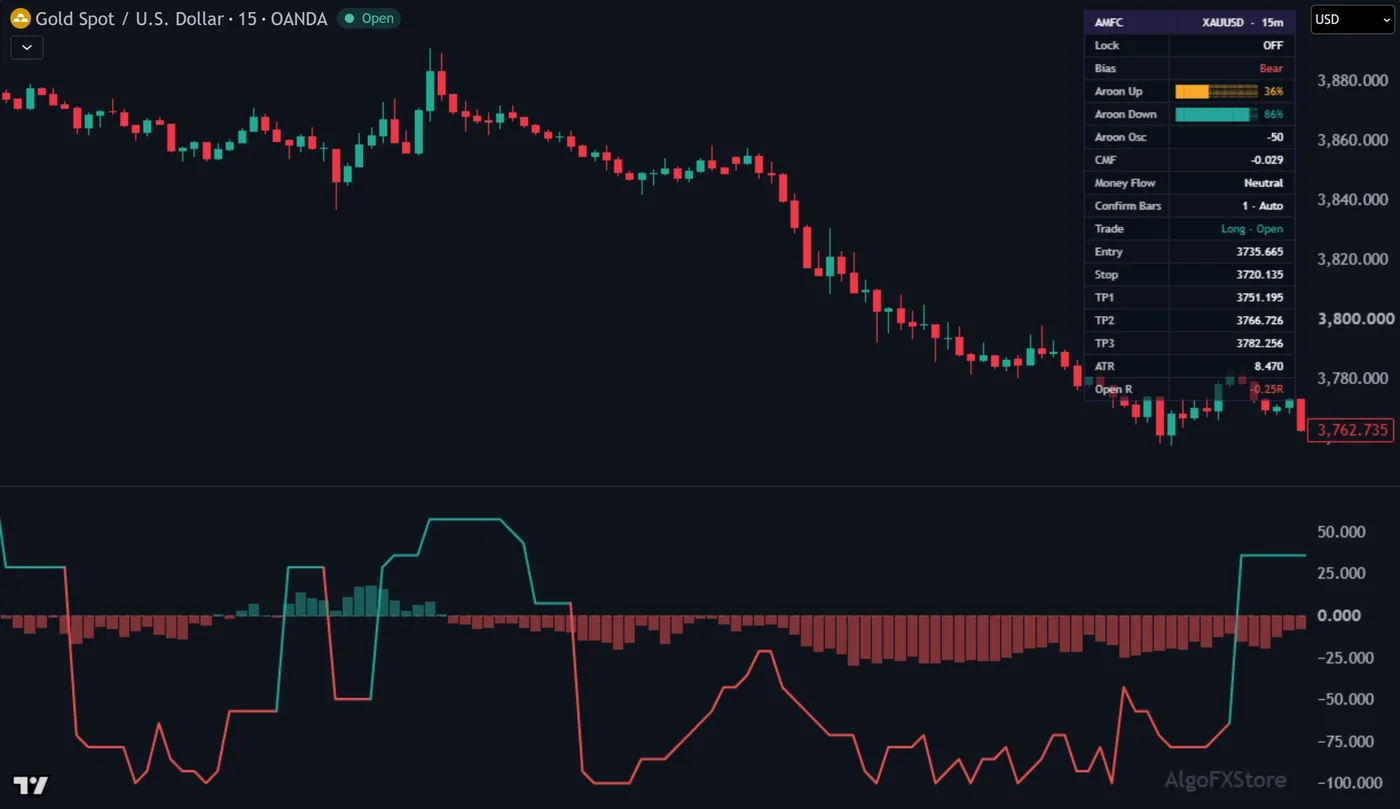
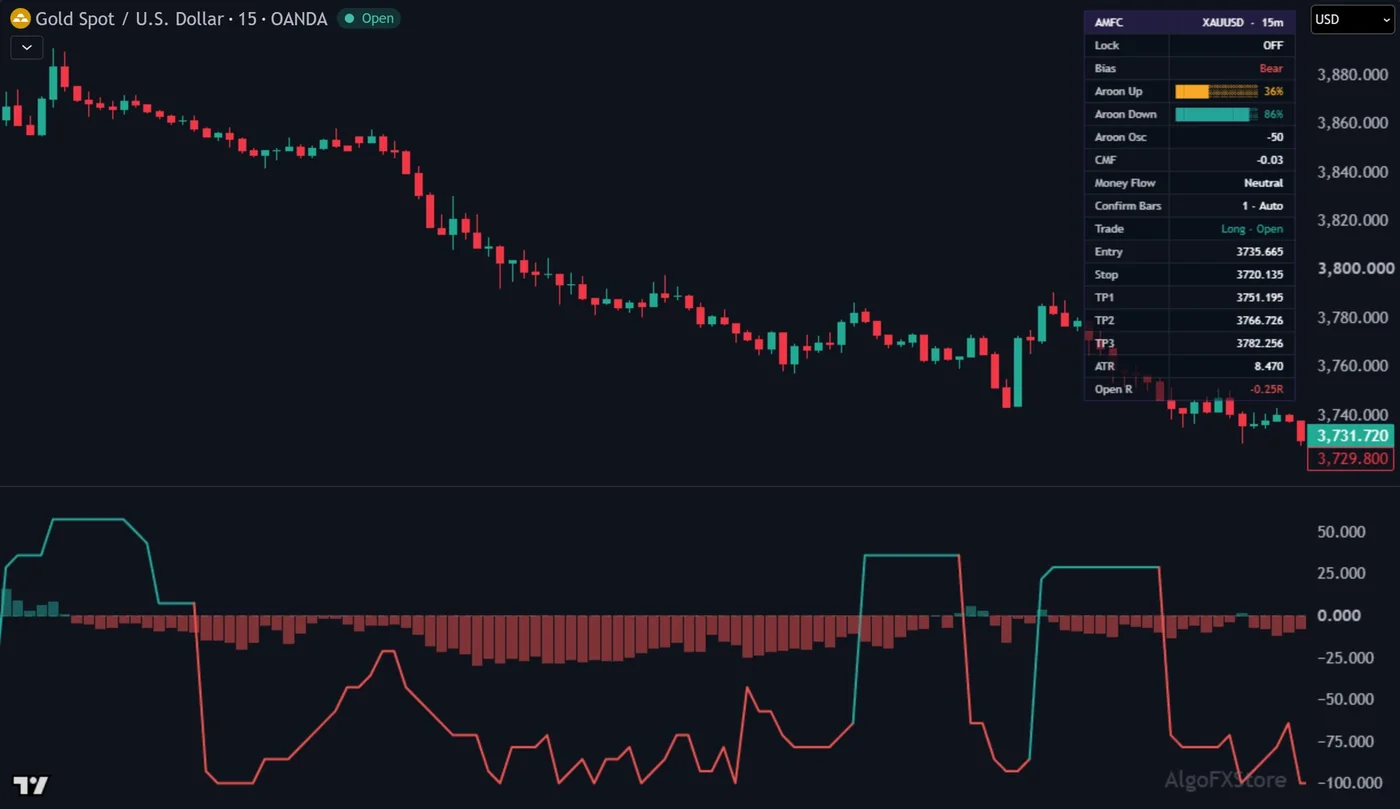
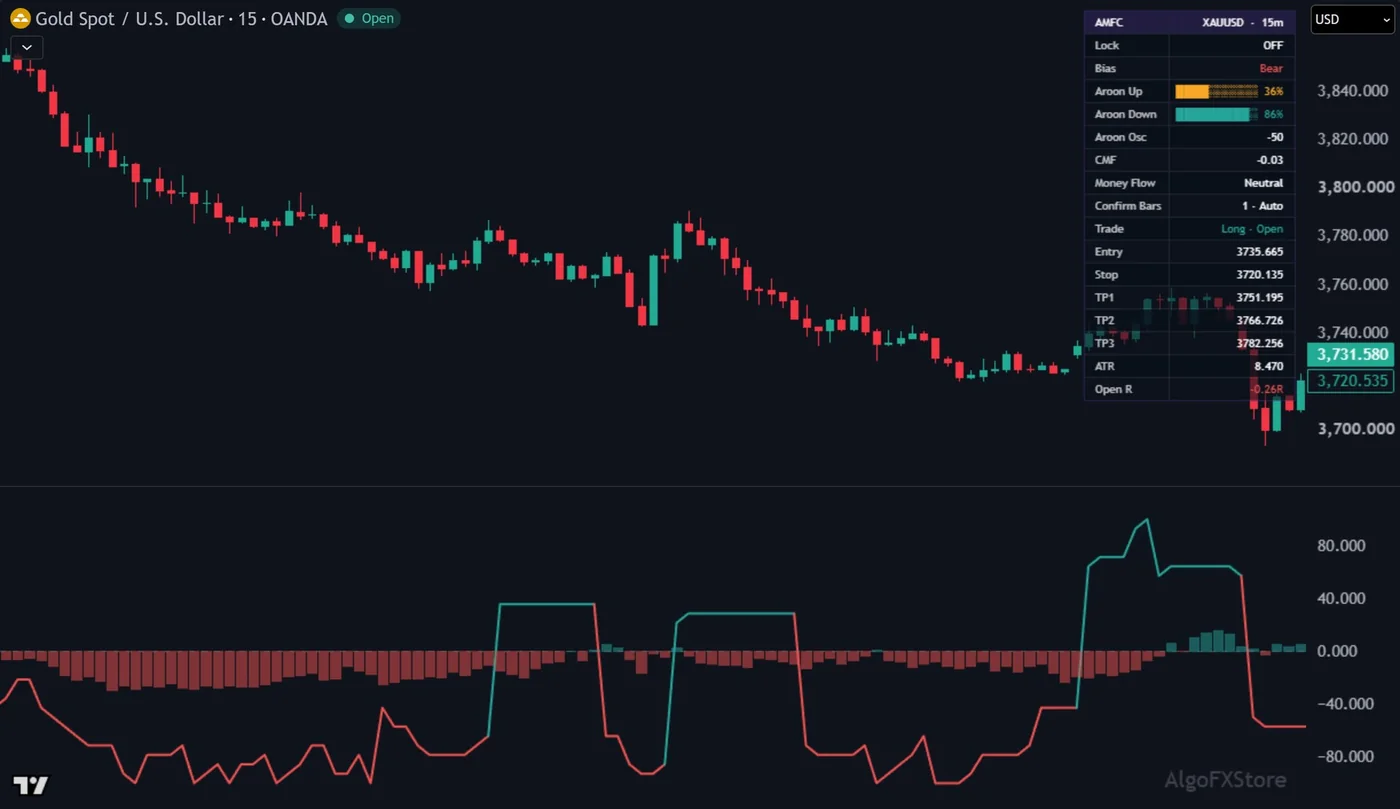
Every chart below is a screenshot of TradingView itself with the shipped Aroon Money Flow Confluence [AlgoFXStore] attached at its default settings. Forex, metals, indices, energy and crypto, so you can see how it reads each kind of market. They show what the indicator draws; they are not trading results. Tap or click any chart to open it full size.
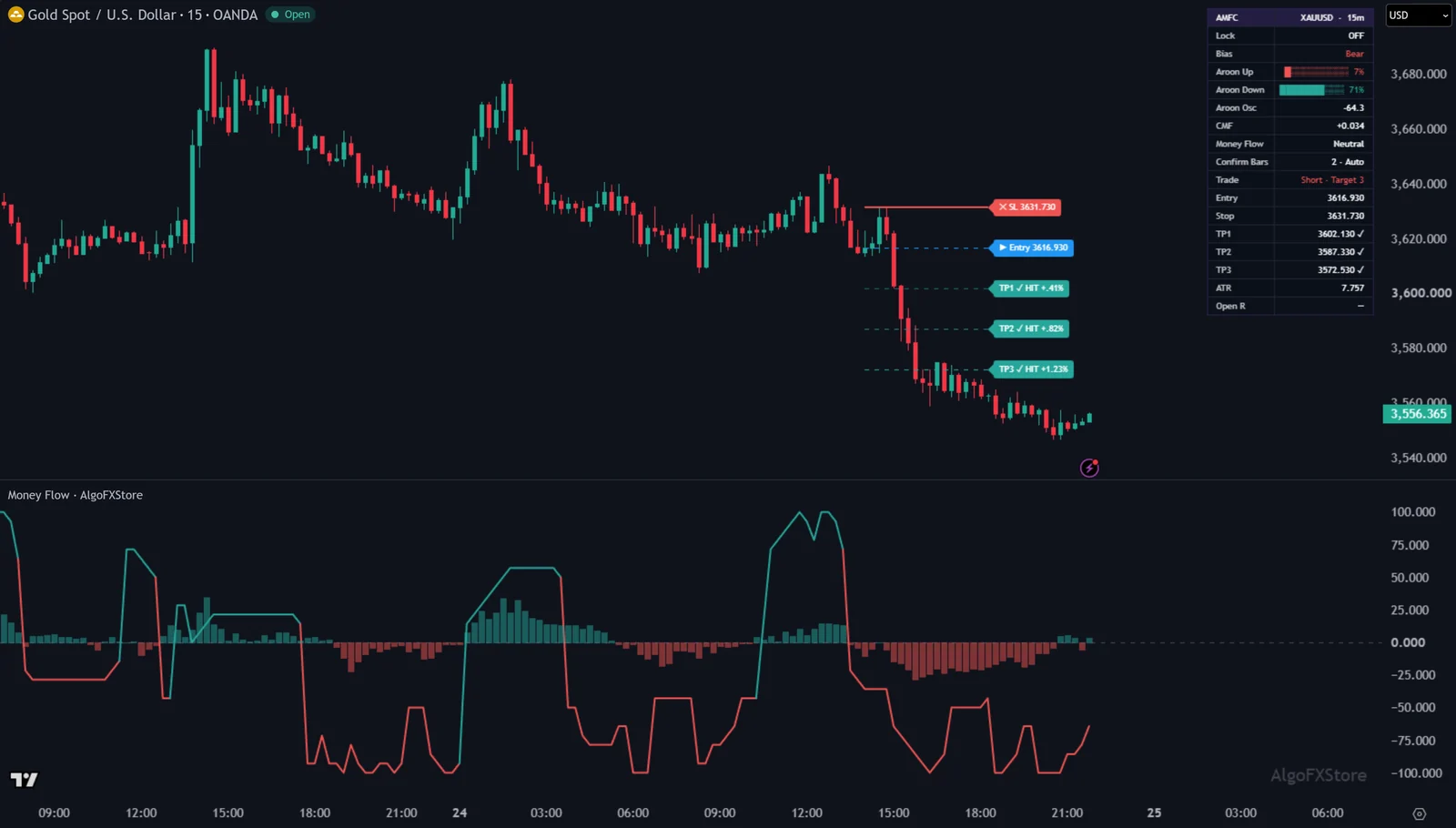
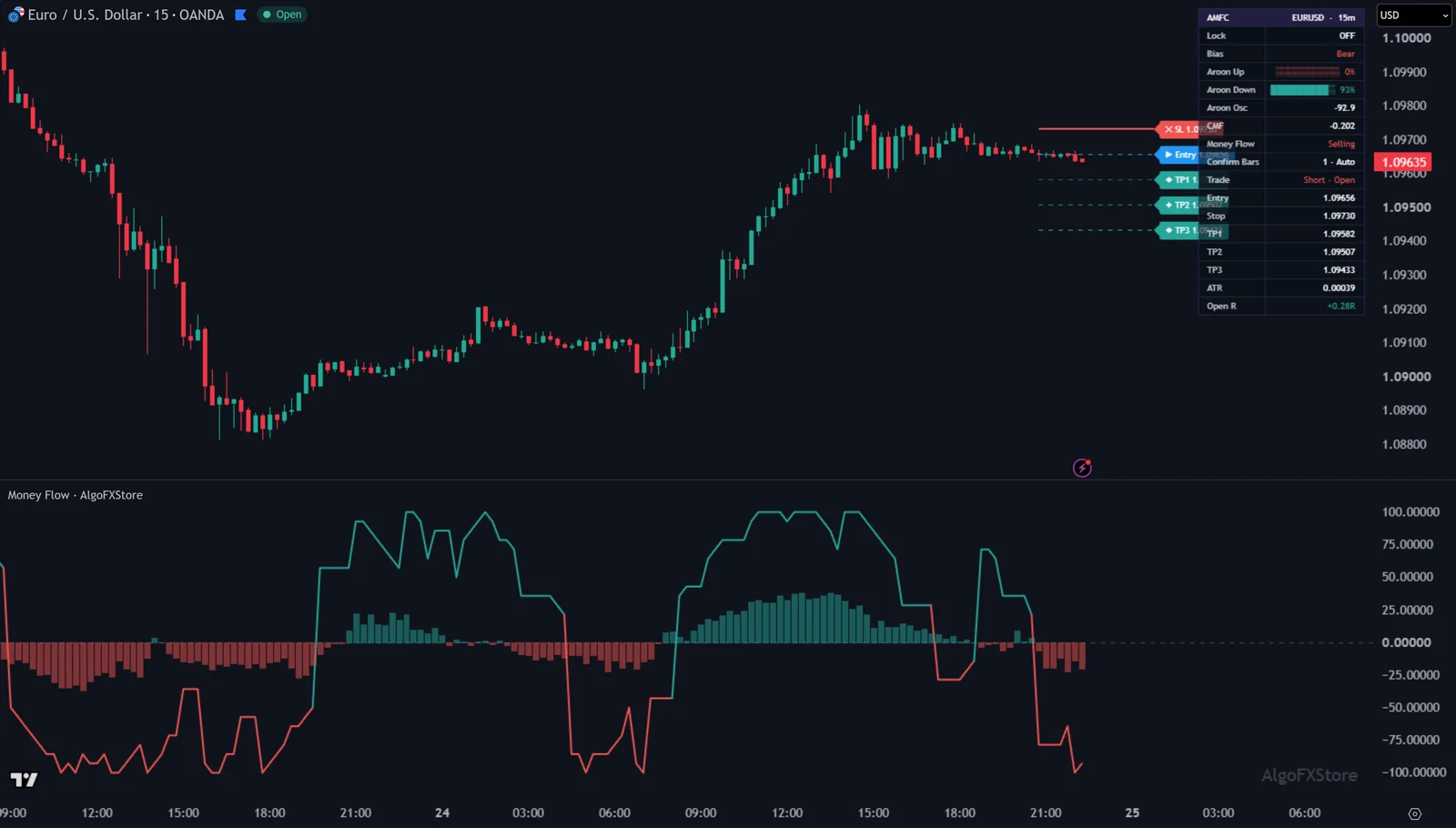
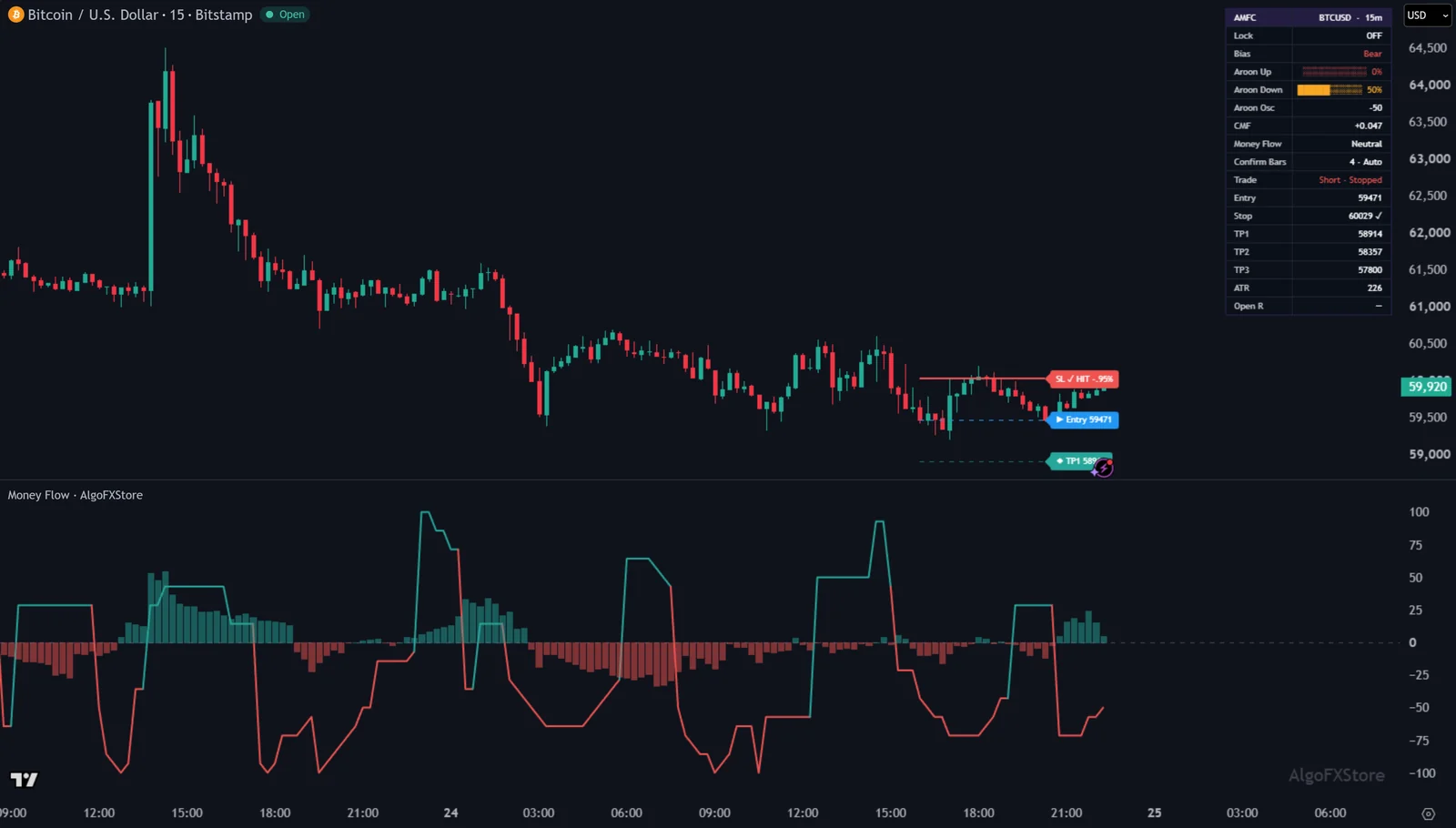
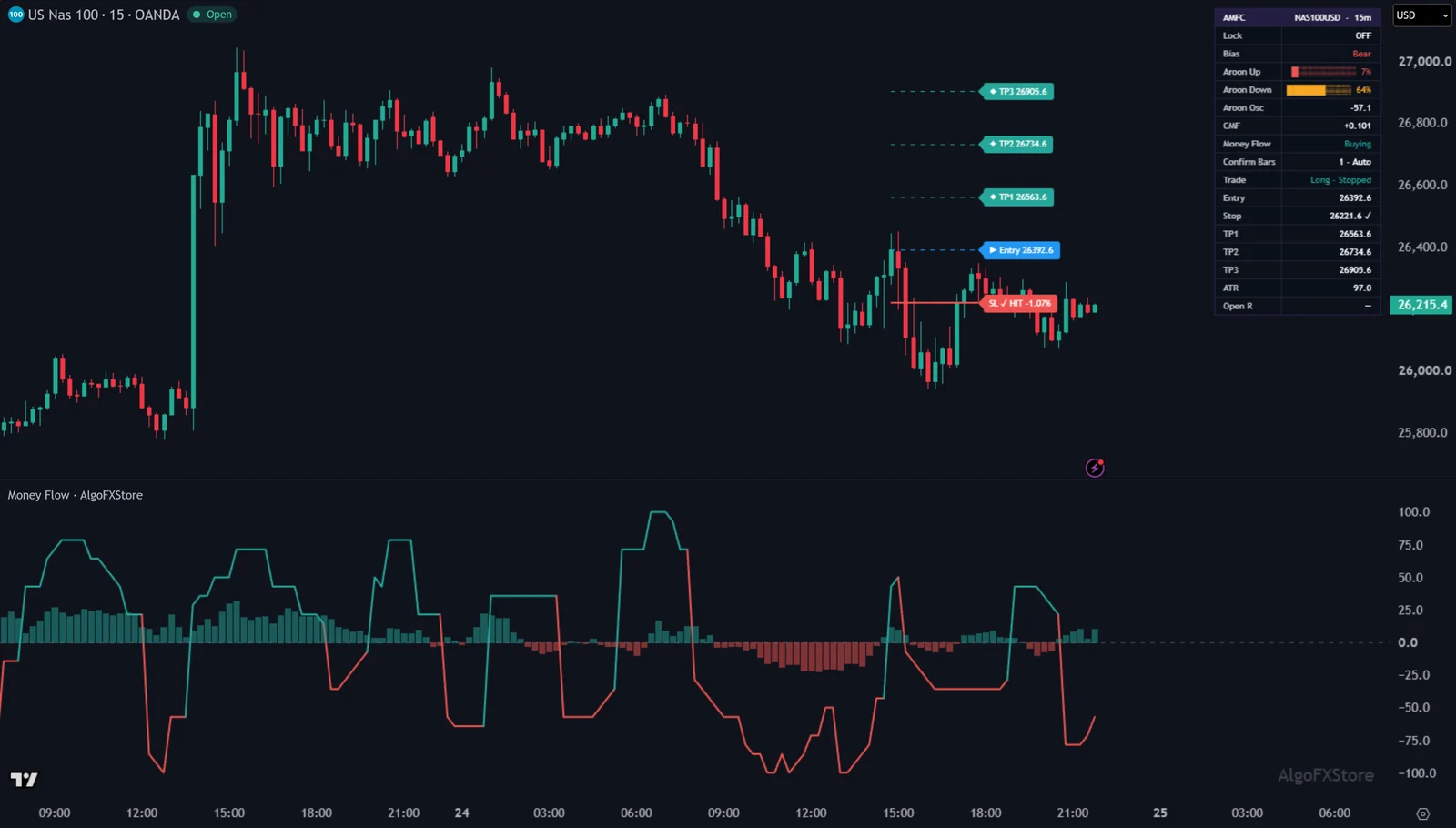
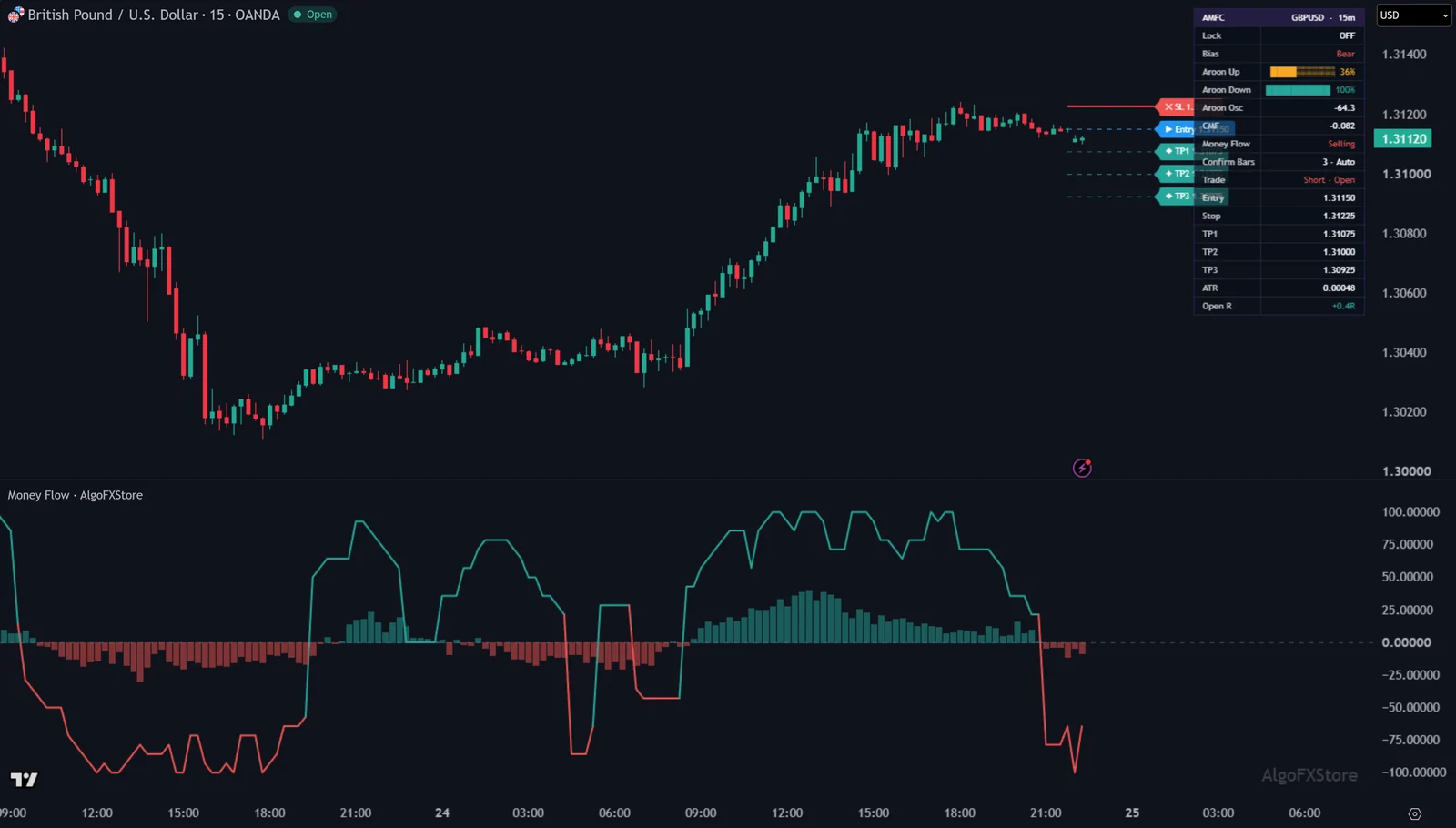
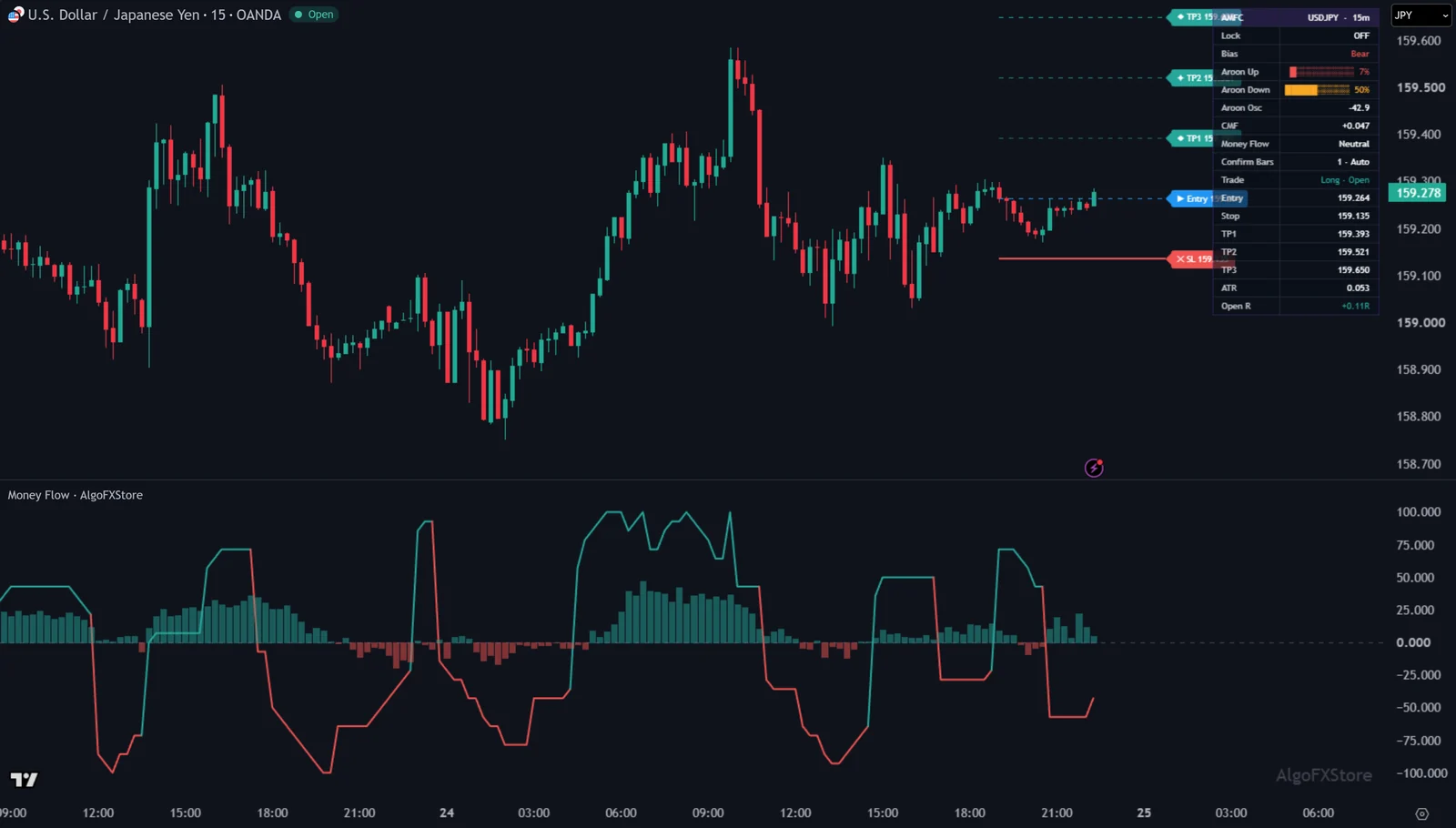
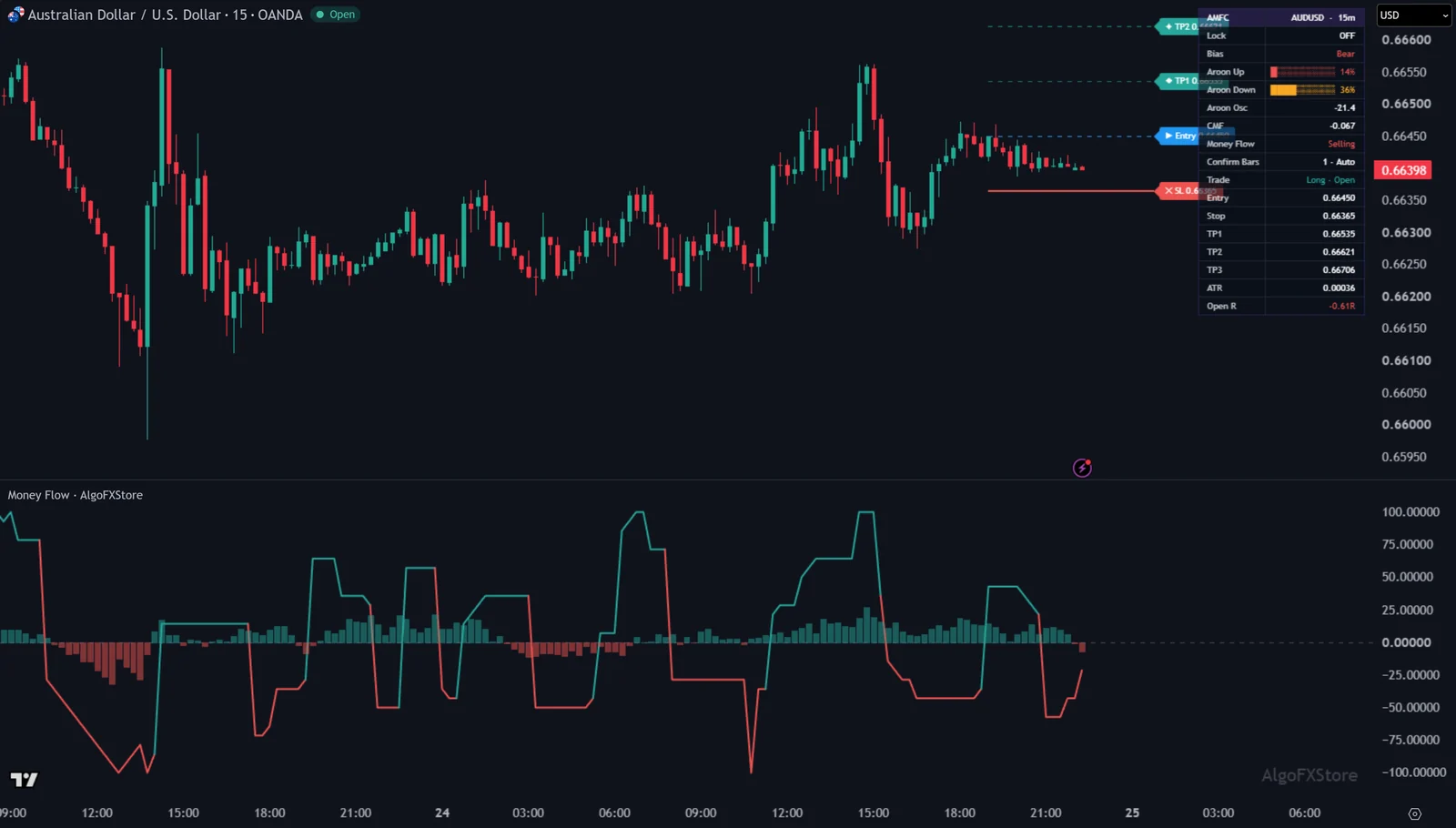
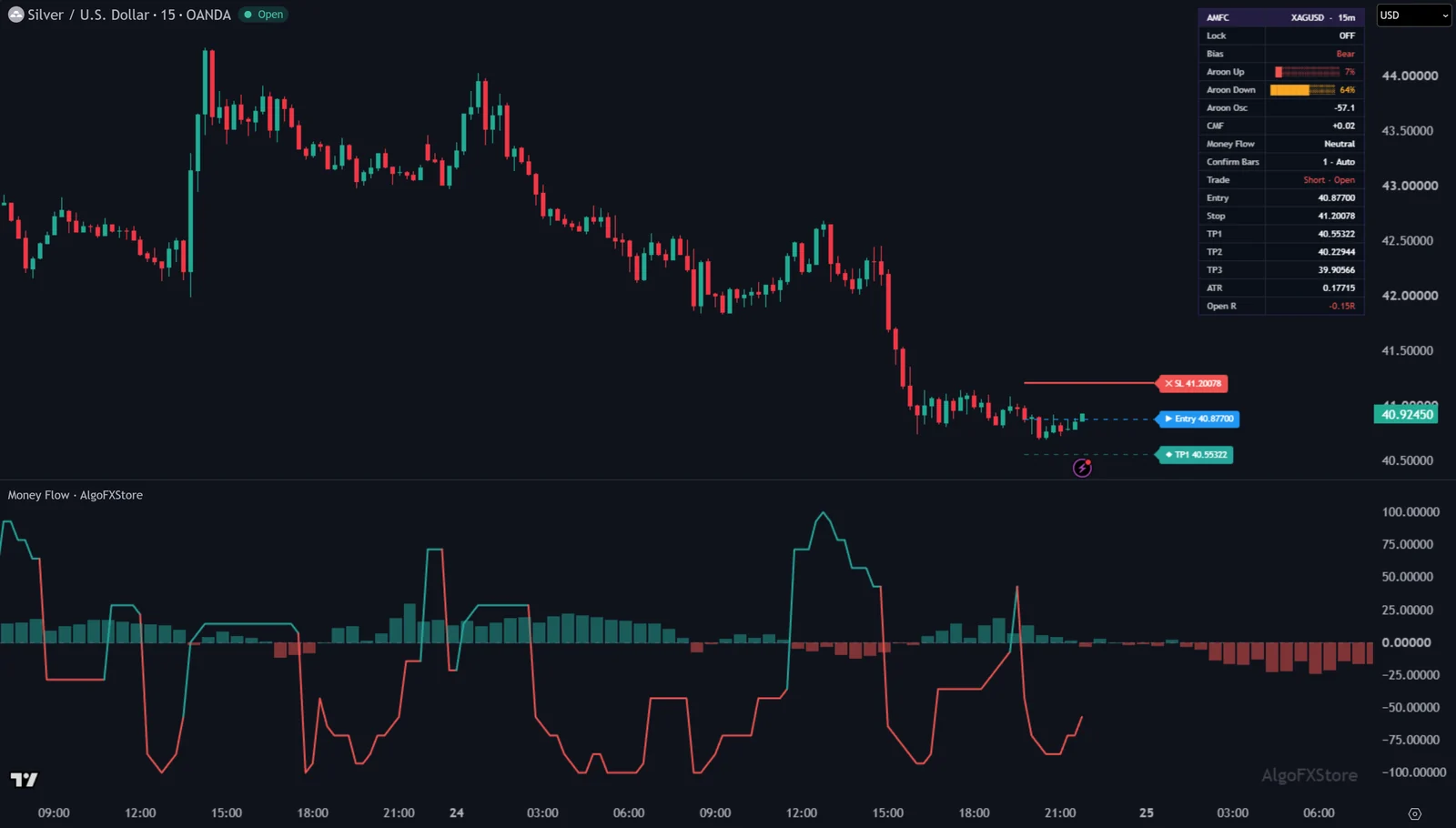
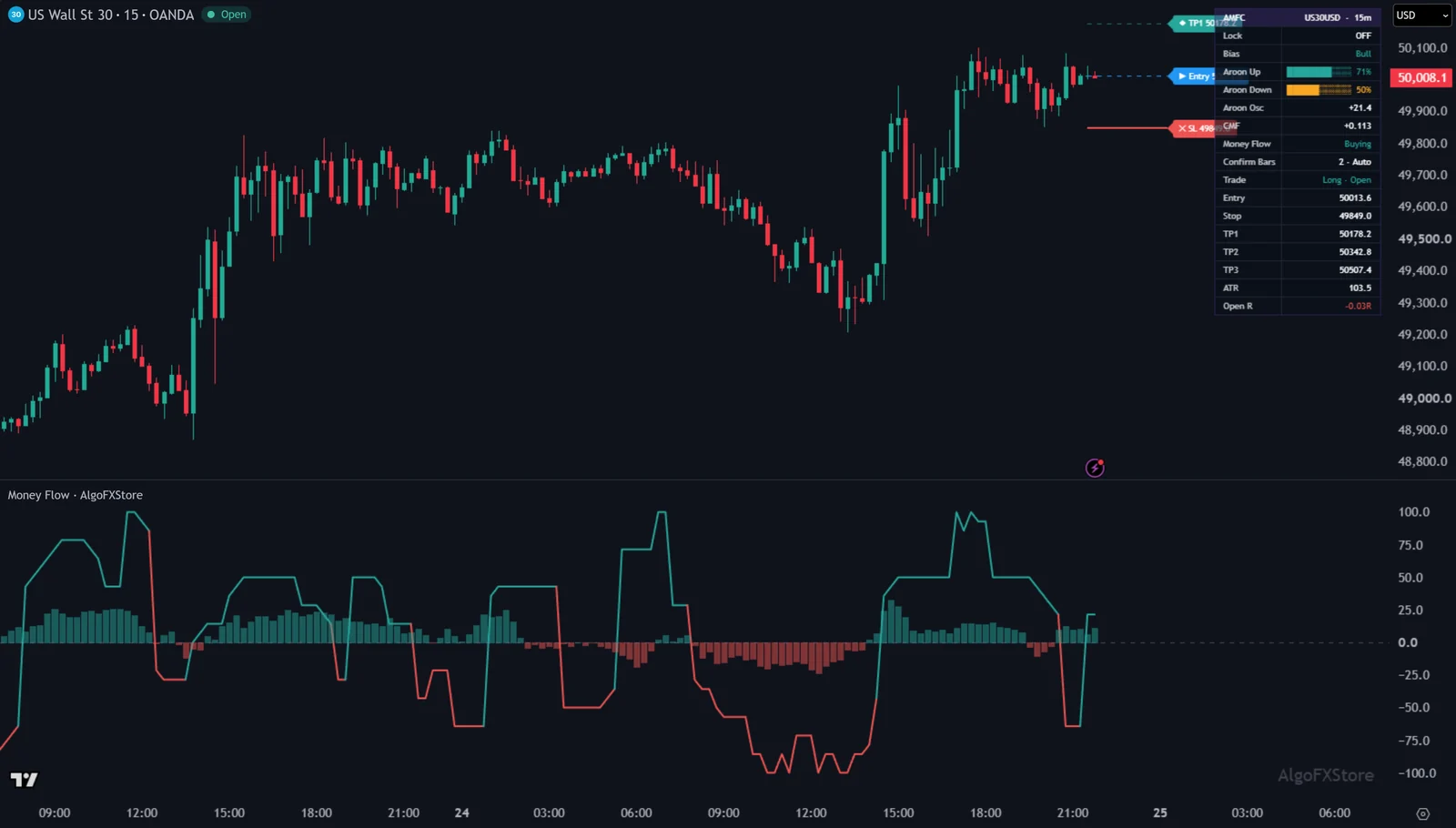
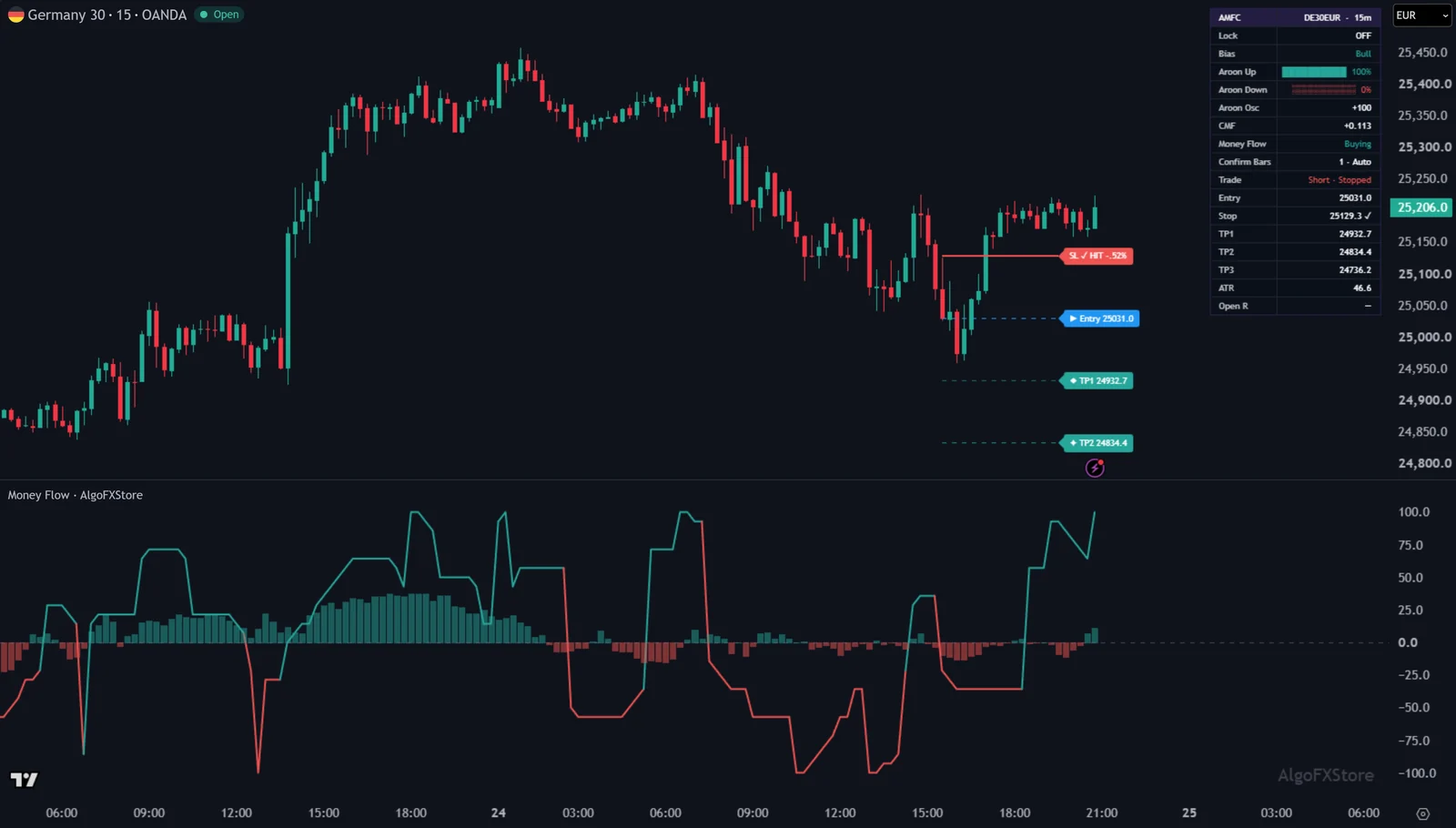
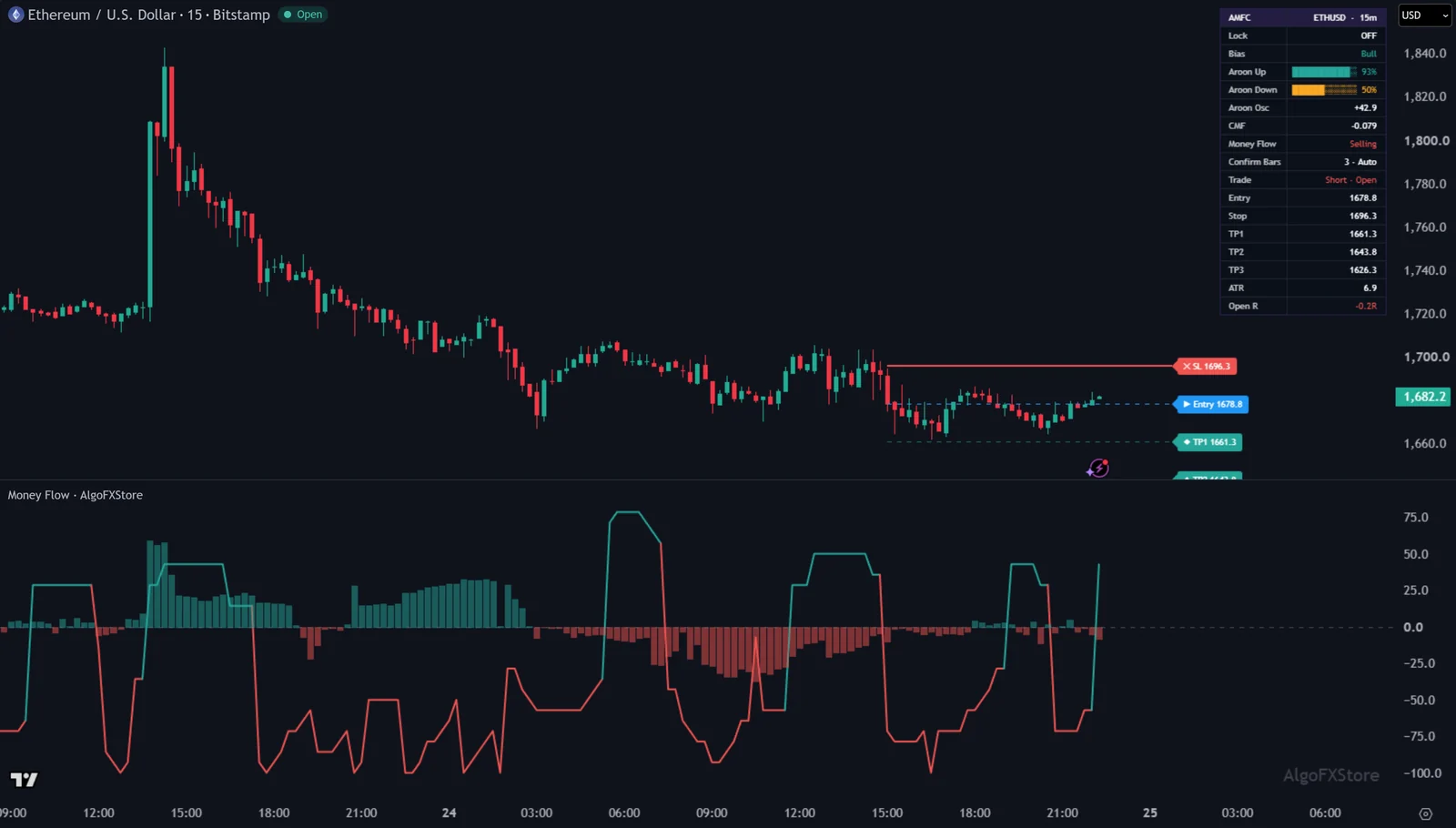
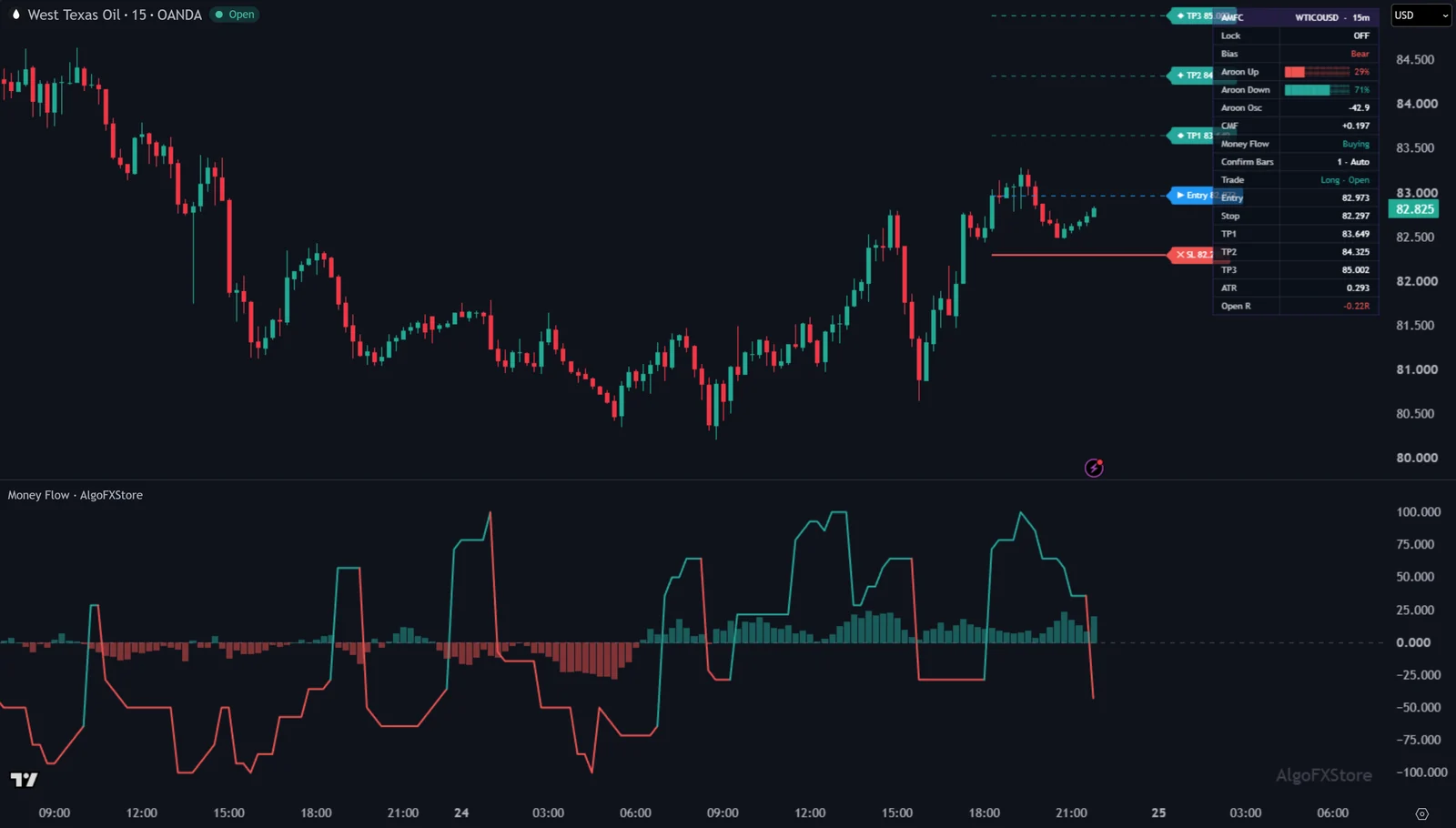
Aroon Money Flow Confluence on a real TradingView chart, frame by frame
Frames of a screen recording of the shipped indicator at its default settings, as the chart updates. Nothing is edited into the chart.
A step-by-step way to use it on your charts
The indicator decides when the two readings agree and where the levels sit. Whether you take the trade, and with what size, stays your decision. A routine you can start from and test on a demo account:
- 1
Start on a chart with volume
Money flow needs volume, so use a symbol whose feed carries it; forex and CFD feeds usually supply tick volume. Suggested starting charts are 15 minutes and 1 hour for gold and indices, 1 hour and 4 hours for forex and crypto. Use standard candles: Heikin Ashi, Renko and similar chart types stop the indicator with an error.
- 2
Wait for the closed-bar signal
Do nothing while the readings are only drifting. Act when a bar closes and the BUY or SELL plan appears on the price chart, or when the BUY Signal or SELL Signal alert arrives. Check the dashboard: Bias and Money Flow should agree, and a Money Flow reading that barely passes the buffer is a thin signal.
- 3
Check it against the bigger picture
Switch on HTF Confirm with a timeframe about four times the chart, for example 1 hour on a 15 minute chart, and the dashboard's HTF row shows whether the higher timeframe agrees. In sideways markets, Trend Strength filters out signals when ADX is below 20. If signals still come too often, try EMA or KAMA smoothing of 10.
- 4
Size from the drawn stop
The stop distance is 1R. Work out your position size from that distance and a fixed risk per trade, rounded down to your broker's lot step. The stop moves with ATR on every signal, so size each trade again. If even the smallest size risks too much, skip the signal or use a lower timeframe.
- 5
Scale out at the targets
The three targets suit scaling out, for example a third at TP1, a third at TP2 and the rest at TP3. When a target is touched, its label changes to a HIT label with the percent move and the Partial Close alert fires. Moving your own stop to the entry after TP1 is a common choice; the indicator keeps tracking its original stop.
- 6
Know how the trade ends
TP3 or a bar close beyond the stop ends the trade, and a new signal replaces an open one, closing it as replaced or reversed. The Close Long or Close Short alert tells you either way. Note that the indicator's stop is judged on a close while a broker stop fills on a touch; decide which one you follow before you enter.
The dashboard, row by row
- Header: 'AMFC' | '<ticker> · <timeframe>' (e.g. 'XAUUSD · 15m')
- Lock: OFF / ACTIVE
- Bias: Bull / Bear / Neutral (sign of the Aroon Oscillator)
- Aroon Up: 10-block bar + percent
- Aroon Down: 10-block bar + percent
- Aroon Osc: signed value, e.g. +71.4
- CMF: signed value, e.g. +0.128
- Money Flow: Buying / Selling / Neutral (CMF against the Flow Buffer)
- Confirm Bars: '<n> · Auto' or '<n> · Manual
- Trade: Flat / 'Long · Open' / 'Short · Target 1'... 'Target 3' / 'Stopped
- Entry, Stop, TP1, TP2, TP3: prices, ' tick ' after each level reached
- ATR: ATR(14) value
- Open R: result of the open trade at the current close in multiples of the stop distance (- once closed)
- Optional rows: HTF '<tf> · Bull/Bear' or '· Skipped' (HTF Confirm on), ADX Prev '<adx> / 20' (Trend Strength on), Smoothing '<method> <len>' (smoothing on), warnings 'Volume None · no signals' and 'Targets Reordered
Everything Aroon Money Flow Confluence does for you
Timing and volume in one rule
A signal needs the Aroon Oscillator and Chaikin Money Flow on the same side, the agreement new on the bar, and the Aroon cross inside the confirm window. One reading alone never prints a signal.
A confirm window measured on your chart
Auto Confirm learns how many bars money flow usually takes to follow an Aroon flip on the loaded history, using the median of the last 20 gaps, between 1 and 20 bars. Switch it off to set the window by hand.
Signals decided on closed bars
BUY and SELL, the entry alerts and the stop are evaluated on confirmed bars. The optional higher-timeframe filter reads the last closed higher-timeframe bar, not the one still forming.
A full plan the moment it prints
Entry, a 1.5 x ATR(14) stop and targets at 1R, 2R and 3R appear on the price chart with prices. Stop distance and all three multiples are inputs; targets set out of order are sorted and the dashboard says so.
A dashboard that follows the trade
Header with symbol and timeframe, Lock, Bias, Aroon Up and Down bars, Aroon Osc, CMF, Money Flow, Confirm Bars, Trade state, Entry, Stop, TP1 to TP3 with a mark after each level reached, ATR and Open R. Four corner positions, on the price chart or in the pane.
Optional filters when markets chop
Higher-timeframe Aroon confirmation, an ADX trend-strength minimum and seven smoothing choices for both readings, all off by default so you can see the raw signals first and add filters one at a time.
Confluence candles
Switch on Candles and the price candles are painted green when Aroon and money flow agree up, red when they agree down and grey otherwise, so you see the agreement on price without looking at the pane.
Alerts for every stage of the trade
Six alertcondition alerts: BUY Signal, SELL Signal, Close Long, Close Short, Partial Close Long and Partial Close Short. An alert on Any alert() function call adds structured messages with the entry, stop and targets for webhook use on plans that include it.
Aroon Money Flow Confluence, feature by feature
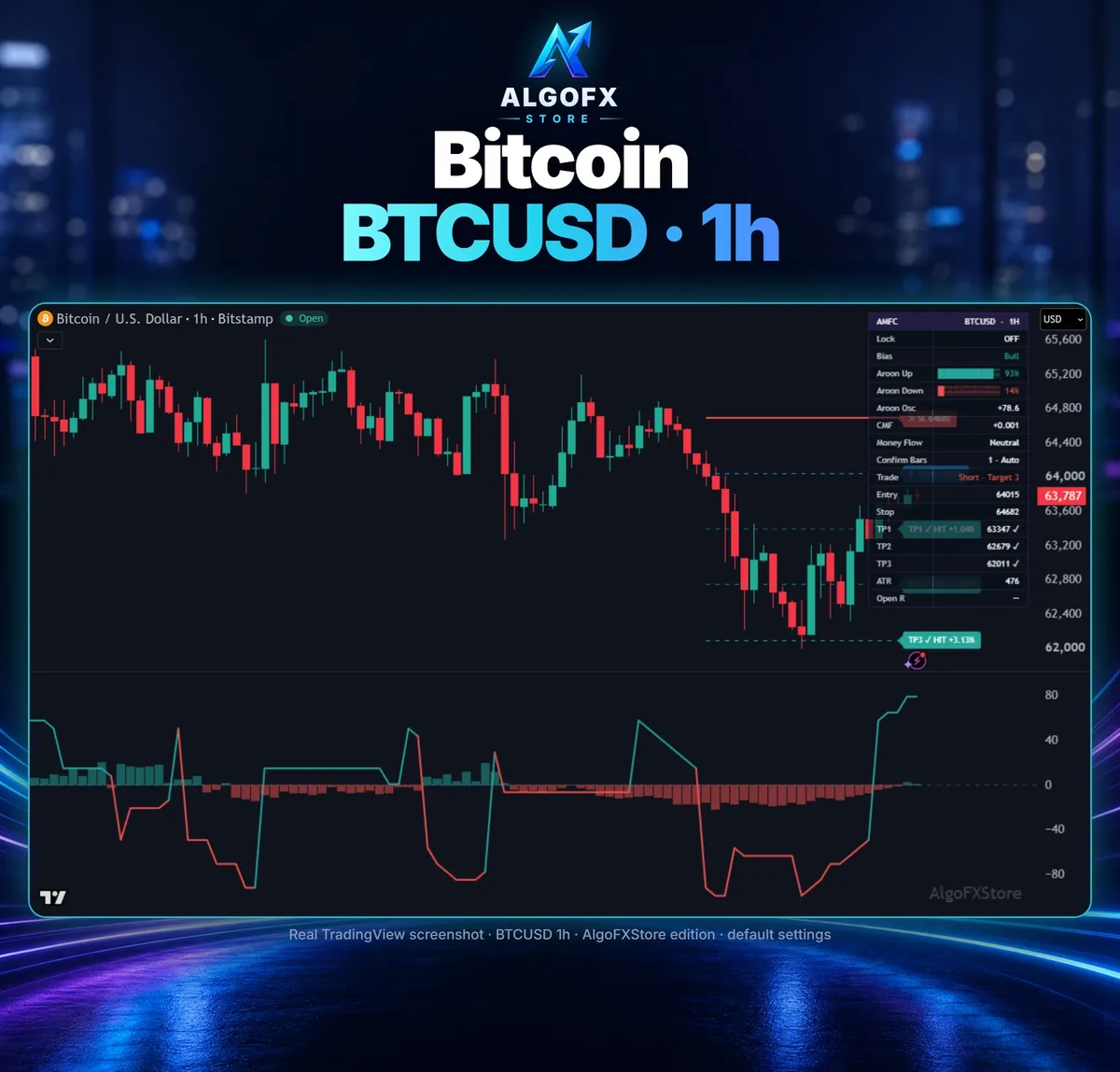
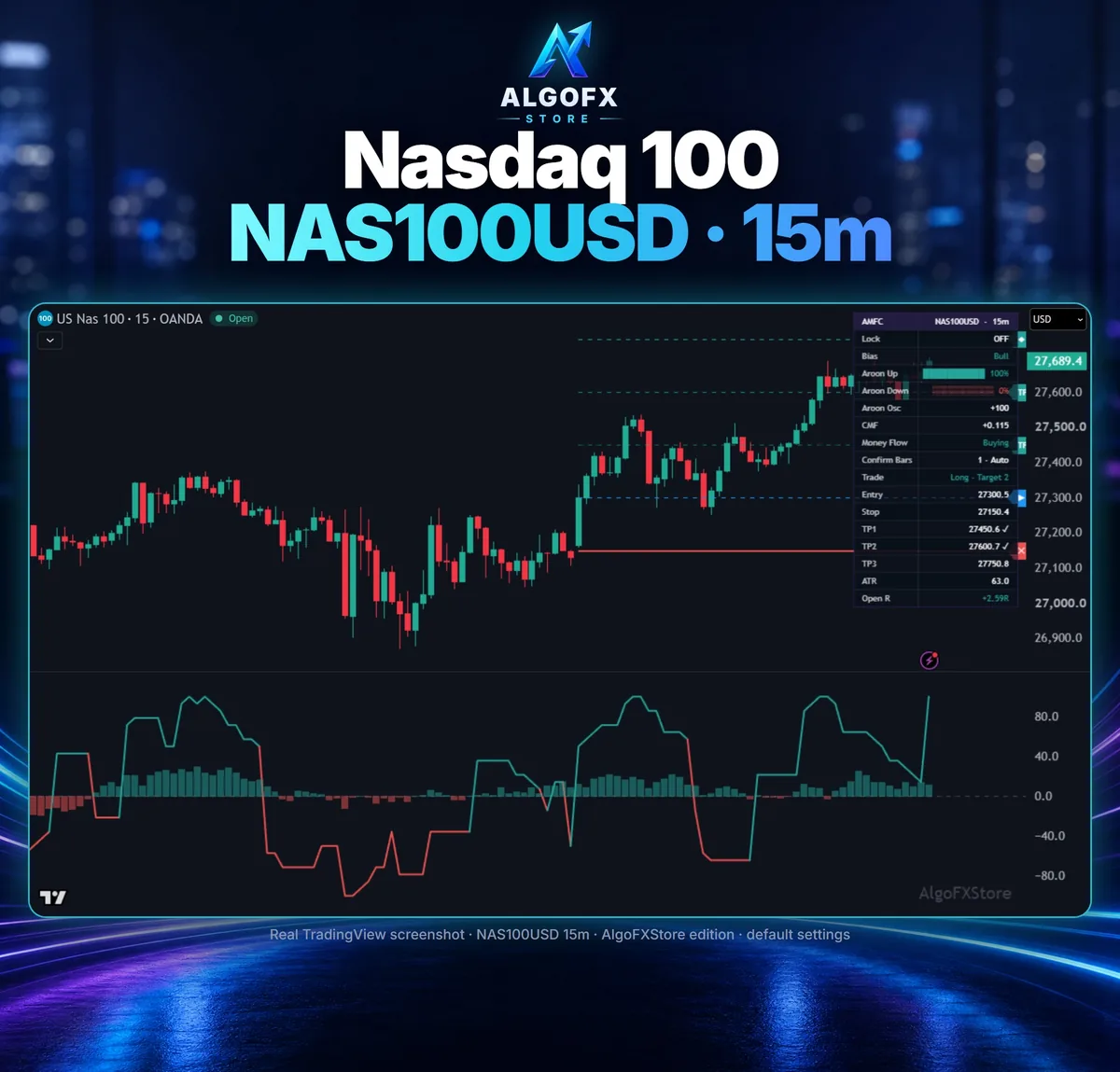
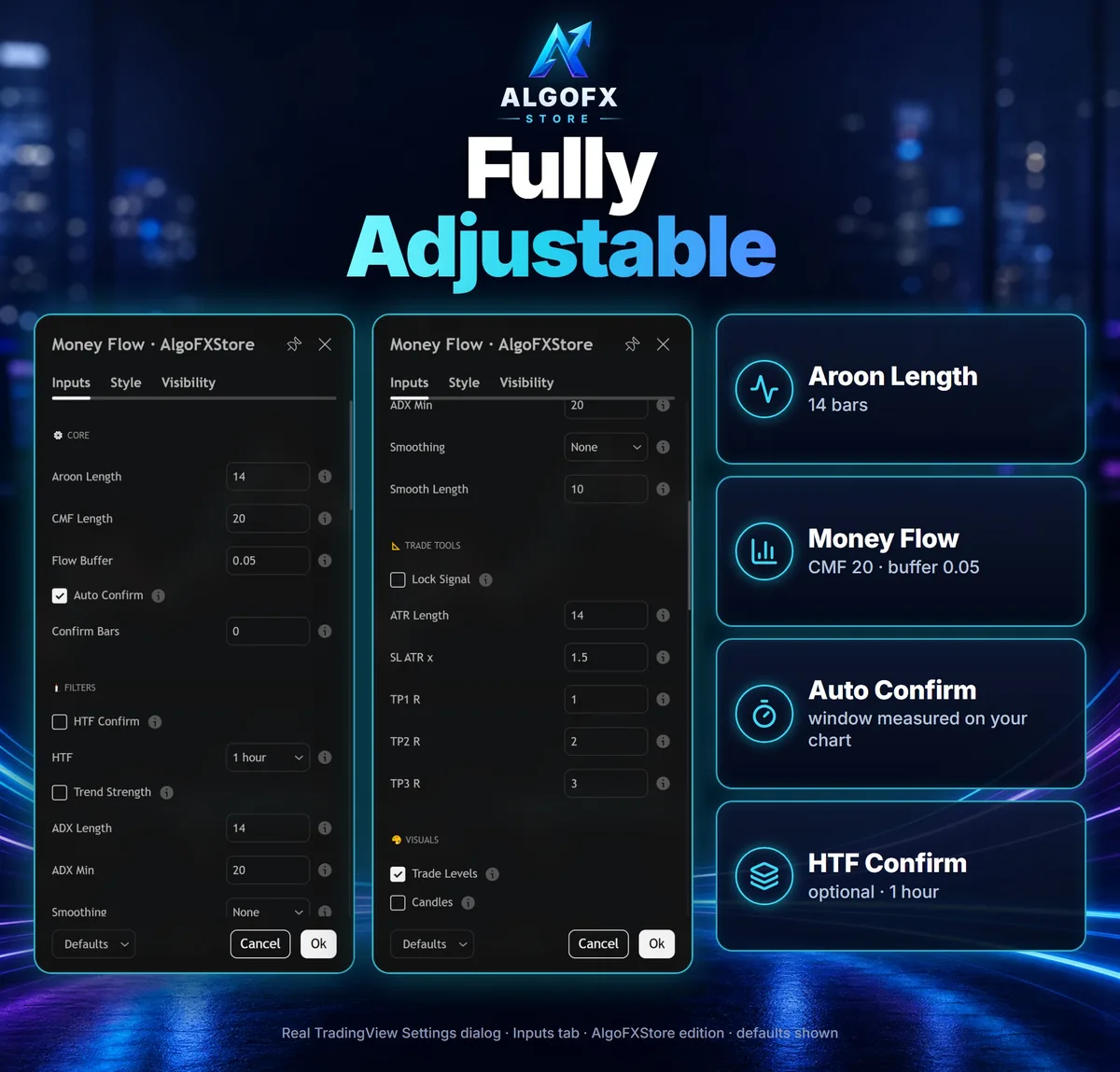
Each picture is built from real platform screenshots of the shipped indicator at its default settings, labelled so you can see what every part does. Tap any picture to open it full size.

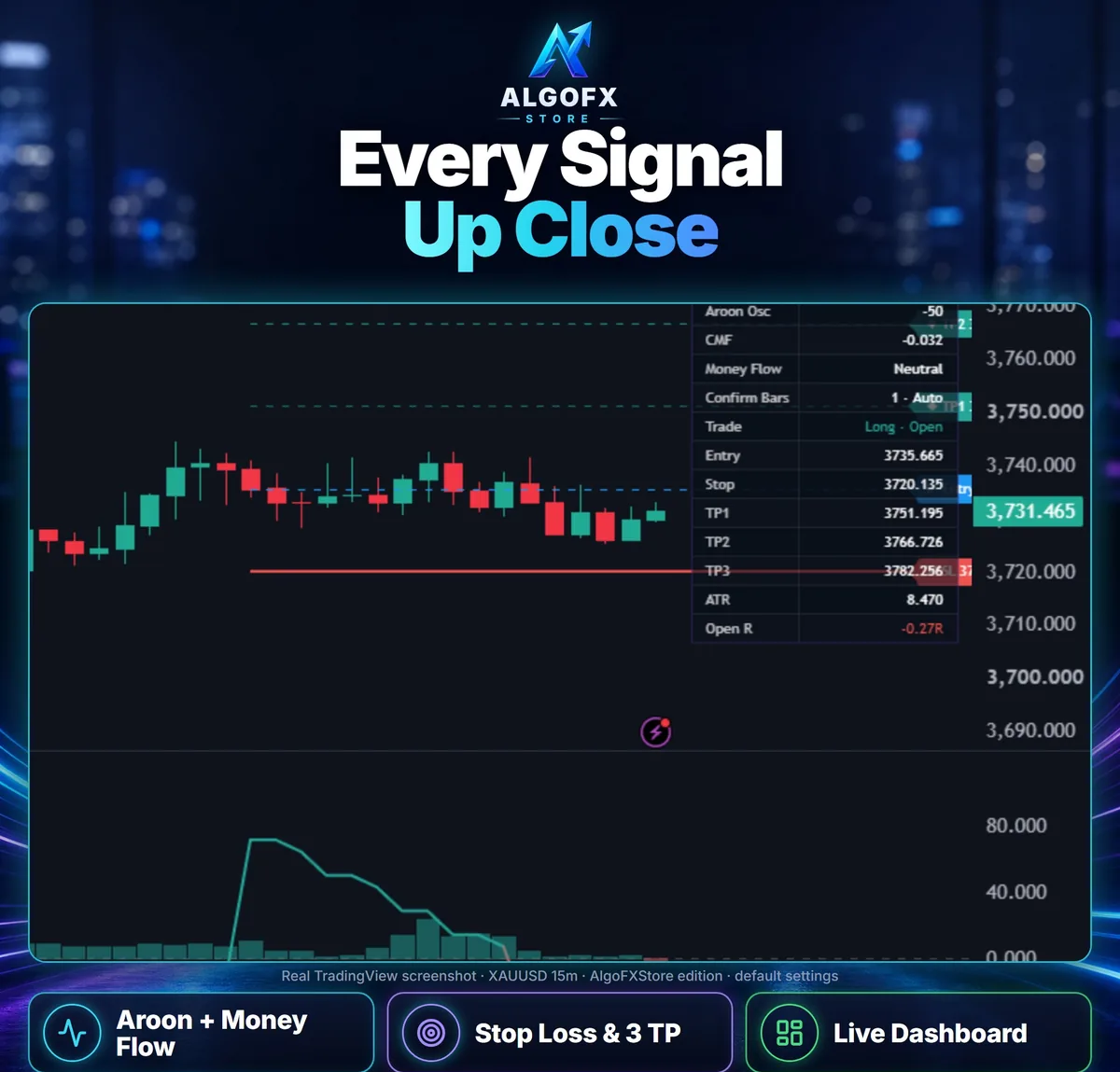
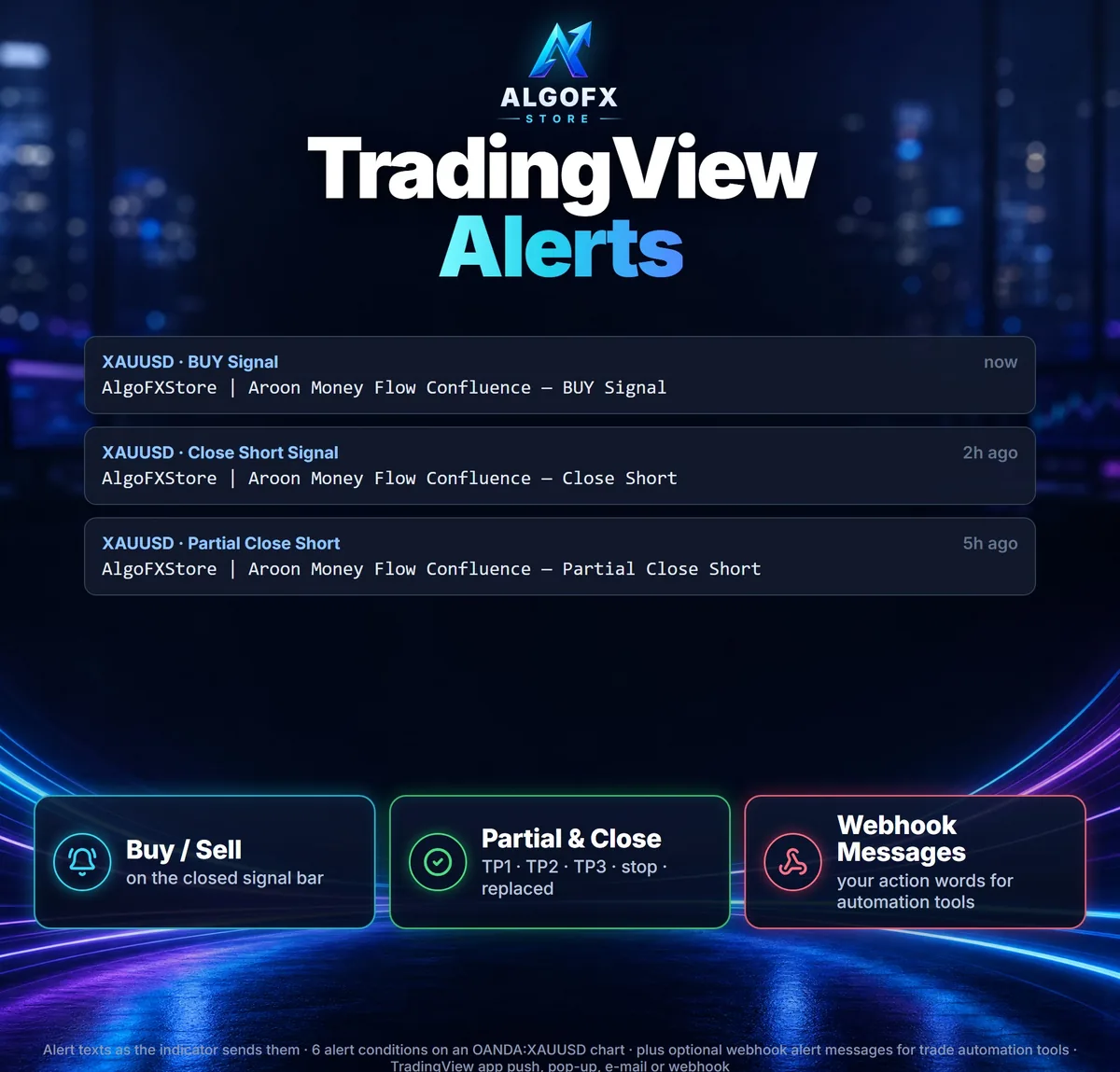
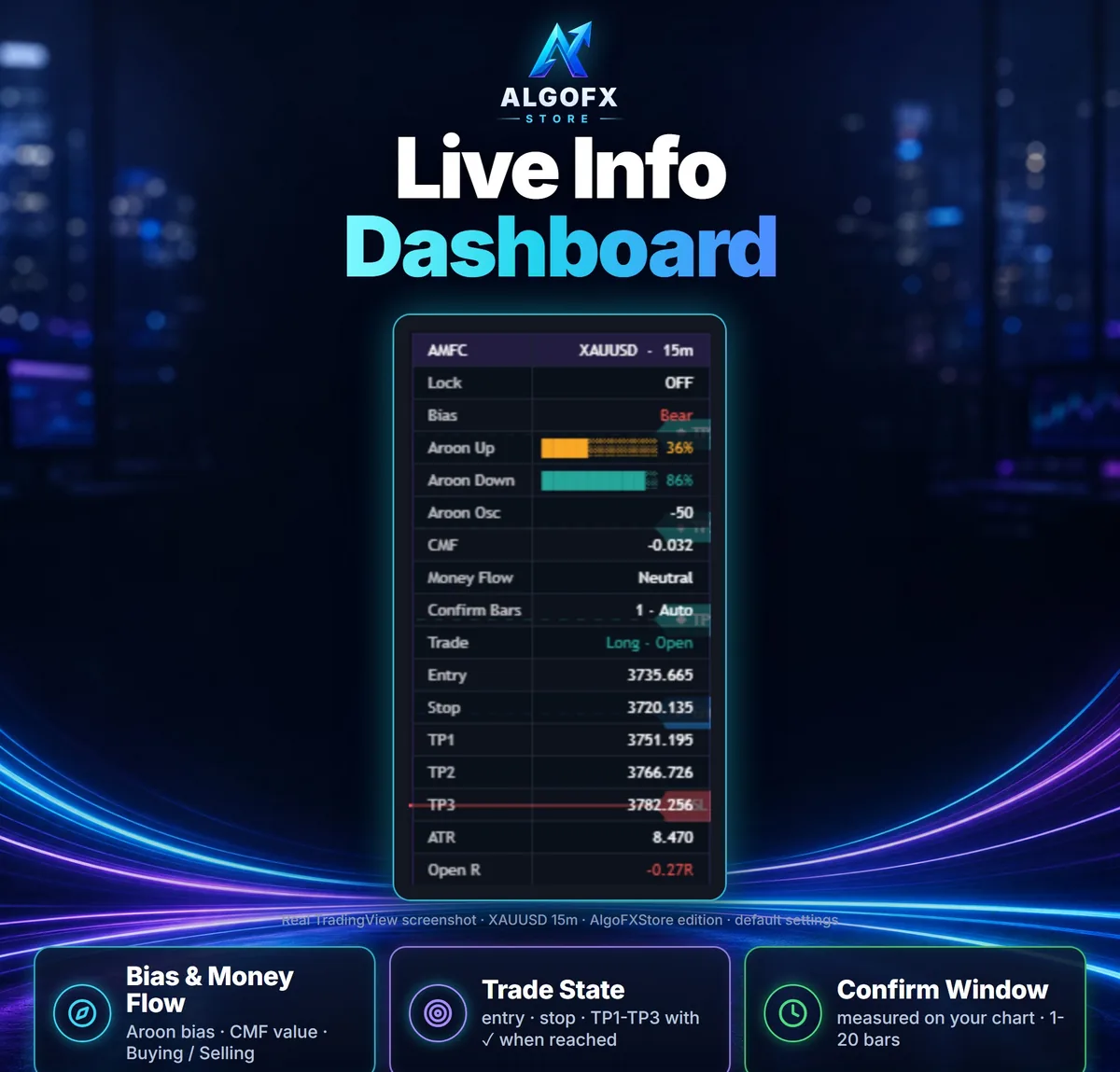

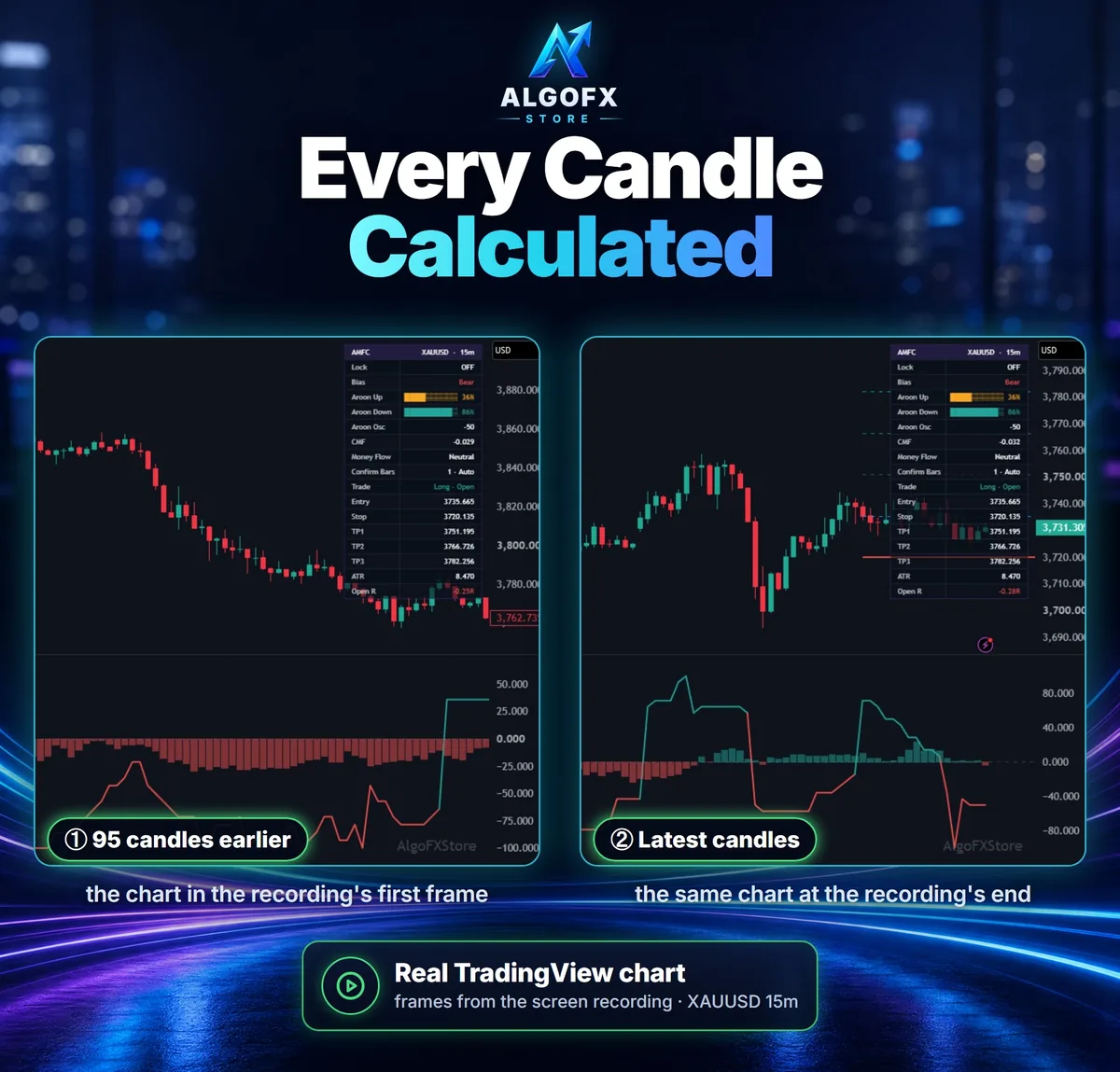
How traders put it to work
Gold on 15 minutes and 1 hour
Gold has large intraday swings and the defaults work well there. The most active hours are London and the London and New York overlap; signals in the quieter Asian session often meet less follow-through. Many traders take no new signal in the half hour around major US data.
Forex on 1 hour and 4 hours
Forex feeds supply tick volume, so money flow reads counted trades rather than exchange volume. On quiet pairs, raise the Flow Buffer to 0.08 to 0.10 to remove signals where money flow barely passes the line, and use HTF Confirm with a timeframe about four times the chart.
Crypto on 1 hour and 4 hours
Exchange feeds for bitcoin and other coins carry real volume, which suits the money flow side. Crypto trades around the clock and weekend volume is thinner, so a Money Flow reading of Neutral or barely past the buffer deserves more caution at the weekend.
Indices on 15 minutes and 1 hour
On index charts such as the NASDAQ 100, most useful signals come in the cash session. The first 15 minutes after the New York open are erratic; let them pass before trusting a new signal, and check that the stop fits your contract size, which varies by broker.
Short charts with filters on
On 1 to 5 minute charts signals come very often and tick-volume money flow is noisy. If you trade there, switch on Trend Strength and HTF Confirm with 15 or 60 minutes, and consider smoothing, so only the agreements that also fit the bigger move remain.
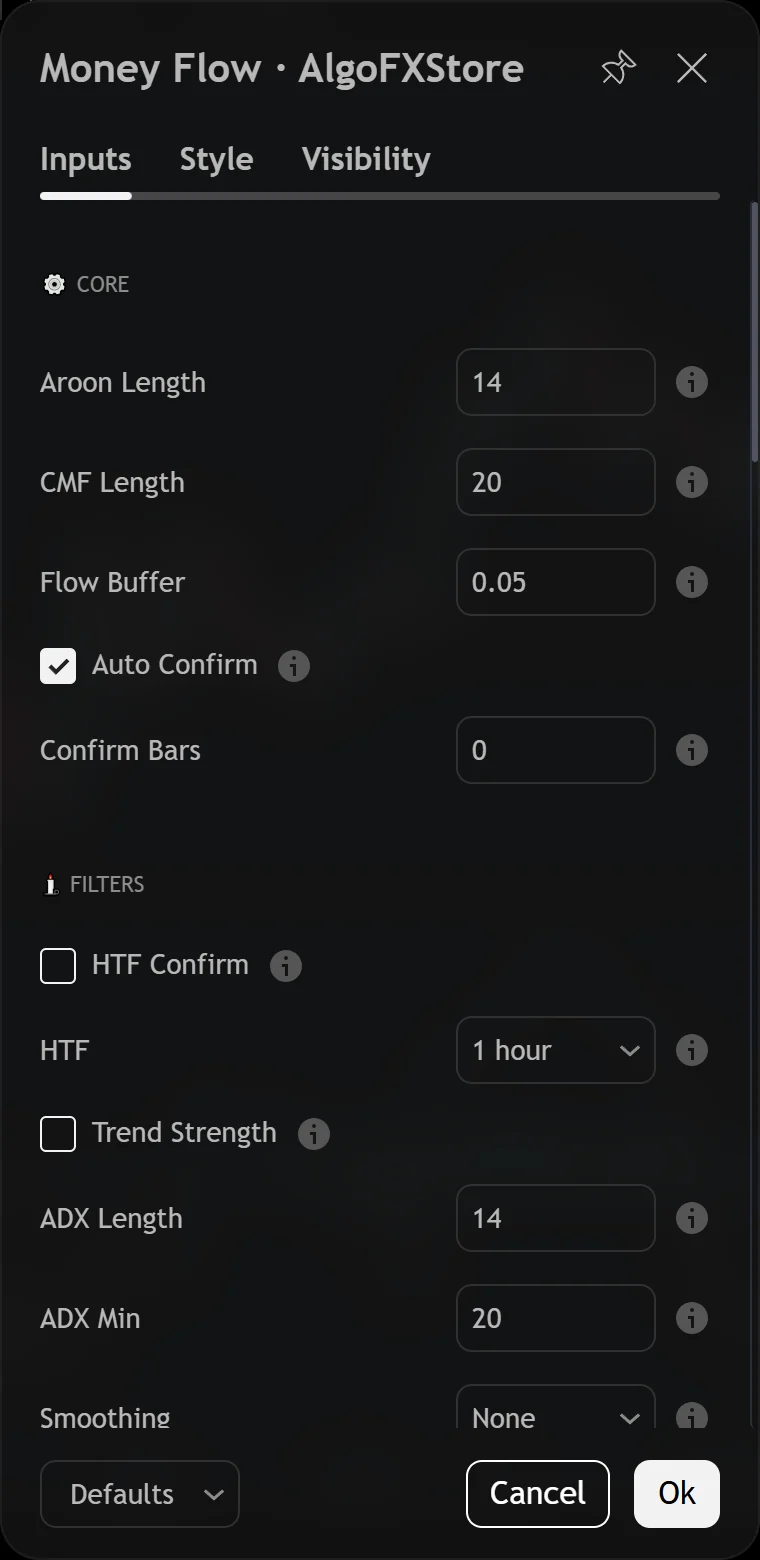
Every setting, with its default
The names are the ones in the script's Settings dialog in TradingView (Inputs tab); the defaults are what every chart on this page uses. Open a group to see its settings.
Core (5)
| Setting | Default | What it does |
|---|---|---|
| Aroon Length | 14 | Window for Aroon Up / Down (2-5000). |
| CMF Length | 20 | Bars summed for Chaikin Money Flow (2-5000). |
| Flow Buffer | 0.05 | CMF must be above +buffer for a long, below -buffer for a short (0-0.5; 0 = zero line). |
| Auto Confirm | on | Measures the confirm window on the chart (median of the last 20 flip-to-agreement gaps, 1-20 bars; 5 bars until 5 gaps exist). |
| Confirm Bars | 0 | Used only with Auto Confirm off: how many bars the Aroon flip may come before money flow agrees (0-20). |
Filters (7)
| Setting | Default | What it does |
|---|---|---|
| HTF Confirm | off | Long needs the higher-timeframe Aroon Oscillator above 0, short below 0 (last closed HTF bar). |
| HTF | 60 | Higher timeframe (1 hour); lower than the chart = skipped and shown on the dashboard. |
| Trend Strength | off | Signal needs the previous bar's ADX at or above ADX Min. |
| ADX Length | 14 | Length of the DMI / ADX. |
| ADX Min | 20 | Minimum ADX (0-100). |
| Smoothing | None | None, EMA, RMA, WMA, HMA, KAMA, Kalman - applied to the oscillator and CMF before signals. |
| Smooth Length | 10 | Length of the smoothing (no effect with None). |
Trade Tools (6)
| Setting | Default | What it does |
|---|---|---|
| Lock Signal | off | Blocks new signals on the live bar. |
| ATR Length | 14 | ATR for the stop distance. |
| SL ATR x | 1.5 | Stop distance in ATR from the entry (the signal bar's close). |
| TP1 R | 1 | TP1 at 1 x the stop distance. |
| TP2 R | 2 | TP2 at 2 x the stop distance. |
| TP3 R | 3 | TP3 at 3 x the stop distance; reaching it closes the trade. |
Visuals (5)
| Setting | Default | What it does |
|---|---|---|
| Trade Levels | on | Stop, entry and target lines and labels on the price chart (hit tracking and alerts run with it off). |
| Candles | off | Confluence candles on the price chart. |
| Aroon Osc | on | Aroon Oscillator line in the pane. |
| CMF | on | CMF % columns in the pane. |
| Zero Line | on | Zero line of the pane. |
Dashboard (3)
| Setting | Default | What it does |
|---|---|---|
| Show Dashboard | on | Full dashboard; off = only active warnings. |
| Position | Top Right | Top Right, Top Left, Bottom Right, Bottom Left. |
| Show on Price Chart | on | Dashboard on the price chart; off = in the indicator pane. |
Alerts (6)
| Setting | Default | What it does |
|---|---|---|
| Long Action | long | Action word in the long-entry webhook message. |
| Short Action | short | Action word in the short-entry webhook message. |
| Close Long Action | closelong | Action word when a long closes (TP3, stop, replaced). |
| Close Short Action | closeshort | Action word when a short closes. |
| Partial Close Long Action | partialcloselong | Action word when a long reaches TP1 or TP2. |
| Partial Close Short Action | partialcloseshort | Action word when a short reaches TP1 or TP2. |
Colors (19)
| Setting | Default | What it does |
|---|---|---|
| Bull | #26a69a | Aroon line above zero, Bull candles, bullish dashboard values. |
| Bear | #ef5350 | Aroon line below zero, Bear candles, bearish values, Lock ACTIVE. |
| Candle Neutral | #787b86 | Candles when the readings do not agree. |
| CMF Up | #26a69a 50 % | CMF columns at or above zero. |
| CMF Down | #ef5350 50 % | CMF columns below zero. |
| Zero Line | #787b86 50 % | Zero line. |
| SL | #ef5350 | Stop line; label at full opacity. |
| Entry | #2196f3 | Entry line and label. |
| TP1 | #26a69a 40 % | TP1 line; label at full opacity. |
| TP2 | #26a69a 20 % | TP2 line; label at full opacity. |
| TP3 | #26a69a | TP3 line and label. |
| Label Text | #ffffff | Text of the level labels. |
| Bar High | #26a69a | Dashboard bars at 66 % and above, a passing filter row. |
| Bar Mid | #f9a825 | Dashboard bars 33-66 %. |
| Bar Low | #ef5350 | Dashboard bars below 33 %, a failing filter row. |
| Warning Fill | #f9a825 80 % | Fill of warning rows. |
| Dash Header | #3a2a6d 55 % | Header row fill. |
| Dash Background | #0a0f1a 10 % | Row background (alternate rows faded). |
| Dash Text | #ffffff | Dashboard text. |
The alert events, one by one
In TradingView: Create alert, choose “Aroon Money Flow Confluence [AlgoFXStore]” as the condition and pick the event. TradingView then notifies you the way you set in that dialog: a pop-up in TradingView, a sound, the TradingView app on your phone or an e-mail.
- BUY Signal
- SELL Signal
- Close Long Signal
- Close Short Signal
- Partial Close Long
- Partial Close Short
- Long / short entry (once per bar close)
- TP1 / TP2 partial close (once per bar)
- TP3 close (once per bar)
- Stop close (once per bar close)
- Replaced / reversed by a new signal (once per bar close)
Aroon Money Flow Confluence next to the usual options
Where it wins, and where it does not.
| Aroon Money Flow Confluence | Typical free Aroon or money flow indicator | Reading it by hand | |
|---|---|---|---|
| What a signal needs | Aroon and money flow on the same side, a new agreement and a recent Aroon cross | One line crossing zero or a level | Two panes judged by eye, case by case |
| When a signal is final | Decided on the closed bar | Varies, often not stated | When you decide to look |
| Trade plan | Entry, ATR stop and three R targets on the price chart | None | You measure and draw every level |
| Trade follow-up | Dashboard with trade state, levels reached and Open R, plus close and partial-close alerts | None | Your own notes |
| Past trade plans | Only the latest plan stays on the price chart; older ones are removed | Not applicable | Whatever you keep drawn |
| Simplicity | 51 inputs and a 17-row dashboard to learn, though the defaults work as shipped | A length and a level | No software to learn at all |
| Cost | A one-time payment | Free | Free, paid for in screen time |
Honest about who this fits
A good fit if you
- You already use momentum or volume tools and want them to confirm each other before you act.
- You prefer signals that are decided on a closed bar and stay where they printed.
- You like having the entry, stop and three targets drawn the moment a signal appears.
- You trade gold, forex, crypto or indices on TradingView, mostly from 15 minutes to 4 hours.
- You want a dashboard that tells you whether a trade is open, which levels were reached and where it stands in R.
Not for you if you
- Traders who want the indicator to place or close orders: it draws and alerts, it never sends an order.
- Anyone trading symbols without volume data: without volume, money flow is undefined and no signal fires.
- Traders who use Heikin Ashi, Renko or other non-standard chart types: the indicator stops with an error on them.
- Anyone who wants a record of every past trade on the price chart: only the latest plan is kept there.
The full code, one manual, installed in two minutes
- 1Pine Script source codeAroon_Money_Flow_Confluence_TradingView_Code.txt (36 KB): the full code. Paste it into the Pine Editor and it appears as “Aroon Money Flow Confluence [AlgoFXStore]”.
- 14Page PDF manualInstallation, every setting with its default and how to read the chart.
- 51SettingsEvery one explained above, with the defaults the charts use.
- ✓Alert eventsYou choose which ones are on in the settings.
- 60Day money-back guaranteeIf it is not for you, request a full refund within 60 days through your Digistore24 order e-mail.
Install in five steps
- Download the zip from the page Digistore24 sends you to after checkout and unzip it.
- Open Aroon_Money_Flow_Confluence_TradingView_Code.txt in a text editor, select all and copy the whole code.
- In TradingView, open the Pine Editor, paste the code over everything that is there and click Save.
- Click Add to chart: “Aroon Money Flow Confluence [AlgoFXStore]” appears on your chart.
- Read the PDF manual; the defaults are the settings shown on this page.

Kestutis Balciunas
AlgoFXStore · chart indicators
Kestutis Balciunas builds and publishes chart indicators under the AlgoFXStore name. Every product page shows what the indicator draws on real charts, and every number on it comes from the shipped build.
The charts on this page were captured in TradingView from the shipped Aroon Money Flow Confluence [AlgoFXStore] at its default settings and are shown unedited.
No get-rich claims and no quoted win rates. Every trade is uncertain, and no indicator changes that. If you want to know whether it suits the way you trade before you buy, e-mail [email protected] and you will get a straight answer.
One price, one payment
- The full Pine Script source code of Aroon Money Flow Confluence and the 14-page PDF manual
- Delivered as a digital download: one zip with the code file and the PDF manual on your download page
- Return period: 60 days, with a full refund if it is not for you
- Free updates to the current version on the same download page
60-day money-back guarantee. Install it, run it on your own charts and read the manual. If Aroon Money Flow Confluence is not for you within 60 days of purchase, request a full refund from Digistore24, no questions asked: use the refund link in your Digistore24 order e-mail or Digistore24's order page digistore24.com/en/cancel-revoke-contract. Digistore24 refunds to your original payment method. It is a digital download: right after checkout you land on your download page, and the link to it is also in your Digistore24 order e-mail.
About the signals
Does it repaint?
BUY and SELL are decided on closed bars, and the higher-timeframe filter reads the last closed higher-timeframe bar, so a printed signal does not move. What can change: targets count on a touch of the high or low, so on the live bar a target can be marked hit before the close; Auto Confirm learns its window from the loaded history, so older signals can differ with more history; the dashboard and Open R update on every tick.
Why is there no signal when the Aroon line crosses zero?
A cross alone is not enough. Money flow must also pass the Flow Buffer on the same side, the agreement must be new on that bar, and it must come within the confirm window after the cross. If money flow never agrees, or agrees too late, no signal prints. Check the dashboard for a Volume None warning too.
What happens when a new signal arrives while a trade is open?
The new signal replaces the open trade. The old lines and labels are removed, the new plan is drawn, and the Close Long or Close Short alert fires with the reason replaced (same direction) or reverse (opposite direction). Only one trade is tracked at a time.
What do the colours and marks mean?
In the pane: green Aroon line and CMF columns at or above zero, red below. On the price chart: blue dashed entry, solid red stop, green dashed targets. A label reading HIT with a percent means that level was reached. With Candles on, green and red candles mark agreement up or down, grey means the readings disagree.
Settings, markets and the dashboard
Which symbols and timeframes work?
Any timeframe on a standard candle chart, on symbols with volume data. It reads most clearly from 15 minutes to 4 hours. On 1 to 5 minute charts signals come very often; switch on the filters there. Non-standard chart types such as Heikin Ashi or Renko stop it with an error.
Should I keep the defaults or tune them?
Start with the defaults: Aroon 14, CMF 20, Flow Buffer 0.05, Auto Confirm on, filters off. Add one filter at a time: a higher Flow Buffer for thin money flow, HTF Confirm against the bigger trend, Trend Strength for sideways markets, smoothing for frequent flips. Compare the signals before and after each change.
What is Open R on the dashboard?
The result of the one open trade at the current close, in multiples of its stop distance. It is a live reading of that trade only, not a record of past trades, and it shows a dash once the trade has closed. There are no performance statistics on the chart.
What does Lock Signal do?
It blocks new signals on the live bar only, so a trade plan you are working with is not replaced while you watch. After the chart reloads, the history is recalculated and its signals appear as normal. The dashboard's Lock row shows whether it is active.
Can I move the dashboard?
Yes. Choose Top Right, Top Left, Bottom Right or Bottom Left, or switch Show on Price Chart off to move it into the indicator pane. With Show Dashboard off, only active warnings, such as a missing volume feed, are listed.
Alerts and running it
Which alerts are there and how do I create them?
Six alertcondition alerts: BUY Signal, SELL Signal, Close Long Signal, Close Short Signal, Partial Close Long and Partial Close Short. In TradingView choose Create alert, pick the indicator and the condition you want. A separate alert on Any alert() function call carries structured messages with the action, symbol, entry, stop and targets.
What are the structured alert() messages for?
They are optional webhook-style messages with an action word, the symbol, the timeframe and the levels, for tools you connect yourself. The six action words are inputs in the Alerts group. Webhook delivery needs a paid TradingView plan. For normal notifications the six alertcondition alerts are enough.
Does it work on the free TradingView plan?
Yes. It uses the chart's own data, and its only other request reads a higher timeframe when HTF Confirm is on, which the free plan allows. No seconds or lower-timeframe data is used. The free plan has a limited number of active alerts, and webhooks need a paid plan.
Can I run it on several charts?
Yes. Each chart runs its own copy with its own settings and its own trade plan, and each alert belongs to one symbol and timeframe, so create the alerts per chart. After changing settings, create the alert again, because it keeps the settings it was created with.
How it works
Will it place trades for me?
No. Aroon Money Flow Confluence is an indicator: it draws on the chart and can alert you. It never sends an order.
Do I need a paid TradingView plan?
No. It reads only the chart's own bars, so the free TradingView plan runs it. Alerts count against your plan's alert limit.
After you buy
How do I get it after paying?
Digistore24 runs the checkout. Right after payment it takes you to your download page with one zip holding the Pine Script source code file and the PDF guide; the link to that page is also in your Digistore24 order e-mail, so you can download again at any time.
How do I install it?
Open the code file, open the Pine Editor in TradingView, paste the whole code, click Save and then Add to chart: “Aroon Money Flow Confluence [AlgoFXStore]” appears on your chart. The guide walks through it step by step.
Who is Digistore24?
Digistore24 is the reseller that sells Aroon Money Flow Confluence for Kestutis Balciunas (AlgoFXStore): it runs the checkout, charges your card or PayPal, collects the VAT for your country and delivers the download. Its name is the one on your statement, and its order e-mail holds your download link and the refund link.
What is the refund policy?
A 60-day money-back guarantee, handled by Digistore24. If Aroon Money Flow Confluence is not for you within 60 days of purchase, use the refund link in your Digistore24 order e-mail or Digistore24's order page (digistore24.com/en/cancel-revoke-contract) for a full refund, no questions asked. Digistore24 makes the refund to your original payment method.
Do I get the source code?
Yes. You get the full Pine Script source code as a text file for your own use; the licence line at the top of the code does not allow resale, sharing or republishing.
Aroon Money Flow Confluence for TradingView.
Put Aroon timing and money flow confirmation, with a full trade plan, on your TradingView chart today. The full code, the manual and every setting explained. Instant download for €47, one payment.
Get instant access