Pivot trendlines on your futures chart, with an ATR stop and three targets on every break
Apex Break PRO joins pivot highs into sloped resistance lines and pivot lows into support lines on your NinjaTrader 8 chart, then prints a BUY or SELL when a closed bar clears a line by 0.1 x ATR and at least 2 of its 3 default filters agree.
- Sloped trendlines through 20 / 20 pivots, the newest 5 per side, dashed once broken or expired.
- Breaks, signals, levels and alerts are decided only when the bar closes, in every Calculate mode.
- EMA 200, volume and RSI vote on each break; at least 2 must agree, shown as stars.
- Entry, a 1.5 x ATR stop and TP1 to TP3 at 1:1, 1:2 and 1:3, priced in ticks.
- A NinjaTrader 8 Add-On. Import one zip and it appears as “Apex Break PRO AlgoFX” in your Indicators list.
- A 17-page PDF manual with every setting, the signals, the alerts and installation. One-time €77.
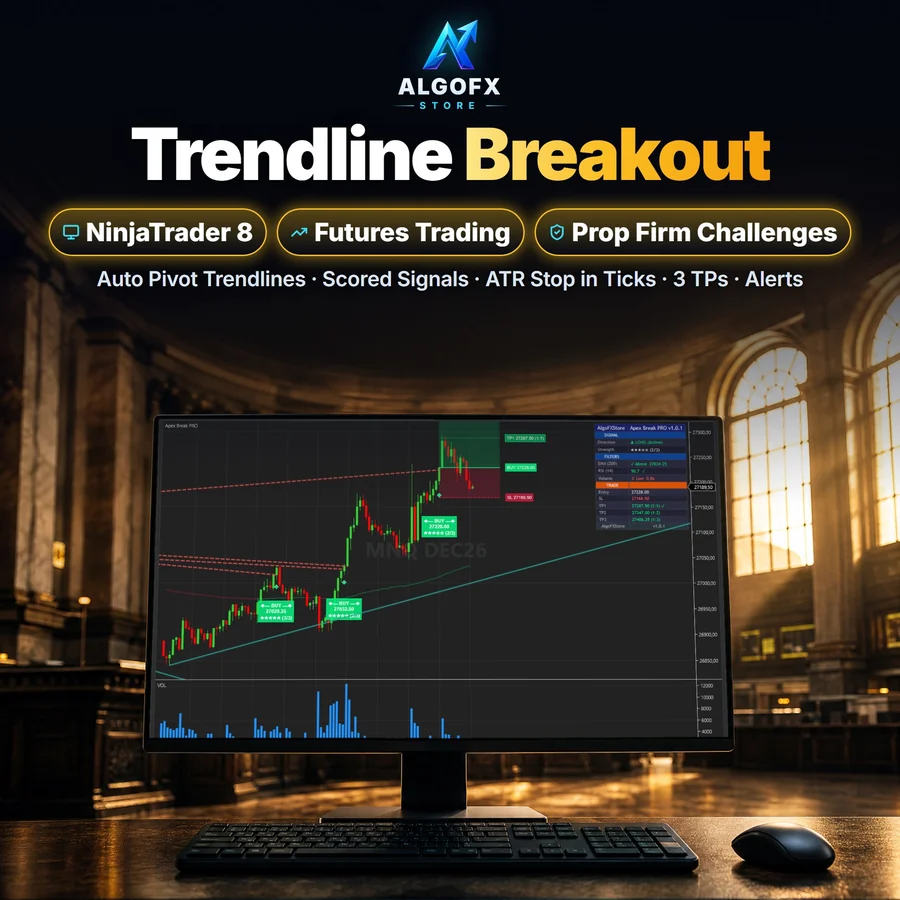
See Apex Break PRO on a real chart
Press play; use the full-screen button to see every detail.
This video shows the same indicator on another charting platform; the NinjaTrader 8 edition sold here runs in NinjaTrader 8's own chart and settings windows. · 3:50 · Plays from YouTube when you press play (YouTube then sets its own cookies; see Privacy).
Hand-drawn trendlines change every time you look, and so do your breakouts
Ask three futures traders to draw the trendline on the same NQ chart and you get three different lines. Most draw theirs by eye, nudge it after the move, and count a break the moment a bar pokes through. The line that broke is rarely the line that was there before the move, and a poke that closes back inside is still taken as a signal. Nothing about that process can be repeated, so nothing about it can be checked on your own charts.
The second mistake comes after the break. A break against the trend, on thin contract volume, with RSI already stretched gets the same weight as a clean one, and the stop goes wherever it feels safe. On futures that is expensive: a stop you never counted in ticks is a position size you never calculated, and a daily loss limit leaves no room for guessing. Wide stops on quiet breaks and tight stops on fast ones are the usual result.
Apex Break PRO replaces the eye with fixed rules. Pivots come from one test, lines join consecutive pivots, a break needs a closed bar beyond the line by a fraction of ATR, and three filters vote on it. The stop and three targets are calculated from ATR when the bar closes and rounded to the tick size, so you can count the risk before you click. It does not make breakouts work more often; it makes every signal readable on the same terms.
What Apex Break PRO draws, and what each mark means
Read from the shipped NinjaScript edition.
| What you see | What it means |
|---|---|
| Red sloped line | Resistance trendline through consecutive pivot highs; dashed once broken or expired. |
| Teal sloped line | Support trendline through consecutive pivot lows. |
| Green diamond + '◆━━ BUY ━━◆' label with price and stars | A closed bar broke a resistance line with the stars' share of filters agreeing. |
| Red diamond + '◆━━ SELL ━━◆' label | A closed bar broke a support line. |
| BUY / SELL <price> line | Entry: close of the signal bar. |
| SL <price> (red, dashed) and red box | Stop 1.5 x ATR(14) from the entry; risk area. |
| TP1 / TP2 / TP3 <price> (1:1, 1:2, 1:3) and green box | Targets; reward area to the furthest shown target. |
| EMA line (green above / red below) | The 200 EMA of the trend filter, coloured by the close's side. |
| Dashboard | Last signal, its strength, live filters and the trade with ✓ on reached targets. |
From pivots to a scored breakout and a drawn trade plan
Everything is calculated from the chart's own bars on a single data series. These are the rules in the shipped NinjaScript edition, in the order they run on each bar.
- 1
Find confirmed pivot highs and lows
A pivot high is a bar whose high is the extreme of the 20 bars on each side of it (Pivot Left Bars and Pivot Right Bars, 20 / 20); pivot lows mirror the rule. Because the 20 bars on the right have to close first, a pivot is confirmed 20 bars after it formed. In On each tick or On price change mode the forming bar is previewed, so a line can appear or disappear until that bar closes.
- 2
Join consecutive pivots into sloped lines
Each new pivot high is joined to the previous one, giving a sloped resistance line in red (#EF5350); each new pivot low is joined to the previous low, giving a support line in teal (#26A69A). A line stays active for 500 bars after it was detected (Max Line Extension). The newest 5 per side are kept, and 0 keeps all up to Max Trend Lines Per Side (100). Active lines are solid, width 3.
- 3
Let only a closed bar break a line
A break needs a closed bar whose close is above a resistance line plus 0.1 x ATR, or below a support line minus the same margin (Min Breakout Margin on, Margin 0.1). The broken line ends on that bar and turns dashed; a line that reaches its 500-bar limit turns dashed too. A bar that trades through the line and closes back inside does nothing at all.
- 4
Score the break with the filters
EMA 200: a BUY scores above it, a SELL below. Volume: real contract volume above 1.2 x its 20-bar average scores for both sides; a zero-volume bar passes, and the filter fails until the average has its 20 bars. RSI 14: below 75 scores for a BUY, above 25 for a SELL. ADX 14 above 20 is an optional fourth filter, off by default. A signal needs 2 points and more than 5 bars since the last signal on that side.
- 5
Mark the signal with its strength
A BUY draws a green diamond under the bar and a three-line label: '◆━━ BUY ━━◆', the price and the stars with the fraction. A SELL draws the same in red above the bar. Stars are the score scaled to five, so with three filters 2 of 3 shows three filled stars (2/3) and 3 of 3 shows five (3/3). Signal Marker Style shows diamond and label, the label only, or the diamond only.
- 6
Draw the plan and track it
Entry is the signal bar's close and the risk is ATR(14) x 1.5, or 1.0 % of the entry with the ATR stop off. SL sits one risk away and TP1 to TP3 at one, two and three risks. The lines run to 10 bars past the current bar with price tags 2 bars further, over a red risk box and a green reward box. TP3 or the stop closes the plan; a new signal of either side replaces it.
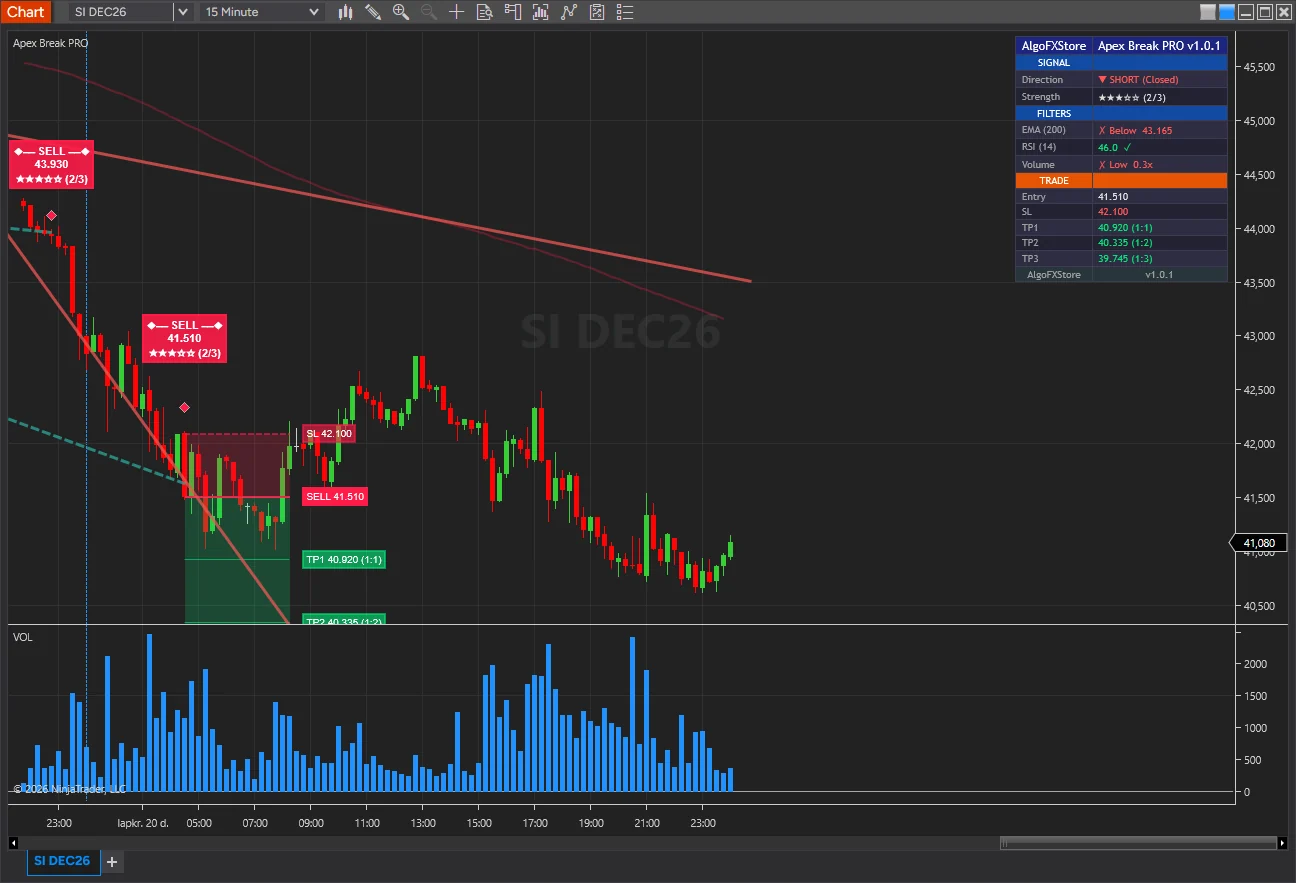
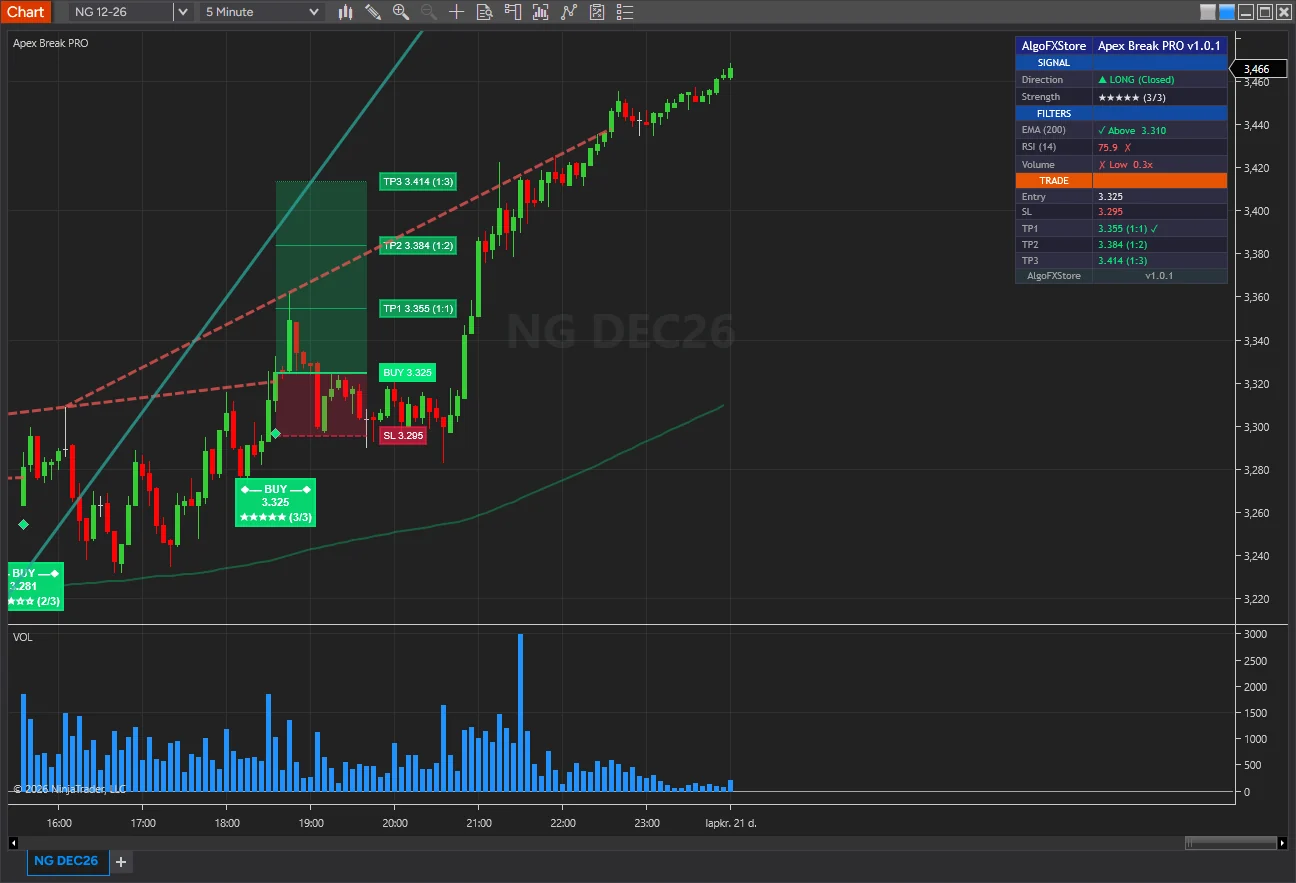
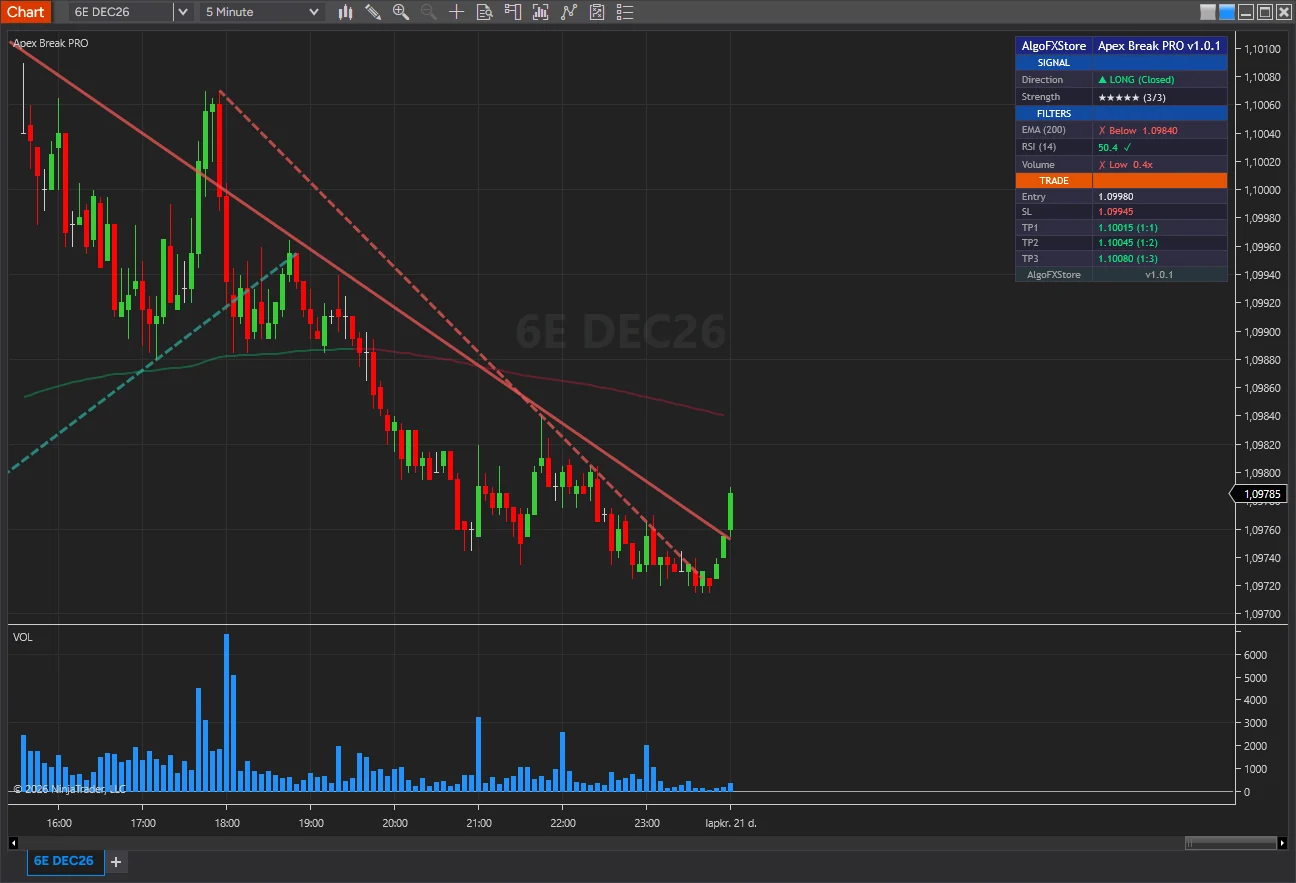
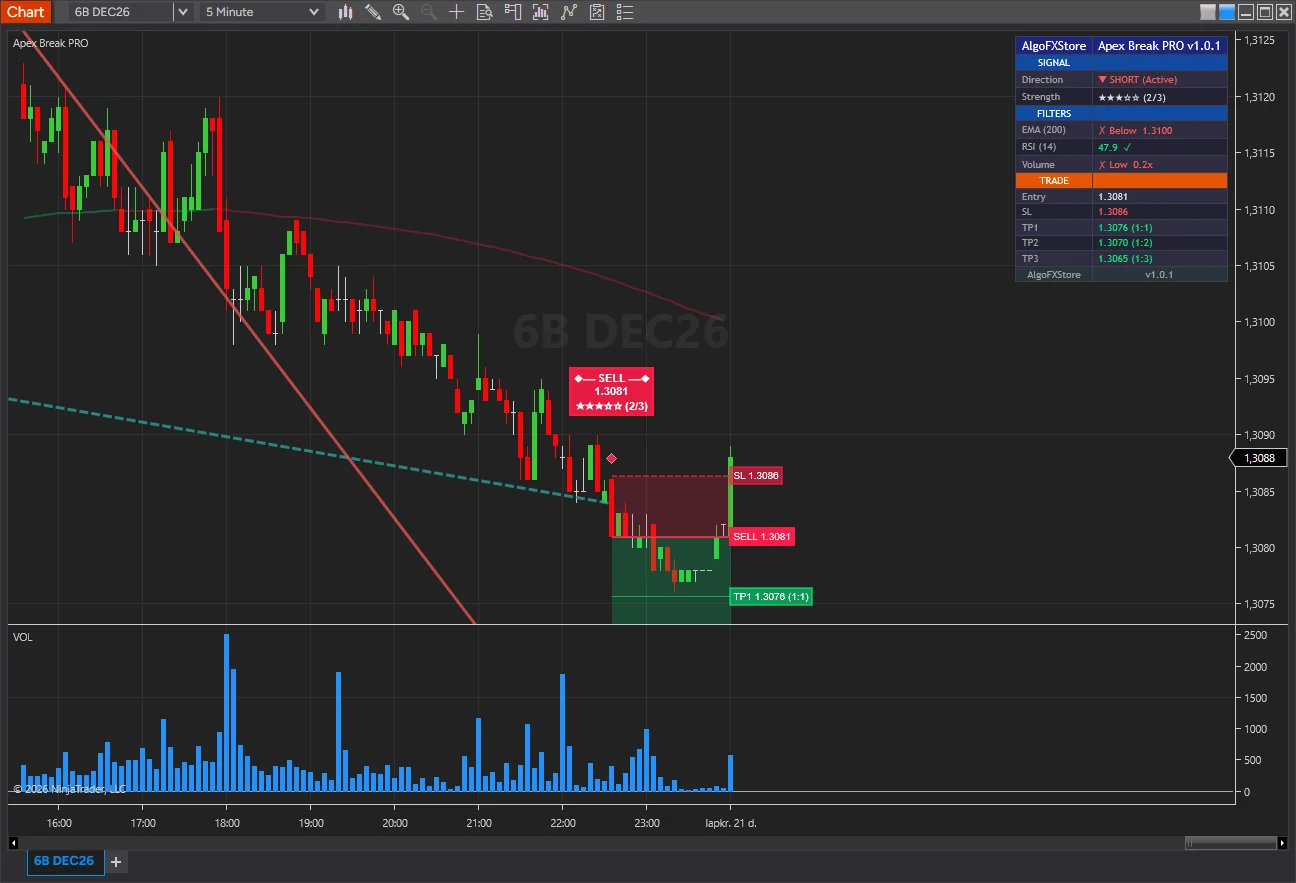
Apex Break PRO on 12 different markets
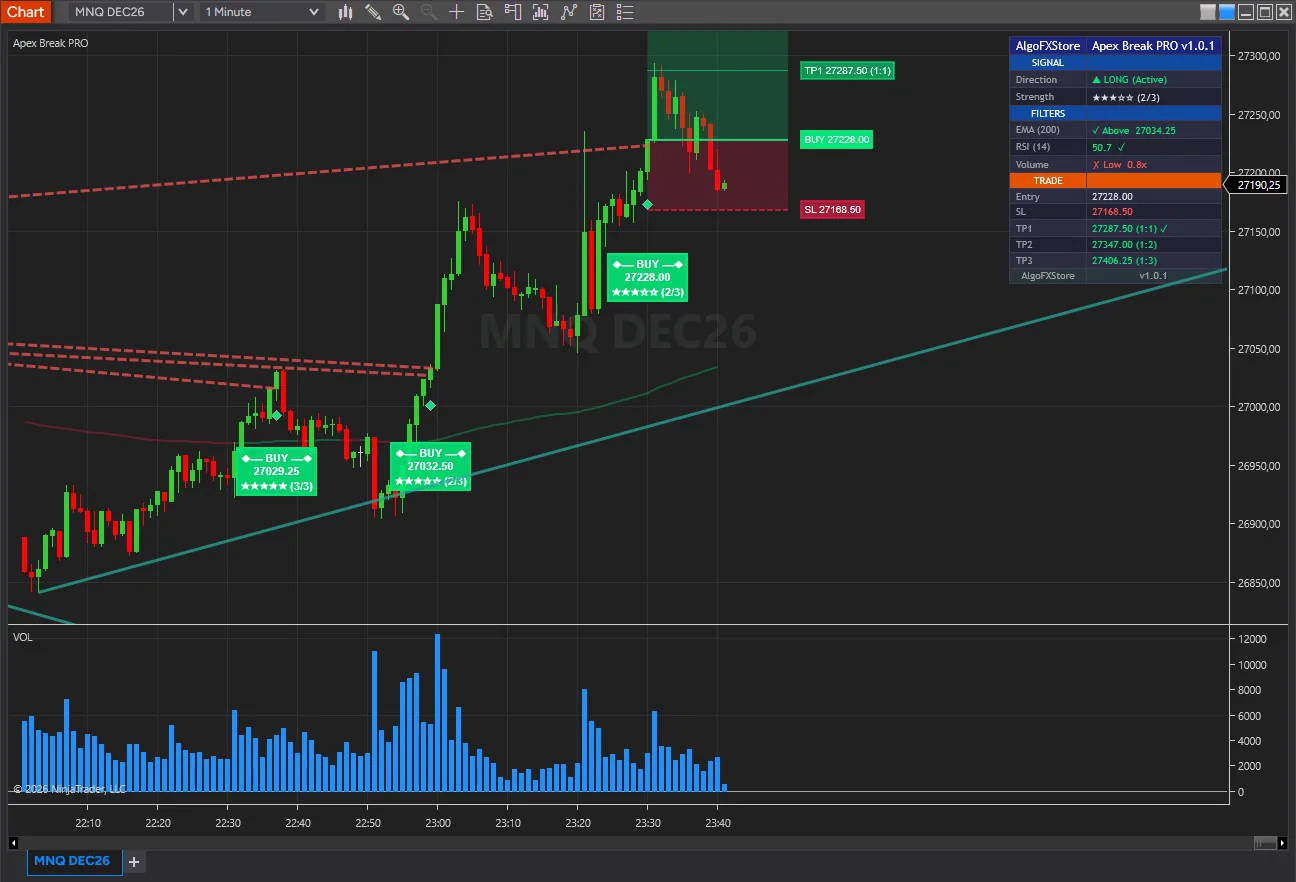
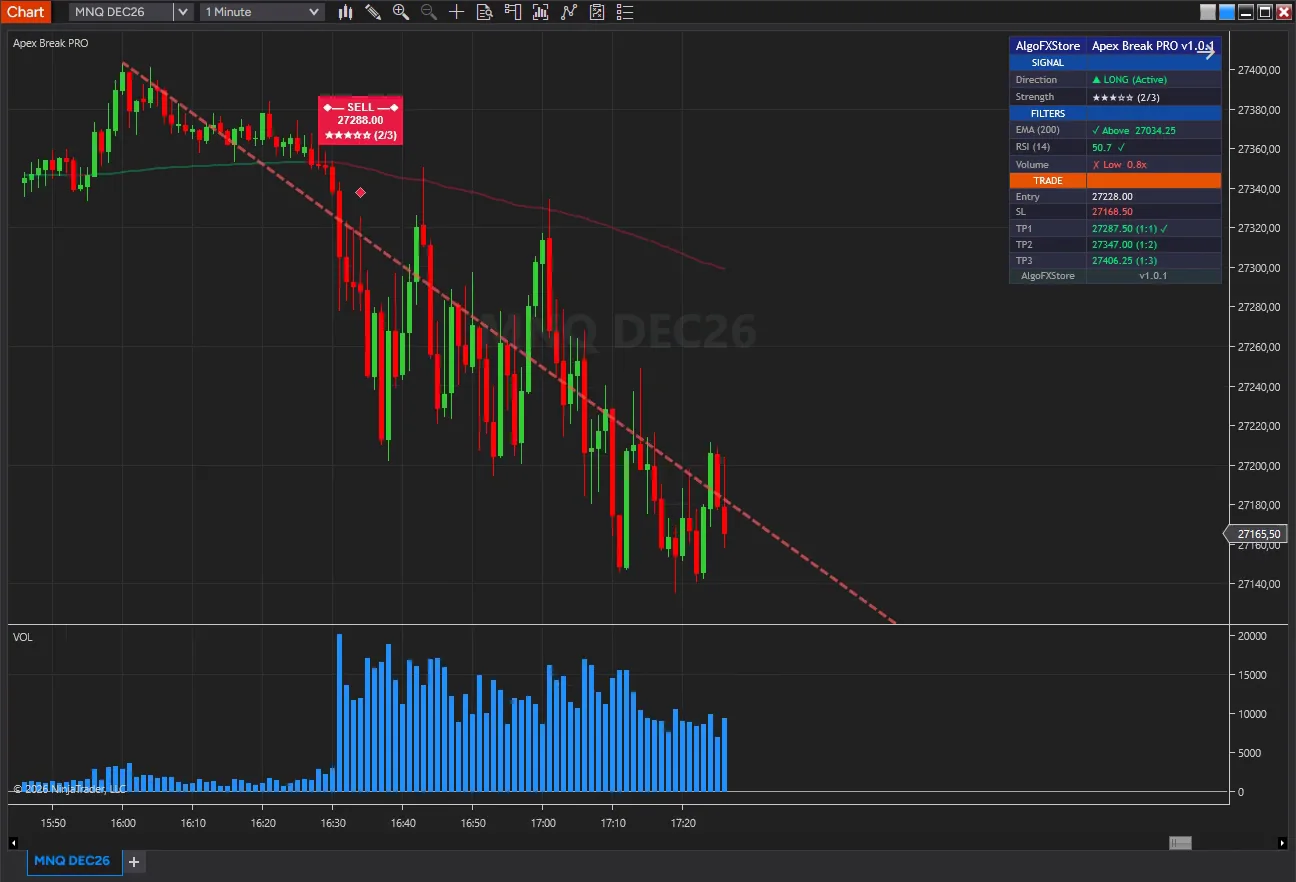
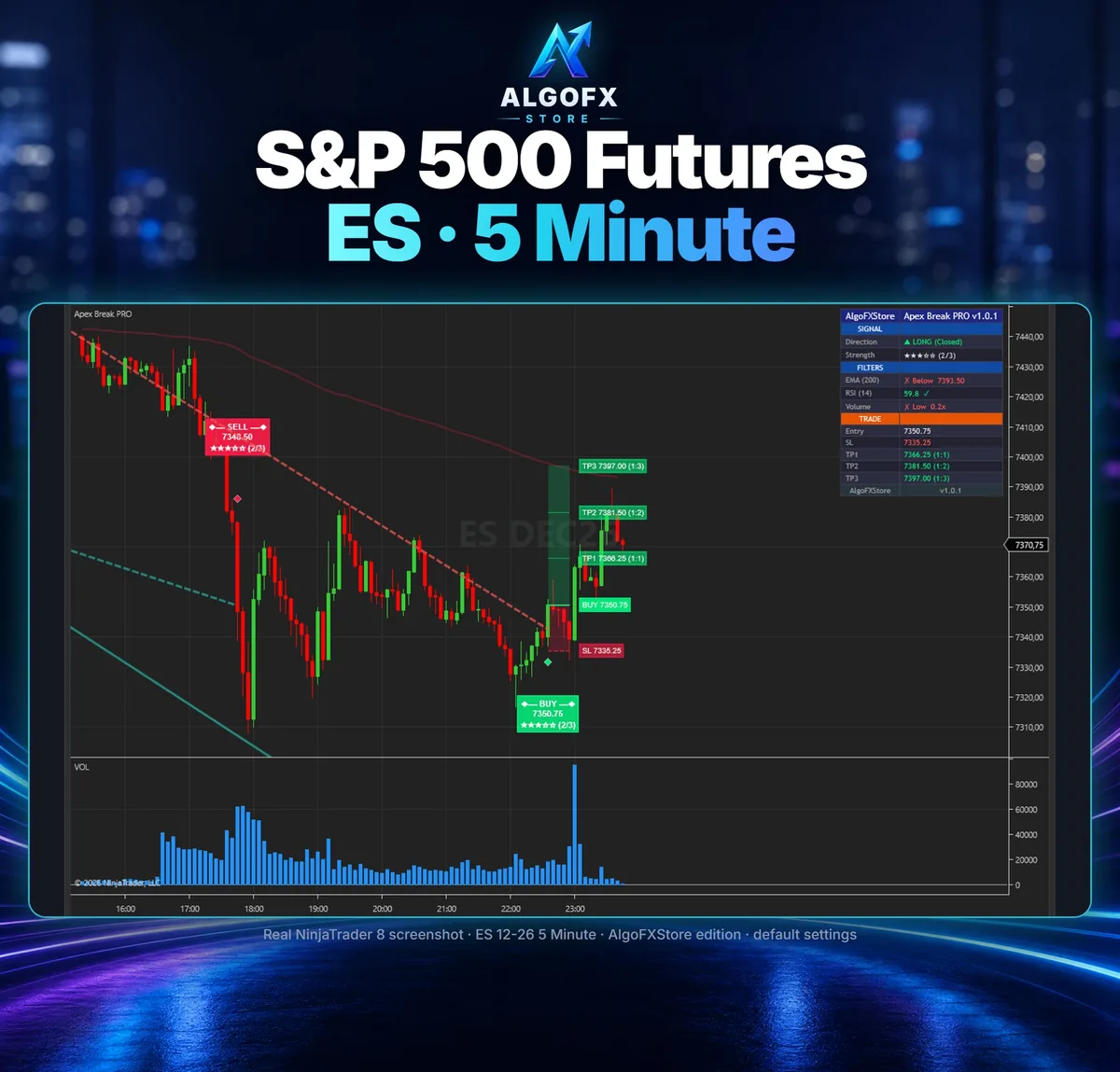
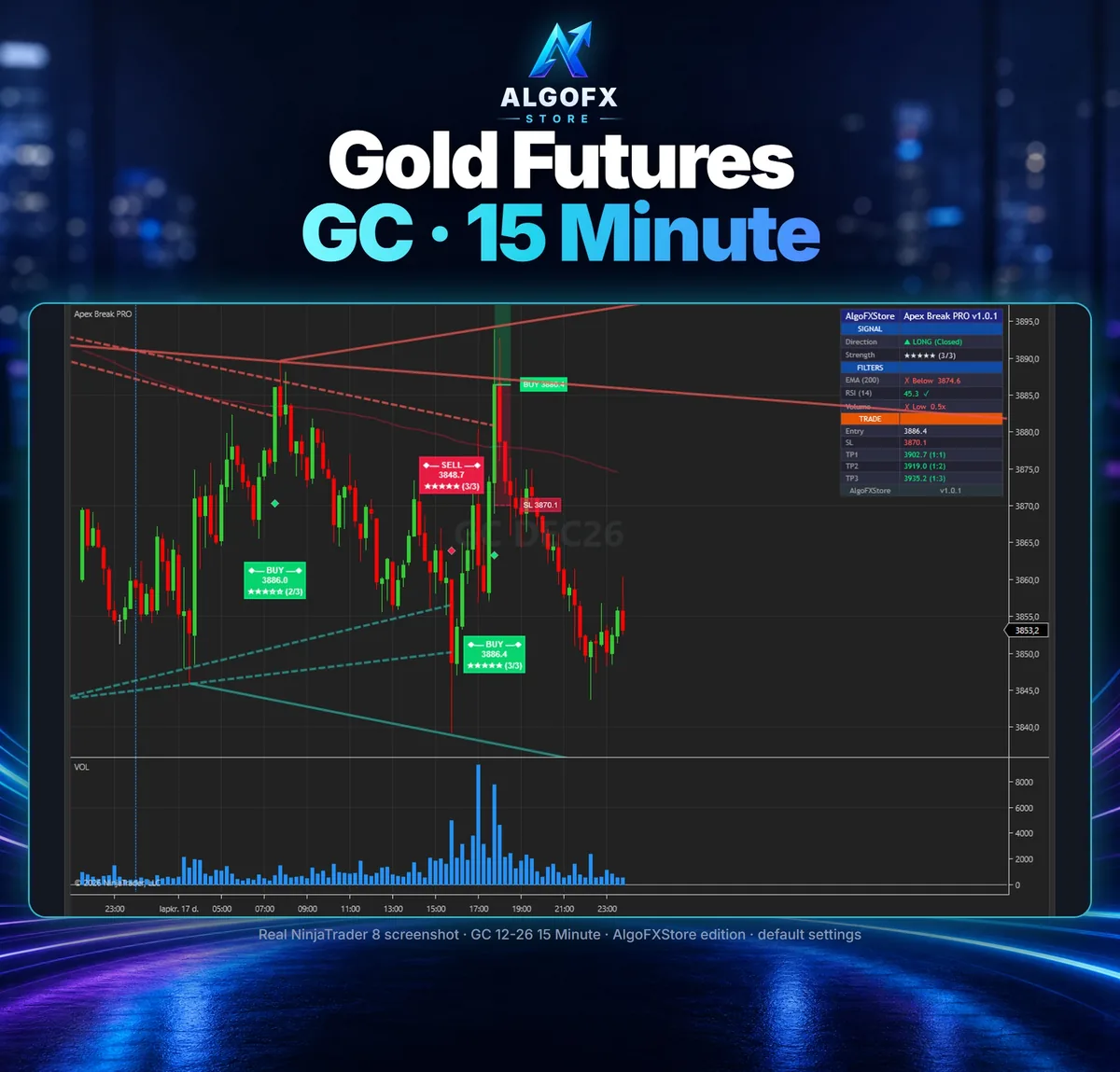
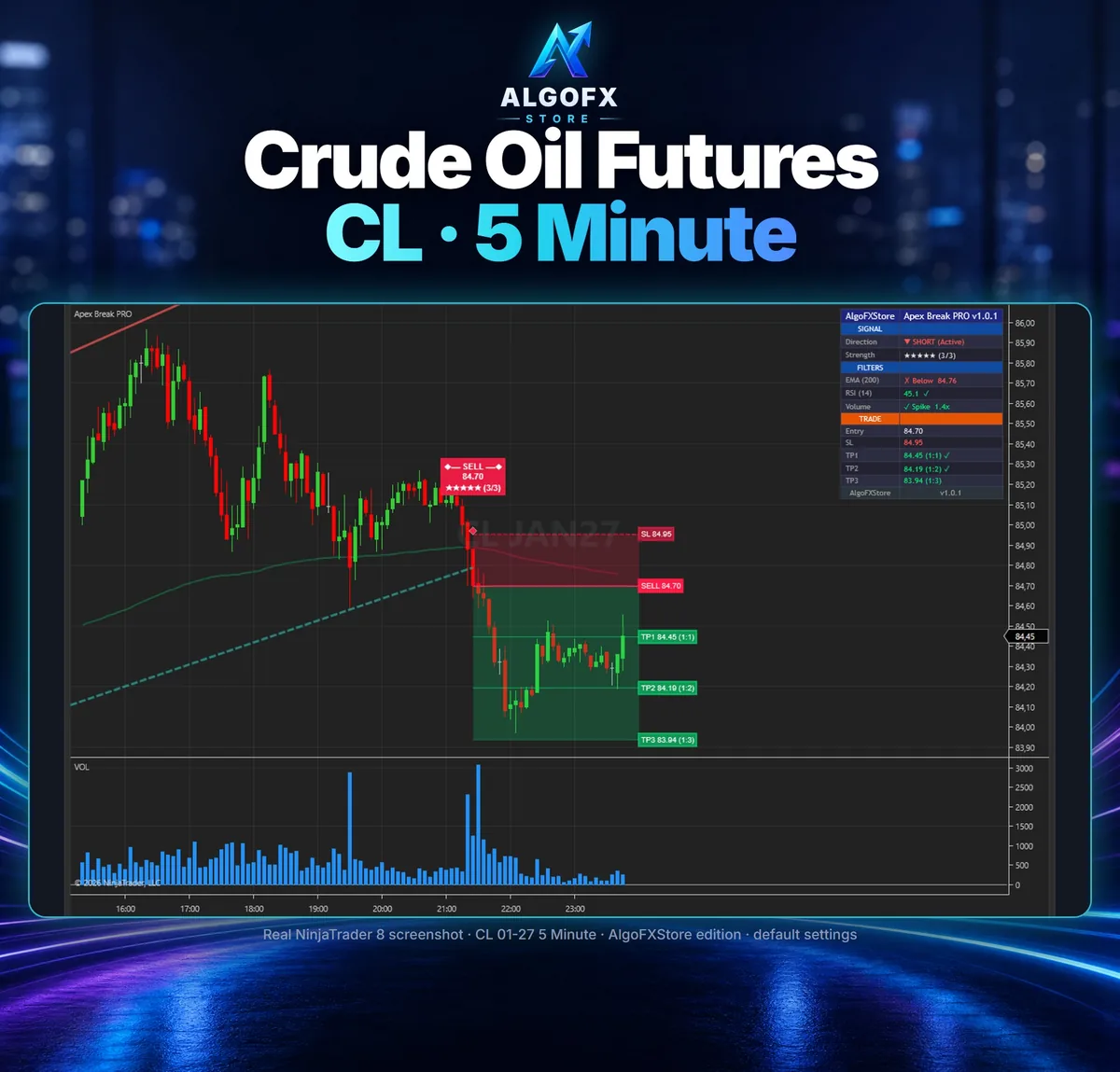
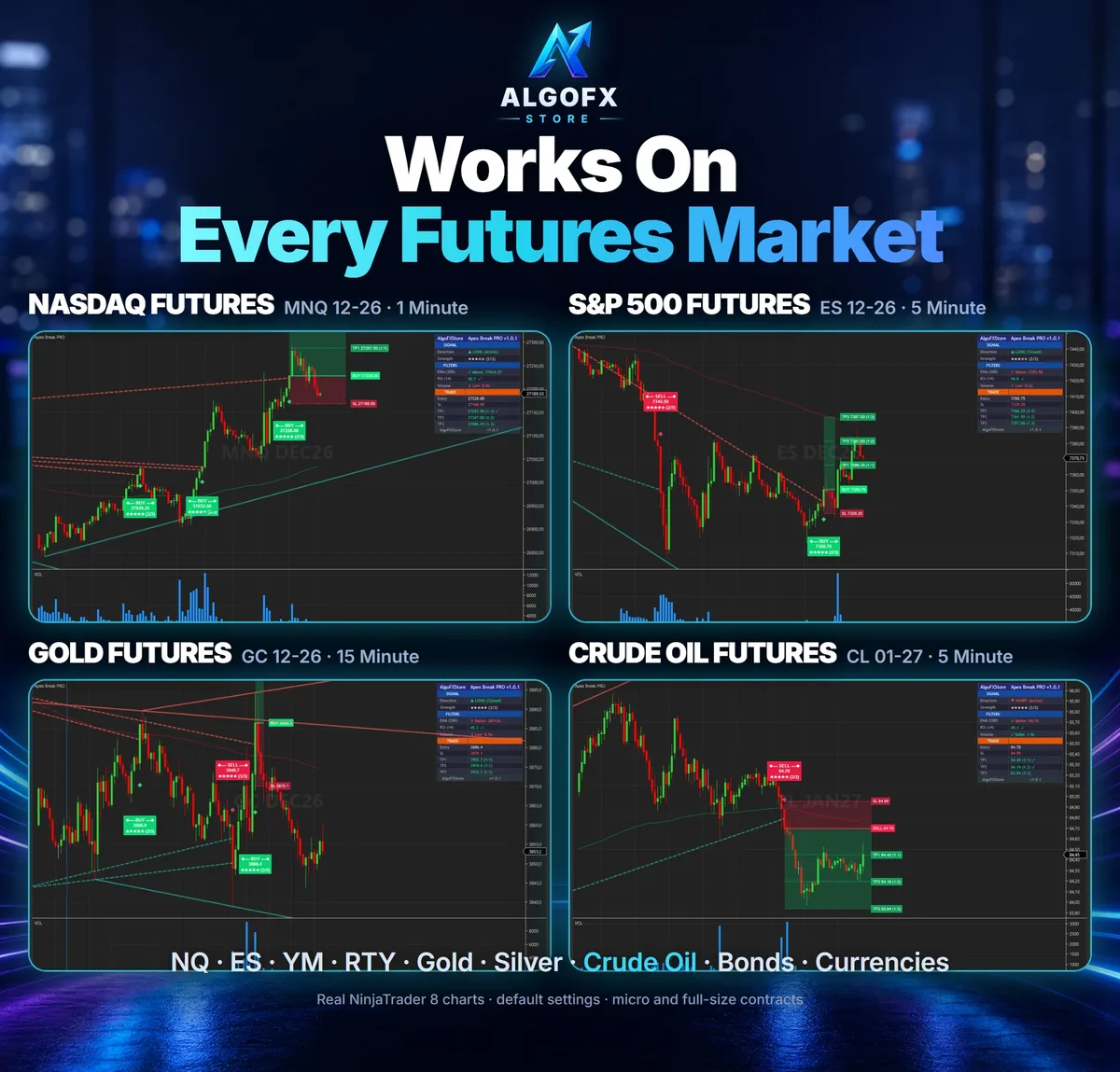
Every chart below is a screenshot of NinjaTrader 8 itself with the shipped Apex Break PRO AlgoFX attached at its default settings. Forex, metals, indices, energy and crypto, so you can see how it reads each kind of market. They show what the indicator draws; they are not trading results. Tap or click any chart to open it full size.
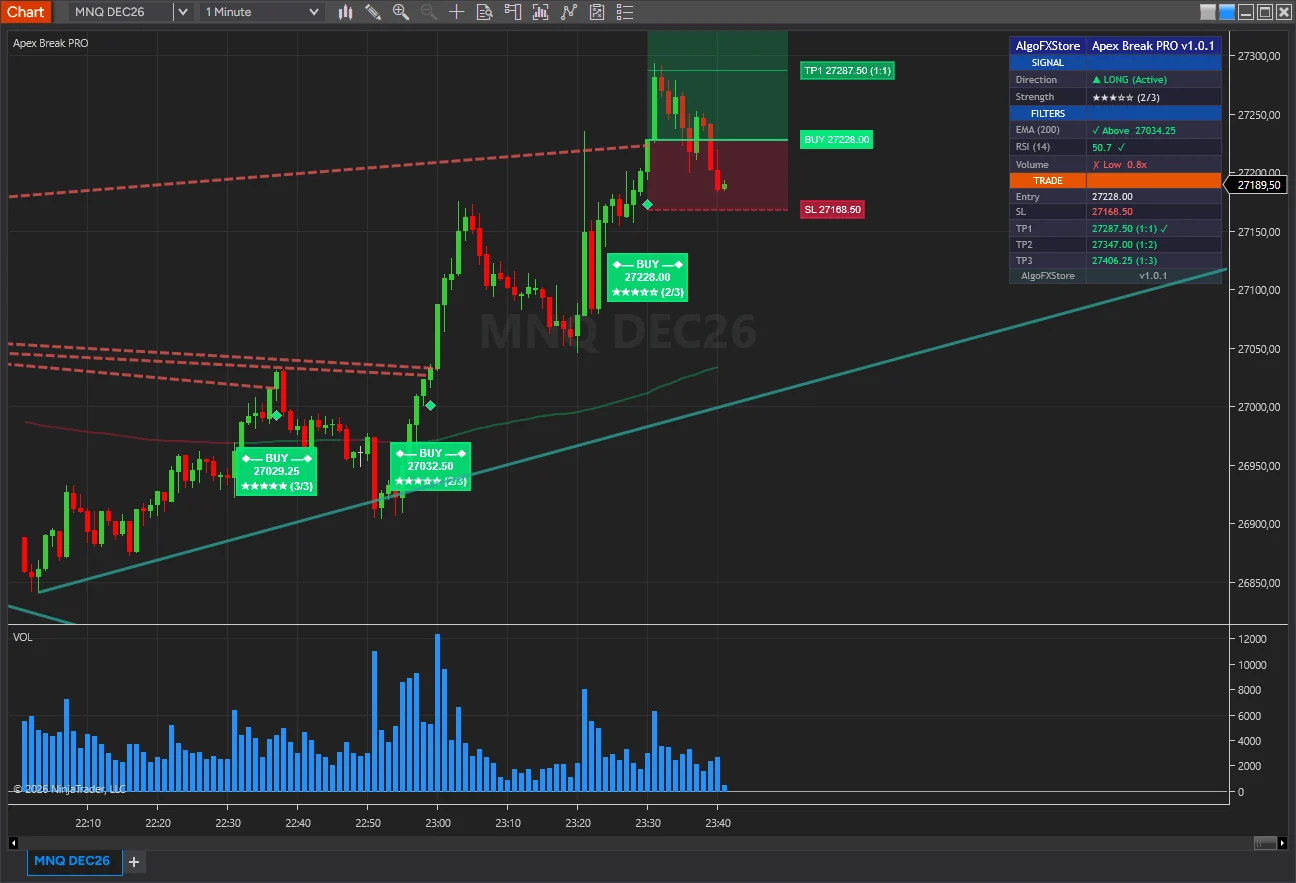
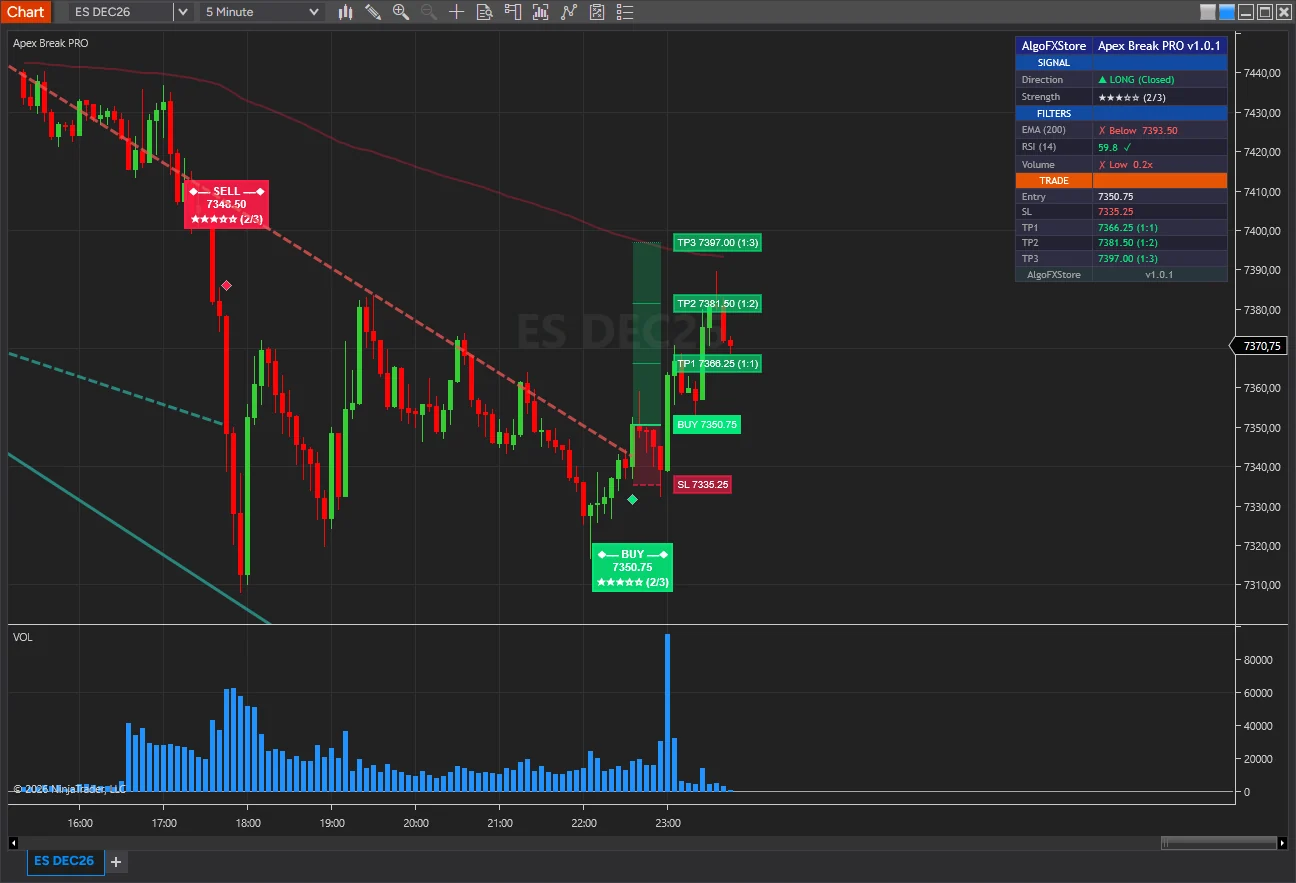
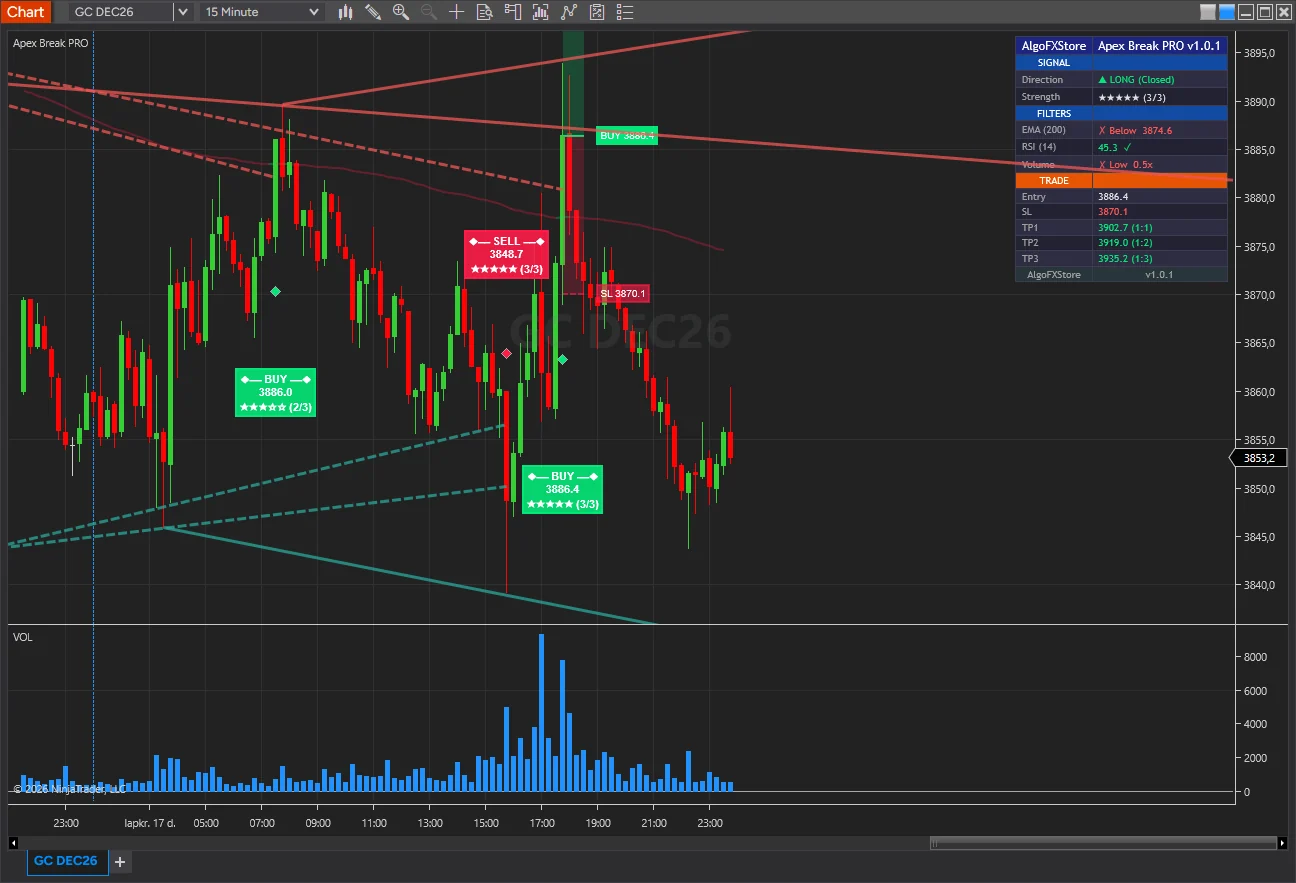
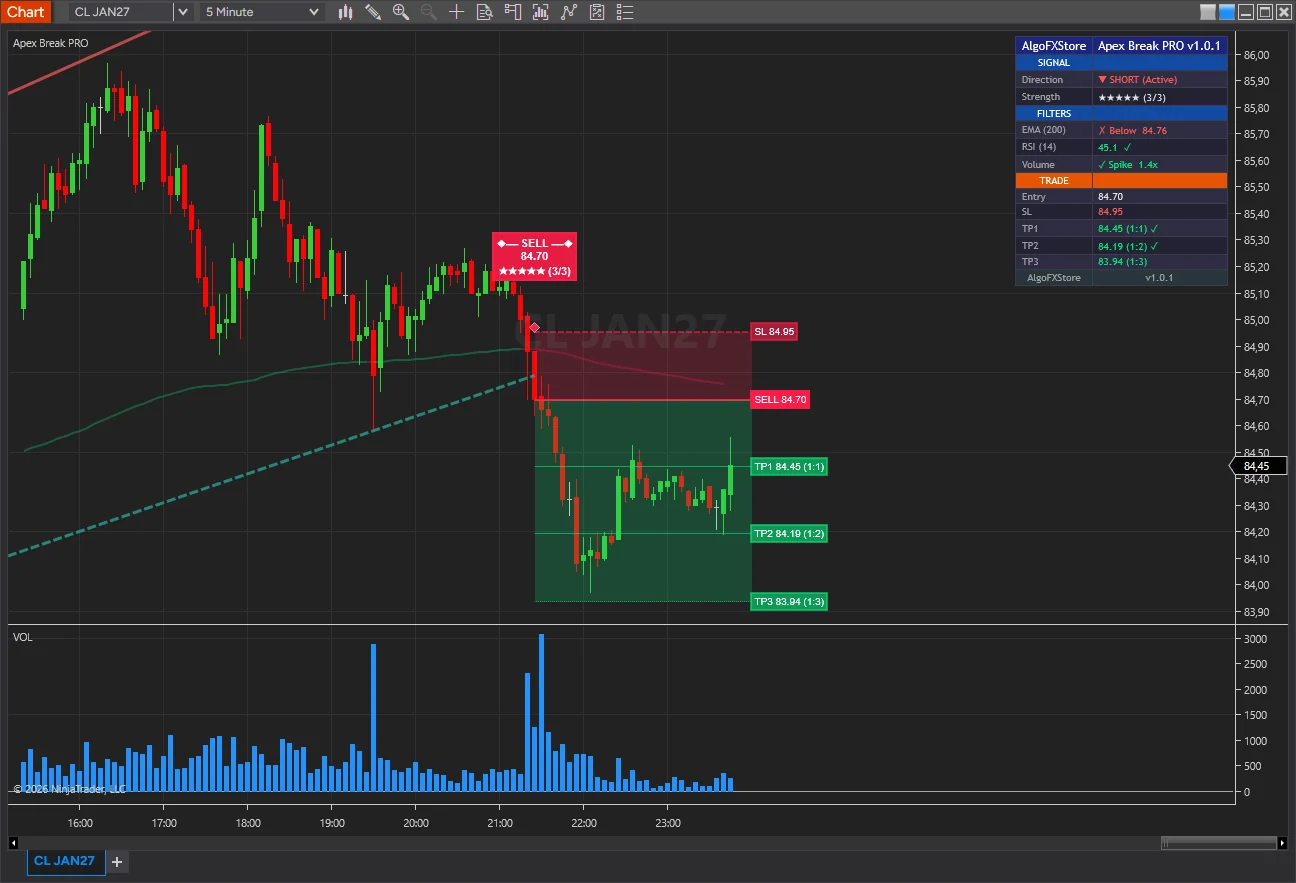
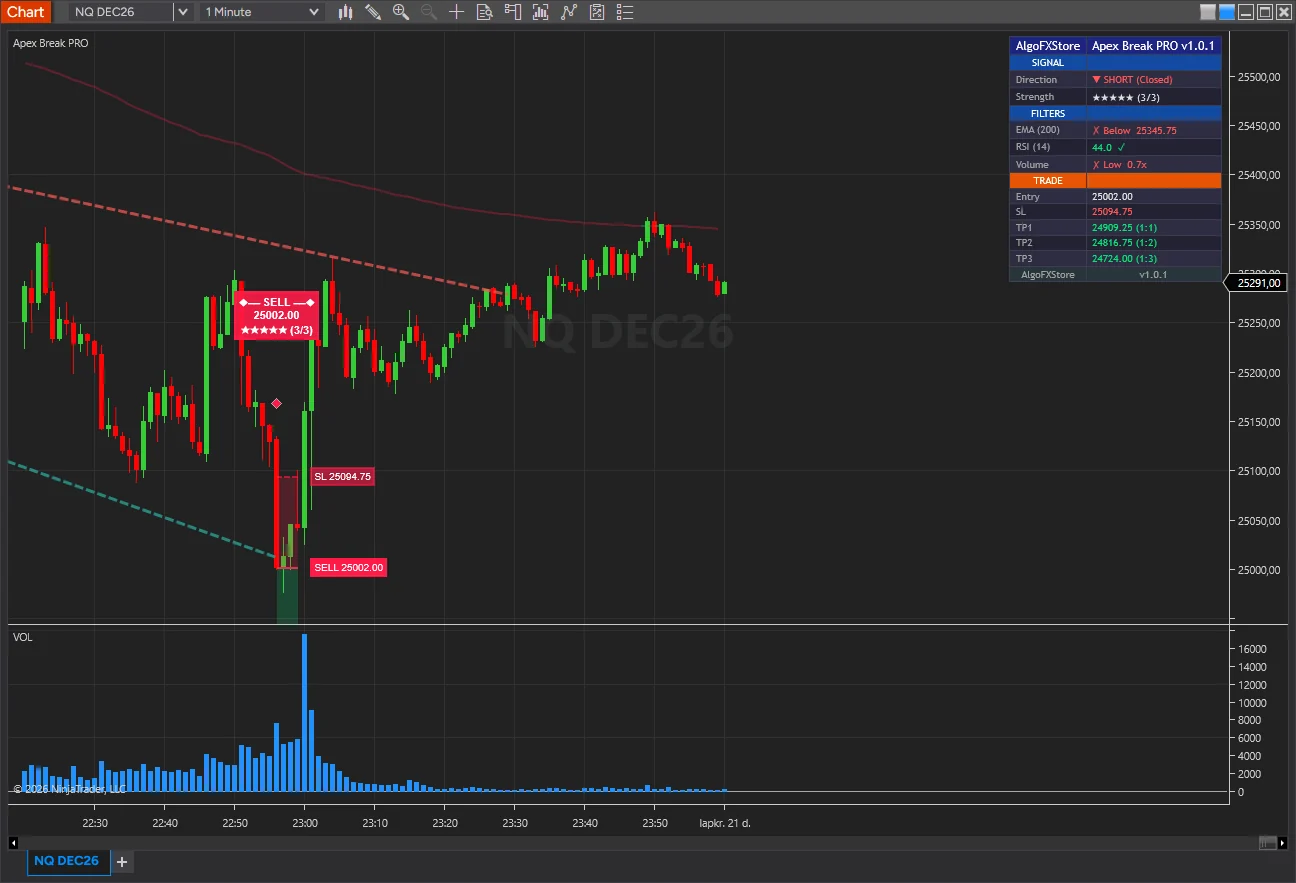
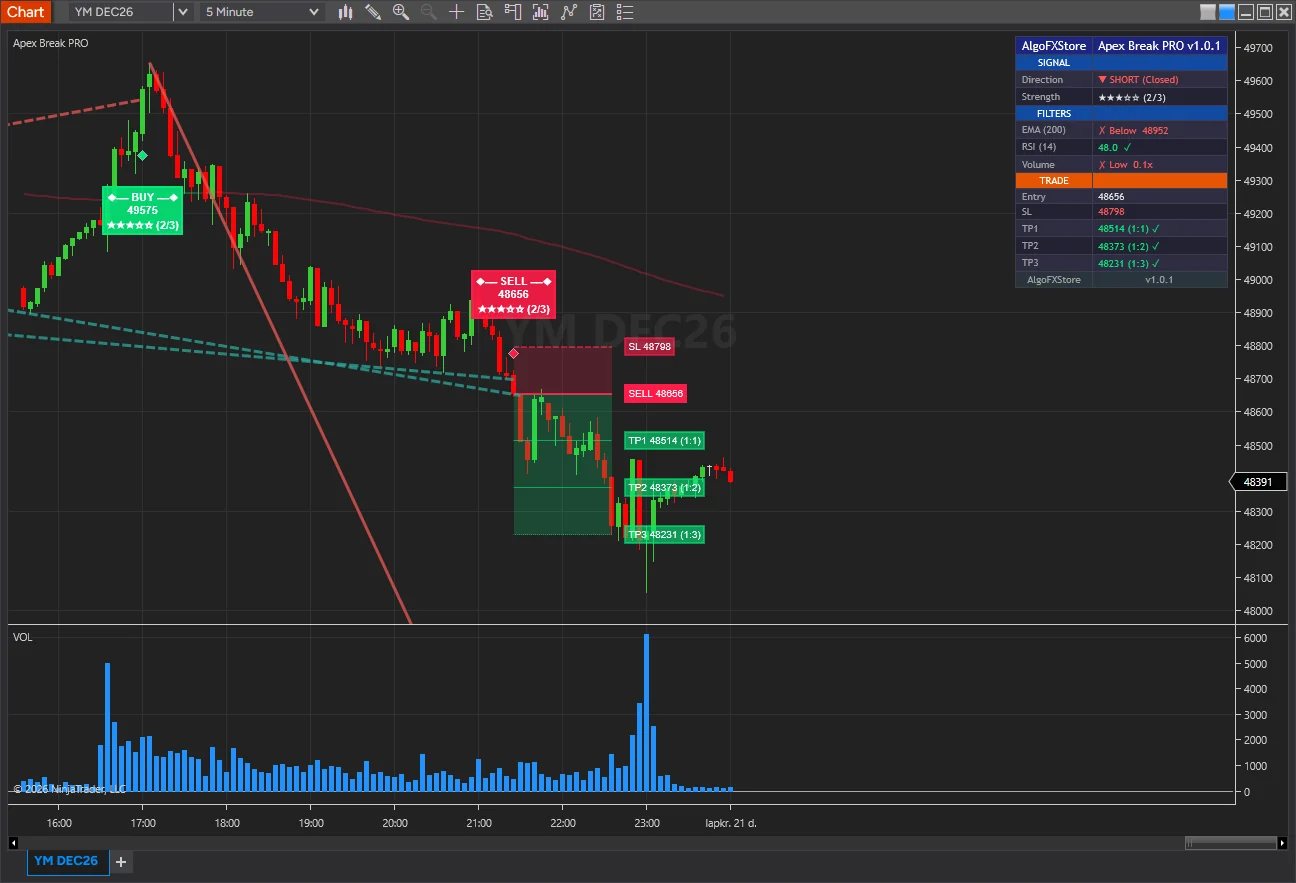
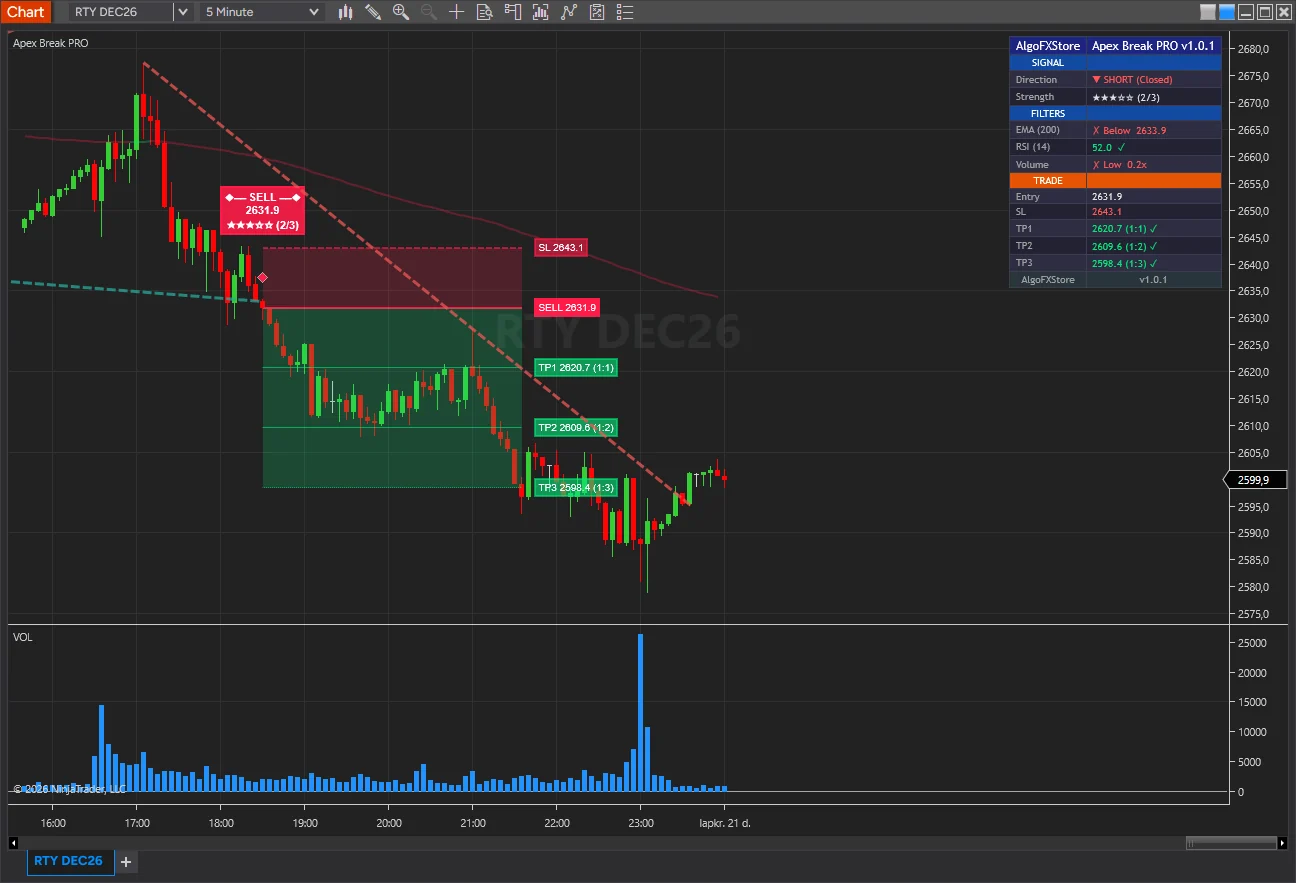
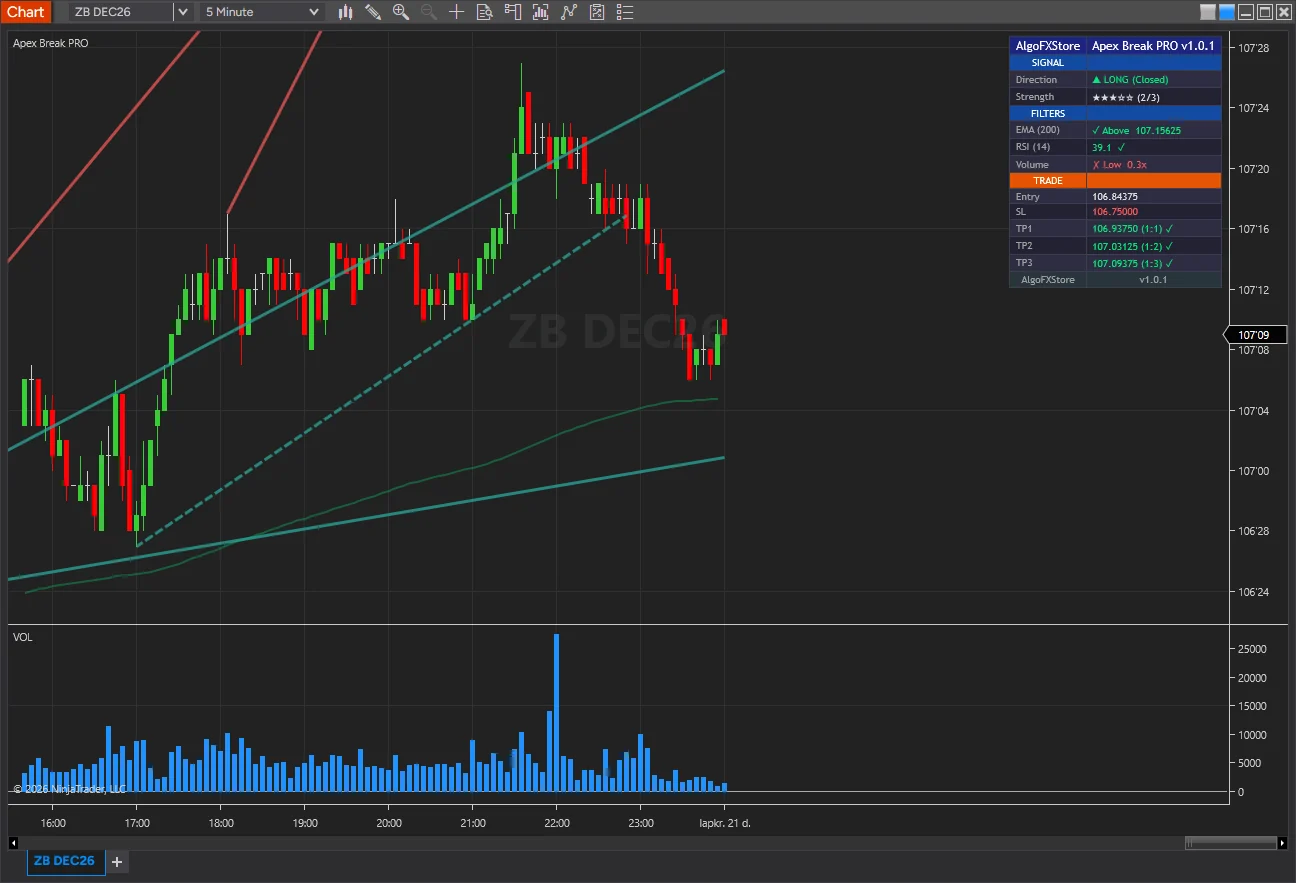
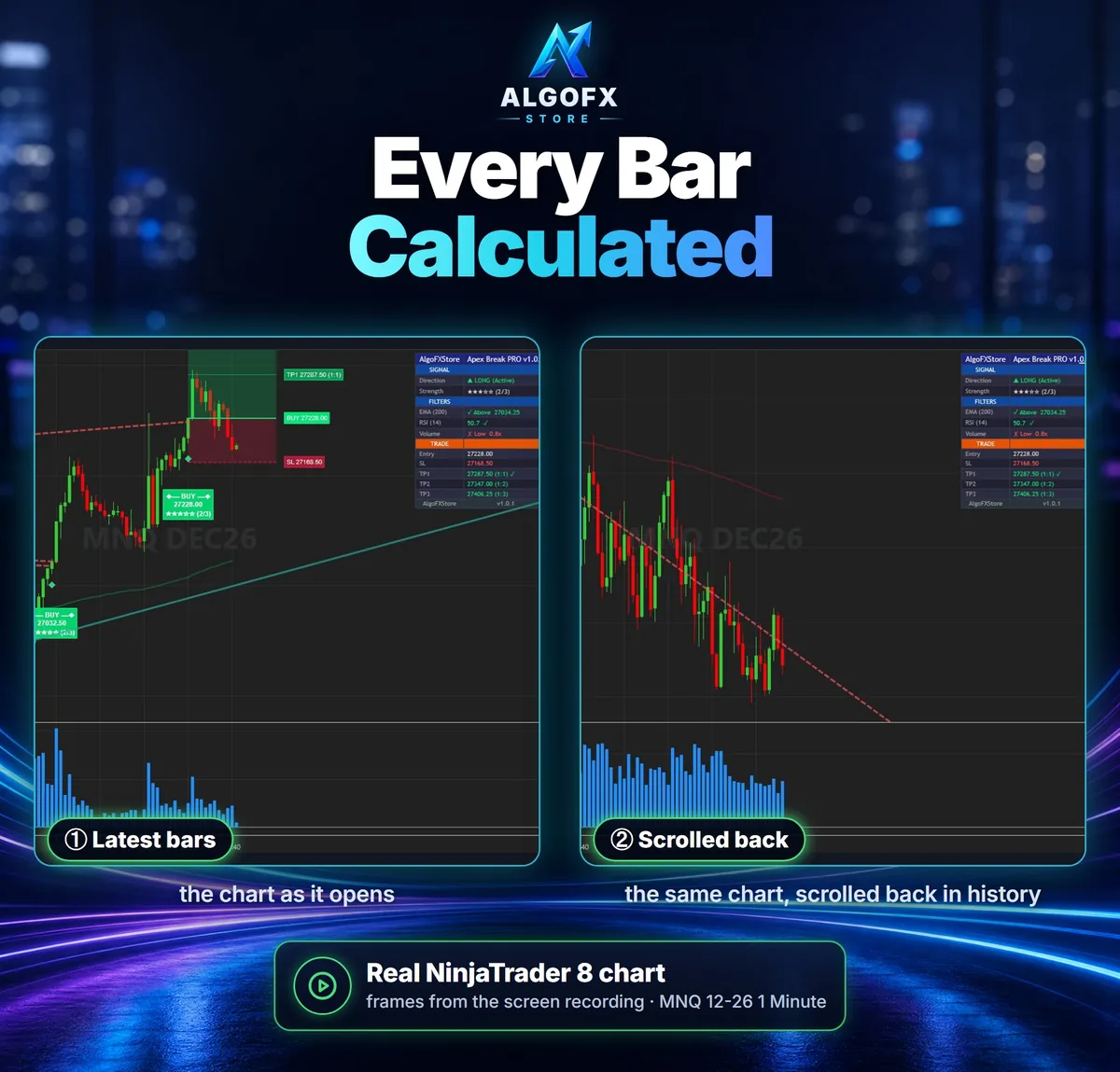
Watch Apex Break PRO work on a real NinjaTrader 8 chart
A screen recording and frames from the shipped indicator at its default settings, as the chart updates. Nothing is edited into the chart.
How to trade a signal, step by step
The indicator gives you a rule-based break and a ready plan in ticks; the decision and every order stay with you. This routine uses only what it draws and what the manual recommends.
- 1
Load enough days and keep the defaults
Add Apex Break PRO AlgoFX from the Indicators window and keep the defaults at first; every chart on this page uses them. It needs about 250 bars, so load at least 3 days on a 1 Minute chart, 5 on 5 Minute, 10 on 15 Minute and 30 on 60 Minute. Raise the chart's Right side margin so the level price tags, twelve bars right of the current bar, are fully visible.
- 2
Act on the closed bar only
With the default On bar close nothing is computed until the bar closes. In On each tick mode the trendlines and the FILTERS rows move live, but the break, the signal, the levels and the alert still wait for the close, so the signals are the same in every mode. A bar that trades through a line and closes back inside never produces a signal, so there is nothing to chase.
- 3
Check the stars and the filter rows
Five stars (3/3) means EMA side, volume and RSI all agreed on the break bar; three stars (2/3) means one failed, so a BUY can print below the 200 EMA when volume and RSI pass. The FILTERS rows keep updating after the signal while SIGNAL and TRADE stay frozen, so you can see whether conditions still agree at the moment you are ready to enter.
- 4
Count the stop in ticks and size it
Ticks are entry minus stop, divided by the tick size. In the manual's example from November 2026, an MNQ 1 Minute BUY at 30777.50 with its stop at 30764.25 is 13.25 points, 53 ticks. Multiply the ticks by your contract's tick value, add commission, and divide your risk per trade by that amount, rounding down. If not even one micro contract fits, skip the trade.
- 5
Place real orders, then manage
Put your stop at the SL price and your targets at TP1 to TP3 with an ATM strategy or Chart Trader orders; the alerts arrive at the bar close and are not a stop. A reached target gets a check mark in the dashboard's TRADE rows, while the chart lines and the SL line stay where they are. TP3 or Stop Loss Hit ends the indicator's plan.
- 6
Know when to skip a signal
Skip a signal that prints within about 10 minutes of a high-impact release, one whose stop costs more than your risk budget even on one micro, one that comes in the last 30 minutes before your session cutoff, and any signal after your daily loss limit is reached. On strict days the manual's setup is Min Confluence Score 3, so only five-star breaks print.
16 rows that read the market for you
The on-chart dashboard, row by row.
- AlgoFXStore | Apex Break PRO v1.0.1 (header)
- SIGNAL (section)
- Direction: ▲ LONG or ▼ SHORT, marked (Active) while the plan runs and (Closed) after TP3 or the stop; ─ WAITING before the first signal
- Strength: the last signal's stars and score, for example three of five stars (2/3)
- FILTERS (section, updated on every bar)
- EMA (200): a check mark and Above, or a cross and Below, followed by the EMA value
- RSI (14): the RSI value, with a check mark while it is between 25 and 75 and a cross outside
- Volume: a check mark and Spike, or a cross and Low, followed by the volume-to-average ratio
- ADX (14): the ADX value with a check mark or a cross, shown only when the ADX filter is on
- TRADE (section, frozen at the last signal)
- Entry: the last signal's entry price (a dash before the first signal)
- SL: the stop price, in red
- TP1: the target price with (1:1), in green, with a check mark once reached
- TP2: the target price with (1:2), in green, with a check mark once reached
- TP3: the target price with (1:3), in green, with a check mark once reached
- AlgoFXStore | v1.0.1 (footer)
Everything Apex Break PRO does for you
One pivot rule on every chart
Pivots use the same 20-left / 20-right test on every instrument and period, and lines always join consecutive pivots. The newest 5 resistance and 5 support lines stay on the chart, solid while active and dashed once broken or expired, so you can see which lines already did their job.
Signals that stay where they print
Breaks, signals, levels and alerts are decided on the closed bar. A twenty-minute live On each tick run on an MNQ 1 Minute chart, crossing from historical to live bars, matched a replay of the same closed bars with zero mismatches. Only the trendlines are provisional while a bar is open.
A score you can read at a glance
EMA 200 side, volume above 1.2 x its 20-bar average and RSI 14 inside 25 / 75 each add a point; ADX 14 above 20 is optional. The label and the alert show the score as stars and a fraction, for example three stars (2/3), and the alert adds Moderate or Strong.
Stop and targets in the instrument's ticks
Entry at the close, a stop 1.5 x ATR(14) away and TP1 to TP3 at 1:1, 1:2 and 1:3 are drawn with price tags rounded to the tick size: 0.25 on MNQ and ES, 0.1 on GC, 0.01 on CL. The stop is always red and the targets always green, on buys and sells.
A dashboard that follows the trade
SIGNAL shows the last direction (Active or Closed) and its stars, FILTERS shows live readings of the EMA side, RSI and volume ratio with a check or a cross, and TRADE shows entry, SL and three targets with a check on each reached target. Six positions, sized by your Windows display scaling.
Nine alerts, each with its own switch
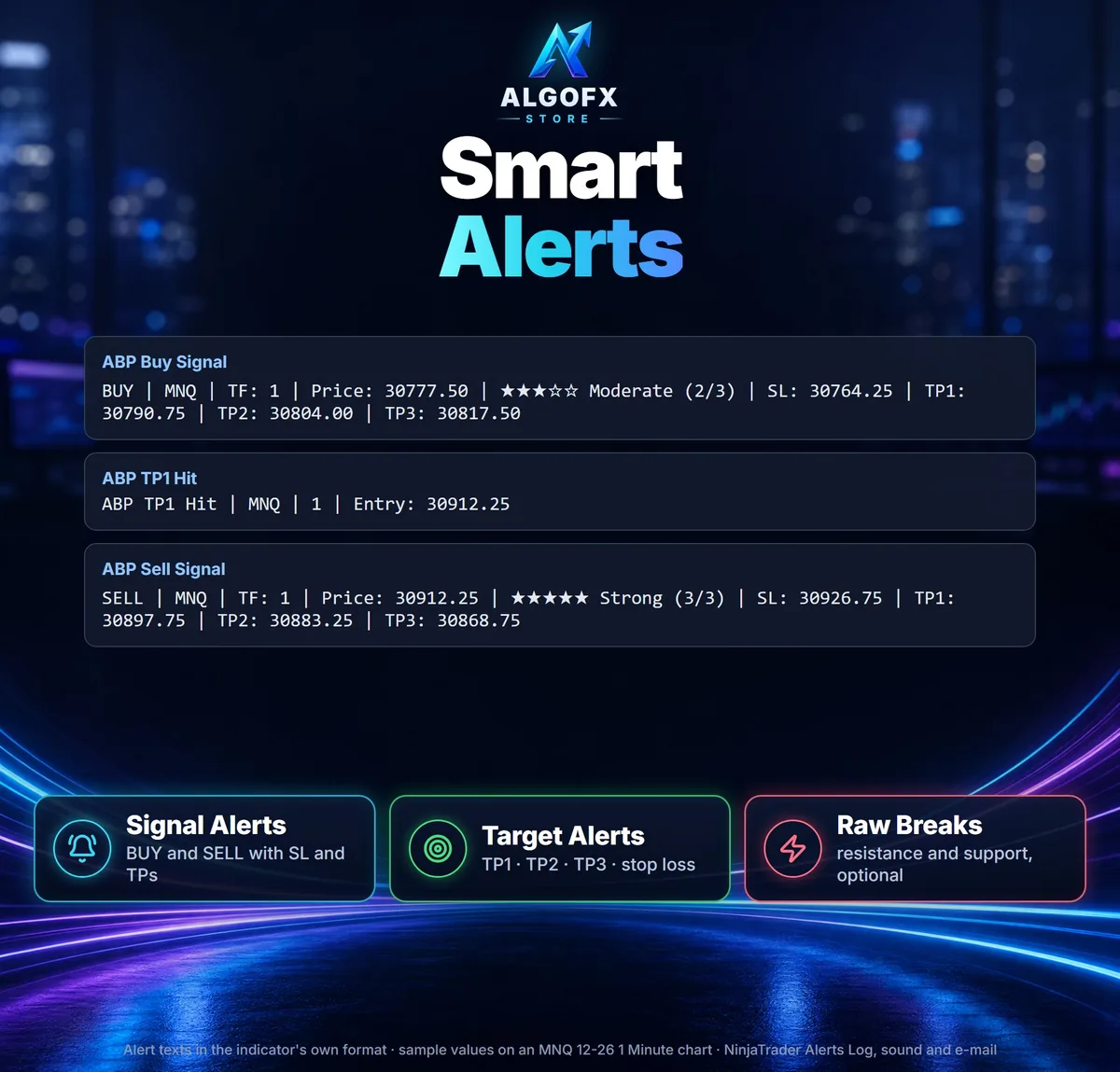
Buy, Sell, TP1, TP2, TP3 and Stop Loss Hit are on by default; Any Signal, Resistance Break and Support Break are optional. Each fires once per closed bar, live bars only, never for a bar older than two bar periods, to the Alerts Log, the NinjaScript Output window, a sound and optionally e-mail.
Readable from your own NinjaScript
Two hidden plots expose the result: Signal is +1 on a BUY bar and -1 on a SELL bar, TradeDirection is +1, -1 or 0 for the tracked plan. A strategy can read them, and the Market Analyzer can show them as columns.
Every part can be switched
Arrows, labels, each level, the EMA line and the dashboard have their own switches; every filter can be disabled; the stop can be ATR-based or a percentage; the three risk-reward ratios are free inputs. 65 settings in ten numbered groups in the Indicators window.
Apex Break PRO, feature by feature
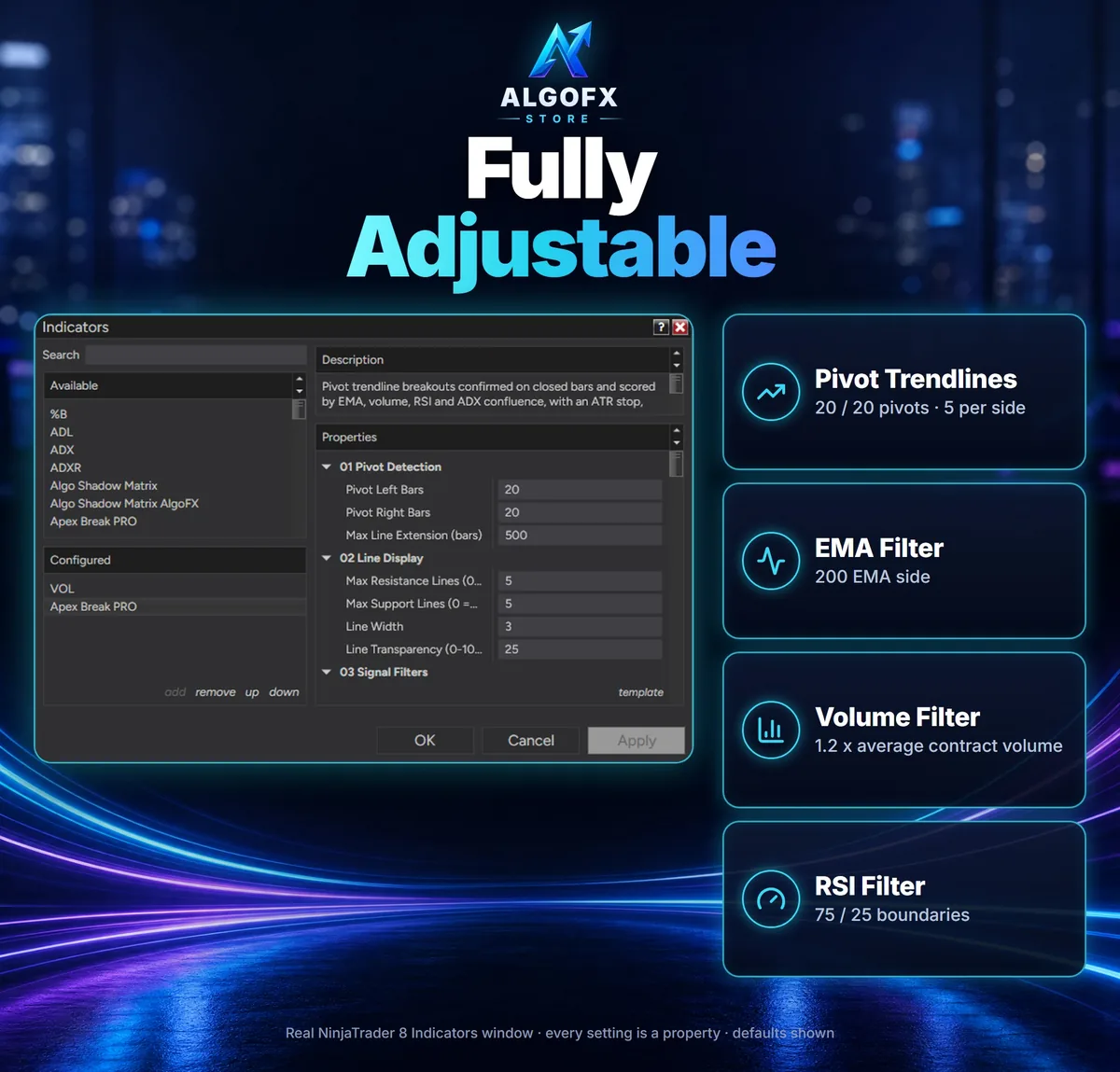
Each picture is built from real platform screenshots of the shipped indicator at its default settings, labelled so you can see what every part does. Tap any picture to open it full size.
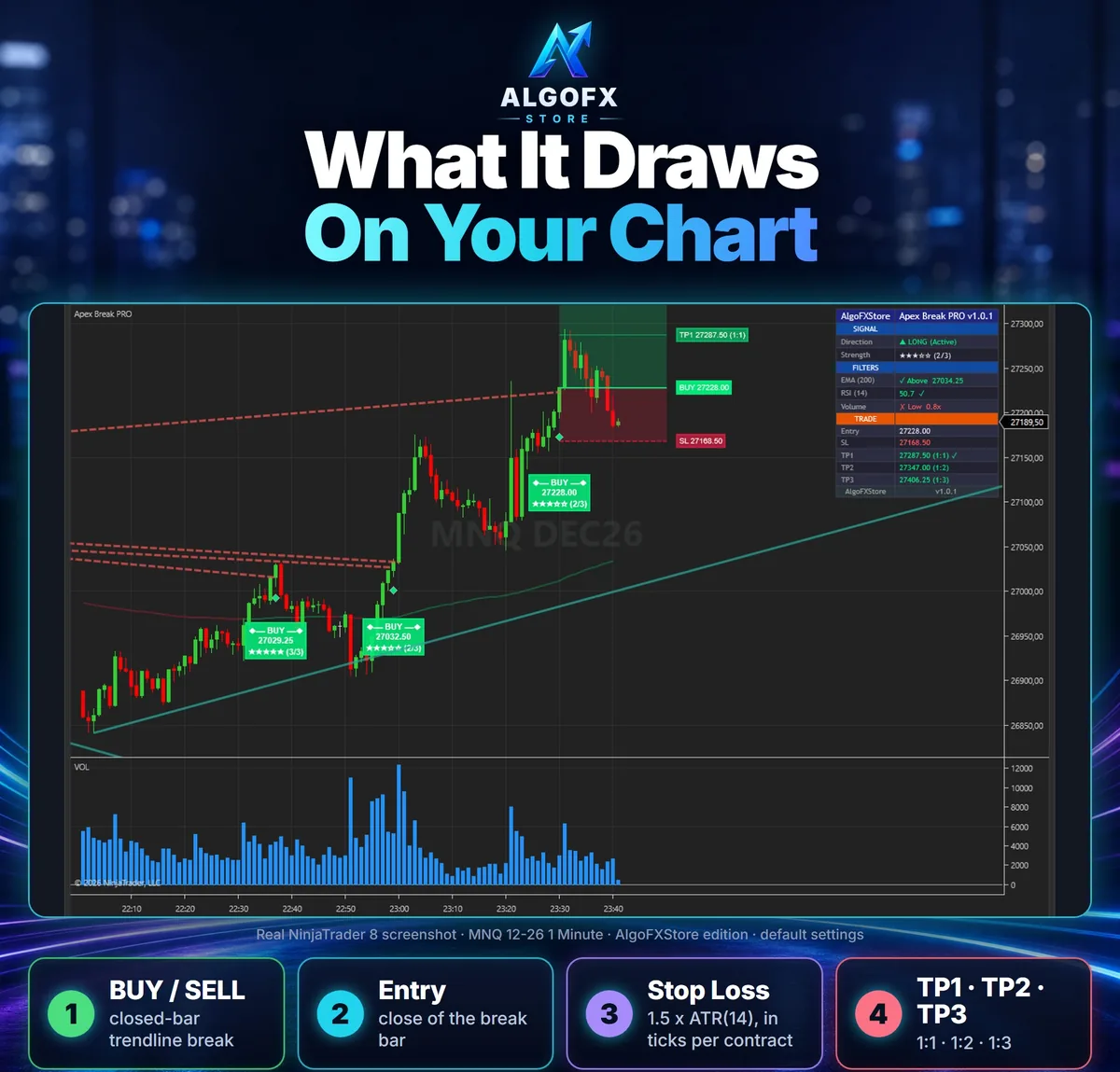
How traders put it to work
Index micros on 1 to 5 Minute
On MNQ or MES 1 to 5 Minute bars pivots form quickly and the ATR stop stays small, which suits sizing in micro contracts. Five bars of cooldown is five minutes on a 1 Minute chart; the manual suggests 10 to 15 there so a second same-side entry does not follow right after a stop-out.
Gold and crude on 5 to 15 Minute
The manual's starting charts are MGC on 15 Minute and MCL on 5 Minute. Stops are wider in ticks: its November 2026 examples show a GC 15 Minute stop of 137 ticks and a CL 5 Minute stop of 25 ticks. The micro contract is often the only size that fits a small risk budget.
Keeping stops tight on MNQ
Keep 'SL = ATR x Multiplier' on: 1 % of MNQ at 30777.50 is 1,231 ticks, while the ATR stop of the same signal was 53. Use Min Confluence Score 3 on days you want fewer, stricter signals and keep the Trading Hours template the same every day. The indicator does not know your balance and does not enforce any account rules.
Tick, volume, range and Renko charts
Time-based bars from seconds to weeks are fully supported. Tick, volume, range and Renko bars run as well; only the part of an active line drawn ahead of the current bar is placed approximately. The alerts name the period the same way, for example 500T, 2000V or 8R.
Session choice and contract rolls
There is no session logic: an ETH template lets overnight bars shape the pivots, EMA, ATR and volume average, an RTH template leaves them out. Both are valid; the values differ. On continuous contracts use back-adjusted merging, because a non-adjusted roll gap can create a false pivot pair and a steep line.
Every setting, with its default
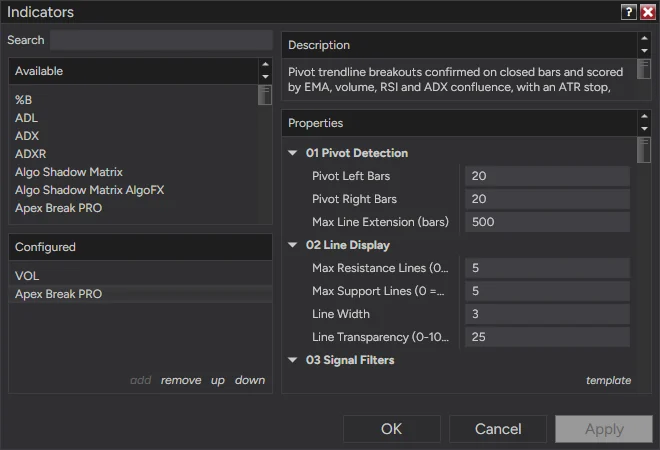
The names are the ones in the NinjaTrader indicator dialog; the defaults are what every chart on this page uses.
| Setting | Default | What it does |
|---|---|---|
| 01 Pivot Detection: Pivot Left / Right Bars | 20 / 20 | Swing size; a pivot is confirmed Right Bars later. |
| 01 Pivot Detection: Max Line Extension (bars) | 500 | A line expires this many bars after it was detected. |
| 02 Line Display: Max Resistance / Support Lines (0 = all) | 5 / 5 | Newest lines kept per side (0 = all, capped by Max Trend Lines Per Side 100). |
| 02 Line Display: Line Width / Line Transparency | 3 / 25 | Trendline look. |
| 03 Signal Filters: EMA Trend Filter / EMA Length / Show EMA on Chart | on / 200 / on | A BUY scores a point above the EMA, a SELL below it. |
| 03 Signal Filters: Volume Spike Filter / Multiplier / Average Length | on / 1.2 / 20 | Volume above 1.2 x its 20-bar average (real contract volume on futures). |
| 03 Signal Filters: RSI Boundary Filter / Length / Overbought / Oversold | on / 14 / 75 / 25 | BUY scores if RSI < 75, SELL if RSI > 25. |
| 03 Signal Filters: ADX Trend Strength Filter / Length / Threshold | off / 14 / 20 | Optional trend-strength point. |
| 03 Signal Filters: Min Breakout Margin / Margin (x ATR) | on / 0.1 | Close must clear the line by 0.1 x ATR. |
| 03 Signal Filters: Signal Cooldown (bars) / Min Confluence Score | 5 / 2 | Bars between signals per side; filters that must agree. |
| 05 Risk Management: Show TP/SL Levels / SL = ATR x Multiplier / ATR Period / SL ATR Multiplier / SL % (if not ATR) | on / on / 14 / 1.5 / 1.0 | Stop distance. |
| 05 Risk Management: TP1 / TP2 / TP3 Risk-Reward | 1 / 2 / 3 | Targets as multiples of the stop distance. |
| 06 TP/SL Display: Show SL / TP1 / TP2 / TP3 Level | on | Each level line and tag. |
| 07 Dashboard: Show Dashboard / Position | on / TopRight | Six positions. |
| 08 Alerts: Buy / Sell / TP1-3 / Stop Loss Hit | on | Any Signal, Resistance Break, Support Break off; Play Sound on (Alert2.wav), Send Email off. |
| 09 Colors | #EF5350 / #26A69A / #00E676 / #FF1744 | Resistance, support, buy, sell. |
| 10 NinjaTrader: Signal Marker Style / Max Signal Labels / Max Trend Lines Per Side / Draw Ahead (bars) | DiamondAndPill / 300 / 100 / 200 | Marker look and chart object caps. |
9 alert events
Alerts can go to the NinjaTrader Alerts Log, a sound and an e-mail (NinjaTrader's e-mail share service must be set up).
- Buy Signal
- Sell Signal
- Any Signal
- Resistance Break
- Support Break
- TP1 Hit
- TP2 Hit
- TP3 Hit
- Stop Loss Hit
Apex Break PRO next to the usual options
Where it wins, and where it does not.
| Apex Break PRO | Typical free trendline indicator | Reading it by hand | |
|---|---|---|---|
| How lines are drawn | Consecutive 20 / 20 pivots joined into sloped lines, newest 5 per side | Varies; many draw lines but leave the signal to you | Your own choice of touches, often adjusted later |
| When a break counts | Closed bar beyond the line by 0.1 x ATR | Often any cross of the line | When you notice it, often during the bar |
| Context filters | EMA 200, contract volume and RSI scored as stars; ADX optional | Usually none | Whatever you remember to check |
| Stop and targets | 1.5 x ATR stop and TP1 to TP3 at 1:1, 1:2, 1:3, rounded to the tick size | Usually not included | Counted by you for every trade |
| How early a line appears | 20 bars after the pivot, by design | Depends on the code | As soon as you see two touches |
| Freedom to draw any line | None: the pivot rule decides every line | Some let you adjust the lines | Complete |
| Cost | One-time payment | Free | Free |
Honest about who this fits
A good fit if you
- Futures traders who trade breakouts of sloped trendlines and want every line drawn by one rule instead of by eye.
- Anyone who sizes positions in ticks and wants the stop and targets decided before the entry, on every signal.
- Traders who like to see why a signal printed: the stars and the dashboard's FILTERS rows show which conditions agreed.
- NinjaTrader 8 Desktop users on index, metal, energy or currency futures, from 1 Minute charts to daily bars.
- Traders who prefer a few filtered signals per chart over an arrow on every touch of a line.
Not for you if you
- Traders who want an indicator that places, manages or closes orders: this one draws and alerts, and every order is yours.
- Anyone who expects each breakout to hold: breaks fail and stops are hit, and the stars count agreeing filters, they are not a probability.
- Traders on NinjaTrader Web or the mobile app: it needs NinjaTrader 8 Desktop for Windows.
- Scalpers who need a signal before the bar closes: nothing prints until the close, and pivots are only known 20 bars later.
One Add-On, one manual, imported in a minute
- 1NinjaScript Add-OnApexBreakProAlgoFX.zip (0.2 MB). Import it in NinjaTrader 8 and it appears as “Apex Break PRO AlgoFX”.
- 17Page PDF manualInstalling, every setting with its default, reading the signals, the levels, the dashboard, the alerts.
- 17Setting groupsEvery one explained above, with the defaults the charts use.
- 9Alert eventsYou choose which ones are on in the settings.
- 60Day money-back guaranteeIf it is not for you, request a full refund within 60 days through your Digistore24 order e-mail.
Install in four steps
- Download the zip from the page Digistore24 sends you to after checkout. Keep it zipped.
- NinjaTrader 8: Control Center, Tools, Import, NinjaScript Add-On, and choose the zip.
- Open a chart, open Indicators, and add “Apex Break PRO AlgoFX”.
- Read the manual's quick start; the defaults are the settings shown on this page.

Kestutis Balciunas
AlgoFXStore · chart indicators for MetaTrader, TradingView, cTrader and NinjaTrader
Kestutis Balciunas builds and publishes chart indicators under the AlgoFXStore name for MetaTrader 4 and 5, TradingView, cTrader and NinjaTrader 8. Every product page shows what the indicator draws on real charts, and every number on it comes from the shipped build.
The charts on this page were captured in NinjaTrader 8 from the shipped Apex Break PRO AlgoFX at its default settings and are shown unedited.
No get-rich claims and no quoted win rates. Every trade is uncertain, and no indicator changes that. If you want to know whether it suits the way you trade before you buy, e-mail [email protected] and you will get a straight answer.
One price, one payment
- The NinjaScript Add-On for NinjaTrader 8 and the 17-page PDF manual
- Delivered as a digital download: the Add-On zip and the PDF manual on your download page
- Return period: 60 days, with a full refund if it is not for you
- Free updates to the current version on the same download page
60-day money-back guarantee. Install it, run it on your own charts and read the manual. If Apex Break PRO is not for you within 60 days of purchase, request a full refund from Digistore24, no questions asked: use the refund link in your Digistore24 order e-mail or Digistore24's order page digistore24.com/en/cancel-revoke-contract. Digistore24 refunds to your original payment method. It is a digital download: right after checkout you land on your download page, and the link to it is also in your Digistore24 order e-mail.
Also by Kestutis Balciunas: Apex Break PRO for MT4 and MT5.
About the signals
Does it repaint?
The signals do not. Breaks, BUY and SELL signals, their levels and the alerts are decided when a bar closes and stay fixed, also across the switch from historical to live bars. A twenty-minute live On each tick run on an MNQ 1 Minute chart matched a replay of the same closed bars with zero mismatches. Trendlines are the exception: in per-tick modes a line can appear or disappear on the forming bar until it closes, and every pivot is confirmed 20 bars late by design.
Why does a trendline appear so late?
A pivot high is only confirmed once the 20 bars to its right have closed lower (Pivot Right Bars 20), so its line is drawn 20 bars after the pivot itself. That is how a swing point is proven. A smaller Pivot Right Bars gives earlier and more frequent lines on less proven swings.
What do the stars mean?
They are the number of enabled filters that agreed on the break bar, scaled to five. With the three default filters, three stars (2/3) means two agreed and five stars (3/3) means all three did; the alert adds Moderate (50 % or more) or Strong (80 % or more). The stars describe agreement on that bar; they are not a probability.
Why did a BUY print below the 200 EMA?
The default rule needs 2 of 3 filters, not all of them. If volume was above 1.2 x its average and RSI was below 75, a close above resistance prints a BUY even under the 200 EMA, and the label shows three stars (2/3). If you only want breaks on the trend side, set Min Confluence Score to 3.
Why did price cross a line without a signal?
The bar did not close beyond the line by 0.1 x ATR; fewer filters agreed than Min Confluence Score asks for; a signal on the same side printed within the last 5 bars; or the line had already ended, which shows as a dashed line. A score higher than the number of enabled filters gives no signals at all.
What happens when a new signal prints while a plan is open?
The new signal of either side replaces the plan: entry, stop, targets and boxes are redrawn and the dashboard shows the new direction as Active. Only the newest signal has a plan. After TP3 or the stop the dashboard shows Closed and the lines stop at that bar.
Instruments and settings
Which instruments and bar types does it support?
Any instrument your connection delivers bars for: index futures such as NQ, ES, YM and RTY and their micros, metals, energy, currency futures and treasuries. It was built and checked on CME micro and full-size futures. Time-based bars are fully supported; tick, volume, range and Renko bars run with the projected part of a line placed approximately. The volume filter uses real contract volume.
Should I use the percent stop?
Not on index futures. With 'SL = ATR x Multiplier' off the stop is 1 % of the entry: on MNQ at 30777.50 that is 1,231 ticks, while the ATR stop of the same signal was 53 ticks. Keep the ATR stop and prefer fewer contracts over a tighter multiplier, which puts the stop inside normal noise more often.
Which settings should I change first?
None, until you have watched the defaults on your instrument. Then the ones that change the reading most are Min Confluence Score (how many filters must agree), Signal Cooldown (bars between same-side signals), Pivot Left and Right Bars (how big a swing must be) and SL ATR Multiplier (how far away the stop sits). Change one at a time.
Alerts and dashboard
What does each dashboard row show?
SIGNAL: Direction as LONG or SHORT with Active or Closed, or WAITING, and Strength as stars with the fraction. FILTERS: EMA (200) Above or Below with its value, RSI (14) with its value, Volume as Spike or Low with the ratio to its average, ADX only when enabled. TRADE: Entry, SL, TP1, TP2, TP3 with a check on reached targets. FILTERS update every bar; SIGNAL and TRADE stay frozen at the last signal.
Which alerts are there and when do they fire?
Nine, each with its own switch: Buy, Sell, TP1, TP2, TP3 and Stop Loss Hit (on), Any Signal, Resistance Break and Support Break before the filters (off). A signal alert lists price, stars, strength, SL and all three targets. Each fires once per closed bar on live bars only, never for a bar older than two bar periods, and a level alert fires at most once per trade, at the close of the bar that touched the level.
Can I get the alerts away from the screen?
There is no phone push. Every alert goes to the Alerts Log and the NinjaScript Output window and plays a sound (Alert2.wav by default, any .wav in NinjaTrader's sounds folder). For alerts away from the screen, add a Mail share service under Tools, Options and switch on Send Email with your address in Email To.
Does it keep working when the chart is minimized?
Yes. It keeps calculating and alerting while its chart window is minimized. Because a bar that closed more than two bar periods ago is never alerted, a reconnect or a catch-up does not produce a burst of old alerts. Alerts only run while NinjaTrader is open with the chart loaded.
NinjaTrader specifics
Which NinjaTrader version do I need?
NinjaTrader 8 Desktop for Windows, version 8.1.x, with the free simulation data, your broker's futures feed or the data connection your account provides. It does not run on NinjaTrader Web or the mobile app, and it needs no Order Flow+ features, market depth or tick history.
Can a strategy or the Market Analyzer read it?
Yes. The hidden Signal plot is +1 on a BUY bar, -1 on a SELL bar and 0 otherwise; TradeDirection is +1 while a long plan is tracked, -1 for a short and 0 when flat; TrendEma is the EMA. A NinjaScript strategy can reference all three, and the Market Analyzer shows them as columns without chart drawing.
Can I run it on several charts?
Yes. Several instances and charts at once are fine, each with its own settings. Every drawing object and alert carries the instrument, the period and the instance, so two charts never mix up their lines or alerts. Signals can differ between charts of the same contract if their trading hours templates or loaded history differ.
How it works
Will it place trades for me?
No. Apex Break PRO is an indicator: it draws on the chart and can alert you. It never sends an order.
Which markets and charts does it work on?
Any NinjaTrader 8 instrument with bars; built and checked on CME micro and full-size futures. Time-based bars (second, minute, day, week) fully; tick, volume, range and Renko bars run, with the projected part of an active line placed approximately. Warm-up about 250 bars with the defaults (EMA 200 + the 20/20 pivot window). Volume filter uses real contract volume. No session logic: the chart's Trading Hours template decides which bars count. Cooldown counts bars. Capture periods chosen from the 4 Nov captures and the docs' 5-60 minute first look: MNQ 1 Minute (where the realtime check ran), ES 5 Minute, GC 15 Minute, CL 5 Minute.
Does it work on NinjaTrader 7?
No. It is built for NinjaTrader 8 and imported as a NinjaScript Add-On.
After you buy
How do I get it after paying?
Digistore24 runs the checkout. Right after payment it takes you to your download page with the NinjaScript Add-On zip and the PDF manual; the link to that page is also in your Digistore24 order e-mail, so you can download again at any time.
How do I install it?
In NinjaTrader 8: Control Center, Tools, Import, NinjaScript Add-On, then choose the zip exactly as you downloaded it (do not unzip it). After the import, add “Apex Break PRO AlgoFX” to a chart from the Indicators window. The manual walks through it step by step.
Who is Digistore24?
Digistore24 is the reseller that sells Apex Break PRO for Kestutis Balciunas (AlgoFXStore): it runs the checkout, charges your card or PayPal, collects the VAT for your country and delivers the download. Its name is the one on your statement, and its order e-mail holds your download link and the refund link.
What is the refund policy?
A 60-day money-back guarantee, handled by Digistore24. If Apex Break PRO is not for you within 60 days of purchase, use the refund link in your Digistore24 order e-mail or Digistore24's order page (digistore24.com/en/cancel-revoke-contract) for a full refund, no questions asked. Digistore24 makes the refund to your original payment method.
Do I get the source code?
No. The Add-On ships compiled; the zip is exactly what NinjaTrader imports.
Apex Break PRO for NinjaTrader 8.
Get Apex Break PRO for NinjaTrader 8 and see on your own futures charts which breakouts pass its rules. The Add-On, the manual and every setting explained. Instant download for €77, one payment.
Get instant access